Most Network and Sharing Center problems in Windows 11, such as network discovery that will not stay on or other PCs missing from the Network folder, are fixed by starting four discovery services and setting your network to Private.
This guide covers that fix first, then the firewall rule, DISM and SFC, network reset, Settings app repair, policy limits on work PCs, and the repair options to use when nothing else works.
Restart the discovery and network-related services (most common fix)
Network discovery depends on a set of background services. When one of them is stopped or set to Disabled, the Turn on network discovery option in Advanced sharing settings will not save, and the Network folder in File Explorer stays empty.
- Press Windows + R, type
services.mscand select OK. - Right-click Function Discovery Provider Host and select Properties.
- Set Startup type to Automatic, select Start if the service is not running, then select OK.
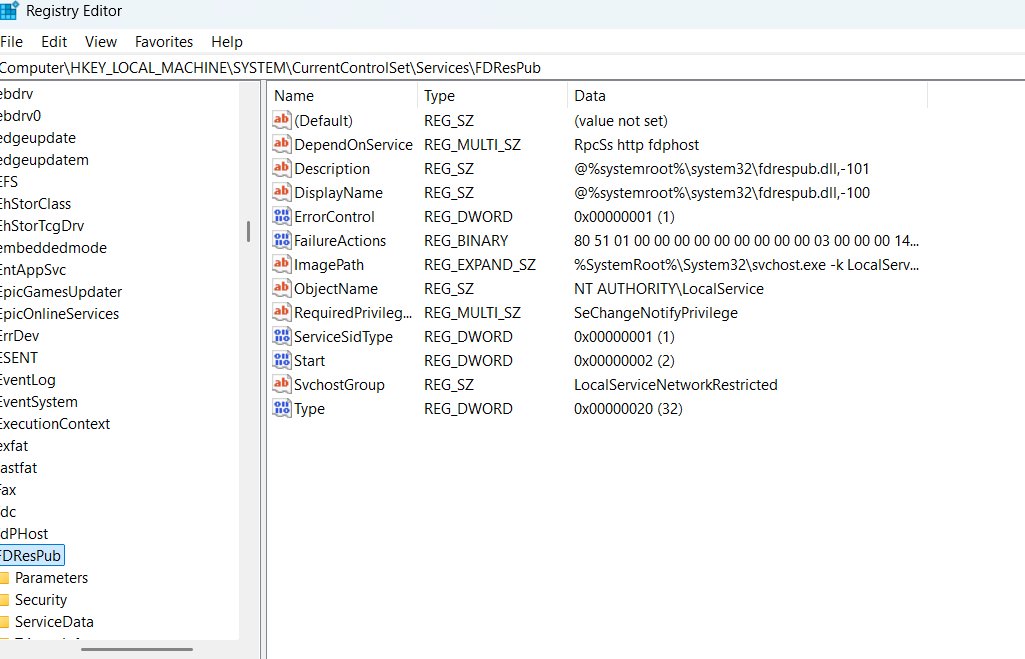
- Repeat the same change for Function Discovery Resource Publication, SSDP Discovery and UPnP Device Host.
- Check that DNS Client shows Running. It normally runs all the time and cannot be stopped from this window.
- Restart the PC, then open Settings and search for manage advanced sharing settings.
- Under Private networks, turn on Network discovery and File and printer sharing.
Do this on every PC that should see the others, not just the one showing the problem. Microsoft's own sharing checklist asks for the same four services on all computers that share files.
Practical, safe troubleshooting flow (recommended order)
Work down this table and stop at the first row that fixes the problem. The order runs from quick, reversible changes to the ones that remove settings or reinstall Windows.
| Order | What you see | What to do | What it costs you |
|---|---|---|---|
| 1 | Network discovery turns itself off, or the Network folder is empty | Start the four discovery services and set them to Automatic | Nothing; fully reversible |
| 2 | Discovery is on but other PCs still cannot see this one | Set the network profile to Private and allow Network discovery through Windows Defender Firewall | Nothing on a trusted home network |
| 3 | Settings or Control Panel pages crash, freeze or open blank | Run DISM, then sfc /scannow |
15 to 30 minutes |
| 4 | The adapter shows errors, Unidentified network, or the problem started after an upgrade | Use Network reset | Saved Wi-Fi settings, VPN clients and virtual switches need setting up again |
| 5 | Advanced sharing settings will not open from Settings | Reset the Settings app with PowerShell | Settings preferences go back to defaults |
| 6 | The problem began right after an update or driver install | Uninstall that update or roll back the driver | The update's fixes until it reinstalls |
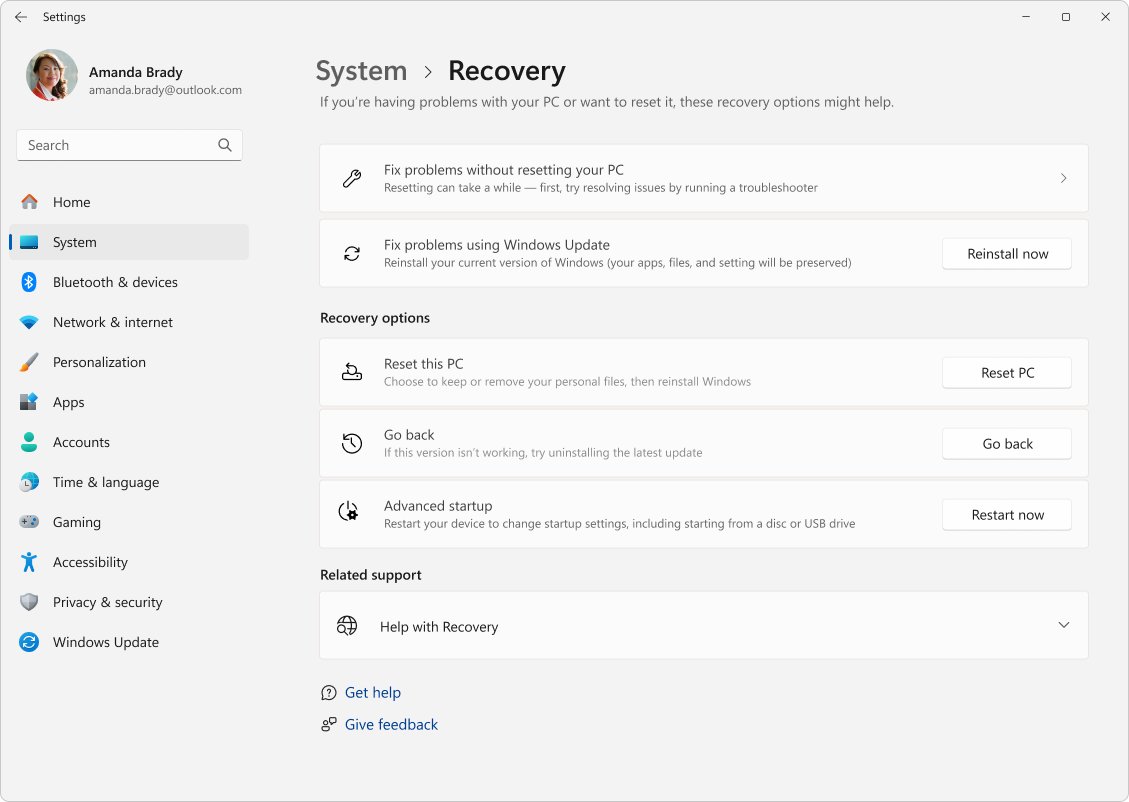
| 7 | Nothing above helps | Clean boot, then Reinstall now under Fix problems using Windows Update, then System Restore | Time; apps and files are kept with Reinstall now |
How to turn on network discovery in Windows 11
Windows 11 hides a PC on any network set to Public, which is the default for a new connection. Discovery only works once the network is Private and the firewall lets the Network Discovery rules through.
- Select Start > Settings > Network & internet.
- Select Wi-Fi and then the network you are connected to, or select Ethernet for a wired connection.
- Under Network profile type, select Private network.
- Open Control Panel, select System and Security, then Windows Defender Firewall.
- Select Allow an app or feature through Windows Defender Firewall, then Change settings.
- Find Network discovery in the list, tick its Private box and select OK.
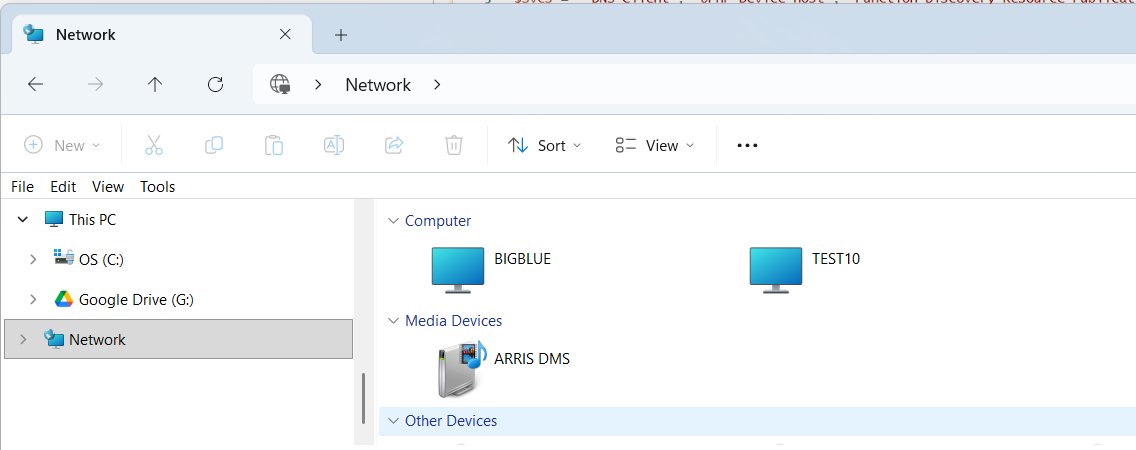
- Open File Explorer, select Network, and select the Network discovery is turned off banner if it still appears, then Turn on network discovery and file sharing.
If a third-party firewall or security suite is installed, it may block discovery even when Windows Defender Firewall allows it. Check that product's own network or LAN settings rather than turning it off. If you still need the classic window, you can open Network and Sharing Center from Control Panel or with control /name Microsoft.NetworkAndSharingCenter.
If services don’t fix it: System file repair (SFC and DISM)
Damaged system files can make Network and Sharing Center, the Settings network pages or the discovery services fail to load. Microsoft's order is DISM first, because it supplies the clean files SFC uses for its repairs.
- Select Search, type
cmd, right-click Command Prompt and select Run as administrator. - Type
DISM.exe /Online /Cleanup-image /Restorehealthand press Enter. It can take several minutes. - When DISM finishes, type
sfc /scannowand press Enter. - Leave the window open until the verification reaches 100%.
- Read the result: did not find any integrity violations means system files are fine; found corrupt files and successfully repaired them means restart and test again.
- If you see could not perform the requested operation, run the same scan again in safe mode.
DISM downloads replacement files from Windows Update. If Windows Update itself is broken, Microsoft documents a /Source switch that points DISM at a working Windows installation instead.
Advanced: Network reset (when adapter/config is broken)
Network reset removes every network adapter and its settings, then reinstalls them with defaults after a restart. Microsoft notes it can fix the case where the internet works but shared network drives do not, and problems that appear after upgrading from Windows 10.
- Select Start > Settings > Network & internet.
- Select Advanced network settings > Network reset.
- Select Reset now, then Yes to confirm.
- Wait for the PC to restart, then reconnect to your Wi-Fi network.
- Set the network back to Private network, because a reset can mark every known network as public.
- Reinstall or reconfigure any VPN client or Hyper-V virtual switch you use.
Try the lighter commands first if only addressing is broken: netsh winsock reset, netsh int ip reset, ipconfig /release, ipconfig /renew and ipconfig /flushdns, run in that order from an administrator Command Prompt. If the internet is down as well, work through the Windows 11 no internet fixes before touching sharing settings.
Re-register or reinstall the Settings app (PowerShell repair)
Advanced sharing settings now open inside the Settings app in Windows 11, so a damaged Settings app stops you changing discovery at all. Reset-AppxPackage returns an app to its original state, as if it were freshly installed.
Get-AppxPackage -Name windows.immersivecontrolpanel | Reset-AppxPackageRun it from PowerShell opened with Run as administrator. Get-AppxPackage finds the Settings app package (windows.immersivecontrolpanel) and pipes it to Reset-AppxPackage, which deletes the app's data and reinstalls it fresh.
You should see: The prompt returns with no red error text. Open Settings, search for manage advanced sharing settings, and the page loads.
A reset clears Settings preferences only; it does not change your network profiles, shared folders or Windows files. If Settings still crashes afterwards, run DISM and SFC from the section above.
Uninstall recent updates or drivers (when the problem started after an update)
If sharing broke on the day an update or a new network driver arrived, remove that change and test again. Microsoft recommends trying Reinstall now in Windows 11 before removing a security update.
- Select Start > Settings > Windows Update > Update history.
- Under Related settings, select Uninstall updates.
- Select the update that matches the date the problem started, then select Uninstall.
- For a driver, open Device Manager, expand Network adapters, right-click your adapter and select Uninstall device.
- Tick Attempt to remove the driver for this device, select Uninstall, then restart.
- Let Windows reinstall the adapter driver after the restart, or install the driver you saved from the PC maker's website.
Download a backup driver from the PC maker before you uninstall the current one, because the PC may have no network connection until a driver is back.
Group Policy, registry, and managed-device restrictions
On a work or school PC, an administrator's policy can lock firewall rules, services or sharing options, and your changes will be undone at the next policy refresh. Check for policy before you spend time on other fixes.
| Check | How | What it means |
|---|---|---|
| Is the PC managed? | Settings > Accounts > Access work or school | A connected work or school account usually means policies apply |
| Which policies apply? | Run gpresult /r in Command Prompt |
Lists the Group Policy objects applied to the computer and the user |
| Is the network on a domain profile? | Settings > Network & internet > your network | Domain networks follow the organisation's firewall rules, not your Private settings |
| Is a setting greyed out? | Advanced sharing settings or the Services window | Greyed out options are set by policy and can only be changed by the administrator |
| Is Reinstall now missing? | Settings > System > Recovery | Managed update policies hide Fix problems using Windows Update |
On a managed PC, send the gpresult /r output to your IT team rather than editing the registry. Registry edits made against a policy are overwritten and can leave the PC out of compliance.
Event Viewer, troubleshooting logs, and targeted fixes
Logs tell you which part failed, so you can apply one targeted fix instead of all of them. Start with the built-in troubleshooter, then read the System log.
- Open the Get Help app and run the Network and Internet troubleshooter.
- Press Windows + R, type
eventvwr.mscand select OK. - Expand Windows Logs and select System.
- Select Filter Current Log, tick Error and Warning, and select OK.
- Look for entries from around the time discovery failed that name one of the discovery services or your network adapter.
- Match what you find: a service that failed to start points back to the services fix; adapter or driver errors point to the driver or network reset steps.
For damaged system files, the SFC details are written to %windir%\Logs\CBS\CBS.log. Microsoft's command findstr /c:"[SR]" %windir%\Logs\CBS\CBS.log >"%userprofile%\Desktop\sfcdetails.txt" copies the SFC lines to a text file on your desktop.
Clean boot and safe mode testing
A clean boot starts Windows with only Microsoft services, which shows whether a VPN client, firewall suite or other background app is blocking discovery. Safe Mode with Networking goes further and loads only basic drivers plus networking.
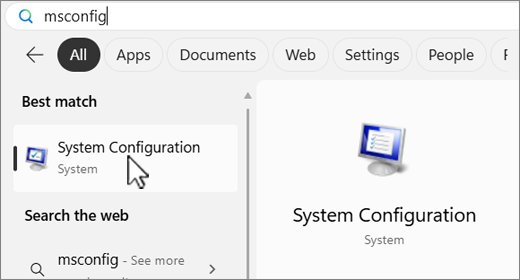
- Select Search, type
msconfigand open System Configuration. - On the Services tab, select Hide all Microsoft services, then Disable all, then Apply.
- On the Startup tab, select Open Task Manager and disable each enabled startup app, noting which ones you changed.
- Close Task Manager, select OK and restart.
- Test network discovery. If it works now, re-enable half the services at a time until the problem returns to find the culprit.
- To return to normal, open System Configuration, select Normal Startup on the General tab, then Enable all on the Services tab.
For safe mode, go to Settings > System > Recovery, select Restart now next to Advanced startup, then Troubleshoot > Advanced options > Startup Settings > Restart, and choose Safe Mode with Networking.
When to escalate: in-place repair, restore, or reinstall
If the services, file repair and network reset all fail, repair Windows itself. Each option below keeps more of your data than the next one down.
| Option | Where to find it | What it keeps |
|---|---|---|
| Reinstall now (in-place repair) | Settings > System > Recovery > Fix problems using Windows Update | Apps, files and settings; it reinstalls the current Windows version |
| System Restore | Press Windows + R, type rstrui.exe |
Personal files; apps and settings return to the restore point |
| Reset PC | Settings > System > Recovery > Reset PC | Keep my files keeps personal files but removes apps and settings; Remove everything removes all three |
Keep the PC on power and online for the whole Reinstall now process. If the repair download itself hangs, use the steps to fix a stuck Windows Update first.
How to tell if network discovery is working in Windows 11
A working setup shows up in three places. Check them on each PC that should see the others.
- Open File Explorer and select Network. Other PCs and devices appear and no Network discovery is turned off banner shows.
- Open Settings, search for manage advanced sharing settings, and confirm Network discovery is still on under Private networks after a restart.
- Type
\\localhostin the File Explorer address bar to list the folders this PC shares. - From another PC, type
\\followed by this PC's name in the File Explorer address bar and press Enter.
Why Network and Sharing Center stops working in Windows 11
Network and Sharing Center is the Control Panel overview of your connections, network profile and sharing options. In Windows 11, most of its tasks have moved into Settings > Network & internet, so a fault in either place can look like the same problem.
| Symptom | Most likely cause | Fix in this guide |
|---|---|---|
| Network discovery turns itself back off | A discovery service is stopped or disabled | Restart the discovery services |
| Other PCs never appear in Network | Network profile is Public, or the firewall blocks Network discovery | Turn on network discovery |
| Advanced sharing settings will not open | Damaged Settings app or system files | Reset the Settings app, then DISM and SFC |
| Unidentified network or adapter errors | Broken adapter configuration or driver | Network reset, driver reinstall |
| Settings greyed out or changing back | Work or school policy | Group Policy and managed-device checks |
| Started after an update | Update or driver regression | Uninstall the update or driver |
Why these steps work (technical explanation)
Each fix targets one layer that discovery depends on. Knowing the layer tells you which fix to skip.
| Component | Service name | What it does for discovery |
|---|---|---|
| Function Discovery Provider Host | fdPHost | Hosts the providers that find devices over SSDP and WS-Discovery; stopped, network discovery fails |
| Function Discovery Resource Publication | FDResPub | Publishes this PC and its shared resources so other computers can find it |
| SSDP Discovery | SSDPSRV | Finds UPnP devices and announces devices running on this PC |
| UPnP Device Host | upnphost | Hosts UPnP devices on this computer |
| DNS Client | Dnscache | Caches name lookups and registers the computer's full name |
| Network Location Awareness | NlaSvc | Collects network configuration and tells apps when it changes |
| Network List Service | netprofm | Stores properties of connected networks, including their profile |
The firewall rule decides whether discovery traffic is allowed on the current profile, and the profile decides whether Windows shows the PC at all. Network reset rebuilds the adapter layer underneath, and DISM and SFC repair the files every layer runs from.
Security considerations: UPnP and SSDP
Discovery works by announcing your PC on the local network, so only turn it on for networks you trust. Microsoft recommends the Public profile for most networks, because it hides the PC and blocks file and printer sharing.
| Protocol or service | Port | Advice |
|---|---|---|
| SSDP | UDP 1900 | Allow only on Private networks; never forward it from your router to the internet |
| SSDP event notification | TCP 2869 | Local network only |
| UPnP Device Host | TCP 2869 | Local network only |
| SSDP legacy event notification | TCP 5000 | Local network only |
On café, hotel or office guest Wi-Fi, keep the network set to Public network (Recommended) even if discovery would be convenient. Discovery is a home and trusted-office feature.
Risks, pitfalls, and final cautions
| Pitfall | Why it matters | Safer approach |
|---|---|---|
| Turning off password protected sharing | Anyone on the network can open your shares | Turn it off only on a home network you trust, and share specific folders |
| Leaving the network on Private everywhere | Your PC becomes visible on public Wi-Fi | Use Private only at home or on a trusted office network |
| Disabling the firewall to test | Removes protection for every app, not just discovery | Allow the Network discovery rule instead |
| Running network reset first | Deletes VPN adapters, virtual switches and saved settings | Use it after the services and firewall checks |
| Stopping or changing services you do not recognise | Some services other apps depend on fail to start | Change only the services named in this guide |
| Editing the registry on a managed PC | Policy overwrites it and IT may flag the device | Send gpresult /r output to your administrator |
Network discovery keeps turning off in Windows 11
Turn on network discovery does not save
One of the dependency services is not running, or the firewall does not allow Network discovery.
- Start Function Discovery Resource Publication, SSDP Discovery and UPnP Device Host, and set them to Automatic.
- Allow Network discovery for Private in Allow an app or feature through Windows Defender Firewall.
- Turn on network discovery again in Advanced sharing settings.
The PC sees others, but others cannot see this PC
Function Discovery Resource Publication is stopped, so the PC is not publishing itself.
- Open
services.mscand start Function Discovery Resource Publication. - Set its Startup type to Automatic.
- Restart and check again from the other PC.
Network discovery is on but the Network folder is empty
The PCs are on different networks or one of them uses the Public profile.
- Connect every PC through the same router.
- Set the network to Private network on each PC.
- Install pending updates on every PC from Windows Update.
Shared drives stopped opening after a Windows 11 upgrade
Adapter configuration carried over from the old version is damaged.
- Use Network reset from Advanced network settings.
- Set the network back to Private network after the restart.
- Map the shared drive again from This PC > More > Map network drive.
Windows 11 Network and Sharing Center FAQ
Is Network and Sharing Center still in Windows 11?
Yes. Network and Sharing Center is still in Control Panel under Network and Internet, and control /name Microsoft.NetworkAndSharingCenter opens it. Most of its tasks, including the network profile and Advanced sharing settings, are now also in Settings under Network & internet.
How do I turn on network discovery in Windows 11?
Set your network to Private in Settings > Network & internet, then search Settings for manage advanced sharing settings. Under Private networks, turn on Network discovery and File and printer sharing. If the switch will not stay on, start the discovery services first.
Why does network discovery keep turning off?
Network discovery turns itself off when a dependency service such as Function Discovery Resource Publication, SSDP Discovery or UPnP Device Host is stopped. A firewall that blocks the Network discovery rule has the same effect. Start the services, set them to Automatic and allow the rule.
Which services does network discovery need?
Microsoft lists Function Discovery Provider Host, Function Discovery Resource Publication, SSDP Discovery and UPnP Device Host for file sharing, plus DNS Client for network discovery. Set each to Automatic on every PC that shares files, then restart.
Does network reset delete my files?
No. Network reset only removes network adapters and their settings, then reinstalls them with defaults. Your files stay untouched, but you need to reconnect to Wi-Fi, set the network back to Private and reinstall any VPN client or virtual switch.
Should I set my network to Public or Private?
Use Private only on a home or office network where you know and trust the other devices. Microsoft recommends Public for most networks, because it hides your PC and blocks file and printer sharing. Discovery and sharing need Private.
How do I see which folders I am sharing?
Open File Explorer and type \\localhost in the address bar. Windows lists every folder this PC shares. Your own user profile appears there too, which only means you can reach your own files, not that other people can.
Will SFC and DISM fix Network and Sharing Center?
They fix it when damaged system files are the cause, for example when Control Panel or Settings network pages crash or open blank. Run DISM first, then sfc /scannow, from an administrator Command Prompt, and restart before testing.
What if Fix problems using Windows Update is missing?
The Reinstall now option is hidden on PCs whose updates are managed by a work or school, and on Windows 11 versions older than the 2022 update without the February 2024 optional update. Use System Restore or ask your IT administrator instead.