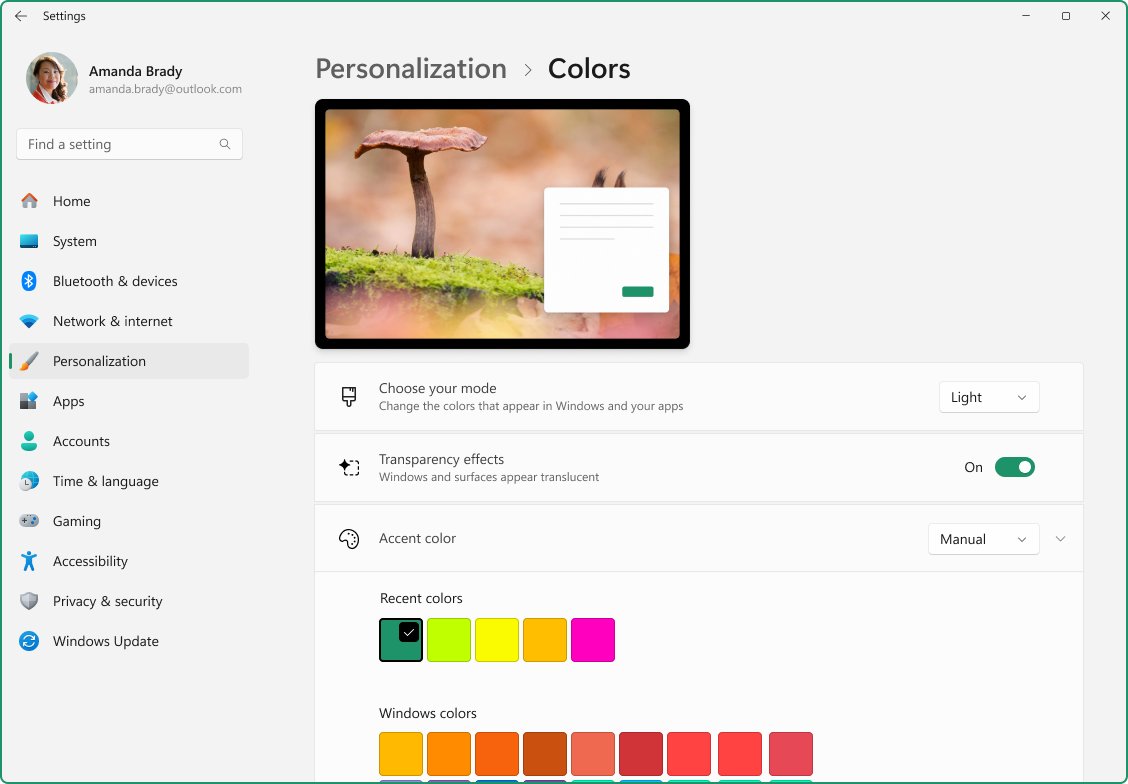
To enable the light theme on Windows 10 or Windows 11, open Settings > Personalization > Colors and select Light as your mode.
This guide covers the Settings switch, light themes from the Microsoft Store, theme files from other sources, building your own theme, a registry route, automatic switching and fixes when parts of Windows stay dark.
Enable Windows 10/11 light theme
Light mode is one switch in the Colors page, and it changes Windows and supported apps at the same time.
- Press Win + I to open Settings.
- Select Personalization, then Colors.
- Find Choose your mode and select Light.
- Close Settings. File Explorer, Settings and other supported apps switch to light backgrounds right away.
To jump straight to the page, press Win + R, type ms-settings:colors and press Enter.
Download light theme for Windows 11/10
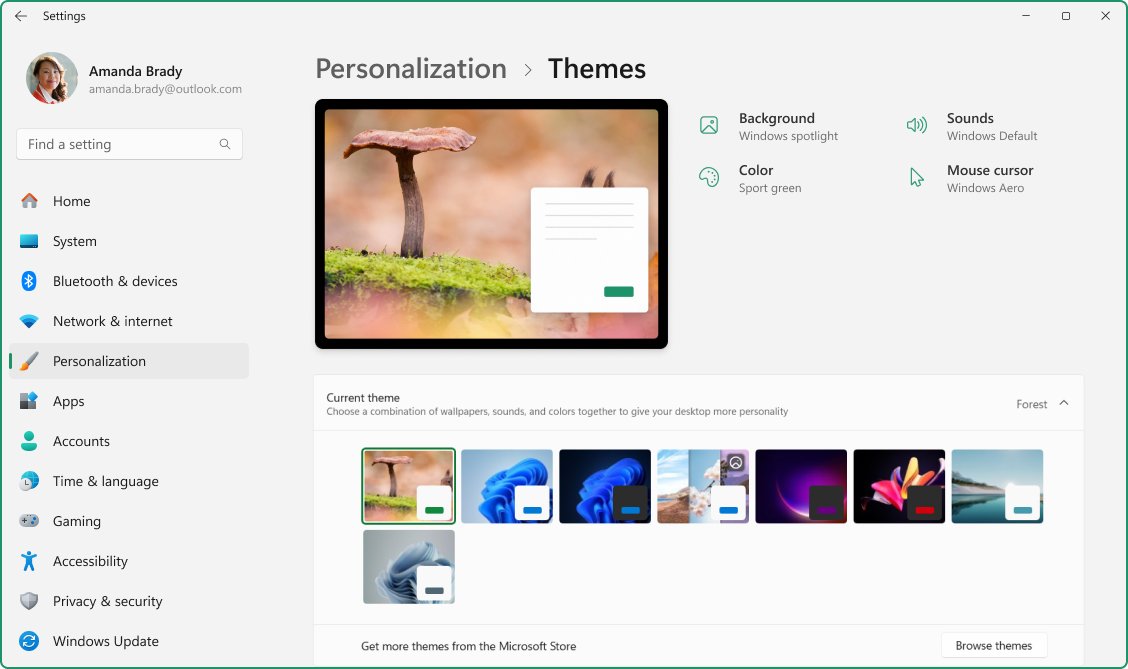
A full theme bundles a desktop background, window colors, sounds and a mouse cursor. Microsoft sells and gives away themes through the Microsoft Store app, and Settings links to them directly.
- Open Settings > Personalization > Themes.
- Select Browse themes to open the themes section of the Microsoft Store.
- Pick a theme with bright backgrounds and select Get to add it to your PC.
- Return to Settings > Personalization > Themes.
- Select the new theme in the list to apply it.
- Open Personalization > Colors and confirm Choose your mode still shows Light, because a theme can carry its own color mode.
Third-party themes for Windows
Windows shares themes as .deskthemepack files, the same format Settings creates when you save a theme for sharing. A theme pack changes the background, colors, sounds and cursor; it does not replace system files.
- Get the
.deskthemepackfile from a source you trust, such as a friend's export or a vendor's own site. - Double-click the file to add it to Settings > Personalization > Themes and apply it.
- Open Personalization > Colors and set Choose your mode to Light if the pack switched you to dark.
- Remove a pack you no longer want: right-click it under Themes and select Delete.
Skip any "theme" that arrives as an installer or asks you to patch Windows files. The Microsoft Store and .deskthemepack files cover light themes without that risk.
Create your own theme
Build a light theme from your own pictures and colors, then save it so you can reapply it in one click or move it to another PC.
- Open Settings > Personalization > Colors and set Choose your mode to Light.
- Under Accent color, select Automatic to match your background, or Manual to pick a color.
- Go to Personalization > Background and choose a picture or solid color.
- Open Personalization > Themes and adjust Sounds and Mouse cursor if you want them included. You can also change the cursor size and color to suit a bright desktop.
- Select Save, type a name for the theme and confirm.
- To share it, right-click the saved theme and select Save theme for sharing. Windows creates a
.deskthemepackfile.
Default Windows themes cannot be deleted, but any theme you saved can be removed with right-click > Delete.
Light mode for apps with a dark taskbar in Windows 11
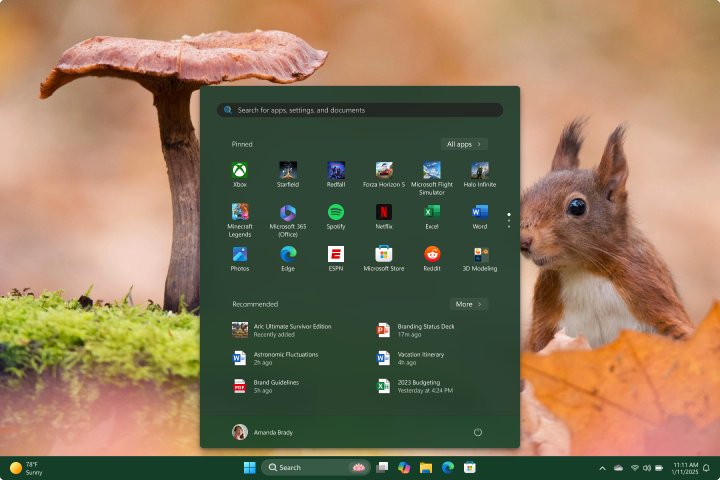
Custom mode lets Windows itself (Start, taskbar, action center) and your apps use different modes. A common combination is light apps with a dark taskbar that shows your accent color.
- Open Settings > Personalization > Colors.
- Set Choose your mode to Custom.
- Set the Windows mode to Dark and the app mode to Light.
- Turn on Show accent color on Start and taskbar if you want the taskbar tinted.
Turn on light mode with the registry in Windows 10/11
Two per-user registry values hold the light/dark choice. AppsUseLightTheme controls apps and SystemUsesLightTheme controls Windows; 1 means light and 0 means dark.
reg add "HKCU\Software\Microsoft\Windows\CurrentVersion\Themes\Personalize" /v AppsUseLightTheme /t REG_DWORD /d 1 /f
reg add "HKCU\Software\Microsoft\Windows\CurrentVersion\Themes\Personalize" /v SystemUsesLightTheme /t REG_DWORD /d 1 /f
Run both lines in Command Prompt or Windows Terminal as your normal user. /v names the value, /t sets the REG_DWORD type, /d 1 selects light and /f overwrites without asking.
You should see: Each line returns "The operation completed successfully." and Settings > Personalization > Colors shows Light.
This is useful in scripts or when you set up several accounts. Use /d 0 in both lines to return to dark mode.
Switch between light and dark mode automatically in Windows
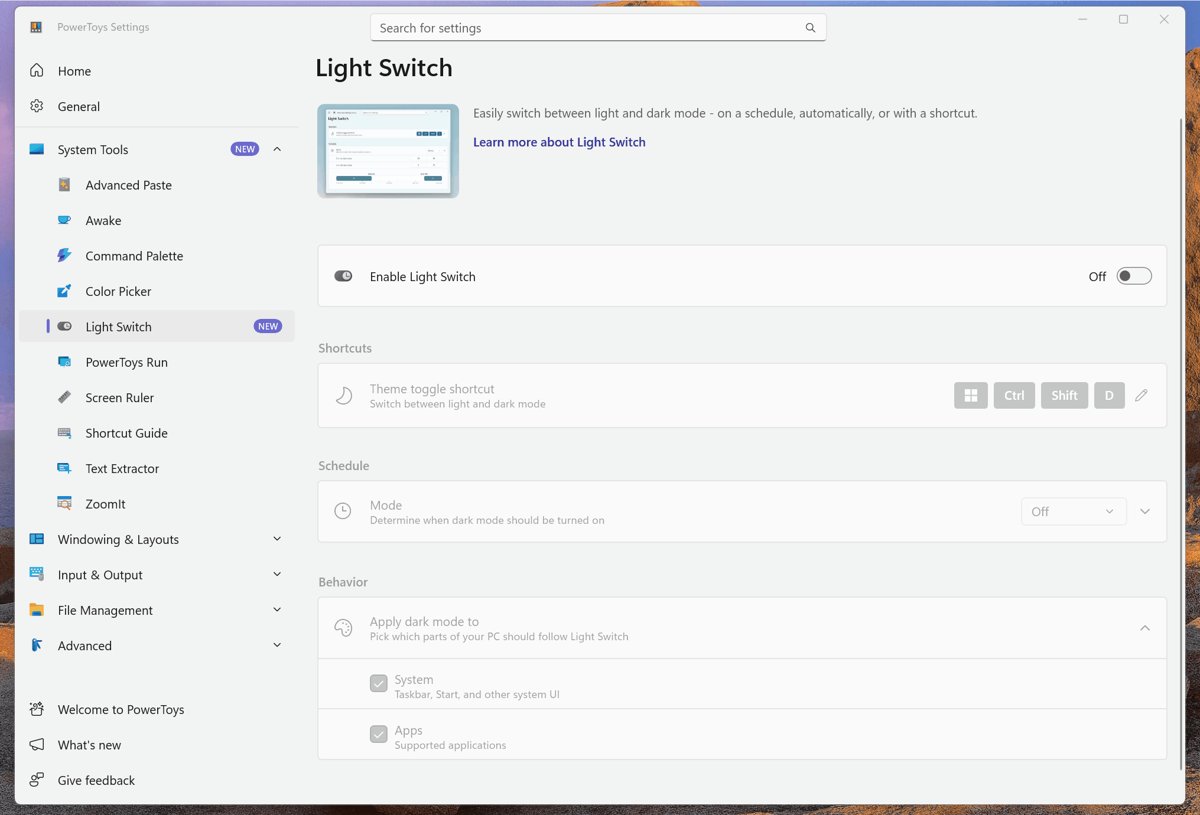
Windows Settings has no schedule for light mode. Microsoft PowerToys adds one through its Light Switch utility, and you can install Microsoft PowerToys free.
- Open PowerToys Settings and select Light Switch.
- Turn on Enable Light Switch.
- Under Schedule Mode, choose Sunset to Sunrise, Fixed hours or Follow Night Light.
- With Fixed hours, set Turn on light mode and Turn on dark mode to the times you want.
- Under Apply dark mode to, tick System, Apps or both.
- Set a Theme toggle shortcut to flip between light and dark by hand.
Sunset to Sunrise needs location services turned on, or coordinates entered under Location.
What Windows light mode changes and what it leaves alone
| Part of Windows | In light mode | Setting that controls it |
|---|---|---|
| Settings, File Explorer, built-in apps | Light backgrounds and dark text | Choose your mode > Light |
| Start, taskbar, action center | Light, with no accent color option | Show accent color on Start and taskbar (Dark or Custom only) |
| Title bars and window borders | Can show your accent color | Show accent color on title bars and window borders |
| Window backgrounds and surfaces | Slightly see-through with an acrylic blur | Transparency effects |
| Apps with their own theme option | Follow their own setting, which may stay dark | The app's own settings |
| Contrast themes | Override light mode completely | Accessibility > Contrast themes |
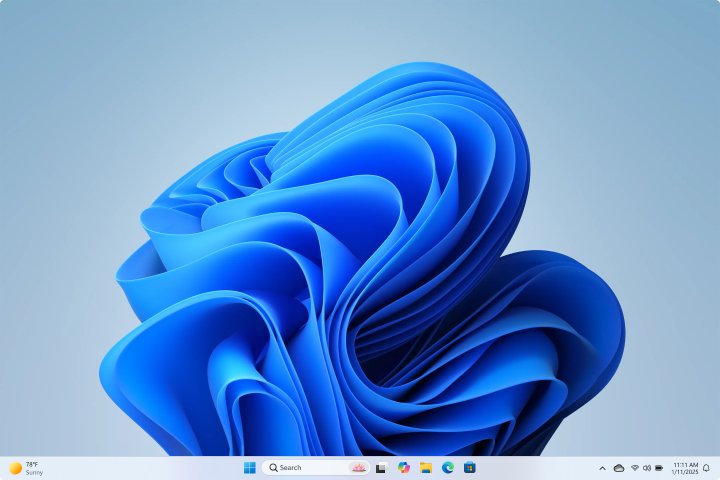
Check if light mode is on in Windows
- Open Settings > Personalization > Colors and confirm Choose your mode reads Light.
- Open File Explorer. The window and navigation pane should have a white background.
- For a scripted check, run
reg query "HKCU\Software\Microsoft\Windows\CurrentVersion\Themes\Personalize"and confirmAppsUseLightThemeandSystemUsesLightThemeboth read0x1.
Windows light mode not working
Some apps stay dark after you switch to light mode
Several apps keep their own light/dark setting that ignores the Windows mode, and some do not support it at all.
- Open the app's own settings and look for a Theme or Appearance option.
- Set it to Light or to the option that follows the system setting.
- Close and reopen the app.
Show accent color on Start and taskbar is greyed out
Light mode cannot tint Start, the taskbar or the action center; the option works only in Dark or Custom mode.
- Open Settings > Personalization > Colors.
- Set Choose your mode to Custom.
- Set the Windows mode to Dark and the app mode to Light.
- Turn on Show accent color on Start and taskbar.
Windows shows black backgrounds or harsh colors instead of light mode
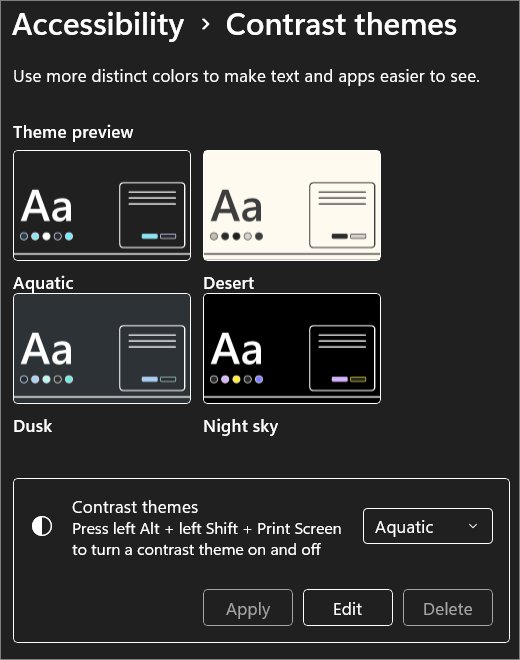
A high contrast theme is on, and it overrides the light and dark modes.
- Press left Alt + left Shift + Print Screen to turn high contrast off.
- If that does nothing, open Settings > Accessibility > Contrast themes.
- Select None from the drop-down and select Apply.
- Wait for the Please wait screen to finish.
Windows switches back to dark mode on its own
A schedule, such as PowerToys Light Switch, or a newly applied theme sets the mode for you.
- Open PowerToys Settings > Light Switch and set Schedule Mode to Off, or turn off Enable Light Switch.
- Open Settings > Personalization > Themes and check which theme is applied.
- Set Choose your mode back to Light under Colors.
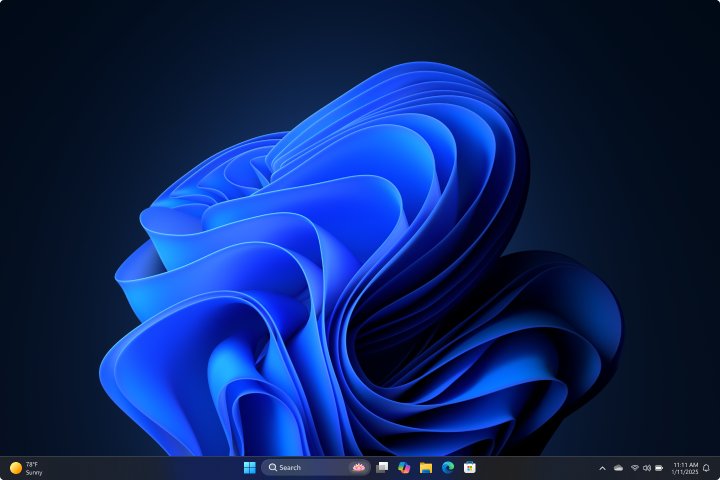
Switch from light mode back to dark mode in Windows
The same Colors page reverses the change, and you can also force dark mode in Windows 11 in apps that resist it.
- Open Settings > Personalization > Colors.
- Set Choose your mode to Dark.
- Close Settings; apps that follow Windows switch immediately.
Windows light theme FAQ
Where is the light theme setting in Windows 11?
The light theme setting is in Settings > Personalization > Colors. Set Choose your mode to Light. You can also press Win + R, type ms-settings:colors and press Enter to open the page directly.
Is light mode the same as a light theme in Windows?
No. Light mode only changes the colors of Windows and apps. A theme bundles a desktop background, colors, sounds and a mouse cursor, and is applied from Settings > Personalization > Themes.
Can I download a light theme for Windows 11 for free?
Yes. Open Settings > Personalization > Themes and select Browse themes. The Microsoft Store lists Windows themes there, and many are free to get and apply.
Why can't I put my accent color on the taskbar in light mode?
Windows only allows the accent color on Start, the taskbar and the action center in Dark or Custom mode. Choose Custom, set Windows to Dark and apps to Light, then turn the option on.
How do I make Windows switch between light and dark mode automatically?
Install Microsoft PowerToys and turn on Light Switch. Pick Sunset to Sunrise, Fixed hours or Follow Night Light as the schedule, and choose whether it changes System, Apps or both.
How do I share a Windows theme I created?
Save the theme in Settings > Personalization > Themes, then right-click it and select Save theme for sharing. Windows creates a .deskthemepack file that another PC can open to apply the theme.
Which registry values control light mode in Windows?
AppsUseLightTheme and SystemUsesLightTheme under HKCU\Software\Microsoft\Windows\CurrentVersion\Themes\Personalize. Both are REG_DWORD values; 1 means light mode and 0 means dark mode.