SESSION1 INITIALIZATION FAILED is stop code 0x0000006D, and it means Windows 11 failed while initializing the operating system, so the fix is to repair startup from the Windows Recovery Environment with Startup Repair, then roll back recent changes if the crash returns.
This guide covers what the stop code means, every recovery route in order of effort, how to read the crash dump, and the related BAD_POOL_CALLER and DAM_WATCHDOG_TIMEOUT blue screens.
Fix SESSION1 INITIALIZATION FAILED blue screen in Windows 11/10
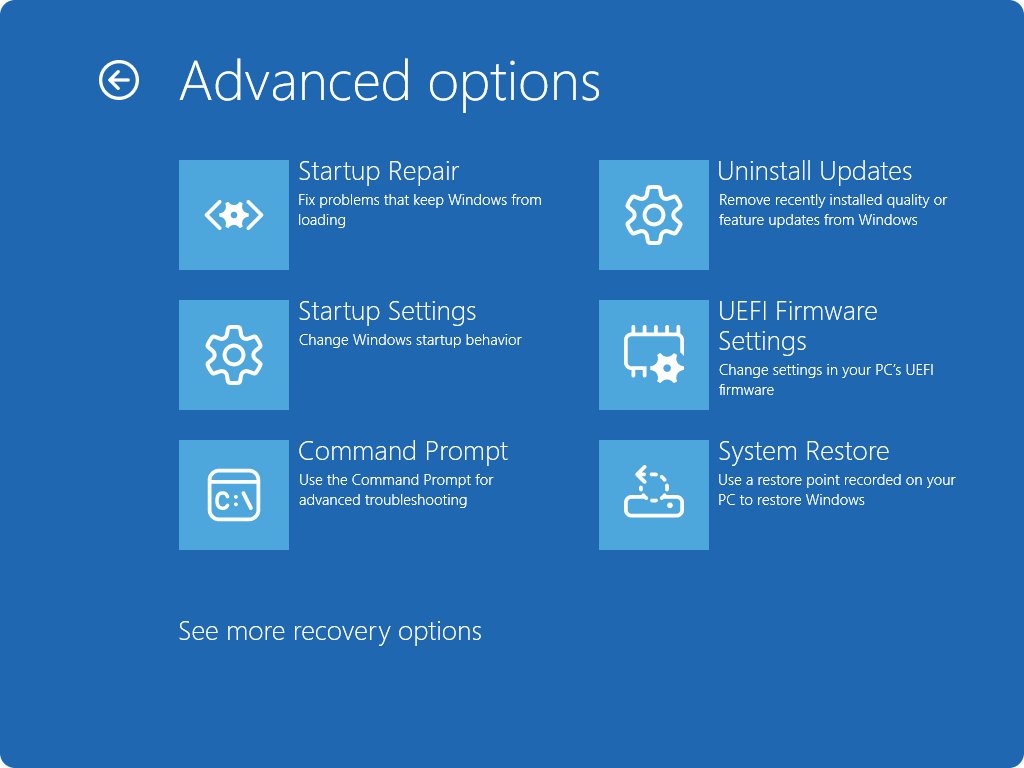
Windows starts the Windows Recovery Environment (WinRE) by itself after two consecutive failed attempts to start. Startup Repair is the first tool to run from there, because it reads the startup logs and repairs what it can without touching your files.
- Remove any hardware you connected just before the blue screen started, such as a new drive, RAM stick or USB device.
- Turn the PC on and let it fail to start twice so that Windows opens the recovery environment on its own.
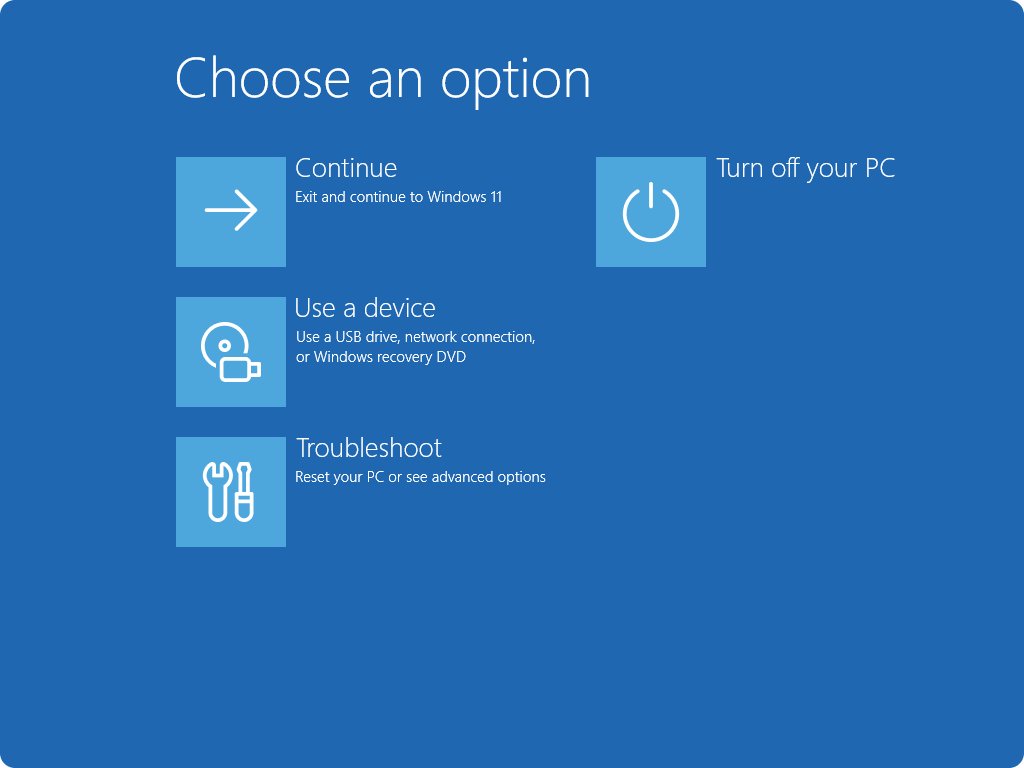
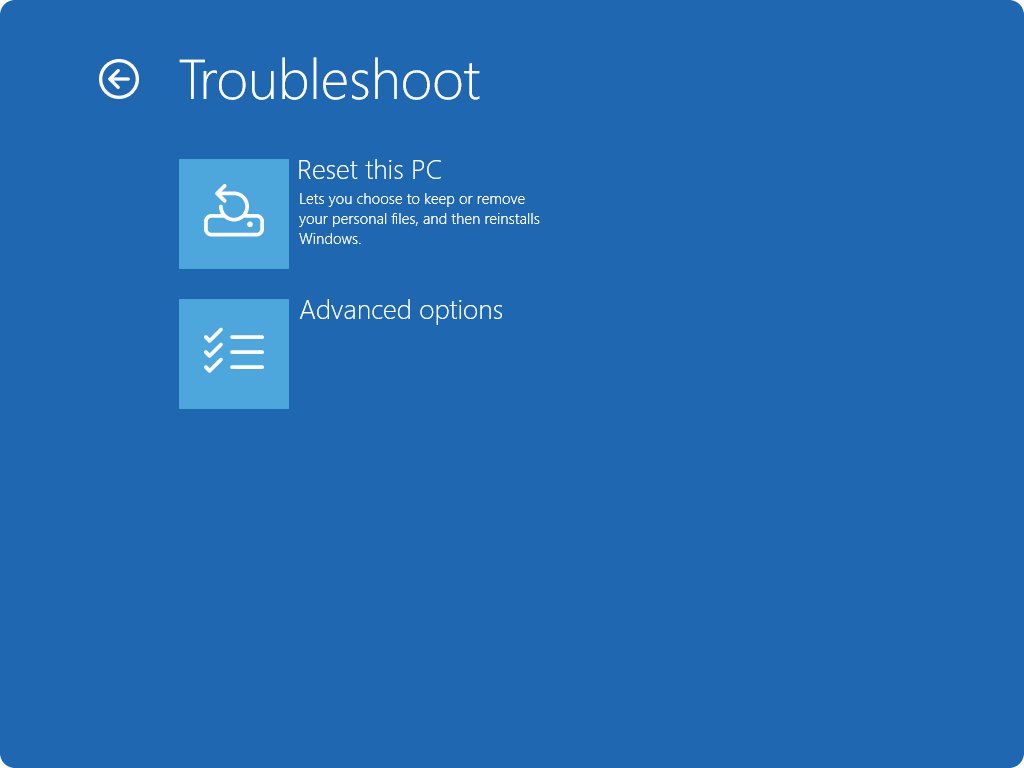
- On the Choose an option screen, select Troubleshoot > Advanced options.
- Select Startup Repair and choose your account if Windows asks for one.
- Wait for the scan to finish, then select Shutdown and turn the PC back on.
- If Windows starts normally, install pending updates from Start > Settings > Windows Update > Check for updates.
If the PC is encrypted with BitLocker, have the BitLocker recovery key ready. Most WinRE tools ask for it before they open the drive.
Startup Repair writes its findings to %windir%\System32\LogFiles\Srt\SrtTrail.txt, which helps if you need to escalate to the PC maker.
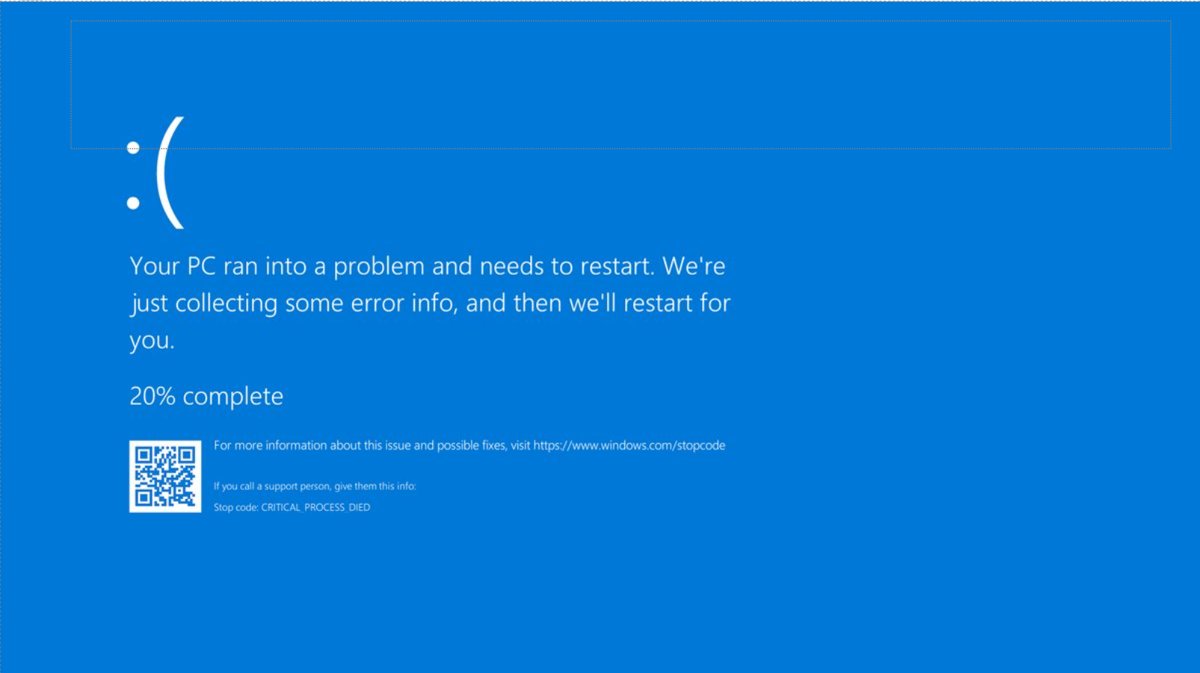
What is SESSION1_INITIALIZATION_FAILED stop code 0x6D?
Microsoft documents the error as bug check 0x6D. The crash happens during the kernel phase of startup, after the Windows logo appears and before the sign-in screen.
| Detail | What it tells you |
|---|---|
| Stop code value | 0x0000006D (SESSION1_INITIALIZATION_FAILED) |
| Meaning | Initialization of the Windows operating system failed |
| Parameter 1 | The NT status code that caused the failure; parameters 2 to 4 are 0 |
| Startup phase | Kernel phase, where the session manager (Smss.exe) initializes the system session and starts drivers |
| Related codes | SESSION2 to SESSION5_INITIALIZATION_FAILED (0x6E to 0x71) and PHASE1_INITIALIZATION_FAILED (0x32) |
| Most likely cause | Microsoft attributes about 70% of all stop errors to third-party driver code and 10% to hardware |
Because the stop code itself only says initialization failed, the dump file and the timing of the first crash are what point to the cause. A crash that started right after an update, a driver install or new hardware usually names its own fix.
SESSION1 INITIALIZATION FAILED fixes by situation
| Your situation | Start with | Why |
|---|---|---|
| The blue screen appeared after a Windows update | Uninstall updates in WinRE | Removes the change that broke startup without touching personal files |
| It started after a new driver or app | System Restore | Reverts system files, drivers and registry settings to an earlier restore point |
| You added hardware before the first crash | Remove the hardware, then Startup Repair | Hardware causes about 10% of stop errors |
| Windows reaches Safe mode | SFC, DISM, chkdsk and driver checks | Safe mode loads a minimal driver set, so you can repair from inside Windows |
| Nothing else works | Reset this PC | Reinstalls Windows and lets you keep your personal files |
How to open Windows Recovery Environment on Windows 11
Every fix below starts in WinRE. Use the first route that works on your PC.
- If the PC cannot start, let it fail twice in a row. Windows opens WinRE on its own after two consecutive failed starts or two unexpected restarts within two minutes of boot.
- If you reach the sign-in screen, select the power icon, hold Shift and select Restart.
- If you reach the desktop, open Start > Settings > System > Recovery and select Restart now next to Advanced startup.
- If WinRE will not load at all, start the PC from Windows installation media and select Next > Repair your computer.
- On the Choose an option screen, select Troubleshoot to reach the recovery tools.
Uninstall the latest Windows update from WinRE
Use this when SESSION1 INITIALIZATION FAILED first appeared after Windows installed an update and restarted.
- Open WinRE using one of the routes above.
- Select Troubleshoot > Advanced options > Uninstall updates.
- Choose the update to remove and confirm.
- Enter the BitLocker recovery key if WinRE asks for it.
- Restart the PC when the removal finishes and check whether Windows reaches the sign-in screen.
Restore Windows 11 with System Restore from WinRE
System Restore rolls back programs, system files and registry settings to a restore point. It does not change your personal files.
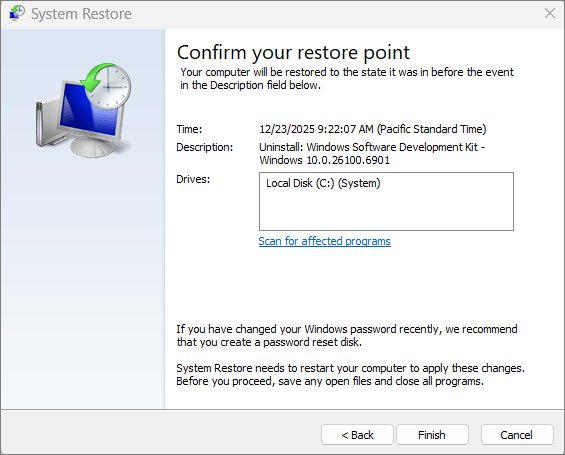
- Open WinRE and select Troubleshoot > Advanced options > System Restore.
- Choose a restore point dated before the first blue screen. Select Show more restore points if the one you want is missing.
- Select Scan for affected programs to see which apps and drivers will be removed.
- Select Next, then Finish.
- Select Restart when the restore completes.
If Windows reaches the desktop later, you can run the same tool by pressing Windows + R, typing rstrui.exe and pressing Enter.
Start Windows 11 in Safe mode to fix the blue screen
Safe mode starts Windows with a minimal set of drivers. If the PC boots in Safe mode but not normally, a driver or startup service is the likely cause.
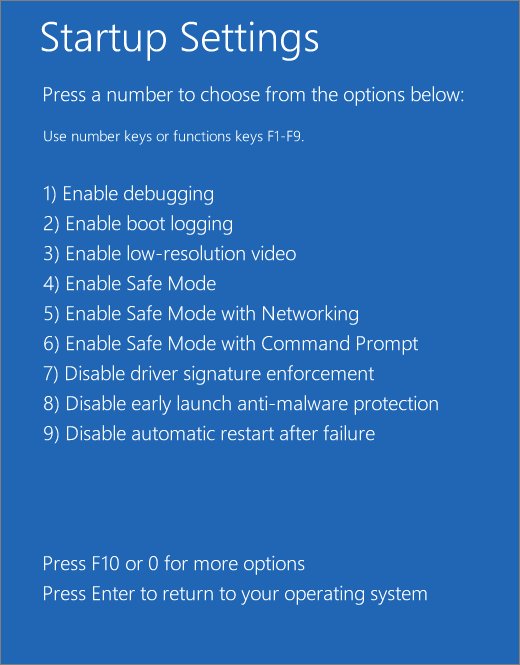
- Open WinRE and select Troubleshoot > Advanced options > Startup Settings > Restart.
- When the Startup Settings list appears, press 4 or F4 to start in Safe mode.
- Sign in, then right-click Start and select Device Manager.
- Right-click any device marked with an exclamation point and select Update driver.
- If that does not help, right-click the device, select Uninstall device, tick Delete the driver software for this device if offered, and select OK.
- Restart normally and check whether the stop code returns.
Repair Windows system files with SFC and DISM
Run these from an administrator Command Prompt in Safe mode or on the desktop. DISM repairs the Windows component store that SFC copies replacement files from.
DISM /Online /Cleanup-Image /RestoreHealth
sfc /scannow
The DISM line checks the running Windows image and replaces corrupted components, using Windows Update as the default repair source. The sfc line then scans every protected system file and restores damaged copies from that repaired store.
You should see: Both tools print a completion summary. SFC states whether it found corrupt files and whether it repaired them. Restart the PC afterwards.
To only check the image without changing it, run DISM /Online /Cleanup-Image /CheckHealth. It reports whether the image is healthy, repairable or non-repairable.
Run chkdsk to fix disk errors behind SESSION1 INITIALIZATION FAILED
File system damage on the system drive can stop Windows while it loads startup files.
chkdsk C: /f /r/f fixes file system errors and /r also locates bad sectors and recovers readable data. The system drive is in use, so chkdsk asks to run at the next restart; type Y and restart.
You should see: chkdsk runs before Windows loads, repairs what it finds, then restarts the PC automatically.
A large drive can take a long time with /r. Leave the PC on mains power until it finishes.
Test RAM with Windows Memory Diagnostic
Faulty memory can corrupt the data Windows reads during startup. Windows includes a memory test.
- Type Memory in the Control Panel search box.
- Select Diagnose your computer's memory problems.
- Choose to restart now and let the test run.
- After Windows starts, open Event Viewer and go to Windows Logs > System.
- Look for the MemoryDiagnostics-Results entry to read the result.
Errors in the result point to a failing memory module. Reseat or replace the RAM, or contact the PC maker for its own hardware diagnostics.
Read the SESSION1 INITIALIZATION FAILED dump file in WinDbg
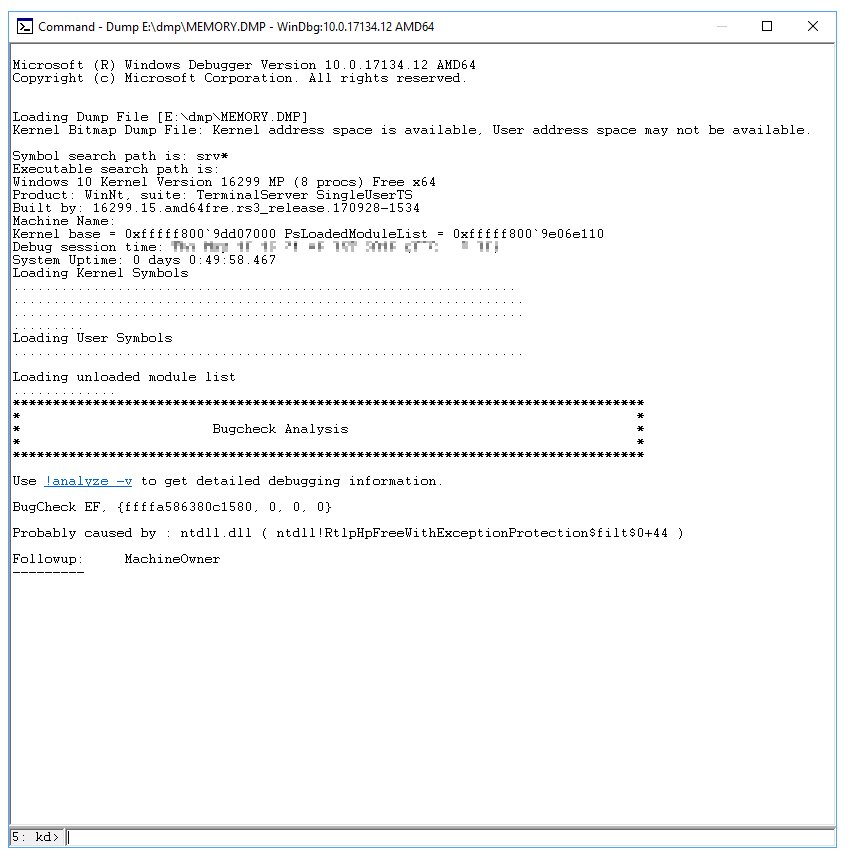
The dump file names the driver or status code behind the crash. Windows saves small dumps in %SystemRoot%\Minidump and larger ones as %SystemRoot%\MEMORY.DMP.
- Copy the dump file to a working PC if the crashing one cannot start.
- Install WinDbg from the Debugging Tools for Windows on that PC.
- Open File > Symbol File Path and enter
https://msdl.microsoft.com/download/symbols. - Select Open Crash Dump and open the dump file.
- Run
!analyze -vand read the first parameter, which is the NT status code for SESSION1 INITIALIZATION FAILED. - Scroll to STACK_TEXT to see which module was running when Windows stopped.
To make sure Windows writes a dump next time, search for Advanced system settings, select Settings under Startup and Recovery, and set Write debugging information to Automatic memory dump.
Reset this PC when SESSION1 INITIALIZATION FAILED keeps returning
Reset reinstalls Windows. Choose to keep personal files if you have no backup.
- Open WinRE and select Troubleshoot > Reset this PC.
- Choose to keep your personal files or to remove everything.
- Enter the BitLocker recovery key if asked.
- Follow the prompts and let Windows reinstall.
- Reinstall your apps and drivers one at a time afterwards, restarting between each, so you can spot the one that brings the crash back.
Fix BAD_POOL_CALLER blue screen on Windows 11
BAD_POOL_CALLER often appears alongside startup crashes on the same PC, and it points even more clearly at a driver.
| Detail | BAD_POOL_CALLER |
|---|---|
| Stop code value | 0x000000C2 |
| Meaning | The current thread made a bad pool memory request |
| Typical cause | A request at the wrong IRQL level, or the same memory allocation freed twice |
| Microsoft's fix | Run Driver Verifier with memory pool options to find the faulting driver |
| Hardware check | Run Windows Memory Diagnostic to rule out physical RAM |
Driver Verifier is built into Windows. Open an administrator Command Prompt, type verifier, choose Create standard settings and select only recently updated drivers. It can cause extra crashes by design. If the PC then cannot start, boot into Safe mode, where Driver Verifier does not run, and enter verifier /reset.
DAM WATCHDOG TIMEOUT blue screen in Windows 11
DAM_WATCHDOG_TIMEOUT is a sleep and resume crash rather than a startup crash, so it needs different checks.
| Detail | DAM_WATCHDOG_TIMEOUT |
|---|---|
| Stop code value | 0x000001EB |
| Meaning | The Desktop Activity Moderator (DAM) could not unfreeze user session processes in time after the PC resumed from modern standby |
| When it appears | Right after waking a laptop or tablet that uses modern standby |
| What to run | Windows Update and Device Manager driver updates first, then !analyze -v on the dump file |
How to confirm the SESSION1 INITIALIZATION FAILED error is fixed
- Restart the PC normally three or four times and confirm it reaches the sign-in screen each time.
- Open Event Viewer > Windows Logs > System and check for new critical errors after each restart.
- Open
%SystemRoot%\Minidumpand confirm no new dump file appeared after the fix. - Open Settings > Windows Update and install anything still pending, then restart once more.
SESSION1 INITIALIZATION FAILED still appears after repair
The PC loops between the blue screen and Automatic Repair
Startup Repair cannot fix the cause, so every boot fails the same way.
- Select Advanced options on the repair screen, then Troubleshoot > Advanced options.
- Run Uninstall updates first, then System Restore if no update is listed.
- If both fail, use Reset this PC and keep your personal files.
WinRE asks for a BitLocker recovery key
The system drive is encrypted, and WinRE cannot open it without the key.
- Find the BitLocker recovery key you saved when encryption was turned on, or ask the administrator of a work PC.
- Type the key into the WinRE prompt.
- Continue with the recovery tool you selected.
The crash only stops in Safe mode
A non-Microsoft driver or startup service loads in normal mode.
- Open System Configuration by running
msconfig. - Select Selective startup and test services in small groups.
- Update or remove the driver or service that brings the crash back, then return to Normal startup.
SESSION1 INITIALIZATION FAILED FAQ
How do I fix the initialization failed error?
Open the Windows Recovery Environment and run Startup Repair first. If the error returns, uninstall the latest update, run System Restore, or start in Safe mode to update drivers and run SFC, DISM and chkdsk. Reset this PC with your files kept is the last step.
What is initialization failed?
An initialization failed stop code means a Windows component could not finish setting itself up during startup, so Windows stopped to protect the system. SESSION1_INITIALIZATION_FAILED (0x6D) is one of several such codes, and its first parameter records the NT status code that caused it.
How do I fix PHASE1 INITIALIZATION FAILED?
PHASE1_INITIALIZATION_FAILED is stop code 0x32, and it also means system initialization failed. The same recovery order applies: Startup Repair, Uninstall updates, System Restore, Safe mode driver checks, then Reset this PC. The dump file's first parameter gives the NT status code behind it.
What is interactive logon?
Interactive logon is the process of signing in to a Windows PC by entering credentials, inserting a smart card or using a biometric device. It works with a local account or a domain account, and after it completes Windows runs apps on the user's behalf.
What is Logon Process Initialization failure?
It is a separate error message reporting that the interactive sign-in process could not start, rather than the 0x6D stop code. Both stop Windows before the desktop, so the same WinRE tools apply: Startup Repair, System Restore, Uninstall updates and Reset this PC.
Can a Windows update cause SESSION1 INITIALIZATION FAILED?
Yes, a failed or incompatible update can stop Windows during startup. If the blue screen began right after an update restart, open WinRE and select Troubleshoot, Advanced options, Uninstall updates. Microsoft also recommends keeping 10 to 15 percent of the system drive free for updates.
Will Reset this PC delete my files?
Not if you choose to keep your personal files. Reset this PC reinstalls Windows and offers two choices, keep your personal files or remove everything, so pick the first one. Back up anything important first if the drive is still readable from another PC.