To change your iPhone Lock Screen, touch and hold the Lock Screen, tap the + button or Customize, pick a wallpaper and tap Add.
This guide also covers the Settings route, the clock font, widgets and controls, Focus links, the Lock Screen passcode and the Auto-Lock time.
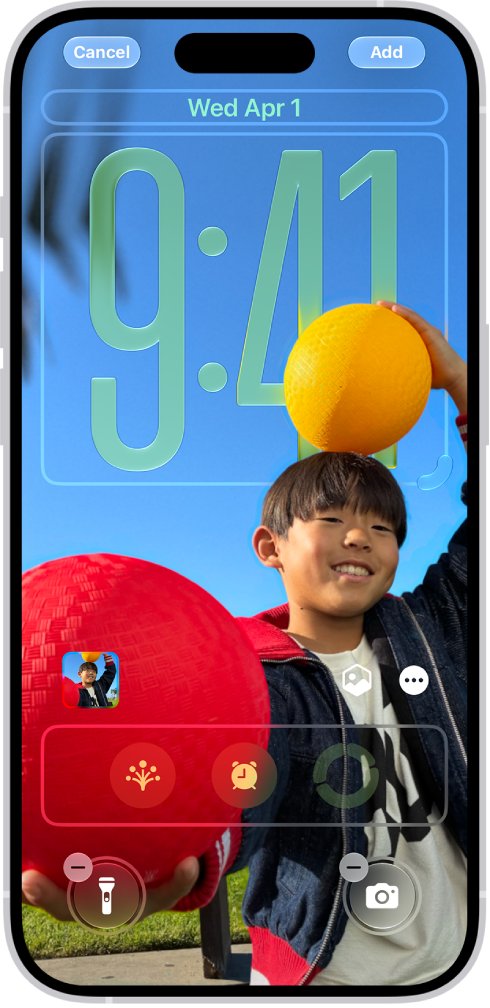
Change the iPhone Lock Screen from the Lock Screen
This is the quickest route because you edit the Lock Screen while looking at it.
- Press the side button to wake your iPhone.
- Touch and hold the Lock Screen until Customize and the + button appear.
- Tap + to create a new Lock Screen, or tap Customize to edit the current one.
- Tap a wallpaper option, such as Photos, Photo Shuffle, Emoji, Weather or Color.
- Adjust the clock, widgets and photo position on the preview.
- Tap Add, then choose Set as Wallpaper Pair to use it on the Home Screen too, or Customize Home Screen to pick something different there.
If the + button does not appear, touch and hold the Lock Screen again and enter your passcode.
Step by step tutorial: How to change iPhone lock screen in Settings
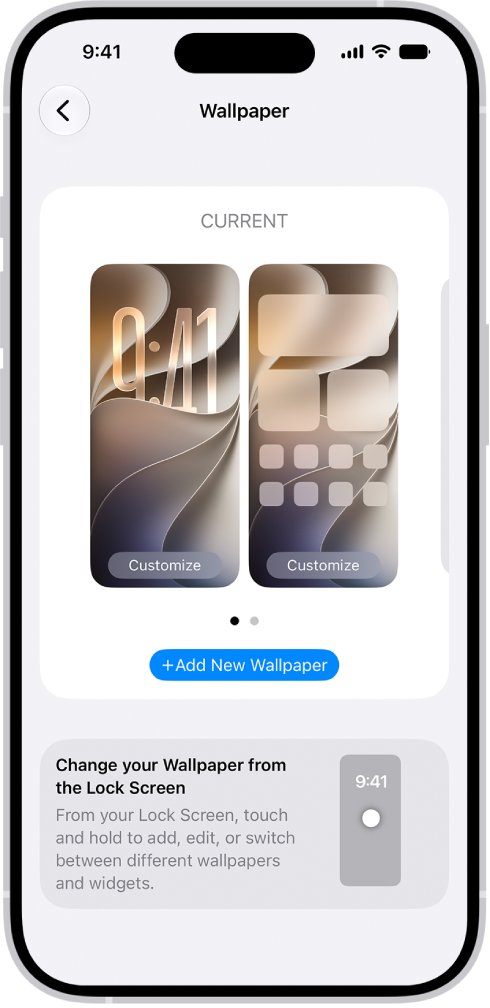
Settings gives you the same wallpaper gallery and is handy when you are already in the phone's Settings app.
- Open the Settings app.
- Tap Wallpaper.
- Tap Add New Wallpaper.
- Tap a button at the top of the gallery, such as Photos, Emoji or Color, or pick a featured set such as Nature.
- Arrange the wallpaper on the preview, then tap Add.
- Tap Set as Wallpaper Pair to use it on both screens, or Customize Home Screen to change the Home Screen separately.
If the wallpaper you want (for example Weather or Astronomy) is missing, scroll down the gallery and tap Get below it.
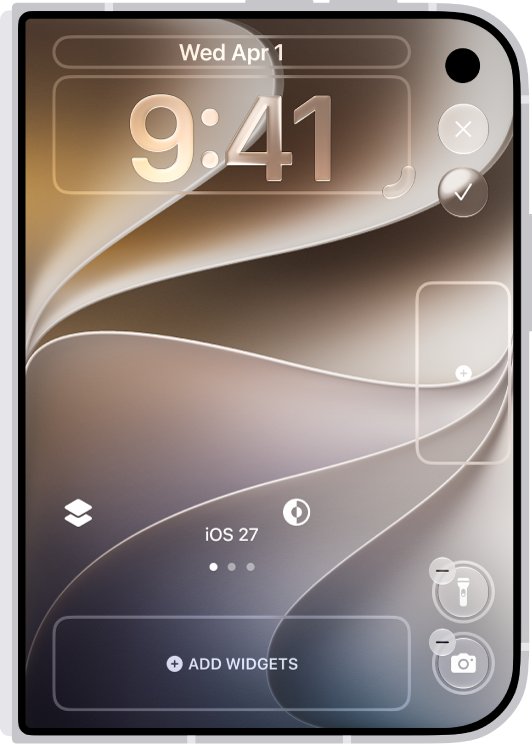
How to change iPhone lock screen clock and time font
- Touch and hold the Lock Screen, then tap Customize.
- Tap the time to open the font and color options.
- Pick a font, then pick a color or a more transparent look.
- Drag the bottom-right corner of the clock to make it taller.
- Tap Done to save the change.
The clock options available depend on the wallpaper you chose. On iPhone 12 and later, some photo wallpapers let the time adapt to the photo and your notifications.
How to change iPhone lock screen widgets and apps
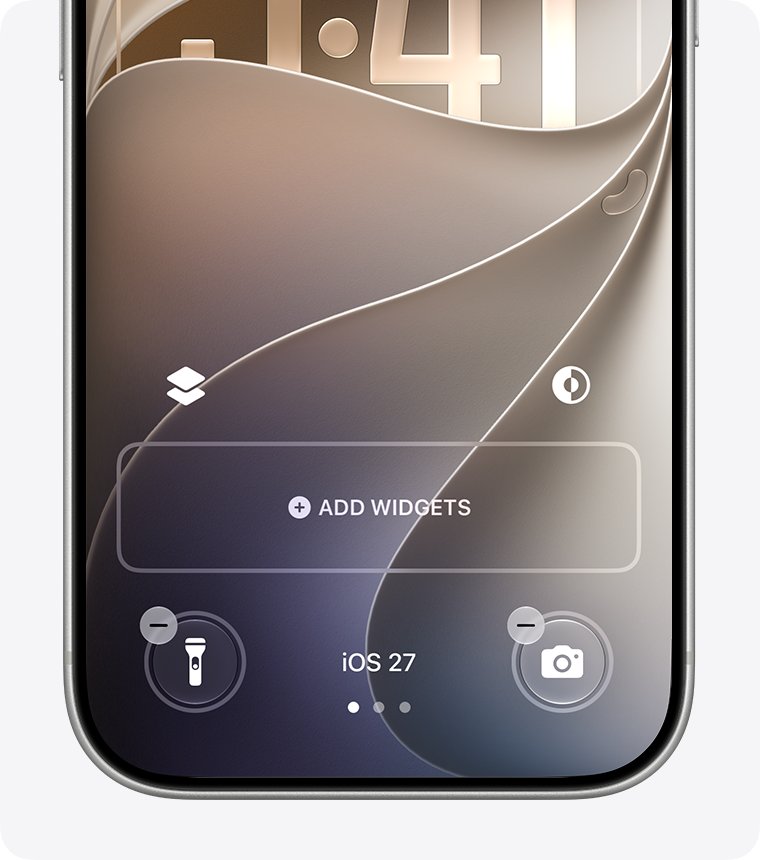
Widgets show information such as weather or battery level, and the two controls at the bottom launch apps or features like the flashlight.
- Touch and hold the Lock Screen, then tap Customize.
- Tap the existing widgets, or tap Add Widgets.
- Choose the widgets you want and drag them into place; remove ones you do not need.
- To swap a bottom control, tap the remove (–) button on it, then tap + and choose a new control.
- Tap Done.
How to change iPhone lock screen photo and picture
| What you want | Wallpaper option | How to set it up |
|---|---|---|
| One favourite picture | Photos | Pick the photo, pinch to zoom and drag with two fingers to reposition it |
| A picture that changes on its own | Photo Shuffle | Tap the photo thumbnail to change the selection, then set the shuffle frequency |
| A moving picture | Live Photo | Choose a Live Photo that supports slow motion and tap the play button so it plays when the iPhone wakes |
| Subject in front of the clock | Depth Effect | Use a photo that supports layering, open the options and choose Depth Effect |
| A 3D look | Spatial scene | On iPhone 12 and later, tap the spatial button on a photo that supports it |
| A different filter | Style | Swipe left or right on the preview to try color filters |
How to change iPhone lock screen passcode
The Lock Screen passcode is what you type when Face ID or Touch ID is not available, for example after a restart.
- Open Settings.
- Tap Face ID & Passcode (or Touch ID & Passcode on models with Touch ID).
- Enter your current passcode.
- Tap Change Passcode.
- Tap Passcode Options if you want a different format.
- Choose Custom Alphanumeric Code, Custom Numeric Code or a numeric code, then enter and confirm the new passcode.
Apple lists Custom Alphanumeric Code and Custom Numeric Code as the most secure options.
How to change iPhone lock screen time and Auto-Lock
Auto-Lock sets how long the screen stays on before the iPhone locks itself.
- Open Settings.
- Tap Display & Brightness.
- Tap Auto-Lock.
- Choose a length of time.
If the iPhone sits on the Home Screen with no action, the Auto-Lock time is cut in half.
How to switch lock screen on iPhone and link a Focus
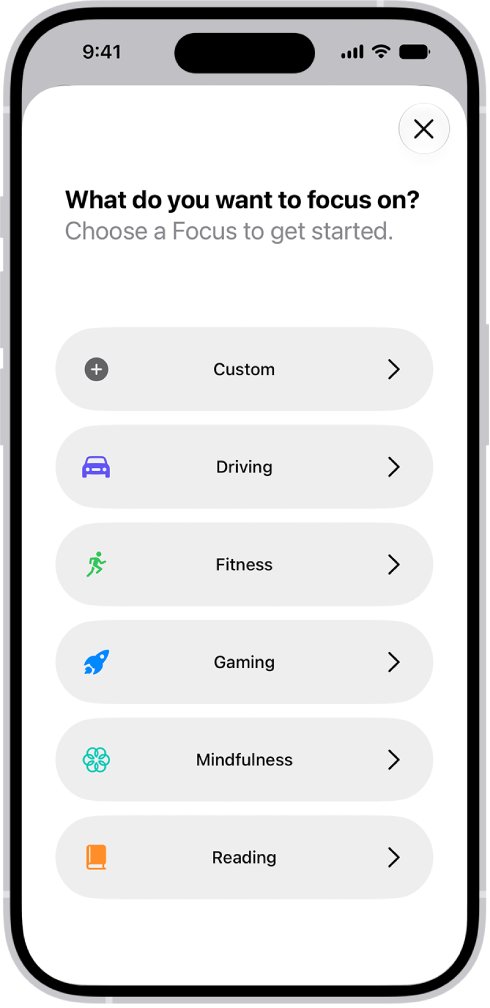
You can keep several Lock Screens and swap between them, or tie one to a Focus so it appears automatically.
| Task | Steps |
|---|---|
| Switch to another Lock Screen | Press the side button, touch and hold the Lock Screen until Customize appears, swipe to the one you want and tap it |
| Link a Focus | Touch and hold the Lock Screen, tap Focus near the bottom of the wallpaper, select a Focus such as Work or Sleep, then close the menu |
| Delete a Lock Screen | Touch and hold the Lock Screen, swipe to the one to remove, swipe up, tap the trash button, then tap Delete This Wallpaper |
| Light or dark look | While customizing, tap the appearance button if the wallpaper offers light and dark modes |
Switching away from a Lock Screen that is linked to a Focus also switches the Focus.
Tips for changing your iPhone lock screen
| Tip | Why it helps |
|---|---|
| Use Set as Wallpaper Pair only when you want both screens to match | Customize Home Screen lets you blur the Home Screen so app icons stay readable |
| Keep widgets to what you check daily | The Lock Screen shows them before you unlock, so fewer widgets means less clutter |
| Set Photo Shuffle for variety | The picture changes on the frequency you pick without any further steps |
| Link a Lock Screen to Work or Sleep Focus | The right wallpaper and notification rules appear together |
| Pick a passcode option you can remember | Five failed Face ID or Touch ID attempts force the passcode, and repeated wrong entries disable the iPhone |
Check the new iPhone lock screen is active
- Press the side button to lock the iPhone.
- Press it again to wake the screen and confirm the new wallpaper, clock and widgets show.
- Swipe up to check the Home Screen wallpaper is the one you chose.
- If you changed the passcode, restart the iPhone and unlock it with the new code.
iPhone lock screen not changing: fixes
The + button or Customize does not appear
The iPhone is still locked, so the Lock Screen gallery is not available.
- Press the side button to wake the Lock Screen; if it stays dark, fix the black iPhone screen first.
- Touch and hold the Lock Screen again.
- Enter your passcode if asked.
- If the screen ignores the touch, fix the unresponsive touch screen first.
Weather or Astronomy wallpaper is missing
Some wallpaper sets are listed lower in the gallery.
- Open the wallpaper gallery from Settings > Wallpaper > Add New Wallpaper.
- Scroll down past the featured sets.
- Tap Get below the wallpaper you want.
iPhone keeps going to the lock screen
Auto-Lock is set to a short time, and it halves while the Home Screen is idle.
- Open Settings > Display & Brightness > Auto-Lock.
- Choose a longer time.
Lock Screen changes every time Focus changes
The Lock Screen is linked to a Focus.
- Touch and hold the Lock Screen.
- Tap Focus near the bottom of the wallpaper.
- Deselect the linked Focus.
iPhone lock screen frequently asked questions
How do I change my iPhone lock screen wallpaper?
Touch and hold the Lock Screen, tap the + button, choose a wallpaper and tap Add. You can also go to Settings > Wallpaper > Add New Wallpaper. Choose Set as Wallpaper Pair to use it on both screens.
How do I change my iPhone lock screen password?
Go to Settings > Face ID & Passcode (or Touch ID & Passcode), enter your current passcode and tap Change Passcode. Tap Passcode Options to switch to a custom alphanumeric or numeric code.
How do I change the time on my iPhone lock screen?
To change how the clock looks, touch and hold the Lock Screen, tap Customize and tap the time to pick a font and color. To change how quickly the iPhone locks, go to Settings > Display & Brightness > Auto-Lock.
Can I use a GIF as my lock screen?
The Lock Screen gallery does not list a GIF option. For motion, choose a Live Photo that supports slow motion and tap the play button so it plays when the iPhone wakes.
Can I use a video as my lock screen?
Not a standard video file. The closest option is a Live Photo that can be translated into slow motion, which plays when the iPhone wakes.
Will changing my lock screen affect my home screen?
Only if you choose Set as Wallpaper Pair after tapping Add. Choose Customize Home Screen instead to give the Home Screen a different color, photo or a blurred version.
Can I set a lock screen that changes automatically?
Yes. Choose Photo Shuffle and set the shuffle frequency, or link different Lock Screens to Focus modes so the wallpaper changes when the Focus changes.
How often should I change my lock screen?
As often as you like; there is no limit. Photo Shuffle can rotate the picture for you on the frequency you set, so you do not need to change it by hand.
How do I change the apps on my iPhone lock screen?
Touch and hold the Lock Screen, tap Customize. Tap the widgets or Add Widgets to change them, and tap the remove button on a bottom control to swap it for another.