To delete all downloaded Windows update files, open Settings > System > Storage > Cleanup recommendations, select the temporary and update files, and then select Clean up.
This guide covers the Settings route, Disk Cleanup, emptying the SoftwareDistribution download folder by hand or from Command Prompt, the DISM component cleanup, and fixes when the files will not go.
Delete Windows update files from Windows Settings
Settings is the safest route because Windows only offers files it no longer needs. It works the same way on Windows 11 and Windows 10.
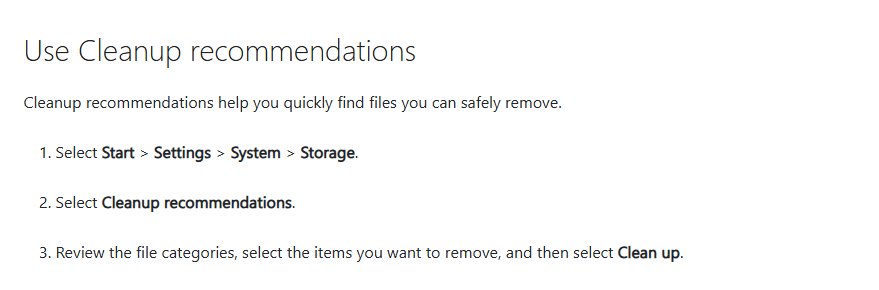
- Select Start > Settings > System > Storage.
- Select Cleanup recommendations.
- Open Temporary files and review the categories Windows lists, with the size of each.
- Select the update-related items and any other temporary files you want removed.
- Select Clean up under that section and wait for the size to drop.
You can also open Settings > System > Storage > Temporary files directly from the disk usage list and select Remove files.
How to delete old Windows update files
Old update files live in two places: the download cache that Windows Update fills before it installs anything, and the component store that keeps superseded versions for rollback. Each method below reaches one or both.
| Your situation | Use this method | What it removes |
|---|---|---|
| You want a few clicks and no risk | Windows Settings cleanup | Temporary and update files Windows marks as safe to remove |
| You prefer the classic tool | Disk Cleanup with Clean up system files | The Windows Update Cleanup category and other system leftovers |
| An update download is stuck or corrupt | Manual delete of SoftwareDistribution\Download | Every downloaded update package waiting to install |
| You want it done in one go | Command Prompt as administrator | The whole SoftwareDistribution folder, rebuilt on the next scan |
| The WinSxS folder is large | DISM /StartComponentCleanup | Superseded component versions kept for rollback |
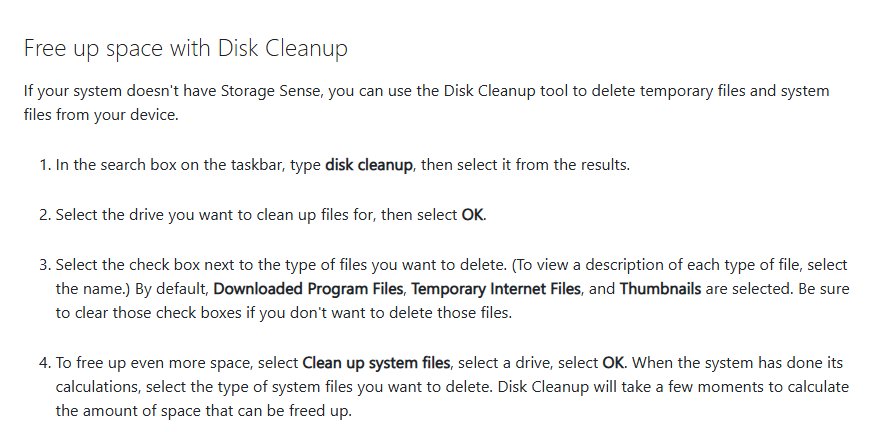
Delete Windows update files using Disk Cleanup
Disk Cleanup hides the update category until you switch it to system files, which needs an administrator account.
- Select Start, type
Disk Cleanupand open it. - Select drive C: if Windows asks which drive to clean, then select OK.
- Select Clean up system files and choose drive C: again.
- On the Disk Cleanup tab, select Windows Update Cleanup.
- Select any other categories you want removed, then select OK.
- Select Delete Files to confirm, then restart the PC if the cleanup asks for it.
Microsoft notes that a restart may be needed to finish the Windows Update Cleanup process, so the freed space can show up only after a reboot.
Manually delete Windows update files
Windows Update stores the packages it downloads in C:\Windows\SoftwareDistribution\Download. Stop the update services first, or Windows keeps some of the files locked.
- Press Win + R, type
services.mscand press Enter. - Right-click Windows Update and select Stop.
- Right-click Background Intelligent Transfer Service and select Stop.
- Open File Explorer and go to
C:\Windows\SoftwareDistribution\Download. - Press Ctrl + A to select everything, then press Delete and approve the administrator prompt.
- Go back to Services, then right-click Background Intelligent Transfer Service and Windows Update and select Start on each.
Empty the Recycle Bin afterwards so the space is actually freed. Windows downloads any update it still needs on the next scan. If that scan still fails, run the Windows Update troubleshooter before you clear the folder again.
Delete Windows update files using Command Prompt
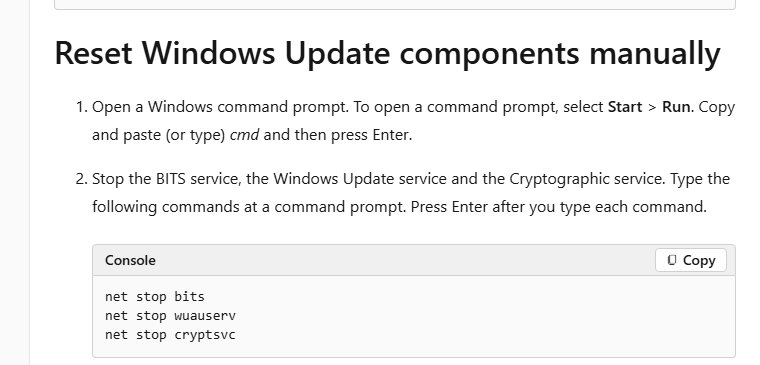
Microsoft documents this reset for Windows Update: stop the service, remove the SoftwareDistribution folder, and start the service again. Run it from Command Prompt as administrator.
net stop wuauserv
net stop bits
rd /s /q %systemroot%\SoftwareDistribution
net start bits
net start wuauserv
The first two lines stop the Windows Update and BITS services so no file is in use. rd /s /q removes the SoftwareDistribution folder, its Download cache and its update history database, without asking for confirmation. The last two lines start the services again, and Windows rebuilds the folder automatically.
You should see: Each net line reports that the service stopped or started successfully, and rd returns to the prompt with no error.
To keep the old folder as a backup instead, run ren %systemroot%\SoftwareDistribution\Download Download.bak in place of the rd line, then delete Download.bak once updates install normally.
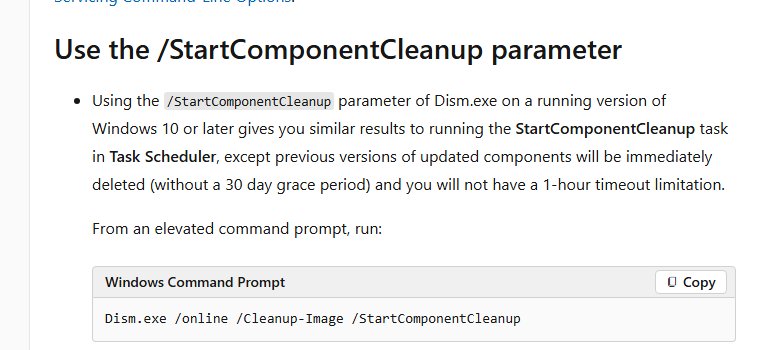
Clean up the WinSxS folder with DISM StartComponentCleanup
The WinSxS component store keeps previous versions of updated components so an update can be rolled back. Never delete files from WinSxS by hand: Microsoft warns that doing so can stop the PC booting and break updates.
- Open Command Prompt as administrator.
- Type
Dism.exe /online /Cleanup-Image /StartComponentCleanupand press Enter. - Wait for the operation to reach 100 percent and report that it completed successfully.
- Restart the PC.
This deletes superseded components straight away, without the 30-day grace period the scheduled StartComponentCleanup task waits for.
Adding /ResetBase removes every superseded version of every component. After that, updates already installed can no longer be uninstalled, so use it only on a PC that is stable.
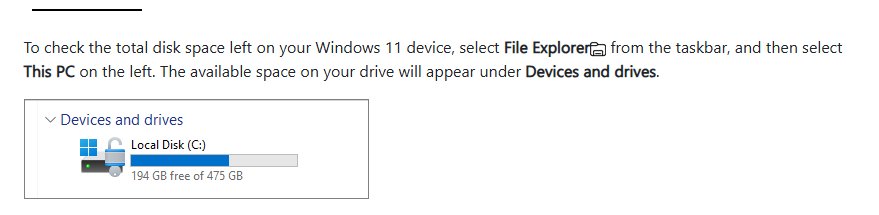
Confirm the Windows update files are gone
- Open File Explorer and select This PC, then note the free space on drive C: under Devices and drives.
- Open
C:\Windows\SoftwareDistribution\Downloadand confirm it is empty or holds only new folders. - Select Start > Settings > Windows Update > Check for updates and confirm Windows scans without an error.
- Return to Settings > System > Storage > Temporary files and confirm the update entry now shows little or no space.
Is it safe to delete Windows update files?
Yes, for the download cache and for anything Windows itself offers in Settings or Disk Cleanup. The risk lies in deleting the wrong folder or removing rollback files you still need.
| Files | Safe to delete? | What you lose |
|---|---|---|
| SoftwareDistribution\Download contents | Yes, with the services stopped | Pending downloads, which Windows fetches again |
| Whole SoftwareDistribution folder | Yes, Microsoft documents it as a reset | Update history shown in Settings |
| Windows Update Cleanup in Disk Cleanup | Yes | Superseded update files Windows no longer uses |
| Previous Windows installation(s) / Windows.old | Yes, after you are happy with the upgrade | The option to go back to the previous version of Windows |
| Files inside WinSxS deleted by hand | No | Possibly a PC that will not boot or update |
The Windows.old folder appears as a removable system file for 10 days after an upgrade. Once it is deleted, that rollback cannot be undone.
Windows update files will not delete: fixes
Disk Cleanup is stuck on Windows Update Cleanup
The cleanup removes and compresses a large number of components, which can take a long time on a slow drive.
- Leave Disk Cleanup running for longer before you cancel it, especially on a hard drive.
- If it still does not move, restart the PC and run the cleanup again.
- Run
Dism.exe /online /Cleanup-Image /StartComponentCleanupinstead, which does the same job from the command line.
Files in the Download folder say they are in use
The Windows Update or BITS service is still running and holds the files open.
- Run
net stop wuauservandnet stop bitsin Command Prompt as administrator. - Delete the contents of
C:\Windows\SoftwareDistribution\Downloadagain. - Run
net start bitsandnet start wuauservwhen the folder is empty.
Access denied when deleting SoftwareDistribution
Microsoft lists missing permissions for the TrustedInstaller account on SoftwareDistribution as one cause of update access errors.
- Open Command Prompt as administrator.
- Run
icacls "%windir%\SoftwareDistribution" /reset /t /c /qto restore default permissions. - Stop the services and delete the folder again.
Still not enough space to install the update
Feature updates typically need 6 GB to 11 GB or more of free space, and quality updates 2 GB to 3 GB or more.
- Select Start > Settings > Windows Update.
- Select Fix issues when Windows shows it for low disk space.
- Connect an external drive with at least 10 GB free and select it from the drop-down menu.
- Select Next and follow the prompts to finish the update.
Downloaded Windows update files FAQ
Where are downloaded Windows update files stored?
Windows Update saves the packages it downloads in C:\Windows\SoftwareDistribution\Download. Superseded components that support rollback sit in the WinSxS component store, which you clean with Disk Cleanup or DISM rather than by deleting files.
Does deleting Windows update files uninstall updates?
No. Clearing the download cache only removes installer packages, so installed updates stay in place. To remove an installed update, uninstall the problem update from Update history instead.
Is it safe to delete the SoftwareDistribution folder?
Yes, as long as you stop the Windows Update service first. Microsoft documents deleting it as a way to reset the Windows Update agent. Windows rebuilds the folder on the next scan, but your update history list in Settings is cleared.
Can I delete the WinSxS folder to free up space?
No. Microsoft warns that deleting the WinSxS folder or files in it can stop Windows booting and make updating impossible. Use Disk Cleanup or Dism.exe /online /Cleanup-Image /StartComponentCleanup to shrink it safely.
Why does Windows Update Cleanup need a restart?
Some files are in use while Windows runs, so the cleanup finishes them during the restart. Microsoft notes that you may need to restart the computer to complete the process, and the freed space appears afterwards.
Will Windows download the updates again?
Yes. Any update your PC still needs is downloaded again on the next check for updates. Deleting the cache is useful when a download is corrupt, because Windows starts from a clean copy.
How much space do Windows update files use?
It varies with the update. Microsoft says feature updates typically need 6 GB to 11 GB or more of free space and quality updates 2 GB to 3 GB or more, and extra space is held for about 10 days to support removal.
Does Storage Sense delete Windows update files?
Storage Sense clears temporary files automatically when it is on, and Microsoft recommends it for freeing space for updates. Turn it on under Settings > System > Storage. It is off by default unless Windows switches it on during low disk space.
Spoiled for choice
Use Settings cleanup or Disk Cleanup first, and empty the SoftwareDistribution download folder only when an update download is stuck or corrupt. The built-in cleanups remove only what Windows no longer needs, so nothing breaks. The manual and Command Prompt routes clear every pending download, which fixes a bad cache but costs a fresh download. DISM is for a large WinSxS folder, and Windows already runs it on a schedule. For leftover clutter beyond updates, clear the Windows temp files as well.