You can use FaceTime on a Windows computer only by joining a call from a FaceTime link in the latest Google Chrome or Microsoft Edge; there is no FaceTime app for Windows.
The link has to come from someone using FaceTime on an iPhone, iPad or Mac, so this guide covers both sides: creating the link on the Apple device and joining, controlling and fixing the call on the PC.

Use FaceTime on a Windows computer
Ask a friend with an iPhone, iPad or Mac to send you a FaceTime link first. Then follow these steps on the PC.
- Open the FaceTime link in the latest version of Google Chrome or Microsoft Edge.
- Enter your name, then select Continue.
- Select Allow if the browser asks to use your microphone and camera.
- Select Join.
- Wait for the call's host to let you in.
- Select Leave when you want to end your part of the call.
FaceTime on Windows requirements
| Requirement | Details |
|---|---|
| Device | A Windows PC or laptop, including HP, Dell and Lenovo laptops, or an Android device |
| Browser | The latest version of Google Chrome or Microsoft Edge (a browser that supports WebRTC) |
| Video support | Sending video requires H.264 video encoding support |
| Connection | A strong Wi-Fi or cellular internet connection |
| Account | None on the Windows side; no Apple Account or login is needed to join |
| Invitation | A FaceTime link created on an iPhone or iPad with iOS 15 or later, or a Mac with macOS Monterey or later |
| Region | FaceTime links are not supported in China mainland |

Create a FaceTime link on iPhone or iPad for a Windows user
A Windows user cannot start a FaceTime call, so the person with the Apple device creates the link and sends it.
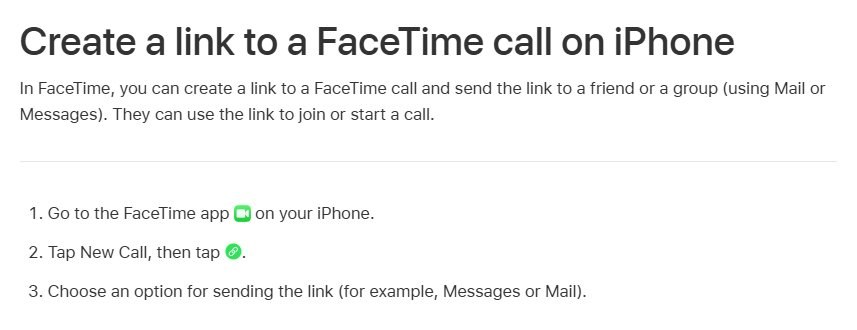
- Open the FaceTime app on the iPhone or iPad.
- Tap New Call.
- Tap the Create Link button.
- Choose how to send the link, for example Messages or Mail.
- Join the call yourself from the link tile so the Windows user has a host to admit them.
To schedule the call, add the FaceTime link as the location of an event in Calendar.
Create a FaceTime link on a Mac
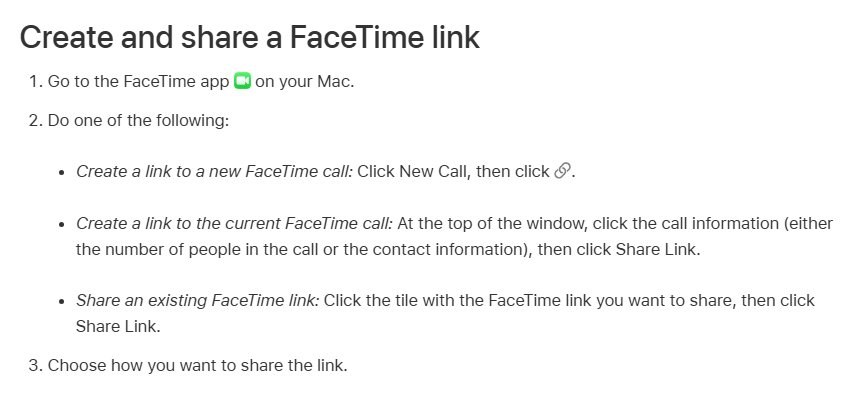
- Open the FaceTime app on the Mac.
- Click New Call, then click the Create Link button.
- To share the current call instead, click the call information at the top of the window, then click Share Link.
- Choose how you want to share the link.
- Click the link tile, click Join FaceTime, then click Join to start the call.
If you created the link, the call starts when you join it.
What you can do in FaceTime on the web from a Windows PC
FaceTime in Chrome or Edge offers most of the in-call controls of the app. SharePlay and screen sharing are the two features you lose.
| Feature | Available on Windows? | How to use it |
|---|---|---|
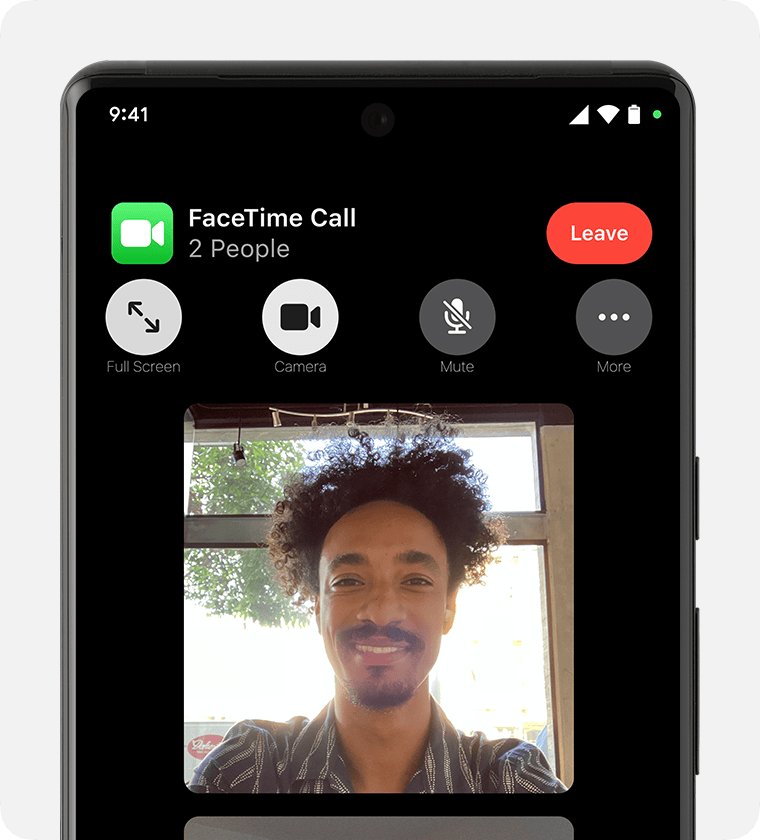
| Mute or unmute the microphone | Yes | Select the Microphone button |
| Turn the camera on or off | Yes | Select the Camera button |
| Full-screen view | Yes, when the button is shown | Select Full Screen |
| Switch front and rear camera | Only on devices with two cameras | Select Flip Camera |
| Grid layout in Group FaceTime | Yes | Select the Participant List and Settings Menu button, then Grid Layout |
| Share the link with someone else | Yes | Select More, then Copy Link or Share Link |
| Start a new FaceTime call | No | Only an Apple device can create a link |
| SharePlay and screen sharing | No | Not available in FaceTime on the web |
Turn on grid layout for Group FaceTime on Windows
- Join the Group FaceTime call in Chrome or Edge.
- Select the Participant List and Settings Menu button.
- Select the Grid Layout button; the speaker's tile highlights automatically.
- Select Grid Layout again to turn it off.

How to set up and use iCloud on Windows 11 PC
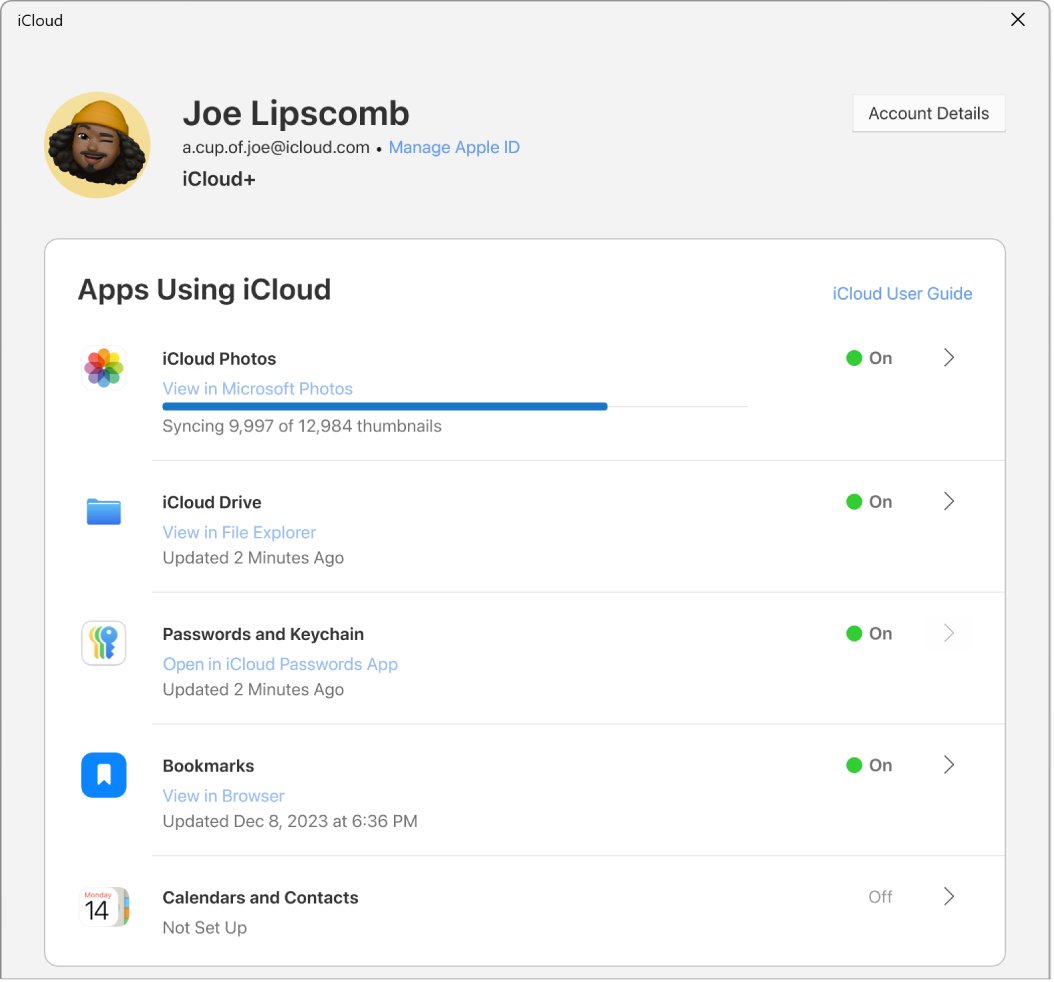
iCloud for Windows syncs iCloud Drive, Photos, Passwords, Bookmarks, Calendars and Contacts to a PC. It does not add a FaceTime app, so calls still run in the browser, but it puts the rest of an iPhone user's data on the same machine.
- Set up iCloud on an iPhone, iPad or Mac first; iCloud for Windows needs an existing iCloud account.
- Download iCloud for Windows from the Microsoft Store.
- Open iCloud for Windows and sign in with the same Apple Account used on your Apple device.
- If prompted, verify your identity with a code sent to a trusted device or phone number, or with a security key.
- For each app or feature, click Sync or Not Now in the bottom-right corner.
- Choose whether to share iCloud analytics, then click Finish Setup.
Accounts with Advanced Data Protection need iCloud for Windows 14.1 or later, accounts with security keys need version 15 or later, and Managed Apple Accounts are not supported.
Check FaceTime works in Chrome or Edge on Windows
- Open the FaceTime link and confirm the name screen loads with a Continue button.
- After you select Join, look for your own camera preview in the window.
- Speak and confirm the host hears you, then toggle the Microphone button to test mute.
- Once admitted, confirm the host's video tile appears.
FaceTime not working on Windows: fixes
Camera or microphone not detected in FaceTime
Windows blocks desktop apps, including Chrome and Edge, from the camera or microphone.
- Select Start > Settings > Privacy & security > Camera.
- Make sure Camera access and Let apps access your camera are on.
- Turn on Let desktop apps access your camera; browsers need it.
- Repeat under Privacy & security > Microphone, then reload the FaceTime link.
Stuck waiting to be let in
The host has not admitted you, or is not in the call yet.
- Ask the host to join the call from the link tile.
- Ask the host to select the waiting notification at the top of the screen and admit you.
- If you were removed, ask for a new link, because a removed caller cannot rejoin that call.
Can I use FaceTime on this device? The link will not open
An outdated or unsupported browser, or a region where FaceTime links are not offered.
- Update Google Chrome or Microsoft Edge to the latest version and open the link again.
- Switch to the other supported browser if the page still fails.
- Check that the call is not in China mainland, where FaceTime links are not supported.
If the webcam itself never switches on, turn on the camera in Windows 11 before you retry the link.
FaceTime on Windows FAQ
Can I use FaceTime on Windows?
Yes, but only to join calls. Open a FaceTime link from an iPhone, iPad or Mac user in the latest Chrome or Edge, enter your name and select Join. Windows has no FaceTime app, and a Windows user cannot start a FaceTime call.
Can I use FaceTime on my HP laptop?
Yes. An HP laptop running Windows joins FaceTime the same way as any Windows PC: open the FaceTime link in the latest Chrome or Edge, enter your name, allow the camera and microphone, and select Join.
Can you FaceTime on Google Chrome?
Yes. Google Chrome and Microsoft Edge are the two browsers Apple names for FaceTime on the web. Keep the browser updated to the latest version, because FaceTime relies on WebRTC and H.264 video support.
How do I use FaceTime on an Android phone?
Android uses the same web route as Windows. Open the FaceTime link in the latest Chrome or Edge, enter your name, select Continue, then Join, and wait for the host to admit you. On a phone you can also use Flip Camera.
Does FaceTime use data or the internet?
Yes. FaceTime on the web needs a strong Wi-Fi or cellular internet connection. On mobile data, the call counts against your data plan, because audio and video travel over the internet rather than a phone line.
Does FaceTime use minutes?
FaceTime runs over an internet connection rather than a voice line. On Windows it always uses the PC's Wi-Fi or wired network connection, so it does not draw on phone plan minutes.
Is FaceTime on Windows secure?
Apple states that the audio and video in FaceTime calls are protected by end-to-end encryption, so only the participants can access them and Apple cannot decrypt the data. Web participants must also be admitted by the host.
Can I share my screen in FaceTime on Windows?
No. SharePlay and screen sharing are not available in FaceTime on the web. Mute, camera on or off, full screen, grid layout and sharing the link all work.