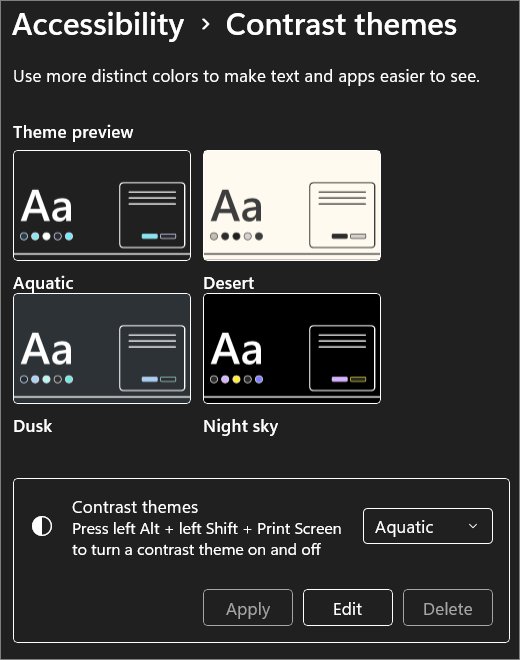
Press Left Alt + Left Shift + Print Screen to turn High Contrast Mode on or off in Windows 11 and Windows 10, or pick a theme under Settings > Accessibility > Contrast themes.
This guide covers both Settings routes, the shortcut, custom colors, the sign-in screen and what to do when the screen stays stuck in high contrast.
The fastest way to turn High Contrast Mode on or off
The same key combination switches high contrast on and off in both Windows 11 and Windows 10.
- Hold the Alt key on the left side of the keyboard.
- Hold the Shift key on the left side as well.
- Press Print Screen (labelled PrtScn or Print Scrn on some keyboards).
- Confirm the prompt if Windows asks before changing the colors.
- Press the same three keys again to switch back to your normal colors.
The keys on the right side of the keyboard do not trigger it. Only the left Alt and left Shift count.
What High Contrast Mode does in Windows
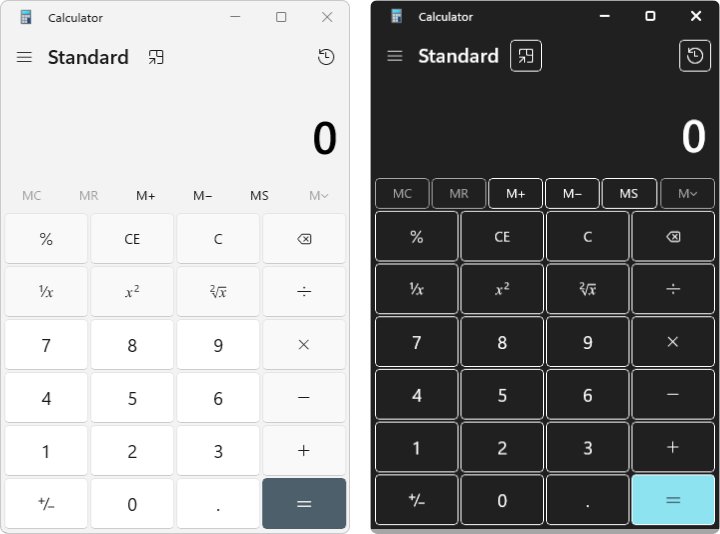
High Contrast Mode replaces the normal Windows colors with a small palette of strongly contrasting colors. Microsoft calls the feature contrast themes in Windows 11 and High contrast in Windows 10.
| Question | Windows 11 | Windows 10 |
|---|---|---|
| Name in Settings | Contrast themes | High contrast |
| Settings location | Settings > Accessibility > Contrast themes | Settings > Ease of Access > High contrast |
| Built-in themes | Aquatic, Desert, Dusk, Night sky | Chosen from the theme drop-down on the High contrast page |
| Contrast level | Palettes typically at or above a 7:1 contrast ratio | Same goal: strongly contrasting text and background |
| What changes | Background, text, hyperlinks, inactive text, selected text, button text | Background, text, hyperlinks, disabled text, selected text, button text |
| Keyboard toggle | Left Alt + Left Shift + Print Screen | Left Alt + Left Shift + Print Screen |
Low-contrast text, such as blue links on a black background, is hard to read for anyone with low vision. A contrast theme forces readable pairs across Windows, most apps and web pages.
Which method should you use?
| Your situation | Use this | Why |
|---|---|---|
| You want it on or off right now | Left Alt + Left Shift + Print Screen | Works from any screen, no menus |
| You want a specific theme such as Night sky | Settings > Accessibility > Contrast themes | The shortcut reuses the last theme, or Aquatic the first time |
| You are on Windows 10 | Settings > Ease of Access > High contrast | Windows 10 uses a toggle plus a theme drop-down |
| The screen is hard to read and you cannot find Settings | Press the shortcut, or Windows + U to open accessibility settings | Both skip the Start menu |
| You have not signed in yet on Windows 10 | The Ease of access button on the sign-in screen | Changes the colors before you type your password |
| You only need darker menus, not higher contrast | Dark mode under Personalization > Colors | Keeps your normal colors and accent |
How to enable High Contrast Mode in Windows 11
- Select Start, then select Settings.
- Select Accessibility in the left pane.
- Select Contrast themes.
- Open the Contrast themes drop-down and choose Aquatic, Desert, Dusk or Night sky.
- Select Apply.
- Wait a few seconds while Windows shows Please wait and redraws the screen.
If Settings is hard to find, press Windows + U to open Accessibility directly. The Ease of Access guide for Windows 11 lists the other ways into that page.
How to disable High Contrast Mode in Windows 11
- Press Windows + U to open Settings > Accessibility.
- Select Contrast themes.
- Open the Contrast themes drop-down and choose None.
- Select Apply.
- Wait for the Please wait screen to clear and the default colors to return.
Pressing Left Alt + Left Shift + Print Screen also turns the active contrast theme off without opening Settings.
How to enable High Contrast Mode in Windows 10
- Select Start, then select Settings.
- Select Ease of Access.
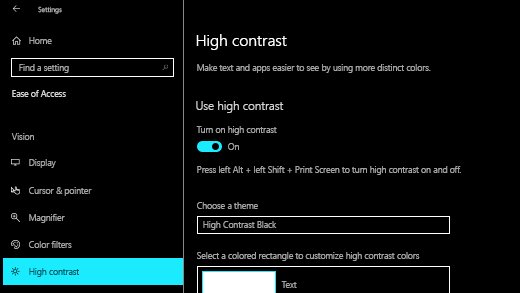
- Select High contrast in the left pane.
- Turn on the toggle under Turn on high contrast.
- Choose a theme from the drop-down menu under the toggle.
- Select Apply if you changed the theme's colors.
How to disable High Contrast Mode in Windows 10
- Press Windows + U to open the accessibility settings.
- Select High contrast in the left pane.
- Switch off the toggle under Turn on high contrast.
- Wait for Windows to redraw the screen with your normal theme.
Use the keyboard shortcut for High Contrast Mode
Microsoft documents one shortcut for both versions, and it works as a toggle. The first press turns contrast on, the next press turns it off.
- Press Left Alt + Left Shift + Print Screen together.
- Confirm the prompt if a box asks whether to turn on high contrast.
- Check which theme loaded; Windows 11 applies Aquatic if you never picked a theme before.
- Change the theme in Settings > Accessibility > Contrast themes if you prefer another one; the shortcut reuses it next time.
- Press Left Alt + Left Shift + Print Screen again to return to normal colors.
On compact keyboards, Print Screen can share a key with another function. Check the key label on your keyboard for the Print Screen legend before assuming the shortcut is broken.
Turn the High Contrast keyboard shortcut on or off
Windows stores the shortcut as a separate per-user setting from contrast itself. That is why the shortcut can stop working while the Settings route still works.
| Setting Windows keeps | What it controls | What you notice |
|---|---|---|
| Hot key active | Whether Left Alt + Left Shift + Print Screen toggles high contrast | When off, the keys do nothing and contrast stays as it is |
| Confirm hot key | Whether a confirmation box appears after the keys are pressed | A prompt asking you to confirm before colors change |
| Hot key sound | Whether a sound plays when the shortcut switches contrast | A siren-like tone on every toggle |
| Keyboard Filter (managed PCs) | An administrator can block the Left Shift + Left Alt + Print Screen combination | The shortcut never works on that device, even with the setting on |
Microsoft's support pages do not name the exact Settings label for the shortcut switch in each build. If the keys do nothing, turn contrast on and off from the Settings pages above instead.
How to customize High Contrast Mode in Windows 11
Custom colors help if a built-in theme uses a color you struggle with, for example with some forms of color blindness.
- Open Settings > Accessibility > Contrast themes.
- Pick the theme closest to what you want from the Contrast themes drop-down.
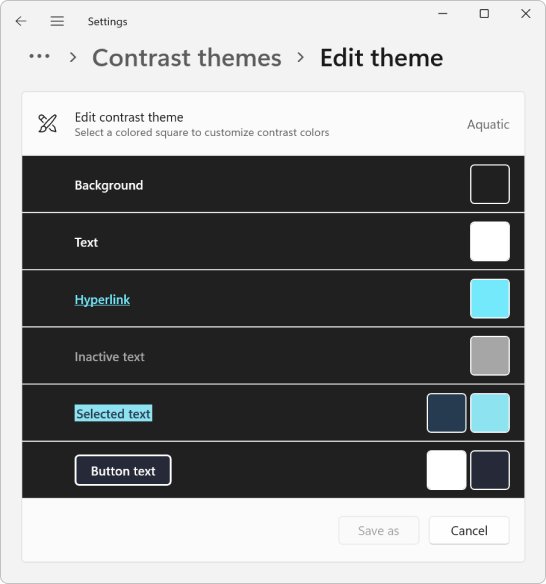
- Select Edit under the drop-down.
- Select the swatch for Background, Text, Hyperlinks, Inactive Text, Selected Text or Button Text.
- Choose a new color in the color picker, adjust brightness with the slider below it, then select Done.
- Select Save as and type a name for your custom theme.
- Select Save and apply.
Your saved theme then appears in the Contrast themes drop-down beside the four built-in themes.
How to customize High Contrast Mode in Windows 10
- Open Settings > Ease of Access > High contrast.
- Turn on the toggle under Turn on high contrast and choose a theme.
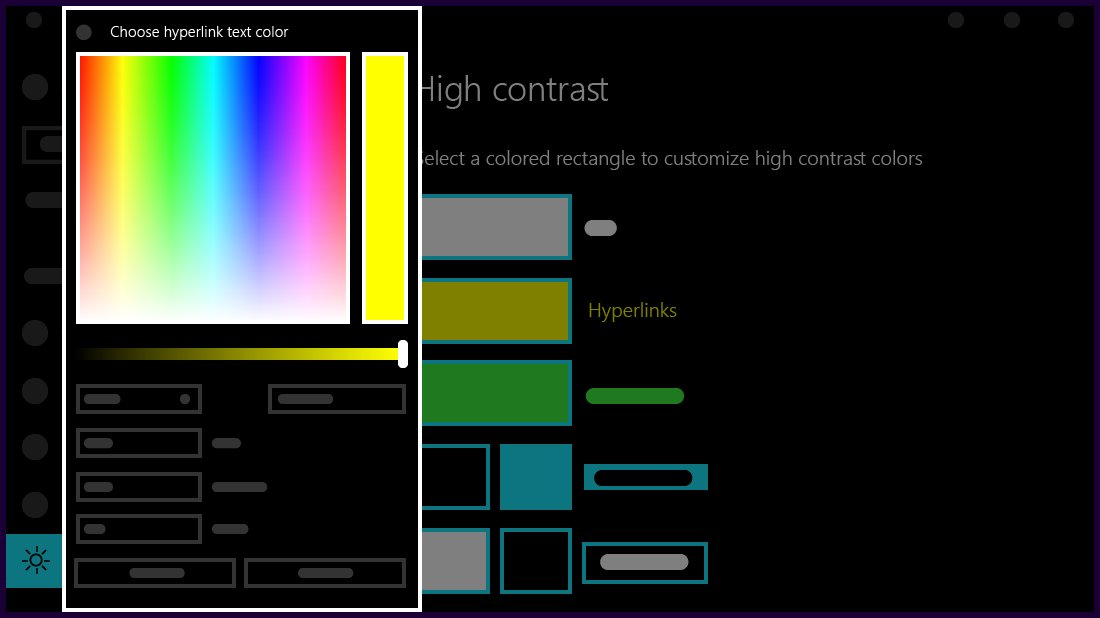
- Select the color box next to Text, Hyperlinks, Disabled Text, Selected Text, Button Text or Background.
- Pick a color in the palette, adjust brightness with the slider, then select Done.
- Select Apply to save the changes.
High Contrast Mode vs dark mode vs color filters
These three features are often confused because each one changes screen colors. They solve different problems, and Microsoft keeps them on separate Settings pages.
| Feature | What it does | Where it lives | Quick toggle |
|---|---|---|---|
| Contrast themes / High contrast | Replaces app and system colors with a small, strongly contrasting palette | Windows 11: Accessibility > Contrast themes. Windows 10: Ease of Access > High contrast | Left Alt + Left Shift + Print Screen |
| Dark mode | Switches Windows and supporting apps to dark surfaces with your normal palette and accent | Personalization > Colors > Choose your mode (Light, Dark or Custom) | None built in |
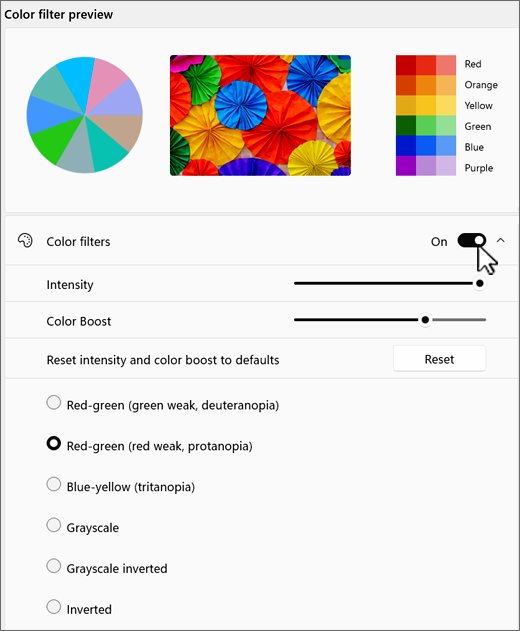
| Color filters | Changes the screen's color palette, including photos and video, to help separate colors | Windows 11: Accessibility > Color filters. Windows 10: Ease of Access > Color filters | Windows + Ctrl + C, once the keyboard shortcut is switched on |
Pick dark mode for comfort in dim rooms, and contrast themes for legibility. The Windows 11 dark mode guide covers forcing dark mode in apps that ignore it.
How High Contrast Mode affects apps and websites
| Where | What happens | What to expect |
|---|---|---|
| Windows Settings, File Explorer, taskbar | Uses the contrast theme's colors directly | Fully recolored |
| Modern Windows apps | Windows adjusts text to high-contrast pairs by default unless the app supplies its own contrast colors | Readable, sometimes with a plain look |
| Apps with hard-coded colors | Fixed backgrounds stay while text changes color | Some text can become hard or impossible to read |
| Websites in Microsoft Edge | The Windows contrast theme changes how pages display | Page colors are replaced; some images and icons may look different |
| Microsoft 365 apps | A high contrast theme changes contrast in Windows and most apps | Most app surfaces follow the theme |
Browser support has changed over time; Chrome and Chromium Edge gained high contrast support in 2019. If one app stays unreadable, report it to that app's developer, because the fix is in the app.
Enable or disable High Contrast Mode from the sign-in screen
Microsoft documents this route for Windows 10. On Windows 11, use the keyboard shortcut or turn contrast on in Settings after signing in.
- Wake the PC to the sign-in screen.
- Select the Ease of access button in the lower-right corner.
- Turn on the toggle under High Contrast to switch it on.
- Turn the same toggle off to return to the normal sign-in colors.
- Sign in as usual; your account then uses its own contrast setting.
How to check it worked
- Look at the desktop and taskbar: with contrast on, surfaces use flat, strongly contrasting colors.
- Open Settings > Accessibility > Contrast themes on Windows 11 and confirm the drop-down shows your theme, or None when it is off.
- On Windows 10, open Settings > Ease of Access > High contrast and check the Turn on high contrast toggle.
- Open a website in Microsoft Edge and confirm its colors follow the theme.
- Press Left Alt + Left Shift + Print Screen twice to confirm the shortcut toggles both ways.
Troubleshooting: Windows is stuck in High Contrast Mode
Use the keyboard shortcut
The theme was switched on by an accidental key press and the same keys switch it off.
- Press Left Alt + Left Shift + Print Screen once.
- Confirm the prompt if a box appears.
- Wait a few seconds for the normal colors to return.
Turn it off in Settings and select a normal theme
The shortcut is switched off or blocked, so only Settings can change the theme.
- Press Windows + U.
- On Windows 11, select Contrast themes, choose None and select Apply.
- On Windows 10, select High contrast and switch off Turn on high contrast.
Screen is gray or tinted, not high contrast: check color filters
A color filter such as a grayscale view was switched on instead of a contrast theme.
- Press Windows + Ctrl + C to toggle color filters.
- If nothing changes, open Settings > Accessibility > Color filters on Windows 11 or Ease of Access > Color filters on Windows 10.
- Switch the Color filters toggle off.
Sign out and sign back in
Some windows keep the old colors until they redraw.
- Save your work and close open apps.
- Select Start, select your account picture, then select Sign out.
- Sign back in and check the colors again.
Troubleshooting: High Contrast Mode will not turn on
The keyboard shortcut does nothing
The shortcut setting is off, the wrong Alt or Shift key was used, or a managed device blocks the combination.
- Use the Alt and Shift keys on the left side only.
- Try again with an external keyboard if the laptop's Print Screen key needs a function key.
- Turn contrast on from Settings > Accessibility > Contrast themes or Ease of Access > High contrast instead.
Check whether Windows is managed by an organization
Work or school PCs can lock appearance settings or filter key combinations.
- Look for a note at the top of the Settings page saying some settings are managed by your organization.
- Ask your IT administrator to allow contrast themes for your account.
Update Windows
A pending update can leave Settings pages misbehaving until it finishes installing.
- Open Settings > Windows Update.
- Select Check for updates and install what is offered.
- Restart the PC and try the contrast theme again.
Test another user account
Contrast settings are stored per user, so a damaged profile affects only that account.
- Sign in with another account on the same PC.
- Turn on a contrast theme there.
- If it works, the problem sits in the first account's settings rather than Windows itself.
Tips for making High Contrast Mode more comfortable
Contrast themes fix colors but not size. These Windows 11 settings pair well with a contrast theme.
| Tip | Where | What it does |
|---|---|---|
| Increase text size | Settings > Accessibility > Text size | The slider enlarges only text, not the whole interface |
| Increase display scaling | Settings > System > Display | Enlarges text, apps and icons; custom scaling runs from 100% to 500% |
| Use a clearer mouse pointer | Settings > Accessibility > Mouse pointer & touch | Changes pointer color and size so it stays visible on dark backgrounds |
| Create a new custom theme | Contrast themes > Edit > Save as | Swaps any color that is uncomfortable or hard to tell apart |
Frequently asked questions
How do I turn off high contrast in Windows 11?
Press Left Alt + Left Shift + Print Screen, or open Settings > Accessibility > Contrast themes, choose None and select Apply. Windows shows a Please wait screen for a few seconds, then restores the default colors.
What is the keyboard shortcut for high contrast in Windows?
The shortcut is Left Alt + Left Shift + Print Screen in both Windows 11 and Windows 10. Only the left Alt and left Shift keys work. Pressing the combination again switches high contrast back off.
How do I stop high contrast from turning on by itself?
High contrast usually turns on after an accidental press of Left Alt + Left Shift + Print Screen. Keep the confirmation prompt enabled so an accidental press asks first, and switch contrast off in Settings > Accessibility > Contrast themes.
How do I disable accessibility features in Windows?
Press Windows + U to open the accessibility settings, then switch off each feature you do not want. For high contrast, set Contrast themes to None on Windows 11 or switch off Turn on high contrast on Windows 10.
Which contrast theme does the shortcut use?
The shortcut applies the last contrast theme you chose. On Windows 11, if you have never picked one, it applies Aquatic. Choose a different theme in Settings > Accessibility > Contrast themes to change what the shortcut loads.
Is high contrast the same as dark mode?
No. Dark mode keeps your normal colors on dark surfaces and lives under Personalization > Colors. High contrast replaces colors with a small palette designed for legibility, typically at a 7:1 contrast ratio or higher.
Why did my screen turn black and white instead of high contrast?
A black-and-white screen usually means a color filter is on, not a contrast theme. Press Windows + Ctrl + C, or switch off Color filters in Settings > Accessibility on Windows 11 or Ease of Access on Windows 10.
Does high contrast mode change websites?
Yes. The Windows contrast theme changes how websites display in Microsoft Edge, replacing page colors with the theme's colors. Sites that hard-code their colors can look odd, so switch the theme off if one page becomes unreadable.







How to find ease of access Windows 11 - Techdows
[…] are the switches and sliders that change how Windows looks, sounds and responds, such as text size, contrast themes, mono audio and Filter keys. Windows 11 keeps them under Settings > […]