To use Windows 11, sign in, press the Windows key to open Start, launch apps from there or the taskbar, and manage files in File Explorer with Windows + E.
This tutorial walks a beginner through each of those basics, plus Wi-Fi, text size, desktop icons, multitasking, shutting down, taskbar size, Task view problems and Cloud rebuild.
Windows 11 tutorial for beginners
These eight steps cover a first session on a new Windows 11 PC. Each one has its own section below with more detail.
- Sign in with your PIN, fingerprint, face or password on the sign-in screen.
- Press the Windows key or select Start on the taskbar to see your pinned apps.
- Type an app or file name straight after opening Start to search for it.
- Press Windows + E to open File Explorer and browse your folders.
- Select the network icon on the taskbar to open Quick Settings and join Wi-Fi.
- Open Microsoft Edge from the taskbar to browse the web.
- Press Alt + Tab to switch between open apps.
- Select Start > Power > Shut down when you finish.
How to sign in to your Windows 11 PC
Windows Hello lets you sign in with your face, a fingerprint or a PIN instead of a password. Set up Windows Hello once and the sign-in screen offers it every time.
- Sign in with your account password the first time.
- Select Start > Settings > Accounts > Sign-in options.
- Under Ways to sign in, select the face, fingerprint or PIN option and follow the setup prompts.
- Sign out and back in with the new method to test it.
Face and fingerprint sign-in need compatible hardware. A PIN works on every Windows 11 PC. Dynamic lock in the same page can lock the PC when your paired phone leaves Bluetooth range.
Desktop and Start menu in Windows 11
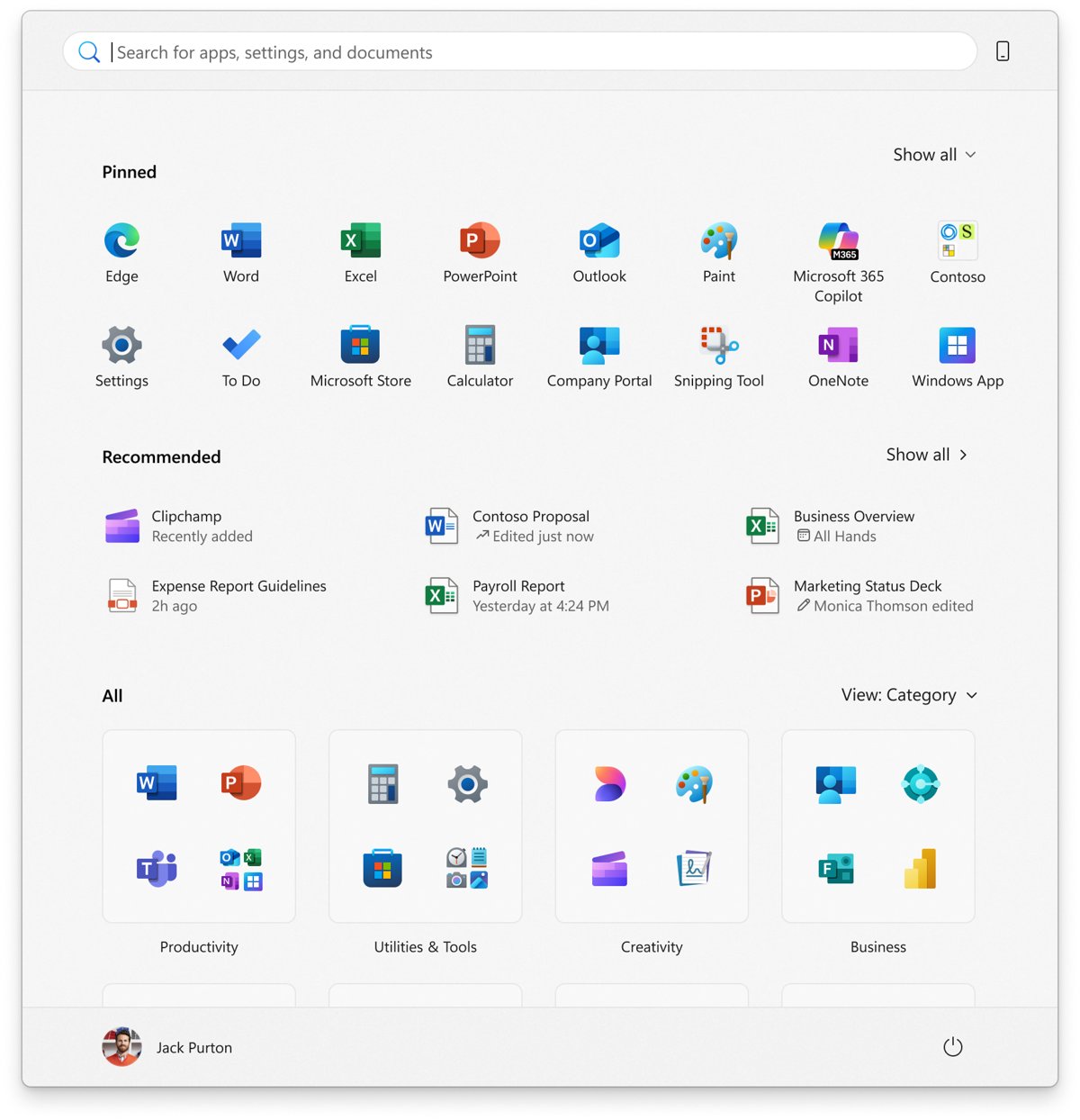
The desktop is the first screen after sign-in. Start is where you open apps, settings and recent files, and it holds your account and power buttons.
- Select Start or press the Windows key.
- Use the Pinned area for your main apps, or select All to see every installed app in category, grid or list view.
- Check Recommended for recently added apps and recently opened files.
- To pin an app, type its name, right-click the result and select Pin to Start.
- Drag one pin over another to create a folder of pins.
- Right-click a pin and select Unpin from Start to remove it.
Start opens from the center of the taskbar by default. You can move it to the left under Taskbar behaviors > Taskbar alignment in taskbar settings.
Windows 11 taskbar buttons explained
The taskbar runs along the bottom of the screen. Each part does one job, and most can be hidden from Taskbar settings if you do not use them.
| Taskbar part | What it does | Shortcut |
|---|---|---|
| Widgets | News, weather and other live cards | Windows + W |
| Start | Apps, settings, account and power options | Windows key |
| Search | Finds apps, files, settings and web results | Windows + S |
| Task view | Shows all open windows and your desktops | Windows + Tab |
| App buttons | Pinned and open apps; a line under an icon means it is open | Right-click for a jump list |
| Quick Settings | Wi-Fi, volume, battery and brightness | Windows + A |
| Clock and notifications | Calendar, focus sessions and notification center | Windows + N |
To pin an app, right-click its icon while it is open and select Pin to taskbar. Drag pinned icons to reorder them.
Windows File Explorer
File Explorer is where your documents, photos and downloads live. Home shows recent and pinned items, and the navigation pane on the left lists your folders and drives.
- Press Windows + E, or select File Explorer on the taskbar or in Start.
- Select Home in the left navigation pane to see recent files.
- Select a folder such as Documents or Downloads in the navigation pane to open it.
- Use the back and up buttons to the left of the address bar to move between folders.
- If the navigation pane is missing, select View > Show > Navigation pane.
How to make icons look larger in File Explorer in Windows 11
File Explorer icons and desktop icon size are set separately. Screen scale makes everything larger at once.
- In File Explorer, select View on the command bar and pick a larger icon layout instead of a list or details view.
- Turn off Compact view in the same menu to add more space between items.
- On the desktop, right-click an empty area, select View and choose Large icons.
- Hold Ctrl and turn the mouse wheel on the desktop to resize icons in smaller steps.
- To enlarge everything, select Start > Settings > System > Display and pick a larger value under Scale.
How to find your files in Windows 11
Taskbar search finds files, apps and settings from one box. File Explorer search narrows it to one folder or drive.
- Select Search on the taskbar and type a file name or a word from inside the document.
- Select the Documents tab in the results to show documents only.
- For a folder search, open File Explorer, select the folder, and type in the search box.
- Search from Home to include recent files on your PC and in the cloud.
- Search This PC for a slower, deeper search of every drive.
Files you opened recently also appear under Recommended in Start, and File Explorer lists your recent files in Windows 11 on its Home page. To find an app, select Start > All and scroll the alphabetical list.
How to open Word or Notepad documents
- Find the file with taskbar search or in File Explorer.
- Double-click the file to open it in its default app: Word for .docx files, Notepad for .txt files.
- To start a new note, press the Windows key, type
Notepadand press Enter. - To open Word, type
Wordin Start search and select it. Word needs Microsoft 365 or an Office licence. - Save your work with Ctrl + S and choose a folder such as Documents.
Arrange desktop icons in Windows 11
A new Windows 11 desktop shows only the Recycle Bin. Show the desktop icons and shortcuts you use most.
- Select Start > Settings > Personalization > Themes.
- Select Desktop icon settings, tick This PC, Network or User's Files, and select OK.
- To add an app shortcut, open Start > All and drag the app onto the desktop.
- To add a file or folder shortcut, right-click it and select Show more options > Send to > Desktop (create shortcut).
- Drag icons to the spots you want, and right-click the desktop > View to change their size.
Change the text size in Windows 11
- Select Start > Settings > Accessibility > Text size.
- Drag the Text size slider to the right until the preview is comfortable.
- If apps and icons are still too small, go to Settings > System > Display and raise Scale.
- Press Windows + Plus (+) to open Magnifier for a quick zoom, and Windows + Esc to close it.
How to connect the internet to your Windows 11 PC
- Select the Network, Sound or Battery icon on the right of the taskbar to open Quick Settings.
- In the Wi-Fi quick setting, select Manage Wi-Fi connections.
- Select your network and choose Connect. If it is missing, select Refresh network list.
- Enter the network password and select Next.
- For a wired connection, plug in an Ethernet cable; Windows connects automatically.
How to browse the internet on Windows 11
- Select Microsoft Edge on the taskbar, or type
Edgein Start search. - Click the address bar at the top, type a website address or a search, and press Enter.
- Select a link to follow it, and use the back arrow beside the address bar to return.
- To pin a favourite site to Start, open it and select the more options menu > More tools > Pin to Start.
Multitask in Windows 11 with Snap, Alt + Tab and Task view
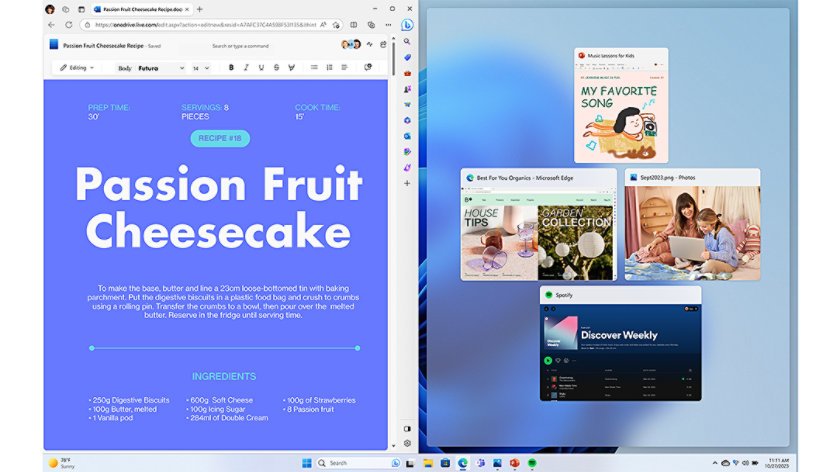
- Press Windows + Left Arrow to snap the current window to the left half of the screen.
- Pick a second window from the Snap Assist thumbnails to fill the right half.
- Hold Alt and press Tab to cycle through open apps, then release Alt to switch.
- Press Windows + Tab to open Task view and see every open window.
- In Task view, create a new desktop to keep work and personal apps apart.
Windows 11 keyboard shortcuts for beginners
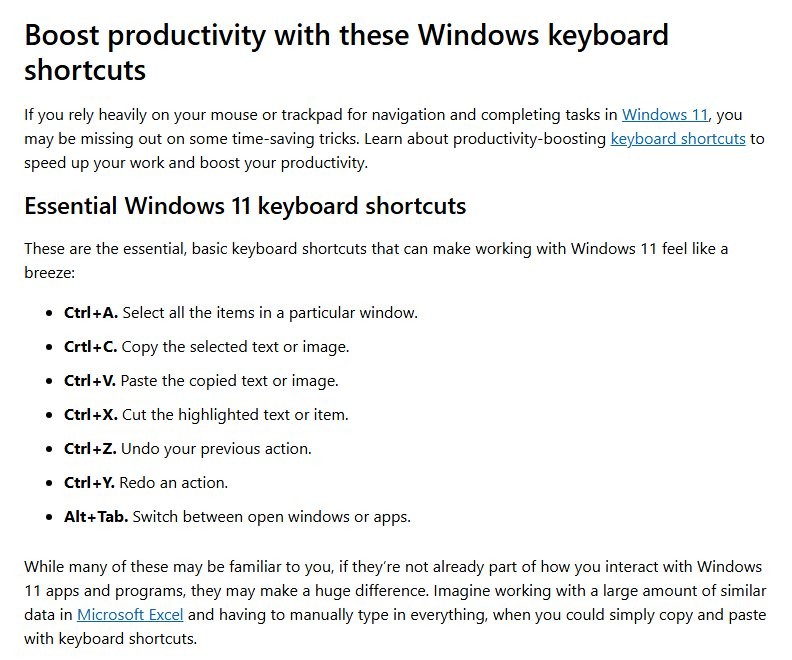
| Shortcut | What it does |
|---|---|
| Windows key | Open or close Start |
| Windows + E | Open File Explorer |
| Windows + S | Open search |
| Windows + A | Open Quick Settings |
| Windows + N | Open the calendar and notification center |
| Windows + Tab | Open Task view |
| Windows + Arrow keys | Snap the current window to a side |
| Windows + . (period) | Open the emoji, GIF and symbol panel |
| Alt + Tab | Switch between open apps |
When you are ready for typed commands, Windows Terminal runs Command Prompt and PowerShell in tabs.
How to shut down your Windows 11 PC
- Save your open files.
- Select Start.
- Select the Power button at the bottom of Start.
- Select Shut down, or Restart to restart, or Sleep to pause with your apps still open.
- If updates are waiting, choose Update and shut down to install them first.
How to change Taskbar size on Windows 11
Released Windows 11 builds have no slider for taskbar height. Microsoft is testing a Show smaller taskbar buttons setting in Windows Insider Preview builds, with Always, When taskbar is full and Never options.
| What you want | Where to change it | Effect |
|---|---|---|
| Bigger taskbar and icons | Settings > System > Display > Scale | Enlarges the taskbar along with everything else |
| Smaller taskbar buttons (Insider builds) | Taskbar settings > Show smaller taskbar buttons | Uses small buttons always, only when full, or never |
| More screen space | Taskbar settings > Taskbar behaviors > Automatically hide the taskbar | Taskbar slides away until you point at the bottom edge |
| Fewer buttons | Taskbar settings > Taskbar items | Hide Widgets, Task view or search to shorten the row |
| Icons on the left | Taskbar behaviors > Taskbar alignment | Moves Start and apps from center to the left |
Open Taskbar settings by right-clicking an empty part of the taskbar.
Task View keeps popping up randomly in Windows 11
Task view opens while you use the touchpad
A three-finger swipe up on a precision touchpad shows all open windows.
- Right-click Start and select Settings > Bluetooth & devices > Touchpad.
- Expand Three-finger gestures.
- Pick a different action for the swipes in the drop-down menu.
- Test the touchpad again in a browser or document.
Task view opens on a touchscreen
A three-finger swipe up on the screen also shows all open windows.
- Open Settings > Bluetooth & devices > Touch.
- Turn off Three and four-finger touch gestures.
Task view opens when you press keys
Windows + Tab opens Task view, so a sticky or worn Windows key can trigger it.
- Press each key gently to check that none is stuck down.
- Try a different keyboard to see if the problem follows the keyboard.
You click the Task view button by accident
The button sits next to Start and search on the taskbar.
- Right-click the taskbar and select Taskbar settings.
- Under Taskbar items, turn Task view off.
How to use Cloud rebuild in Windows 11
Cloud rebuild reinstalls Windows 11 with a fresh copy and drivers downloaded from Windows Update. It removes all files, apps, accounts and settings, so back up first. It needs the October 2026 non-security update or later.
- Back up your files and plug the PC into power.
- Select Start > Settings > System > Recovery.
- Next to Rebuild this PC, select Rebuild PC. The PC restarts into Windows RE.
- Connect to Wi-Fi or Ethernet when asked.
- Choose Remove files to keep using the PC, or Remove & sanitize before you give it away.
- Confirm the Windows version, edition and language, read the warning and select Continue.
- Set the PC up like a new one when the rebuild finishes.
If Windows will not start, open Windows RE and select Troubleshoot > Cloud rebuild. No USB drive is needed.
Should I upgrade to Windows 11?
Yes, upgrade a Windows 10 PC that meets the Windows 11 requirements. Windows 10 support ended on October 14, 2025, so it no longer gets security fixes. The upgrade is free, the PC Health Check app confirms eligibility, and you have 10 days to go back while keeping your files.
Windows 11 beginner tutorial FAQ
Does Windows 11 have a tutorial?
Windows 11 has built-in help rather than a single tutorial. Type a question in taskbar search, open the Get Help app, or select the Get help link inside Settings for the page you are on.
Is there a free tutorial for Windows 11?
Yes. Microsoft's Windows help and learning site at support.microsoft.com/windows has free step-by-step articles for every part of Windows 11, from Start and the taskbar to File Explorer and recovery.
How do I use Windows 11 for the first time?
Sign in, open Start with the Windows key, launch apps from Pinned or All, open File Explorer with Windows + E, and connect to Wi-Fi from Quick Settings on the taskbar.
What has changed in Windows 11?
The taskbar and Start are centered by default, Start has Pinned, All and Recommended areas, Snap Assist arranges windows, and Widgets sits on the taskbar. Some Windows 10 features are not available in Windows 11.
How do I install Windows 11?
On an eligible Windows 10 PC, Windows Update offers the free upgrade once it confirms the PC meets the requirements. The PC Health Check app checks eligibility, and you can schedule the install for a convenient time.
Is Windows 11 harder to use than Windows 10?
The basics are the same: Start, the taskbar, File Explorer and Settings. The main visible change is the centered taskbar, which you can move to the left under Taskbar behaviors.
How do I make Windows 11 look like Windows 10?
Move the taskbar icons to the left with Taskbar alignment under Taskbar behaviors, and hide Widgets in Taskbar items. Start keeps its new layout, but you can switch the All view between category, grid and list.
How do I get help with Windows 11?
Use the Get Help app, the Get help link in Settings, or the support.microsoft.com/windows site. For update problems, Settings > System > Troubleshoot > Other troubleshooters runs a guided fix.