The "Cannot Send Mail. The sender address was invalid" alert means the outgoing mail server refused the address in the From field, so open the message in your Outbox, change From to the account that owns that address, and tap Send again.
This guide covers the fix in Mail on iPhone, iPad and Mac, the outgoing server and alias settings behind the error, iCloud custom domains, and what to do when mail still will not send.
Fix "the sender address was invalid" in Mail on iPhone or iPad
A message that fails to send moves to the Outbox. Resending it from the correct account clears the error in most cases.
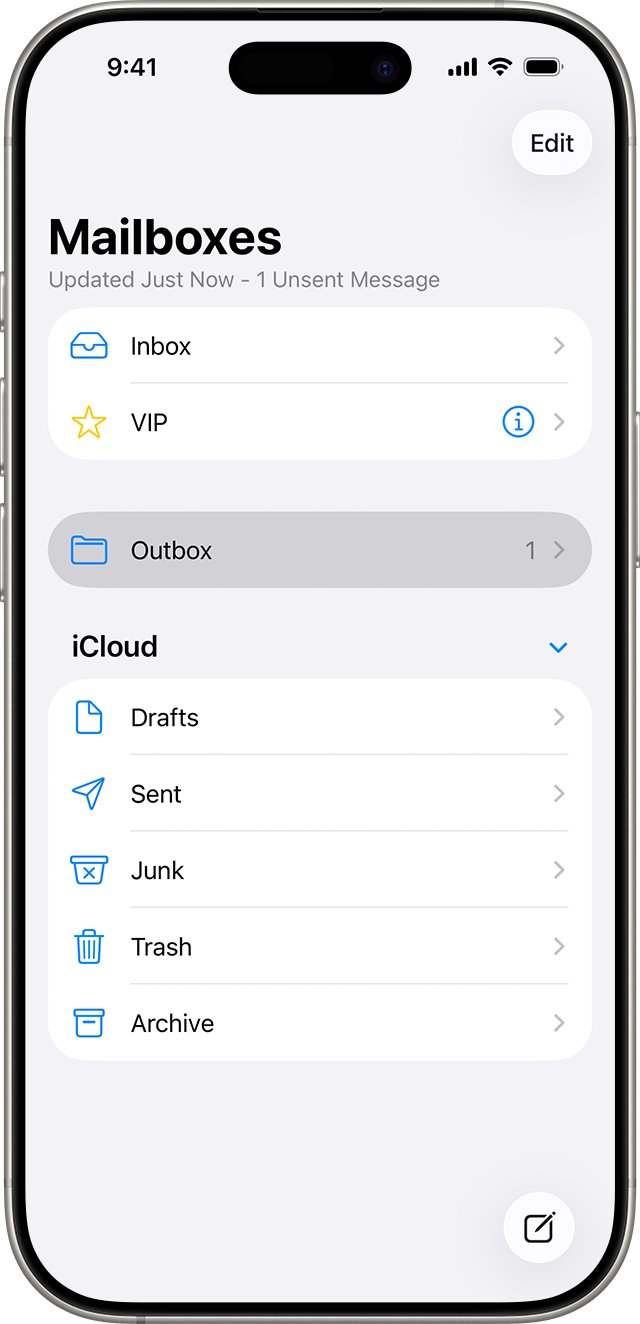
- Open the Mail app and go to your list of mailboxes.
- Tap Outbox. If there is no Outbox, the message was already sent.
- Tap the stuck email and check that the recipient's address is spelled correctly.
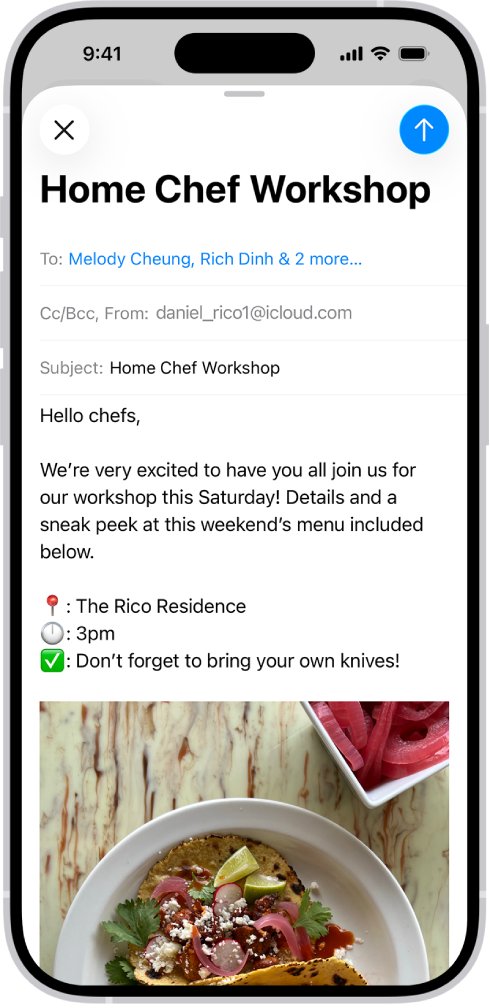
- Tap the Cc/Bcc, From field, then tap From.
- Choose the email account that the address in From actually belongs to.
- Tap Send.
If the message leaves the Outbox, the problem was the From address. If the same alert comes back with the correct account selected, work through the account and server checks below.
What does "the sender address was invalid" mean?
Every email account sends through its own outgoing (SMTP) server. That server checks the address in the From line and rejects it when the address is not one the signed-in account is allowed to send as.
| Likely cause | What you notice | Where to fix it |
|---|---|---|
| Wrong account picked in the From field | Error only when you send from one particular address | From field in the message |
| The account's email address setting does not match the server login | Every message from that account fails | Mail account settings or Account Information on Mac |
| The account uses another provider's outgoing server | Error started after changing SMTP settings | Server Settings on Mac, or remove and re-add the account |
| An iCloud alias or custom domain address is turned off or deleted | Error only on alias or custom domain addresses | iCloud Mail settings on iCloud.com or iPhone |
| Provider changed its security rules | Error appeared suddenly with no changes on your side | Your email provider's website or support |
Cannot send email sender address invalid: match your case to a fix
| Your situation | Do this | Why |
|---|---|---|
| You have several accounts on the device | Change the From field to the correct account | Each address must go out through its own account |
| Only one account fails, on every message | Check the account's email address and password with your provider | The server login and the From address must belong together |
| You use an @icloud.com alias or custom domain | Check the alias or domain address on iCloud.com | Disabled or deleted addresses cannot send |
| The error started after an iOS or macOS setup change | Remove the account and add it again | Mail rebuilds the server settings for your provider |
| Webmail also refuses to send | Contact your email provider | The block is on the provider's side, not in Mail |
Change the sender address in Mail on iPhone and iPad
The From field picks which account sends the message. Mail can default to an account that does not own the address you meant to use, especially after you add a new account.
- Open Mail and start a new message, or open the failed message in Outbox.
- Tap the Cc/Bcc, From field.
- Tap From, then choose the account you want to send from.
- Fill in the recipient and message as usual.
- Tap the send button and confirm the message leaves the Outbox.
The same From field exists on iPad, so the steps match for "cannot send mail sender address invalid" on iPad as well.
Check the email address and password for the account
Mail can only send as an address that your provider recognises for the signed-in account. A typo in the address, or a password your provider no longer accepts, stops outgoing mail.
- On a computer or in a browser, sign in to your email provider's website with the same address and password the device uses.
- Send a test message from webmail to confirm the account can send at all.
- If the sign-in fails, reset the password with your provider, then enter the new password on your iPhone when Mail asks for it.
- Ask your provider whether two-step verification or another security feature is on, because you might need a special password or authorization for the Mail app.
- Check your account settings with your provider or system administrator to make sure they are correct.
Webmail proves the account is valid, but it does not prove the account is set up correctly in Mail. Keep going to the server checks if webmail works and Mail still fails.
Remove the email account and set it up again on iPhone
Removing the account deletes its downloaded mail and settings from the iPhone, not from the provider. Adding it back lets Mail apply the provider's current server settings.
- Sign in to your provider's website and confirm all your email is stored there.
- On the iPhone, open Settings, tap Apps, then tap Mail.
- Tap Mail Accounts, then tap the account that shows the error.
- Tap Delete Account (or Sign Out), then confirm.
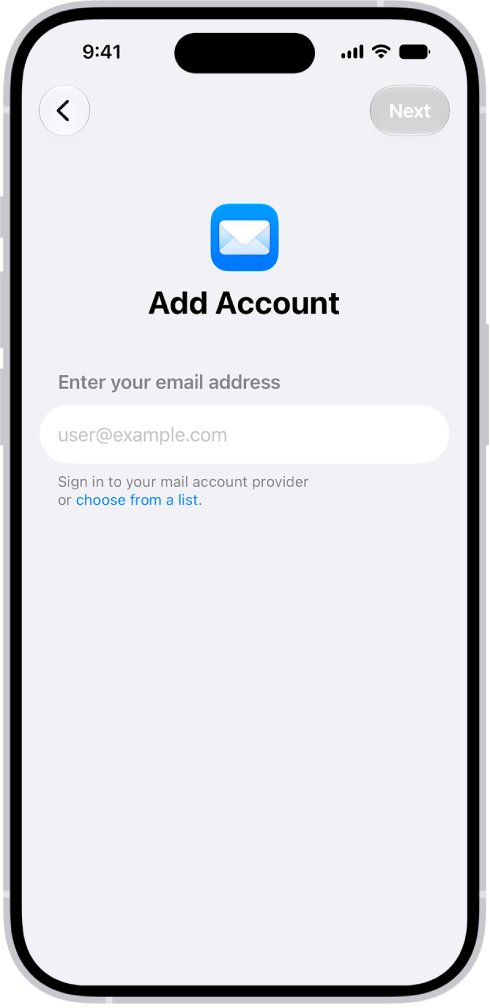
- Go back to Mail Accounts, tap Add Account, enter your email address, tap Next and enter your account information.
- If your service is not listed, tap Add Other Account, tap Mail Account, and enter the details your provider gives you.
Choose the provider that really hosts your mailbox when you add the account. A business address hosted by Microsoft 365 or Google should be added through that option, not as a generic account.
Fix the sender address and outgoing server in Mail on Mac
On a Mac, the sending address and the outgoing server are separate settings. Both must point at the same account.
- Open Mail and choose Mail > Settings, then click Accounts.
- Select the account that fails, then click Account Information.
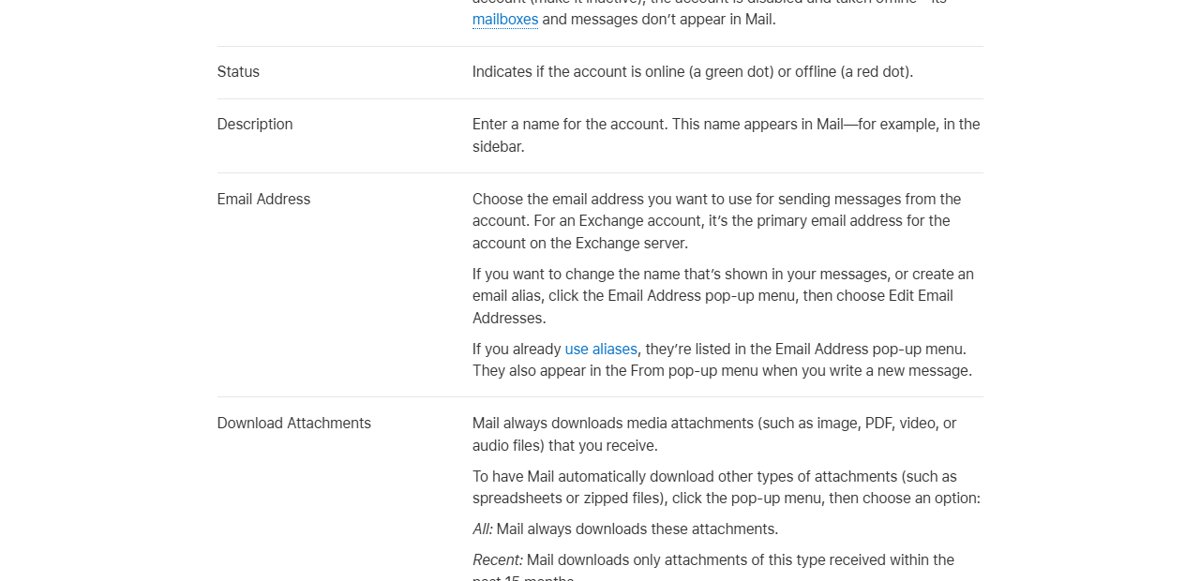
- Open the Email Address pop-up menu and choose the address that belongs to this account. Choose Edit Email Addresses to correct an alias or the display name.
- Click Server Settings and check the Account pop-up menu under the outgoing mail server. It must be this account's own server.
- To review the server, choose Edit SMTP Server List and check the User Name, Password and Host Name against your provider's settings.
- Click Save, then send yourself a test message.
Do not remove an outgoing server that another account still uses unless you add a replacement straight away. For an iCloud account, select iCloud in the outgoing Account menu, because iCloud does not appear in the Edit SMTP Server List.
Fix the sender address for iCloud aliases and custom domains
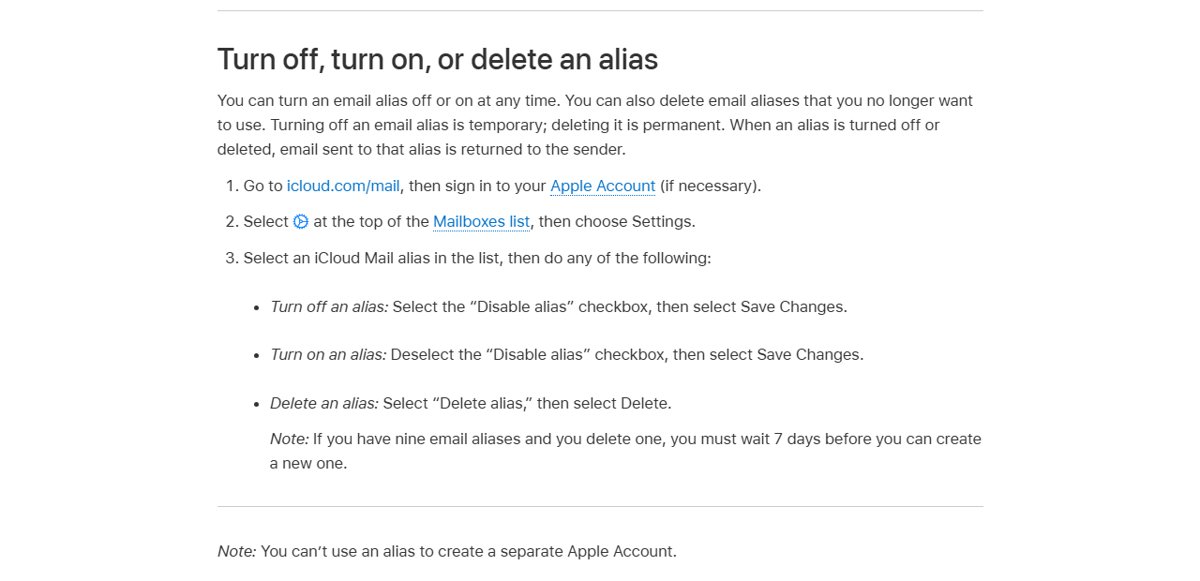
iCloud Mail can send from up to nine @icloud.com aliases and from custom domain addresses with iCloud+. An address that is turned off, deleted or not selected for sending is refused.
- Go to icloud.com/mail and sign in to your Apple Account.
- Select the settings button at the top of the Mailboxes list, then choose Settings.
- Select an alias in the list and make sure Disable alias is not checked, then select Save Changes.
- Under Send From, select every address you want to be able to send from.
- Open the Default Send Address pop-up menu, choose the address you send from most, and select Save.
- For a custom domain on iPhone, open Settings > [your name] > iCloud > Mail, tap Custom Email Domain and check that the address exists under Manage Email Addresses.
Use the same Apple Account on every device. A device signed in to another account, or with Mail turned off in iCloud, does not see your aliases or custom domain addresses.
Check that the email was sent
- Open Mail and check that Outbox is gone or empty.
- Open the Sent mailbox of the account you used and find the message.
- Send a short test message to another address you own and confirm it arrives.
- Reply from that address and confirm the reply reaches the account that showed the error.
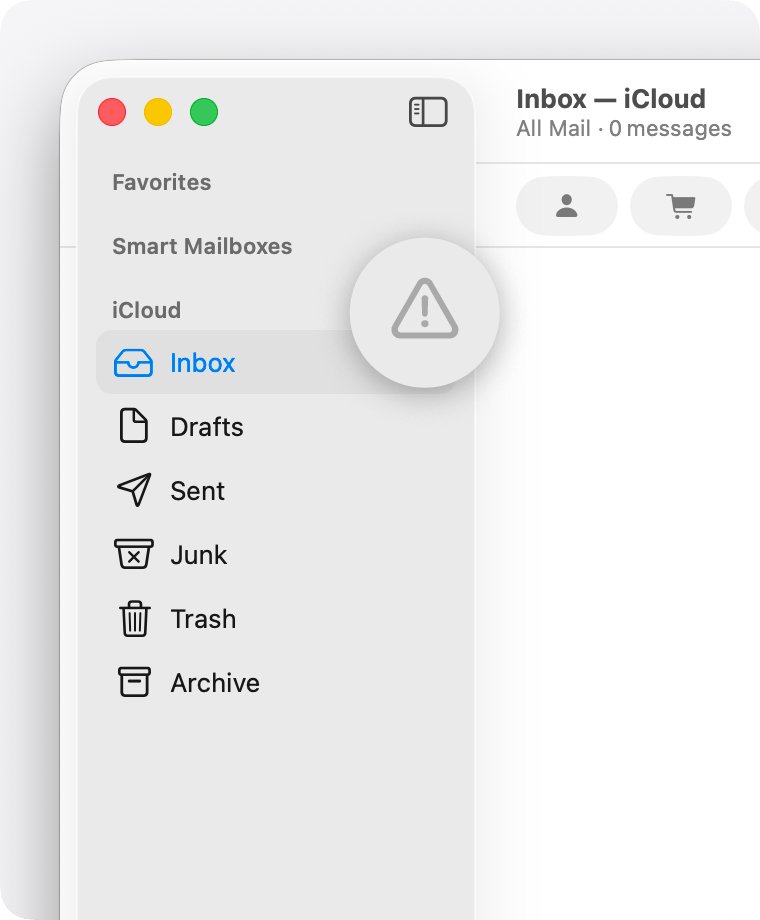
- On Mac, click the status icon next to the account's inbox, if one appears, and confirm the account shows as online.
If Undo Send is still showing in the inbox, the message has not gone yet. Wait for the delay to finish before you check Sent.
Why can't I send mail on iPhone or Mac?
Cannot send email but can receive email
Your internet provider might block the protocol that sends email (SMTP), or the outgoing server is set to the wrong account.
- Try sending over a different network, such as mobile data instead of Wi-Fi.
- If it works elsewhere, ask your internet provider whether it blocks outgoing SMTP traffic and how to be exempted.
- On Mac, check Server Settings and set the outgoing Account to the same account you receive with.
Cannot send or receive email at all
No internet connection, a provider outage, a full mailbox, or a VPN that interferes with mail.
- Check that the device can load websites.
- Check your provider's status page. For iCloud Mail, use Apple's system status page.
- Check that your mailbox or iCloud storage is not full.
- Turn off any VPN and try again, then restart the device.
Email not sending to a specific address
A typo in the recipient's address, or the recipient's server blocks or filters the message.
- Open the message in Sent or Outbox and check the recipient's address letter by letter.
- Look for an "undelivered mail returned" or "unknown address" message in your Inbox.
- Ask the recipient to check their Junk folder.
- If the message sent without any alert, ask the recipient to contact their email administrator.
iCloud message stuck with "This message could not be sent"
iCloud is not the outgoing mail account for your @icloud.com address on the Mac.
- In Mail, choose Mail > Settings and click Accounts.
- Select your iCloud account and click Server Settings.
- Select iCloud as the outgoing mail account.
- If you use a non-iCloud outgoing server, do not use your iCloud address as the Send From address.
Mail keeps asking for a password, then fails to send
The provider rejects the saved password, often after a password change or new security rules.
- Sign in to your provider's website to confirm the password.
- Ask your provider if you need an app password or app authorization for Mail.
- Remove the account from the device and add it again with the current password.
Mail suddenly stopped sending on Mac
A temporary outage, a sending quota, or new terms the provider wants you to accept.
- Wait and try again later.
- Control-click the account's mailbox and choose Get Account Info to check storage use.
- Sign in to the provider's website and accept any updated terms.
- If nothing works, remove the account in Mail and add it back with the correct provider.
Sender address was invalid FAQ
Why can't I send mail on my iPhone?
Most send failures come from a lost internet connection, a provider outage, a wrong password, or the wrong account in the From field. Check the Outbox, choose the right From account, confirm the password on your provider's website, and remove and re-add the account if it still fails.
Why would an email not send?
An email stays unsent when the outgoing server refuses it. Common reasons are a sender address the server does not accept, a wrong password, a full mailbox, a sending limit, an attachment that is too large, or an internet provider that blocks outgoing mail traffic.
Why won't my mail send from one account only?
That account's From address, password or outgoing server does not match what the provider expects. Sign in to the provider's webmail to confirm the account works, then check the account's email address and outgoing server settings in Mail or set the account up again.
Why is my mail not sending from my iCloud alias?
The alias might be turned off, deleted or not selected under Send From. Open Mail settings on icloud.com/mail, clear the Disable alias checkbox, select the alias under Send From and save. Aliases only work on devices signed in to the same Apple Account.
How do I fix cannot send mail sender address invalid on iPad?
Open the message in Outbox, tap the Cc/Bcc, From field, choose the account that owns the address, and tap Send. If that fails, delete the account under Settings, Apps, Mail, Mail Accounts and add it again.
What does IONOS cannot send mail sender address invalid mean?
It is the same server refusal: the outgoing server does not accept the From address for the account you signed in with. Check that the From address and the account login are the same mailbox, and confirm the outgoing server settings with IONOS support.
Why can I receive email but cannot send email?
Receiving and sending use different servers. If only sending fails, your internet provider might block SMTP traffic, or the outgoing server is set to the wrong account or has an old password. Try another network and check the outgoing server settings.
Does deleting the email account from my iPhone delete my email?
It removes the downloaded mail and settings from the iPhone only, and it does not close the account. Mail stored on the provider's server returns when you add the account again. Check your provider's website first to confirm your email is stored there.
Fixing the invalid sender address error for good
Resend from the Outbox with the correct account in the From field first, and if the error returns, delete the account and add it back through your real provider's option. The alert is the outgoing server refusing the From address, so the fix is always to make the From address, the account login and the outgoing server belong to the same mailbox.