Your BitLocker recovery key on Windows 11 is usually in your Microsoft account: open aka.ms/myrecoverykey on another device, sign in, and match the Key ID shown on the blue recovery screen.
If it is not there, the key may be in a work or school account, on a USB drive, in a saved text file or on a printout, and this guide covers each place plus how to back the key up.
How to find your BitLocker recovery key on Windows 11
Home PCs that use device encryption upload the key to the Microsoft account of the administrator who signed in. That makes the account page the first place to look.
- On a phone or another computer, open aka.ms/myrecoverykey. It redirects to account.microsoft.com/devices/recoverykey.
- Sign in with the Microsoft account you use on the locked PC.
- Note the Key ID on the BitLocker recovery screen of the locked PC.
- Find the entry on the web page whose Key ID matches it.
- Type the 48-digit recovery key into the locked PC and press Enter.
If the page lists no keys, the PC was probably set up with a different Microsoft account, a work account or a local account. Work through the places below.
What is a BitLocker recovery key?
A BitLocker recovery key unlocks an encrypted drive when the normal unlock method fails. Windows asks for it after changes such as a firmware update, a new motherboard, a cleared TPM or too many wrong PIN attempts.
| Term | What it is | Where you meet it |
|---|---|---|
| Recovery password | 48 digits in eight groups of six, for example 123456-789012-… | Typed on the recovery screen; the one most people call the recovery key |
| Recovery key file | A .bek file named after the protector ID | Read from a USB drive at startup |
| Key ID | An identifier for one specific recovery password | Shown on the recovery screen and next to each saved key |
| Device encryption | BitLocker turned on automatically on qualifying PCs | Available on all Windows 11 editions, including Home |
| BitLocker Drive Encryption | The full BitLocker feature with Control Panel management | Windows 11 Pro, Enterprise and Education |
Each digit block carries a checksum, so the recovery screen flags a mistyped block before you finish.
Prerequisites for finding a BitLocker recovery key
| You need | Why |
|---|---|
| A second device with a web browser | The locked PC cannot open the account pages |
| The Microsoft account or work account used on the PC | Keys are stored against the account that signed in when encryption was armed |
| The Key ID from the recovery screen | It tells you which saved key belongs to this drive |
| Administrator rights (only for the in-Windows methods) | Showing or backing up a key on the OS drive needs a local administrator |
Check your Microsoft account
Look here first if you signed in to Windows 11 with an Outlook, Hotmail or other Microsoft account. Storing the key in a Microsoft account is the default for PCs that are not joined to a work domain.
- Open account.microsoft.com/devices/recoverykey in any browser.
- Sign in, and if you own several Microsoft accounts, repeat for each one.
- Compare the device name and Key ID of every listed key with the locked PC.
- Copy the matching 48-digit key exactly, including all eight groups.
Automatic device encryption only arms after a Microsoft account or work account signs in. A PC that has only ever used a local account has no key in any online account.
Find BitLocker recovery key with Key ID in Windows 11
Work and school PCs save the key to Microsoft Entra ID or Active Directory instead of a personal account. The Key ID on the recovery screen is what you or the help desk search with.
| Your PC | Where to look | What to select |
|---|---|---|
| Work or school PC (Entra joined) | myaccount.microsoft.com | Devices, your PC, then View BitLocker Keys |
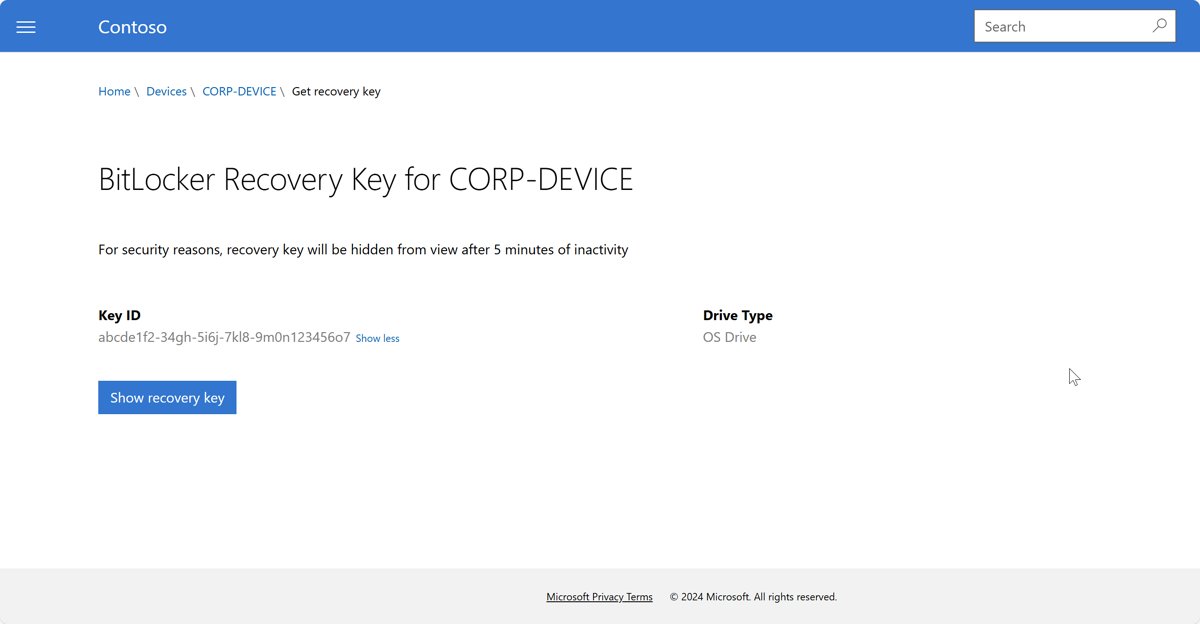
| PC enrolled in Intune | Company Portal website at portal.manage.microsoft.com | Devices, the PC, Get recovery key, then Show recovery key |
| Domain-joined PC (IT admin) | Active Directory Users and Computers | Right-click the domain, Find BitLocker Recovery Password, enter the first eight characters of the ID |
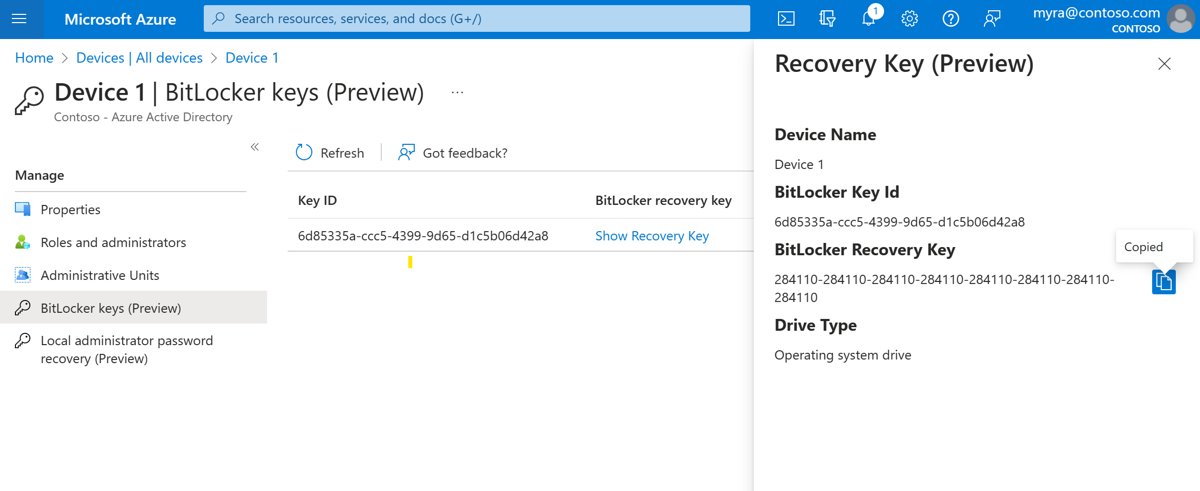
| Entra joined PC (IT admin) | Microsoft Entra admin center | The device's details, then Show Recovery Key |
The Company Portal hides the key again after five minutes. Your organisation can also block self-service access, in which case only the help desk can read it.
Find a recovery USB drive
BitLocker setup offers Save to a USB flash drive. The drive then holds a .bek key file, and it may also hold a text copy of the recovery password.
- Plug the USB drive into the locked PC while the recovery screen is showing.
- Follow the on-screen prompt to read the key from the drive.
- If the PC does not read it, plug the drive into another computer.
- Open the drive in This PC and open the text file that contains the recovery password.
- Type the 48 digits into the locked PC.
Some PCs cannot read USB drives before Windows starts. Turn on USB support in the UEFI settings, or read the text copy on a second computer, where the drive appears under This PC in File Explorer.
Check your cloud storage account
Save to a file writes a text file that cannot sit on the encrypted drive itself. Many people move that file to OneDrive, another cloud drive or a network folder.
- On another device, sign in to the cloud storage or network share you used at the time.
- Search the storage for files with BitLocker in the name.
- Open each text file and compare its identifier with the Key ID on the recovery screen.
- Use the 48-digit password from the file that matches.
Look for a printout or paper document
Print the recovery key was one of the four backup choices when BitLocker was turned on. A printout looks like the saved text file, with the Key ID and the 48-digit password.
- Check the paperwork that came with the PC, any IT handover sheet and your home files.
- If you printed to PDF, search your other computers and cloud storage for a PDF with BitLocker in its name.
- Match the Key ID on the paper to the one on the recovery screen before typing the digits.
Configuration: show the BitLocker recovery key with PowerShell
If Windows still starts, you can read the recovery password of any unlocked drive without going online. Open PowerShell as administrator first.
(Get-BitLockerVolume -MountPoint C).KeyProtectorLists every key protector on drive C:. The RecoveryPassword protector shows its KeyProtectorId (the Key ID) and the 48-digit RecoveryPassword. In Command Prompt as administrator, manage-bde -protectors -get C: shows the same ID and numerical password.
You should see: A protector with KeyProtectorType RecoveryPassword and a 48-digit value in RecoveryPassword. If none is listed, the drive has no recovery password yet.
Run manage-bde -status to confirm which drives are encrypted and whether protection is on.
Step-by-step guide to back up your BitLocker recovery key
Do this as soon as you find the key, so the next recovery screen takes minutes instead of a search. You need a local administrator account.
- Select Start, type BitLocker and select Manage BitLocker.
- Under the drive, select Back up your recovery key.
- Choose the Microsoft account option, Save to a USB flash drive, Save to a file or Print the recovery key.
- If you save to a file, pick a location that is not on the encrypted PC.
- Repeat the step to keep a second copy in a different place.
Do not store the USB key in the same bag as the laptop. Anyone holding both can unlock the drive.
How to use the BitLocker recovery key on Windows 11
The recovery screen accepts the key through the function keys as well as the number row, because number keys do not work before startup on every keyboard.
- On the BitLocker recovery screen, type the 48 digits. Use F1 to F10 if the number keys do nothing.
- Press Enter to unlock the drive and start Windows.
- If the screen is shown by Windows Recovery Environment, press Win + Ctrl + Enter to turn on Narrator, or tap a text box for the on-screen keyboard.
- To unlock a BitLocker drive connected to another PC, open Manage BitLocker, select Unlock drive and enter the key.
- From Command Prompt, run
manage-bde -unlock D: -recoverypasswordfollowed by the 48-digit key.
Tips and troubleshooting for BitLocker recovery keys
BitLocker recovery key not working on Windows 11
The key belongs to another drive or an older protector, or a digit block is mistyped.
- Compare the Key ID on the screen with the ID next to the key you are typing.
- Check every Microsoft account and work account you have used on this PC.
- Retype each six-digit block carefully; the screen flags a block that fails its checksum.
- If the correct key unlocks but Windows still will not start, select Skip this drive, then Troubleshoot > Advanced Options > Command Prompt and run
manage-bde -unlock C: -rpwith the key.
Windows 11 asks for the BitLocker recovery key on every restart
A firmware, boot order or TPM change keeps failing the startup check.
- Unlock with the recovery key and sign in.
- Open Manage BitLocker and select Suspend protection.
- Restart once, then select Resume protection so BitLocker reseals to the current setup.
- Make the internal drive first in the boot order and remove extra USB drives at startup.
Windows asks for a recovery key you never set up
Device encryption turned BitLocker on automatically when you signed in with a Microsoft account.
- Check account.microsoft.com/devices/recoverykey for every Microsoft account used on the PC.
- On a work PC, check myaccount.microsoft.com or ask the help desk.
BitLocker stuck on Decrypting or Encrypting in Windows 11
Encryption or decryption percentage stops moving
BitLocker works in the background and can pause while the PC is busy or on battery.
- Connect the laptop to power and leave it idle.
- Open PowerShell as administrator and run
manage-bde -statusto read Percentage Encrypted. - Run the command again after some time to see whether the value changes.
- Restart the PC; the process resumes where it stopped, even after a power cut.
Active Directory not showing BitLocker recovery key tab
No **BitLocker Recovery** tab in the computer object's properties
The BitLocker Recovery Password Viewer extension is missing or your account cannot read recovery objects.
- Install the BitLocker Recovery Password Viewer, which ships with Remote Server Administration Tools (RSAT).
- Reopen Active Directory Users and Computers, right-click the computer and select Properties.
- If the tab is still missing or empty, ask a Domain Administrator for read access to BitLocker recovery information.
- If the key was never backed up, an admin on a working PC can run
manage-bde -protectors -adbackup C:from an elevated Command Prompt.
What to do if you can’t find your recovery keys
BitLocker is built so the drive cannot be opened without the key. There is no bypass, so the choice depends on who manages the PC and what is on it.
| Your situation | Do this | Why |
|---|---|---|
| Work or school PC | Give the help desk the device name and Key ID | Admins can read keys from Entra ID, Intune or Active Directory |
| Personal PC, several Microsoft accounts | Sign in to the recovery key page with each account | The key sits with whichever account armed encryption |
| Bought used or set up by someone else | Ask the previous owner to check their Microsoft account | The key is stored in their account, not yours |
| No key anywhere | Erase the drive and reinstall Windows 11 | The PC works again, but files on the encrypted drive stay unreadable |
BitLocker recovery key FAQs
How long is a BitLocker recovery key?
The recovery password is 48 digits split into eight groups of six, separated by dashes. Each group has a built-in checksum, so the recovery screen can tell you when a block is mistyped.
Where is the BitLocker recovery key stored in my Microsoft account?
It is on the recovery key page at account.microsoft.com/devices/recoverykey, which aka.ms/myrecoverykey opens. Sign in with the account used on the PC and match the Key ID shown on the recovery screen.
Can I find my BitLocker recovery key using Command Prompt?
Yes, if Windows still starts. Run manage-bde -protectors -get C: in an elevated Command Prompt to show the Key ID and numerical password. PowerShell's Get-BitLockerVolume shows the same RecoveryPassword value.
Does Windows 11 Home have BitLocker?
Windows 11 Home has device encryption, which uses BitLocker and saves the key to your Microsoft account. The full BitLocker Drive Encryption controls are in Windows 11 Pro, Enterprise and Education, so upgrading Windows 11 Home to Pro adds them.
Why is my PC asking for a BitLocker recovery key?
BitLocker asks for the key when the startup check fails. Common causes are a firmware update, a changed boot order, a cleared or disabled TPM, moving the drive to another PC, or too many wrong PIN attempts.
What is the BitLocker Key ID?
The Key ID identifies one specific recovery password. The recovery screen shows it, and every saved copy lists it, so you can pick the right key when an account holds several.
Can I skip the BitLocker recovery screen?
Selecting Skip this drive opens recovery options such as Command Prompt, but the drive stays locked. You still need the recovery key to read files or start Windows from that drive.
Is my data lost if I cannot find the recovery key?
Yes. BitLocker is designed to keep the drive unreadable without the key. Erasing the drive and reinstalling Windows makes the PC usable again, but the encrypted files cannot be recovered.
Do I need to suspend BitLocker before Windows updates?
No. Windows quality and feature updates from Microsoft need no BitLocker action. Suspend protection before BIOS, UEFI or TPM firmware updates installed outside Windows Update to avoid the recovery screen.
Should I save the recovery key to my Microsoft account?
For a personal PC, yes. Microsoft account storage is the recommended default for PCs that are not joined to a work domain, and a second copy on paper or USB covers you if the account is unavailable.