To fix Microsoft Edge WebView2 memory use, find the app that owns the msedgewebview2.exe processes in Task Manager, then quit, update or reset that app, because Microsoft says the extra memory almost always comes from how an app uses WebView2, not from WebView2 itself.
This guide covers identifying the host app, the Windows 11 and Windows 10 features that commonly run WebView2 in the background, cache resets, repairs, advanced tracing, and why removing the WebView2 Runtime is the wrong fix.
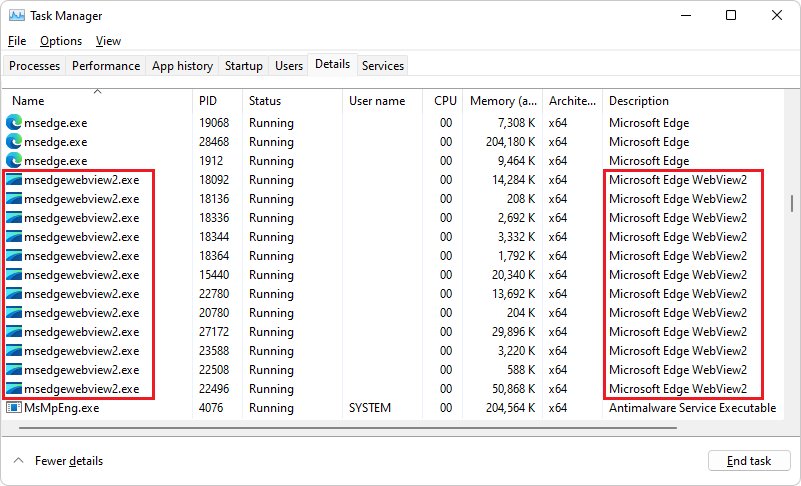
The fastest way to bring WebView2 memory use back down
WebView2 never runs on its own. Every group of msedgewebview2.exe processes belongs to an app, so the fix starts with that app.
- Press Ctrl + Shift + Esc to open Task Manager.
- On the Processes tab, select the Name column header so processes sort by name. Microsoft notes the grouping can be wrong when you sort by another column.
- Expand the app that shows the high memory figure and look for WebView2 entries inside it.
- Save your work in that app, then right-click the app and select End task, or quit it from its own menu.
- Reopen the app and watch its memory for a few minutes.
- If the number climbs again, update the app and then reset its cache using the sections below.
If the WebView2 group sits under an app you never use, such as Widgets, turn that feature off instead of restarting it.
What Is Microsoft Edge WebView2?
WebView2 lets developers embed web content (HTML, CSS and JavaScript) inside Windows apps, using Microsoft Edge as the rendering engine. Its executable is msedgewebview2.exe, a Microsoft product that updates itself through the Evergreen distribution method.
The Evergreen Runtime is preinstalled on all Windows 11 devices, and Microsoft installed it on eligible Windows 10 devices. It does not install the Edge browser and does not change your default browser.
| Process in the WebView2 group | What it does | How many you see |
|---|---|---|
| WebView2 manager (browser process) | Owns the group and ties it to one user data folder | One per app, per user data folder |
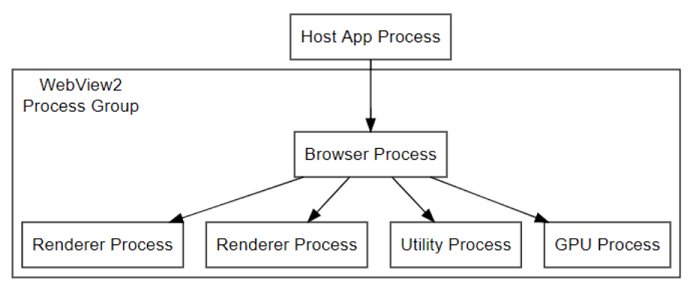
| Renderer process | Draws the web content inside the app | Typically one per WebView2 control, like one per browser tab |
| GPU process | Handles graphics work for the web content | Usually one per group |
| Utility processes | Network, audio and similar services, depending on the content | Varies with what the app loads |
Microsoft lists Widgets, Teams, Office, Outlook and Weather as common WebView2 users, and any app can use it. That is why several separate WebView2 groups can run at once.
When WebView2 Memory Use Is Normal—and When It Is a Problem
A handful of msedgewebview2.exe processes is the normal design, not a fault. Microsoft splits the work into processes so one failure does not take down the rest. Match what you see to a row.
| What you see | What it means | What to do |
|---|---|---|
| Several WebView2 processes under Outlook, Teams or Widgets while you use them | Normal: one set of processes per app, one renderer per web view | Nothing, unless the total keeps growing |
| Memory drops back after you close the app | Normal: the processes end with their host | Nothing |
| Memory climbs steadily for hours while the app sits idle | The app's web content is not releasing memory | Restart, update, then reset the app's cache |
| WebView2 runs under a feature you never open | A background feature such as Widgets is still loaded | Turn the feature off or stop it starting with Windows |
| Memory rises only after you add an Office or Outlook add-in | Office add-ins run on WebView2 | Turn add-ins off one at a time |
| The process is named msedge.exe, not msedgewebview2.exe | That is the Edge browser, not WebView2 | Use Edge's sleeping tabs, extensions and startup boost settings |
Find Which App Is Using WebView2
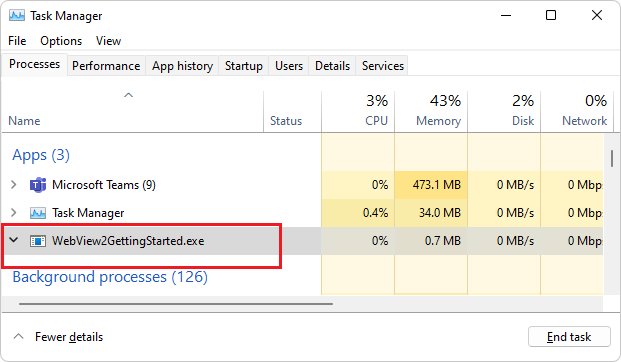
Task Manager shows WebView2 processes on the Processes tab grouped under the parent app. In Windows 10 and early Windows 11 versions it lists only the app name; the latest Windows 11 versions list each WebView2 process inside the group.
- Press Ctrl + Shift + Esc to open Task Manager.
- Select Processes and sort by the Name column.
- Expand each app with the arrow beside its name and look for WebView2 entries.
- Note the app whose group holds the most memory. That app is the one to fix.
- Open the Details tab to see the same processes as msedgewebview2.exe. This tab groups them together rather than by parent app, so use it only for totals.
- If the grouping still looks wrong, use Process Explorer as described in the advanced section below.
Outlook is the example Microsoft gives: multiple WebView2 instances running under the Microsoft Outlook process are expected when its web-based features are open.
Close or Restart the App Hosting WebView2
Every WebView2 process is tied to its app's browser process, and that browser process lives only as long as the app keeps it. Quitting the app fully ends the whole group.
- For Microsoft Teams, right-click the Teams icon on the taskbar and select Quit. Closing the window alone can leave it running.
- For new Outlook or other apps, save your work and close every window of the app.
- Open Task Manager and confirm the app and its WebView2 group are gone from Processes.
- If the app is still listed, right-click it under Apps and select End task.
- Reopen the app and check whether memory stays lower.
- If several apps are involved, select Start > Power > Restart to clear them all at once.
Disable Windows Widgets If You Don’t Use Them
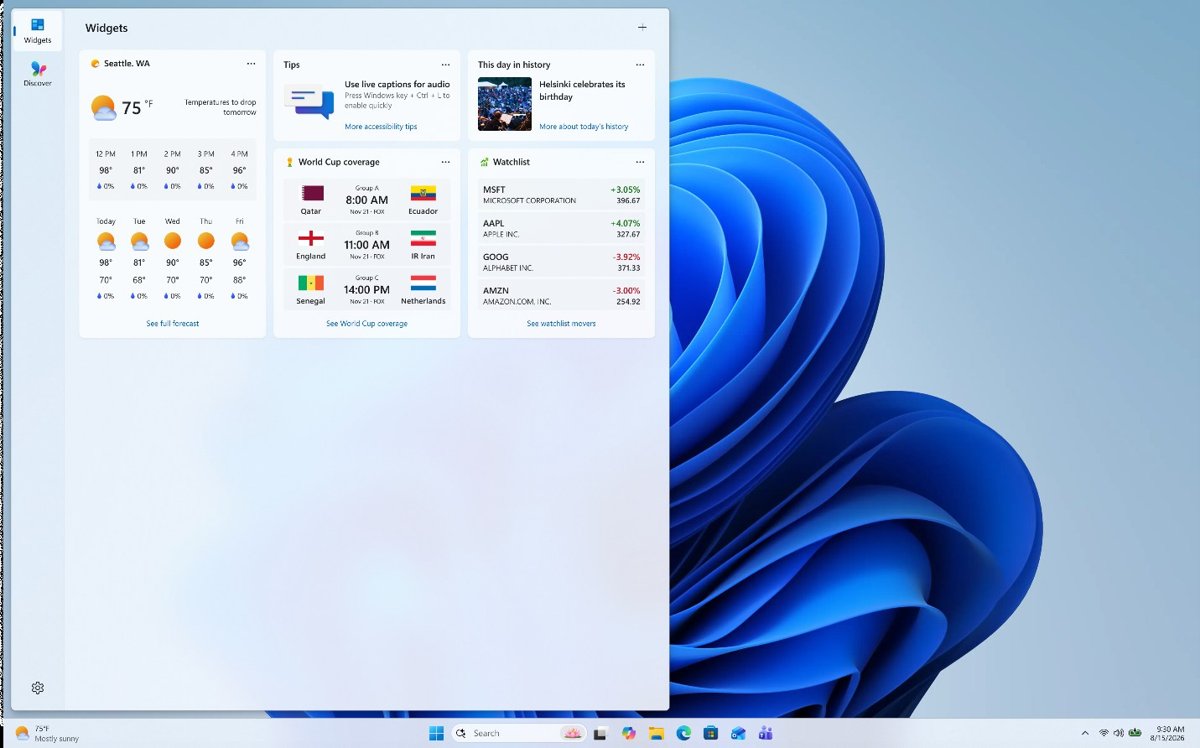
Widgets is one of the Windows features Microsoft names as a WebView2 user. Its board refreshes weather, news and stocks throughout the day.
- Right-click an empty area of the taskbar and select Taskbar settings.
- Under Taskbar items, turn the Widgets switch Off.
- Open Task Manager and check whether the Widgets group and its WebView2 processes have ended.
- If you still want Widgets occasionally, press Windows key + W to open the board on demand.
If Widgets stays on but misbehaves, Microsoft says it needs the latest Windows Web Experience Pack and Start Experiences App. Update them through Microsoft Store as shown under updating the host app.
Disable Copilot and Background AI Features You Don’t Use
On new Windows 11 PCs the Copilot app is installed by default and pinned to the taskbar or Start. Check Task Manager first: act on Copilot only if its group is the one holding memory.
- Open Task Manager and expand the Copilot entry on the Processes tab, if one is listed.
- Select Startup apps in the left menu, right-click Copilot if it appears, and select Disable.
- Close the Copilot app so its processes end now.
- If you never use it, select Start > Settings > Apps > Installed apps, find Copilot, select More options (…) and Uninstall.
- Select Start > Settings > Apps > Installed apps, open Advanced options for any other AI app you do not use, and set Let this app run in the background to Never where the option exists.
Pressing Windows key + C or the Copilot key reopens the app later if it is still installed.
Update Microsoft Edge WebView2 Runtime
The Evergreen Runtime updates itself a few times each month, on its own schedule separate from Office and Windows. Updates are usually 5 MB to 30 MB. A missing or damaged Runtime is rarer than an app problem, but it is quick to rule out.
- Open Control Panel > Programs > Programs and Features.
- Confirm Microsoft Edge WebView2 Runtime is in the list.
- Run Windows Update from Start > Settings > Windows Update > Check for updates so pending updates install.
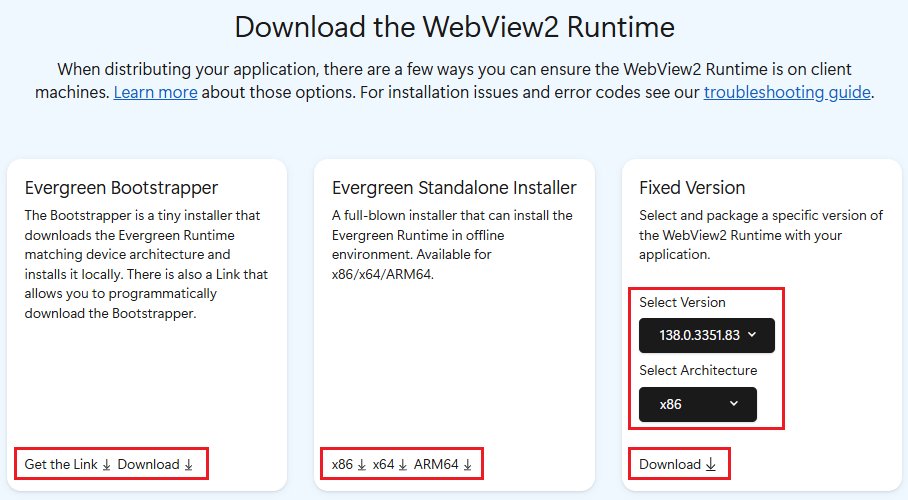
- If the Runtime is missing or apps report it as broken, open Microsoft's WebView2 page at developer.microsoft.com/microsoft-edge/webview2.
- Download the Evergreen Standalone Installer or Evergreen Bootstrapper from the download section and run it to reinstall the current version.
- Restart the app that uses WebView2.
Update the App That Is Hosting WebView2
Because the memory comes from the app's web content, the app's own updates carry most fixes. Update whichever app Task Manager pointed to.
- For Microsoft 365 apps and classic Outlook, open Word and create a blank document.
- Select File > Account (Office Account in classic Outlook).
- Under Product Information, select Update Options > Update Now, and select Enable Updates first if that is all you see.
- For Store apps such as new Outlook, new Teams, Widgets components and Copilot, open Microsoft Store and select Check for Updates.
- Select Start > Settings > Windows Update > Check for updates, then Advanced options > Optional updates.
- Restart the PC after the updates finish.
Clear Cache for Apps That Use WebView2
An app keeps its web data in a user data folder, and every WebView2 group is bound to one. Resetting the app clears that data. Microsoft calls a Teams cache reset a targeted step, not a general first fix, and it deletes Teams diagnostic logs.
- New Teams: select Settings > Apps > Installed apps, search for Microsoft Teams, select More options (…) > Advanced options, and select Reset. This deletes your Teams personalization settings.
- New Teams, manual route: quit Teams, press Windows key + R, enter
%userprofile%\appdata\local\Packages\MSTeams_8wekyb3d8bbwe\LocalCache\Microsoft\MSTeams, select OK, and delete everything in the folder. - Classic Teams: quit Teams, open
%appdata%\Microsoft\Teamsfrom Run, and delete everything in the folder. - New Outlook: force close and reopen it. If memory is still high, open Settings, select the email account, and select Reset Account.
- Other Store apps: open Installed apps, select More options (…) > Advanced options, select Repair, and use Reset only if repair does not help.
- Restart the app. The first launch after a reset is slower while the cache rebuilds.
Not every app has Advanced options, and Microsoft notes that repair and reset are not offered for all apps. For those, check the app's own settings or contact its support team.
Stop Problem Apps from Starting with Windows
An app that starts at sign-in starts its WebView2 group too, even if you never open its window. Microsoft lists startup apps as a common source of background load.
- Press Ctrl + Shift + Esc to open Task Manager.
- Select Startup apps in the left menu.
- Right-click each app you do not need at sign-in, such as the one hosting the WebView2 group, and select Disable.
- Select Start > Settings > Accounts > Sign-in options.
- Turn off Automatically save my restartable apps and restart them when I sign in so closed apps stay closed after a restart.
- Restart and confirm the app no longer appears in Processes until you open it.
Check Browser Extensions, Office Add-ins, and App Plug-ins
Office add-ins rely on WebView2, so a heavy add-in shows up as WebView2 memory under Outlook, Word, Excel or PowerPoint. Edge browser extensions affect msedge.exe instead, which Task Manager lists separately.
- Press Windows key + R, type
outlook /safeand select OK. Usewinword /safe,excel /safeorpowerpnt /safefor other apps. - Watch memory in Task Manager. If it stays low in Safe Mode, an add-in is the likely cause.
- Close Safe Mode and restart the app normally.
- In Outlook, select File > Manage Add-ins and clear the box in the Turned on column for one add-in.
- Restart Outlook and recheck memory, then repeat one add-in at a time.
- For the Edge browser, select Extensions beside the address bar > Manage extensions and turn off extensions one at a time.
- For other apps, turn off plug-ins or integrations in the app's own settings the same way.
Turn Off Edge Background Features That Can Add to Memory Use
These settings change the Edge browser (msedge.exe), not the WebView2 Runtime. They matter when the memory you see belongs to Edge itself, or when you want every background process off before measuring WebView2.
- Open Edge, type
edge://settings/system/manageSystemin the address bar and press Enter. - Turn off Startup boost, which keeps core Edge processes running in the background after you close the browser.
- Stay in Settings and more > Settings > System and performance and keep sleeping tabs on, which puts background tabs to sleep after two hours of inactivity by default.
- Shorten the sleeping tabs interval if you keep many tabs open.
- Open Settings and more > More tools > Performance to see whether any tab is flagged for high memory or CPU use.
- Close Edge fully and check Task Manager to confirm msedge.exe processes have ended.
For more on how sleeping tabs work, read about Edge sleeping tabs saving memory. If Edge itself stutters, How to fix latest Microsoft Edge 111’s lagging issue covers that separately.
Repair Windows System Files
Damaged system files can make any process misbehave. Microsoft recommends running DISM before System File Checker, because DISM supplies the files SFC uses for repairs.
- Type
cmdin the Windows search box. - Right-click Command Prompt and select Run as administrator.
- Run
DISM.exe /Online /Cleanup-image /Restorehealthand wait for it to finish. It uses Windows Update as its file source. - Run
sfc /scannowand wait for the scan to reach 100 percent. - Read the result: Windows Resource Protection did not find any integrity violations means no system files are damaged.
- If it reports found corrupt files and successfully repaired them, restart the PC and recheck WebView2 memory.
- If it reports could not perform the requested operation, run the scan again in safe mode.
Check for Malware or Unwanted Software
Malware consumes CPU and disk resources, and a process name alone does not prove a file is genuine. Scan with the built-in Windows Security tools.
- Select Start > Settings > Privacy & security > Windows Security > Virus & threat protection.
- Select Quick scan and let it finish.
- Remove anything Windows Security flags and restart if it asks.
- Select Start > Settings > Apps > Installed apps and uninstall any app you do not recognise or no longer use.
- Recheck Task Manager to see whether the WebView2 groups under those apps are gone.
Use Efficiency Mode Carefully
Windows 11 efficiency mode lowers a process's priority to limit its resource use, and Windows can apply it automatically when CPU use is high. A green double-leaf icon in Task Manager's Status column shows it is on. Microsoft warns it may cause instability for some processes, and it targets CPU priority rather than freeing memory.
- Select Start, type Task Manager, and open it.
- On the Processes tab, select the arrow beside the app's group to expand it.
- Right-click the individual process and select Efficiency mode.
- Confirm the prompt that asks Do you want to turn on Efficiency mode.
- If the app freezes, flickers or stops updating, right-click the process and select Efficiency mode again to turn it off.
Many process groups cannot switch efficiency mode as a whole; the button is greyed out when it is unavailable. Windows efficiency mode is separate from Edge's energy saver, so turning one off does not turn off the other.
Should You End the WebView2 Process?
Only end the host app, not individual msedgewebview2.exe processes. All processes in a group depend on the app's WebView2 browser process, and apps handle a crashed renderer or browser process through their own error handling.
End the app that owns the WebView2 group with End task on the Processes tab, not msedgewebview2.exe entries on the Details tab. Ending a single WebView2 process leaves the app running with broken or blank web panes, and the app can simply start a new process. Ending the whole app stops the group cleanly, and the next launch starts it fresh.
Should You Uninstall Microsoft Edge WebView2 Runtime?
No. Microsoft states that apps depend on the WebView2 Runtime, and that Office features built on WebView2 cannot be used when the Runtime is not installed. Room Finder and Meeting Insights in Outlook are two of those features.
Keep the Microsoft Edge WebView2 Runtime installed and fix the app that is using the memory instead. The Runtime is part of Windows 11 and is used by Widgets, Teams, Office, Outlook and many other apps. Microsoft also notes that many WebView2 apps reinstall it when they install or launch, so removal usually just breaks features until it comes back. Uninstalling the Edge browser, by contrast, does not affect WebView2.
Advanced: Use Process Explorer to Identify the Parent App
Microsoft's WebView2 FAQ names Process Explorer, a free Sysinternals tool from Microsoft, as the next step when Task Manager's grouping is unclear. It runs on Windows 11 and Windows Server 2019 or later.
- Open the Process Explorer page on Microsoft Learn (learn.microsoft.com/sysinternals/downloads/process-explorer) and select Download Process Explorer.
- Extract the download and run procexp.exe. There is no installer.
- Find the msedgewebview2.exe entries in the top window, which lists every active process and its owning account.
- Select one and switch the lower window to DLL mode to see which DLLs and memory-mapped files it has loaded.
- Use the search feature to find which processes have a particular handle or DLL open.
- Once you know the parent app, apply the restart, update and cache steps above to it.
If one app consistently causes heavy WebView2 usage, Microsoft's advice is to report it to that app's support team, since the app controls how WebView2 is used.
Advanced: Check WebView2 Memory with Windows Performance Tools
Windows Performance Recorder (WPR) records system and app events, and Windows Performance Analyzer (WPA) opens the recording to show resource use over time. Both come with the Windows Assessment and Deployment Kit (Windows ADK). Use them when you need evidence for an app's support team.
wpr -start GeneralProfile -filemodeRun this from an administrator Command Prompt, then reproduce the memory growth in the app. When the growth is captured, run wpr -stop webview2-memory.etl to save the recording. Run wpr -profiles to list the other built-in profiles.
You should see: WPR saves webview2-memory.etl, which you open in Windows Performance Analyzer to check msedgewebview2.exe memory over the recording.
How to check the WebView2 memory fix worked
One low reading straight after a restart proves little. Check the app under the conditions that caused the problem.
- Open the app you fixed and use it normally for 15 to 30 minutes.
- Open Task Manager, sort Processes by Name, and expand the app's group.
- Note the memory figure, wait, and read it again. It should level off rather than climb steadily.
- Close the app and confirm its WebView2 entries disappear.
- Select Performance > Memory in Task Manager and confirm overall memory in use has dropped compared with before.
Fix WebView2 memory problems that come back
These symptoms come from the questions Microsoft answers in its WebView2 FAQ and the problems readers report after trying the fixes above.
Task Manager shows WebView2 under the wrong app, or not grouped at all
Microsoft notes the grouping is sometimes incorrect when you sort by a column other than Name.
- Select the Name column header on the Processes tab.
- Expand each app again and look for the WebView2 entries.
- If grouping is still unclear, use Process Explorer as described above.
WebView2 was reinstalled after I uninstalled it
WebView2 is preinstalled on Windows 11, and many apps reinstall it when they install or launch.
- Leave the Runtime installed. Removing it again only breaks the apps that need it.
- Identify the app using memory in Task Manager.
- Restart, update or reset that app instead.
App crashes, loses sound, or shows blank or glitched panels
A WebView2 process ended or failed underneath the app, often after ending it by hand.
- Quit the app fully and reopen it.
- Update the app and run Windows Update.
- Reset the app's cache or account as shown above.
- If the problem is in the Edge browser itself, fix Edge if it keeps crashing.
PC is slower than it used to be even after closing WebView2 apps
The load comes from other startup apps, background apps, low disk space or outdated updates.
- Disable unneeded apps under Startup apps in Task Manager.
- Select Start > Settings > System > Storage and run Storage Sense.
- Install Windows updates and optional driver updates.
- Run a Quick scan in Windows Security.
Quick Fix Checklist
Work down the list and stop when memory stays level. The top rows fix most cases.
| Step | Where | Fixes |
|---|---|---|
| Find the host app | Task Manager > Processes, sorted by Name | Tells you what to fix |
| Quit and reopen the app | Taskbar icon > Quit, or End task | A one-off memory build-up |
| Turn off unused Widgets or Copilot | Taskbar settings, Startup apps | WebView2 running for features you ignore |
| Update the app and Windows | Update Now, Microsoft Store, Windows Update | Known leaks fixed by the vendor |
| Reset the app's cache | Installed apps > Advanced options > Reset | Bloated or damaged web data |
| Test add-ins | outlook /safe, Manage Add-ins |
A heavy Office add-in |
| Repair and scan | DISM, sfc /scannow, Quick scan |
System damage or malware |
| Keep the Runtime | Do not uninstall it | Avoids breaking Office, Teams and Widgets |
Frequently Asked Questions
What is msedgewebview2.exe?
msedgewebview2.exe is the Microsoft Edge WebView2 Runtime, a Microsoft component that lets Windows apps display web content using the Edge engine. Widgets, Teams, Office, Outlook and Weather use it. It updates itself automatically and is preinstalled on Windows 11.
Why is Microsoft Edge WebView2 using so much memory?
Microsoft says extra memory or CPU use is almost always due to how an app uses WebView2, not WebView2 itself. Heavy or non-optimized web content inside the app, many open web views, or add-ins raise usage. Find the app in Task Manager and fix it there.
Why are there so many WebView2 processes in Task Manager?
Each app that uses WebView2 gets its own set of processes: a manager, a GPU process, utility processes and typically one renderer per web view. Several apps running at once, such as Outlook, Teams and Widgets, therefore produce several groups.
Can I uninstall Microsoft Edge WebView2 Runtime?
You should not. Microsoft states that apps depend on the Runtime and that Office features built on WebView2 stop working without it. Many apps also reinstall it on launch. Fix or close the app using the memory instead.
Will uninstalling the Microsoft Edge browser stop WebView2?
No. Microsoft states Edge can be uninstalled without causing a problem for WebView2. When both are installed, the Edge installer links them to save disk space, but WebView2 keeps working on its own.
Is it safe to end the WebView2 process in Task Manager?
End the host app, not individual msedgewebview2.exe processes. Ending one WebView2 process can leave the app with blank or broken panels. Select the app on the Processes tab and choose End task, then reopen it.
Does turning off Widgets reduce WebView2 memory use?
Yes, if Widgets is the app hosting the WebView2 group. Right-click the taskbar, select Taskbar settings, and turn Widgets off under Taskbar items. Windows key + W still opens the board when you want it.
Does WebView2 need Microsoft Edge to be installed?
No. The WebView2 Runtime does not install the Edge browser and does not require it. Installing the Runtime also leaves your default browser unchanged.
How do I fix Microsoft Edge problems that are not WebView2?
Check the process name first: msedge.exe is the Edge browser, msedgewebview2.exe is WebView2. For the browser, turn off extensions under Manage extensions, turn off Startup boost, and if it will not start at all, fix Edge failing to launch.

What is msedge.exe? Is it Safe? How do I fix high Disk or CPU usage? - Techdows
[…] A long list of msedge.exe entries with only a few tabs open is expected. If the entries are named msedgewebview2.exe instead, another app owns them; see How to Fix the Microsoft Edge WebView2 Process Consuming Your Windows Memory. […]