The Windows ADK download is free from Microsoft, and it installs the deployment and assessment tools that IT admins use to customise, capture and deploy Windows 11 and Windows 10 images. Windows PE ships as a separate add-on that you install straight after the kit.
This guide covers which ADK release to pick, the official download links, installing both packages, building bootable Windows PE media, the latest security patch, and fixes for setup failures.
What are the Windows ADK system requirements?
Both downloads are small because adksetup.exe pulls the features you tick during setup.
| Field | Value |
|---|---|
| Software | Windows Assessment and Deployment Kit (Windows ADK) |
| Developer | Microsoft Corporation |
| Latest version | 10.1.28000.1 (November 2025) |
| General release | 10.1.26100.2454 (December 2024) |
| Licence | Free |
| Supported OS | Windows 11, Windows 10, Windows Server 2025, Windows Server 2022 |
| Architecture | x64 and Arm64 |
| File size | 2.13 MB (adksetup.exe); 1.86 MB (adkwinpesetup.exe) |
| Windows PE memory | 512 MB for the base image |
| Install location | C:\Program Files (x86)\Windows Kits\10\Assessment and Deployment Kit |
| Offline installer | No single file; use the /layout switch |
| Mac version | None |
| Official download source | Microsoft Learn |
| Last verified | 2026-09-22 |
Press Windows + R, type winver and select OK to read your own build before you choose a release.
Which Windows ADK download do you need?
Microsoft keeps two current releases plus an archive of older kits. Match the newest Windows version in your estate to a row, then take the matching Windows PE add-on from the next section.
| Your environment | Take this release | Setup file |
|---|---|---|
| Windows 11 25H2 or 24H2, any supported Windows 10, Server 2025 or Server 2022 | ADK 10.1.26100.2454 (December 2024) | 2.13 MB |
| Windows 11, version 26H1 Arm64 | ADK 10.1.28000.1 (November 2025) | 2.13 MB |
| Windows 11 23H2 and earlier, Server 2022 only | ADK 10.1.25398.1 (republished January 2025) | 2.13 MB |
| You still need 32-bit Windows PE | ADK for Windows 10, version 2004 | Last kit with a 32-bit boot image |
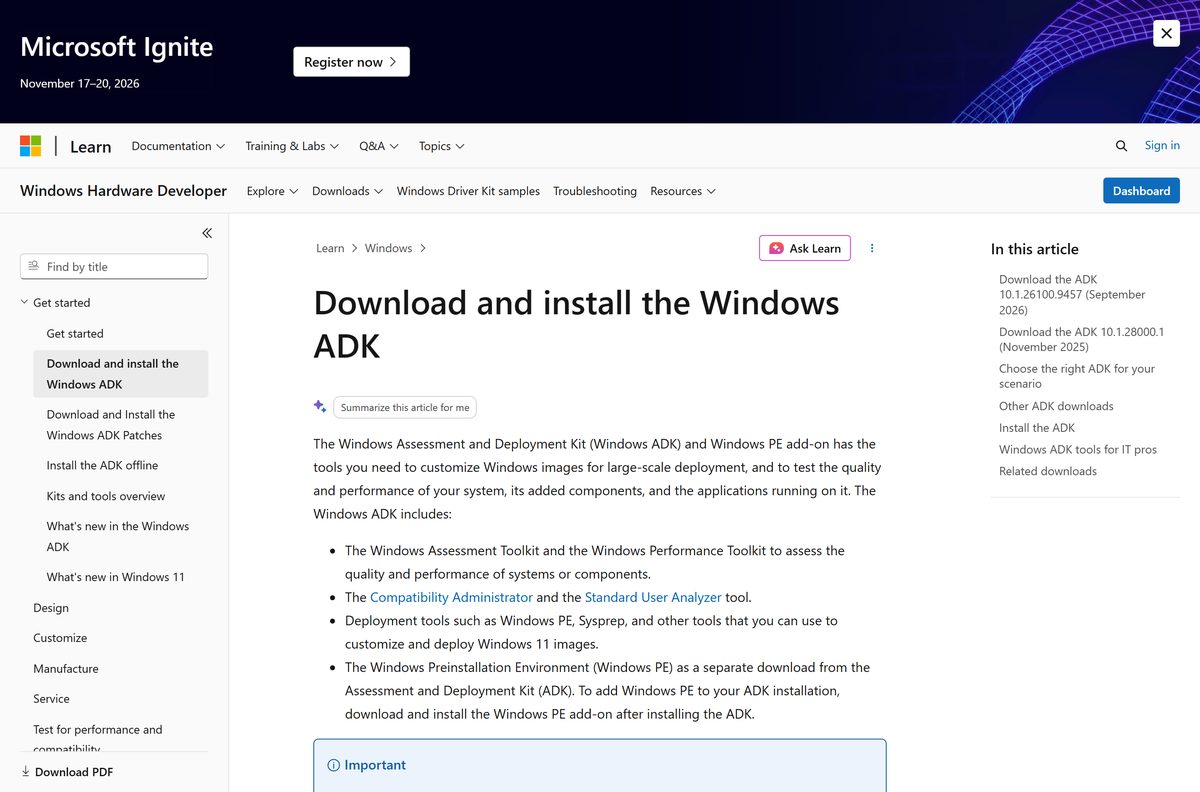
Download the official Windows ADK and Windows PE add-on installers
Each release has two files. Install the kit first, then the add-on, because the add-on drops its boot images into the folder the kit creates.
- ADK 10.1.26100.2454 (December 2024) — 2.13 MB · adksetup.exe
- Windows PE add-on for ADK 10.1.26100.2454 — 1.86 MB · adkwinpesetup.exe
- ADK 10.1.28000.1 (November 2025) — 2.13 MB · For Windows 11, version 26H1 Arm64
- Windows PE add-on for ADK 10.1.28000.1 — 1.86 MB · Install after the kit
- ADK for Windows Server 2022 — Republished May 2025; no Assessment Toolkit
- Download and install the Windows ADK on Microsoft Learn — The page every link above comes from
Every link is a go.microsoft.com short link that resolves to download.microsoft.com. Anything served from a portal or a mirror is not Microsoft’s file.
How to install the Windows ADK on Windows 11 and 10
Setup needs an internet connection because adksetup.exe downloads the features you select. Budget a few gigabytes if you tick everything.
- Open the Download and install the Windows ADK page and select the release you picked above.
- Save adksetup.exe, then right-click it and choose Run as administrator.
- On the Specify Location screen, leave the default path and select Next.
- Answer the CEIP question, accept the licence agreement, and select Accept.
- On the feature list, tick Deployment Tools, and add Imaging and Configuration Designer, User State Migration Tool or Windows Performance Toolkit if you need them.
- Select Install and wait while setup downloads and installs the selected features.
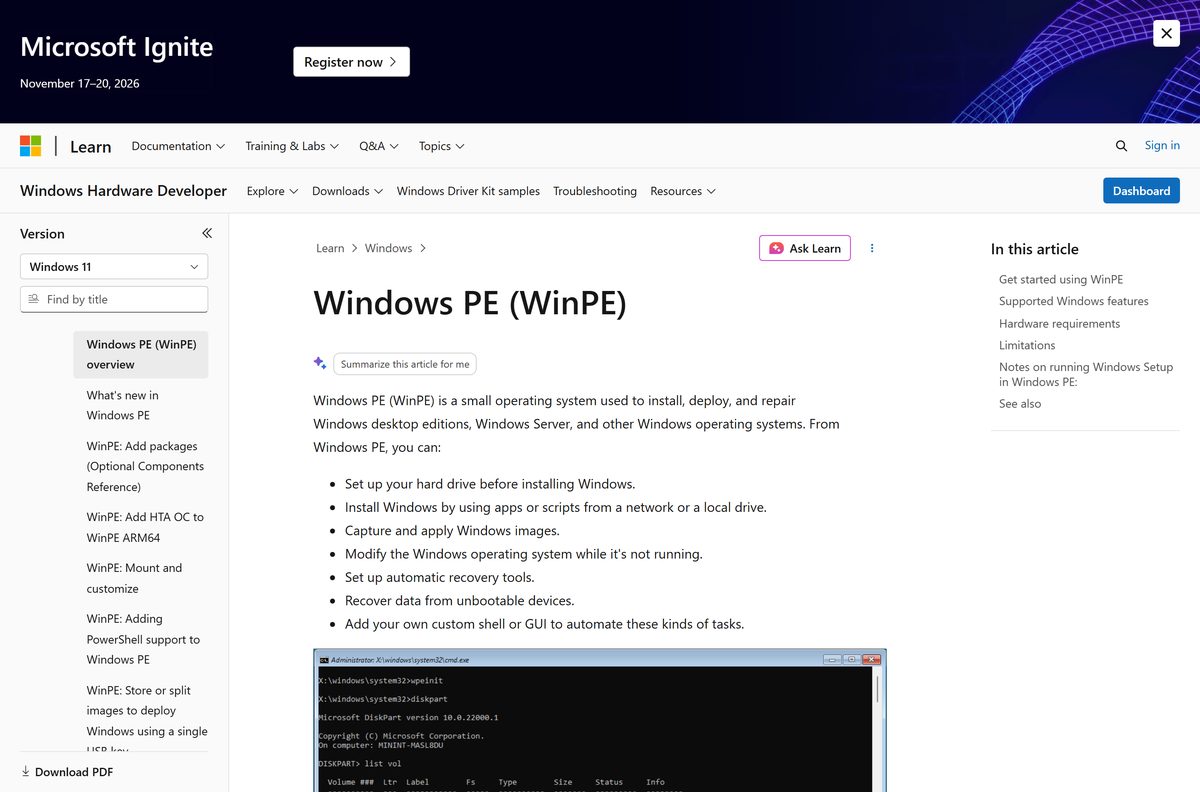
- Select Close, then run adkwinpesetup.exe and repeat the same screens to add Windows PE.
- Open the Start menu and launch Deployment and Imaging Tools Environment as an administrator to confirm the tools are on the path.
The tools land in C:\Program Files (x86)\Windows Kits\10\Assessment and Deployment Kit . Setup logs go to %temp%\adk .
Download the Windows ADK once and install it on offline PCs
Secure build rooms and air-gapped labs cannot reach download.microsoft.com. The /layout switch downloads the whole payload on a connected PC so you can copy it across.
adksetup /quiet /layout c:\temp\ADKoffline Run this from the folder holding the ADK setup file in an elevated Command Prompt. Copy c:\temp\ADKoffline to the offline machine, then install silently with adksetup.exe /quiet /installpath c:\ADK /features OptionId.DeploymentTools . Run adksetup /list to see every feature identifier you can pass.
Repeat both commands with adkwinpesetup.exe to stage the Windows PE add-on the same way.
Deploying images across a domain afterwards is easier once you install Active Directory Users and Computers on the same technician PC.
How to create bootable Windows PE media from the ADK
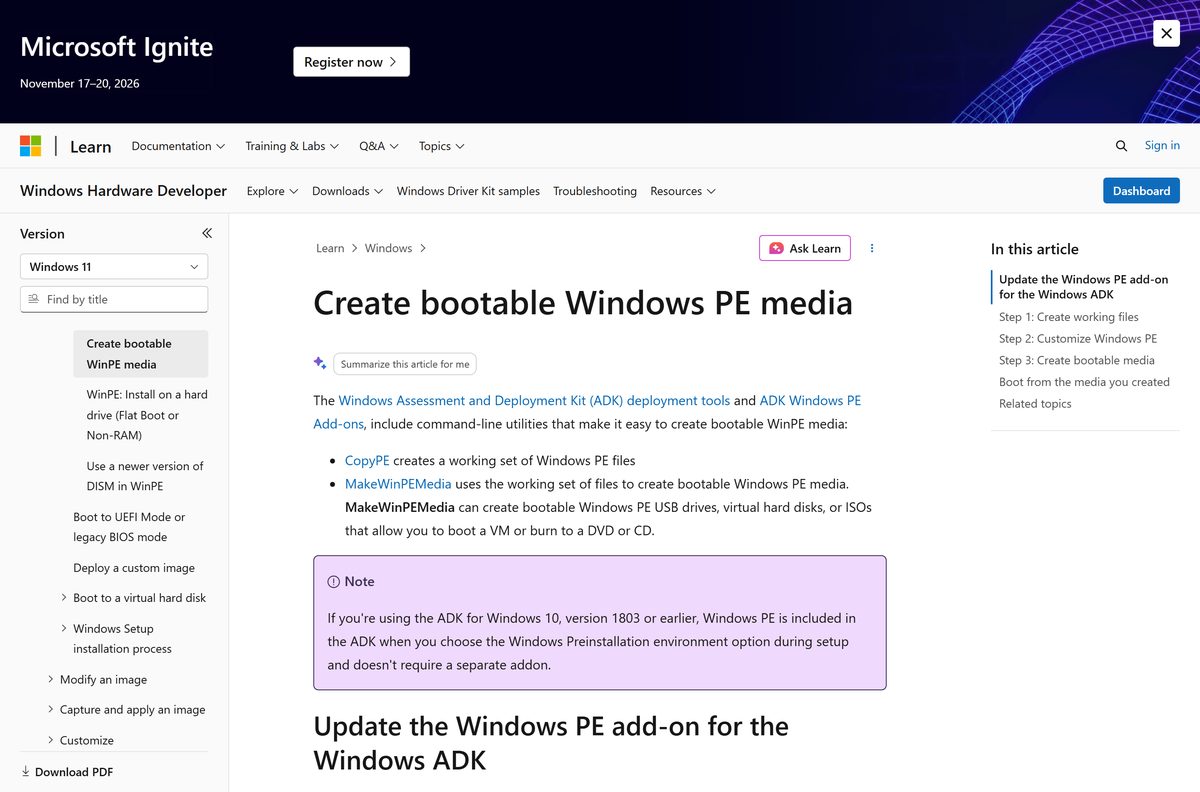
Windows PE runs from a USB stick or an ISO without touching the target disk. Two command-line tools do the whole job.
- Confirm the kit and the Windows PE add-on are both installed.
- Launch Deployment and Imaging Tools Environment as an administrator.
- Run copype amd64 C:\WinPE_amd64 to build a working set of files.
- Attach a USB drive and note its drive letter.
- Run MakeWinPEMedia /UFD C:\WinPE_amd64 P: /bootex to format the stick and write the boot image.
- For a disc image instead, run MakeWinPEMedia /ISO C:\WinPE_amd64 C:\WinPE_amd64\WinPE_amd64.iso /bootex .
- Boot the target PC from the media using its own boot-menu key.
- If the PC will not boot, select \EFI\BOOT\BOOTX64.EFI manually in the firmware boot menu.
The /bootex switch writes boot binaries signed with the Windows UEFI CA 2023, and needs ADK 10.1.26100.2454 or later. Drop it for media that must boot older firmware.
MakeWinPEMedia formats the drive as FAT32, so no single file on it can exceed 4 GB. A leftover UEFI NTFS partition on the same stick will block the format.
Can you install the Windows ADK on a Mac?
Microsoft ships no macOS build, and Windows PE has no Mac equivalent. A Mac still works as the host if it runs Windows in a virtual machine.
| Your Mac | What to do | Which kit |
|---|---|---|
| Apple silicon (M1 to M4) | Run Windows 11 Arm64 in a virtual machine, then install the kit inside it | ADK 10.1.26100.2454 |
| Intel Mac | Run Windows 11 or Windows 10 x64 in a virtual machine, then install the kit inside it | ADK 10.1.26100.2454 |
| You only need to write an ISO to a USB stick | Skip the kit and use a Windows PC or a Windows VM | Windows 10 ISO download guide |
Is the Windows ADK free?
Yes. The kit, the Windows PE add-on and every servicing patch are free downloads from Microsoft Learn. There is no paid tier, no subscription and no trial period, and no Microsoft 365 or Visual Studio licence is required. Sites that charge for the setup file, wrap it in a download manager or ask you to register first are not Microsoft.
Windows PE specifically may not be used as a general-purpose or embedded operating system.
Which ADK should you install, 10.1.26100.2454 or 10.1.28000.1?
Install ADK 10.1.26100.2454 unless you are deploying Windows 11, version 26H1 on Arm64. The December 2024 kit, once patched, covers Windows 11 25H2 and 24H2, every earlier supported Windows 10 and 11 release, Windows Server 2025 and Windows Server 2022. The November 2025 kit is the newer build number, but Microsoft scopes it to Windows 11, version 26H1 Arm64.
How to check your ADK version and apply the latest patch
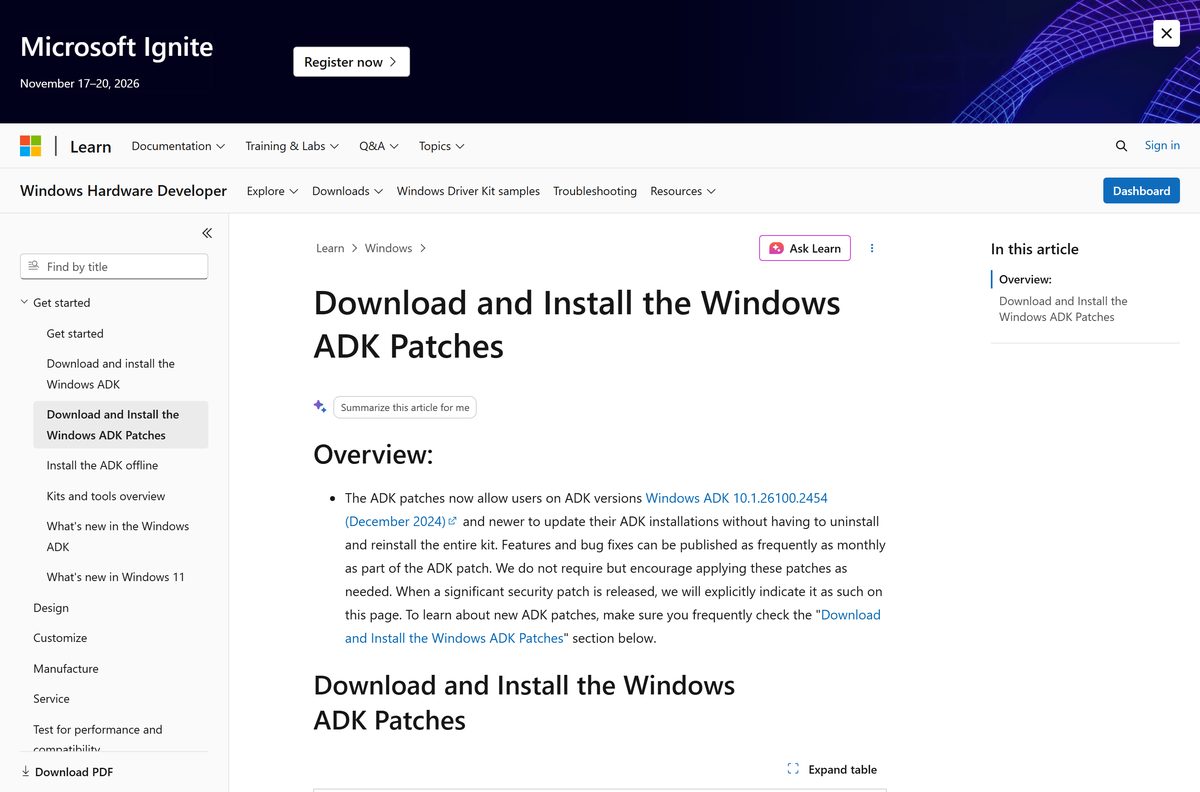
Since the December 2024 release, patches install over an existing kit. You no longer uninstall and reinstall to pick up a fix.
- Open Settings > Apps > Installed apps and find Windows Assessment and Deployment Kit.
- Read the version shown beside it, then compare it against the ADK patches page.
- Download KB5101684 for the December 2024 kit, or KB5120996 for the November 2025 kit.
- Extract the ZIP file, which contains one or more .msp files.
- Open Command Prompt as an administrator and change to the extracted folder.
- Run md %TEMP%\adkupdate to create a log folder.
- Run for %i in (.msp) do start /wait msiexec.exe /l “%TEMP%\adkupdate\msiexec-%~nxi.log” /qn /p “%~fi” .
- Rebuild any existing Windows PE media so it picks up the patched tools.
Both patches close CVE-2026-25166 in Windows System Image Manager and three DISM vulnerabilities. Apply one of them before you trust an older kit on a production network.
What tools does the Windows ADK install?
Setup presents a feature list. Tick only what you need, because each feature adds download time and disk space.
| Feature | What you use it for |
|---|---|
| Deployment Tools | DISM, Sysprep, copype and MakeWinPEMedia for servicing and capturing images |
| Windows Preinstallation Environment | The separate add-on that supplies the WinPE boot images |
| Imaging and Configuration Designer | Building provisioning packages and answer files |
| User State Migration Tool | Moving user profiles and data between machines |
| Windows Performance Toolkit | Recording and analysing ETW traces with WPR and WPA |
| Windows Assessment Toolkit | Running battery life, boot and browsing performance assessments |
Windows PE itself is not a general-purpose system. It stops the shell and restarts after 240 hours, loses every change on reboot, and cannot join a domain or run Remote Desktop.
Fix the Windows ADK not installing on Windows 11 or 10
Setup stalls or fails to download features
adksetup.exe fetches every selected feature from Microsoft’s servers, so a proxy or a blocked host stops it dead.
- Allow download.microsoft.com and go.microsoft.com through the proxy or firewall.
- Run setup from an account with local administrator rights.
- Open %temp%\adk and read the newest log for the failing component.
- Use adksetup /quiet /layout c:\temp\ADKoffline on an unrestricted machine, then install from that folder.
The Specify Location screen offers no download option
The second option only appears when no copy of the kit is already installed.
- Open Settings > Apps > Installed apps and remove the existing kit.
- Restart the PC.
- Run adksetup.exe again and pick the download option.
- If you must keep the installed copy, use the /layout command line instead.
The installer refuses your install path
Setup rejects a path that differs from the one an earlier ADK feature used.
- Point /installpath at the original folder under C:\Program Files (x86)\Windows Kits\10 .
- Or uninstall every ADK feature first, then install to the new path.
- Run adksetup /repair to reinstall the features already present.
Windows PE media boots on some PCs but not others
Secure Boot certificate state decides which signed boot manager a PC accepts.
- Rebuild the media with MakeWinPEMedia /UFD C:\WinPE_amd64 P: /bootex for the 2023 certificate.
- Drop /bootex to produce media signed with the 2011 certificate for older firmware.
- Add the WinPE-WMI and WinPE-SecureStartup optional components before running Windows 11 Setup from WinPE.
- Boot the PC in the same firmware mode, UEFI or legacy BIOS, that the target install needs.
How to uninstall the Windows ADK and its Windows PE add-on
Remove the add-on first so the boot image folders go with it.
- Open Settings > Apps > Installed apps.
- Find Windows Assessment and Deployment Kit Windows Preinstallation Environment Add-ons and select Uninstall.
- Find Windows Assessment and Deployment Kit and select Uninstall.
- To script it, run adksetup.exe /uninstall /quiet from the original setup file.
- To remove one feature only, run adksetup.exe /uninstall /features OptionId.WindowsPerformanceToolkit .
- Delete any working folders you created, such as C:\WinPE_amd64 .
- Restart the PC so the Deployment and Imaging Tools Environment shortcut clears.
Which deployment tool should you use instead of the ADK?
The kit is aimed at image engineering. Smaller jobs have lighter options Microsoft also publishes.
| Your job | Better tool | Why |
|---|---|---|
| Install Windows on one PC | Media Creation Tool or an ISO | No kit needed; writes bootable media in a few clicks |
| Repair a PC that will not start | Windows Recovery Environment | Already on the disk, reachable from the boot menu |
| Deploy Windows to many PCs from a server | Configuration Manager | Uses the ADK underneath but adds task sequences and reporting |
| Provision new devices out of the box | Windows Autopilot | Cloud-driven, no image to build or capture |
Frequently asked questions
Is the Windows ADK free to download?
Yes. Microsoft publishes the Windows ADK and the Windows PE add-on as free downloads on Microsoft Learn. There is no paid edition, no subscription and no trial, and the servicing patches are free as well.
Where is the official Windows ADK download page?
Microsoft hosts it at learn.microsoft.com under Download and install the Windows ADK. Every link there is a go.microsoft.com short link that resolves to download.microsoft.com, so no third-party mirror is involved.
What is the latest Windows ADK version?
ADK 10.1.28000.1, published in November 2025 for Windows 11, version 26H1 Arm64. ADK 10.1.26100.2454 from December 2024 remains the general release for Windows 11 25H2, 24H2 and earlier supported builds.
How big is the Windows ADK download?
The setup file adksetup.exe is 2.13 MB and the Windows PE add-on adkwinpesetup.exe is 1.86 MB. Both are downloaders, so the real size depends on which features you select during installation.
Does the Windows ADK work on Windows 11?
Yes. The kit installs on Windows 11 and Windows 10, plus Windows Server 2025 and Windows Server 2022, on x64 and Arm64 hardware. Match the kit version to the newest Windows release you deploy.
Is there an offline installer for the Windows ADK?
There is no single offline file. Run adksetup /quiet /layout c:\temp\ADKoffline on a connected PC to download the full payload, copy that folder to the offline machine, and run adksetup.exe from it.
Can you install the Windows ADK on a Mac?
No. Microsoft ships no macOS build. Run Windows 11 in a virtual machine on the Mac and install the kit inside that VM, which works on both Apple silicon and Intel hardware.
Do I need the Windows PE add-on as well?
You need it if you build boot media, capture images or run Windows Setup from WinPE. Windows PE has shipped separately since Windows 10, version 1809, and installs after the kit.
Is there a 32-bit Windows PE?
Not since the ADK for Windows 11, version 22H2 dropped it. The last supported 32-bit boot image ships in the Windows PE add-on for Windows 10, version 2004, and cannot deploy Windows 11.
Which ADK patch should I install?
KB5120996 for ADK 10.1.28000.1, or KB5101684 for ADK 10.1.26100.2454. Both close CVE-2026-25166 in Windows System Image Manager and three vulnerabilities in the DISM tools.
Is the Windows ADK safe to install?
Yes, when you take it from learn.microsoft.com. The setup files are signed by Microsoft and served from download.microsoft.com. Apply the current servicing patch afterwards to close the known WSIM vulnerability.
Why will the Windows ADK not install?
Setup downloads its features at install time, so a proxy, a firewall rule or a missing administrator token stops it. Read the newest log in %temp%\adk, then retry from a layout folder created with the /layout switch.