To find the printer on your network in Windows 11, open Settings > Bluetooth & devices > Printers & scanners, select Add device, and wait for Windows to list every printer it can see on your network.
This guide also covers adding a printer by IP address or share name, finding a printer's IP, listing printers with PowerShell, and fixing a printer that Windows still cannot find.
Find and Add a Network Printer from Windows 11 Settings
Windows 11 searches the local network for Wi-Fi, Ethernet and shared printers from one page. Turn the printer on first, and keep it on the same network as your PC.
- Select Start > Settings > Bluetooth & devices > Printers & scanners.
- Check the list of installed printers first. If your printer is already there, it is installed and you are done.
- Under Add a printer & scanner, select Add device (the button can read Refresh after a search has run).
- Wait while Windows searches. The list can take a few minutes to finish populating.
- Select Add device next to your printer. Some printers install on their own at this point.
- If your printer never appears, select Add manually next to The printer that I want isn't listed and continue with the manual section below.
On Windows 10 the same page is at Start > Settings > Devices > Printers & scanners, and the link reads The printer that I want isn't listed.
Which method should you use?
| Your situation | Use this | Why |
|---|---|---|
| Printer is on Wi-Fi or Ethernet and turned on | Settings > Add device | Windows discovers most network printers by itself |
| Printer is on, but Add device never lists it | Add manually > Add a printer using an IP address or hostname | Skips discovery and connects straight to the printer's address |
| You need the printer's IP address | The printer's own network page, or Get-CimInstance Win32_TCPIPPrinterPort |
One reads it off the printer, the other reads it from a PC that already prints to it |
| Printer is plugged into another Windows PC by USB | Select a shared printer by name with \\ComputerName\ShareName |
The host PC shares it; there is no printer IP to find |
| You only want to know which printers are installed | Get-Printer in PowerShell or control printers |
Lists names, ports and drivers without adding anything |
| Office or school network | Ask IT for the print server path, then add it by share name | Managed printers are published from a server, not discovered one by one |
What “Network Printer” Means in Windows 11
Windows treats a printer as a network printer when it is reached over the network rather than over a cable to your PC. The difference decides which search method will find it.
| Printer type | How your PC reaches it | Where Windows finds it |
|---|---|---|
| Wireless (Wi-Fi) printer | Its own IP address on your Wi-Fi network | Add device list, or by IP address |
| Wired network printer | Its own IP address through an Ethernet cable to the router | Add device list, or by IP address |
| Shared printer | Through another Windows PC it is plugged into | \\ComputerName\ShareName path |
| Print server printer | Through a server your organisation runs | Server path from IT, or Get-Printer -ComputerName |
| Local (USB) printer | A cable straight to your PC; not a network printer | Installs itself when plugged in and turned on |
In WMI terms, Microsoft's Win32_Printer class marks a printer with a Network property set to True when it is a network printer, and a ServerName when another computer controls it.
Before You Start: Confirm the Printer Is Actually on the Network
Most "can't find printer" cases are a printer that is off, asleep or joined to a different network. Rule those out before touching Windows settings.
- Check the printer's screen or status lights. Many printers show a blue wireless icon when Wi-Fi is on and available.
- Run the printer's wireless connectivity test from its own menu. The printer's manual or the maker's website names the menu item.
- Confirm your PC and printer share one network. With extenders, mesh access points or several routers with separate network names (SSIDs), connect the PC to the same one as the printer.
- Note your PC's IP address. The guide to finding your IP address on Windows shows where. A printer on the same home network normally has an address that starts with the same first three numbers.
- If the printer is brand new and has never joined your network, follow the setup instructions that came with it first. Windows cannot find a printer that is not on the network yet.
If Windows Does Not Find It, Add the Printer Manually
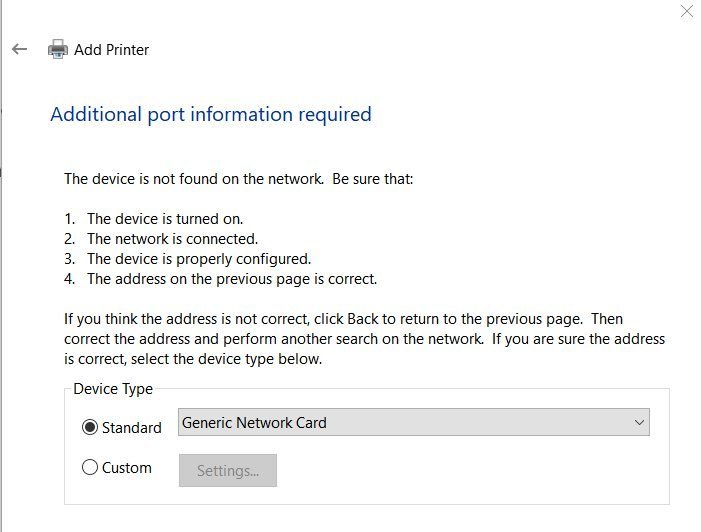
Add manually opens the classic Add Printer window. The IP address route is the one that works when network discovery fails, because it connects to one address directly.
- Open Settings > Bluetooth & devices > Printers & scanners and select Add device.
- Select Add manually next to The printer that I want isn't listed.
- Choose Add a printer using an IP address or hostname and continue.
- For Device type, pick the option your printer supports. Microsoft documents IPP Device for Mopria-certified printers that have IPP turned on.
- In Hostname or IP address, type the printer's address, for example
192.168.1.110. - Finish the remaining prompts. When Windows asks for a driver, pick the maker and model or select Windows Update to refresh the list.
- Type a name for the printer, select Print a test page when offered, then select Finish.
The same Add Printer window also offers Select a shared printer by name, used for printers shared from another PC or a print server.
If the printer installs with a Find drivers button next to it, it prints but may lack features until full drivers arrive. Microsoft's preferred source for those drivers is Windows Update.
How to Find Your Printer’s IP Address
You need the IP address for the manual route above. There are two dependable places to read it: the printer itself, or a Windows PC that already prints to it.
| Where you look | What to do | What you get |
|---|---|---|
| The printer's control panel | Open the network, Wi-Fi or setup menu on the printer's screen; the maker's manual names it | The current IP address shown on the printer |
| A network configuration page | Print the network or wireless report from the printer's menu; the manual lists the button or menu | A printed page listing IP address and network name |
| Your router's connected devices list | Sign in to the router's admin page and find the printer's name in the device list | IP address the router assigned to the printer |
| A PC that already prints to it | Run Get-CimInstance Win32_TCPIPPrinterPort | Select-Object Name, HostAddress in PowerShell |
HostAddress is the printer's IP address or hostname |
| The printer's mobile app | Open the maker's app on a phone on the same Wi-Fi and view the printer's details | Printer status and network details, depending on the app |
Microsoft's documentation defines HostAddress as the address of the device or print server, so a value there confirms which IP the PC is sending jobs to.
Find Network Printers Using File Explorer and Network Discovery
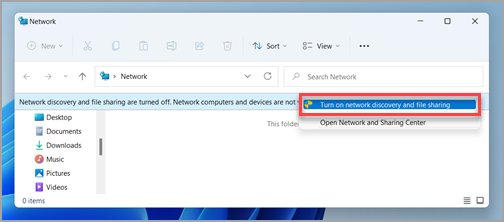
File Explorer's Network section only shows other devices when network discovery is on. Windows 11 sets new networks to Public by default, which hides the PC and blocks discovery.
- Select Start > Settings > Network & internet, open Wi-Fi or Ethernet, select your network, and set Network profile type to Private network. Do this only on a home or trusted network.
- Go back to Network & internet and select Advanced network settings > Advanced sharing settings.
- Under private networks, turn on Network discovery and File and printer sharing.
- Open File Explorer (the same window that holds This PC) and select Network in the left pane.
- If a Network discovery is turned off banner appears, select it, then select Turn on network discovery and file sharing.
- To reach a known PC directly, type
\\ComputerNamein the address bar and press Enter.
Find a Shared Printer on Another Windows PC
A printer plugged into another PC by USB has no network address of its own. You reach it through the host PC's share name, so both PCs need sharing turned on.
- On the host PC, open Settings > Bluetooth & devices > Printers & scanners and select the printer.
- Select Printer properties, open the Sharing tab, and tick Share this printer.
- Note the Share name, then select Apply and OK. Windows asks for an administrator account to confirm.
- On both PCs, turn on Network discovery and File and printer sharing in Advanced sharing settings.
- On your PC, open Printers & scanners, select Add device, then Add manually.
- Choose Select a shared printer by name and type
\\ComputerName\PrinterShareName. - Enter the host PC's user name and password if asked, then follow the prompts.
The host PC must stay on for the shared printer to work. If it sleeps or shuts down, the printer disappears from the network.
Use Control Panel to View Installed Printers
The older Devices and Printers view still exists in Windows 11. It shows every installed printer as an icon and gives right-click access to its queue and properties.
- Press Win + R, type
control printers, and press Enter. - Or open Settings > Bluetooth & devices > Printers & scanners, select a printer, and choose More devices and printer settings.
- Find your printer under the printers group.
- Right-click it and select See what's printing to open its queue.
- Right-click it and select Printer properties to check its name, driver and sharing state.
This view only lists printers already installed on this PC. To discover new ones, go back to Add device in Settings.
Find Printers with Windows Terminal or Command Prompt
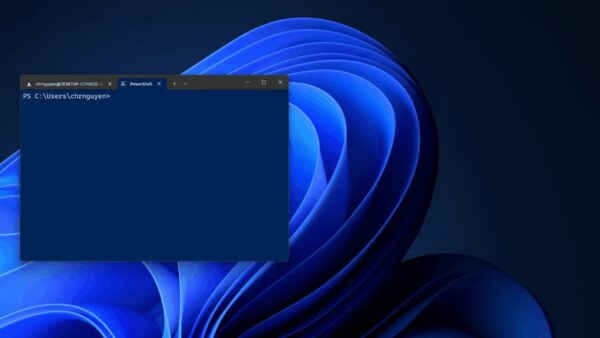
PowerShell lists installed printers, their ports and their IP addresses in seconds. None of these commands need administrator rights. ping and arp also run in Command Prompt.
- Select Start, type
PowerShell, and open Windows PowerShell from the results. - List installed printers with
Get-Printer. The output includes printers and printer connections on this PC. - Show each printer's port and whether it is a network printer with
Get-CimInstance Win32_Printer | Select-Object Name, PortName, Network, ServerName. - Show printer ports with
Get-PrinterPort, then read the IP behind each TCP/IP port withGet-CimInstance Win32_TCPIPPrinterPort | Select-Object Name, HostAddress. - Test the printer's IP with
ping 192.168.1.110, using your printer's address. Replies with round-trip times mean the printer is reachable. - Run
arp -ato see IP addresses your PC has recently contacted on the local network, with their physical (MAC) addresses. - On a work network, list the printers a print server offers with
Get-Printer -ComputerName PrintServer, replacingPrintServerwith the server name IT gives you.
arp -a shows only devices your PC has talked to recently. Ping the printer's expected address first, then run arp -a again to see it in the table.
Use the Printer Manufacturer’s Software
Printer makers ship setup tools and apps that join a new printer to Wi-Fi and show its network details. Use them to get the printer onto the network, then let Windows add it.
- For a printer that has never joined your network, follow the setup instructions that came with it or the maker's website.
- Open the maker's app on a phone or PC on the same Wi-Fi and confirm it sees the printer and its IP address.
- Add the printer in Windows through Settings > Bluetooth & devices > Printers & scanners > Add device.
- If the app's installer fails, use the Settings route instead. Microsoft notes that some ARM PCs, such as Copilot+ PCs, cannot install printers with the maker's installer.
- After the printer installs, check Windows Update for updated printer drivers.
Find a Printer in a Workplace or School Network
Work and school printers usually sit behind a print server or a cloud service such as Microsoft's Universal Print. You may need permission to install them.
- Ask IT for the print server path, which looks like
\\PRINTSERVER1\PRINTER2, or for the printer's IP address. - Open Settings > Bluetooth & devices > Printers & scanners and select Add device. Printers your organisation publishes often appear in this list.
- If it is not listed, select Add manually, choose Select a shared printer by name, and type the server path.
- Sign in with your work or school account if Windows asks for credentials.
- To see every printer a server offers, run
Get-Printer -ComputerName PRINTSERVER1in PowerShell.
If installation is blocked by policy, only the IT department can change that. Do not try to work around it.
How to Tell Which Printer Is the Right One
Offices and busy homes often show several printers with similar names. Match the printer by address, not by model name.
- Read the IP address on the printer's own screen or network configuration page.
- Run
Get-CimInstance Win32_TCPIPPrinterPort | Select-Object Name, HostAddressand match that IP to a port. - Run
Get-CimInstance Win32_Printer | Select-Object Name, PortName, Locationto see which printer name uses that port. - In Printers & scanners, select the matching printer, open Printer properties, and select Print Test Page on the General tab.
- Walk to the printer. If the test page came out there, you have the right one; rename the others so the choice is obvious next time.
Set the Correct Printer as the Default
By default, Windows 11 makes the most recently used printer the default. Turn that off to keep your chosen network printer as the default.
- Select Start > Settings > Bluetooth & devices > Printers & scanners.
- Under Printer preferences, turn Let Windows manage my default printer to Off.
- Select the network printer you want.
- Select Set as default. The printer's status now shows Default.
Set as default does not appear while Let Windows manage my default printer is on. On Windows 10, select the printer, then Manage > Set as default.
What to Do When Windows 11 Still Cannot Find the Printer
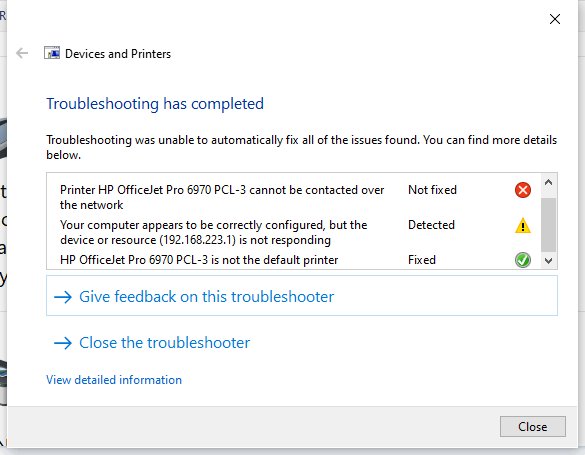
Start with Microsoft's automated printer troubleshooter in the Get Help app, then work through the symptom that matches yours.
Can't find printer on network: Add device shows nothing
The printer is off, asleep, or joined to a different network or SSID than the PC.
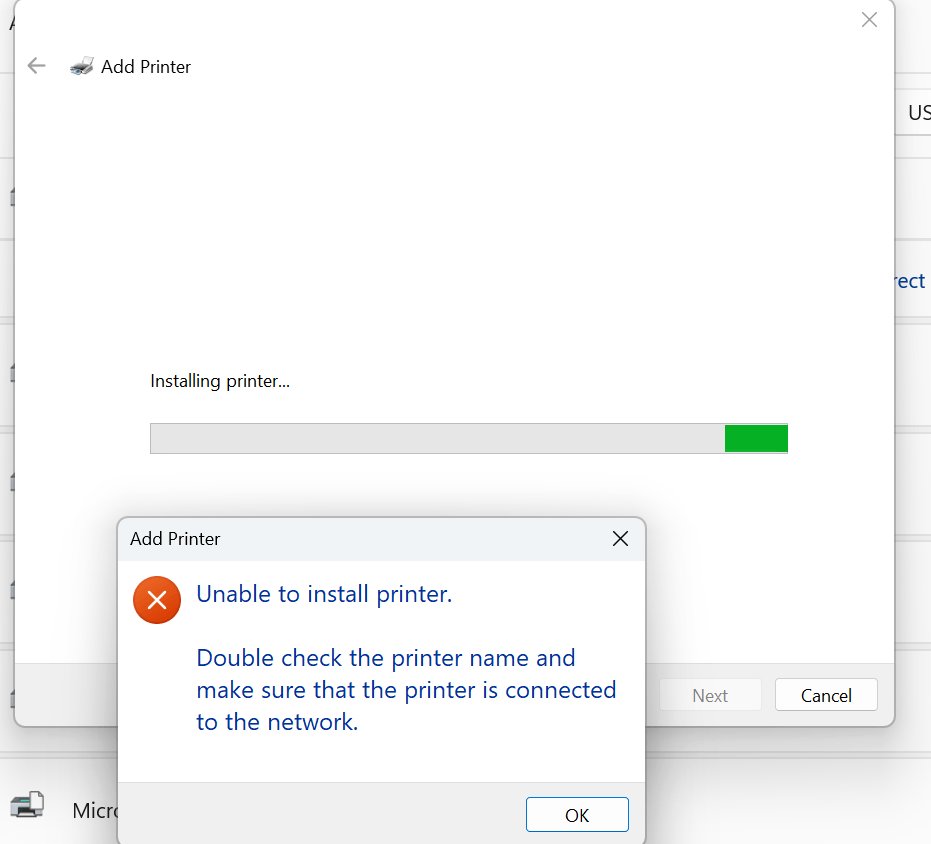
- Turn the printer off, unplug it for 30 seconds, then plug it back in and turn it on.
- Restart the PC with Start > Power > Restart, and restart the router if other devices also lose the printer.
- Confirm the PC is on the same network name as the printer, not a guest network or extender with its own SSID.
- Run Add device again and wait a few minutes for the list to populate.
- If it still does not appear, add it with Add a printer using an IP address or hostname.
Why can't my laptop find my printer when another PC can
The laptop's network is set to Public, or network discovery is off on it.
- On the laptop, set the Wi-Fi network's Network profile type to Private network.
- Open Settings > Network & internet > Advanced network settings > Advanced sharing settings.
- Turn on Network discovery and File and printer sharing.
- Run Add device from Printers & scanners again.
Shared printer from another PC is not found
Sharing is off on the host PC, or the PC cannot sign in to it.
- On the host PC, confirm Share this printer is ticked in Printer properties > Sharing.
- Type
\\ComputerNamein File Explorer. If the host does not open, fix the network connection first. - Enter the host PC's user name and password when prompted.
- Remove the shared printer on your PC, restart, and add it again with Select a shared printer by name.
Why can't HP Smart find my printer
The maker's app and the PC are on different networks, or the maker's installer does not work on this PC.
- Confirm the printer's wireless light shows it is connected and run its wireless connectivity test.
- Connect the PC to the same Wi-Fi network as the printer.
- Add the printer through Settings > Bluetooth & devices > Printers & scanners > Add device instead of the app.
- On an ARM PC, always use the Settings route, as Microsoft advises for maker installers that fail.
Printer is found but shows offline or will not print
A stale driver, a stuck print queue or a stopped Print Spooler service.
- Select the printer in Printers & scanners, select Remove, then Yes.
- Select Add device and add the printer again.
- Check Windows Update for the latest printer driver.
- Press Win + R, type
services.msc, right-click Print Spooler, and select Restart. - Select the printer and Open print queue to cancel any job stuck at the top.
Quick Checklist for Finding a Network Printer in Windows 11
| Check | Where | Done when |
|---|---|---|
| Printer is on and connected | Printer screen or status lights | Wireless or network light is steady |
| Same network as the PC | Wi-Fi name on the PC and printer | Both show the same SSID |
| Network set to Private | Settings > Network & internet > your network | Private network selected |
| Discovery is on | Advanced sharing settings | Network discovery and File and printer sharing are on |
| Windows search ran | Printers & scanners > Add device | Printer appears or the list has finished |
| Manual add if needed | Add manually > IP address or share name | Test page prints |
| Right default printer | Set as default | Status shows Default |
Frequently Asked Questions
How do I find the printer in Windows 11?
Open Start > Settings > Bluetooth & devices > Printers & scanners. Installed printers are listed on that page. To find a new network printer, select Add device and wait for Windows to finish searching, then select Add device next to your printer.
How do I find the printer on my computer?
Printers already installed on your computer appear in Settings > Bluetooth & devices > Printers & scanners. You can also press Win + R, type control printers, and press Enter to see them as icons, or run Get-Printer in PowerShell for a text list.
How do I find the printer name?
The printer name is the entry shown in Printers & scanners. For an exact list you can copy, run Get-Printer in PowerShell. The Name column shows each printer and printer connection installed on the PC, exactly as apps see it.
How do I find the printer name on a network?
For a printer shared from a PC or print server, the name is its share path, such as \\ComputerName\PrinterShareName. The host PC shows the Share name under Printer properties > Sharing. For a print server, Get-Printer -ComputerName lists the printers it offers.
How do I find the printer driver on my computer?
Run Get-CimInstance Win32_Printer | Select-Object Name, DriverName in PowerShell to see the driver each printer uses. To get a newer driver, Microsoft recommends checking Windows Update first, then the printer maker's website.
Why can't my computer find my printer?
The most common reasons are a printer that is off or asleep, a PC on a different network or SSID, a network set to Public, or network discovery turned off. Fix those, run Add device again, and add the printer by IP address if it still does not appear.
Why won't my laptop find my printer?
Laptops often join a different Wi-Fi band, guest network or extender than the printer. Connect the laptop to the same network name as the printer, set that network to Private network, and turn on Network discovery in Advanced sharing settings.
Why can't HP Smart find my printer?
The app only finds printers on the same network as the device running it. Connect both to the same Wi-Fi, then add the printer through Settings > Printers & scanners > Add device. Microsoft advises the Settings route when a maker's installer fails, especially on ARM PCs.
How do I see what's printing on a printer?
Select the printer in Settings > Bluetooth & devices > Printers & scanners and choose Open print queue. In the Control Panel view, right-click the printer and select See what's printing. Both show every waiting job for that printer.
Can I add a network printer by IP address in Windows 11?
Yes. In Printers & scanners, select Add device, then Add manually, and choose Add a printer using an IP address or hostname. Pick the Device type, type the address in Hostname or IP address, and finish the prompts.


![How to Switch Out of S Mode [Works for Windows 10/11]](https://techdows.com/wp-content/uploads/2026/09/Windows-11-SE-Start-menu-with-its-default-curated-app-tiles-600x338.jpg)