FedEx Office Print & Go prints your documents at a FedEx Office self-service machine from email, a USB drive or cloud storage.
This guide covers file preparation, sending the job, the kiosk upload, print options, payment, pickup and the fixes for jobs that fail.
Step-by-Step Guide to Printing with FedEx Print & Go
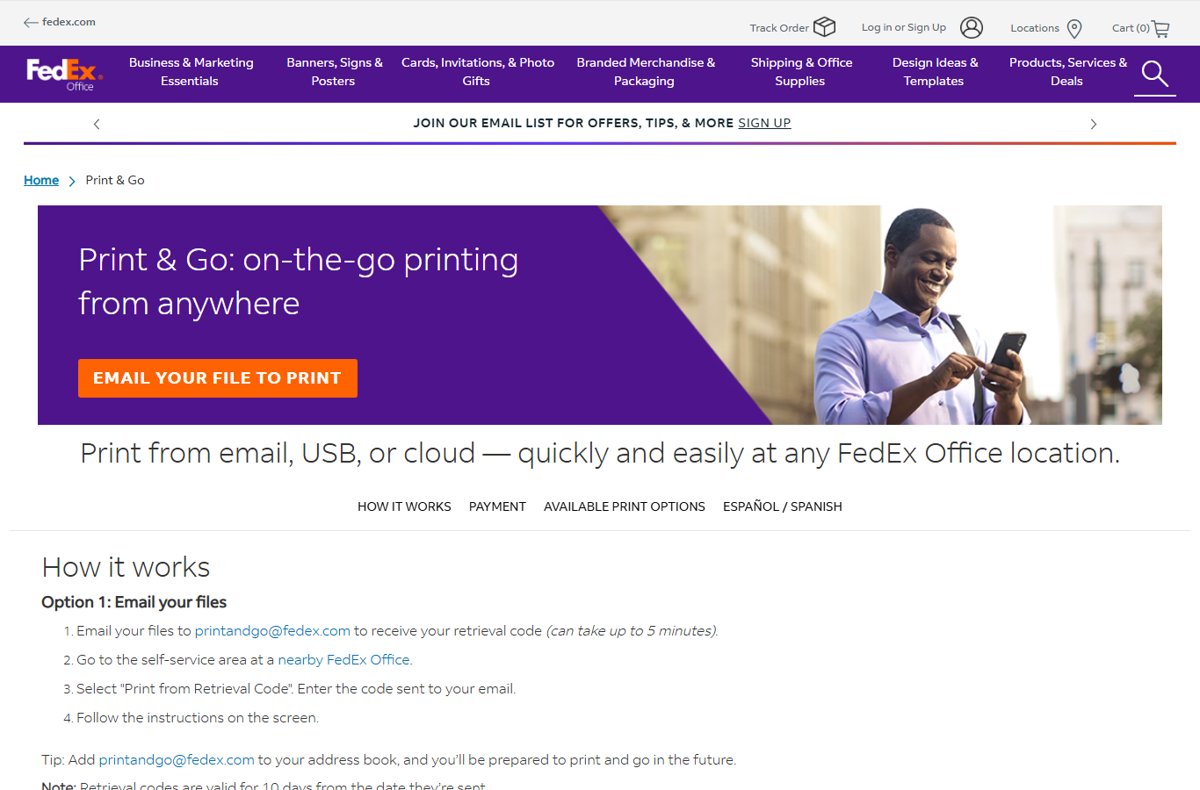
The email route is the fastest, because the retrieval code is waiting before you reach the store.
- Save the document as a PDF so the layout does not shift at the printer.
- Email the file to [email protected] from any mail account.
- Open the reply and copy the retrieval code FedEx sends back.
- Walk into a FedEx Office location and find the self-service area.
- Tap PRINT on the self-service screen.
- Enter the retrieval code, then select and preview your file.
- Set colour, copies and paper size, then confirm the job.
- Pay at the machine and collect the prints from the output tray.
Nothing is installed, and no FedEx account is needed for this route.
Which way should you send your files?
| Your situation | Send the file this way | Why |
|---|---|---|
| You are away from your computer with a small PDF | Email it to [email protected] | A retrieval code comes back that you type at the printer |
| The file is large or your mail provider rejects the attachment | Copy it to a USB drive | Nothing has to pass through email |
| The file already sits in Google Drive or Dropbox | Sign in to cloud storage on the self-service screen | No copying or emailing first |
| The job is a poster, a banner or oversize | Order at the full-service counter | Self-service covers letter, legal and tabloid only |
Prerequisites for Using FedEx Print and Go
| What you need | Detail |
|---|---|
| A supported file | DOC, PPT, PDF, JPG, GIF, BMP or PNG on the self-service printers |
| A way to deliver it | Email to [email protected], a USB drive, or a cloud account such as Google Drive or Dropbox |
| A retrieval code | Returned by email after you send the file, and typed at the PRINT screen |
| A FedEx Office location | Check the store page for printing and copying services before you travel |
| A payment method | Payment is taken at the self-service machine |
Benefits of Using FedEx Print & Go
| Benefit | What it means in practice |
|---|---|
| No printer of your own | A travelling laptop, a phone or a USB stick is enough |
| Three delivery routes | Cloud, USB or email, so one blocked route is never the end of it |
| Colour or black and white | Chosen on the screen, per job |
| Three paper sizes on demand | Letter 8.5" x 11", legal 8.5" x 14" and tabloid 11" x 17" |
| Pay per page | Self-service printing starts at $0.24 a page in black and white and $0.76 in colour |
| Wide coverage | FedEx Office lists more than 2,000 locations offering printing services |
Preparing Your Files for Printing
Most failed Print & Go jobs are file problems, not machine problems.
- Check the file format first and export to PDF if your type is not on the accepted list.
- Set correct dimensions and resolution: build the page at the finished size — letter, legal or tabloid — so nothing is scaled at the machine.
- Use the original photos rather than screenshots or images copied from a web page.
- Embed fonts and colors when you export, so headings do not fall back to a substitute typeface.
- Proofread and finalize files on your own screen, because the self-service preview is small.
- Save and name files properly: one job per file, named so you can pick it out of a list.
- Merge a multi-part job into a single PDF so the pages stay in order.
Check File Formats
| Format | Accepted at the self-service printer | Note |
|---|---|---|
| Yes | The safest choice — layout and fonts travel inside the file | |
| DOC | Yes | Word documents |
| PPT | Yes | PowerPoint presentations |
| JPG | Yes | Photos and scans |
| PNG | Yes | Screenshots and graphics with flat colour |
| GIF | Yes | Only the first frame prints |
| BMP | Yes | Large files for their page size |
| Anything else | No | Export to PDF first; FedEx Office online printing accepts a wider list |
Locating a FedEx Office Location with Print & Go
- Open local.fedex.com in a browser.
- Type your ZIP code or city into the location search.
- Open a result named FedEx Office Print & Ship Center rather than a drop box.
- Read the Printing and copying services list on the store page and confirm self-service printing is there.
- Check the store hours shown on the same page before you set off.
Store pages also list per-page prices, so you can compare before you travel.
Using the Kiosk or Mobile App to Upload Files
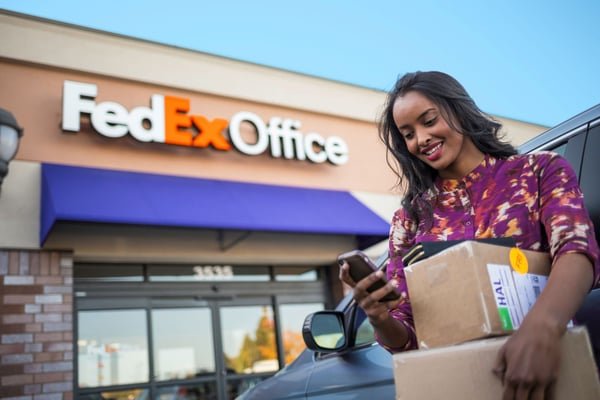
Print & Go takes files from the cloud, a USB drive or email. Email is the route that works from a phone.
- Attach the file to an email on your phone or computer.
- Send it to [email protected].
- Wait for the reply carrying the retrieval code.
- At the store, tap PRINT on the self-service screen.
- Type the retrieval code and select the file.
- Preview every page on screen before you confirm.
Keep the code in your inbox until the prints are in your hand.
Uploading Files at the Kiosk
- Plug your USB drive into the port on the self-service machine.
- Tap PRINT on the screen.
- Choose the USB drive as the source and select your file.
- To print from cloud storage instead, sign in to your Google Drive or Dropbox account on the same screen.
- Preview the pages, then confirm the job.
- Remove the USB drive once the screen reports the job finished.
Choosing Printing Options
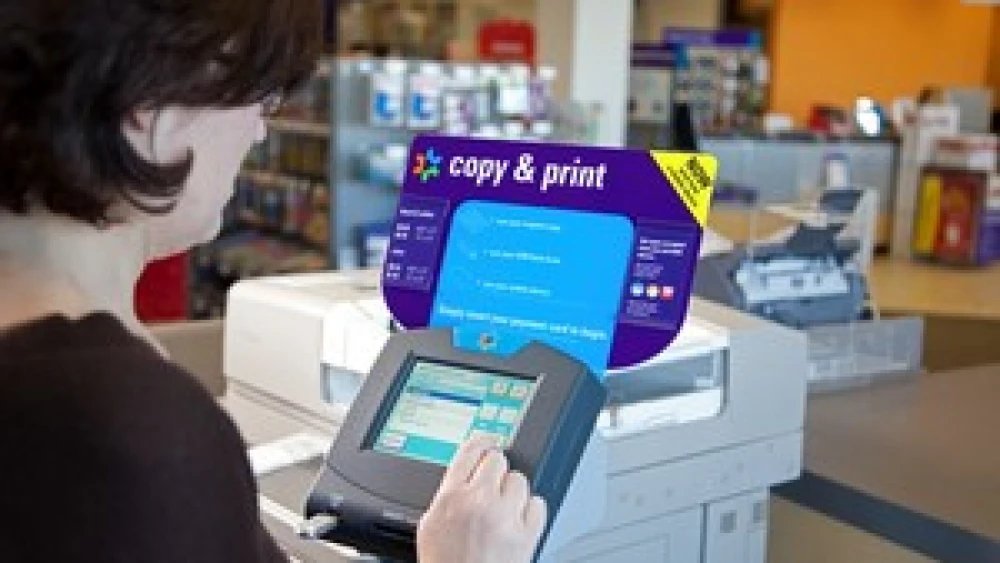
- Choose Color or Black & White for the job.
- Set the paper size to letter 8.5" x 11", legal 8.5" x 14" or tabloid 11" x 17".
- Set the number of copies.
- Choose single-sided or double-sided output.
- Review and confirm the page count and the total the screen shows.
- Change a setting now rather than after paying for the job.
Payment Process
- Check the total on screen against the page count you expect.
- Pay at the self-service machine when it prompts you.
- Keep the receipt if you need the cost for expenses.
- Take the job to the full-service counter if the machine refuses payment.
What self-service printing costs at FedEx Office
These starting prices come from FedEx Office location pages and vary by store and size.
| Starting price per page | |
|---|---|
| Black and white — letter, legal or tabloid | $0.24 |
| Colour — letter, legal or tabloid | $0.76 |
| Black and white — 18" x 24" oversize | $2.70 |
| Colour — 18" x 24" oversize | $17.97 |
Oversize sheets run on the Architecture, Engineering & Construction machines, not the standard self-service printer.
How to check the prints came out right
- Count the sheets against the page count shown before you paid.
- Check that headings use your own typeface and not a substitute.
- Confirm colour pages printed in colour rather than greyscale.
- Check the margins, and that nothing is cut off at the edges.
- Take a bad sheet to the full-service counter while you are still in the store.
Collecting Your Prints
- Locate a FedEx Office Print & Go station using the store finder.
- Prepare your confirmation: have the retrieval code email open on your phone.
- Visit the FedEx station and walk to the self-service area.
- Authenticate the purchase by entering the retrieval code at the PRINT screen.
- Pay at the machine, then collect your prints from the output tray.
- Sign out of any cloud account you signed into before you walk away.
Troubleshooting Common Issues with FedEx Print & Go
Printer Not Recognized or Offline
The self-service machine is out of service, restarting, or out of paper.
- Read any service message on the screen before you touch anything.
- Move to another self-service machine in the same area.
- Tell the full-service counter which machine failed.
- Ask staff to run the job at the counter if every machine is down.
Print Job Fails or Gets Stuck
The file is password protected, very large, or not one of the accepted types.
- Remove the password from the PDF before you send it.
- Re-export the document to PDF and send it again for a fresh code.
- Split a very long document into two or three smaller files.
- Copy the file to a USB drive instead of emailing it.
Unexpected Print Quality Issues
Low-resolution images, or a colour job confirmed as black and white.
- Check the colour setting on screen before you confirm the job.
- Replace screenshots with the original image file and resend.
- Print one test page before committing to the full run.
- Take the sheet to the counter for a full-service reprint.
Login or Account Problems
The cloud sign-in on the machine failed, or the retrieval code was mistyped.
- Retype the retrieval code, watching for a confused 0 and O.
- Send the file to [email protected] again to get a fresh code.
- Use a USB drive if the cloud sign-in keeps rejecting you.
- Sign out of the cloud account on the machine before you leave.
Fix a FedEx shipping label that will not print
The FedEx label will not print at home
The printer is offline, or the label opened in a browser preview instead of a PDF reader.
- Save the label as a PDF file, then open it in a PDF reader.
- Confirm the printer is reachable — see How to Find the Printer on Your Network in Windows 11.
- Open Devices and Printers and clear stuck jobs from the queue.
- Print at 100% scale so the barcode stays readable to a scanner.
You cannot print the FedEx label at all
No working printer is within reach.
- Email the label PDF to [email protected].
- Take the retrieval code to a FedEx Office self-service printer.
- Print it in black and white on letter paper.
- Ask the full-service counter to print it if the self-service area is busy.
Additional Tips for a Smooth Printing Experience
| Tip | Why it helps |
|---|---|
| Send the file before you travel | The retrieval code is waiting when you arrive |
| Carry a USB drive as a backup | Attachment limits and patchy signal both stop the email route |
| Export everything to PDF | Fonts, spacing and page breaks stay where you put them |
| Print one test page of a long job | A mistake then costs one sheet instead of two hundred |
| Read the store page first | Not every FedEx location is a FedEx Office with self-service printing |
| Use the counter for bound or oversize work | Self-service printing stops at tabloid |
Frequently Asked Questions
How does FedEx Print & Go work?
Print & Go reaches a FedEx Office self-service printer from the cloud, a USB drive or email. Email the file to [email protected], collect the retrieval code from the reply, then enter that code at the PRINT screen in the store.
Does FedEx do printing?
Yes. FedEx Office locations offer self-service copying and printing plus a full-service counter for posters, banners, business cards and oversize work. FedEx Office lists more than 2,000 locations with printing services.
How does FedEx printing work?
Two routes exist. Self-service means you send or carry the file, set the options on screen and pay at the machine. Full service means a team member runs the job at the counter for specialty stock and large formats.
How do I print to FedEx from my phone?
Attach the document to an email and send it to [email protected]. FedEx replies with a retrieval code. Type that code at a self-service printer to select, preview and print the file.
How do I print at a FedEx store?
Go to the self-service area, tap PRINT, then choose your source: a retrieval code from email, a USB drive, or a cloud account such as Google Drive or Dropbox. Set the options, pay at the machine and take the prints.
How do I print things at FedEx without a USB drive?
Use the email route or the cloud route. Send the file to [email protected] for a retrieval code, or sign in to Google Drive or Dropbox directly on the self-service screen and pick the file there.
Why is my FedEx label not printing?
The label usually opened in a browser preview rather than a PDF reader, or the printer is offline. Save the label as a PDF, open it in a PDF reader, clear the print queue and print at 100% scale.
Why can't I print my FedEx label?
If no printer is available, email the label PDF to [email protected] and print it at a FedEx Office self-service machine. A store associate can also print a return label from the QR code in your email.
Why is FedEx printing so expensive?
Prices are per page and include the paper, toner and machine time. Self-service printing starts at $0.24 a page in black and white and $0.76 in colour, and oversize prints cost far more because of the wide-format stock.
Can I FedEx internationally after printing my documents?
Yes. A FedEx Office Print & Ship Center prints, packs and ships from the same counter, so documents printed at the self-service machine can go straight into an international shipment on the same visit.
Bottom Line
Export the document to PDF, email it to [email protected], then enter the retrieval code at a FedEx Office self-service printer. That route needs no app, no account and no printer driver, and the code is waiting before you reach the store. USB and cloud sign-in cover the files email will not carry.