To uninstall a PC game from Windows, open Start > All apps, right-click the game and select Uninstall, or remove it from the launcher you installed it with, such as Steam or the Xbox app.
This guide covers every built-in way to remove a game on Windows 11 and Windows 10, how to keep your save files, what to do with leftover folders, and how to get a game back later.
How to uninstall a game on Windows 11 from the Start menu
The Start menu is the quickest route for any game that appears in your app list. Close the game and its launcher first.
- Select Start > All apps.
- Scroll to the game or type its name to find it in the list.
- Right-click the game, or press and hold it on a touch screen.
- Select Uninstall.
- Confirm, then follow any prompts from the game's own uninstaller.
Methods to uninstall PC games from Windows
Pick the route that matches where the game came from. A launcher game removed through its launcher keeps the launcher's library in sync.
| Your situation | Use this | Why |
|---|---|---|
| Game shows in Start or Settings | Windows Settings (Apps & features / Installed apps) | Works for most desktop games and Microsoft Store or Xbox games |
| Older game that Settings cannot remove | Control Panel > Programs and Features | Microsoft says some apps can only be removed from Control Panel |
| Game installed from Steam, Epic, EA or another launcher | The launcher's own uninstall option | The launcher deletes the files and marks the game as not installed |
| No uninstaller and no entry anywhere | Manual removal of the game folder | Only for portable or copied games with nothing registered in Windows |
| Considering a third-party uninstaller program | Built-in Windows tools first | Settings, Control Panel and the launcher cover normal game removals |
Uninstall via Windows Settings (Apps & features)
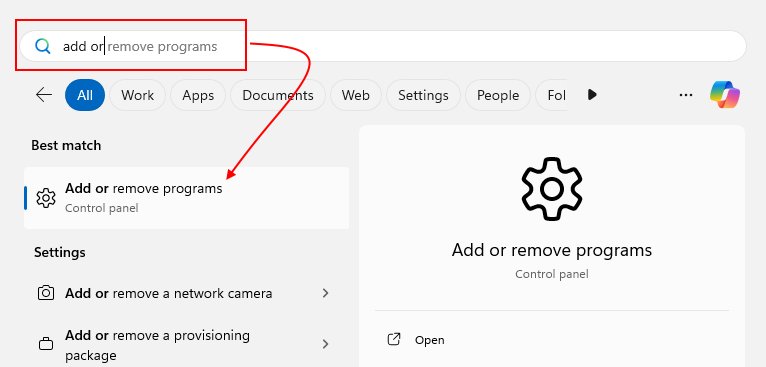
Windows 11 calls this page Installed apps. Windows 10 calls it Apps & features. Searching Add or remove programs in Start opens it on either version.
- Select Start > Settings > Apps > Installed apps.
- Type the game's name in the search box above the list.
- Select the More button (three dots) next to the game.
- Select Uninstall, then select Uninstall again to confirm.
- Follow the game's uninstaller if a separate window opens.
The same page removes non-game software too, so you can uninstall apps on Windows 11 such as old launchers and tools the same way.
Uninstall using Control Panel
Control Panel still lists classic desktop programs, which includes many older PC games and some launchers.
- In the search box on the taskbar, type Control Panel and select it.
- Select Programs > Programs and Features.
- Right-click the game.
- Select Uninstall or Uninstall/Change.
- Follow the directions on the screen until the uninstaller finishes.
Uninstall through game platforms and launchers
Games bought on a store such as Steam, the Epic Games Store, the EA app or the Xbox app are best removed where you installed them. Ownership stays on your account, so removing the files does not remove the game from your library.
| Platform | Where to uninstall | What stays behind |
|---|---|---|
| Steam | Right-click the game in the Steam Library and choose the uninstall option | Steam Cloud saves on supported games, and local data in Steam\userdata |
| Xbox app or Microsoft Store game | Settings > Apps > Installed apps, or the Xbox app | The game stays in your Xbox and Microsoft Store library to reinstall |
| Epic Games, EA app, Ubisoft and other launchers | The game's menu in that launcher's library | The game stays owned on the launcher account |
The Xbox app's My Apps tab cannot uninstall the third-party launchers it lists. Remove those from Windows Settings instead.
Manual uninstallation (in absence of built-in uninstall)
Delete a game folder by hand only when the game has no uninstaller and no entry in Settings, Control Panel or a launcher. Back up save files first, because many games keep them outside the install folder.
- Close the game and any launcher that runs it.
- Copy the game's save folder somewhere safe; many games use
Documents\My Games. - Open File Explorer and go to the folder you installed or copied the game to.
- Delete the game's folder.
- Delete any desktop or Start shortcut that pointed to it.
- Restart the PC, then check Settings > Apps > Installed apps to confirm nothing is still listed.
Never delete a launcher-managed folder such as C:\Program Files (x86)\Steam\steamapps\common by hand while the launcher still lists the game. Use the launcher so its library stays accurate.
Understanding why uninstalling games matters
Modern games take a large share of a drive, and a broken install can block updates. Removing a game the right way avoids both problems.
| Reason | What uninstalling fixes | Better alternative, if any |
|---|---|---|
| Low disk space | Frees the game's full install size | Move the game to another drive instead of deleting it |
| Game crashes or will not update | Clears a damaged install before a clean reinstall | Try Repair or Reset in Advanced options first |
| Games you no longer play | Removes files, shortcuts and update downloads | None; reinstall from your library later |
| Unknown or suspicious game installer | Removes software you did not mean to keep | Run a Windows Security scan before removing it |
Additional tips for effective uninstallation
Each developer decides where save files go, and Steam Support says it cannot recover lost saves. Check where your progress lives before you remove anything.
| Tip | How to do it |
|---|---|
| Check whether the game uses Steam Cloud | Look for the Steam Cloud logo on the game's store page |
| Keep local saves | Copy Documents\My Games and C:\Program Files (x86)\Steam\userdata to another drive |
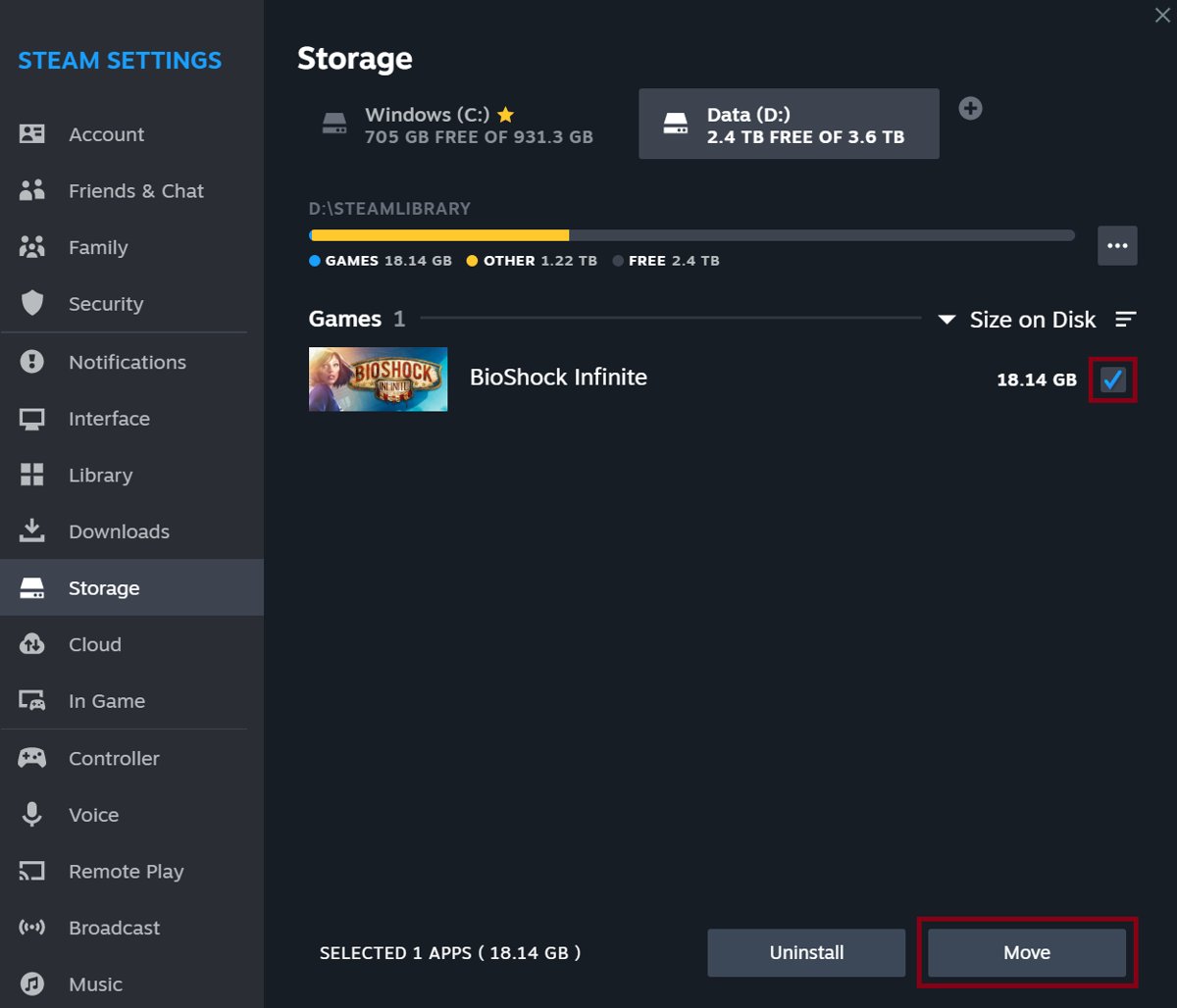
| Move a Steam game instead of deleting it | Steam Settings > Storage, select the drive, select the game, then Move |
| Fix a game without removing it | Settings > Apps > Installed apps, More > Advanced options > Repair |
| Let the uninstaller finish | Close the game and launcher first, and do not cancel the uninstaller window |
How to check if a game is still installed in Windows
- Select Start > Settings > Apps > Installed apps.
- Search for the game's name; it should not appear.
- Open Start > All apps and check the game's entry is gone.
- In the launcher's library, check the game shows as not installed.
- Open File Explorer and confirm the install folder is gone or empty.
Troubleshooting common uninstallation issues
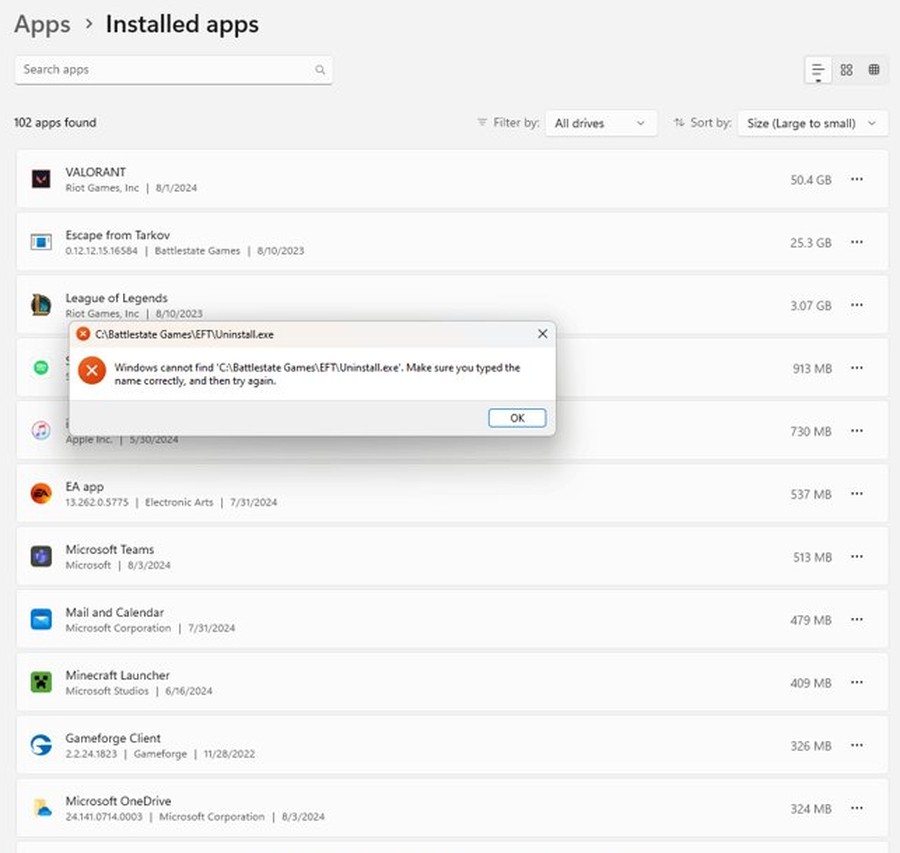
The uninstaller fails to launch or crashes
A stuck process, a damaged install or a pending update blocks the uninstaller.
- Go to Start > Power > Restart.
- Open Settings > Apps > Installed apps, select the game, then Advanced options > Repair if it is offered.
- Run the uninstall again from Settings or Control Panel.
- If an error message appears, run the Program Install and Uninstall troubleshooter that Microsoft links from its uninstall help.
Leftover files or folders persist after uninstallation
Uninstallers often leave saves, settings and mods in place on purpose.
- Back up anything you want from
Documents\My Gamesor the game's folder. - Delete the leftover game folder in File Explorer.
- Empty the Recycle Bin to reclaim the space.
Registry entries remain
Some games leave settings keys behind; they use almost no space and do no harm.
- Leave the registry alone; manual edits can break other software.
- If a broken entry still shows in Installed apps, reinstall the game, then uninstall it again.
- If it still will not go, contact the game's publisher.
The game was installed via a different user account
Launcher and Microsoft Store games are tied to the account that installed them.
- Sign in to the Windows account that installed the game.
- Open the launcher and sign in to the account that owns the game.
- Uninstall it from that launcher or from Installed apps.
Cannot find the game in Apps or Control Panel
Launcher games and portable games often register only with their launcher, or not at all.
- Search for the game in Start > All apps.
- Open each launcher you use and look for the game in its library.
- If no launcher lists it, use the manual removal steps above.
Preventing future issues during uninstallation
A few habits at install time make later removal clean.
| Habit | Why it helps |
|---|---|
| Install games through one launcher where possible | One library shows everything you have installed |
| Add a dedicated games library folder in Steam Settings > Storage | Games stay on one drive that is easy to clean up |
| Turn on cloud saves where the game supports them | Progress survives an uninstall or a new PC |
| Keep Windows updated through Settings > Windows Update | Fixes for installer and Store problems arrive with updates |
| Download games only from official stores | Avoids bundled software that is hard to remove |
Reinstalling games after uninstallation
A game you bought stays on your account after you uninstall it, so reinstalling costs nothing. If you removed the launcher as well, download Steam, Epic or the Xbox app again before you start.
- Open the launcher or store you bought the game from and sign in.
- Go to its library and find the game.
- Select the install option and choose the drive to install to.
- Wait for the download to finish, then launch the game once.
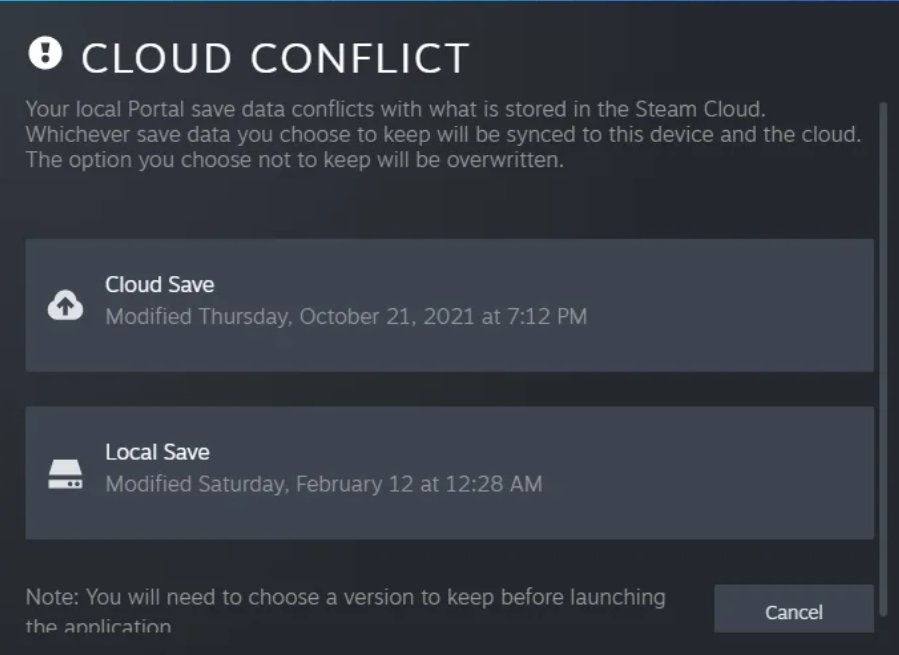
- For Steam Cloud games, let the cloud sync finish before you play so your progress loads.
- For local saves, copy your backed-up save folder back to its original location.
If you are clearing space for something new, the list of free PC games for 2026 costs nothing to try.
Uninstall PC games on Windows FAQ
Does uninstalling a game delete my save files?
It depends on the game. Games that use Steam Cloud or another cloud save restore progress after you reinstall. Local saves often sit in Documents\My Games or Steam\userdata and may survive an uninstall, but back them up before you remove anything.
Can I reinstall a game for free after uninstalling it?
Yes. A game you bought stays on your Steam, Xbox, Microsoft Store, Epic or EA account after you uninstall it. Open the library in that launcher, find the game and install it again at no cost.
Why can't I uninstall a game on Windows 11?
Usually the game or its launcher is still running, or the install is damaged. Restart the PC, try Repair under Advanced options in Installed apps, then uninstall from Settings, Control Panel or the launcher, the same fixes that work for apps that won't uninstall. Contact the publisher if none of those works.
Where are Steam games installed on Windows?
Steam installs games to C:\Program Files (x86)\Steam\steamapps\common by default. If you added another library folder in Steam Settings > Storage, games installed there live on that drive instead.
How do I free up space without uninstalling a game?
Move it to another drive. In Steam, open Settings > Storage, select the drive the game is on, select the game and choose Move. The game keeps working from the new location without a new download.
Do I need a third-party uninstaller for games?
No. Windows Settings, Control Panel and the game's launcher remove normal PC games completely. Leftover saves and settings are small, and you can delete the leftover folder by hand once you have backed up anything you want.
Is it safe to delete a game folder instead of uninstalling?
Only for games with no uninstaller and no launcher entry. Deleting a launcher or installed game's folder leaves its entry behind in Windows or the launcher, which then shows the game as installed or broken.