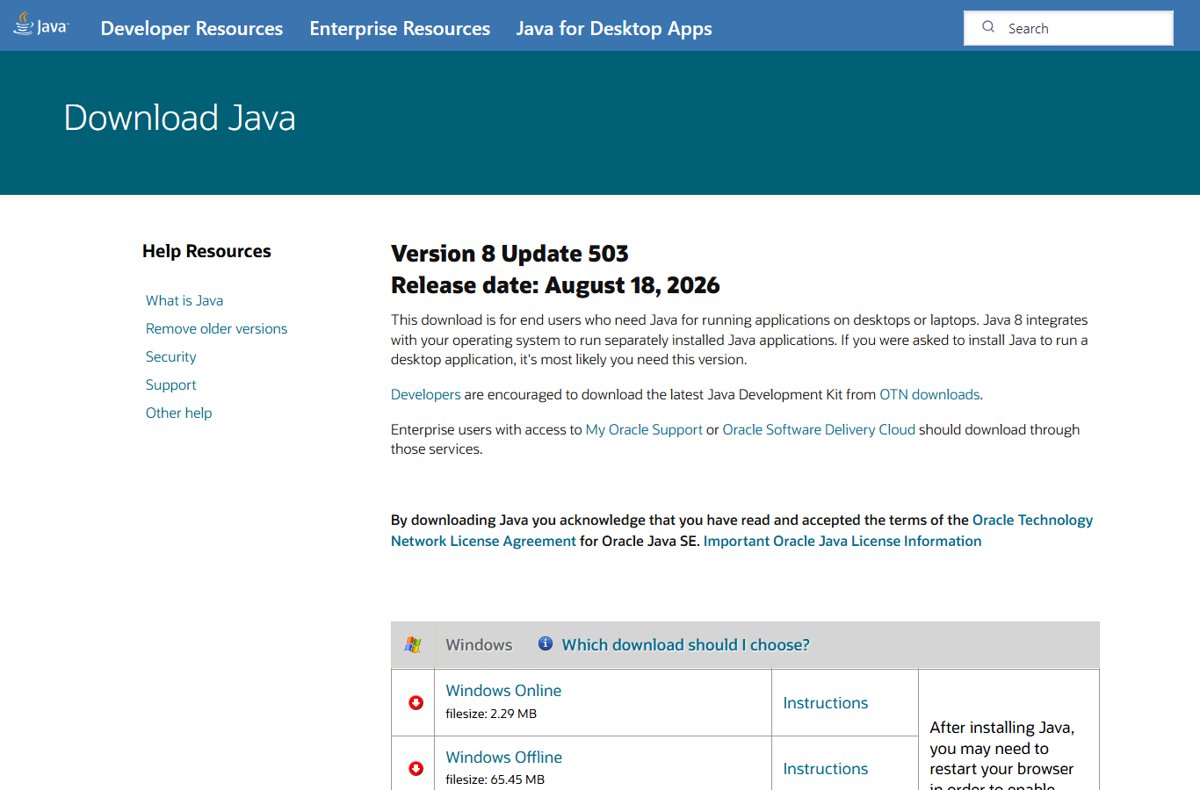
The latest Java JRE is Java 8 Update 511 (8u511), which java.com lists with a release date of October 24, 2026. Download it free from the java.com manual download page, where Windows Offline (64-bit) is the right file for Windows 11 and the plain Windows Offline file is the 32-bit build.
This guide covers when you need the JRE or a full JDK, how to pick 32-bit or 64-bit, installing on Windows, macOS and Linux, checking the version, removing old copies, and fixing common errors.
Downloading the installer
Oracle splits a JRE install into two steps: downloading the installer, then running it. These steps get a Windows 11 or Windows 10 PC onto the current Java 8 JRE in a few minutes, using an account with administrator rights.
- Open the java.com manual download page in your browser.
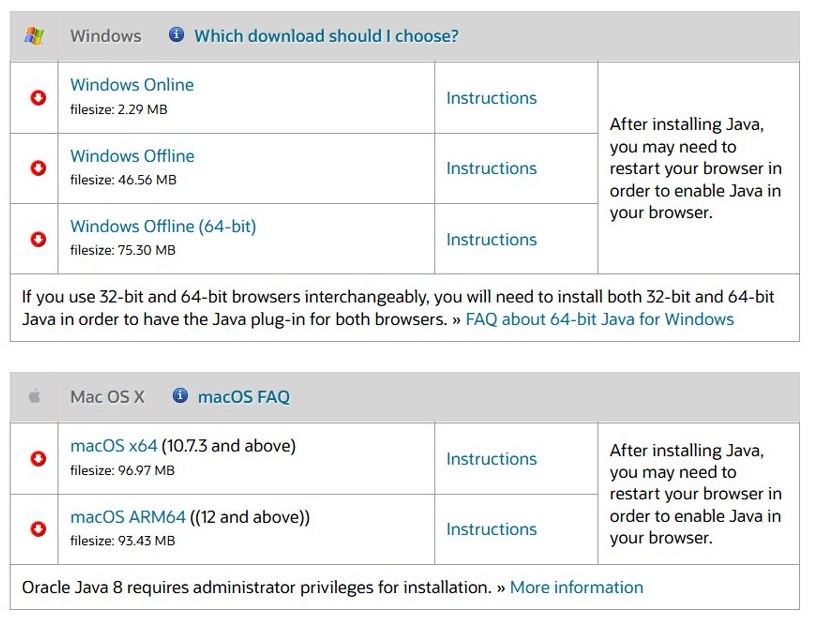
- Under Windows, select Windows Offline (64-bit). On Windows 11 this is the right choice unless an app specifically demands 32-bit Java.
- Double-click the downloaded file and select Yes at the User Account Control prompt.
- Select Install in the Java Setup welcome window to accept the license and start the install.
- Select Close when the installer reports that Java was installed.
- Open Command Prompt, type
java -versionand press Enter. The first line should show1.8.0_511.
Review the Oracle Technology Network license terms linked on that page before you download. Oracle changed the Java license for releases from April 16, 2019.
What is the latest Java JRE version?
java.com lists Version 8 Update 511, with a release date of October 24, 2026, as its current download. That page only offers Java 8, which is the release line still shipped as a standalone JRE for end users.
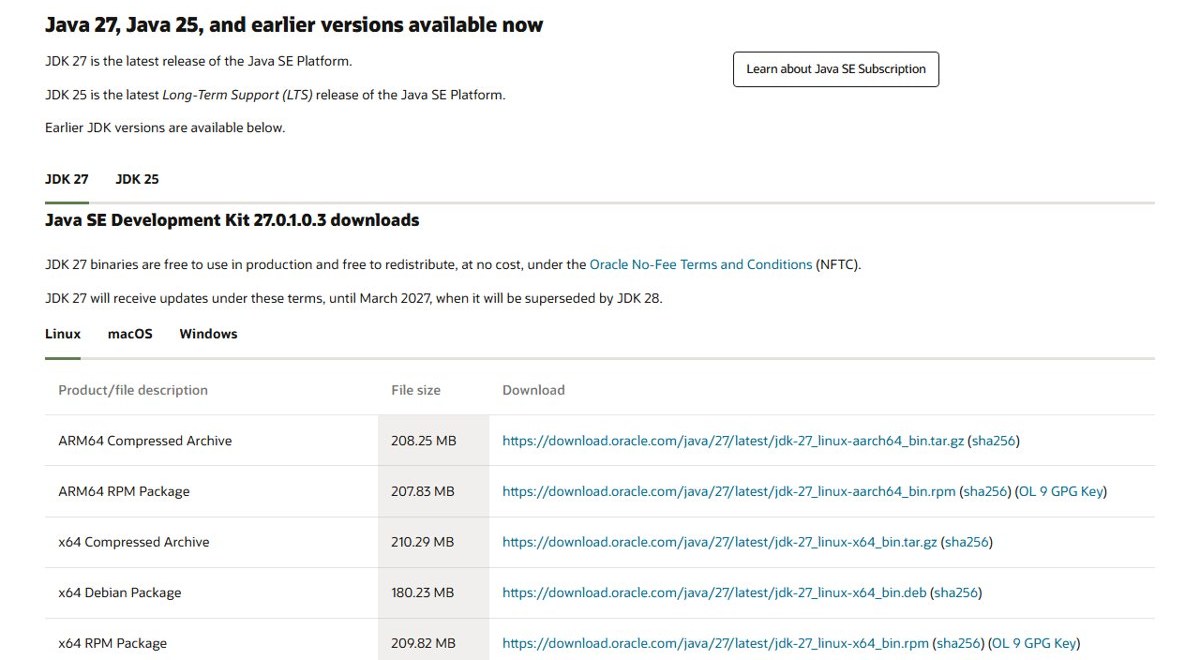
Newer Java lines ship as the JDK. Oracle's Java downloads page names JDK 27 as the latest release of the Java SE Platform and JDK 25 as the latest long-term support (LTS) release. The current JDK 27 build listed there is 27.0.1.
| Java line | Status on Oracle's sites (October 2026) | Where it comes from | Who it is for |
|---|---|---|---|
| Java 8 JRE | 8u511, the only standalone JRE | java.com | Running desktop apps built for Java 8 |
| JDK 27 | Latest release (27.0.1); free under the NFTC until March 2027, when JDK 28 replaces it | oracle.com Java downloads | Developers who want the newest features |
| JDK 25 | Latest long-term support release | oracle.com Java downloads | Most apps that need a modern Java |
| JDK 21, 17, 11 and 8 | Older lines, still offered by Oracle | oracle.com Java downloads and archive | Apps certified on those older lines |
Oracle ships Java security updates every quarter, and each Java 8 release is meant to be replaced by the next one. When java.com shows a newer update than the one in java -version, install it.
JRE vs JDK: what should you install?
The JRE is the runtime part of Java: the Java Virtual Machine, the core classes and the supporting libraries. It runs Java programs but has no development tools.
The JDK contains those development tools and also runs Java programs, so a JDK can replace a JRE.
| JRE (Java 8) | JDK (8, 11, 17, 21, 25, 27) | |
|---|---|---|
| Runs Java apps | Yes | Yes |
Compiles code (javac) |
No | Yes |
| Official source | java.com | oracle.com/java/technologies/downloads |
| Windows builds | 32-bit and 64-bit | 64-bit (x64) only for current releases |
| Install it when | A desktop app says it needs Java 8, or asks you to get Java from java.com | You write code, or an app asks for Java 11 or newer |
java.com says its download serves people who still need Java for desktop applications built for Java 8. It points developers to dev.java instead.
System requirements
Oracle publishes the supported platforms for Java 8 in its JDK 8 and JRE 8 Certified System Configurations page, and the minimum processor, disk space and memory in its Windows system requirements note. In practice the checks that stop an install are simpler:
- Administrator rights. java.com states that administrative permission is required to install Java on Windows, and Oracle Java 8 on a Mac also needs administrator privileges.
- A working connection for the online installer. Oracle's JRE guide says the Windows Online installer needs an internet connection, and that wrong proxy settings stop it with the message "The installer cannot proceed with the current Internet Connection proxy settings." Use the offline installer if you are behind a proxy.
- The right macOS version. java.com lists macOS x64 for macOS 10.7.3 and above, and macOS ARM64 for macOS 12 and above.
- 64-bit Windows for a current JDK. JDK 27 and JDK 25 are offered for 64-bit Windows only; 32-bit Windows can still run the Java 8 JRE.
Choosing which JRE installer to download
Match Java to the program that uses it, not only to Windows. A 32-bit program or browser needs 32-bit Java; a 64-bit one needs 64-bit Java. Oracle's JRE guide works through it in two checks: verifying your version of Windows, then verifying your browser or program.
![Java JRE latest version: Download & Install [32-bit, 64-bit]](https://techdows.com/wp-content/uploads/2026/10/Java-JRE-latest-version-Download-Install-32-bit-64-bit.jpg)
To check Windows, select Start > Settings > System > About and read System type under Device specifications. Windows 11 has no 32-bit version, so every Windows 11 PC is 64-bit.
| Your situation | Install this | Why |
|---|---|---|
| Windows 11, any modern app | Windows Offline (64-bit) | Windows 11 is 64-bit only |
| Windows 10 64-bit, 64-bit app | Windows Offline (64-bit) | The app loads the runtime of its own bitness |
| Windows 10 32-bit | Windows Offline or Windows Online (32-bit) | A 32-bit Windows cannot run 64-bit Java |
| A 32-bit app on 64-bit Windows | 32-bit Java, plus 64-bit Java if other apps need it | java.com supports installing both side by side |
| You need JDK 21, 25 or 27 on Windows | The x64 installer from oracle.com | Oracle ships current JDKs for 64-bit Windows only |
| Apple silicon Mac | macOS ARM64 (macOS 12 and above) | Native build for M-series chips |
| Intel Mac | macOS x64 | Native build for Intel chips |
java.com states that if you use 32-bit and 64-bit browsers interchangeably, you need both 32-bit and 64-bit Java.
Java 8 vs Java 25 vs Java 27: which one to install
Install the version the software vendor names. An app built for Java 8 may refuse to start on a newer JDK even though the newer JDK is installed.
| What the app or task says | Choose | Where |
|---|---|---|
| "Requires Java" or "Get Java from java.com" | Java 8 JRE, 8u511 | java.com manual download page |
| "Requires Java 8" | Java 8 JRE, or JDK 8 if you also compile code | java.com, or oracle.com for JDK 8 |
| "Requires Java 17 or newer" | JDK 25 (long-term support) | oracle.com Java downloads |
| Learning Java or starting a new project | JDK 25, or JDK 27 for the newest language features | oracle.com Java downloads |
| Production use without an Oracle subscription | An Oracle JDK still under the No-Fee Terms, or OpenJDK | oracle.com or jdk.java.net |
Oracle Java vs OpenJDK license
Both are built from the same Java source. The difference that matters to most readers is the license, as Oracle states it on its documentation site.
| Build | License Oracle applies | What that permits at no cost |
|---|---|---|
| Oracle Java 8 JRE and JDK 8 (java.com) | Oracle Technology Network (OTN) License | Personal use, development, testing, prototyping, demonstrating and other limited uses. Other commercial use needs a Java SE Subscription |
| Oracle JDK 11 | OTN License | Same limited no-cost uses as Java 8 |
| Oracle JDK 17 and later LTS lines | Oracle No-Fee Terms and Conditions (NFTC) for the first 3 years, OTN after that | All users, including commercial and production use, while under NFTC |
| Oracle JDK non-LTS lines (26, 27) | NFTC for their whole six-month support life | All users, including commercial and production use |
| OpenJDK from jdk.java.net | GPL open source license | Free use; Oracle publishes these builds for the latest release |
At home, the Oracle Java 8 JRE from java.com is free for personal use. In a business, check the license with whoever manages software there before you roll out Java 8 or JDK 11.
Official Java JRE download sites
Download Java only from Oracle's own sites. Third-party mirrors and download portals repackage installers and can bundle adware or worse.
| Site | What it offers | Use it for |
|---|---|---|
| java.com manual download page | Java 8 JRE for Windows, macOS, Linux and Solaris | Running Java 8 desktop apps |
| oracle.com Java downloads | Oracle JDK 27, 25, 21 and older lines | Developers and apps that need Java 11 or newer |
| jdk.java.net | OpenJDK builds under the GPL | An open source JDK from Oracle |
| dev.java | Oracle's developer portal | Learning Java and finding the right JDK |
| Java uninstall tool | Removes old Java versions on Windows | Clean-up before or after an install |
If you already ran a Java installer from an unofficial site, scan the PC with Microsoft Safety Scanner and then install again from java.com.
Download Java for Windows 64-bit
Use this for Windows 11 and for 64-bit Windows 10. The offline installer carries everything and does not need a connection during setup.
- Open the java.com manual download page.
- Confirm the page header shows Version 8 Update 511.
- Under Windows, select Windows Offline (64-bit).
- Save the file to your Downloads folder.
- Continue with the install steps in the Windows install section below.
Download Java for Windows 32-bit
Use this for 32-bit Windows 10, or for a 32-bit app or browser on 64-bit Windows. On java.com, the Windows entries without "(64-bit)" are the 32-bit builds.
- Open the java.com manual download page.
- Under Windows, select Windows Offline for a full 32-bit installer.
- Or select Windows Online for a small 32-bit installer that downloads the rest during setup.
- Save the file, then follow the Windows install steps below.
- If other programs need 64-bit Java, also install Windows Offline (64-bit). The two can sit side by side.
Windows download and installation
java.com offers two Windows installers. The online one is a small Install From The Web file that fetches the rest during setup, so the PC must stay connected. The offline one carries every file, needs no connection during setup, and can be copied to a PC with no internet. Both need administrator permission.
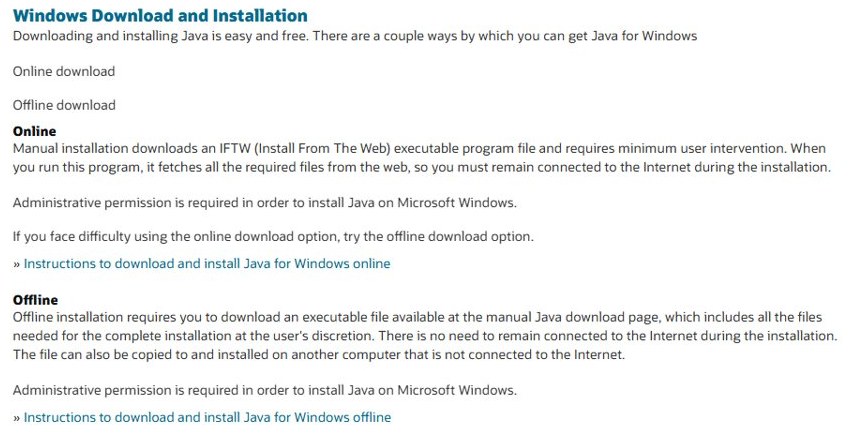
Running the installer is the same for either file. From 8u20 onward it can also find and remove older Java versions during setup.
- Close any browser or app that uses Java.
- Double-click the installer you downloaded from java.com.
- Select Yes when User Account Control asks to allow changes to your device.
- In the Java Setup – Welcome window, select Install to accept the license terms.
- If the installer offers to remove out-of-date versions, accept it.
- Wait while the Java Setup – Progress window runs, then select Close.
- Restart your browser or app so it picks up the new runtime.
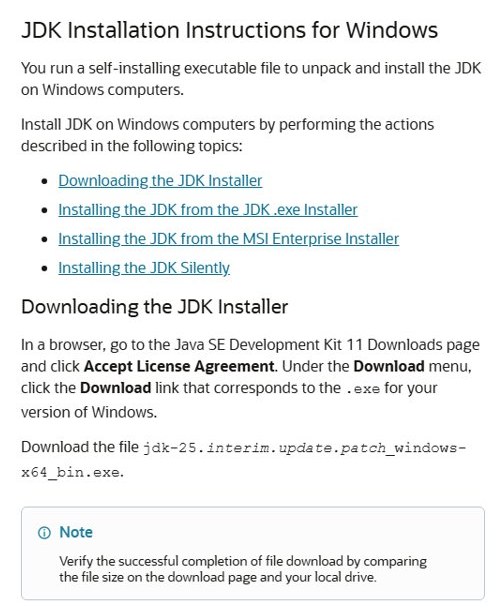
For JDK 27 or JDK 25, which IDEs such as IntelliJ IDEA build against, run the x64 .exe installer from oracle.com and follow its prompts. It installs to C:\Program Files\Java\jdk-27 (or jdk-25) by default, and places java.exe, javaw.exe, javac.exe and jshell.exe in C:\Program Files\Common Files\Oracle\Java\javapath.
An .msi package is also offered for managed installs. Run it with msiexec.exe /i followed by the file name.
Mac download and installation
java.com offers macOS x64 for Intel Macs (macOS 10.7.3 and above) and macOS ARM64 for Apple silicon Macs (macOS 12 and above). Check your chip under Apple menu > About This Mac.
- Open the java.com manual download page and select macOS x64 or macOS ARM64.
- Double-click the downloaded
.dmgfile to open it. - Double-click the installer icon inside the disk image.
- Select Open if macOS warns that the app was downloaded from the internet.
- Select Install on the welcome screen.
- Enter your Mac password when asked and continue.
- Select Close when the installation finishes.
For a JDK on macOS, download the .dmg for your chip from oracle.com, open it, double-click the JDK 27.pkg icon, then select Continue and Install. The JDK lands in /Library/Java/JavaVirtualMachines/jdk-27.jdk.
Linux download and installation
java.com offers the Java 8 JRE for Linux as .tar.gz archives and .rpm packages. Oracle's JDK 27 adds a .deb for Debian and Ubuntu; all current JDK packages are 64-bit (x64 or AArch64).
- Download Linux x64 (archive) or Linux x64 RPM from the java.com manual download page.
- For the archive, change to the folder you want Java in, for example
cd /usr/java/, and move the file there. - Extract it with
tar zxvffollowed by the downloaded file name, then delete the archive to save space. - For a JDK on Fedora, Red Hat or Oracle Linux, run
sudo rpm -ivh jdk-27_linux-x64_bin.rpm. - For a JDK on Debian or Ubuntu, run
sudo dpkg -i jdk-27_linux-x64_bin.deb. - For Arch Linux or any other distribution, extract the JDK
.tar.gzwithtar zxvfinto a folder you choose.
The .rpm and .deb JDK packages install to /usr/lib/jvm/jdk-27-oracle-x64. System-wide installs need root; without it, extract the archive into your home directory.
Default JRE installation directories
Oracle's JRE installation guide gives these default folders, which matter when you set JAVA_HOME or point an app at a specific runtime:
| Build | Default folder |
|---|---|
| 32-bit Java 8 JRE | C:\Program Files (x86)\Java\jreN |
| 64-bit Java 8 JRE | C:\Program Files\Java\jreN |
| Link to the newest 32-bit JRE 8 (8u421 and later) | C:\Program Files (x86)\Java\latest\jre-1.8 |
| Link to the newest 64-bit JRE 8 (8u421 and later) | C:\Program Files\Java\latest\jre-1.8 |
| Java 8 helper files (java.exe, javaw.exe, javaws.exe) | %CommonProgramFiles(x86)%\Oracle\Java\java8path |
N is the full release and update number; Oracle's example is 1.8.0_421 for Java 8 Update 421. JDK 11 and later put their own helper files in %CommonProgramFiles%\Oracle\Java\javapath and place that folder ahead of the Java 8 one in PATH, which is why java -version can report a JDK even after you install the JRE.
How to check Java version in Windows
The command line is the fastest proof on every system, and it also tells you whether the runtime is 64-bit.
- On Windows, open Command Prompt; on macOS or Linux, open Terminal.
- Type
java -versionand press Enter. - Read the first line. Java 8 prints a version such as
java version "1.8.0_511"; a JDK prints its release number, such asjava version "27". - Read the last line. A 64-bit runtime says
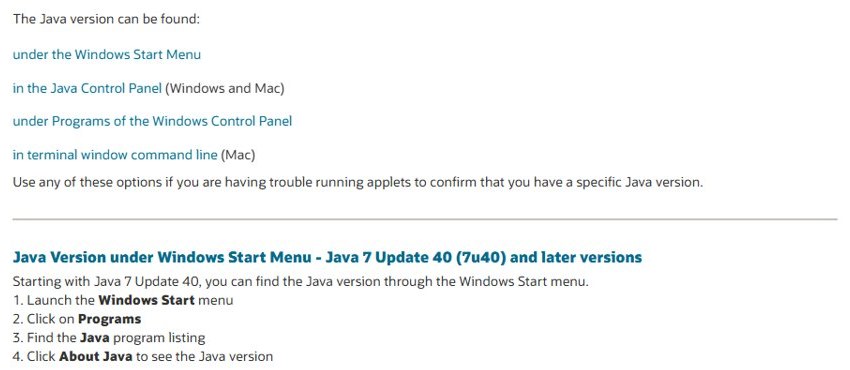
64-Bit Server VM. If that label is missing, the runtime in use is not the 64-bit build. - On Windows, you can also select Start, open the Java folder and select About Java to see the installed Java 8 version.
If the version shown is older than the one you installed, another Java copy comes first in your PATH. See the troubleshooting section below.
How to set JAVA_HOME on Windows
Build tools and many server apps read JAVA_HOME to find Java. Point it at the JDK folder, not at the bin folder inside it.
- Open File Explorer, right-click This PC and select Properties.
- On the System > About page, select Advanced system settings.
- In System Properties, select Environment Variables.
- Under System variables, select New (or select JAVA_HOME and Edit if it exists).
- Enter
JAVA_HOMEas the Variable name and the JDK folder as the Variable value, for exampleC:\Program Files\Java\jdk-27. - Select OK in each window, then open a new Command Prompt so it reads the new value.
- Type
echo %JAVA_HOME%and press Enter to confirm the path.
Java update feature
The Java 8 JRE has its own updater, the Java Update feature in the Java Control Panel; our walkthrough for updating Java on Windows 11 shows each screen. Current JDKs do not; you install the newer JDK release over or beside the old one.
- On Windows, select Start, open the Java folder and select Configure Java to open the Java Control Panel.
- Go to the Update tab.
- Select Update Now and follow the installer prompts.
- Keep Check for Updates Automatically ticked; select Advanced to change the schedule from the weekly default.
- On a Mac, open the Java icon in System Preferences, go to the Update tab, select Update Now, then Install Update and Install and Relaunch.
- For a JDK, download the newer release from oracle.com and install it. On Linux RPM systems,
sudo rpm -Uvhupgrades in place.
Silent installation
Oracle supports installing the JRE silently, without any setup windows, which is useful when you put Java on several PCs. Its JRE guide sends administrators to the command-line installation instructions for the exact switches; for a JDK, Oracle also offers an .msi enterprise installer that works with msiexec.
To stop the "JRE out of date" warning on centrally managed PCs, Oracle documents the deployment property deployment.expiration.check.enabled=false. To turn off automatic updates, clear Check for Updates Automatically on the Update tab of the Java Control Panel. Other Control Panel switches are covered in our guide to managing Java settings in Windows.
Uninstalling the JRE
java.com warns that keeping old versions of Java on your system is a serious security risk. Remove any version you no longer need.
- On Windows 11, select Start > Settings > Apps > Installed apps.
- Type
Javain the search box to list every Java runtime and JDK. - Next to an old version, select More (the three dots) > Uninstall, and confirm.
- On Windows 10, or from any version, you can use Control Panel > Programs > Programs and Features, right-click the entry and select Uninstall.
- Or run the Java uninstall tool from java.com, which removes old versions on Windows and needs administrator rights.
- On a Mac, remove the Java 8 JRE in Terminal with
sudo rm -fr /Library/Internet\ Plug-Ins/JavaAppletPlugin.plugin,sudo rm -fr /Library/PreferencePanes/JavaControlPanel.prefPaneandsudo rm -fr ~/Library/Application\ Support/Oracle/Java. - Remove a Mac JDK with
sudo rm -rf /Library/Java/JavaVirtualMachines/jdk-27.jdk, changing the folder name to match the version.
Keep any version an app still names as a requirement. Removing the only Java 8 copy will stop apps built for Java 8.
Java not installing on Windows 11 or 10
"java is not recognized as an internal or external command"
Windows cannot find java.exe because its folder is not in the PATH variable.
- Open Advanced system settings > Environment Variables.
- Under System variables, select Path and then Edit.
- Add the Java
binfolder, for exampleC:\Program Files\Java\jdk-27\bin, and select OK. - Close and reopen Command Prompt, then run
java -versionagain.
An app says it needs Java 8 even after installing Java 25
The app was built for Java 8 and looks for that runtime, not any Java.
- Install the Java 8 JRE from the java.com manual download page alongside the newer JDK.
- Match its bitness to the app: 32-bit app, 32-bit Java.
- If the app uses
JAVA_HOME, point it at the Java 8 folder. - Restart the app.
java -version shows an older version than the one just installed
An older Java folder appears earlier in PATH, or the old version is still installed.
- Uninstall versions you no longer need from Settings > Apps > Installed apps.
- Open the Path entry under Environment Variables and move the new Java
binfolder above older Java entries. - Open a new Command Prompt and run
java -version.
OpenJDK Platform Binary uses too much memory or CPU
That process is a Java app running on a JDK, not the installer. Close the app that started it, or limit its memory; the steps are in our guide to fixing OpenJDK Platform Binary high memory use.
A Java applet will not run in the browser
Modern browsers no longer load the Java plug-in; java.com notes Chrome disabled plug-in support from version 42.
- Ask the site owner whether a desktop version of the app exists.
- Install the Java 8 JRE that matches that app's bitness.
- Launch the app outside the browser.
The JDK installer from oracle.com will not run on 32-bit Windows
Current Oracle JDKs are built only for 64-bit Windows.
- Confirm System type under Settings > System > About.
- On 32-bit Windows, install the 32-bit Java 8 JRE from java.com instead.
- If you need a newer Java, the PC needs 64-bit Windows.
Java JRE download FAQ
What is the latest JRE version?
The latest Java JRE is Java 8 Update 511 (8u511) on java.com. Newer Java releases, up to JDK 27, ship as a JDK rather than a separate JRE.
What is the newest version of Java overall?
JDK 27 (build 27.0.1 on Oracle's downloads page) is the newest Java release. JDK 25 is the current long-term support line. Both come from Oracle's Java downloads page, not from java.com, which only offers the Java 8 JRE.
What is my JRE version?
Open Command Prompt or Terminal and run java -version. The first line shows the version, such as 1.8.0_511 for Java 8 Update 511. On Windows you can also select Start, open the Java folder and select About Java.
How to get the JRE version from the command line?
Run java -version in Command Prompt, PowerShell or Terminal. The output shows the version on the first line and the virtual machine type on the last line, including "64-Bit" when the runtime is the 64-bit build. If the command is not recognized, Java is missing from PATH.
Can you install both 32-bit and 64-bit Java?
Yes. java.com says that if you use 32-bit and 64-bit browsers or programs interchangeably, you need both 32-bit and 64-bit Java. Install Windows Offline and Windows Offline (64-bit) from the java.com manual download page; each program uses the build that matches it.
Why is the standalone JRE harder to find now?
java.com only offers the Java 8 JRE, aimed at people running desktop apps built for Java 8. Oracle's installation guides for current releases such as JDK 27 cover the JDK, which includes everything needed to run Java programs.
Is the Oracle Java JRE free?
Oracle's Java 8 JRE is free for personal use and development under the Oracle Technology Network License. Other commercial use needs a Java SE Subscription. Oracle JDK 17 and later are free for all users, including production, while under Oracle's No-Fee Terms and Conditions.
Does Windows 11 need 32-bit or 64-bit Java?
Windows 11 is 64-bit only, so install Windows Offline (64-bit) from java.com in most cases. Add the 32-bit Java 8 JRE only when a specific 32-bit program asks for it; both builds can be installed at the same time.
Where does Java install on Windows?
The 64-bit Java 8 JRE installs to a jre folder under C:\Program Files\Java, and the 32-bit build under C:\Program Files (x86)\Java. From 8u421, Oracle also creates C:\Program Files\Java\latest\jre-1.8, which always points to the newest 64-bit Java 8.
Should I keep older Java JRE versions?
No, unless an app requires a specific one. java.com calls old Java versions a serious security risk, and each Java 8 release is not recommended after the next critical patch update. Remove them from Installed apps or with the Java uninstall tool.