Manage Java settings in Windows 11 and Windows 10 from the Java Control Panel: select Start, open the Java folder and select Configure Java.
This guide covers each Control Panel tab, plus the settings that live outside it: JAVA_HOME, Path, installed versions, .jar file associations and the JDK your build tools use.
Where each Java setting lives
Find the change you want in the left column and go straight to the place in the middle column. Most Java 8 settings sit on one of the five Java Control Panel tabs: General, Update, Java, Security and Advanced.
| You want to | Go here | Notes |
|---|---|---|
| See which Java version you have | Java Control Panel > General > About | Or run java -version in Command Prompt |
| Turn automatic updates on or off | Java Control Panel > Update | Needs administrator rights |
| Pick which installed JRE runs web-launched apps | Java Control Panel > Java > View | Tick Enabled for the ones to use |
| Allow a blocked app from a site you trust | Java Control Panel > Security > Edit Site List | Add the full site URL |
| Delete cached apps and applets | Java Control Panel > General > Settings > Delete Files | Under Temporary Internet Files |
| Set a proxy for Java | Java Control Panel > General > Network Settings | Default is Use browser settings |
Make the java command use a specific JDK |
Environment Variables > JAVA_HOME and Path |
Open a new terminal afterwards |
| Remove an old Java version | Settings > Apps > Installed apps | Old versions are a security risk |
| Choose what opens .jar files | Settings > Apps > Default apps | Search for .jar |
Understand what “Java settings” means on Windows
"Java settings" covers two separate things. The Java Control Panel controls apps embedded in a browser or launched from one through Java Web Start. Oracle states that its settings are not used by standalone and self-contained applications.
Standalone apps, the java command and developer tools instead follow Windows environment variables and their own launch options.
| Setting type | Where you change it | What it affects |
|---|---|---|
| Java Control Panel (Java 8) | Configure Java in the Start menu | Java Plug-in applets and Java Web Start apps: updates, security level, cache, proxy, runtime parameters |
Path environment variable |
Edit the system environment variables > Environment Variables | Which java.exe runs when you type java in a terminal |
JAVA_HOME environment variable |
Same dialog as Path |
Which JDK Maven, Gradle, Android Studio and other tools use |
Launch options such as -Xmx |
The command line, a shortcut or the app's launcher | One standalone app at a time |
| Installed versions | Settings > Apps > Installed apps | What is on the PC at all |
| File associations | Settings > Apps > Default apps | What happens when you double-click a .jar file |
The Java Control Panel comes with the Java 8 JRE from java.com. Oracle's JDK 25 install guide describes a Java Development Kit Start menu entry instead, and no Configure Java item.
Check whether Java is installed
Check from a terminal first, because that shows the Java that actually runs. Windows Terminal, Command Prompt and PowerShell all give the same result.
- Open Command Prompt, PowerShell or Windows Terminal from the Start menu.
- Type
java -versionand press Enter. A version line such asjava version "1.8.0_503"orjava version "25"means Java is installed and on thePath. - Type
javac -versionand press Enter. A version number means a full JDK with the compiler is present; an error means you have only a runtime, or the JDK is not on thePath. - Type
where javaand press Enter to list everyjava.exefound in thePath, in the order Windows checks them. - Select Start, open the Java folder and select About Java to see the Java 8 version installed from java.com.
The first path printed by where java is the one that runs. If it is C:\Program Files\Common Files\Oracle\Java\javapath, the command is going through Oracle's shortcut folder rather than a specific JDK's bin folder.
Open the Java Control Panel
The Java Control Panel has been in the Start menu since Java 7 Update 40. It is part of the Java 8 JRE, so install that from java.com first if none of these routes finds it.
- Select Start and then All apps (Windows 11) or scroll the app list (Windows 10).
- Open the Java folder and select Configure Java. The Java Control Panel opens on the General tab.
- Or type Configure Java in the taskbar search box and select the result.
- Or open Control Panel, select Programs, then select the Java icon.
- If none of these works, run
javacpl.exefrom thebinfolder of the Java installation. Oracle points to this route when the Update tab is missing.
To see and change the Update tab, open the panel from an account with administrator rights.
Manage Java updates
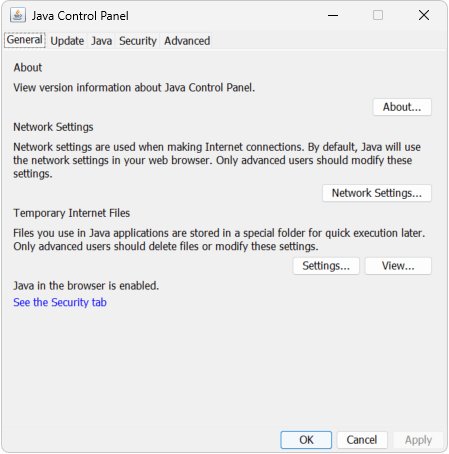
The Update tab works with the Java Update Scheduler (jusched.exe) to update every JRE on the PC, 32-bit and 64-bit alike. Oracle strongly recommends keeping it on and changing the schedule instead of disabling it.
- Open the Java Control Panel and select the Update tab.
- Keep Check for Updates Automatically selected. Clear it only if your organization patches Java another way.
- In the Notify Me list, choose Before downloading to approve each download, or Before installing to download automatically and approve the install.
- Select Advanced, choose Daily, Weekly or Monthly, set the day and time, and select OK.
- Select Update Now at the bottom of the tab to check immediately. The PC must be online.
- Close and reopen the Java Control Panel after an update so it loads the new version.
- For a JDK installed with the Windows Package Manager, run
winget upgradeto list available upgrades, thenwinget upgrade --idfollowed by the package ID, such asMicrosoft.OpenJDK.21.
Monthly checks still run weekly and flag a critical update within a week of its release. If you doubt an update prompt is genuine, get the new version directly from java.com.
To move to a newer Oracle JDK, download the release from oracle.com and install it. Oracle warns not to overwrite a JDK while any Java process is running.
Manage Java runtime versions in the Java Control Panel
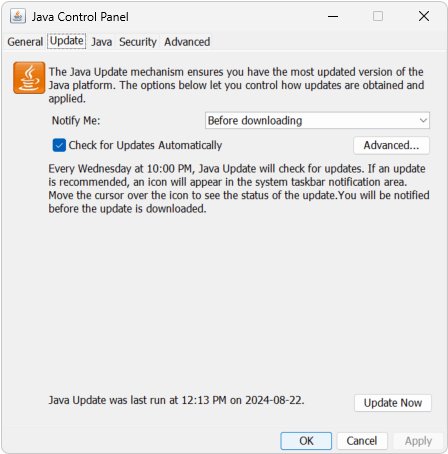
The Java tab shows every JRE Windows has registered and lets you choose which ones Java Plug-in and Java Web Start may use. It does not change the version that the java command runs.
- Open the Java Control Panel and select the Java tab.
- Select View to open Java Runtime Environment Settings.
- On the User tab, read the Platform, Product and Path columns to see each installed JRE, its full update number and its folder.
- Clear the Enabled box for any JRE that web-launched apps should not use, and tick it for the one they should.
- Select Find to search the PC for a JRE that is missing from the list, or Add to enter one by hand.
- Select Remove to drop a highlighted entry from the list, then select OK and Apply.
Remove only takes an entry out of this table; it does not uninstall anything. The System tab shows the JRE that started the panel and cannot be edited.
Set JAVA_HOME in Windows 11/10
Windows has no automatic JAVA_HOME, so set it yourself. Point it at the JDK folder itself, not at the bin folder inside it. Oracle JDKs install to C:\Program Files\Java\jdk-<version> by default, for example C:\Program Files\Java\jdk-25.
- Select Start, type Environment Variables and select Edit the system environment variables.
- In System Properties, select Environment Variables.
- Under System variables, select New, or select an existing
JAVA_HOMEand then Edit. - Enter
JAVA_HOMEas the Variable name and the JDK folder as the Variable value, then select OK. - Select Path under System variables, select Edit, then New, and enter
%JAVA_HOME%\bin. - Keep that entry above any other Java entry in the list, then select OK in every dialog.
- Open a new terminal. In PowerShell run
echo $env:JAVA_HOME; in Command Prompt runecho %JAVA_HOME%.
Terminals that were already open keep the old values. Close them, or sign out and back in if an app still reads the previous JDK.
Switch between multiple Java versions
Several JDKs can sit side by side. The one listed first in Path wins, so switching means changing JAVA_HOME and the order of Path, either permanently or for one terminal window.
- Run
where javato see every Java on thePath, and read each JDK's folder from the Path column in the Java Control Panel or fromC:\Program Files\Java. - To switch permanently, change the
JAVA_HOMEvalue to the other JDK folder in Environment Variables and keep%JAVA_HOME%\binat the top ofPath. - Watch for
C:\Program Files\Common Files\Oracle\Java\javapathinPath. Oracle's installers copyjava.exe,javaw.exe,javac.exeandjshell.exethere, and if it sits above your chosen JDK, it runs first. - To switch for one Command Prompt window only, run
set JAVA_HOME=C:\Program Files\Java\jdk-21and thenset PATH=%JAVA_HOME%\bin;%PATH%. - To switch for one PowerShell session only, run
$Env:JAVA_HOME = 'C:\Program Files\Java\jdk-21'and then$Env:PATH = "$Env:JAVA_HOME\bin;$Env:PATH". - Run
java -versionin that same window to confirm the switch. Closing the window discards the temporary values.
Microsoft notes that set changes variables for the current console window only and PowerShell changes affect only the current session. Avoid setx for Path: it cuts values longer than 1,024 characters, which can wipe existing entries.
Manage Java security settings
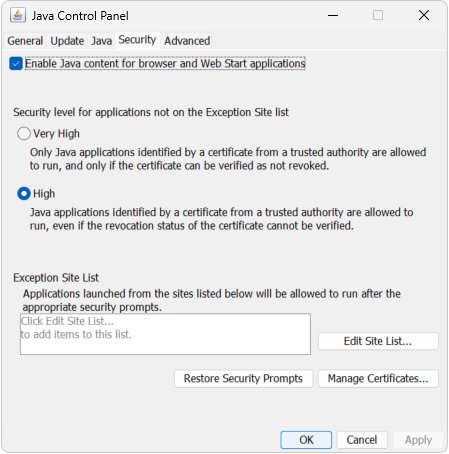
The Security tab decides whether web-launched Java apps may run. Since Java 8 Update 20 it offers only High, the default and minimum recommended level, and Very High. The level does not affect standalone Java applications.
- Open the Java Control Panel and select the Security tab.
- Leave Enable Java content in the browser selected if you use a Java web app; clear it to stop every Java app from running in or launching from a browser.
- Choose High or Very High, then select Apply.
- To allow one trusted site's blocked app, select Edit Site List, then Add, type the full URL starting with
https://orhttp://, and select OK. Select Continue if a Security Warning appears. - Select Manage Certificates to import, export, remove or view certificates. Pick the type first, such as Trusted Certificates or Signer CA.
- Select Restore Security Prompts and then Restore All to bring back warnings you hid earlier.
- Select OK to save and close the panel.
Exception Site List entries need a protocol and domain; wildcards do not work. A path ending in / covers that folder and its subfolders, and a path without it covers only that one page. Add a site only if you trust all of it.
If an active Deployment Rule Set is installed, which usually means your organization manages Java, its rules take precedence over the Exception Site List.
Clear Java temporary files and cache
Clearing the cache forces Java to load the latest versions of web-launched programs. It is the first step when an applet or Web Start app keeps running an old version.
- Open the Java Control Panel on the General tab.
- Under Temporary Internet Files, select Settings.
- Select Delete Files.
- Tick what to remove: Trace and Log Files, Cached Applications and Applets, or Installed Applications and Applets.
- Select OK, then OK again in Temporary Files Settings.
- To check or remove a single app instead, select View under Temporary Internet Files to open the Java Cache Viewer.
The Temporary Files Settings dialog also sets whether Java keeps temporary files, where they are stored, the JAR compression level and the disk space allowed. Restore Defaults resets all four.
Configure Java network and proxy settings
Java uses the browser's proxy settings by default. Change it only when a web-launched app cannot connect, for example when it fails with a ClassNotFoundException dialog on a network that needs a proxy.
| Your network | Choose in Network Settings | What to enter |
|---|---|---|
| Browser already connects fine | Use browser settings | Nothing; this is the default |
| Your IT team gave you a proxy address | Use proxy server | Address and port; select Advanced for per-protocol proxies or exceptions |
| Your IT team gave you a PAC or script URL | Use automatic proxy configuration script | The URL of the .js or .pac file |
| No proxy on this network | Direct Connection | Nothing |
To get there, open the Java Control Panel, select Network Settings on the General tab, make the choice and select OK. Then close every browser window and try the app again.
Java Plug-in's default timeout for HTTP connections is two minutes. Change it with the runtime parameter shown in the next section.
Adjust Java runtime parameters
Runtime parameters in the Java Control Panel override Java Plug-in startup options for every web-launched app on that JRE. For a standalone app, put the options on its own command line instead.
- Open the Java Control Panel, select the Java tab and then View.
- On the User tab, double-click the Runtime Parameters cell for the JRE you want to change.
- Type the options separated by spaces, for example
-Ddeployment.trace=trueto write console output to a trace file. - For a slow network, add
-Dsun.net.client.defaultConnectTimeout=followed by a value in milliseconds. - Select OK, then Apply, and restart the browser or app; changes do not reach a running plug-in.
- For one standalone app, add options when you start it, such as
java -Xmx512m -jar app.jarto cap its heap at 512 MB. - On current JDKs, set the
JDK_JAVA_OPTIONSenvironment variable to add options to everyjavalaunch. It cannot contain-jar.
The syntax matches the java command, except for class paths, which the Control Panel writes as -classpath=<path> or -cp=<path> with an equals sign.
Manage Java from Windows Settings
Windows Settings lists every Java runtime and JDK as an ordinary app. Use it to remove versions you no longer need; java.com calls old Java versions a serious security risk.
- Select Start > Settings > Apps > Installed apps.
- Type
Javain the search box to list each Java 8 update, JDK and OpenJDK build. - Next to a version you no longer need, select More (the three dots) and then Uninstall, and confirm.
- On Windows 10, or from any version, open Control Panel > Programs > Programs and Features, right-click the entry and select Uninstall.
- Afterwards, open Environment Variables and delete any
Pathentry orJAVA_HOMEvalue that still points at the removed folder.
Keep any version an app names as a requirement. Removing the only Java 8 runtime stops apps built for Java 8.
Configure Java file associations
A .jar file runs when double-clicked only if Windows associates it with Java. The Microsoft Build of OpenJDK installer sets this association by default; other installs may leave it to you.
- Select Start > Settings > Apps > Default apps.
- Type
.jarin the search box and select the result. - Choose Java from the list of apps, or select a different app to open .jar files.
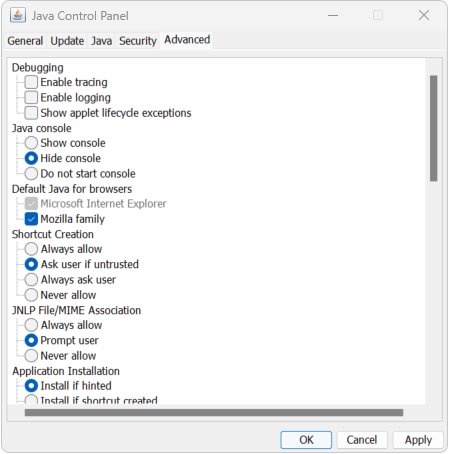
- To control Java Web Start files, open the Java Control Panel, select Advanced and set JNLP File/MIME Association to Always allow, Prompt user (the default) or Never allow.
- To run a JAR without any association, open a terminal in its folder and run
java -jar app.jar, replacingapp.jarwith the file name.
java -jar works only when the JAR's manifest names a Main-Class. Use javaw instead of java to run a desktop app without an extra console window. If a .jar opens in an archive tool instead, reset the Open With settings and set the association again.
Manage Java settings for development tools
Development tools read the environment, not the Java Control Panel. Microsoft's Java on Windows setup guide names JAVA_HOME as a requirement for Maven, Gradle and Android Studio.
| Tool or task | Java setting it reads | What to set |
|---|---|---|
java, javac, jshell in a terminal |
Path, first match wins |
%JAVA_HOME%\bin above other Java entries |
| Maven, Gradle, Android Studio | JAVA_HOME |
The JDK folder, not its bin folder |
| JDK installed from a ZIP package | Nothing until you set it | JAVA_HOME to the extracted folder, plus the Path entry |
| Microsoft Build of OpenJDK installer | Path by default; JAVA_HOME is an optional feature |
Tick the JAVA_HOME option during setup or set it by hand |
| Web-launched apps and applets | Java Control Panel | The Java and Security tabs |
Microsoft recommends Visual Studio Code with the Extension Pack for Java or IntelliJ IDEA as editors. After changing JAVA_HOME, restart the editor so its built-in terminal and build tools pick up the new value.
How to check your Java settings took effect
Each kind of setting has its own proof. Check the one you changed.
- Open a new terminal and run
java -version; the version should match the JDK thatJAVA_HOMEnames. - Run
where java; the first line should be%JAVA_HOME%\bin\java.exeexpanded to the real folder. - Run
javac -version; it should report the same release asjava -version. - In the Java Control Panel, reopen the Security tab; your level and each site you added should be listed.
- Reopen General > Settings > View under Temporary Internet Files; deleted apps should no longer appear in the Java Cache Viewer.
- On the Update tab, confirm Check for Updates Automatically still shows the state you chose.
Troubleshoot common Java settings problems
"'java' is not recognized as an internal or external command"
No Java bin folder is in Path, or the terminal opened before you added it.
- Open Edit the system environment variables > Environment Variables.
- Edit Path under System variables and add
%JAVA_HOME%\bin, or the JDK's fullbinpath. - Select OK in every dialog.
- Open a new terminal and run
java -version.
java -version shows 1.8.0 after installing a newer JDK
Oracle documents that installing JRE 8 after JDK 25 places the javapath folder ahead of the JDK in Path.
- Run
where javato confirmjavapathis listed first. - Uninstall the newer JDK from Settings > Apps > Installed apps, then reinstall it, which is Oracle's stated fix.
- Or move
%JAVA_HOME%\binabove thejavapathentry in Path. - Open a new terminal and run
java -versionagain.
The Update tab is missing or its settings are greyed out
The panel is open without administrator rights, an administrator disabled updates during install, or only an old 64-bit Java is installed.
- Sign in with an administrator account and open Configure Java again.
- If the tab is still missing, run
javacpl.exefrom the Java installation'sbinfolder. - On a work PC, ask IT; updates may be managed centrally.
- Install the current Java 8 update from java.com; since 8u20 the tab updates 64-bit JREs too.
Java will not run in the browser on Windows 11
Firefox no longer runs applets, Internet Explorer is unsupported, and Enable Java content in the browser may be cleared.
- On the Security tab of the Java Control Panel, confirm Enable Java content in the browser is selected.
- Open the site in Microsoft Edge using Internet Explorer mode; Oracle notes that applets can run there.
- Add the site to the Exception Site List if the app is blocked by security checks.
- Ask the site owner for a standalone version of the app.
A Java app is blocked because of its certificate
The app is unsigned, self-signed, signed with an expired certificate, or signed with MD5, which Java treats as unsigned from 8u131.
- Confirm you trust the whole site that hosts the app.
- Add its URL on the Security tab under Edit Site List.
- If the message names
MD5withRSAorMD5withDSA, contact the app vendor; the app needs re-signing.
A standalone app ignores Java Control Panel changes
Control Panel settings apply only to web-launched apps, not standalone ones.
- Set memory and other options on the app's command line, for example
java -Xmx512m -jar app.jar. - Point
JAVA_HOMEorPathat the Java version the app needs. - Restart the app.
Frequently Asked Questions
How do I set up Java in Windows 11?
Install a JDK or the Java 8 JRE, then set JAVA_HOME and add %JAVA_HOME%\bin to Path under Environment Variables. Microsoft's setup guide uses winget install Microsoft.OpenJDK.21; desktop apps built for Java 8 need the JRE from java.com. Confirm with java -version in a new terminal.
How do I configure Java in Windows 11?
Open the Java Control Panel with Start > Java > Configure Java for updates, security, cache and proxy settings. For the java command and build tools, configure JAVA_HOME and Path in Environment Variables. The Control Panel settings affect only web-launched apps, not standalone programs.
How do I enable Java in Windows 11?
Java runs as soon as it is installed; there is no Windows switch for it. For browser content, open the Java Control Panel, select the Security tab and tick Enable Java content in the browser. Oracle notes that applets can still run in Microsoft Edge's Internet Explorer mode.
How do I use Java on Windows 11?
Run Java programs from a terminal with java -jar app.jar, or double-click a .jar file if it is associated with Java. Developers compile with javac, which needs a full JDK. Check what is installed with java -version and javac -version.
Where are the Java Control Panel settings in Windows 11?
Select Start, then All apps, open the Java folder and select Configure Java. You can also type Configure Java in the taskbar search box. If the entry is missing, install the Java 8 JRE from java.com; Oracle's JDK installs add a Java Development Kit entry instead.
How do I change Java security settings in Windows 11?
Open the Java Control Panel and select the Security tab. Choose High, the default, or Very High, and select Apply. To let one trusted site's blocked app run, select Edit Site List, add the full URL and select OK.
How do I set JAVA_HOME in Windows 11?
Search Start for Environment Variables and open Edit the system environment variables. Select Environment Variables, then New under System variables, and enter JAVA_HOME with the JDK folder, such as C:\Program Files\Java\jdk-25, as its value. Open a new terminal to use it.
How do I set the Java path in Windows 11?
In Environment Variables, select Path under System variables, select Edit, then New, and enter %JAVA_HOME%\bin or the JDK's full bin folder. Move it above other Java entries, because the first match in Path runs. Check with where java in a new terminal.
Does Java run on Windows 11?
Yes. Java 8 from java.com and current JDKs such as Oracle JDK 25 and the Microsoft Build of OpenJDK install on Windows 11. Current Oracle JDKs are 64-bit only, which suits Windows 11 because it has no 32-bit edition.




How to Update Java on Windows 11: A Step-by-Step Guide - Techdows
[…] oracle.com or run winget upgrade from time to time. For the full set of Control Panel options, see Manage Java Settings in Windows 11/10. Other runtimes need their own updates too, for example […]