When the iPhone Weather widget asks for location access even though Location Services is on, open Settings > Privacy & Security > Location Services > Weather, choose Always, and turn on Precise Location.
The master Location Services switch only allows location use in general, so this guide covers the per-app Weather setting, setting a fixed city on the widget, re-adding the widget, and resetting location permissions when the message still will not clear.
How to fix location access needed on the iPhone Weather widget
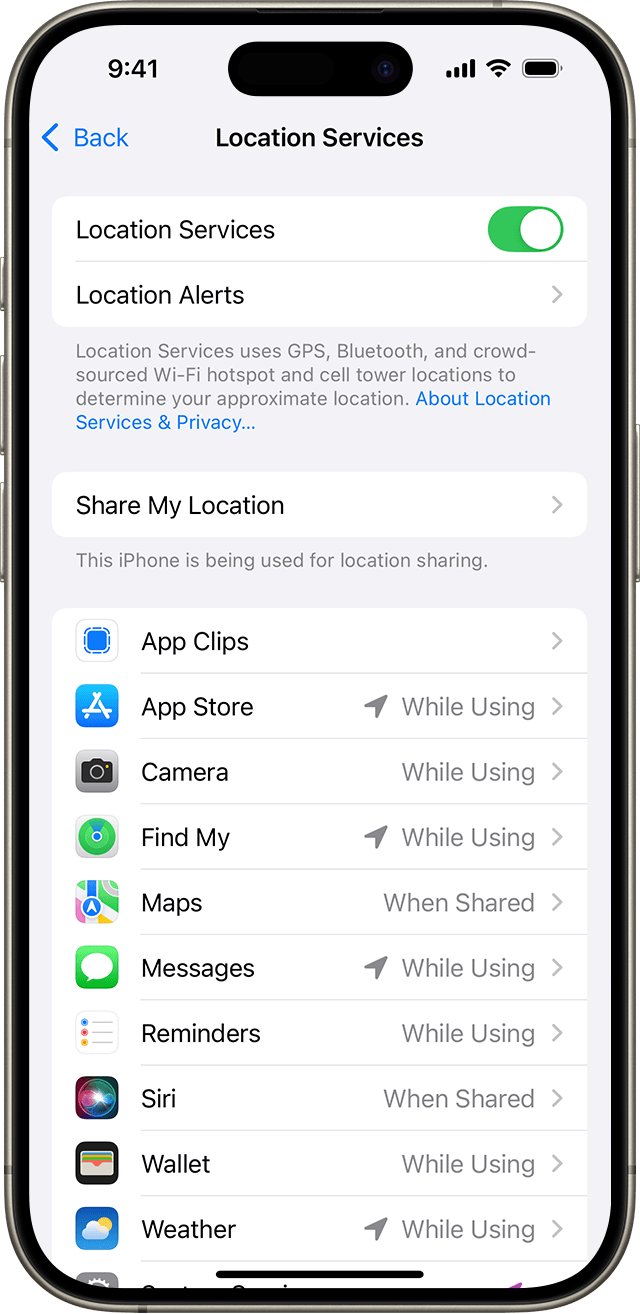
Location Services can be on for the iPhone while the Apple Weather app itself is still set to Never or Ask Next Time Or When I Share. The widget then has no permission to read your position and shows a location request instead of a forecast.
- Open the Settings app on your iPhone.
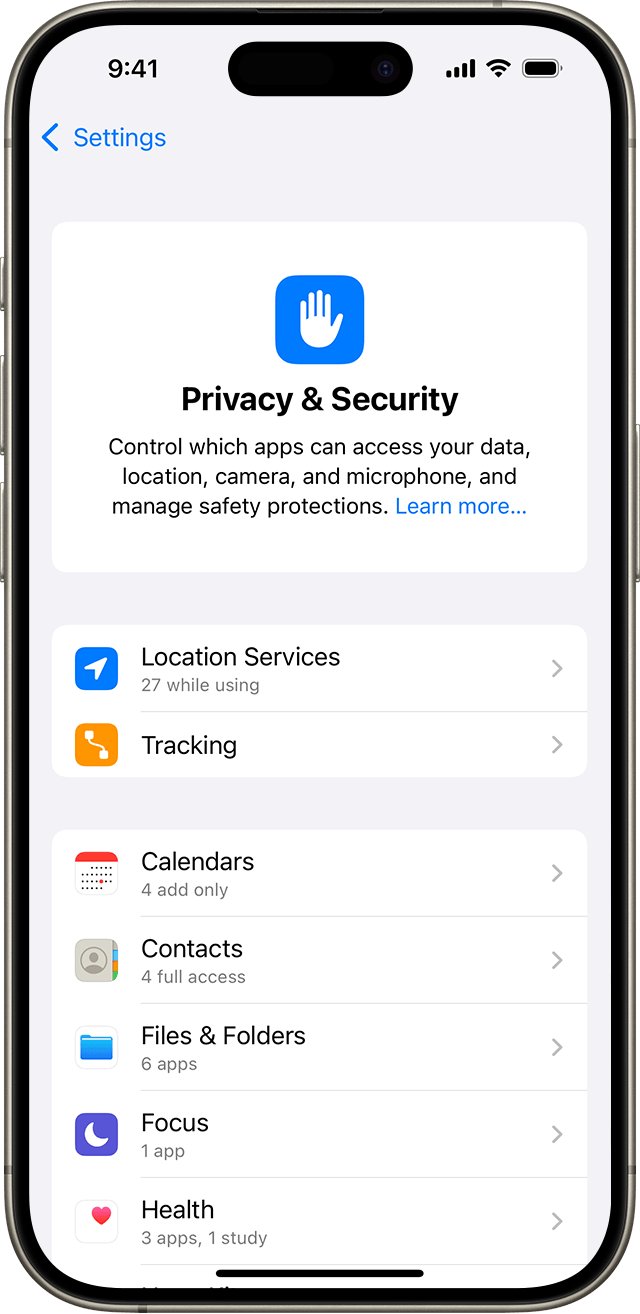
- Tap Privacy & Security, then tap Location Services.
- Make sure the Location Services switch at the top is on.
- Scroll down the app list and tap Weather.
- Under Allow Location Access, tap Always.
- Turn on Precise Location.
- Go back to the Home Screen and wait a minute for the Weather widget to refresh with your current location.
Apple asks for Always access when Weather needs your current location for notifications, because the app works in the background. A widget also updates while the Weather app is closed, so Always is the setting that removes the request most reliably.
Why the iPhone Weather widget keeps asking for location access
The request comes from the Weather app's own permission, not from the main Location Services switch. Match what you see to a row and use the fix in the last column.
| What you see | Likely cause | Fix |
|---|---|---|
| Widget says location access is needed, Location Services is on | Weather is set to Never or Ask Next Time Or When I Share | Set Weather to Always in Location Services |
| Weather app shows your city, but the widget does not | Weather is set to While Using the App, so background refresh has no location | Change Weather to Always |
| Widget shows a nearby town instead of yours | Precise Location is off, so Weather gets an approximate location | Turn on Precise Location for Weather |
| Widget always shows the same city, wherever you are | The widget is set to a saved location instead of My Location | Edit the widget and choose My Location |
| Request comes back after every restart or iOS update | Location and privacy permissions are in a bad state | Remove and re-add the widget, then reset Location & Privacy |
| You do not want Weather to track you at all | Location access is off on purpose | Set the widget to a fixed city instead |
iPhone Weather app location access needed: set it to Always
On recent iOS versions the same Weather permission also appears under the app's own settings page. Either route changes the one setting the widget reads.
- Open Settings, then tap Apps.
- Tap Weather, then tap Location.
- Select Always.
- Turn on Precise Location on the same screen if it is off.
- Open the Weather app once, so it reads your location with the new permission.
- Return to the Home Screen and check the widget.
The four access levels behave differently. Never blocks location completely. Ask Next Time Or When I Share prompts each time. While Using the App allows access only when the app or one of its features is on screen. Always allows access in the background as well.
Weather location access options on iPhone explained
Each Weather feature needs a different minimum access level. Use this table to pick the lowest setting that still covers what you use.
| Weather feature | Location access it needs | Where to set it |
|---|---|---|
| Forecast for your current location in the app | While Using the App or Always | Settings > Privacy & Security > Location Services > Weather |
| Weather widget showing My Location | Always (most reliable, since widgets refresh in the background) | Settings > Privacy & Security > Location Services > Weather |
| Severe weather and next-hour precipitation alerts for your current location | Always, plus Precise Location | Weather app > list button > Notifications |
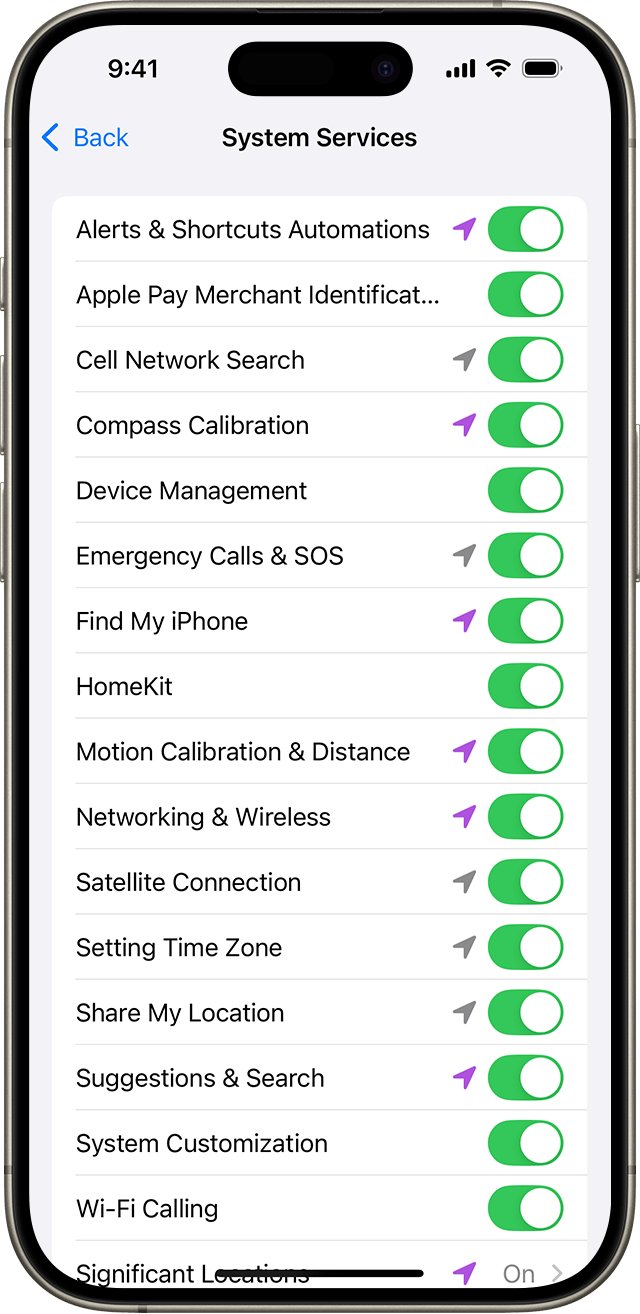
| Suggested locations and widgets for places significant to you | Always, plus Significant Locations & Routes | Settings > Privacy & Security > Location Services > System Services |
| Home and Work in Weather search results | Location Services on for Weather | Settings > Apps > Weather > Home and Work |
| Widget showing a fixed city | None | Touch and hold the widget > Edit "Weather" |
Turn on Precise Location for the iPhone Weather app
With Precise Location off, Weather receives only an approximate position. The widget can then show a neighbouring town or a forecast that does not match the weather outside.
- Open Settings and tap Privacy & Security.
- Tap Location Services, then tap Weather.
- Turn on Precise Location.
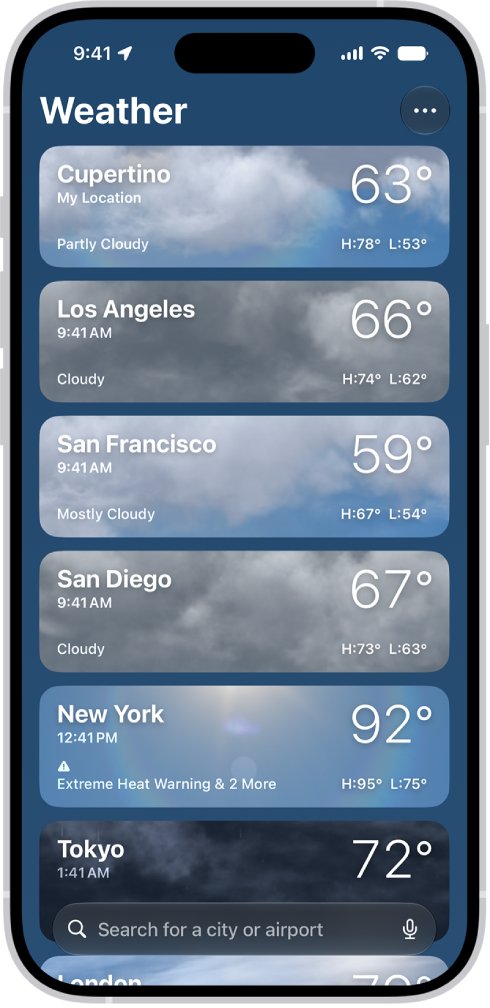
- Open the Weather app and tap My Location in the list if another city is showing.
- Check the widget again after it refreshes.
How to change location on Weather widget
A widget set to a fixed city never asks for location access. Use this when you would rather not share your location with Weather, or to keep a second widget for another city.
- Touch and hold the Weather widget on your Home Screen.
- Tap Edit "Weather", or Edit Stack if the widget sits in a Smart Stack.
- Tap My Location.
- Search for a city, or tap a location from your saved list.
- Tap the screen outside the widget to return to the Home Screen.
To go back to the forecast where you are, repeat the steps and pick My Location again. You can add more than one Weather widget to the Home Screen, each showing a different place.
Remove and re-add the Weather widget on iPhone
A widget added before you changed the permission can keep showing the old request. Replacing it makes iOS build a fresh widget with the current setting.
- Touch and hold the Home Screen background until the apps begin to jiggle.
- Tap the remove button in the upper-left corner of the Weather widget, then confirm.
- Tap the edit button, then tap Add Widget.
- Search for Weather, tap it, then swipe to the size and style you want.
- Tap Add Widget, move it into place, then tap Done.
For a Weather widget on the Lock Screen, touch and hold the Lock Screen, tap Customize, then tap your existing widgets or Add Widgets to replace it.
How to tell if the Weather app has location access on iPhone
- Open Settings > Privacy & Security > Location Services.
- Find Weather in the app list and read the access level shown next to it.
- Tap Weather and confirm Always is selected and Precise Location is on.
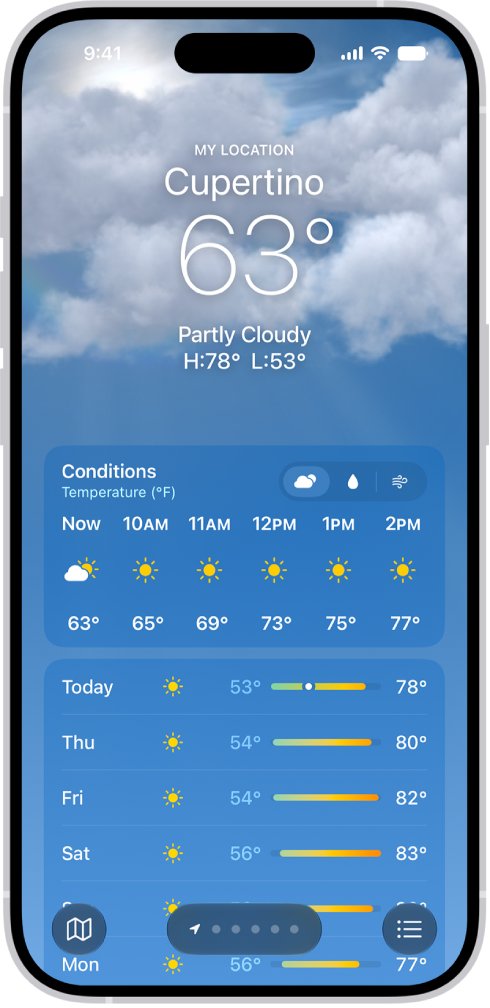
- Open the Weather app. Your current location should load first, labelled My Location.
- Look at the widget. It should show your town name and a forecast instead of a location request.
When Weather uses your location, the Location Services arrow appears in the status bar. Seeing it briefly as the widget refreshes is normal.
Reset Location and Privacy settings on iPhone
If the widget still asks after the steps above, reset location permissions to their defaults. This keeps your data, but every app asks for location and privacy permissions again the next time it needs them.
- Open Settings and tap General.
- Tap Transfer or Reset iPhone, then tap Reset.
- Tap Reset Location & Privacy and enter your passcode if asked.
- Open the Weather app and allow location access when it asks for your location.
- Go to Settings > Privacy & Security > Location Services > Weather and change it to Always.
Do not pick Erase All Content and Settings on the Reset screen. That option removes everything on the iPhone.
iPhone Weather widget not working or showing the wrong location
Weather widget has wrong location
The widget is set to a saved city, or Precise Location is off.
- Touch and hold the widget, tap Edit "Weather", and choose My Location.
- Turn on Precise Location under Settings > Privacy & Security > Location Services > Weather.
- Open the Weather app so it reads your position again.
Weather widget not working or not updating
The widget has stale data from before a permission change, or iOS needs a restart.
- Remove the widget and add it again.
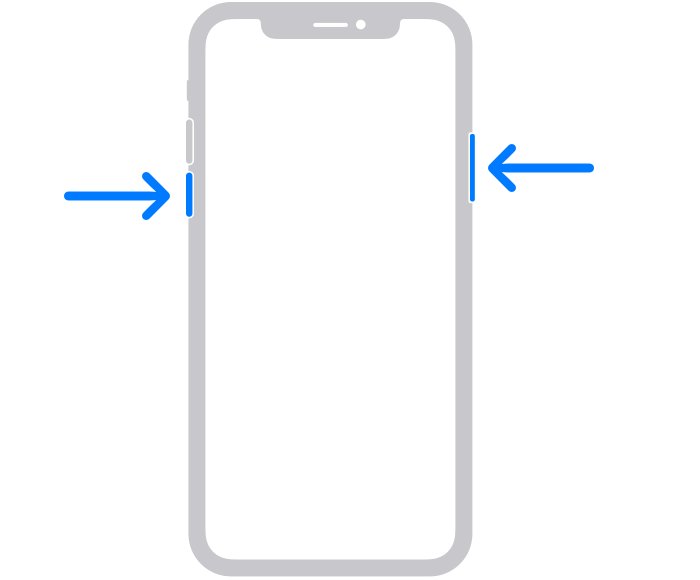
- Restart the iPhone: press and hold the side button and either volume button until the slider appears, drag it, wait 30 seconds, then hold the side button until the Apple logo appears.
- Go to Settings > General > Software Update and install any available update.
Location access is needed to show weather after an iOS update
The update or a restore reset the Weather permission.
- Check that Location Services is still on in Settings > Privacy & Security.
- Set Weather back to Always with Precise Location on.
- If the request persists, use Reset Location & Privacy and grant access again.
Where is my weather widget?
The widget was removed, sits inside a Smart Stack, or was never added.
- Swipe right from the left edge of the Home Screen to see widgets in Today View.
- Swipe up or down on any Smart Stack to look for Weather inside it.
- If it is not there, touch and hold the Home Screen background, tap the edit button, tap Add Widget, and choose Weather.
Severe weather alerts ask for location access
Current-location notifications need Always access.
- Open the Weather app and tap the list button.
- Tap the more button, then tap Notifications.
- If prompted below Current Location, tap Go to Settings and change location access to Always.
iPhone Weather widget location FAQ
Why does my Weather widget ask for location access when Location Services is on?
The main Location Services switch does not grant access to each app. The Weather app has its own setting under Settings > Privacy & Security > Location Services > Weather, and the widget asks for access until that is set to Always or While Using the App.
Where is my weather widget?
Look on your Home Screen pages, in Today View by swiping right from the left edge of the Home Screen, and inside any Smart Stack. If it is gone, touch and hold the Home Screen background, tap Add Widget, and choose Weather. If the Weather app itself is missing, you can reinstall the Weather app from the App Store first.
How do I change location on the Weather widget?
Touch and hold the Weather widget, tap Edit "Weather", then tap My Location and search for a city or pick one from your saved list. Tap outside the widget to finish. Choose My Location again to return to your current position.
Why does my Weather widget have the wrong location?
Either the widget is set to a saved city rather than My Location, or Precise Location is off for Weather. Edit the widget to pick My Location, and turn on Precise Location in Location Services so Weather uses your exact position.
Should Weather be set to Always or While Using the App?
Choose Always if you use a Weather widget for your current location or want current-location alerts. While Using the App covers the forecast inside the app, but Apple asks for Always when Weather needs your location in the background.
Can I use the Weather widget without sharing my location?
Yes. Set Weather location access to Never, then edit the widget and choose a fixed city instead of My Location. The widget shows that city's forecast without ever asking for your location.
How do I get local weather alerts in the widget?
Set Weather location access to Always with Precise Location on, then open the Weather app, tap the list button, tap the more button and choose Notifications. Turn on Severe Weather and Next-Hour Precipitation below Current Location. If an alert later stays stuck on screen, you can clear a persistent weather alert.
Does resetting Location and Privacy delete anything?
No. Reset Location & Privacy only returns location and privacy permissions to their defaults. Your apps, photos and data stay in place, but each app asks for permission again the next time it needs your location.