A Microsoft Teams profile picture usually stops updating because Teams caches photos: the service keeps user details for up to three days and the app on each device keeps profile photos for up to 60 days, so signing out and back in or clearing the Teams cache makes the new picture load.
The seven fixes below cover the Teams desktop app on Windows and Mac, Teams on the web, iPhone and Android, plus what an admin can do when your organization blocks photo changes.
Why is my Teams profile picture not updating?
Microsoft treats a stale picture as expected behavior, not a fault. Teams stores user details on its service and again inside the app on every device, and each copy refreshes on its own schedule.
Match what you see to a row, then start with the fix it names.
| What you see | Likely cause | Fix to try first |
|---|---|---|
| The new picture shows on the web but not in the desktop app | The desktop app is still showing its cached copy | Fix 3 (sign out and back in), then fix 7 (clear the cache) |
| You see the new picture, but coworkers still see the old one | Their Teams app and the Teams service still hold the old photo | Wait up to three days, or ask them to sign out and back in |
| Upload or Save does nothing in the desktop app | A stuck or outdated app session | Fix 1 (quit and relaunch), fix 6 (update), or fix 2 (use the web) |
| There is no Upload option or the edit icon is missing | Your IT or HR department restricts photo changes | Ask your Microsoft 365 admin to change the photo for you |
| Chats, files and photos all fail to load | A Microsoft 365 service problem | Fix 5 (check the service status) |
| Only the iPhone or Android app shows the old picture | The mobile app's own cached copy | Fix 3 on the phone, then fix 4 (restart the phone) |
How long does it take for a Teams profile picture to update?
A new Teams photo can take anywhere from a few minutes to several days to appear everywhere. These are the cache limits Microsoft documents for Teams and Microsoft 365.
| Where the old picture is held | How long it can last | How to refresh it now |
|---|---|---|
| Teams service (general user information) | Up to 3 days | Nothing to clear on your side; it expires on its own |
| Teams app on a device (profile photos) | Up to 60 days | Sign out and back in, or clear the Teams cache |
| Teams app on a device (display name, phone number) | Up to 28 days | Sign out and back in, or clear the Teams cache |
| Photo update settings changed by an admin | Up to 24 hours to apply across Microsoft 365 | Wait a day after the admin change, then upload again |
Coworkers see your new picture only after their own Teams app drops its cached copy, so a fix on your PC does not change what they see.
How to change your profile picture in Microsoft Teams
Make sure the new picture actually saved before you start troubleshooting. On Windows and Mac, the steps are the same in the desktop app.
- Select your profile picture at the top right of Teams.
- When your account manager opens, select your profile picture again.
- Select Upload to choose a new picture, or Remove to take your picture away completely.
- Select Save to apply the change.
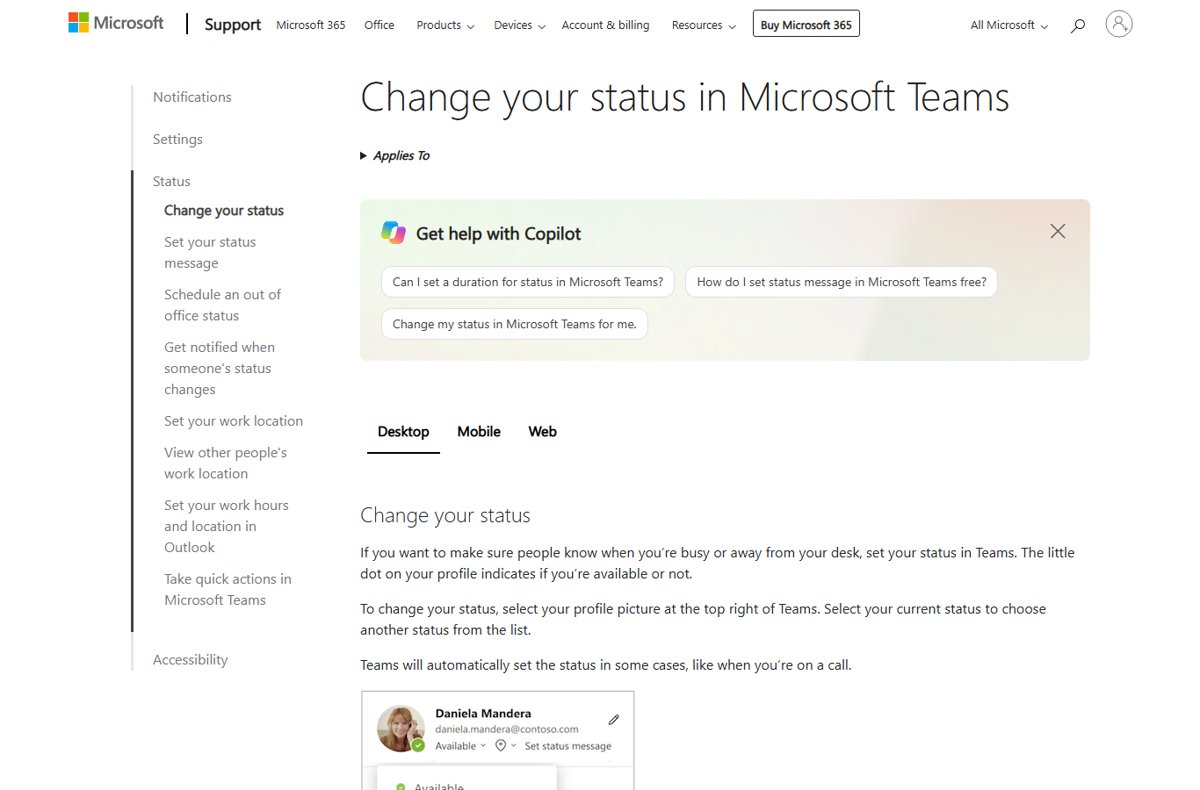
On iPhone, tap your picture or initials at the top left, tap your name, then tap Update photo. Teams shows a notification when the photo is updated.
On Android, tap More, tap your picture, then tap Edit image. In Teams for personal use on a phone, tap your profile picture, then Settings > Profile > Edit image.
1. Fully shut down and relaunch Teams
Quitting Teams ends the running session, so the app reloads your profile when it opens again.
- If a sync banner with a Refresh link appears at the top of Teams, select Refresh to restart the app.
- Otherwise, right-click the Teams icon on the Windows taskbar, or in the Dock on a Mac.
- Select Quit.
- Open Teams again from its icon and wait for it to finish loading.
- Check your picture at the top right of the window.
2. Change the profile picture on the web
When the desktop app will not save a new photo, set it from a browser instead. The My Account portal updates the profile picture on your work or school account, the same account Teams signs in with.
- Go to
myaccount.microsoft.comand sign in with your work or school account. - Select the Edit icon on your current profile photo.
- Upload the new picture and resize it if the prompt asks you to.
- Select Save.
- Open Teams on the web at
teams.microsoft.com, sign in, and look at your picture at the top of the page.
If the portal will not let you edit the photo, your IT or human resources department restricts picture changes. Only an admin can change it then.
3. Sign out of the Teams app and back in
Signing out clears the account information Teams holds for you and pulls fresh user details when you sign back in. Microsoft names this as the first fix for old profile photos.
- In Teams on Windows, Mac or the web, select your profile picture at the top of the app.
- Select Sign out.
- Sign back in with the same work or school account.
- On iPhone or Android, tap More > Settings > Sign out, then sign in again.
Signing out on one device does not sign you out on your other devices. Repeat it on each PC or phone that still shows the old picture.
4. Restart your desktop or mobile
A full restart closes every running app, Teams included, and starts the device with a clean session.
- Save your work, then quit Teams from the taskbar or Dock.
- On Windows, select Start > Power > Restart.
- On a Mac, choose the Apple menu > Restart.
- On iPhone or Android, turn the phone off and back on.
- Open Teams. On a phone, pull down on the screen to refresh it.
5. Check the Microsoft Office server status
Teams is a Microsoft 365 cloud service, so an incident can stop new pictures and other content from loading. Check for one before spending time on your own device.
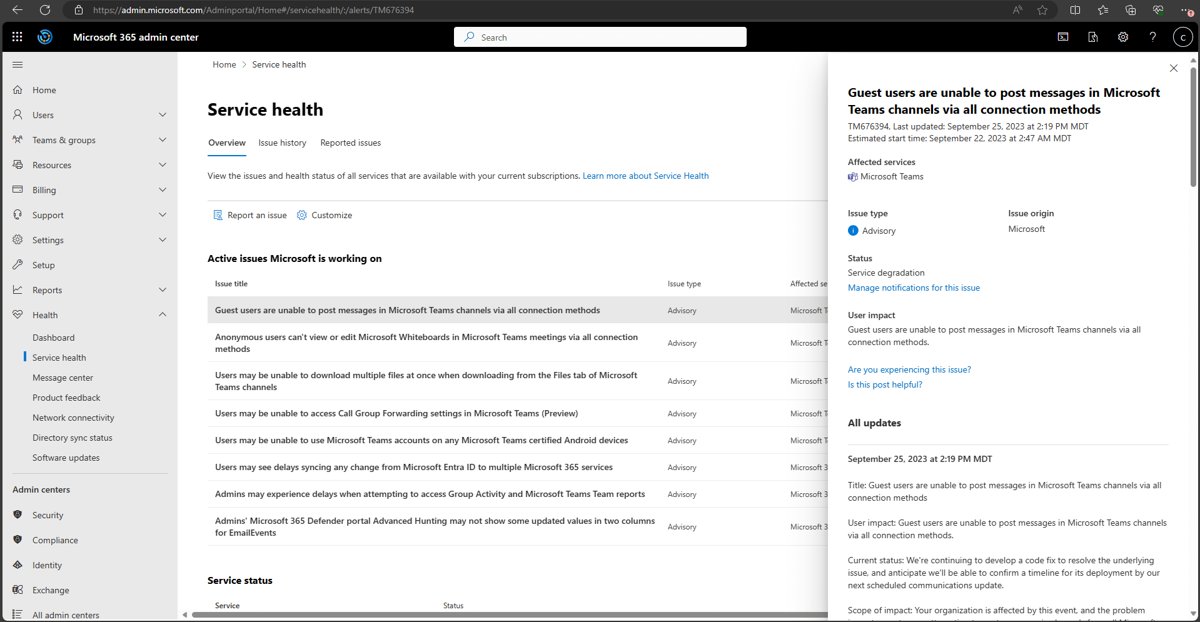
- Open
status.cloud.microsoftin a browser to see known Microsoft 365 issues, such as sign-in problems. - If you are an admin, sign in at
admin.microsoft.comand go to Health > Service health. - Find Microsoft Teams in the list and read its status and any active incidents or advisories.
- If an incident is open, wait until it shows Service restored, then try fix 3 again.
Users with the Service Support admin or Helpdesk admin role can also view service health. Everyone else can ask their IT team whether an incident is open.
6. Update MS Teams to its latest version
Teams updates itself when it is idle and shows a notice at the top of the app when an update is ready to install.
- Look for an update notice at the top of the Teams desktop app.
- Select Update > Update and restart Teams.
- If Teams does not reopen on its own, open the updated Teams app from its icon.
- On iPhone or Android, update Microsoft Teams from the App Store or Google Play.
Teams on the web is always current, so only the desktop and mobile apps need this step. When no notice appears, you can still check for a Teams update on Windows 11 or 10 manually.
7. Clear the Microsoft Teams cache
Clearing the cache deletes the profile photos the app stored locally, so Teams downloads them again. Microsoft recommends it for client problems like this one, not for missing chats or messages, because it also deletes diagnostic logs.
- Right-click the Teams icon on the taskbar and select Quit.
- Press Windows + R to open Run.
- Enter
%userprofile%\appdata\local\Packages\MSTeams_8wekyb3d8bbwe\LocalCache\Microsoft\MSTeamsand select OK. - Delete all files and folders in that folder.
- Restart Teams. The first start takes longer while Teams rebuilds its cache.
Instead of deleting files, you can open Settings > Apps > Installed apps, search for Microsoft Teams, select More options (…) > Advanced options, and select Reset. Resetting also removes your Teams personalization settings.
Classic Teams keeps its cache in %appdata%\Microsoft\Teams instead.
How to clear the Teams cache on Mac
Quit Teams first: right-click its icon in the Dock and select Quit, or press Command + Q. Then open Terminal from the Applications > Utilities folder in Finder.
rm -rf ~/Library/Group\ Containers/UBF8T346G9.com.microsoft.teams
rm -rf ~/Library/Containers/com.microsoft.teams2
The two commands delete the cache folders of the new Teams app for Mac. Press Return after each one. For classic Teams, run rm -r ~/Library/Application\ Support/Microsoft/Teams instead.
You should see: Terminal returns to the prompt with no error. Open Teams, sign in if asked, and wait while it rebuilds the cache.
Your Microsoft Teams profile pic is now up-to-date
The desktop app is the slowest place to change, so check a fresh session first.
- Open a private or InPrivate browser window and go to
teams.microsoft.com. - Sign in and look at your picture at the top right of the page.
- Open the Teams desktop app and compare the picture there.
- On your phone, open Teams and pull down to refresh.
- Ask a coworker to open a Teams chat with you and check your picture on their side.
If the web shows the new picture and the desktop app does not, repeat fix 7 on that PC. If only coworkers see the old one, their cached copy has not expired yet.
How to change a user's profile photo in the Microsoft 365 admin center
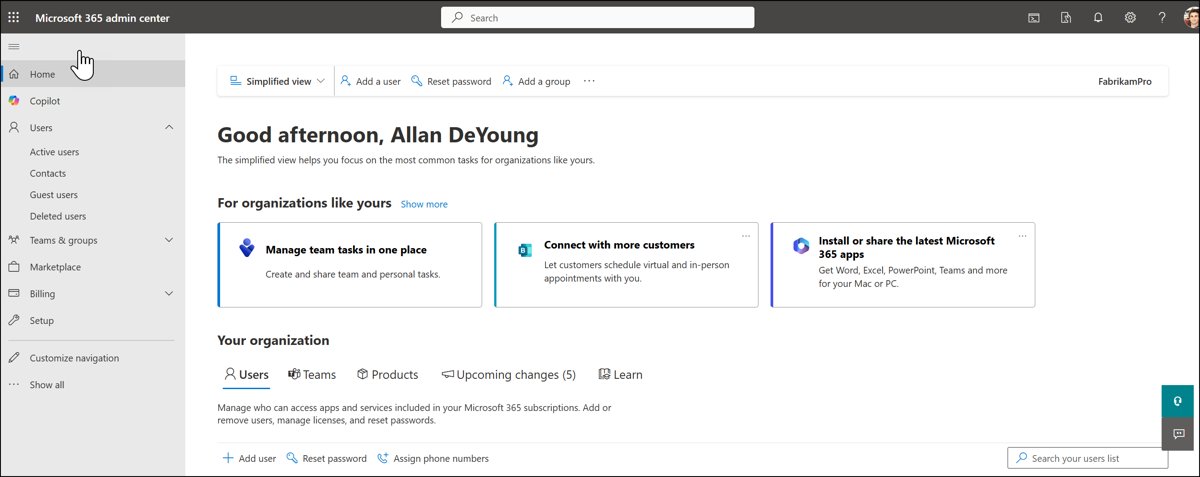
When your organization blocks users from changing photos, an admin can set the picture for them. You need the Global Administrator role for these steps.
- In the Microsoft 365 admin center, go to Users > Active users.
- Select the user's display name to open the details flyout.
- Select Change photo under the current photo or placeholder.
- Select Choose photo, pick the image, and select Open.
- Select Save changes, then Close.
The maximum photo size is 4 MB. The admin center cannot remove a photo; that takes Microsoft Graph PowerShell.
Change a Teams profile photo with Microsoft Graph PowerShell
After you install the Microsoft Graph PowerShell SDK, sign in with an admin account and consent to the user scope.
Connect-MgGraph -Scopes "User.ReadWrite.All"
Set-MgUserPhotoContent -UserId <UPN> -InFile "<PhotoPathAndFileName>"
Replace <UPN> with the user's sign-in name and <PhotoPathAndFileName> with the full path of the image. Run Get-MgUserPhoto -UserId <UPN> to read the current photo's size, and Remove-MgUserPhoto -UserId <UPN> to delete it.
You should see: Get-MgUserPhoto returns an Id of Default with the photo's Height and Width in pixels. A user with no photo returns an ImageNotFoundException error.
Teams profile picture not showing for others
Coworkers still see your old Teams profile picture
Their Teams app keeps its own copy of your photo for up to 60 days, and the service holds user details for up to three days.
- Confirm the new picture shows for you on
teams.microsoft.com. - Ask the coworker to sign out of Teams and sign back in.
- If that does not work, ask them to clear their Teams cache with fix 7.
- Otherwise wait up to three days for the service copy to expire.
Teams profile picture not syncing to the mobile app
The iPhone or Android app holds a separate cached copy from your PC.
- Open Teams on the phone and pull down on the screen to refresh.
- Tap More > Settings > Sign out, then sign in again.
- Update Teams from the App Store or Google Play.
- Restart the phone and open Teams again.
Can't change your profile picture in Teams
Your IT or human resources department restricts profile picture changes, or a new admin setting has not applied yet.
- Try the Edit icon on your photo at
myaccount.microsoft.com. - If editing is blocked there too, ask your IT admin to set the picture in the Microsoft 365 admin center.
- If your admin just changed the photo policy, wait 24 hours and try again.
Teams profile picture FAQ
Why is my Teams profile picture not showing to others?
Other people see the copy of your photo that their own Teams app cached, which can last up to 60 days. The Teams service also keeps user details for up to three days. They can sign out and back in, or clear their Teams cache, to load the new picture.
How long does it take for a Teams profile picture to update?
It can take up to three days for the Teams service and up to 60 days for the copy cached in each Teams app. Signing out and back in, or clearing the Teams cache, skips the app wait on that device.
Why can't I change my profile picture in Teams?
Your IT or human resources department can restrict profile picture changes for work and school accounts. When the option is missing in Teams and in the My Account portal, ask your Microsoft 365 admin to change the photo in the admin center.
How do I remove my profile picture in Teams?
Select your profile picture at the top right of Teams, select it again in the account manager, then select Remove and Save. Admins can remove a user's photo only with the Remove-MgUserPhoto cmdlet in Microsoft Graph PowerShell, not in the admin center.
Does clearing the Teams cache delete my settings?
Deleting the cache folder makes Teams rebuild its local files and deletes its diagnostic logs. Using Reset in Windows Settings > Apps also deletes app data, including your Teams personalization settings. Either way, sign in again afterward.
Does signing out of Teams sign me out on all devices?
No. Signing out of Teams on one device does not sign you out on your other devices. Repeat the sign-out on each PC or phone that still shows your old profile picture.
Do I need to update Teams on the web?
No. Teams on the web is always up to date. Only the desktop app on Windows or Mac and the mobile apps for iPhone and Android need updating, through the app itself or the App Store and Google Play.
What is the maximum size for a Microsoft 365 profile photo?
The maximum supported size of a Microsoft 365 user profile photo is 4 MB, the limit Microsoft states for photos admins upload. Resize or compress a larger image before you upload it in Teams, the My Account portal or the admin center.