To delete apps on a child account, allow app deletion for the child in Settings > Family on your own iPhone, then touch and hold the app on the child's iPhone or iPad and tap Remove App > Delete App.
This guide covers the iOS 27 and older Screen Time paths, blocking an app instead of deleting it, stopping reinstalls, Android child profiles, and what to do when the delete option is missing.
How to delete apps on a child's iPhone
A child account in Family Sharing can be set so the child cannot delete apps. The parent or guardian changes that setting, then the app comes off the child's iPhone the normal way.
- On your own iPhone, open the Settings app and tap Family.
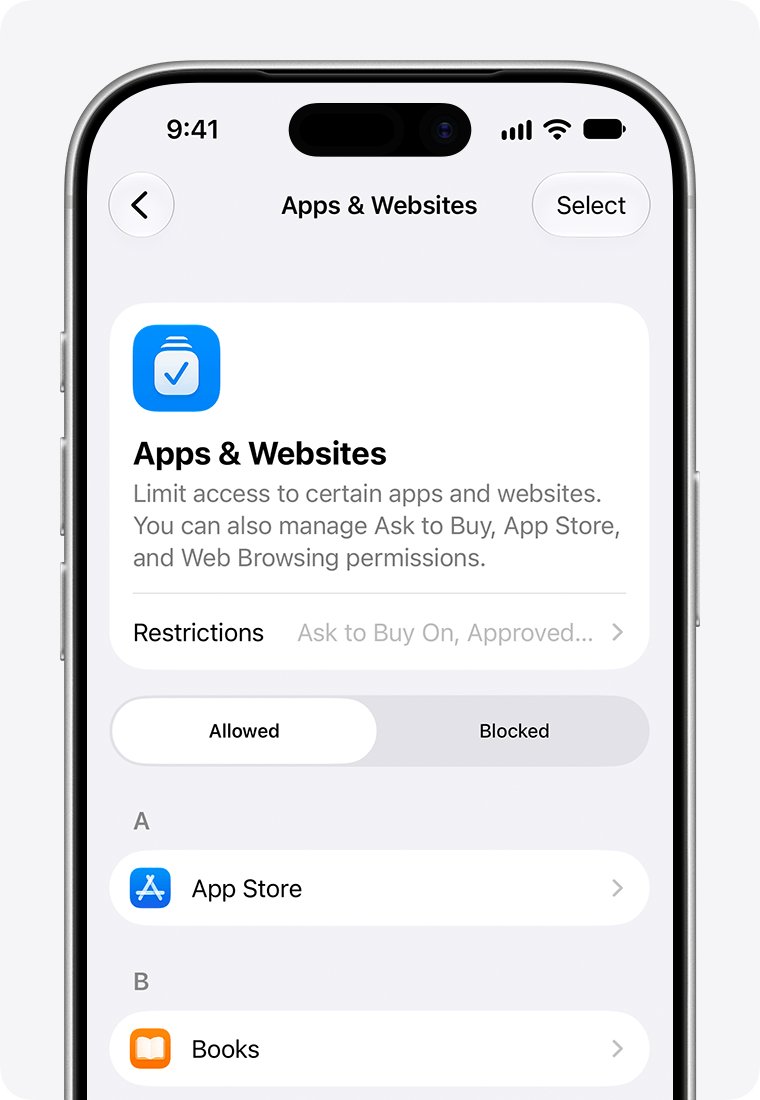
- Tap your child's name, then tap Apps & Websites. Enter your Screen Time passcode if asked.
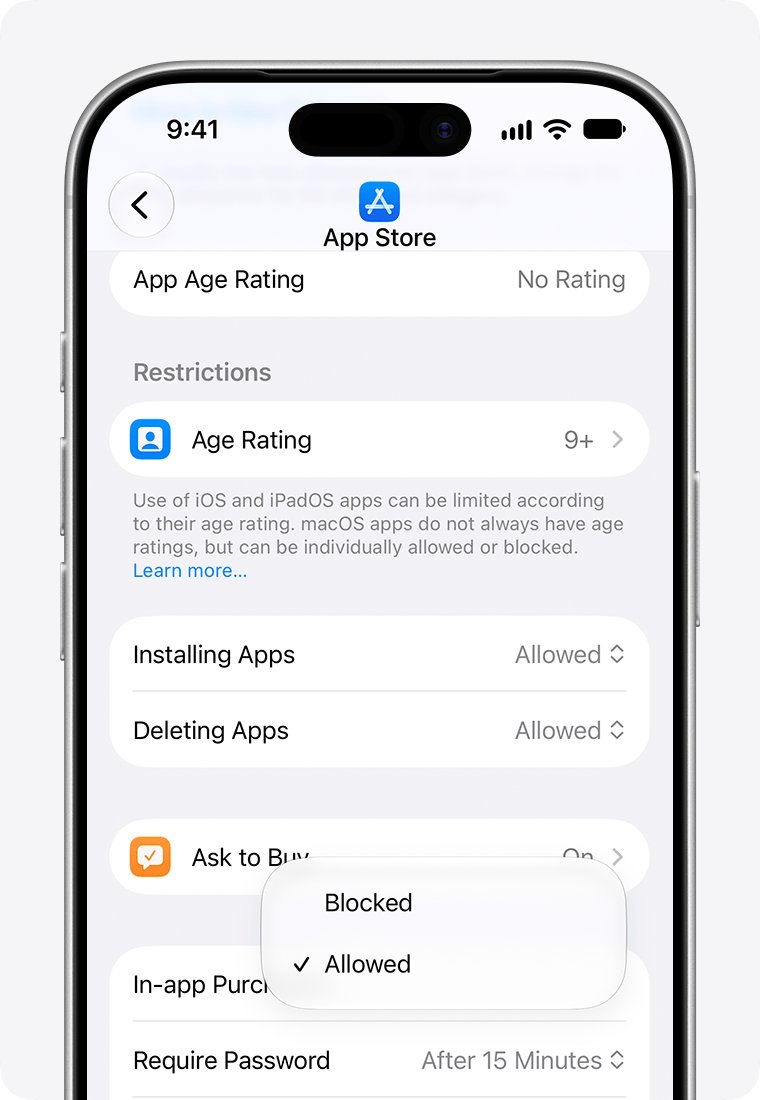
- Tap Restrictions, find the App Store setting for deleting apps, and choose Allowed.
- On the child's iPhone, touch and hold the app on the Home Screen or in App Library.
- Tap Remove App, then tap Delete App.
- Tap Delete to confirm.
Deleting removes the app and its data from the device. Anything the app saved to iCloud, such as documents or photos, stays in iCloud.
Set the deleting option back to Blocked afterwards if you do not want your child removing apps on their own.
How to delete apps on a child's iPad from Settings
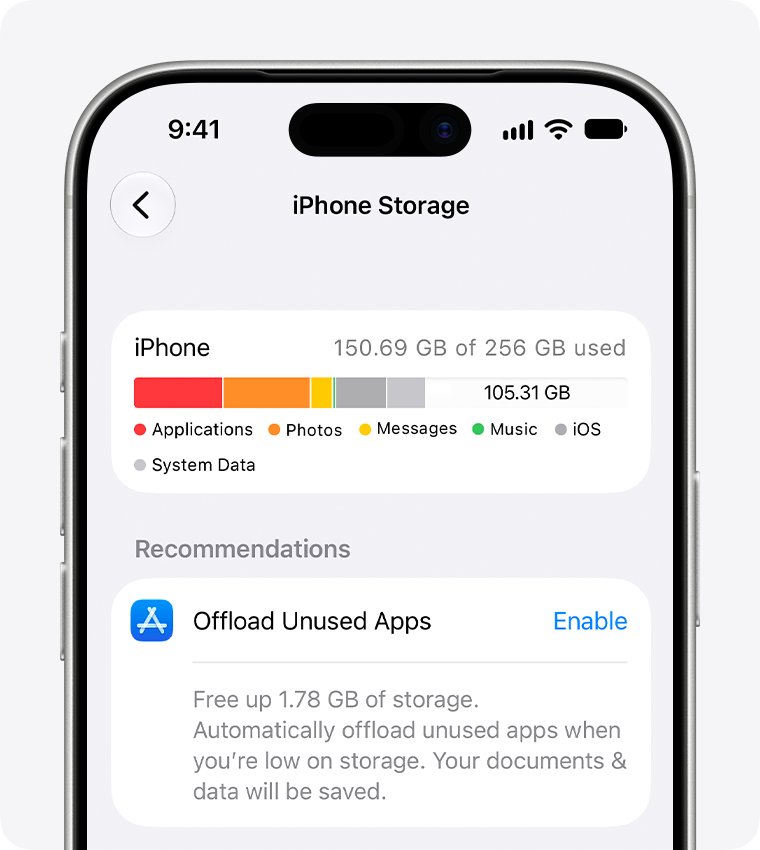
The storage screen in Settings lists every installed app with its size. It is the quickest way to find and remove the large games on a kid's iPad, and it works the same way on iPhone.
- On the child's iPad, open Settings and tap General.
- Tap iPad Storage and wait for the app list to load.
- Tap the app you want to remove.
- Tap Delete App to remove the app and its data, or Offload App to free the space but keep its documents and data.
- Confirm when iPadOS asks.
If Delete App does nothing or is missing, deleting apps is still restricted for that child. Change it from your own device first, as in the steps above.
How to block an app on a child's iPhone instead of deleting it
There is no remote delete for a child's apps. From your own iPhone you can block an app, which stops the child using it without touching their device.
Blocking does not delete the app. Apple describes the blocked app as dimmed or hidden on the child's device until you allow it again.
- On your iPhone, open Settings and tap Family.
- Tap your child's name, then tap Apps & Websites.
- Tap the Add button and enter the name of the app.
- Choose to block it, or select an app already in the list and tap Block App.
- Tap Block App again to confirm.
- Check the Blocked tab to see every app you have blocked.
To undo it, open the same Blocked tab, select the app and allow it again.
How to stop a child reinstalling deleted apps on iPhone
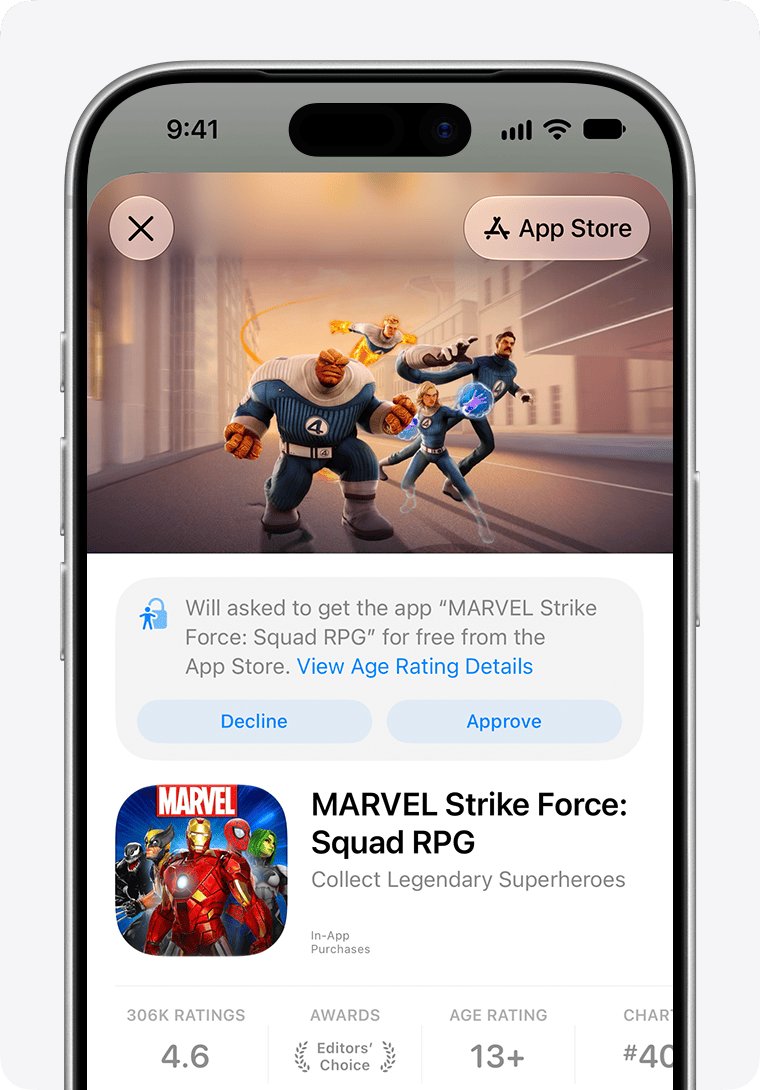
A deleted app is still in the child's purchase history, so they can download it again. Ask to Buy sends you a request for new downloads and for redownloading a shared app.
Ask to Buy does not cover everything. If a child redownloads their own purchase, installs an update or uses a redemption code, you get no request.
- On your iPhone, open Settings and tap Family.
- Tap your child's name.
- Tap Apps & Websites, then tap Restrictions.
- Tap Ask to Buy, then turn on Require Purchase Approval.
- To block reinstalls completely, also set the App Store setting for installing apps to Blocked, or block the app by name in Apps & Websites.
In some states, countries or regions, Ask to Buy is on by default for children under 18 and cannot be turned off.
Requests arrive as a notification and in Messages. If you dismiss one or do not answer within 24 hours, the child has to ask again.
How to remove apps from a child profile on Android with Family Link
Google Family Link manages a child's Google Account on Android phones and Chromebooks. Its help pages describe blocking an app rather than uninstalling it from the parent's phone.
- Open the Family Link app on your phone.
- Select your child.
- Tap Screen time, then Time limits, then App limits.
- Select the app you want to take away.
- Tap the Allowed toggle so the status changes to Blocked.
- Tap Done.
System apps cannot have app limits placed on them. App management needs Android 6.0 or later, or ChromeOS 71 or later on a Chromebook.
Where the delete apps setting is on a child's iPhone in iOS 27 and iOS 26
Apple redesigned parental controls in iOS 27 and iPadOS 27. The upgrade needs every device used by a parent or managed child in the last 90 days to run version 27, so many families still use the older layout.
| Your family's setup | Where to change it | Notes |
|---|---|---|
| Parental controls upgraded to iOS 27 or iPadOS 27 | Parent's iPhone: Settings > Family > child's name > Apps & Websites > Restrictions | Controls installing and deleting apps, App Clips and Game Center |
| iOS 26 or earlier, managed through Family Sharing | Parent's iPhone: Settings > Screen Time > child's name below Family > Content & Privacy Restrictions > iTunes & App Store Purchases | Choose the restriction for deleting apps |
| iOS 26 or earlier, set up on the child's own iPhone | Child's iPhone: Settings > Screen Time > Content & Privacy Restrictions > iTunes & App Store Purchases | Needs the Screen Time passcode |
| A family device that cannot update to version 27 | Settings > Family > View Family Devices > Legacy Devices shows which ones | These keep the iOS 26 Screen Time settings and can be managed locally with the Screen Time passcode |
Delete app vs offload app vs block app on a kid's iPhone
Each option leaves the child's device in a different state. Pick the one that matches what you want the child to lose.
| Action | Where | What happens to the app | What happens to its data |
|---|---|---|---|
| Delete App | Child's device: touch and hold the app, or Settings > General > iPhone Storage | Removed from the device | Removed from the device; iCloud data stays |
| Offload App | Child's device: Settings > General > iPhone Storage | Removed, can be downloaded again | Documents and data kept |
| Remove from Home Screen | Child's device: touch and hold > Remove App | Moves to App Library and still works | Untouched |
| Block App | Parent's device: Settings > Family > child > Apps & Websites | Stays installed but cannot be used | Untouched |
Some built-in Apple apps can be removed from the Home Screen but cannot be deleted from the device at all.
Apple delete child account rules in Family Sharing
Deleting apps is not the same as removing the child from your family. The child account rules depend on age and on the child's state, country or region.
| Child's age | Can the organizer remove them from Family Sharing? | What has to happen first |
|---|---|---|
| Under 13 | Not directly | Delete the child's Apple Account and let the deletion take effect, or move the Child Account to another family group |
| 13 to 17 with Screen Time on | Yes, in most regions | The organizer turns off Screen Time for the child first |
| Under 18 where the law requires it | No | The child stays in a family group until they turn 18 and confirm they are an adult |
Deleting the account itself is a separate, permanent request, and deleting an Apple Account with Family Sharing has its own rules for organizers and children.
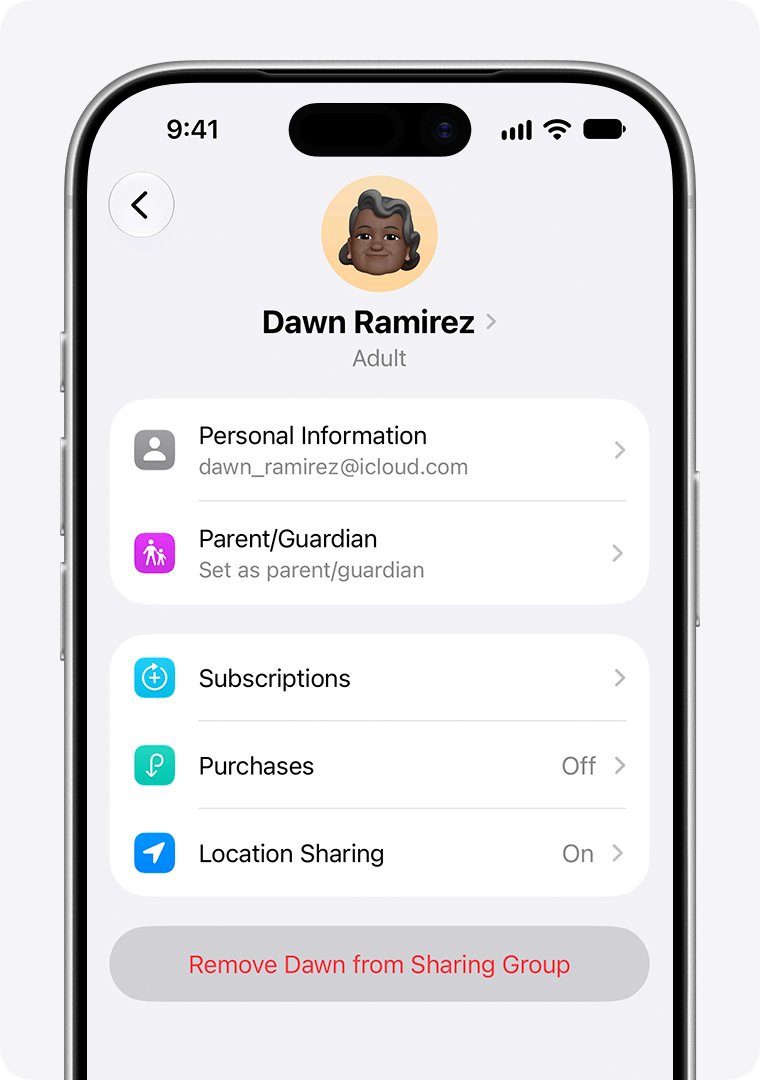
Allow child to delete apps on iPhone and iPad
Some parents want the child to manage their own apps. Allowing deletion is a single switch, and Ask to Buy still controls what comes back.
- On your iPhone, open Settings and tap Family.
- Tap your child's name, then tap Apps & Websites.
- Enter your Screen Time passcode if asked.
- Tap Restrictions.
- Set the App Store setting for deleting apps to Allowed.
- Leave Ask to Buy on if you still want to approve new downloads.
Keep Screen Time settings synced by updating every device in the Family Sharing group to the latest software.
Can't delete apps on a child's iPhone or iPad
Delete App is missing on the child's iPhone
Deleting apps is restricted for the child account in Screen Time.
- On your iPhone, open Settings > Family and tap the child's name.
- Tap Apps & Websites > Restrictions and allow deleting apps.
- On a device still on the older layout, use Settings > Screen Time > Content & Privacy Restrictions > iTunes & App Store Purchases instead.
- Touch and hold the app again and tap Remove App > Delete App.
The child's device asks for a Screen Time passcode you don't know
With Family Sharing, the organizer or parent sets the child's Screen Time passcode on their own device.
- Make the change from your own iPhone in Settings > Family instead of on the child's device.
- If you set up Screen Time through Family Sharing and forgot the passcode, reset it on your device with your device passcode, Touch ID or Face ID.
- If Screen Time was set up on the child's device directly, reset the passcode with your Apple Account.
Child accidentally deleted an app
The app is gone from the device but stays in the purchase history.
- On the child's iPhone, open the App Store app.
- Tap the account picture, tap Apps & Purchase History, then tap Your Apps.
- Tap My Apps or choose the family member who bought it.
- Find the app and tap the download button.
- Approve the request on your device if Ask to Buy sends one.
A built-in Apple app will not delete
Some Apple apps can be removed from the Home Screen but cannot be deleted from iPhone.
- Touch and hold the app and tap Remove App.
- Tap Remove from Home Screen to move it to App Library.
- Block it in Apps & Websites on your device if the child should not use it at all.
The same fix applies on an adult's iPhone when the Delete App option is gone after a Screen Time change.
Deleting apps on a child account FAQ
How do I delete apps on my child's iPad?
Allow app deletion for the child in Settings > Family > child's name > Apps & Websites > Restrictions on your own device. Then, on the iPad, touch and hold the app, tap Remove App, then Delete App, or use Settings > General > iPad Storage.
How do I delete apps on my child's iPhone?
Touch and hold the app on the child's iPhone, tap Remove App, tap Delete App and confirm. If Delete App is missing, allow deleting apps for that child in the Family section of Settings on your own iPhone first.
Can I delete an app on my child's iPhone from my phone?
No. Apple's parental controls let you block an app from your own iPhone, but the deletion itself happens on the child's device. A blocked app stays installed and the child cannot use it until you allow it again.
How do I remove apps from a child profile?
On an Apple child account, delete the app on the child's device or block it in Settings > Family > Apps & Websites. On Android with Family Link, open Family Link, select the child, go to Screen time > Time limits > App limits and switch the app to Blocked.
Can my child delete apps on their iPhone?
Only if you allow it. The App Store restrictions for a child account include a setting for deleting apps. Set it to Allowed in Settings > Family > child's name > Apps & Websites > Restrictions, or to Blocked to stop deletions.
What if my child accidentally deleted an app?
Redownload it from the App Store. Tap the account picture, then Apps & Purchase History, then Your Apps, find the app and tap the download button. A redownload of the child's own purchase does not need your Ask to Buy approval.
Does blocking an app delete it from my child's iPhone?
No. Blocking an app in Screen Time does not delete it. The app stays on the device, dimmed or hidden, and the child cannot open it. Unblock it from the Blocked tab in Apps & Websites at any time.
How do I delete my child's Apple Account?
The Family Sharing organizer handles a child's Apple Account deletion, and a child under 13 stays in the family group until that deletion takes effect. If you only want the child out of your family, move the Child Account to another family group instead.