To find out why your Windows 11 or Windows 10 computer crashed, press Win + R, run perfmon /rel to open Reliability Monitor, and open the red critical event on the day of the crash.
This guide shows how to read that record, how to find the matching crash logs in Event Viewer and PowerShell, what event IDs 41, 6008 and 1001 mean, where the dump files are, and how to fix the most common causes.
Look for critical events in the Reliability Monitor
Reliability Monitor reads the Windows event logs and plots every app failure, Windows failure, update and install on one timeline. Windows also calculates a stability index for each day, from 1 (least stable) to 10 (most stable), so a crash shows up as a dip in the line.
It is the quickest place to start because it puts the crash next to whatever changed on the PC shortly before it.
- Press Win + R, type
perfmon /reland press Enter. - Find the day of the crash on the chart and select its column. A red circle with a white X marks a critical event.
- Read the list under Reliability details at the bottom of the window. Windows failures such as an unexpected shutdown or a hardware error appear here, along with app crashes.
- Double-click the critical event, or select View technical details, to see the faulting module, the exception code or the bug check code.
- Look at the blue information icons on the same day and the days before it. A driver install, Windows update or new app just before the first crash is your strongest lead.
- Select View all problem reports at the bottom to see every crash Windows has recorded in one list.
If the technical details name a driver file (a name ending in .sys), that driver is the first thing to update or roll back. If they name an app, update or reinstall that app.
Potential reasons why your computer crashed or froze
Microsoft's own analysis of stop errors puts 70 percent of them down to third-party driver code, 10 percent to hardware, 5 percent to Microsoft code and 15 percent to causes the memory was too corrupted to show. An app can trigger a crash, but the root cause is rarely the app itself.
| Cause | What you usually see | What the logs show |
|---|---|---|
| Faulty or outdated driver | Blue screen with a stop code, often after a driver or Windows update | Event ID 1001 with a bug check, often a .sys file in the details |
| Power loss or a weak power supply | PC switches off instantly with no blue screen | Event ID 41 with BugcheckCode 0, and often no dump file |
| Overheating | Shutdown under load, such as gaming or video export | Event ID 41 with zero values; no stop code recorded |
| Faulty RAM or overclocking | Random blue screens with different stop codes each time | Event ID 1001 with varying bug check codes |
| Corrupted Windows system files | Crashes or freezes in Windows components, Explorer restarts | Application errors in Windows processes in Event Viewer |
| PC stopped responding and you held the power button | Frozen screen, keyboard Caps Lock light does not change | Event ID 41 with a nonzero PowerButtonTimestamp |
| Malware or a full system drive | Slowdowns before the crash; low disk space warnings | Disk and application errors; keep 10 to 15 percent of the drive free |
View crash logs in Event Viewer
Event Viewer holds the raw records that Reliability Monitor summarises. Use it when you need the exact event ID, the bug check parameters or the events that came just before the crash. If you are new to the tool, there are several ways to open Event Viewer in Windows 11 and 10.
- Press Win + R, type
eventvwr.mscand press Enter. - In the left pane, expand Windows Logs and select System.
- Select Filter Current Log in the Actions pane on the right.
- Tick Critical and Error, then select OK.
- Sort by Date and Time and find the entries at the time of the crash.
- Open an event and read the General tab. Note the Source and Event ID, such as Kernel-Power 41 or EventLog 6008.
- Select the Details tab to see the event data, including BugcheckCode for a Kernel-Power 41 event.
- Repeat the filter on Windows Logs > Application to find app crashes logged at the same time.
Event times are shown in your PC's local time zone, so match them against when the crash happened on your clock.
Kernel-Power event ID 41, 6008 and 1001 meaning
Windows logs a small set of events around every restart. Reading them together tells you whether the restart was normal or a crash, and what kind of crash it was.
| Event ID | Source | What it means |
|---|---|---|
| 41 | Kernel-Power | The system rebooted without cleanly shutting down first. It stopped responding, crashed or lost power. |
| 6008 | EventLog | The previous system shutdown was unexpected. It records the time the shutdown happened. |
| 1001 | WER-SystemErrorReporting | The computer rebooted from a bug check (blue screen). It gives the stop code and where the dump was saved. |
| 1074 | User32 | A user or a process, such as Windows Update, asked for the restart or shutdown. Normal restarts have this event. |
| 6006 | EventLog | Windows shut down cleanly. |
| 12 and 13 | Kernel-General | The operating system started (12) or is shutting down (13). |
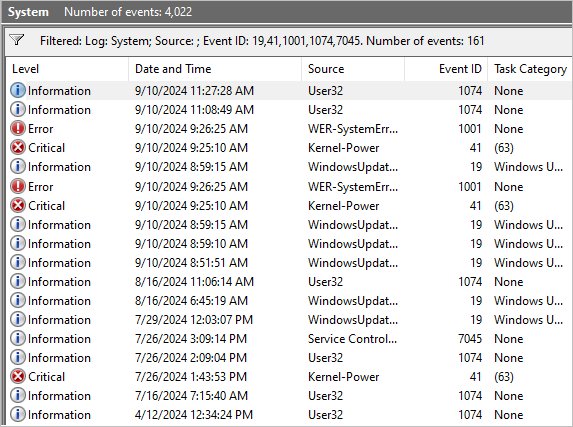
| 19 | WindowsUpdateClient | An update installed successfully. Useful for spotting an update just before crashes began. |
| 7045 | Service Control Manager | A service or driver was installed. A new one shortly before the first crash is a strong suspect. |
A normal restart shows event 1074 followed by 13 and 6009. A crash shows 41 and 6008, plus 1001 when Windows managed to record a stop error.
How to read the BugcheckCode in Kernel-Power event 41
Event 41 stores the stop error code in decimal, while Microsoft's bug check reference lists codes in hexadecimal. Convert it before you look it up.
- Open the Kernel-Power 41 event in Event Viewer and select the Details tab.
- Note the BugcheckCode value, for example 159.
- Open Calculator, then select Programmer from the navigation menu.
- Make sure DEC is selected and type the BugcheckCode value.
- Read the HEX value. 159 becomes 9F.
- Pad it to eight digits after 0x, so 9F becomes 0x0000009F, and search Microsoft's bug check code reference for that code.
A BugcheckCode of 0 means Windows did not record a stop error. That points to a power cut, a power supply fault, overheating or a hard freeze. If you can find a stop code on screen or in a 1001 event, the Windows stop codes and their fixes cover the common ones.
View error logs using PowerShell
PowerShell pulls the same records without clicking through filters. Open Windows PowerShell from Start search; reading the System log does not need administrator rights.
Get-WinEvent -FilterHashtable @{LogName='System'; Level=1,2} -MaxEvents 50 | Format-Table TimeCreated, Id, ProviderName, Message -AutoSize -WrapGet-WinEvent reads the System log. In FilterHashtable, Level 1 is Critical and Level 2 is Error, so only those events are returned. -MaxEvents 50 limits the output to the 50 most recent.
You should see: A table of recent critical and error events, newest first, with the time, event ID, source and message. Kernel-Power 41 entries mark unexpected restarts.
Change LogName to 'Application' to list app crashes instead. Add StartTime=(Get-Date).AddDays(-7) inside the braces, separated by a semicolon, to limit the list to the last week.
PowerShell command to find unexpected shutdowns
This query returns only the events that mark a crash or unplanned restart, so you can see how often it happens and when it started.
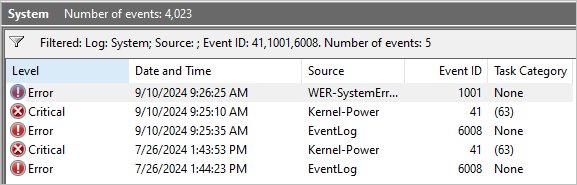
Get-WinEvent -FilterHashtable @{LogName='System'; Id=41,1001,6008} | Format-Table TimeCreated, Id, ProviderName -AutoSizeThe Id key filters the System log to event 41 (Kernel-Power), 1001 (bug check) and 6008 (unexpected shutdown).
You should see: One row per crash-related event. Groups of 41 and 6008 at the same time are one crash; a 1001 alongside them means it was a blue screen with a recorded stop code.
To see Windows' daily stability score, run Get-CimInstance Win32_ReliabilityStabilityMetrics | Select-Object -First 1 SystemStabilityIndex, EndMeasurementDate. The value runs from 1 to 10.
Where are Windows crash dump files stored?
When a blue screen happens, Windows writes a memory dump that records what was running at the moment of the crash. The location depends on the dump type set in Startup and Recovery.
| Dump type | Location | Notes |
|---|---|---|
| Small memory dump (256 KB) | %SystemRoot%\Minidump (usually C:\Windows\Minidump) | One date-stamped file per crash; earlier files are kept |
| Automatic memory dump | %SystemRoot%\MEMORY.DMP | The setting Microsoft recommends for collecting crash data |
| Kernel memory dump | %SystemRoot%\MEMORY.DMP | Overwritten by the next crash |
| Complete memory dump | %SystemRoot%\MEMORY.DMP | As large as installed RAM |
| (none) | No file is written | Change this setting if you want dumps |
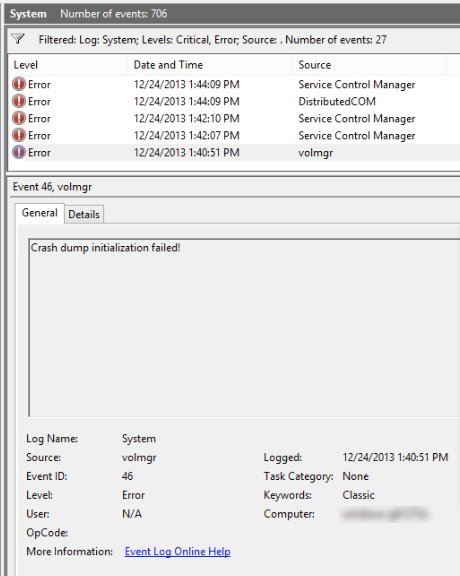
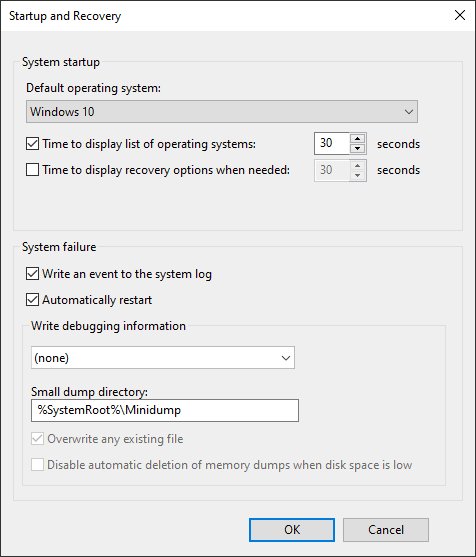
To change the type, search for Advanced system settings, select Settings under Startup and Recovery, choose a type under Write debugging information, select OK and restart. Windows needs a page file on the boot drive to write a dump; if event 41 shows all zeros and event 46 from volmgr says crash dump initialization failed, check the page file settings.
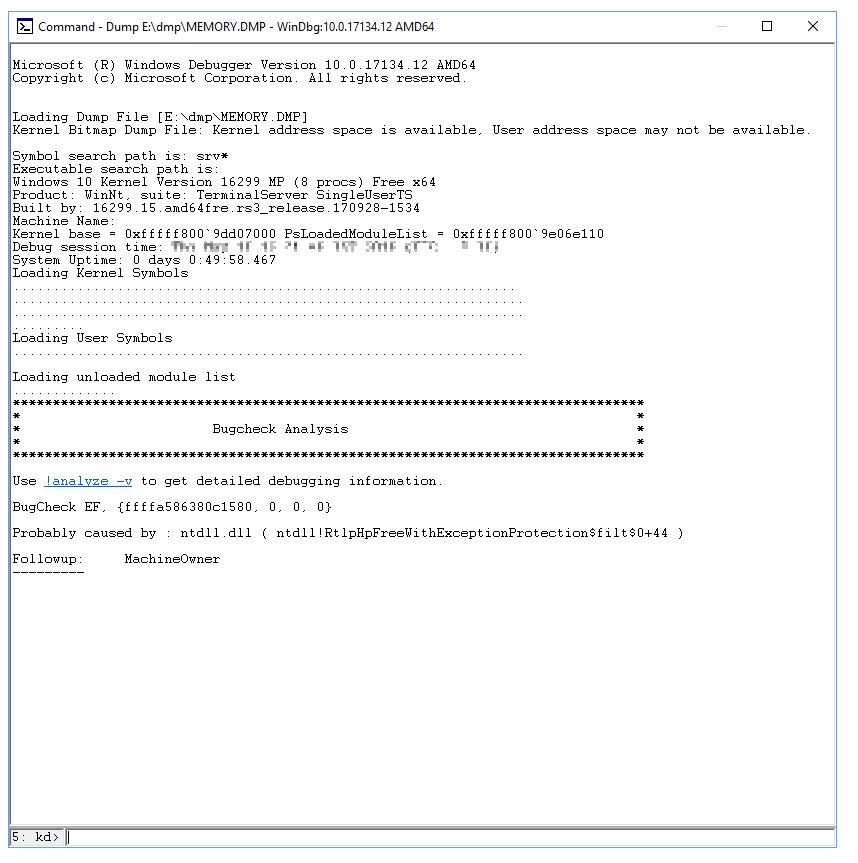
Dump files are read with WinDbg from the Debugging Tools for Windows. The 1001 event already gives you the stop code, which is enough for most home users.
How to stop Windows from restarting automatically after a blue screen
By default Windows restarts straight after a stop error, which can make the blue screen vanish before you read it. Turning off automatic restart keeps the stop code on screen.
- Select Search on the taskbar, type Advanced system settings and press Enter.
- On the Advanced tab of System Properties, select Settings under Startup and Recovery.
- Clear the Automatically restart check box under System failure.
- Select OK, then OK again.
- When the next crash happens, write down the stop code and any file name shown, then restart the PC by hand.
How to fix a crashing issue on Windows 10 or 11?
Match what the logs showed to the symptom below and start with that fix. If you changed hardware or software just before the crashes began, undo that change first.
Blue screen with a stop code after a driver or Windows update
A new or updated third-party driver is the most common cause of stop errors, so rolling back or updating the driver is the first fix to try.
- Check Reliability Monitor or event 7045 for the driver or update installed just before the first crash.
- Open Device Manager, right-click the device, select Properties and open the Driver tab.
- Select Roll Back Driver if it is available, or get the current driver from the PC or device maker.
- Install the latest updates from Settings > Windows Update > Check for updates.
- Update the BIOS or UEFI firmware from your PC maker's support site.
PC turns off or restarts with no blue screen
A Kernel-Power event 41 error with a BugcheckCode of 0 usually means power was lost or the hardware stopped before Windows could log an error.
- Turn off any CPU, GPU or memory overclocking and test at stock speeds.
- Check that the power supply has enough wattage for any parts you added, such as a new graphics card or more drives.
- Clean dust from vents and fans and check that the fans spin under load.
- On a laptop, test with the charger connected and check the battery health in the maker's app.
- On a desktop that loses power during outages, connect it to an uninterruptible power supply (UPS).
Random blue screens with a different stop code each time
Varying codes often point to faulty or mismatched memory.
- Run a memory test, such as Windows Memory Diagnostic from Start search.
- Check that all memory modules are the same speed and are seated firmly.
- Reset memory and CPU settings in the BIOS to their defaults if you changed them.
- Test with one memory module at a time if the test reports errors.
Windows apps, Explorer or the whole PC keep crashing
Damaged Windows system files or a damaged component store, which DISM and the System File Checker scan repair.
- Open Command Prompt as administrator.
- Run
DISM /Online /Cleanup-Image /RestoreHealthand wait for it to finish. - Run
sfc /scannowto scan and repair protected system files. - Restart the PC and check Reliability Monitor over the next few days.
Crashes started after installing an app or service
A third-party service or startup program is conflicting with Windows.
- Press Win + R, type
msconfigand press Enter. - Use Selective startup on the General tab, or hide Microsoft services on the Services tab and disable the rest.
- Restart and re-enable services in small groups until the crash returns.
- Update or uninstall the app that owns the service you found.
Crashes along with slowdowns or low disk space warnings
Malware or a nearly full system drive.
- Run a full scan with Windows Security > Virus & threat protection > Scan options > Full scan.
- Free space until 10 to 15 percent of the system drive is empty.
Should I be worried about the crash?
A single crash with a clear cause, such as a power cut or a forced shutdown, is not a reason to worry. Repeated crashes, or crashes that keep getting more frequent, need fixing now. One event 41 after you held the power button, or after a power outage, just records that Windows did not shut down cleanly. Several crashes a week point to a driver, memory, power or overheating fault, and dirty shutdowns can corrupt files and cause startup problems. Back up your files, then work through the fixes above, starting with the cause the logs point to.
Windows crash log FAQ
How do I see why my computer crashed in Windows 11?
Press Win + R, run perfmon /rel and open the red critical event on the day of the crash in Reliability Monitor. For more detail, open Event Viewer, select Windows Logs > System and filter for Critical and Error events at that time.
Where are crash logs stored in Windows 10 and 11?
Crash events are stored in the System and Application logs that Event Viewer reads. Blue screen memory dumps are saved in C:\Windows\Minidump for small dumps and C:\Windows\MEMORY.DMP for automatic, kernel and complete dumps.
What does Kernel-Power event ID 41 mean?
Event 41 means Windows restarted without shutting down cleanly first. The PC stopped responding, crashed or lost power. Check its BugcheckCode: a nonzero value is a stop error code, and zero usually means a power or hardware problem.
How do I know if my PC restarted because of a blue screen?
Look for event ID 1001 from WER-SystemErrorReporting in the System log at the time of the restart. It says the computer rebooted from a bug check, gives the stop code, and names the dump file Windows saved.
How do I find out why my computer restarted by itself?
Filter the System log for event IDs 41, 1074 and 6008. A 1074 event means a user or a process such as Windows Update asked for the restart. Events 41 and 6008 without a 1074 mean the restart was unexpected.
Why does my computer crash with no blue screen?
A crash with no blue screen usually means power was cut before Windows could record a stop error. Common causes are a weak or failing power supply, overheating, overclocking, a drained laptop battery, or holding the power button on a frozen PC.
Can a Windows update cause my computer to crash?
Yes. An update or a driver delivered through Windows Update can trigger crashes. Check Reliability Monitor or event 19 for updates installed just before the first crash, then roll back the driver or uninstall the update to test.
How do I read a minidump file?
Open it with WinDbg, which is part of the Debugging Tools for Windows, using Microsoft's public symbol server. For most home users the stop code in event 1001 or in Reliability Monitor's technical details is enough to find the cause.