Find My shows an old location for a family member when their location is shared from an iPad, Mac or spare iPhone they left behind, or when their iPhone cannot send its location, and switching their phone to Use This iPhone as My Location with Location Services allowed for Find My fixes most cases.
This guide covers the settings to change on the family member's iPhone, the fixes for your own iPhone when the same person looks right on a Mac, and how to tell an offline phone from a stale map.
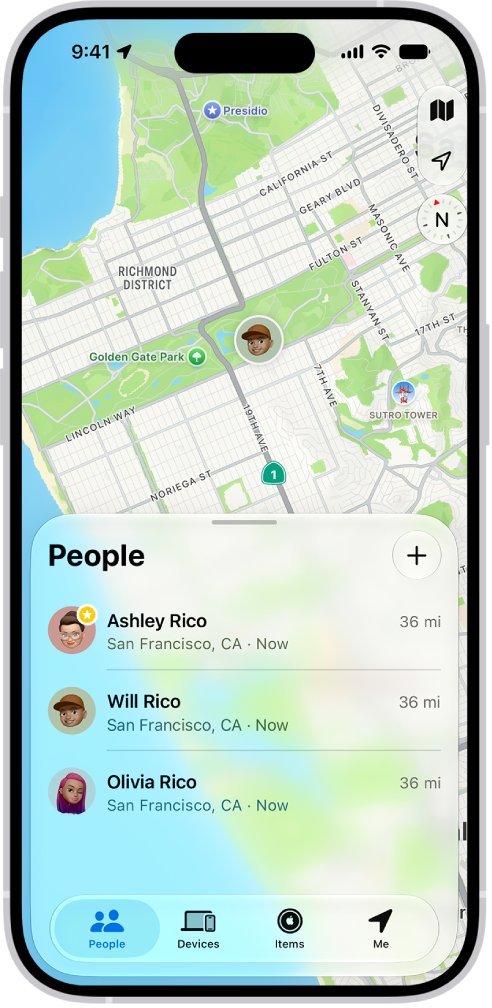
How to fix Find My showing old locations of family members
Most of the fix happens on the family member's iPhone, so ask them to run these steps on the phone they carry every day.
- On the family member's iPhone, open the Find My app and tap Me.
- Check the device listed next to Sharing From; it should be the iPhone they carry.
- If it names an iPad, a Mac or an old iPhone, tap Use This iPhone as My Location.
- Make sure Share My Location is turned on.
- Go to Settings > Privacy & Security > Location Services and make sure Location Services is on.
- Tap Find My, choose an option other than Never, and leave Precise Location turned on.
- On your own iPhone, open Find My, tap People and tap their name to see their position on the map.
If that person already shows the right place in Find My on your Mac or iPad, their settings are fine and the fault is on your iPhone. Restart it and update iOS, as shown below.
Find My showing wrong location for a family member: what each case means
Match what you see on your iPhone to a row, then fix the phone the row names.
| Your situation | Fix | Why |
|---|---|---|
| Their location sits at home or at a place they left hours ago | On their iPhone, tap Use This iPhone as My Location | Their location is shared from an iPad, Mac or old iPhone that stayed behind |
| "No location found" appears below their name | Ask them to turn the iPhone on, connect it to Wi-Fi or cellular, and allow Location Services for Find My | Find My cannot locate their device right now |
| "Can see your location" appears below their name | Ask to see their location, or ask them to share it with you | They can follow you, but you are not following them |
| They show as a rough area instead of an exact spot | Turn on Precise Location for Find My on their iPhone | With Precise Location off, an app gets only an approximate location |
| They wear a cellular Apple Watch and their location seems to switch devices | Nothing to fix | Find My shares the watch's location when they are out of range of their iPhone with the watch on |
| Old place on your iPhone, correct place on your Mac or iPad | Restart your iPhone and update iOS | Their sharing works, so the problem is limited to your iPhone |
| A location in a Messages chat never moves | Ask them to share their location instead of sending a pin | Pinned locations do not update as the person moves |
How to use this iPhone as your location in Find My
Each person shares their location from one device, the one listed next to Sharing From in Find My. A family member who once picked an iPad or Mac that lives at home keeps appearing there while they are out.
- On the iPhone the family member carries, open Settings.
- Tap their name at the top of the screen.
- Tap Find My.
- Tap Use this iPhone as My Location.
- Open the Find My app, tap Me and check that this iPhone now appears next to Sharing From.
The same setting lets them change their Find My location to an iPad or Apple Watch later. Run the steps on the device that should share, because the switch picks the device it is tapped on.
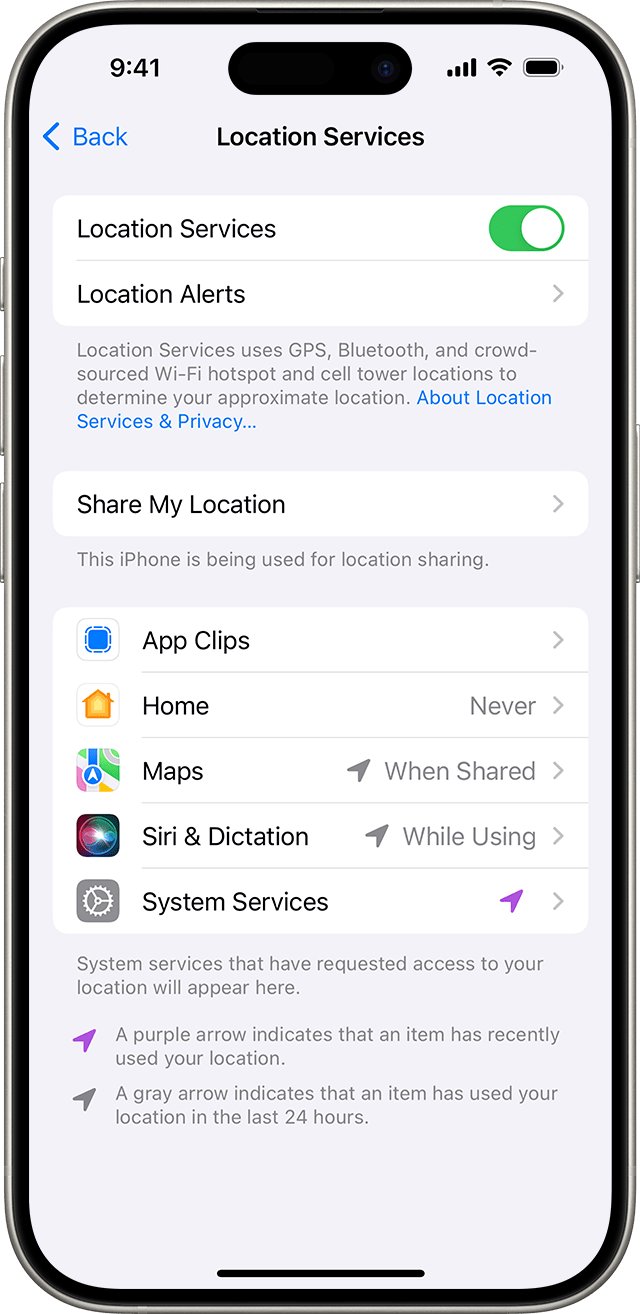
Turn on Location Services and Precise Location for Find My
When location sharing is set up but family members still cannot see a location, Apple points to Location Services for Find My as the setting to check.
- On the family member's iPhone, open Settings.
- Tap Privacy & Security, then tap Location Services.
- Turn on Location Services if it is off.
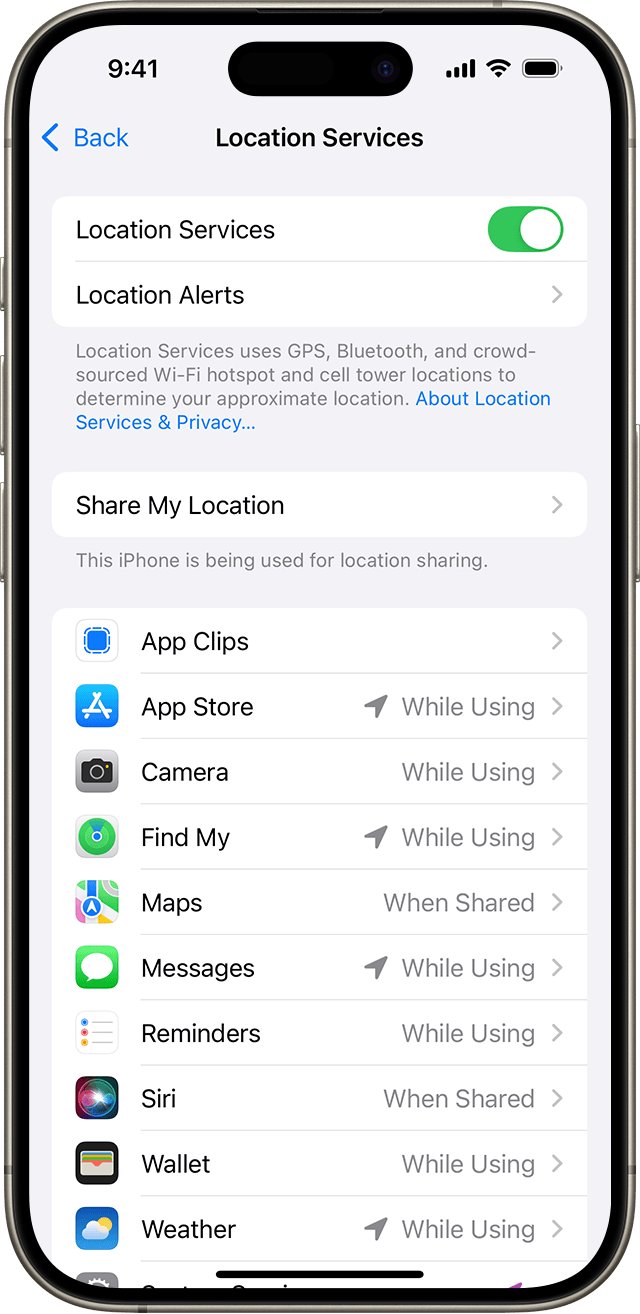
- Scroll down the app list and tap Find My.
- Choose an option other than Never.
- Leave Precise Location turned on so the family sees an exact spot rather than an approximate area.
Location Services works out a position from GPS, Bluetooth connections, local Wi-Fi networks and the cellular network, whichever are available. Turning it off completely also stops many other iPhone features, so leave the main switch on.
Turn on Find My location sharing for Family Sharing
The Family Sharing organizer turns on location sharing for the group, and each member then chooses whether to share. A member who switched sharing off, or hid it from everyone, cannot be seen by the family until sharing is back on.
- On the family member's iPhone, open Settings and tap Family.
- Tap Location Sharing.
- Under Share Your Location With, choose the family members who should see their location.
- Turn on Automatically Share Location if family members who join later should see it too.
- Open the Find My app, tap Me and make sure Share My Location is on.
Outside Family Sharing, they can share their location on iPhone with any contact from the People tab in Find My.
Restart iPhone when Find My people locations stop updating
When a family member is current in Find My on a Mac but hours old on your iPhone, restart your iPhone before changing anything on theirs.
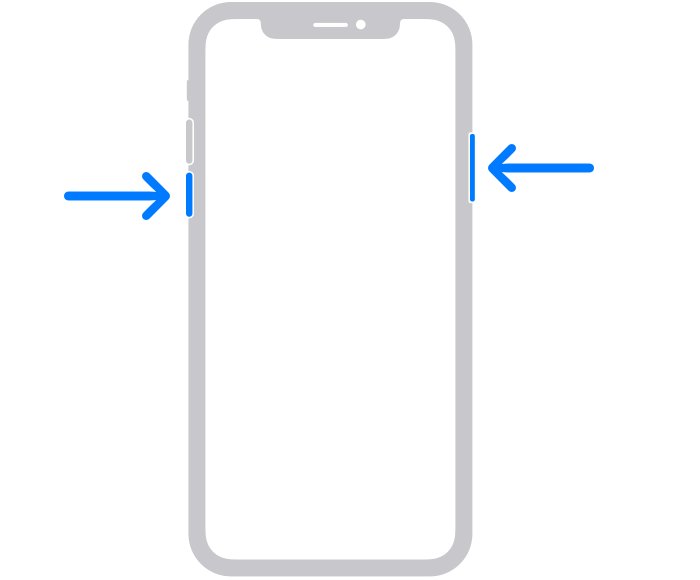
- On iPhone X or later, press and hold either volume button and the side button until the power-off slider appears.
- Drag the slider, then wait 30 seconds for the iPhone to turn off.
- Press and hold the side button until the Apple logo appears.
- Unlock the iPhone, open Find My and tap People.
- Tap the family member's name and compare the map with the one on your Mac.
On iPhone SE (2nd or 3rd generation), 6, 7 or 8, press and hold only the side button to bring up the slider. If the iPhone is frozen, force restart it instead.
Update iOS when Find My family locations are out of date
Apple's first fix for anything missing or not appearing correctly in Find My is the latest software. Update your iPhone and the family member's iPhone.
- Back up the iPhone to iCloud or a computer.
- Plug it into power and connect to Wi-Fi.
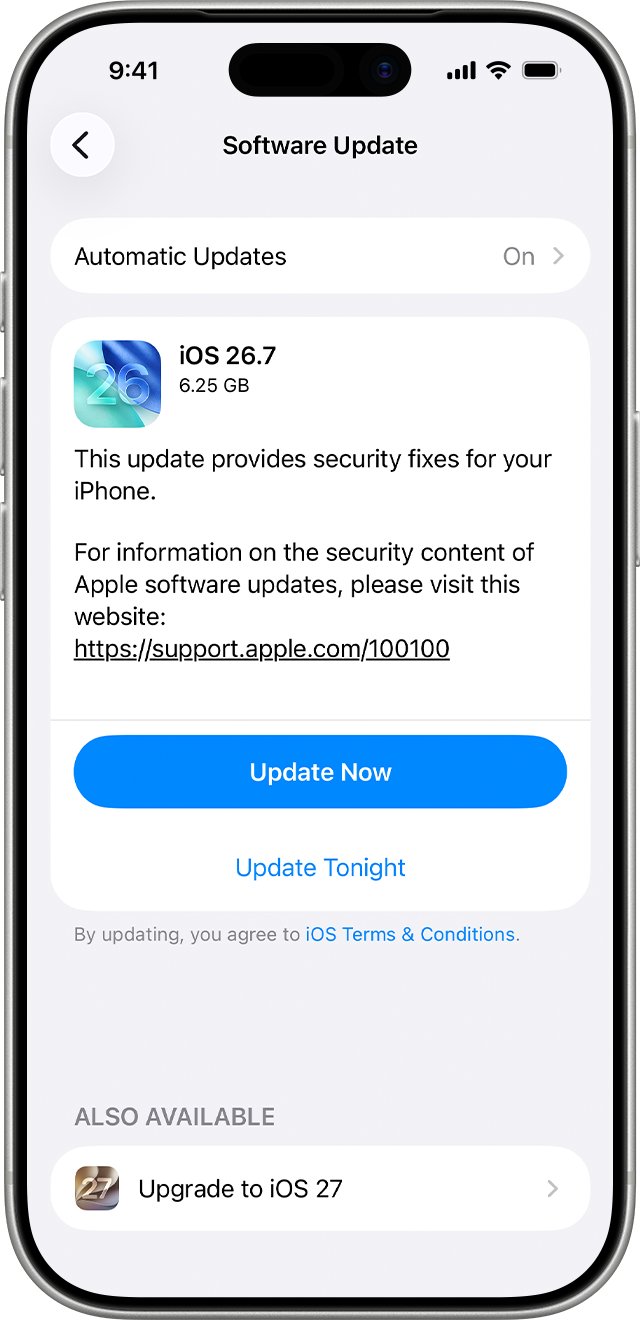
- Open Settings, tap General, then tap Software Update.
- If an update is listed, tap Download and Install and follow the onscreen instructions.
- Tap Automatic Updates and turn on Automatically Install so later fixes install overnight while the iPhone charges.
Some updates are not offered wirelessly, and VPN or proxy connections can stop the iPhone from reaching Apple's update servers. Use a Mac or PC to update when the update never appears.
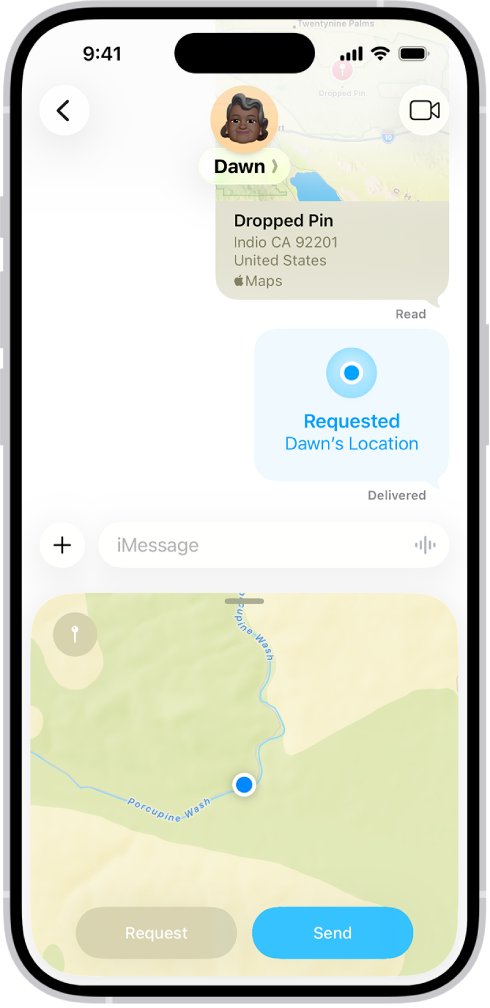
See a family member's location in Messages or Find My on Mac
A second view tells you whether the old location comes from the family member's phone or only from Find My on your iPhone.
- On your iPhone, open Messages and open your conversation with the family member.
- Look below their name at the top of the conversation for their shared location.
- Tap their name to see where they are on a map.
- On a Mac signed in to your Apple Account, open the Find My app and click People.
- Select the family member and compare their position with the one on your iPhone.
If both views show the same old place, fix the family member's iPhone with the steps above. If only your iPhone is wrong, restart and update it.
How to tell if a family member's iPhone is offline in Find My
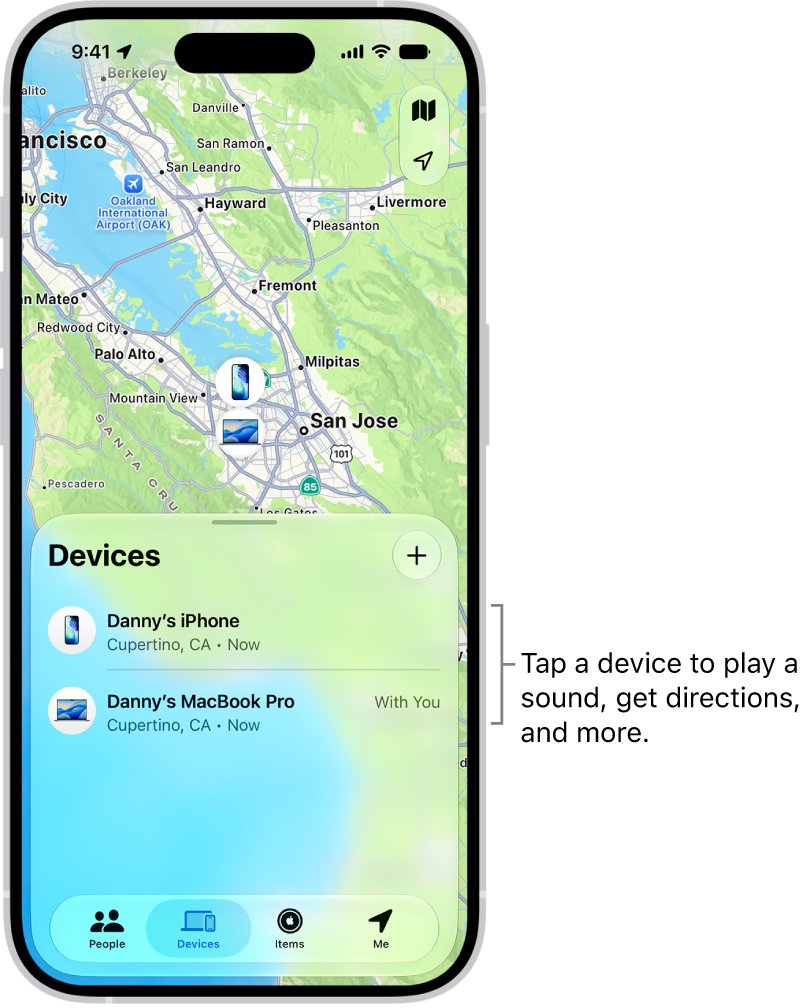
In a Family Sharing group, each member's devices appear below yours in the Devices list, with their location and online or offline status.
- Open Find My on your iPhone and tap Devices.
- Scroll past your own devices to the family member's devices.
- Select the iPhone they carry.
- Check whether it shows a location on the map or shows as Offline.
- If it is offline, ask them to charge the iPhone and connect it to Wi-Fi or cellular.
An offline iPhone cannot send a current location, so Find My keeps showing the last one it reported for up to seven days. Members who do not share their location still show online or offline status here. If the missing phone is yours, start from its last known location in Find My instead.
How does Find My get a family member's location?
Four settings on the family member's iPhone and one on yours decide what the People map shows.
| Setting or feature | How it works | Effect on the People map |
|---|---|---|
| Sharing From | Shown under Me in Find My; names the one device that shares the person's location | The map follows that device, wherever it is |
| Location Services for Find My | Uses GPS, Bluetooth, local Wi-Fi networks and the cellular network when available | Set to Never, others cannot see the person's location |
| Precise Location on their iPhone | On gives the specific location; off gives only an approximate one | Off shows a general area instead of a spot |
| Precise Location on your iPhone | Find My needs it to work out how far away friends are | Off hides the distance to each family member |
| Live locations | Since iOS 15, Find My streams the live location of family and friends who share it | The dot moves as the person moves |
| Hide Location | Pauses sharing with one person; turning off Share My Location hides it from everyone | You stop seeing their current location |
Find My iPhone problems with family locations
Can Find My iPhone be wrong about a family member's location?
Find My shows an approximate position from GPS, Bluetooth, Wi-Fi and cellular data, and only a general area when Precise Location is off.
- Ask the family member to turn on Precise Location under Settings > Privacy & Security > Location Services > Find My.
- In Find My, tap People, tap their name, then tap Directions to open the area in Maps.
- When you are close and both of you use an iPhone 15 model or later, use Precision Finding in Find My for exact directions.
Family member's iPhone not showing on Find My
Family devices appear in your Devices list only when you share a Family Sharing group and Find My is turned on for that device.
- Check that they are in your group under Settings > Family.
- On their iPhone, go to Settings > [their name] > Find My > Find My iPhone and turn on Find My iPhone.
- Update their iPhone to the latest iOS under Settings > General > Software Update.
Find My iPhone alert went off randomly
Find My location alerts fire when someone arrives at, leaves or is not at a place, and the person being followed gets an alert when one is set.
- Open Find My, tap People, tap the family member's name and open their options.
- Tap the notification you want to remove.
- Tap Delete Notification, then tap Delete Notification again to confirm.
Why is my Find My iPhone off?
The Find My iPhone switch is off, or the iPhone was never connected to an Apple Account in Find My.
- Go to Settings > [your name] > Find My.
- Sign in with your Apple Account if asked.
- Tap Find My iPhone and turn on Find My iPhone.
- Turn on Find My network and Send Last Location on the same screen.
Find My family location FAQ
Can Find My iPhone be wrong about where a family member is?
Yes. Find My shows the location of the device a family member shares from, which may be an iPad or Mac left at home rather than the iPhone they carry. Positions are also approximate, and only a general area appears when Precise Location is off for Find My.
Why does Find My show my family member at home when they are out?
The usual cause is that their location is shared from a device that stays at home, such as an iPad or Mac. On the iPhone they carry, they open Settings, tap their name, tap Find My and tap Use this iPhone as My Location.
Why isn't Find My iPhone working for my family?
A family member appears on the map only when they share their location with you and allow Location Services for Find My. No location found means their device cannot be located right now. Can see your location means they follow you, but you do not follow them.
Why has Find My stopped updating a family member's location?
Their iPhone is offline, shares location from another device, or blocks Location Services for Find My. Check the Devices tab in Find My for an Offline status, then ask them to tap Use This iPhone as My Location under Me.
Why is my Find My iPhone off?
Find My iPhone stays off until you turn it on under Settings > [your name] > Find My > Find My iPhone. Turn on Find My network and Send Last Location on the same screen so the iPhone can be found when it is offline or its battery is critically low.
How do I turn on Find My iPhone?
Go to Settings > [your name] > Find My, sign in with your Apple Account if asked, tap Find My iPhone and turn it on. On a supported iPhone, Find My network lets you locate it for up to 24 hours after it is turned off.
Should I turn on Find My iPhone?
Yes. Find My iPhone lets you and your Family Sharing group locate the phone, play a sound, mark it as lost or erase it. The iPhone's Activation Lock also prevents anyone else from activating and using it, even after it is completely erased.
How do I use Find My iPhone to see where my family is?
Open the Find My app, tap People and tap a family member's name to see them on a map. Tap Directions to open their location in Maps, or Contact to call or message them. Each family member has to share their location with you first.
How do I check if Find My iPhone is on?
Go to Settings > [your name] > Find My and tap Find My iPhone to see whether the switch is on. Family members can also see your iPhone below their own devices in the Devices tab of Find My when you share a Family Sharing group.
Why did a Find My alert go off randomly?
Find My sends an alert when someone sets a location notification about you, such as when you arrive at or leave a place, and recurring ones ask for your approval first. Remove a notification from the person's name in the People tab with Delete Notification.