If your iPhone 17 turns off randomly and will not turn back on, force restart it (volume up, volume down, then hold the side button until the Apple logo appears) and charge it for one hour if the screen stays black.
This guide covers why an iPhone 17 shuts down on its own, how to read Battery Health, temperature limits, iOS updates, recovery mode, and what to do when the phone or its screen won't turn off.
How to turn on an iPhone 17 that won't turn on
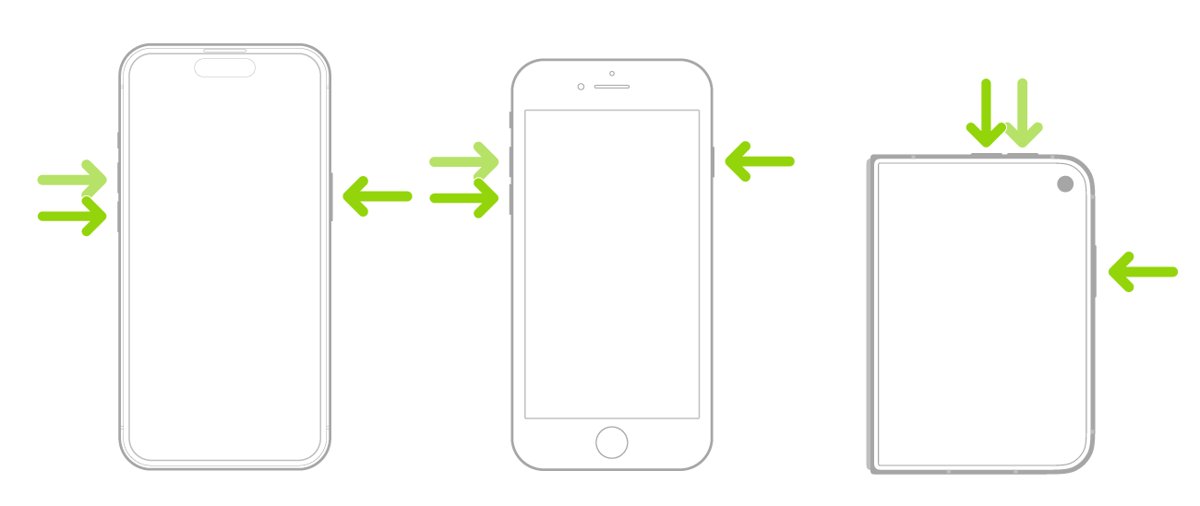
These steps apply to iPhone 17, iPhone 17 Pro, iPhone 17 Pro Max and iPhone Air. The side button is on the right edge.
- Press and quickly release the volume up button.
- Press and quickly release the volume down button.
- Press and hold the side button until the Apple logo appears, then release it. This can take longer than 10 seconds.
- If the screen stays black, plug the iPhone into a wall charger and leave it for one hour, then repeat the force restart.
- If a low-charge battery icon appears instead, check the cable and adapter, then charge for 30 minutes or until the phone starts.
If the iPhone still won't turn on after charging and a force restart, it needs service from Apple or an Apple Authorized Service Provider.
Why is my iPhone 17 turning off randomly?
An iPhone shuts itself down on purpose when the battery cannot deliver the power its electronics need. Apple says this is most likely at a low state of charge, with an older battery, or in cold temperatures.
| Cause | What you notice | Where to fix it |
|---|---|---|
| Low charge plus battery impedance | Sudden shutdowns when the battery is low | Battery Health, then charging checks |
| Cold weather | It turns off outdoors and battery life drops, then recovers indoors | Warm it to 0 to 35 °C (32 to 95 °F) |
| Overheating | The display dims or goes black, charging slows or stops, or a temperature warning appears | Let it cool, out of direct sunlight |
| Software problem | It restarts, shows the Apple logo, or shows a spinning gear without warning | Update iOS and every app |
| Overnight update | It restarted while charging overnight | Software Update, Automatic Updates |
| Battery or hardware fault | Shutdowns continue with a healthy battery and current iOS | Apple service |
Apple describes these shutdowns as intentional from the device's side: the power management system turns the phone off to protect its internal storage, power circuits and battery.
iPhone 17 randomly turning off then back on: update iOS and apps
Apple's first fix for an iPhone that restarts, shuts down or shows the Apple logo unexpectedly is the latest iOS plus up-to-date apps.
- Back up the iPhone to iCloud or your computer.
- Plug the iPhone into power and connect to Wi-Fi.
- Open Settings, tap General, then tap Software Update.
- If an update is listed, tap Download and Install and follow the onscreen instructions.
- Open the App Store and install every pending app update.
- Use the iPhone normally for a day and note whether the shutdowns stop.
If it only restarted overnight while charging, check Settings > General > Software Update > Automatic Updates. With Automatically Install on, iPhone installs updates overnight while it charges on Wi-Fi.
How to check iPhone 17 battery health
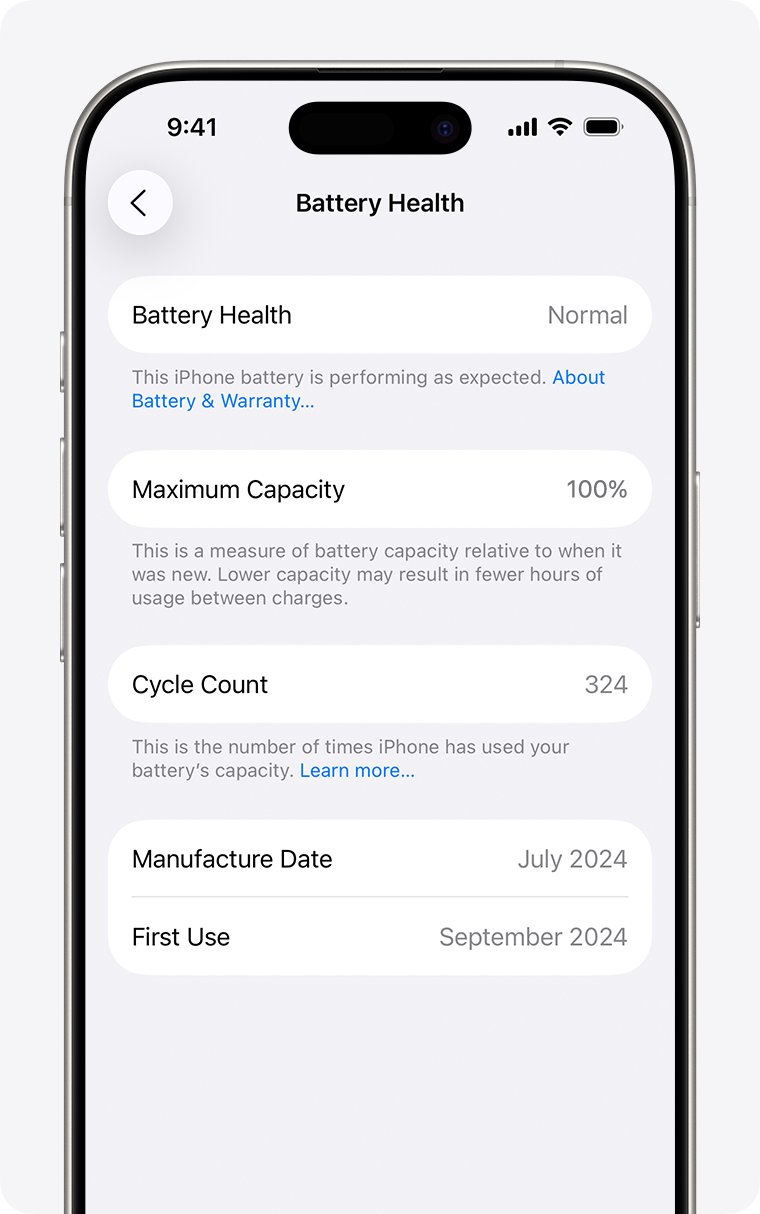
Open Settings, tap Battery, then tap Battery Health. On iPhone 15 models and later, this screen shows battery health, maximum capacity, cycle count, manufacture date, first use date and whether a replacement is recommended.
| What Battery Health shows | What it means | What to do |
|---|---|---|
| Maximum capacity near 100% | The battery holds close to its original charge | Look at temperature and software instead |
| Battery replacement recommended | The battery has aged past Apple's service point | Book a battery service with Apple |
| "Your battery's health is significantly degraded" | Not a safety issue, but shutdowns and slowdowns are more likely | Get the battery replaced to restore full performance |
| "Unable to verify this iPhone has a genuine Apple battery" | The battery details on this screen may not be accurate | Have the battery checked by Apple |
| High cycle count | iPhone 15 models and later are designed to keep 80% capacity at 1,000 full cycles under ideal conditions | Compare with the maximum capacity figure |
Apple's one-year warranty covers a defective battery in addition to your rights under local consumer law.
iPhone 17 randomly shut off in cold or hot weather
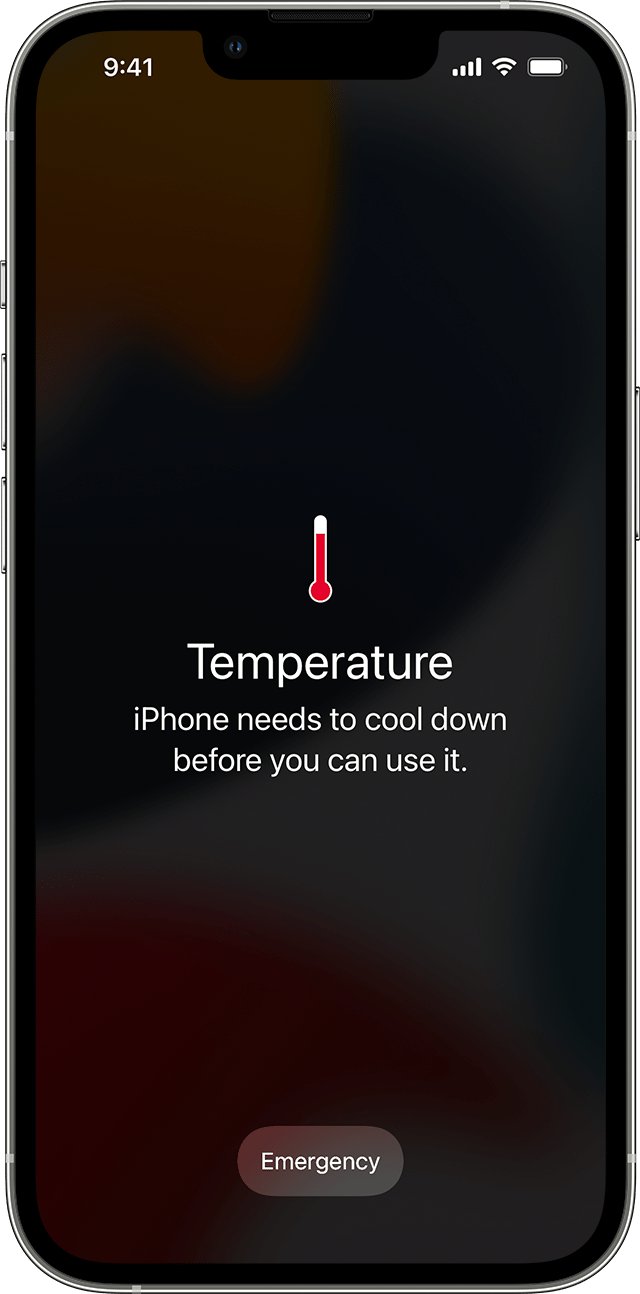
iPhone 17 is rated for 0 to 35 °C (32 to 95 °F) in use and -20 to 45 °C (-4 to 113 °F) in storage. Outside that range it can turn off, refuse to charge or show a temperature warning.
- If a temperature warning screen appears, turn the iPhone off.
- Move it out of direct sunlight or a hot car to a cooler place.
- Let it cool down before you turn it back on or charge it.
- If it shut off in the cold, bring it indoors and let it warm up; battery life returns to normal at higher temperatures.
- Wait for Charging On Hold to clear from the Lock Screen before expecting it to charge.
During navigation in heat, "Temperature: iPhone needs to cool down" turns off only the display. Spoken turn-by-turn directions continue, and the screen lights up again at each turn.
iPhone 17 not turning on after the battery died
A fully drained iPhone 17 can need half an hour on a working charger before it shows anything. Try again after each step.
- Plug the iPhone into a wall power outlet, a computer or a power accessory.
- Check the USB-C cable and power adapter for breaks or bent prongs, and stop using a damaged one.
- Make every connection firm, or try a different wall outlet.
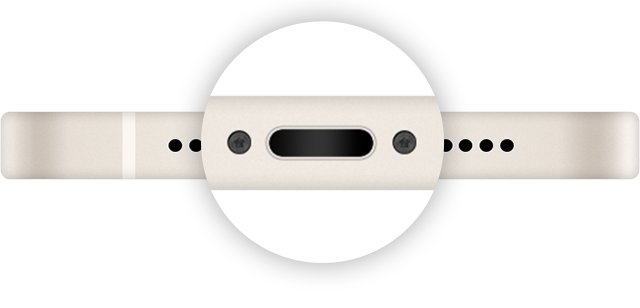
- Remove any debris from the USB-C port on the bottom of the iPhone, then plug the cable in firmly.
- Leave it charging for half an hour.
- If it still won't power on, or only shows a battery icon, force restart it and charge for another half hour.
If an "accessory not supported" alert appears or charging never starts, fix an iPhone that will not charge before assuming the phone is dead.
iPhone 17 stuck on the Apple logo: use recovery mode
Use recovery mode when the Apple logo stays on screen for several minutes with no progress bar, or the iPhone shows the "Connect to computer" screen. The same steps fix an iPhone in a boot loop.
- Update your Mac, or install the latest Apple Devices app on a Windows PC.
- Connect the iPhone to the computer with a USB cable.
- Open Finder on the Mac or the Apple Devices app on the PC.
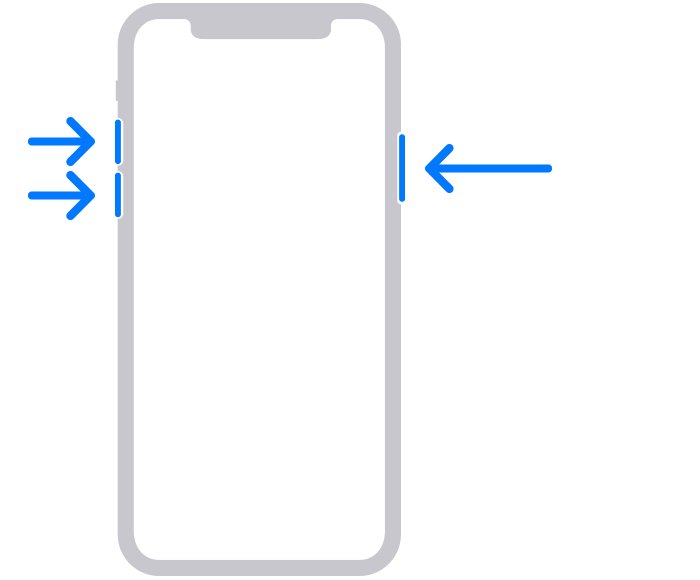
- On the iPhone, press and quickly release volume up, press and quickly release volume down, then press and hold the side button until the "Connect to computer" screen appears.
- Select your iPhone on the computer and choose Update when the Update or Restore options appear.
- If Update fails, choose Restore. Restore reinstalls iOS and erases all your data, so set the iPhone up from a backup afterwards.
If the download takes longer than 15 minutes, the iPhone can leave the "Connect to computer" screen. Let the download finish, then press the buttons again.
How to turn off iPhone 17
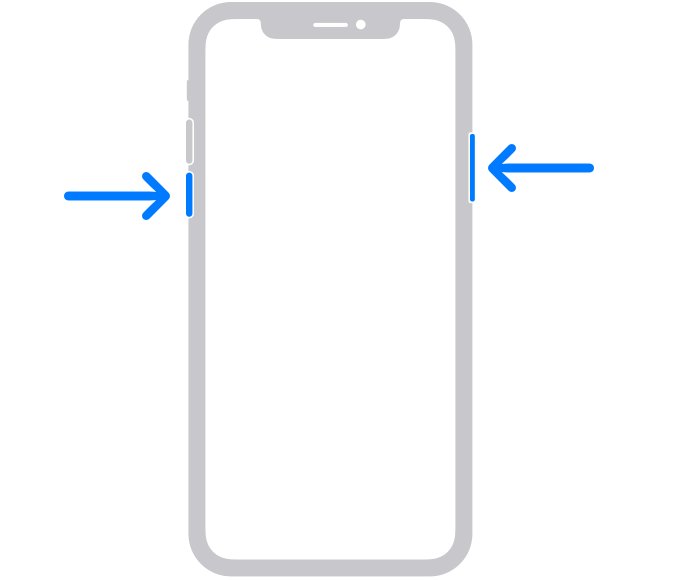
- Press and hold either volume button and the side button together.
- Release them when the power-off slider appears.
- Drag the slider, then wait 30 seconds for the iPhone to turn off.
- To turn it back on, press and hold the side button until the Apple logo appears.
If the slider never appears because the iPhone is frozen, use the force restart sequence instead.
Why won't my iPhone 17 turn off?
The power-off slider does not appear
The iPhone is frozen and is not responding to the button hold.
- Press and quickly release volume up.
- Press and quickly release volume down.
- Press and hold the side button until the Apple logo appears.
The iPhone 17 screen doesn't turn off when locked
Always On Display keeps a dimmed Lock Screen visible on supported models such as iPhone 17, and it is on by default.
- Open Settings and tap Display & Brightness.
- Turn off Always On Display to make the screen go fully dark when you lock it.
- Or keep it on and tap Always On Display to turn Show Wallpaper or Show Notifications off.
The screen stays on long after you stop using it
Auto-Lock is set to a long time, or Attention Aware Features keep the screen on while you look at it.
- Open Settings, tap Display & Brightness, then tap Auto-Lock.
- Choose a shorter time.
- To stop the screen staying on while you look at it, open Settings > Face ID & Passcode and turn off Attention Aware Features.
Always On Display turns off by itself when the iPhone is face down or in a pocket, during CarPlay, with Low Power Mode or Sleep Focus on, and at your usual bedtime.
iPhone 17 Pro shut off randomly even with a healthy battery
It shuts off at a low battery percentage
Battery impedance rises at a low state of charge, so the phone turns off to protect its components.
- Charge before the battery runs very low.
- Turn on Low Power Mode: open Settings > Battery > Power Mode and tap Low Power Mode.
- Leave Adaptive Power on under Power Mode. It is on by default on iPhone 15 Pro and later, and it can switch Low Power Mode on at 20%.
- Check Battery Health for a replacement recommendation.
It keeps restarting after an iOS update and a full charge
Apple treats frequent restarts with current software and a battery that needs no service as a repair case.
- Put the iPhone in recovery mode and choose Update on the computer.
- If shutdowns continue, back up and use Restore.
- If it still restarts or turns off often with a battery that doesn't need service, book a repair with Apple.
iPhone 17 turning off randomly FAQ
How to fix iPhone turning off randomly?
Update iOS and your apps, then check Settings > Battery > Battery Health. Keep the iPhone between 0 and 35 °C, and charge it before the battery runs very low. If shutdowns continue with a healthy battery and current software, the iPhone needs service.
Why did my iPhone turn off randomly?
An iPhone shuts down on its own when the battery cannot deliver enough instant power, which Apple says is likelier at a low charge, in the cold, or with an aged battery. Overheating, a software fault and overnight automatic updates are the other common causes.
Why does my iPhone 17 turn off and back on by itself?
A restart overnight while charging can be an automatic iOS update, because Automatically Install updates iPhone overnight on Wi-Fi. Random restarts during the day point to software, so update iOS and every app first. If restarts continue after that, check Battery Health and contact Apple for service.
Why isn't my iPhone 17 turning on?
Apple's fix starts with the two common causes: a frozen iPhone or a fully drained battery. Force restart it with volume up, volume down, then a long press of the side button. If nothing appears, charge it for one hour on a wall charger and try again.
How to turn off iPhone 17?
Press and hold either volume button and the side button until the power-off slider appears. Drag the slider and wait 30 seconds. To turn it back on, press and hold the side button until you see the Apple logo.
Does the iPhone 17 ever turn off?
Yes. It turns off when you drag the power-off slider, and it can shut itself down to protect its components when the battery cannot supply enough power or the phone gets too cold. The screen may stay dimmed when locked because of Always On Display.
Why doesn't iPhone 17 screen turn off?
iPhone 17 has Always On Display, which keeps a dimmed Lock Screen visible after you lock the phone. Turn it off in Settings > Display & Brightness > Always On Display, or shorten Auto-Lock in the same menu.