Yes, Microsoft Teams has a built-in poll feature: add the Polls app to the meeting, then select Launch on a poll and every attendee sees it pop up on their meeting screen.
This guide covers the four ways to run a poll in a Teams meeting, how to read and export results, and fixes when attendees cannot see or answer a poll.
1. Use the built-in Polls app in a Teams meeting
Only meeting organizers and presenters can create, manage and launch polls. Attendees can answer from the Teams desktop app, web or mobile.
- In Teams, select Calendar and open the meeting you scheduled.
- Select Chat with participants.
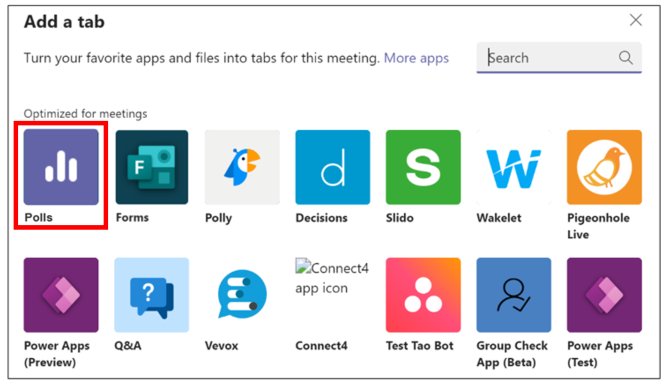
- Select Add a tab, search for Polls, select it and click Add, then select Save. A Polls tab appears on the meeting.
- In the Polls tab, select Create New Poll and choose Multiple Choice Poll, Multiple Choice Quiz, Word Cloud Poll, Rating Poll or Ranking Poll.
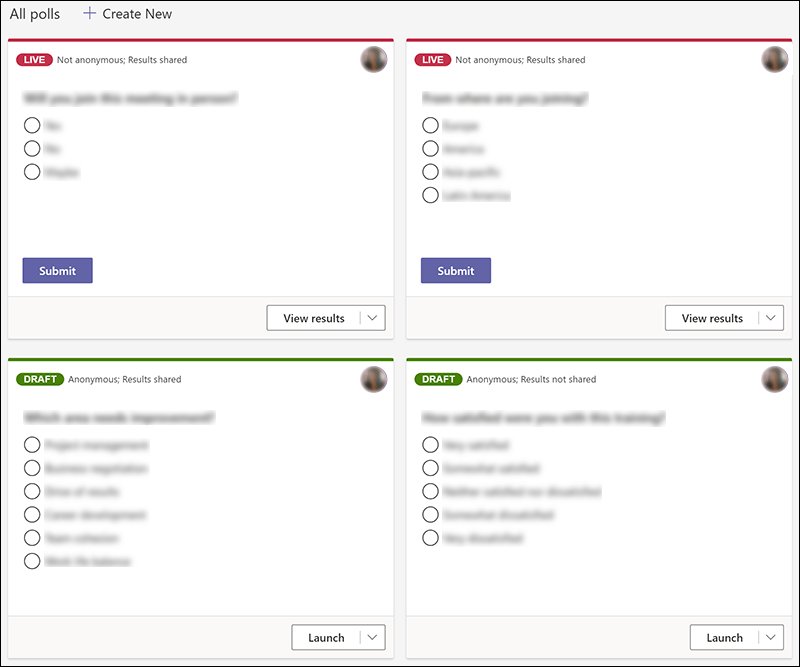
- Type your question and answer options, then select Save as draft. Drafts show a green DRAFT label.
- During the meeting, select the Polls icon in the meeting window to open the Polls pane.
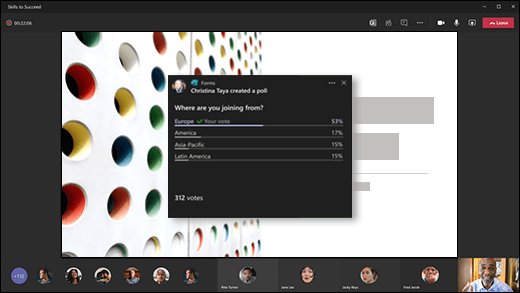
- Select Launch on the poll. Attendees see it in the middle of their meeting screen and in the meeting chat, pick an answer and select Submit.
A multiple choice poll takes up to 12 answer options. Rating polls go up to a 5-point scale shown as stars or numbers, and ranking polls rank items from first to fifth.
Choosing the best polling method for your meeting
| Your situation | Use this | Why |
|---|---|---|
| You know the questions before the meeting | 1. Polls app in the meeting | Drafts wait in the Polls tab and launch with one click as a pop-up |
| A question comes up mid-meeting | 2. Instant poll in the meeting chat | Built in the chat compose box in under a minute |
| You need several questions, branching or anonymous outside replies | 3. Microsoft Forms link in the chat | Full form builder, link works for people outside your organization |
| You want Q&A, live word clouds or a presentation-style poll | 4. A third-party meeting app such as Slido | Adds features beyond the built-in Polls app |
| You need results routed somewhere automatically | Power Automate on top of a Forms poll | Posts each response into a chat or channel without manual copying |
2. Create an instant poll during the meeting
The meeting chat accepts the same quick polls as any Teams chat or group conversation. Use this when you did not prepare a poll in advance.
- Open the meeting Chat while the meeting is running.
- Select Actions and apps on the right side of the compose box. If Polls is not listed, select Find more apps.
- Select Polls, type your question and at least two answer options. Select Options to add more answers.
- Turn on Multiple selections if people may choose more than one answer.
- Optionally select Record names of respondents and Share aggregated results with respondents.
- Select Preview, then Send. People choose an option on the poll card and select Submit Vote.
The response summary on the poll card updates as votes arrive. Attendees can also create these ad-hoc polls themselves during a meeting.
3. Post a Microsoft Forms poll link in the meeting chat
Microsoft Forms works with a work, school or personal Microsoft account and handles longer surveys than a chat poll.
- Go to forms.microsoft.com and sign in, or open Forms from the Microsoft 365 icons on Office.com.
- Select New Form, give it a title, then select Add new to add Choice, Rating or other question types.
- Select Preview to test it, then Back to keep editing.
- Select Collect responses and choose Anyone can respond or Only people in my organization can respond.
- Select Copy link. Tick Shorten URL for a shorter link if you use a work or school account.
- Paste the link in the Teams meeting chat and press Enter.
Pick Anyone can respond when guests from outside your organization are in the meeting, because they cannot sign in with your organization's accounts.
4. Use a third-party polling app such as Slido, Polly, or Mentimeter
Teams meetings accept apps from the Teams store. Organizers and presenters add and manage them; attendees can use them, though not always every feature. Each app's own help pages describe its poll types.
- Before the meeting, select Calendar, double-click the meeting and select Apps.
- Search for the polling app, such as Slido, Polly or Mentimeter, and select it to add it.
- Save any setup the app asks for, such as a poll or a sign-in.
- To add an app mid-meeting instead, select Apps in the meeting controls, then search for and select the app.
- Open the app from the meeting controls and launch your poll.
- Select Share if the app supports it, so everyone sees the poll content, then Stop sharing when done.
Apps added to a meeting stay available before, during and after it. Sixty days after a meeting was last joined, its apps can no longer be opened or added.
Using Microsoft Forms built into Teams
The meeting Polls app and the chat poll both run on the Microsoft Forms service. Polls created in the older Forms app for Teams remain available, and every result is also on forms.microsoft.com.
| Where you start | What it creates | Where results go |
|---|---|---|
| Meeting Polls tab or pane | Polls, quizzes, word clouds, ratings and rankings that launch as a pop-up | Polls tab or pane; Export results for a file |
| Chat Actions and apps > Polls | A single-question poll card in the chat | More on the poll card opens the Forms responses overview |
| forms.microsoft.com | Full forms with sections, branching and many question types | Open results in Excel from the responses page |
Utilizing Microsoft Teams Polls feature (built-in polling)
These are the options to set before you launch a meeting poll. They appear in the poll settings only while the meeting has not started.
| Setting | What it does |
|---|---|
| Record names of respondents | Shows who answered, visible only to the organizer and presenters |
| Share aggregated results with respondents | Lets attendees see the overall result after they vote |
| Allow co-presenters to edit your poll while it's a draft | Lets other presenters fix questions before launch |
| Shuffle Options | Randomizes the order answer options appear in |
| Multiple answers (quiz) | Allows more than one correct answer in a quiz |
| Launch now | Collects answers before the meeting starts |
Using third-party polling apps for Microsoft Teams
Third-party apps are worth adding only when the built-in tools fall short. Your organization may limit which apps appear in the store.
Start with the built-in Polls app, and add an app such as Slido, Polly or Mentimeter only when you need features it lacks, such as audience Q&A. The Polls app needs no extra sign-up, works for attendees on desktop, web and mobile, and keeps results inside Microsoft 365.
Using Microsoft Power Automate for custom polls and feedback loops
This is an add-on to a Forms poll, not a separate way to ask the question. Power Automate watches the form and posts each answer where your team will see it.
- Create your poll in Microsoft Forms as in way 3.
- In Power Automate, start an automated cloud flow with the Microsoft Forms trigger When a new response is submitted and pick your form.
- Add the Forms action Get response details so the flow can read the answers.
- Add the Teams action Post message in a chat or channel and insert the answer fields into the message.
- Save the flow and submit a test response to check that the message appears in Teams.
How to view and export poll results
- Open the Polls tab or Polls pane to watch live results. Polls accepting answers show a red LIVE label.
- To stop voting, open the drop-down next to View results and select Close poll. Closed polls show a gray CLOSED label.
- Select Export results from the same drop-down to save the results.
- To reopen a closed poll, open the drop-down next to Export results and choose Reopen poll.
- For a chat poll, select More on the poll card, then Open results in Excel for a spreadsheet.
Best practices for running polls in Teams meetings
- Prepare polls as drafts before the meeting so launching takes one click.
- Keep each poll to one question with short answers; attendees vote on a pop-up, often on a phone.
- Decide on Record names of respondents before the meeting starts, since it cannot be set later.
- Tell external guests the poll is also in the meeting chat, where it is always reachable.
- Use Anyone can respond on Forms links when guests outside your organization will answer.
- Close the poll when discussion moves on so late votes do not skew the result.
- Export results right after the meeting and keep them with the meeting notes.
Troubleshooting common Teams poll problems
You cannot create or launch a poll
Only meeting owners and presenters can create, manage and launch polls.
- Ask the organizer to make you a presenter.
- Or post an instant poll in the meeting chat, which attendees can also do.
Attendees do not see the poll pop-up
The pop-up is still rolling out to all meeting guests, and attendees can close it without voting.
- Tell attendees to open the meeting Chat, where launched polls always appear.
- Check the poll shows LIVE, not DRAFT or CLOSED.
- Reopen a closed poll with Reopen poll.
Guests from another organization cannot answer
Live polls are not available to multi-tenant organization members from other organizations.
- Share a Microsoft Forms link set to Anyone can respond in the meeting chat instead.
- Ask external guests on the web to sign in to Teams so they can vote in the chat.
Polls is missing from the app list
The app is not added to the meeting or chat, or your organization restricts apps.
- Select Actions and apps > Find more apps and search for Polls.
- Add the Polls tab through Chat with participants > Add a tab.
- Ask your IT admin if Polls or Forms does not appear in the search.
Word cloud or quiz options are missing
These poll types are not yet available in GCC High and DoD environments.
- Use a Multiple Choice Poll or Rating Poll instead, or check with your admin which types your tenant supports.
Frequently asked questions
Does Microsoft Teams have a poll feature?
Yes. Teams has a built-in Polls app that organizers and presenters add to a meeting or chat. In meetings it shows polls as a pop-up on attendees' screens and in the meeting chat, with live results.
How do I do a poll in Microsoft Teams?
In a chat, select Actions and apps next to the compose box, choose Polls, type a question and at least two options, then select Preview and Send. In a meeting, add the Polls tab and select Launch on a poll.
Can you create polls in Microsoft Teams before a meeting?
Yes. Open the meeting from Calendar, select Chat with participants, add the Polls tab, create polls and select Save as draft. You can then launch them during the meeting, or select Launch now to collect answers before it starts.
Can attendees create polls in a Teams meeting?
Attendees can create quick ad-hoc polls in the meeting chat. Polls in the meeting Polls tab, which launch as a pop-up, can only be created and launched by the organizer and presenters.
Does Microsoft Teams allow anonymous polls?
Names are only recorded when you turn on Record names of respondents. Leave it off for anonymous results. For Forms links, Anyone can respond accepts answers without sign-in.
Can people outside my organization answer a Teams poll?
Guests forwarded the invitation who sign in to Teams on the web can vote in the pop-up or the chat. Members of other organizations in a multi-tenant setup cannot see live polls, so give them a Forms link set to Anyone can respond.
How do I see who voted in a Teams poll?
Turn on Record names of respondents before launching. For a chat poll, select More on the poll card, then More details to see each person's name and answer. Only the poll creator, organizer or presenters see names.
How many answer options can a Teams poll have?
A multiple choice poll in the meeting Polls app supports up to 12 answer options. A chat poll needs at least two, and you select Options to add more.