To scroll without a mouse, press Page Down or the Spacebar to move down one screen and Page Up or Shift + Spacebar to move back up; on a laptop, slide two fingers up or down the touchpad.
This guide covers six ways to scroll on Windows 11, Windows 10 and Mac: keyboard shortcuts, touchpad gestures, scroll bars driven by Mouse Keys, voice commands, touchscreen swipes and the built-in accessibility tools.
How can I scroll without a mouse?
Pick the row that matches the hardware in front of you. Each row is one of the six methods below, in the same order.
| Your situation | Scroll with this | What to press or do |
|---|---|---|
| Any keyboard, any app | Method 1: keyboard shortcuts | Page Down, Page Up, Spacebar, Home, End |
| Laptop with a touchpad | Method 2: touchpad gestures | Slide two fingers up, down, left or right |
| You need to click or drag a scroll bar | Method 3: Mouse Keys on the scroll bar | Left Alt + Left Shift + Num Lock, then the numeric keypad |
| Hands busy or limited movement on Windows 11 | Method 4: voice access | Say "Scroll down" or "Start scrolling down" |
| Touchscreen PC, tablet or 2-in-1 | Method 5: touch gestures | Place two fingers on the screen and slide |
| No working keyboard keys or a keyboard without Page keys | Method 6: On-Screen Keyboard and other accessibility tools | Windows key + Ctrl + O, then select PgDn or PgUp |
If the keyboard works, start with Page Down. It needs no setup and works in browsers, documents, File Explorer and most apps.
When should I scroll without a mouse?
| Situation | Best method |
|---|---|
| The mouse has stopped working or its battery is flat | Keyboard shortcuts now, then Mouse Keys if you need a pointer |
| You are on a laptop away from a desk | Two-finger touchpad scrolling |
| Reading a long web page or document | Spacebar or Page Down, one screen at a time |
| Repetitive strain, tremor or limited hand movement | Voice access on Windows 11, or Mouse Keys |
| Using a tablet, Surface or touchscreen laptop | Two-finger slide on the screen |
| A physical keyboard key is broken or missing | On-Screen Keyboard with PgUp, PgDn and ScrLk keys |
Keyboard scrolling also saves time on long pages: End jumps straight to the bottom instead of moving through every screen.
Method 1: Using keyboard shortcuts
Keyboard scrolling works on the window that has focus. Select the window first with Alt + Tab, then use the keys below.
- Press Alt + Tab until the window you want to scroll is in front.
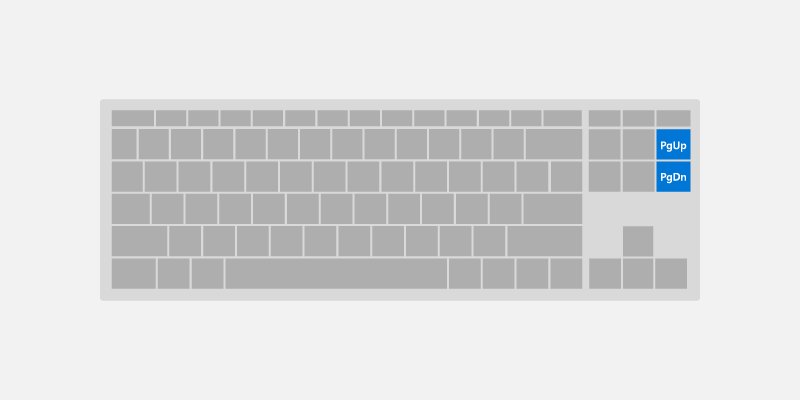
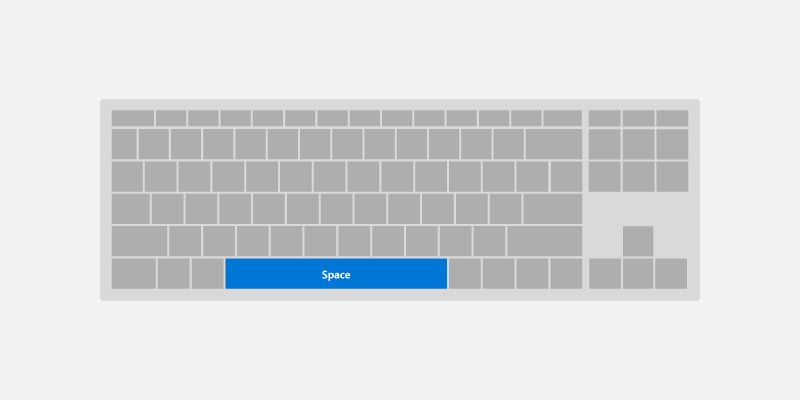
- Press Page Down (PgDn) or the Spacebar to scroll down one screen in Microsoft Edge or Chrome.
- Press Page Up (PgUp) or Shift + Spacebar to scroll back up one screen.
- Press Home to jump to the top of the page or window, and End to jump to the bottom.
- In a document, press the Up arrow or Down arrow to move one line at a time; the page scrolls as the cursor reaches the edge.
- Press Ctrl + Home or Ctrl + End to go to the start or end of a long document.
In File Explorer, Home and End scroll to the top and bottom of the active window, and Alt + Page Down or Alt + Page Up moves one screen in Windows. In the Settings app, the arrow keys scroll the page.
On a Mac keyboard without Page keys, press Fn + Down Arrow for Page Down, Fn + Up Arrow for Page Up, and Fn + Left Arrow or Fn + Right Arrow to scroll to the beginning or end of a document.
Method 2: Touchpad gestures
Windows touchpads scroll with two fingers, the same job a mouse wheel does. Some other touchpad gestures only work on precision touchpads.
- Move the pointer over the page or list you want to scroll.
- Place two fingers on the touchpad, slightly apart.
- Slide both fingers up or down to scroll vertically.
- Slide both fingers left or right to scroll sideways through wide pages and spreadsheets.
- Lift your fingers to stop scrolling.
To change the scrolling direction or turn scrolling gestures on, open Settings > Bluetooth & devices > Touchpad on Windows 11 or Settings > Devices > Touchpad on Windows 10. On a MacBook trackpad, slide two fingers up or down to scroll; the same two-finger idea applies when you enable scrolling on a Magic Mouse under Windows.
Method 3: Scroll bars using the keyboard
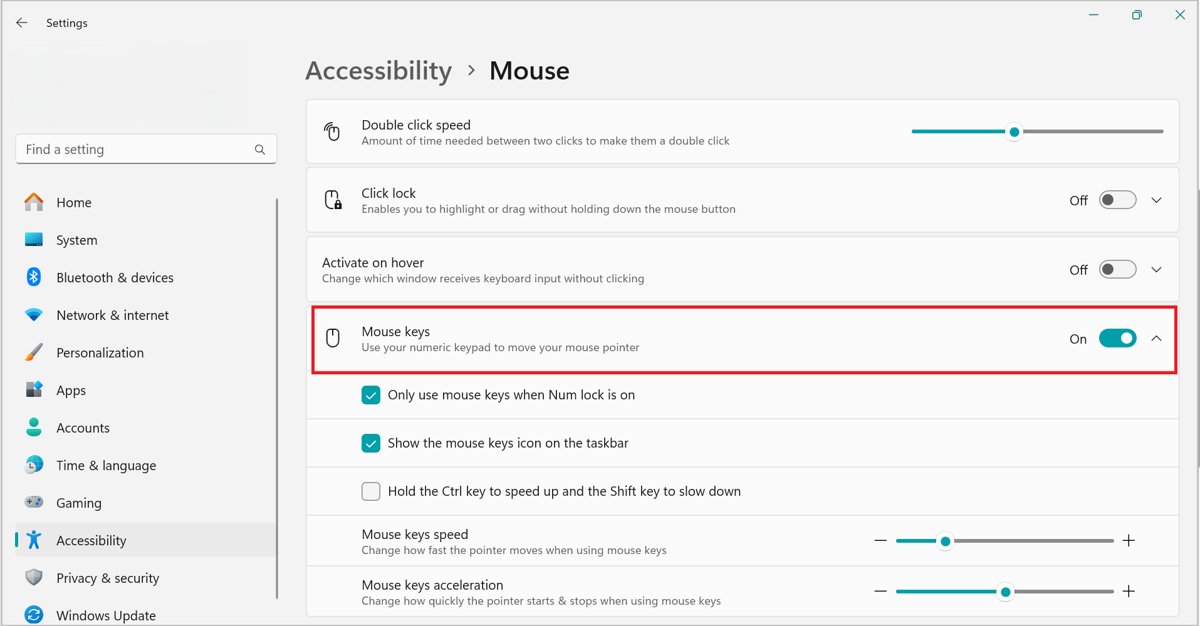
Mouse Keys turns the numeric keypad into a pointer, so you can click the arrows on a scroll bar or drag its thumb without a mouse. It needs a keyboard with a numeric keypad.
- Press Left Alt + Left Shift + Num Lock to turn on Mouse Keys, or turn on the Mouse keys toggle in Settings > Accessibility > Mouse.
- Move the pointer to the scroll bar with the keypad: 8 up, 2 down, 4 left, 6 right.
- Press the forward slash (/) to make the left button active.
- Point at the down arrow at the bottom of the scroll bar and press 5 to scroll one step; press it again to keep going.
- To drag instead, point at the scroll bar thumb, press 0 to hold it, move with 2 or 8, then press the decimal point (.) to let go.
When Always show scrollbars is off, Windows hides scroll bars automatically. Turn it on in Settings > Accessibility > Visual effects so the bar stays visible while you aim at it with Mouse Keys.
Method 4: Voice commands
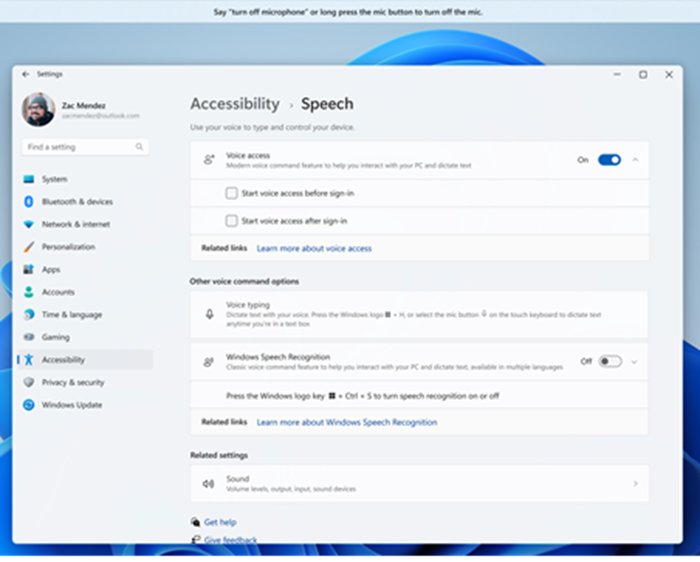
Voice access in Windows 11 version 22H2 and later lets you scroll by speaking, without an internet connection after setup. It replaced Windows Speech Recognition, which is still in older versions of Windows.
- Open Start > Settings > Accessibility > Speech.
- Turn on the Voice access switch and finish the language download and microphone setup.
- Say "Scroll down" or "Scroll up" to scroll once in that direction; "Scroll left" and "Scroll right" work too.
- Say "Start scrolling down" to scroll continuously.
- Say "Stop scrolling" or "Stop" when the content you want is on screen.
- Say "Voice access sleep" or press Alt + Shift + B to pause listening.
On Windows 10, press Windows key + Ctrl + S to turn on Windows Speech Recognition. It accepts "Scroll up", "Scroll down", distances such as "Scroll down 2 pages", and units such as "Scroll up 5".
Method 5: Gestures on touch screens
A touchscreen scrolls with the same two-finger slide as a touchpad. Windows lists it in its touch gesture table for Windows 11 and Windows 10.
- Open Settings > Bluetooth & devices > Touch and confirm the touchscreen gestures are switched on.
- Place two fingers on the screen over the content.
- Slide them up or down to scroll vertically, or left and right to scroll horizontally.
- Lift your fingers to stop at the current position.
If three- and four-finger interactions misbehave in one app after you turn on Three and four-finger touch gestures, turn that setting off; two-finger scrolling does not depend on it.
Method 6: Accessibility features
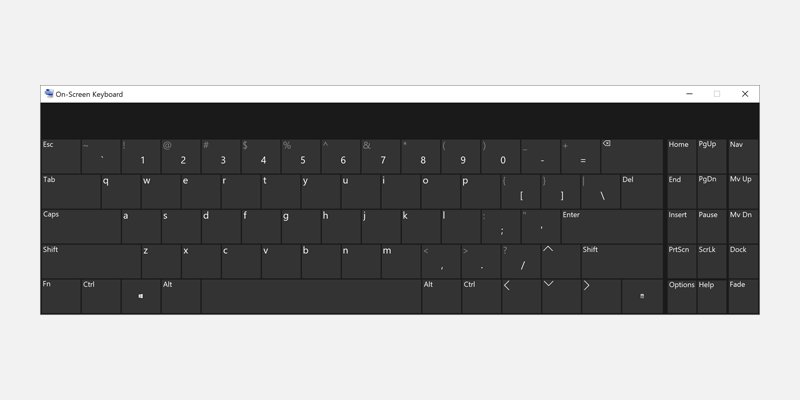
The Windows On-Screen Keyboard gives you Page Up, Page Down and Scroll Lock keys on screen. Use it when the physical keyboard has no Page keys or one of them is broken.
- Press Windows key + Ctrl + O, or open Start > Settings > Accessibility > Keyboard and turn on the On-Screen Keyboard toggle.
- Click the window you want to scroll so it has focus.
- Select PgDn or PgUp on the On-Screen Keyboard to scroll one screen at a time.
- Select Nav to switch to the simplified layout with Tab, Enter, Space and the arrow keys; select General to return to the full keyboard.
- Select Options and choose Hover over keys or Scan through keys if clicking is hard; scan mode works with a switch, a game controller or a single key.
Other Windows accessibility tools that help here are Mouse Keys (Method 3), voice access (Method 4), and Always show scrollbars under Settings > Accessibility > Visual effects. Mouse Keys also lets you right-click without a mouse with the keypad minus key and 5.
How to test keyboard scrolling in Microsoft Edge
- Open a long web page in Microsoft Edge and click once inside the page body, not the address bar.
- Press Spacebar; the page should move down one full screen.
- Press Shift + Spacebar; the page should move back to where it was.
- Press End, then Home; the page should jump to the bottom and back to the top.
- If the cursor moves instead of the page, press F7 to turn caret browsing off.
Scrolling without a mouse not working
Page Down or Spacebar does nothing
Keyboard focus is in a text box, the address bar or another window.
- Press Esc to leave the text box or address bar.
- Press Alt + Tab to bring the right window to the front.
- Press Tab until focus lands in the page content, then press Page Down again.
Two-finger scrolling on the touchpad does not work
Touchpad scrolling is off in Settings, or the touchpad driver is missing or out of date.
- Open Settings > Bluetooth & devices > Touchpad and check the touchpad is turned on and the scrolling settings are set the way you want.
- Update the touchpad driver through Windows Update.
- If that fails, reinstall the touchpad in Device Manager under Mice and other pointing devices or Human Interface Devices, then restart.
Mouse Keys moves nothing
Mouse Keys is off, or the keyboard has no numeric keypad.
- Open Start > Settings > Accessibility > Mouse and turn on the Mouse keys toggle.
- Use the keys on the numeric keypad, not the number row above the letters.
- On a laptop without a keypad, use the touchpad or the On-Screen Keyboard instead.
Voice access hears "scroll down" but nothing scrolls
The window you want is not active, or voice access is asleep.
- Say "Voice access wake up" so the bar shows it is listening.
- Say "Switch to <app name>" to make that window active.
- Say "Scroll down" again.
No pointer at all because the mouse died
The mouse, its receiver or its driver has stopped working.
- Scroll with Page Down and the arrow keys for now.
- Turn on Mouse Keys with Left Alt + Left Shift + Num Lock to get a pointer back.
- Then re-enable the mouse in Windows 10 or Windows 11 from Settings.
Scroll without a mouse FAQ
How do I scroll down with the keyboard?
Press Page Down or the Spacebar to scroll down one screen in a browser, and Page Up or Shift + Spacebar to go back up. Press End to jump to the bottom and Home to return to the top. Click inside the page first so it has focus.
How do I scroll on a laptop without a mouse?
Place two fingers on the touchpad and slide them up or down; slide left or right to scroll sideways. If the touchpad does not respond, use Page Down and Page Up on the keyboard, which work in almost every app.
Can Mouse Keys scroll a page?
Mouse Keys has no scroll key, but it moves the pointer, so you can click the arrows on a scroll bar with 5 or drag the scroll bar thumb with 0 and the decimal point. Turn it on with Left Alt + Left Shift + Num Lock.
How do I scroll with my voice in Windows 11?
Turn on voice access in Settings > Accessibility > Speech, then say "Scroll down" or "Scroll up". Say "Start scrolling down" for continuous scrolling and "Stop scrolling" to stop. Voice access needs Windows 11 version 22H2 or later.
How do I scroll on a touchscreen?
Place two fingers on the screen and slide them vertically or horizontally. If nothing happens, open Settings > Bluetooth & devices > Touch and check that touch gestures are switched on, then try again with both fingers slightly apart.
How do I scroll on a Mac without a mouse?
Slide two fingers up or down on the trackpad, or press Fn + Down Arrow for Page Down and Fn + Up Arrow for Page Up. Fn + Left Arrow and Fn + Right Arrow scroll to the beginning and end of a document.
What key scrolls to the bottom of a page?
The End key scrolls to the bottom of a web page in Microsoft Edge and Chrome and to the bottom of the active File Explorer window. In a document, Ctrl + End moves to the very end. Home and Ctrl + Home go back to the top.
Why does the Spacebar not scroll the page?
The cursor is in a text box, search field or address bar, so the Spacebar types a space instead. Press Esc or click an empty part of the page, then press the Spacebar or Page Down again.