To create a free online survey with SurveyMonkey, sign up for the Basic (free) plan, select Create survey, add up to 10 questions, then select Publish survey and share the web link it gives you.
This guide covers what the free plan includes and limits, account sign-up, templates versus a blank survey, question types, previewing, sharing, reading your results, and fixes for the problems free users hit most.
The fastest way to create a free SurveyMonkey survey
These steps take a short survey from nothing to a live link on the Basic plan. Keep the survey to 10 questions or fewer, because that is the free plan's cap.
- Go to
https://www.surveymonkey.com, select Sign up free, and create an account with your email, Google or Apple. - Confirm your account email address; SurveyMonkey will not let you send a survey until it is verified.
- Select Create survey in the header and choose Start from scratch.
- Name the survey, then in Design survey > Build add your questions, such as Multiple choice or Comment box.
- Select Preview survey and answer it once as a respondent would.
- Select Publish survey, then Copy the web link in the Web link section.
- Paste the link into an email, a chat or a social post, and watch answers arrive in Analyze results.
If a Paid features notice appears when you publish, remove the flagged items or upgrade. The free plan cannot send a survey that still contains paid features.
What You Can Do with SurveyMonkey’s Free Plan
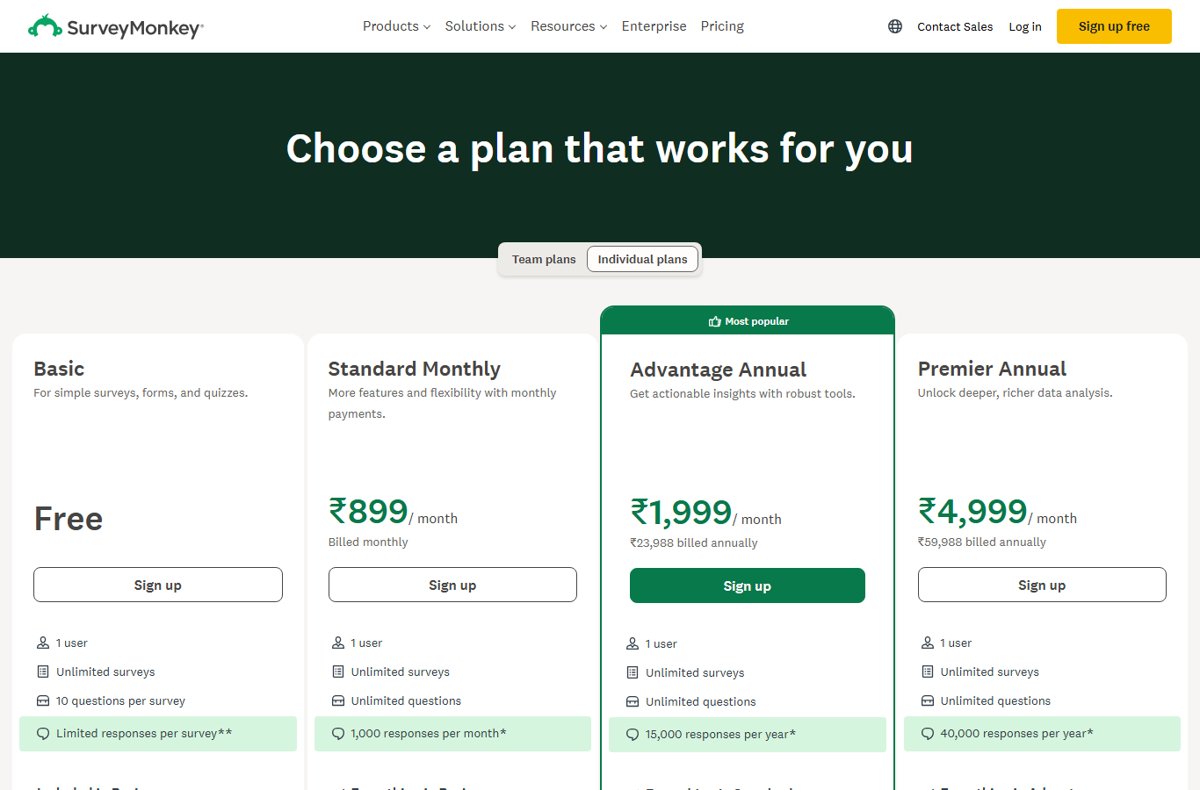
SurveyMonkey's Basic plan is free with no end date, and SurveyMonkey says you can use it as long as you want. It suits personal and casual surveys, class projects and small event polls.
The table compares Basic with the cheapest paid plan, Standard, using SurveyMonkey's own plan pages.
| Feature | Basic (free) | Standard and higher (paid) |
|---|---|---|
| Number of surveys | Unlimited | Unlimited |
| Questions per survey or form | Up to 10 | Unlimited |
| Responses you can view | A limited number per survey; the exact figure shows after you sign in | Set per plan, for example a monthly or yearly allowance |
| Users | 1 | 1 on individual plans; 3 or more on team plans |
| Question types | Common types: multiple choice, checkboxes, dropdown and text box | 25+ question types |
| Build with AI | Most AI survey-creation features | Full AI Analysis Suite |
| Ways to send | Web link, social media, embedding on a website | Adds email invitations with tracking and reminders |
| Skip logic and branching | Not included | Included from Standard up |
| Export results (CSV, XLS, PDF, PPT) | Not included | Included |
| Analysis rules (filter, compare, show) | One rule at a time | Unlimited rules and saved views |
| Integrations | Zapier | 200+ native integrations |
A response is one person's submission, whether they finished the survey or stopped part way. Partial submissions count toward your limit too.
Creating a Free SurveyMonkey Account
Sign-up is the same on a Windows PC, Mac or phone browser. The free plan is the default when you choose Sign up free, so no payment card is needed.
- Open
https://www.surveymonkey.comand select Sign up free, or go to Plans & Pricing and choose the Basic plan. - Choose Sign up with email, Sign up with Google or Sign up with Apple.
- For email sign-up, enter your email address and select Next, then create a password; both fields are case sensitive.
- Finish the form; signing up means you agree to SurveyMonkey's Terms of Use and Privacy Notice.
- Verify your account email address, which SurveyMonkey requires before you can send a survey.
- On a new browser or device, select Send code, copy the code from the New Login Alert email, and give the device a nickname.
SurveyMonkey allows two verified devices at a time. Registering a third asks you to remove one, which logs that device out.
Choosing a Template or Starting from Scratch
Every new survey starts from Home or from Create survey in the header. Pick the start point that matches what you already have.
Watch the template size on Basic. Most templates with more than 10 questions need a paid plan, and some can be used but not edited without one.
| Your situation | Choose this | Why |
|---|---|---|
| You have a common goal, such as event feedback or customer support | Pick a popular template, preview it, then Use this template | Questions are written by SurveyMonkey's survey experts to reduce bias |
| You know exactly what to ask | Start from scratch | A blank page in the full Design survey editor with every feature your plan allows |
| Your questions are already typed in a document | Paste your questions | Converts pasted text into survey questions instead of retyping them |
| You only have a goal in mind | Build with AI (start from an idea on Home) | Type your goal and get a draft survey to edit; leave sensitive information out of the prompt |
| You ran a similar survey before | Copy an existing survey | Keeps the questions, theme and settings, and leaves the old survey's responses untouched |
Starting from an idea on Home opens the lightweight editor, built for single-page surveys of 10 questions or fewer. Select Go to Classic at any time for the full editor.
Adding and Customizing Survey Questions
Questions are added in the full editor, which SurveyMonkey also calls the Classic editor. Each question has its own settings for answer choices, required answers and validation.
- Open your survey and go to Design survey > Build.
- Select a question type from the most popular list, or select View more to see every question and page element.
- Hover over a question type to see an example, then select it to add it to the page.
- Type the question text and answer choices; for a long list, select + Bulk Answers and paste all the choices at once.
- Review the Edit settings and Options tabs, for example to make an answer required.
- Select Save.
- Use Copy to duplicate a question, or hover and select Move to reorder it.
- Select Style to change the theme, then check the question count stays at 10 or below.
The Question bank tab offers pre-written questions from survey methodologists. You cannot change a question's type once it has collected responses, and a question with responses can only be hidden, not deleted.
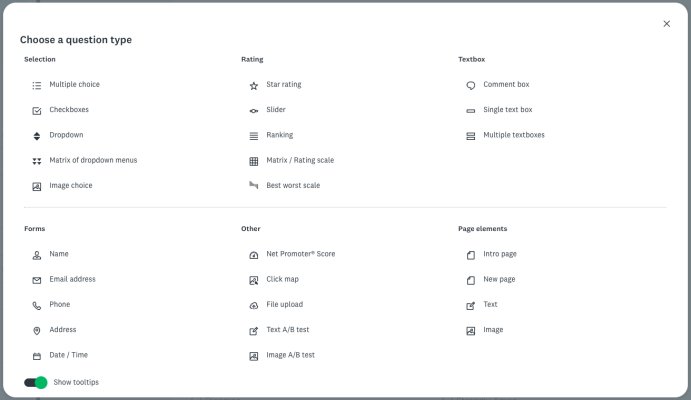
SurveyMonkey question types and when to use each
SurveyMonkey confirms that multiple choice, checkboxes, dropdown and text box questions work on the free plan. Other types in the list carry a paid-feature label in the editor when your plan does not include them.
| Question type | What respondents do | Use it for |
|---|---|---|
| Multiple choice | Pick one answer from a list | Yes/no, age bands, a single preference |
| Checkboxes | Pick several answers from a list | Features used, topics of interest |
| Dropdown | Pick one answer from a dropdown menu | Long lists such as countries or departments |
| Single textbox | Type a short text or number; can validate a date, number or email | Names, order numbers, short answers |
| Comment box | Write a longer open-ended answer | Suggestions and explanations |
| Star rating | Rate on a scale of stars, hearts, thumbs or smilies | Quick satisfaction scores |
| Matrix / rating scale | Rate several items with the same set of columns | Rating a list of services on one scale |
| Ranking | Order options by preference | Priority lists |
| Net Promoter Score | Rate how likely they are to recommend you | Customer loyalty; SurveyMonkey calculates NPS in results |
| File upload | Attach a file | Collecting documents or images |
Adding a paid type on Basic is allowed while you design. You must remove it before sending, or upgrade, so check the labels before you build the whole survey around one.
Previewing and Testing Your Survey
A preview proves the survey reads and flows the way respondents will see it. Do it before publishing, because editing a live survey can loop people who are mid-survey back to the start.
- Select Preview survey from the Design survey page.
- Switch between the desktop, tablet and phone views and check nothing is cut off.
- Answer every question, including leaving a required one blank to confirm the error message appears.
- Submit the preview and check the survey end page looks right.
- Publish, open your own web link in a private browser window, and submit one real test response.
- Open Analyze results and confirm the test response appears, then delete it so it does not skew your data.
SurveyMonkey also suggests sharing a draft with a colleague for a test run. Remember a test submission still counts toward the free plan's response limit.
Sharing Your Survey with Respondents
SurveyMonkey sends surveys through collectors. The web link collector is the one the free plan is built around, and Publish survey creates it automatically.
- Select the green Publish survey button, or Publish survey in the survey header.
- In the Web link section, select Copy to copy a link that looks like
https://www.surveymonkey.com/r/followed by letters and numbers. - Paste the link into your own email, a text, a newsletter or a document.
- To post to social media, select the Facebook, X, LinkedIn, WhatsApp or Microsoft Teams icon below the link.
- To add another link for a different audience, select Add new collector + > Share a link, then choose its options.
- When you have enough answers, select … next to the collector and choose Close collector.
A web link is public. Anyone who has it can answer, and search engines can find and list it, so do not use a web link for private or sensitive surveys.
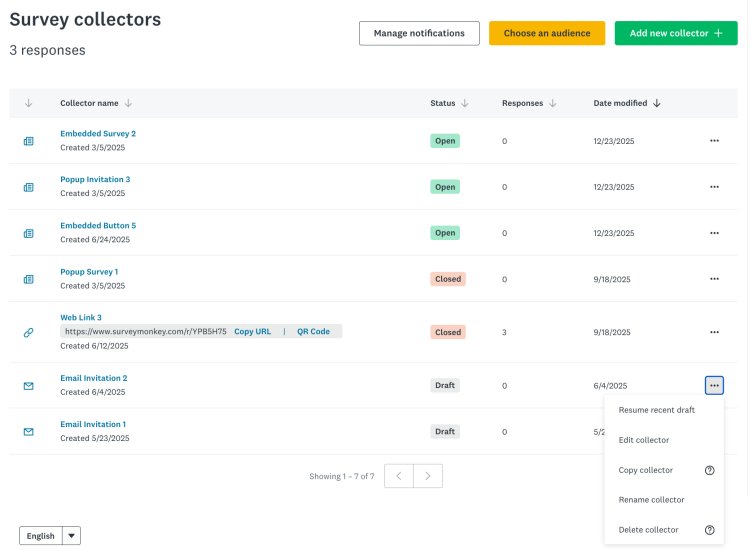
Which ways to send a survey work on the free plan
SurveyMonkey's pricing page lists three sending routes for Basic. Email invitations appear on paid plans only.
| Collector | What it does | Free plan |
|---|---|---|
| Web link | A URL you paste anywhere | Included |
| Social media | Posts the web link to Facebook, X, LinkedIn and others | Included |
| Website | Embeds the survey or a pop-up invitation on your site | Included (listed as Add to websites) |
| Email invitation | Sends invitations through SurveyMonkey and tracks who responds | Paid (listed from Standard) |
| Target audience | Buys respondents through SurveyMonkey Audience | Available from a free account, paid per response |
You can still email a survey on Basic by pasting the web link into your own email app. SurveyMonkey just cannot track who opened it.
Viewing Responses and Understanding Free Plan Limits
Results appear in the survey's Analyze results section while responses are still coming in. Charts are generated automatically for closed-ended questions.
- Open the survey from Home and select Analyze results.
- Read the Question Summaries tab for a chart and percentages per question.
- Select the Individual Responses tab to see each person's full set of answers, date, time and completeness.
- Switch to Single view and use the arrows to step through responses one at a time.
- For an open-ended question in Question Summaries, select Responses to read every comment.
- To focus on one group, select Rules > +FILTER and filter by an answer, collector, completeness or time period.
Free users can apply one rule at a time, and exports to CSV, XLS, PDF or PPT need a paid plan. Question Summaries shows only the first 10 pages of a survey.
Responses over your survey's free limit are collected but not viewable. SurveyMonkey deletes them automatically 1 year after they were collected, so upgrade before then if you need them.
Fix common free SurveyMonkey survey problems
Find the message or behaviour you see below. Each fix comes from SurveyMonkey's own help center.
SurveyMonkey asks you to upgrade before the survey can be sent
The survey contains a paid feature, such as a paid question type or skip logic.
- Select Paid features in the survey header to list what needs a paid plan.
- Remove each paid feature listed there.
- Select Publish survey again and create your collector.
You cannot send the survey at all
Your account email address is not verified yet.
- Find the email SurveyMonkey sent to your account address, checking the spam folder too.
- Follow its instructions to verify the address.
- Return to the survey and select Publish survey.
You cannot see all your responses
The survey passed the Basic plan's per-survey response limit.
- Go to Home to see which surveys have responses over the limit.
- Upgrade to a paid plan to view them; the upgrade keeps the same account and data.
- Act within 1 year of collection, after which over-limit responses are deleted.
The survey link opens the SurveyMonkey homepage
The link is wrong; links are character and case sensitive.
- Open Publish survey and select the collector's nickname to see the correct link.
- Copy the link again rather than retyping it.
- Resend it and ask people to paste it into the address bar.
Respondents see a message that they already took the survey
The collector allows one response per browser, or someone on a shared computer already answered.
- Select … next to the collector and choose Edit collector.
- Turn on Multiple Responses if people share a computer.
- Save; the link stays the same, so you do not need to resend it.
Respondents see a survey closed message
The collector is closed, or a cutoff date or response limit you set has been reached.
- Select … next to the collector and choose Open collector if it was closed.
- Edit the collector and turn off or change Cutoff Date and Time or the response limit.
- Ask respondents to use the same link again.
Frequently Asked Questions
How do I create a free online survey with SurveyMonkey?
Sign up for SurveyMonkey's Basic plan, select Create survey, and start from scratch, a template or Build with AI. Add up to 10 questions in Design survey, preview it, then select Publish survey and share the web link.
Is SurveyMonkey really free to use?
Yes. The Basic plan is free with no time limit, and SurveyMonkey says you can use it as long as you want. It includes unlimited surveys, up to 10 questions per survey and a limited number of viewable responses per survey.
How many questions can I add to a free SurveyMonkey survey?
You can ask up to 10 questions per survey or form on the Basic plan. Paid plans remove the cap. Most templates with more than 10 questions also need a paid plan, and some can be used but not edited on Basic.
Can I see all responses on the free SurveyMonkey plan?
Not always. Basic lets you view a set number of responses per survey, shown after you sign in. Responses over that limit are hidden and deleted 1 year after collection unless you upgrade to a paid plan before then.
Can I share a free SurveyMonkey survey by email or link?
Yes, by link. Basic includes the web link, social media sharing and website embedding. You can paste the link into your own email, but SurveyMonkey's email invitation collector, with tracking and reminders, needs a paid plan.
Can I export results from a free SurveyMonkey survey?
No. Exports to CSV, XLS, PDF and PPT are paid features. On the free plan you view results inside Analyze results, using Question Summaries charts, Individual Responses and one filter, compare or show rule at a time.
How can I get more people to complete my SurveyMonkey survey?
Keep it short and clear, which the 10-question free cap already encourages. Check for leading questions, preview it on a phone, and share the link where your audience already is, such as a group chat or social post.
Does a partial answer count as a response?
Yes. SurveyMonkey counts one respondent's submission as a response whether they completed the survey or only part of it. Incomplete and deleted responses both count toward your plan's limit.
Can I use AI to make a free survey in SurveyMonkey?
Yes. Most AI survey-creation features, including Build with AI, work on the Basic plan. Type your survey goal, review the draft and edit it. The AI Analysis Suite for results includes paid features.
How do I make a free survey without SurveyMonkey's limits?
If 10 questions or the response cap is too tight, Microsoft Forms is a free alternative with a Microsoft account. The Bottom Line below links a step-by-step Microsoft Forms survey guide.
Bottom Line
Use SurveyMonkey's Basic plan for short surveys of 10 questions or fewer that you share by link and read on screen. It is free with no time limit and includes templates, AI drafting and web-link sharing. If you need logic, exports, email tracking or every response from a large audience, upgrade, or build it in Microsoft Forms instead.