When iCloud for Windows says "Verification failed" or "Action cannot be completed" on Windows 11, update the app from the Microsoft Store, keep your trusted iPhone, iPad or Mac close to the PC, turn off any VPN, and sign in again.
This guide covers each requirement Apple sets for signing in on a PC, how to get a verification code another way, how to repair or reinstall the app, and what to do when nothing works.
Fastest fix for iCloud verification failed on Windows 11
Most failed sign-ins come from an outdated app or a missing requirement on the Apple Account side. Run these steps in order before trying anything else.
- Open Microsoft Store, select Check for Updates, and install any update for iCloud.
- Turn off any VPN on the PC for the duration of the sign-in.
- Unlock your trusted iPhone, iPad or Mac and keep it within Bluetooth range of the PC, or connect both to the same Wi-Fi router.
- Open iCloud for Windows and sign in with the same Apple Account you use on that device.
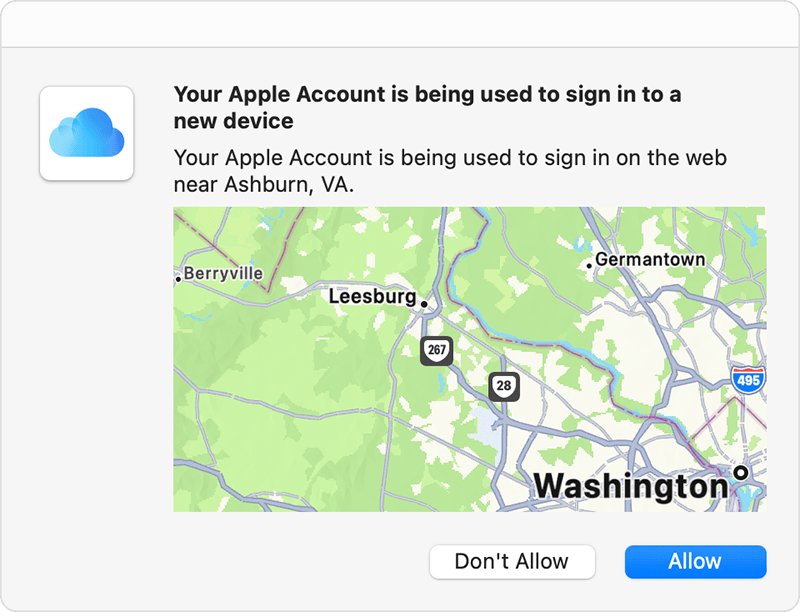
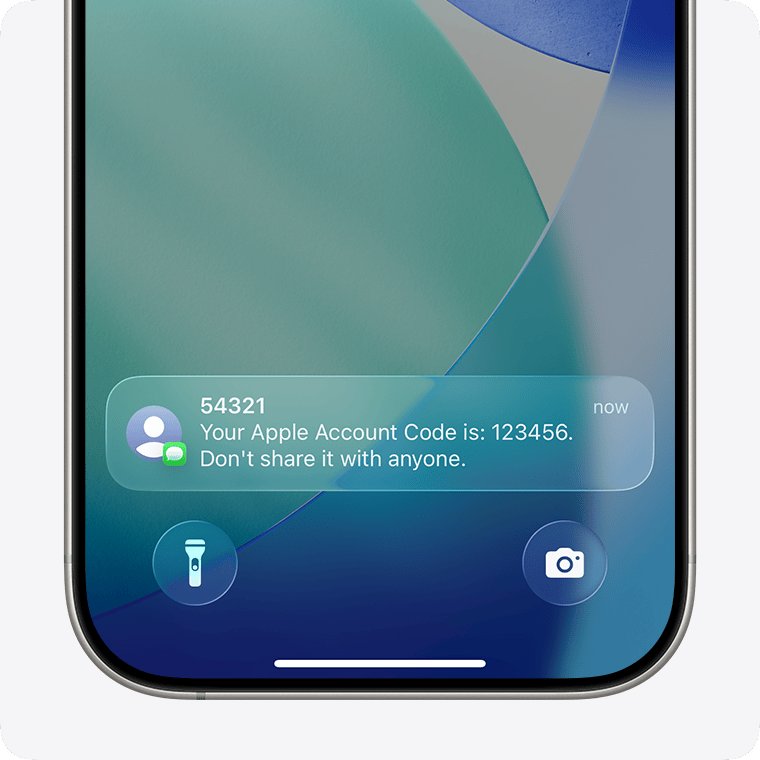
- When the sign-in notification appears on the trusted device, choose Allow and type the six-digit code into iCloud for Windows.
- Choose Sync or Not Now for each feature, then select Finish Setup.
Which iCloud for Windows sign-in fix matches your account?
Apple restricts iCloud for Windows sign-in based on the security features on your Apple Account. Match your setup to the row below.
| Your Apple Account setup | What iCloud for Windows needs | What to do |
|---|---|---|
| Standard two-factor authentication | A code from a trusted device or trusted phone number | Approve the code on your device, or request a text or call |
| Advanced Data Protection turned on | iCloud for Windows 14.1 or later; with 14.2 or later, a trusted device nearby and no VPN | Update the app, bring the device close or onto the same Wi-Fi, and turn off VPN |
| Security keys added to the account | iCloud for Windows 15 or later | Update the app, then use your security key when prompted |
| Managed Apple Account from work or school | Not supported in iCloud for Windows | Use a personal Apple Account, or use iCloud on your Apple devices |
| Apple Account never set up on an Apple device | iCloud set up on an iPhone, iPad, iPod touch or Mac first | Set up iCloud on an Apple device, then sign in on the PC |
iCloud for Windows 11 requirements before you sign in
| Requirement | Detail |
|---|---|
| Windows version | Windows 11 for the latest iCloud for Windows; installing from the Store needs at least the Windows 10 May 2019 Update |
| App version | iCloud for Windows 15 is the current requirement Apple lists for PCs |
| Microsoft account | Needed to download and update the app from the Microsoft Store |
| Apple Account | Your Apple Account email or phone number and password |
| Apple device | iCloud already set up on an iPhone, iPad, iPod touch or Mac |
| Outlook | Outlook 2021 or later, only if you sync iCloud Mail, Calendars and Contacts |
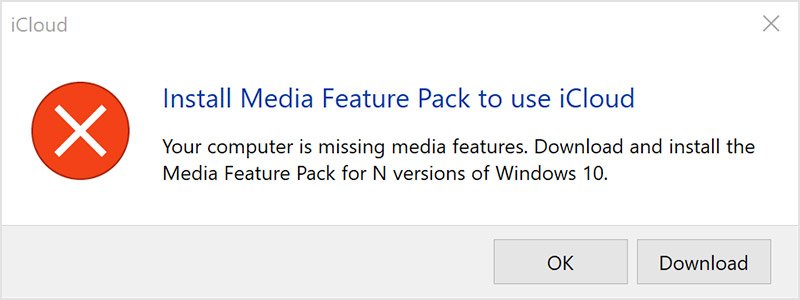
| Media features | Windows Media Player or the Media Feature Pack must be present for the app to install |
If you have not installed it yet, get iCloud for Windows from the Microsoft Store rather than an older standalone installer.
Update iCloud for Windows from the Microsoft Store
Older versions cannot sign in to accounts with Advanced Data Protection or security keys, and the error does not always say so.
- Select Start, type Microsoft Store, and open it.
- Select Check for Updates.
- Wait for the iCloud update to download and install.
- Restart the PC so the old iCloud processes close.
- Open iCloud for Windows and sign in again.
Microsoft is moving Store apps to automatic updates, but you can still update Store apps manually to be sure you have the latest build before you retry. If the Store itself will not download updates, reset the Microsoft Store cache first.
Fix iCloud sign-in with Advanced Data Protection on Windows 11
With Advanced Data Protection on, iCloud for Windows 14.2 and later only lets you sign in when a trusted Apple device can be reached locally. A VPN on the PC blocks that check.
- Update iCloud for Windows to the latest version from the Microsoft Store.
- Turn off the VPN on the PC, and on the trusted device if it uses one.
- Turn on Bluetooth on both the PC and the trusted iPhone, iPad or Mac, and keep them close together.
- If Bluetooth is not available, connect the PC and the trusted device to the same Wi-Fi router.
- Unlock the trusted device and keep it awake.
- Sign in to iCloud for Windows and approve the request on the trusted device.
- Turn the VPN back on after setup finishes.
Get an Apple verification code by text or phone call
If the code never appears on your trusted device, Apple can send it to your trusted phone number instead.
- Start signing in to iCloud for Windows until the verification code screen appears.
- Select Didn't Get a Code? or Can't get to your devices?.
- Choose to have the code sent to your trusted phone number by text or phone call.
- If you filter unknown senders in Messages on your iPhone, check that list for Apple's code.
- Type the six-digit code into iCloud for Windows to finish signing in.
If you cannot reach any trusted device or trusted number, Apple recommends waiting until you can, because account recovery can take several days or longer.
Repair or reset the iCloud app in Windows 11
A damaged app install can fail verification even with the right password and code. Windows can repair broken apps like this in place.
- Select Start > Settings > Apps > Installed apps.
- Find iCloud and select the More icon next to it.
- Select Advanced options.
- Select Repair and wait for it to finish, then try signing in.
- If sign-in still fails, return to the same page and select Reset.
Sign out and reinstall iCloud for Windows
Reinstalling clears a broken setup completely. Signing out removes iCloud data from the PC, but it stays on your Apple devices and iCloud.com.
- Open iCloud for Windows, click Account Details, click Sign Out, and follow the onscreen instructions.
- Select Start > Settings > Apps > Installed apps.
- Locate iCloud, click the More button, choose Uninstall, and follow the onscreen instructions.
- If you set up iCloud Mail in Outlook, locate iCloud Outlook, choose Modify, then Remove.
- Restart the PC.
- Install iCloud for Windows again from the Microsoft Store and sign in.
How to check iCloud for Windows is signed in
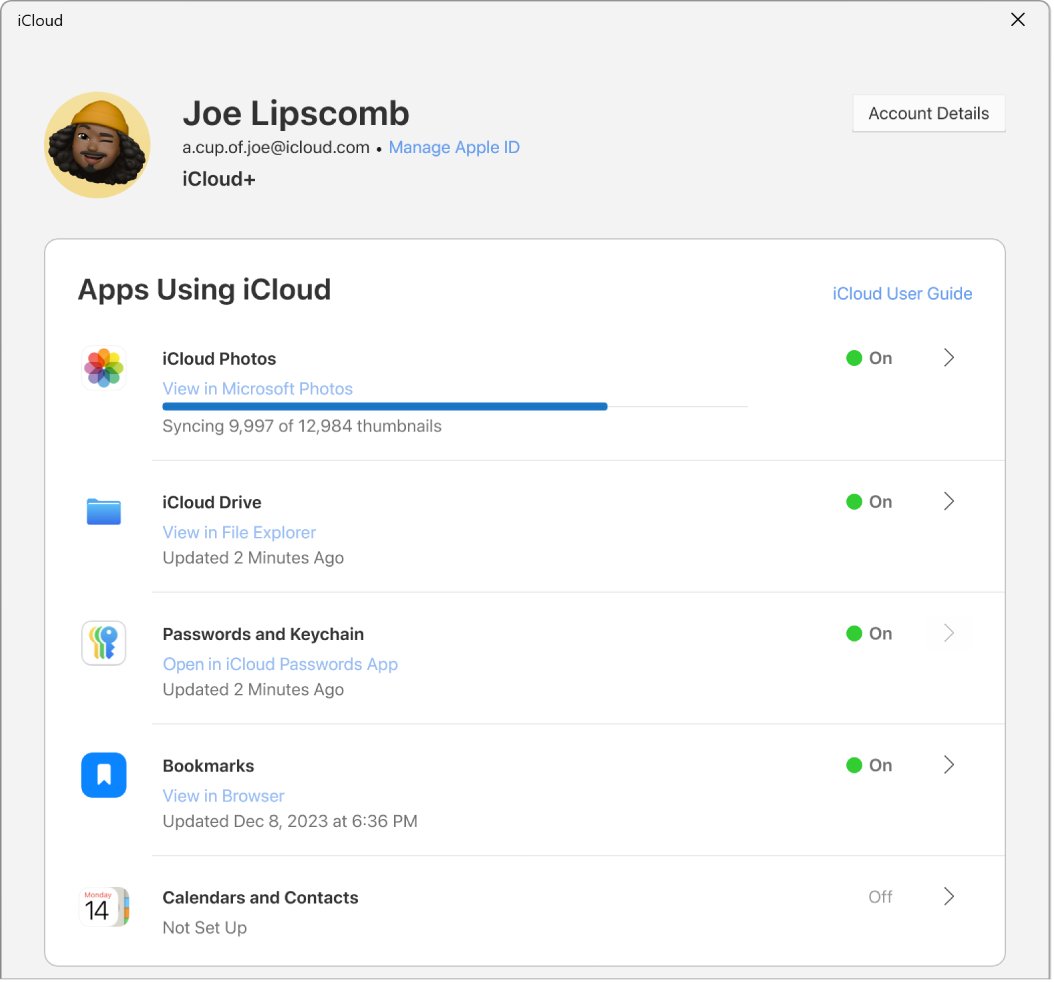
- Open iCloud for Windows and confirm it shows your Apple Account and the features you chose to sync, instead of the sign-in screen.
- Open File Explorer and confirm iCloud Drive appears if you turned it on.
- If you turned on Photos, confirm recent pictures from your iPhone start to download to the PC.
Fix iCloud for Windows verification and sign-in errors
iCloud verification failed on Windows 11 with Advanced Data Protection on
No trusted device is in Bluetooth range or on the same Wi-Fi, a VPN is active, or the app is older than 14.1.
- Update iCloud for Windows from the Microsoft Store.
- Turn off the VPN on the PC.
- Bring an unlocked trusted device within Bluetooth range or onto the same Wi-Fi router.
- Sign in again and approve the request on the device.
iCloud failed to verify identity on Windows
The verification code was not approved, was mistyped, or never reached a trusted device.
- Select Didn't Get a Code? on the code screen.
- Have the code sent to your trusted phone number.
- Type the code into iCloud for Windows as soon as it arrives.
iCloud authentication error on Windows 11 with a security key
Security keys require iCloud for Windows 15 or later.
- Update iCloud for Windows from the Microsoft Store.
- Restart the PC and sign in again.
- Connect or tap your security key when iCloud for Windows asks for it.
"Can't connect to server" in iCloud for Windows
The PC is offline, or Apple has an outage or maintenance.
- Check that the PC can open other websites.
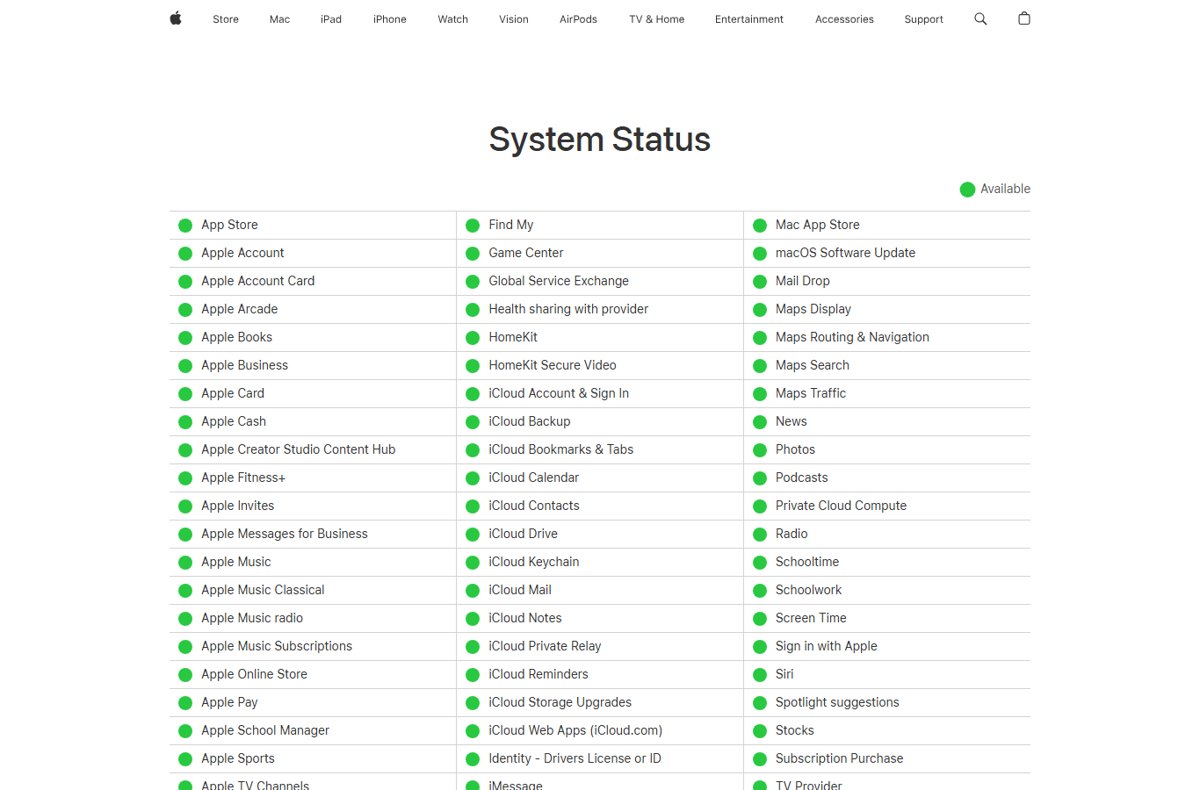
- Open Apple's System Status page at apple.com/support/systemstatus and look for issues with iCloud Account & Sign In.
- If an outage is listed, wait and try again later.
iCloud not working on Windows 11 after entering the right password
The account is a Managed Apple Account, or iCloud was never set up on an Apple device.
- Check whether your Apple Account was issued by a school or employer; iCloud for Windows does not support Managed Apple Accounts.
- Set up iCloud on an iPhone, iPad, iPod touch or Mac with the same Apple Account.
- Sign in to iCloud for Windows again.
Forgot the Apple Account password during iCloud sign-in
A wrong password stops sign-in before any verification code is sent.
- Change the password on a trusted iPhone, iPad, Apple Watch, Apple Vision Pro or Mac where you are already signed in.
- If you have no trusted device, select Forgot password? and follow the onscreen recovery steps.
- Sign in to iCloud for Windows with the new password.
Does iCloud work on Windows 11?
Yes. Apple's current iCloud for Windows is built for Windows 11 and installs from the Microsoft Store.
| iCloud feature | What it does on Windows 11 |
|---|---|
| iCloud Photos, Shared Photo Library and Shared Albums | Downloads and uploads photos and videos and keeps them in sync |
| iCloud Drive | Shows your iCloud files and folders in File Explorer and lets you share them by link |
| Calendars and Contacts | Syncs with Microsoft Outlook |
| iCloud Passwords | Autofills passwords in a web browser and manages them in the iCloud Passwords app |
| iCloud Bookmarks | Shows your iCloud web bookmarks in a browser on the PC |
You can also reach iCloud in Edge, Chrome or Firefox at iCloud.com without the app. With Advanced Data Protection on, web access is off until you approve it from a trusted device.
iCloud on Windows 11 FAQ
Is iCloud compatible with Windows 11?
Yes. Apple lists Windows 11 and iCloud for Windows 15 as the PC requirements for iCloud. The app installs from the Microsoft Store and needs a Microsoft account for the download and an Apple Account to sign in.
How do I use iCloud on Windows 11?
Install iCloud for Windows from the Microsoft Store, open it, and sign in with the Apple Account you use on your iPhone, iPad or Mac. Verify with the code on your trusted device, then choose Sync for each feature you want and select Finish Setup.
How do I update iCloud for Windows 11?
Open the Microsoft Store and select Check for Updates. Any available iCloud update installs from there. Apple points Windows users to the Microsoft Store for both the download and the latest version.
How do I verify my iCloud account on a PC?
Sign in to iCloud for Windows, then choose Allow on the sign-in notification that appears on your trusted Apple device and type the six-digit code it shows. If no notification arrives, select Didn't Get a Code? to receive the code by text or phone call.
Where is iCloud on Windows 11?
After installation, iCloud for Windows is in the Start menu as iCloud. Once you turn on iCloud Drive, your iCloud files also appear in File Explorer. iCloud Passwords installs as its own app for managing saved passwords.
How do I access iCloud from Windows 11 without the app?
Open iCloud.com in Microsoft Edge 130, Google Chrome 130 or Firefox 128 or later and sign in with your Apple Account. If Advanced Data Protection is on, approve web access from a trusted device first.
Does Windows 11 use iCloud automatically?
No. Windows 11 does not include iCloud. You install iCloud for Windows from the Microsoft Store and sign in yourself, and only the features you choose to sync during setup are turned on.
Why does iCloud for Windows ask me to turn off my VPN?
With Advanced Data Protection on, iCloud for Windows 14.2 and later checks that your trusted Apple device is nearby over Bluetooth or the same Wi-Fi router. Apple says a VPN must be turned off temporarily for that sign-in to succeed.
Bottom line on iCloud verification failed in Windows 11
Update iCloud for Windows from the Microsoft Store, turn off VPN, and sign in with an unlocked trusted device beside the PC before you repair or reinstall anything. Apple's own sign-in rules for Advanced Data Protection and security keys explain most verification failures, and they are met in a few minutes, while a reinstall only helps when the app itself is damaged.