To locate a lost iPhone, open the Find My app on another Apple device signed in to your Apple Account, or sign in at icloud.com/find in any web browser, then select the iPhone to see it on a map.
This guide covers turning Find My on before you need it, both ways to locate a lost iPhone, playing a sound, Lost Mode, remote erase, and what to do when Find My shows the iPhone as offline.
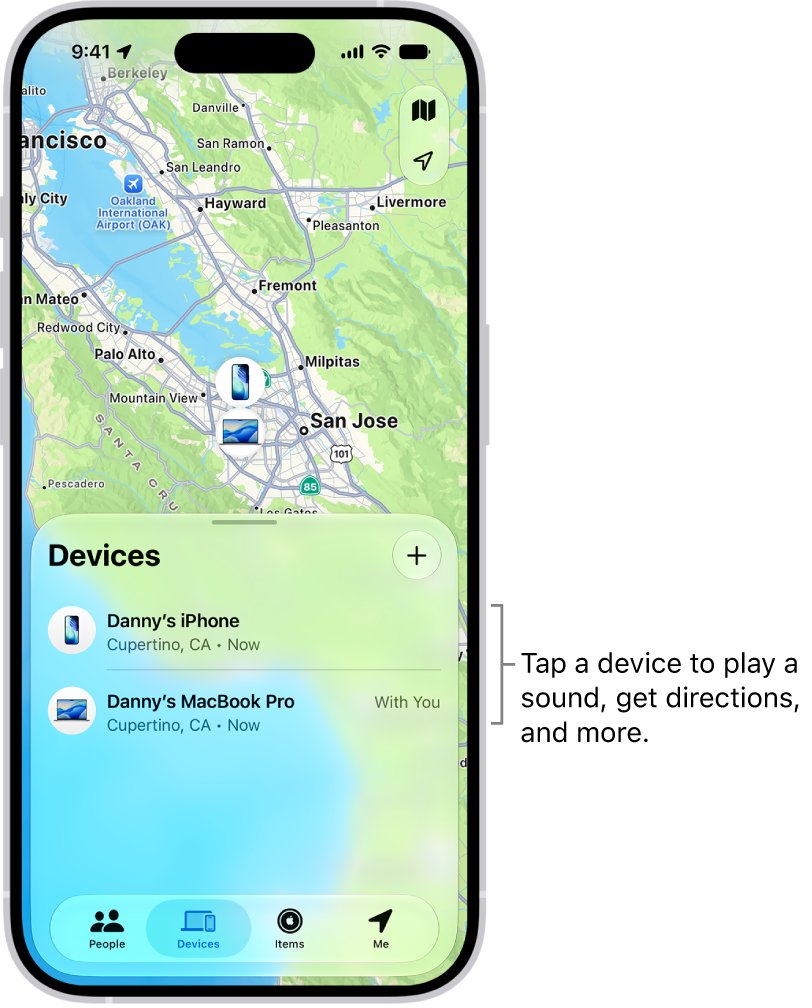
How to find my iPhone from another device
Find My only works for an iPhone that had Find My iPhone turned on before it went missing.
- Open the Find My app on an iPad, Mac or another iPhone signed in to the same Apple Account, or go to icloud.com/find in a browser.
- Choose Devices (on iCloud.com, the device list under All Devices).
- Select your lost iPhone to show its current or last known location on the map.
- Select Directions to open the location in Maps, or Play if you think the iPhone is nearby.
- If you cannot get it back right away, turn on Lost Mode to lock it and show your contact details.
What is Find My iPhone?
Find My iPhone is the setting inside Apple's Find My app that ties your iPhone to your Apple Account so you can locate, lock or erase it remotely.
| Find My feature | What it does on a lost iPhone |
|---|---|
| Locate on a map | Shows the iPhone's current location, or its last known location when it cannot report one |
| Play Sound | Plays a sound that rises in volume for about two minutes, when the iPhone is online |
| Directions | Opens the iPhone's location in Maps for turn-by-turn directions |
| Lost Mode | Locks the iPhone with its passcode, suspends Apple Pay cards and passes, and shows a message on the Lock Screen |
| Erase This Device | Wipes the iPhone remotely when you believe it is gone for good |
| Find My network | Lets other Apple devices report the location of your iPhone when it has no Wi-Fi or cellular connection |
| Send Last Location | Sends the iPhone's location to Apple automatically when the battery becomes critically low |
| Activation Lock | Stops anyone else from activating and using the iPhone, even after it is erased |
The same Find My app also lets you share your location with friends and family, and tracks AirPods, Apple Watch and AirTags.
How does Find My iPhone work?
Find My iPhone uses Location Services to work out where the iPhone is, then reports that location to your Apple Account.
Location Services combines GPS and Bluetooth, where available, with crowd-sourced Wi-Fi hotspots and cellular towers to find the approximate position.
| iPhone state | What Find My can show | How long |
|---|---|---|
| Powered on and connected to Wi-Fi or cellular | Current location, updated on the map | While it stays connected |
| Offline, with Find My network on | Approximate location reported by nearby Apple devices over Bluetooth | Last known location stays in the Find My app for up to seven days |
| Turned off (supported iPhone, Find My network on) | Location through the Find My network | Up to 24 hours after it is turned off |
| Power reserve mode (supported iPhone) | Location through the Find My network | Up to 5 hours |
| Battery critically low, Send Last Location on | The last location the iPhone sent to Apple | Shown on iCloud.com for up to 24 hours |
| No location sent for more than seven days | "No location found" | Until the iPhone reconnects |
Apple describes the Find My network as a crowdsourced network of over a billion Apple devices, and the location reports are anonymous and encrypted.
Steps to enable Find My on iPhone
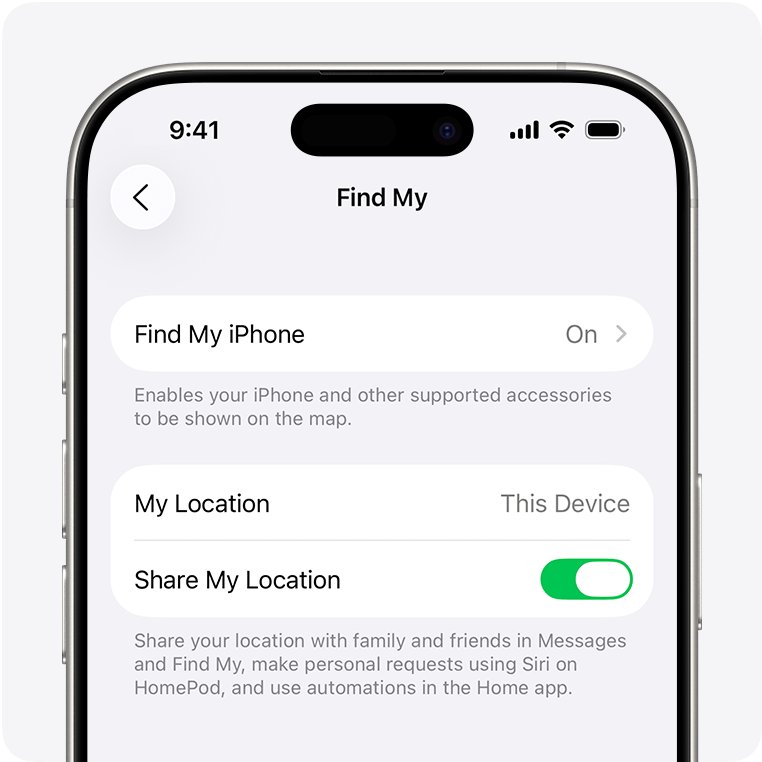
Set this up now, while you still have the iPhone. A device that never had Find My turned on does not appear in the Find My app or on icloud.com/find, and tracking an iPhone with Find My off is far harder.
- Open the Settings app on your iPhone.
- Tap your name, then tap Find My. Sign in with your Apple Account if you are asked.
- Tap Find My iPhone, then turn on Find My iPhone.
- Turn on Find My network so the iPhone can be found while it is offline or switched off.
- Turn on Send Last Location so the iPhone sends its location to Apple when the battery is critically low.
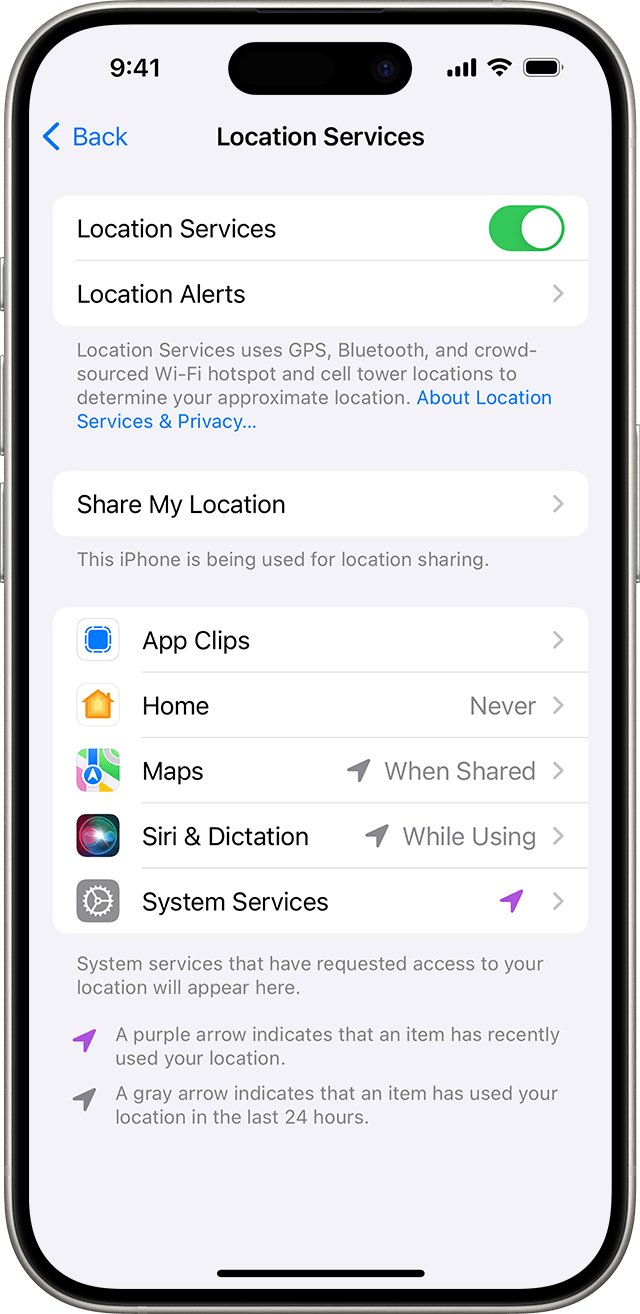
- Go to Settings > Privacy & Security > Location Services, make sure Location Services is on, and check that Find My is allowed to use your location.
To see how far away a device is from you, also turn on Precise Location for Find My under Location Services.
Method 1: Use another Apple device
Any iPhone, iPad or Mac signed in to the same Apple Account can locate your iPhone in the Find My app, and it shows offline locations that iCloud.com cannot.
- Open the Find My app on the other Apple device.
- Tap Devices, then tap the name of your lost iPhone.
- Read the map: if the iPhone can be located, it appears with its current position.
- If you see No location found, turn on Notify When Found below Notifications to get an alert when it reports in.
- Tap Directions to open the route in Maps.
- Allow notifications for the Find My app so the found alert reaches you.
Method 2: Locate using a web browser (iCloud)
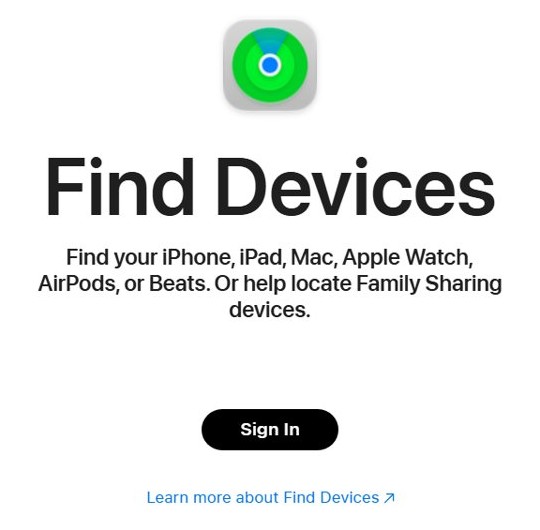
Use Find Devices on iCloud.com when you have no other Apple device, for example on a Windows PC, a Chromebook or a borrowed Android phone.
- Go to icloud.com/find in any web browser.
- Sign in with your Apple Account email address or phone number and password.
- If you are asked for a verification code, select the Find Devices button at the bottom of the window instead, so you can sign in without the lost iPhone.
- Select your iPhone in the list under All Devices.
- Check the map. If Offline appears below the iPhone's name, the last known location shows for up to 24 hours.
- Select Notify me when found to get an email when the iPhone comes back online.
AirTags and other Find My network accessories do not appear on iCloud.com. Locate those in the Find My app on an iPhone, iPad, Mac or Apple Watch.
Method 3: Find a lost iPhone with a family member's device
If you are in a Family Sharing group and share your location with the family, your iPhone appears in Find My on your family members' devices.
- Open Find My on the family member's iPhone or iPad.
- Tap the Devices tab.
- Scroll down to find your iPhone underneath their own devices.
- Tap your iPhone to see it on the map, then tap Play or Directions.
- Tap the More button and scroll to Lost [Device] to turn on Lost Mode if needed.
A friend outside your Family Sharing group cannot add your iPhone to their Find My app. Sign in to icloud.com/find on their device instead.
How to play a sound on a lost iPhone with Find My
- Open Find My on another device, or sign in at icloud.com/find.
- Tap Devices, then tap your iPhone.
- Tap Play.
- Listen for the sound: it starts after a short delay, gets louder, and plays for about two minutes.
- Press the side (power) button or a volume button on the iPhone to stop the sound once you find it.
An offline iPhone shows Sound Pending, and the sound plays the next time it connects to Wi-Fi or cellular. Apple also sends a confirmation email to your Apple Account address.
How to put a lost iPhone in Lost Mode
Turn on Lost Mode while you are still searching. It does not erase anything, and you can switch it off with your passcode.
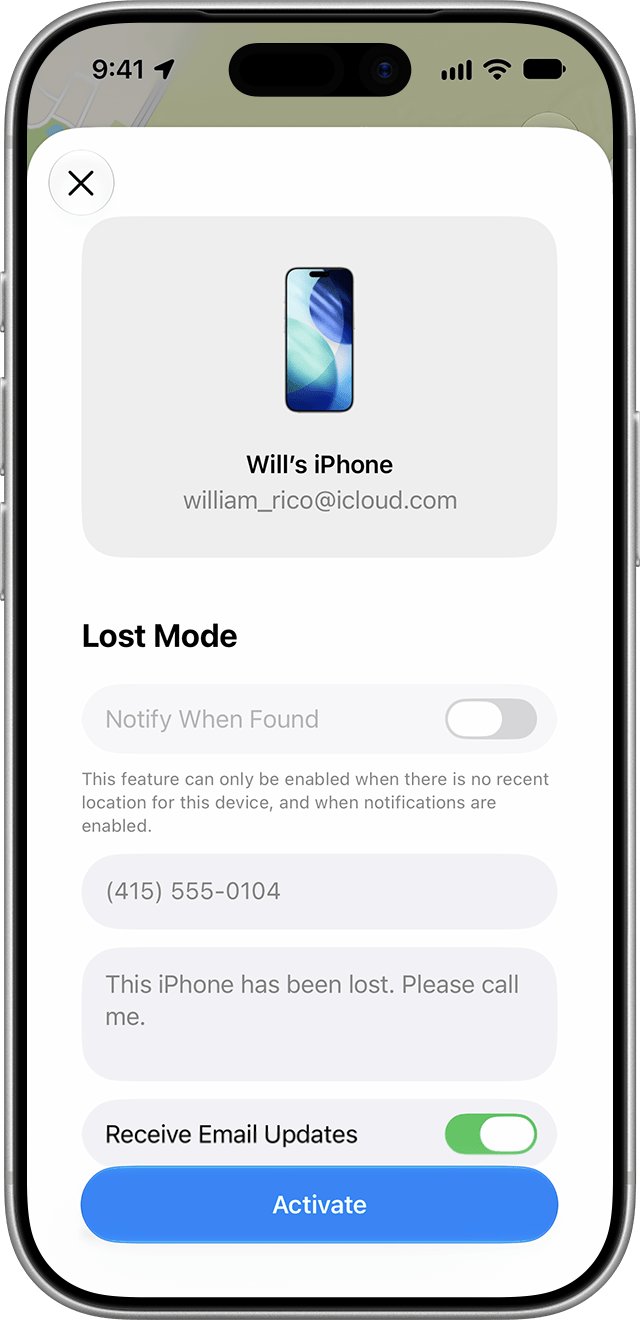
- Open Find My on another Apple device, tap Devices, then tap your lost iPhone.
- Tap the More button, then scroll down to Lost [Device] and tap Lost Mode.
- Create a passcode if your iPhone did not have one.
- Enter a phone number where you can be reached and a short message for whoever finds it.
- Tap Activate.
- On icloud.com/find, select the iPhone and choose Mark As Lost, then follow the same prompts.
Apple never contacts you to say a lost iPhone has been found. Treat any message asking for your passcode, password or verification code as a scam.
What does Lost Mode do on iPhone?
| Lost Mode effect | Detail |
|---|---|
| Locks the iPhone | The iPhone needs its passcode; with Stolen Device Protection on, Face ID or Touch ID is required to turn off Lost Mode |
| Shows your message | Your phone number and message appear on the Lock Screen once the iPhone is online |
| Silences alerts | No alerts or sounds for messages, notifications or alarms, though phone and FaceTime calls still come in |
| Suspends payments | Apple Pay cards and passes are suspended until you turn off Lost Mode and sign back in |
| Tracks the iPhone | The map shows its current location and any changes |
| Emails you | A confirmation email goes to your Apple Account email address |
How to erase a lost iPhone remotely
Erase only after every other step has failed, because an erase cannot be undone. An iPhone with iOS 15 or later can still be found in Find My after the erase.
- In the Find My app, choose Devices and select your lost iPhone.
- Tap the More button.
- Scroll down and choose Erase This Device, then complete the onscreen steps.
- On the web instead, sign in to icloud.com/find, choose the iPhone, select Erase [Device], then select Erase to confirm.
- Leave the iPhone in Find My after the erase, so Activation Lock stays on.
Erasing from the Find My app needs two-factor authentication on your Apple Account. Without it, use iCloud.com. An offline iPhone starts erasing the next time it goes online.
What to do if your iPhone is lost or stolen for good
- Report the iPhone to local law enforcement and give them its serial number, which you can look up without the device.
- Contact your wireless carrier to report it, disable your line, and file a claim if your plan covers loss.
- File an AppleCare+ with Theft and Loss claim if your iPhone is covered.
- Keep the iPhone in Find My and on your Apple Account until any claim is fully approved.
- Review your Apple Account under Settings > your name > Sign-In & Security on another trusted device, and change your password if anything looks wrong.
Removing the iPhone from Find My is one of the mistakes to avoid after losing an iPhone: it removes Activation Lock, which makes it easier for a thief to unlock and resell it.
Find My Lost Mode pending vs activated
- Open Find My, tap Devices, then tap the lost iPhone.
- Look below Lost [Device].
- Activated means the iPhone received Lost Mode and is locked with your message on screen.
- Pending means the iPhone was offline when you marked it as lost; Lost Mode applies when it reconnects.
- Check your Apple Account email for the Lost Mode confirmation message.
How to turn off Lost Mode on iPhone
- Enter your passcode on the found iPhone, which turns off Lost Mode directly.
- Or open Find My on another device, tap Devices, then tap the iPhone.
- Tap Pending or Activated below Lost [Device].
- Tap Turn Off Mark As Lost, then tap Turn Off.
- On icloud.com/find, select the iPhone, select Lost, then select Stop Lost Mode twice.
- Sign back in to your Apple Account on the iPhone to use suspended Apple Pay cards again.
Find My iPhone not working or showing offline
Find My not showing location
More than seven days have passed since the iPhone last sent a location, or Location Services cannot report one ("Not sharing location • Online").
- Turn on Notify When Found for the iPhone in the Find My app.
- Mark the iPhone as lost so it locks as soon as it reports in.
- If you have the iPhone, check Settings > Privacy & Security > Location Services and confirm Find My is allowed.
Device appears offline
The iPhone is powered off, its battery has run out, it is not on a known Wi-Fi or data network, or Send Last Location data is more than 24 hours old.
- Open the Find My app rather than iCloud.com, since it keeps the last known location for up to seven days.
- Send commands anyway: a sound, Lost Mode or an erase is delivered when the iPhone turns on and connects.
- Turn on Notify When Found to get an alert when it comes online.
Cannot log into iCloud
Two-factor authentication sends the verification code to the lost iPhone.
- Go to icloud.com/find, not icloud.com.
- Enter your Apple Account email address or phone number and password.
- When asked for a code, select the Find Devices button at the bottom of the window to continue without it.
iPhone not listed in Find My
Find My was not set up on the iPhone, or it is signed in to a different Apple Account.
- On the iPhone, open Settings and check that you are signed in; tap Sign in to your iPhone if it appears.
- Use the same Apple Account on every device you want to see in Find My.
- Check the iPhone has a Wi-Fi or cellular connection, then turn Airplane Mode on and off, or restart it.
- Go to Settings > General > Date & Time and turn on Set Automatically.
Find My itself uses very little data on the lost iPhone; the cellular data use of Find My is small enough to leave on.
Find My iPhone FAQ
Can I track someone else's iPhone?
Only if that person shares their location with you in Find My, or is in your Family Sharing group and shares location with the family. You cannot add a friend's iPhone to your own Find My list; they locate a lost device by signing in to icloud.com/find with their Apple Account.
Can police track my iPhone?
Apple's advice for a lost or stolen iPhone is to report it to local law enforcement, who may ask for its serial number. You can find the serial number without the device. Find My shows the location to you, so share what the map shows when you make the report.
Does Find My work without internet?
Yes, if Find My network is turned on. Nearby Apple devices detect the offline iPhone over Bluetooth and report its approximate location, and a supported iPhone stays findable for up to 24 hours after it is turned off, or up to 5 hours in power reserve mode.
Can I find my iPhone if it is dead?
You can see its last known location. The Find My app keeps it for up to seven days, and with Send Last Location on, the iPhone sends its position to Apple just before the battery runs out. iCloud.com shows that location for up to 24 hours.
How do I find my iPhone from a computer?
Go to icloud.com/find in any browser, sign in with your Apple Account, and select your iPhone under All Devices. If a verification code is requested, select the Find Devices button instead, so you can sign in without the lost iPhone.
Can I use Find My iPhone if it was never turned on?
No. If Find My was not turned on before the iPhone was lost, it does not appear in the Find My app or on icloud.com/find, and you cannot mark it as lost or erase it remotely. Report it to the police and your carrier instead.
Does Lost Mode erase my iPhone?
No. Lost Mode locks the iPhone with its passcode, suspends Apple Pay, silences alerts and shows your contact message. Your data stays on the iPhone, and you turn Lost Mode off by entering the passcode or from the Find My app.
How long does Find My keep a last known location?
The Find My app shows the last known location for up to seven days. After more than seven days without a report, it shows "No location found". Find Devices on iCloud.com keeps an offline device's last known location for up to 24 hours.
How do I share my iPhone location with family or friends?
Open Find My, tap Me and turn on Share My Location, then tap People and choose Share My Location to pick a contact and a duration. Shared people then see your iPhone's location in their own Find My app.
Sharing starts from the People tab, and you can change the location Find My uses to another of your devices.