When iCloud for Windows 11 stalls at sign-in and never syncs, update the app from the Microsoft Store, sign in with the same Apple Account your iPhone uses, and finish the per-feature Sync choices, because nothing syncs until setup completes.
This guide covers the sign-in blockers that make setup hang, how to repair or reinstall the app, how to turn on iCloud Drive and iCloud Photos sync, and how to confirm files are moving.
Fix iCloud for Windows 11 stuck at sign-in and not syncing
Work through these in order. Most stalls end at step 2 or step 4.
- Open Microsoft Store, select Library > Get updates, and let iCloud update.
- Turn off any VPN, keep your iPhone or Mac near the PC on the same Wi-Fi router, and open iCloud again.
- Sign in with the same Apple Account that you use on your iPhone, iPad or Mac.
- Enter the verification code sent to your trusted device or phone number, or use your security key.
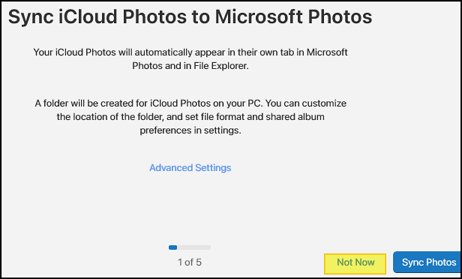
- For each app or feature, click Sync or Not Now in the bottom-right corner.
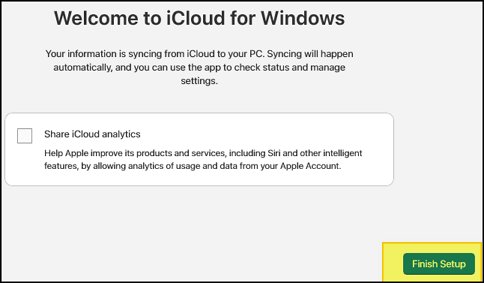
- Choose whether to share iCloud analytics, then click Finish Setup.
If the window still hangs after the code, close iCloud, repair the app in Windows Settings, and sign in again.
Why iCloud for Windows stalls at log in
Apple lists several account conditions that block sign-in on Windows. Each one looks like a frozen sign-in screen rather than a clear error.
| Condition | What it requires | Fix |
|---|---|---|
| Advanced Data Protection is on | iCloud for Windows 14.1 or later; with 14.2 or later, a trusted Apple device in Bluetooth range or on the same Wi-Fi router, and no VPN | Update the app, bring your iPhone close, turn off the VPN |
| Security keys are added to your Apple Account | iCloud for Windows 15 or later | Update from the Microsoft Store |
| Managed Apple Account (work or school) | Not supported by iCloud for Windows | Use a personal Apple Account or iCloud.com |
| iCloud was never set up on an Apple device | iCloud must be set up on an iPhone, iPad, iPod touch or Mac first | Set up iCloud on the Apple device, then sign in on the PC |
| Apple service outage | Apple's servers must be reachable | Check Apple's System Status page and try later |
iCloud for Windows 11 system requirements
| Requirement | Detail |
|---|---|
| Windows | Windows 11 for the latest iCloud for Windows; Windows 10 May 2019 Update or later still installs older versions |
| App source | iCloud for Windows from the Microsoft Store |
| Accounts | A Microsoft account on the PC and your Apple Account and password |
| Media features | Windows Media Player must be present; turn on Media Features if it was removed |
| Outlook (optional) | Outlook 2021 or later for iCloud Mail, Contacts and Calendars |
| iCloud Drive location | An NTFS-formatted drive if you move the iCloud Drive folder |
Update iCloud for Windows 11 from the Microsoft Store
Old versions cannot sign in to accounts that use Advanced Data Protection or security keys, so install pending Windows 11 updates and update the app first. If Get updates stalls, reset the Microsoft Store cache and try again.
- Select Start > Settings > Windows Update > Check for updates, and install any update.
- Open Microsoft Store from the Start menu.
- Select Library, then select Get updates.
- Wait for iCloud to finish updating.
- Restart the PC and open iCloud again.
Repair or reset iCloud in Windows 11 Settings
Repair keeps your setup. Reset is the next step when Repair does not help, and you sign in again afterwards.
- Close iCloud for Windows.
- Select Start > Settings > Apps > Installed apps.
- Select the More icon next to iCloud.
- Select Advanced options.
- Select Repair, then open iCloud and try to sign in.
- If sign-in still stalls, return to the same page and select Reset.
How to uninstall iCloud for Windows 11 and reinstall it
Signing out removes iCloud data stored on the PC, but it stays in iCloud and on your other devices. Copy any local-only files first.
- Open iCloud for Windows, click Account Details, click Sign Out, and follow the prompts.
- Select Start > Settings > Apps > Installed apps.
- Locate iCloud, click the More button, choose Uninstall, and follow the prompts.
- Restart the PC.
- Open Microsoft Store, select Library, find iCloud, and select Install.
- Open iCloud, sign in, and complete the Sync choices for each feature.
If iCloud will not uninstall while signed in, sign out first. Apple's steps require signing out before uninstalling.

Turn on iCloud Drive and iCloud Photos sync in Windows 11
A feature you set to Not Now during setup does not sync until you turn it on here.
- Open iCloud for Windows.
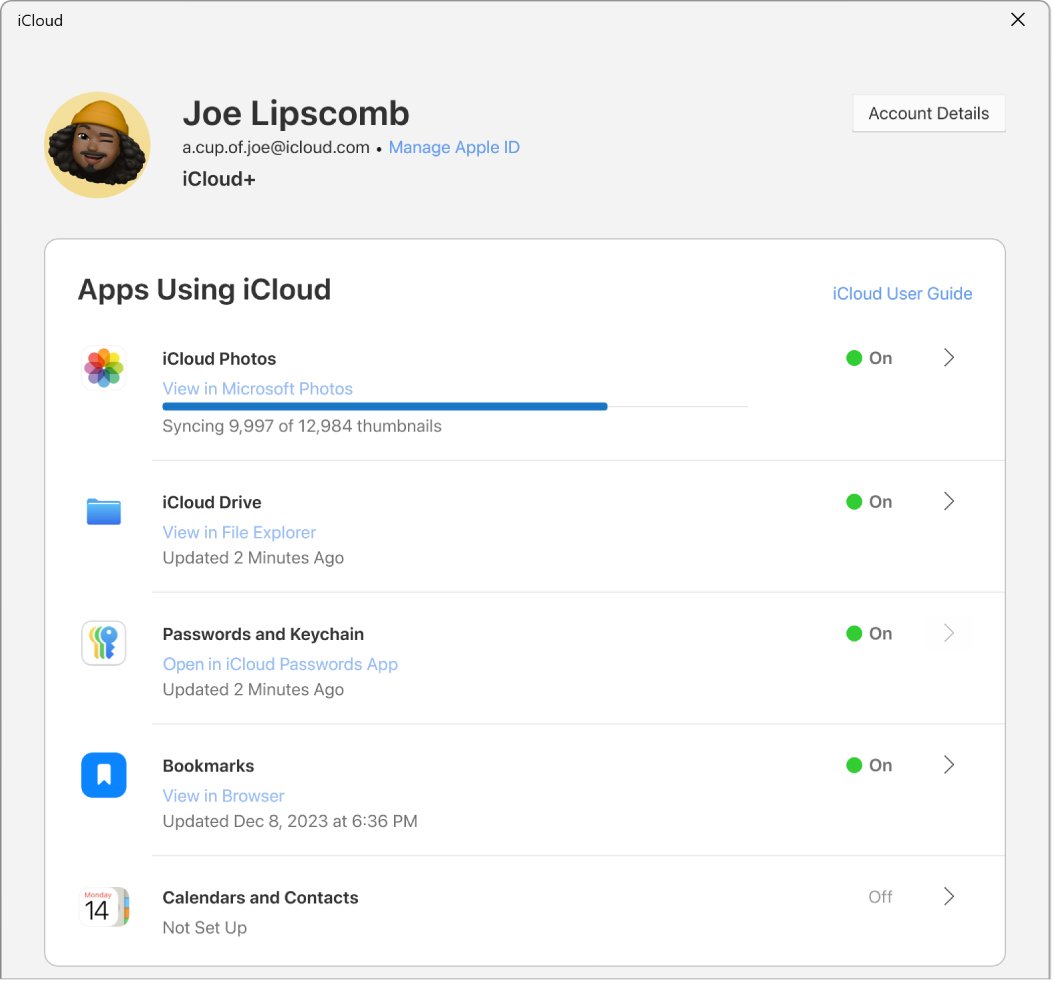
- Click the arrow to the right of iCloud Drive, turn on iCloud Drive, then click Done.
- Click the arrow to the right of iCloud Photos and turn on iCloud Photos.
- Turn on Shared Albums if you also want those on the PC, then click Done.
- Open File Explorer and check
C:\Users\[user name]\iCloud DriveandC:\Users\[user name]\Pictures\iCloud Photos\Photos.
To move iCloud Drive to another NTFS drive, turn iCloud Drive off, click Change, pick the folder, click Select Folder and OK, then turn it back on.
Check that iCloud for Windows 11 is syncing
- Click the iCloud icon in the Windows notification area; click Show hidden icons if you cannot see it.
- Check the upload and download progress shown there.
- In File Explorer, open iCloud Drive and look at the status icons beside files: cloud-only, waiting, downloading or downloaded.
- Open iCloud for Windows and scroll to the storage bar graph to confirm the account has free space.
- Add a small photo to iCloud Photos in File Explorer and confirm it appears on iCloud.com or your iPhone.
iCloud for Windows 11 sync issues: fixes by symptom
iCloud for Windows 11 not working after the verification code
Advanced Data Protection needs your trusted Apple device nearby and no VPN.
- Update iCloud for Windows to the latest version.
- Turn off the VPN on the PC.
- Put your iPhone or Mac within Bluetooth range of the PC, or on the same Wi-Fi router.
- Sign in again and approve the request on the Apple device.
Windows 11 iCloud Drive not syncing
Only files under 1 MB download automatically; larger files stay in the cloud until opened or pinned.
- Open File Explorer and select iCloud Drive in the navigation pane.
- Double-click a cloud-only file to download it.
- Right-click a folder you need offline and choose Always keep on this device.
- Check that iCloud storage is not full in iCloud for Windows > Manage.
iCloud Photos on Windows 11 not loading
Optimized versions download first, and full versions download only when opened.
- Open a photo to download its full version.
- Click the iCloud icon in the notification area to watch download progress.
- Install the HEVC decoder and HEIF plugin from the Microsoft Store if HEIC photos or HEVC videos will not open.
Can't install iCloud on Windows 11
Windows Media Player or Media Features is missing, or no Microsoft account is signed in.
- Open Control Panel > Programs and Features.
- Click Turn Windows features on or off.
- Check Media Features, click OK, and restart if asked.
- Sign in to the Microsoft Store with a Microsoft account and install iCloud again.
"Can't connect to server" at sign-in
No internet connection or an Apple service outage.
- Check that the PC has a working internet connection.
- Check Apple's System Status page for iCloud Account & Sign In.
- If an outage is listed, wait and try again later.
iCloud for Windows 11 sync FAQ
Does iCloud work on Windows 11?
Yes. Apple recommends Windows 11 for the latest iCloud for Windows, which you get from the Microsoft Store. It syncs iCloud Drive, iCloud Photos, Passwords, Bookmarks, and Mail, Contacts and Calendars through Outlook.
How do I install iCloud on Windows 11?
Open the Microsoft Store, search for iCloud, and install it. Then open iCloud, sign in with the same Apple Account as your iPhone, verify with a code or security key, choose Sync for each feature and click Finish Setup.
Why can't I install iCloud on Windows 11?
The usual causes are missing Windows Media Player or Media Features, no Microsoft account, or an out-of-date Windows. Turn on Media Features in Turn Windows features on or off, sign in with a Microsoft account, update Windows, and install again.
How do I uninstall iCloud for Windows 11?
Sign out first in iCloud for Windows with Account Details > Sign Out. Then go to Settings > Apps > Installed apps, click More next to iCloud, and choose Uninstall.
Why can't I uninstall iCloud on Windows 11?
Apple's steps require signing out of iCloud for Windows before you uninstall it. Open the app, click Account Details > Sign Out, then uninstall from Installed apps. If iCloud Outlook is installed, remove it separately.
How do I access iCloud from Windows 11?
With iCloud for Windows, iCloud Drive and iCloud Photos appear in File Explorer, and Mail, Contacts and Calendars appear in Outlook. Without the app, sign in at iCloud.com in a supported browser.
Why does iCloud keep popping up on Windows 11?
iCloud for Windows prompts again when setup was not finished or when you are signed out. Complete sign-in, choose Sync or Not Now for each feature, and click Finish Setup so the setup window stops returning.
Does Windows 11 use iCloud by default?
No. Windows 11 does not include iCloud. You install iCloud for Windows from the Microsoft Store and sign in with an Apple Account to sync your iCloud data.
How do I remove iCloud from Windows 11 without losing photos?
Signing out removes the iCloud copies stored on the PC, while the originals stay in iCloud and on your other devices. Copy any photos you want to keep locally to a non-iCloud folder before you sign out or uninstall.
Bottom line: getting iCloud for Windows 11 past sign-in
Update iCloud from the Microsoft Store, sign in with your iPhone nearby and the VPN off, and finish setup by choosing Sync for each feature. Out-of-date versions and Advanced Data Protection rules are the documented sign-in blockers, and no feature syncs until setup is finished and that feature is turned on.