An Apple charge you do not recognise is usually a purchase or subscription on an Apple Account, sometimes a family member's or a second account of yours, billed as apple.com/bill; search the exact amount on reportaproblem.apple.com to see what it was.
This guide shows how to find the charge, the places it can hide, how to cancel or request a refund, and what to do when Apple has no record of it.
Find an unknown Apple charge by its amount
The quickest route is Apple's own purchase site, which lets you search by amount.
- Open a browser and go to reportaproblem.apple.com.
- Sign in with the Apple Account that uses the card that was charged.
- Search for the amount, for example 159.99, or browse the list of purchases.
- Open the matching item to see what it is and the date it was billed.
- If nothing matches, repeat the search signed in to any other Apple Account you use.
Apple can combine several purchases and subscriptions into one charge, so one bank line can cover more than one item.
Why is Apple charging me for no reason?
| What you find | What it means | What to do |
|---|---|---|
| The amount is in your purchase history | A purchase or subscription on your Apple Account | Cancel it in Subscriptions, or request a refund |
| The receipt names a family member's Apple Account | Family Sharing purchase sharing billed the organizer's card | Ask the family member to cancel; only they can |
| The receipt names another Apple Account of yours | An old or second account still uses the card | Sign in to that account and cancel there |
| Several items add up to the amount | Apple grouped purchases into one charge | Review each item in the grouped receipt |
| No Apple receipt and no history match | Another company is billing the card | Check the merchant name on the statement and contact that company or your bank |
| A message demands payment by gift card | A scam, not an Apple charge | Stop contact and report it to Apple and the FTC |
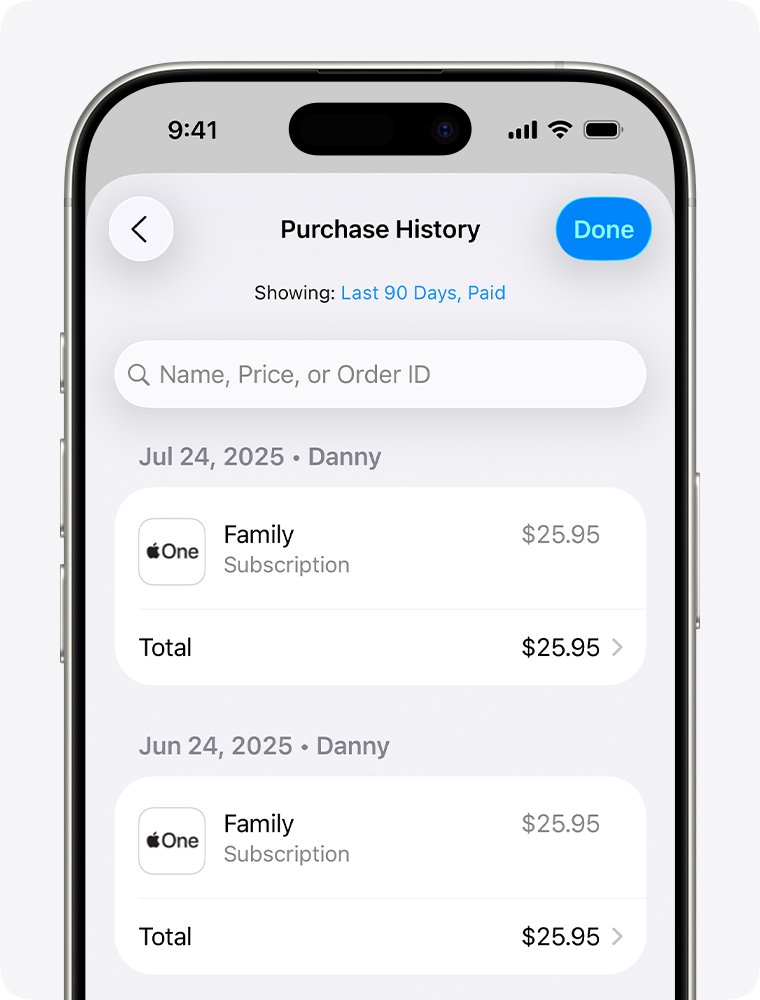
Check Apple purchase history on iPhone
- Open the App Store.
- Tap your photo or initials at the top of the screen.
- Tap Apps & Purchase History and sign in if asked.
- Tap Purchase History.
- Tap Last 90 days at the top and choose another range if the charge is older.
Check Apple purchase history on Mac or Windows
| Device | Where to look | Steps |
|---|---|---|
| Mac | App Store | Click your name at the bottom of the sidebar > Apps & Purchase History > Purchase History, then change Last 90 Days if needed |
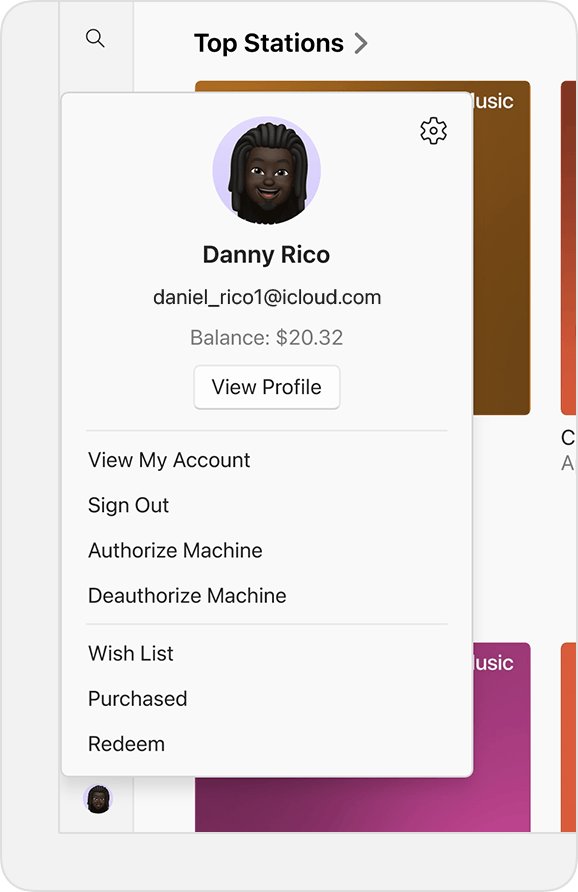
| Windows PC | Apple Music or Apple TV app | Click your name at the bottom of the sidebar > View My Account > See All next to Most Recent Purchase in Purchase History |
| Any browser | reportaproblem.apple.com | Sign in and search by amount |
Check Family Sharing purchases for an Apple charge
With purchase sharing on, items bought by family members are charged to the family organizer's payment method. The organizer can see those charges.
- Sign in to reportaproblem.apple.com as the family organizer.
- Select the Apple Account button and choose a family member.
- Search for the amount in that member's purchases.
- Ask the family member to cancel the subscription, since you cannot cancel it for them.
Cancel a subscription from Apple to stop the charge
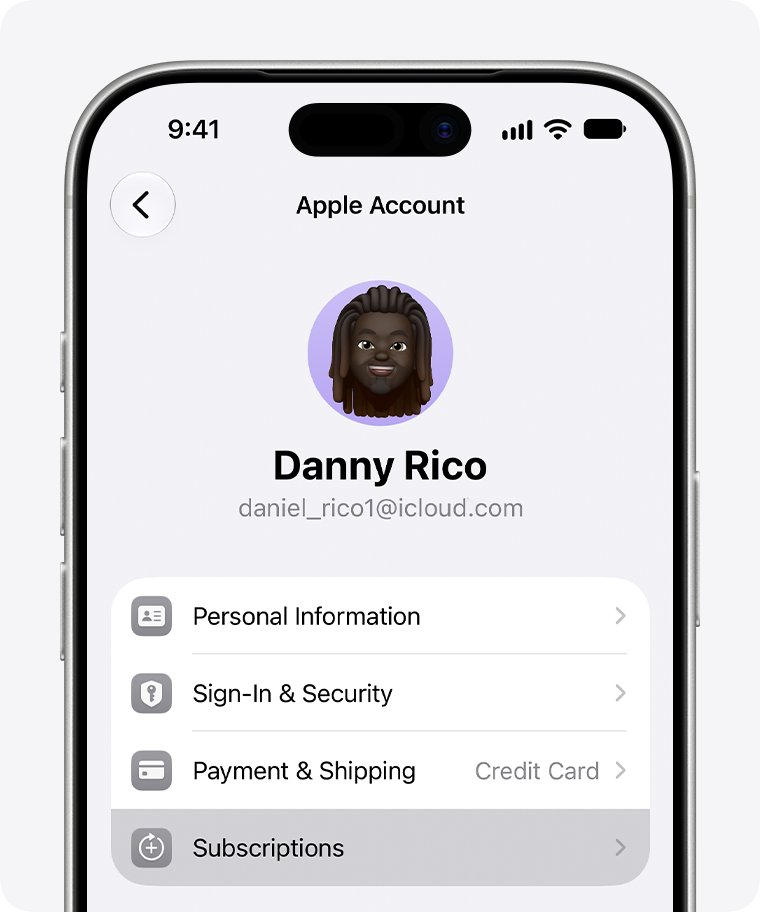
- Open Settings on your iPhone and tap your name.
- Tap Subscriptions.
- Tap the subscription that matches the charge.
- Tap the cancel option, scrolling down if needed.
- On a computer, sign in at account.apple.com and open the subscriptions section instead.
If no cancel option appears, or the subscription shows a red expiration message, it is already canceled and will not renew.
Request a refund for an Apple charge
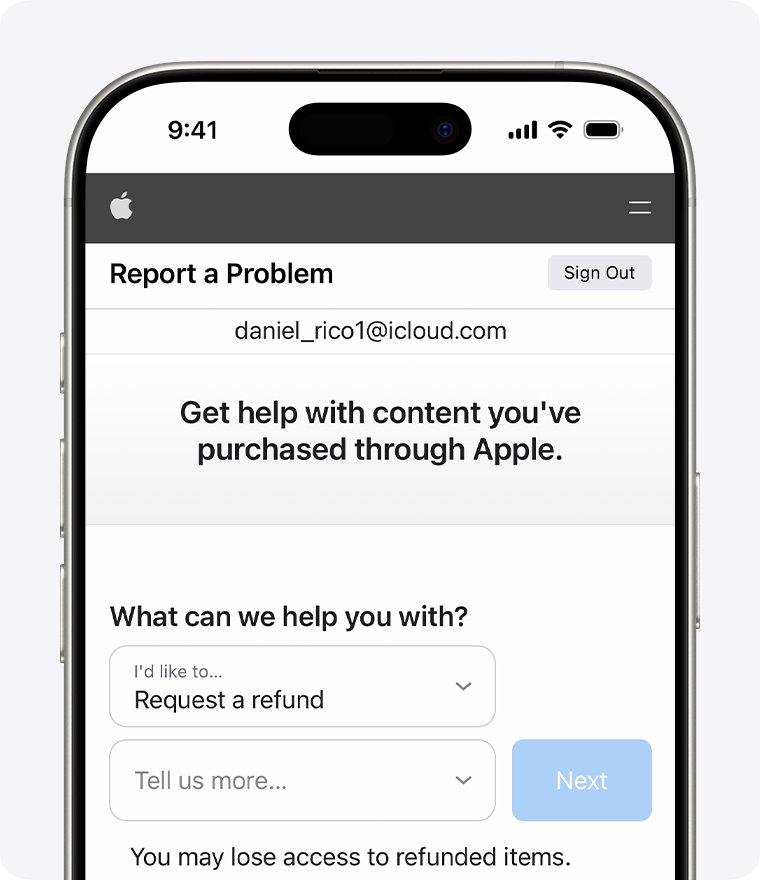
- Sign in to reportaproblem.apple.com.
- Select I'd like to, then choose Request a refund.
- Select the reason for the refund and choose Next.
- Select the app, subscription or item, then submit the request.
Apple usually sends an update within 24 to 48 hours. An approved refund can take longer to reach your card.
Confirm the Apple charge will not repeat
- Open Settings > your name > Subscriptions and confirm the item shows an expiration date instead of a renewal date.
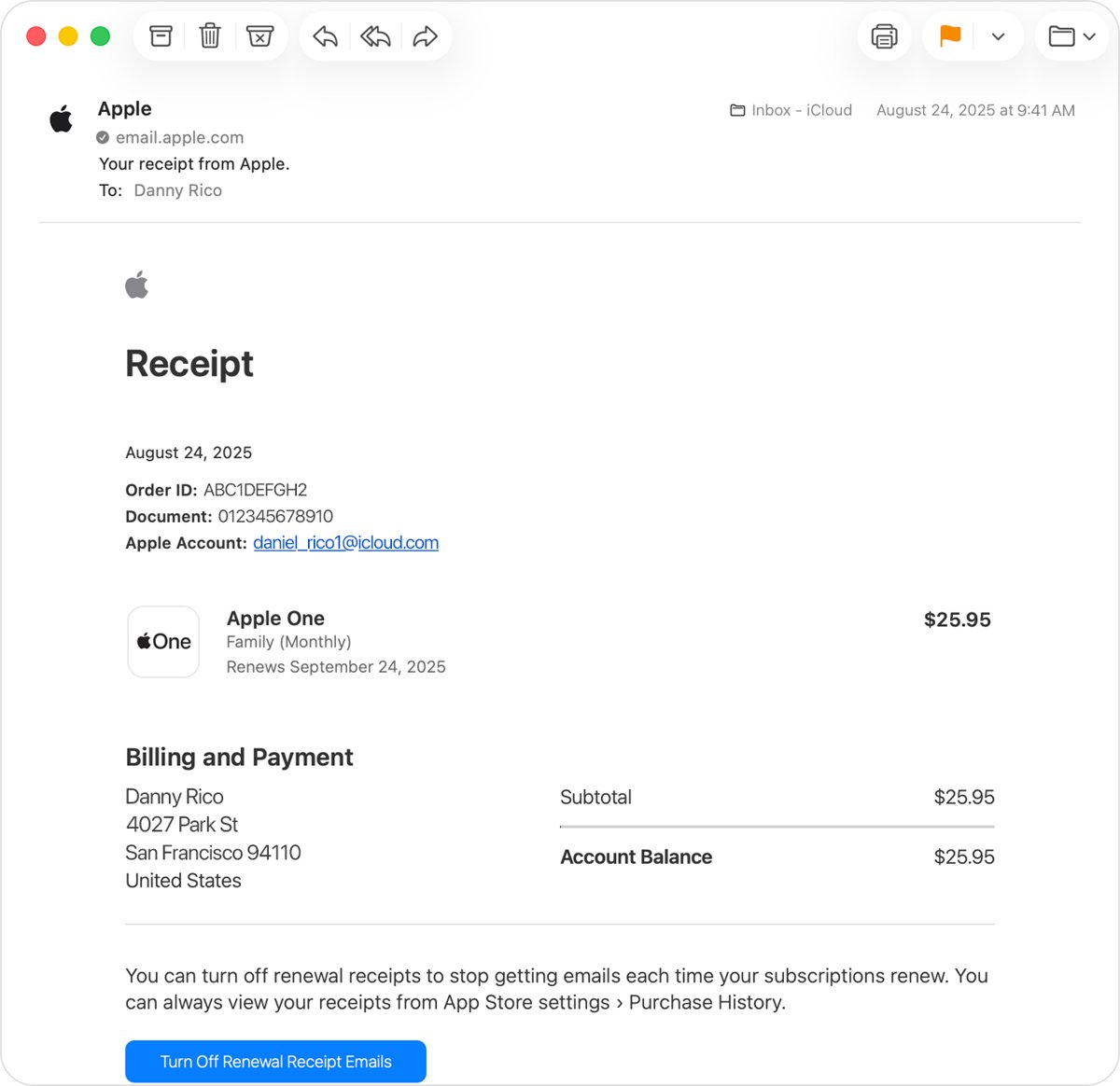
- Search your email for the Apple receipt and confirm which Apple Account it was sent to.
- Check the refund status on reportaproblem.apple.com if you requested one.
- Watch the next statement for any new line from apple.com/bill.
Apple charge not in purchase history: fixes
The amount does not appear in any Apple purchase history
The charge was made on a different Apple Account, or by a company other than Apple.
- Search your email for receipts from Apple and note the Apple Account on each.
- Sign in to each Apple Account you have ever used and search for the amount.
- Read the merchant name on the bank or card statement. If it is not apple.com/bill, contact that company.
The subscription is billed through a phone carrier or another provider
Some subscriptions are billed by the provider, not by Apple.
- Find the provider named on the statement or receipt.
- Contact that provider to cancel.
Apple is trying to charge me after an email or call
Scammers pose as Apple and push urgent payments, often with gift cards.
- Do not share any gift card code or card details.
- Contact Apple Support at getsupport.apple.com, or call 800-275-2273 in the U.S.
- Report the scam to the Federal Trade Commission at reportfraud.ftc.gov.
Unknown Apple charges FAQ
Why is apple.com charging me?
apple.com/bill charges are for apps, subscriptions, music, movies and other Apple purchases on an Apple Account. Search the amount on reportaproblem.apple.com to see exactly which item it was.
Why is Apple charging me monthly?
A monthly charge is almost always a subscription. Open Settings, tap your name, then Subscriptions to see active ones and their renewal dates, and cancel the one you no longer want.
What is the 9.99 charge from Apple?
Apple does not tie one price to one product, so the amount alone cannot identify it. Search 9.99 on reportaproblem.apple.com while signed in to each Apple Account you use.
Why does Apple charge me 99 cents?
A small charge is usually a low-cost subscription, an in-app purchase or several small items combined. Check your purchase history for the date, and look at family members' purchases if you are the organizer.
Why is Apple charging me 2.99 or 12.99?
Charges like these match subscriptions or in-app purchases on an Apple Account. Search the exact amount on reportaproblem.apple.com, and cancel or request a refund from the matching item.
Can I get a refund for an Apple charge I did not make?
Yes. Sign in to reportaproblem.apple.com, select I'd like to, then Request a refund, choose a reason and the item. Apple usually replies within 24 to 48 hours.
Can a family member's purchase show up on my card?
Yes. With Family Sharing purchase sharing on, family members' purchases are charged to the organizer's payment method. The organizer can view them by choosing the member on reportaproblem.apple.com.
What if the charge is not from Apple at all?
If there is no Apple receipt and no match in purchase history, another company is billing the card. Check the merchant name on the statement and contact that company or your bank.