To change your location with a VPN, open the VPN app, pick a server in the country you want, and connect; websites then see that server's IP address and country instead of yours.
This guide covers the steps on Windows, Mac, iPhone and Android, how to pick a server location, how to check the change worked, and why some apps still show where you really are.
How to change your VPN location on desktop
The steps are the same on Windows and Mac in every major VPN app: open the location list, choose a country, connect. The whole change takes under a minute once the app is installed and signed in.
- Install the VPN app from the provider's own website and sign in with your account.
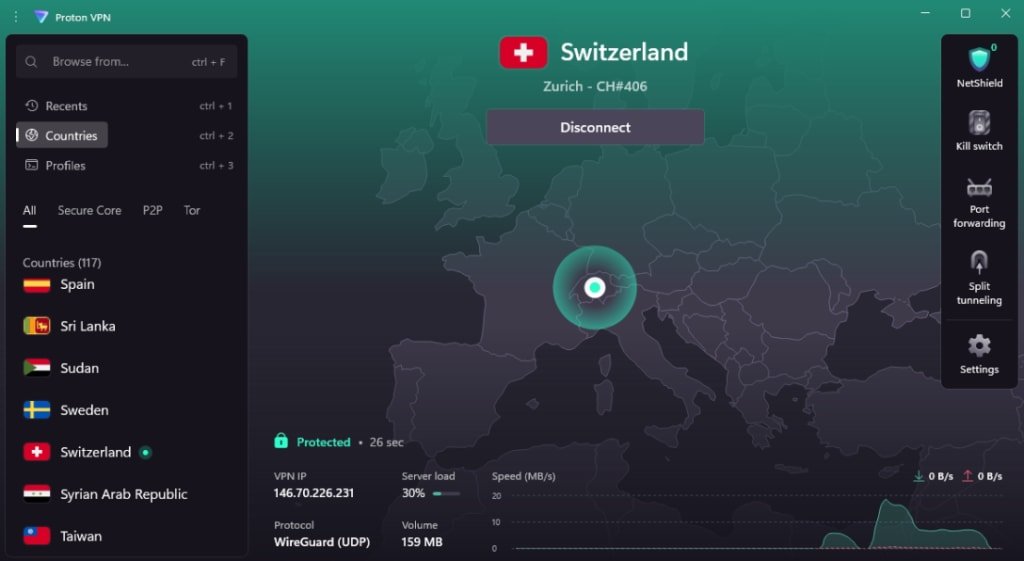
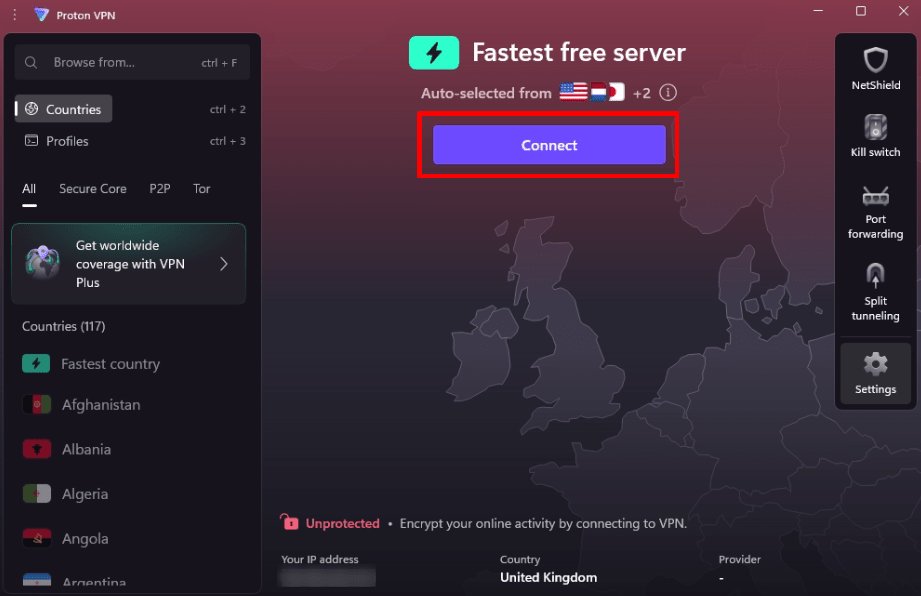
- Open the location list. In ExpressVPN, click the arrow beside Selected Location; in Proton VPN, open Countries > All.
- Type the country or city you want into the Search bar.
- Click the location. Both apps connect to it straight away.
- Wait for the status to change. ExpressVPN shows Protected; Proton VPN shows that you are connected to the chosen country.
- Open an IP checker page in your browser and check that the country shown matches the server you picked.
To switch to another country, pick a new location from the same list; the app drops the old server and connects to the new one. To go back to your real location, turn the VPN off. ExpressVPN then shows Not Protected.
What changing your location with a VPN actually does
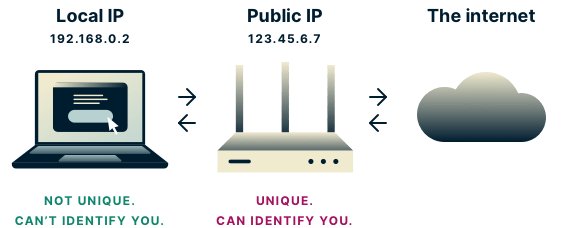
A VPN server gives your connection a new IP address, so websites see the server's location instead of yours. Proton notes that the full Proton VPN app changes your public IP address and geolocation for every app on the device, not just the browser.
| What changes | What does not change |
|---|---|
| Your public IP address and the country websites look up from it | Your device's GPS position |
| The location your internet provider's address would reveal | Location found from nearby Wi-Fi networks, cell towers or Bluetooth |
| The region-based content and prices some sites show | The home or work address saved in your Google, Apple or Microsoft account |
| Which DNS servers answer your lookups, when the app handles DNS | Cookies and account history that already record where you were |
| What your internet provider can see; it only sees a VPN connection | Your actual internet speed, which a VPN cannot raise above your plan |
A browser extension is not the same as the full app. Proton points out that its browser extension only protects the browser, so other apps on the PC still use your real IP address.
Why change your VPN location?
| Reason | Which location to pick | Example |
|---|---|---|
| Use home services while abroad | Your home country | ExpressVPN cites online banking and government portals that block unusual login locations |
| Get the fastest connection | The country nearest to you | Nearby servers have lower latency for browsing, gaming and video calls |
| More privacy | Any server, or one in a different country | A different country puts more distance between your activity and your real location |
| Reach sites blocked on your network | A country where the site is available | Proton's free plan is built to sidestep censorship of news and social media |
| Stream your own subscriptions while travelling | Your home country | Check the service's own rules first; Netflix limits what it shows over a VPN |
How to choose the best VPN server location
Pick the location by what you need, not by which country sounds furthest away. Distance from you is the main thing that slows a VPN down.
| Your goal | Pick this | Why |
|---|---|---|
| Speed for everyday browsing | The app's automatic pick, such as Smart Location in ExpressVPN or Fastest Location on Android | The app ranks servers by speed, latency and distance |
| An IP address from one country | That country in the full location list | Websites read the country from the server's IP address |
| A specific city | The city under the country, where the app lists them | Proton VPN paid plans and Mullvad both list servers by city |
| A slow or busy connection | A server closer to you, or one with a lower load | Proton names closer and less loaded servers as the speed fixes |
| You are on a free plan | Proton VPN Free's Change server button | Free users get a random server from a fixed list of countries and cannot pick one |
How to change your VPN location on iPhone or Android
Mobile apps work the same way as desktop ones. The first time you connect, iOS and Android ask you to approve the VPN configuration; accept it, or the app cannot connect.
- Install the VPN app from the App Store or Google Play and sign in.
- On the app's main screen, open the location list. In ExpressVPN for Android, tap the Change widget.
- Choose a location from the RECOMMENDED tab, or open ALL LOCATIONS to browse by region.
- Tap the country or city. The app connects to it automatically.
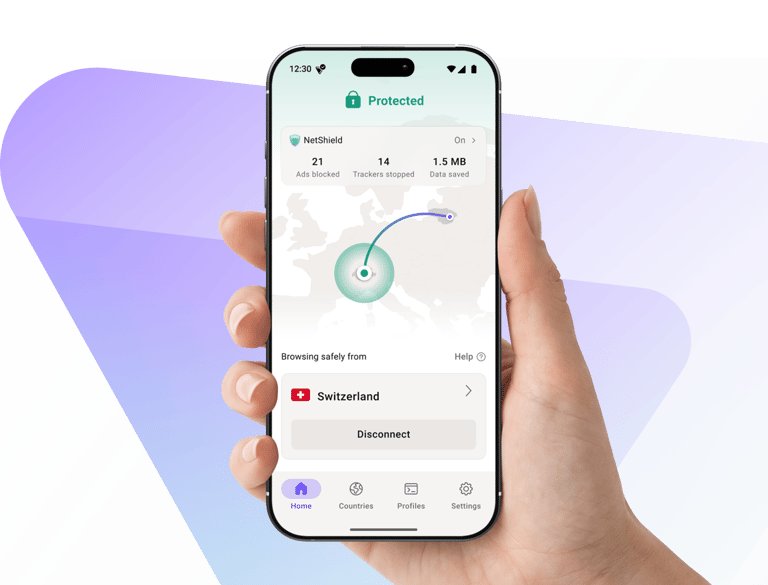
- Check that the status under the power button reads Protected, or that a VPN icon appears in the status bar.
- Open an IP checker page in your phone's browser and confirm the new country.
Pixel 7 and later phones include a built-in VPN by Google at no extra cost in countries where it is available. To pick the country you appear in, use a VPN app that offers a location list.
How to confirm your VPN location has changed
Proton's four-step test compares your real IP address with the one you get through the VPN. If the address and country change, the location change worked.
- Turn the VPN off.
- Open an IP checker such as Proton's What is my IP address page or ExpressVPN's IP Address Checker, and note your IP address and location.
- Turn the VPN on and connect to a server in a different country.
- Refresh the IP checker page.
- Check that both the IP address and the location now show the VPN server's country.
ExpressVPN also shows the current IP address on the app's home screen, under the connection status, so you can check without opening a browser.
How to verify your VPN to change location is working
A changed IP address is the first proof, but a leak can still reveal your real location. Run these tests with the VPN connected.
- Close every browser tab you opened before connecting, because a browser can keep your real IP address cached in old tabs.
- Open ExpressVPN's DNS Leak Test page. The DNS servers listed should belong to your VPN, not to your internet provider.
- Open the WebRTC Leak Test page in each browser you use. No address should match the real IP you noted earlier.
- Open Mullvad's Connection check page, which tests the VPN, DNS leaks and WebRTC leaks in one go.
- If any test shows your provider or real IP address, reconnect, then run the test again.
DNS leaks are more likely with a manually configured VPN or a custom DNS server set on the device. The provider's own app usually blocks them, which is a good reason to use it instead of a manual setup.
Best VPNs for changing your location
The deciding fact for changing location is whether a provider has servers in the country you need. These figures come from each provider's own server page in November 2026; check the live list before you buy, because networks change.
| VPN | Server countries | Network size | Choosing a country |
|---|---|---|---|
| Proton VPN | 149 countries | 22,180 servers in 197 locations | Paid plans pick any country, city or server; the free plan only offers Change server to a random free location |
| ExpressVPN | 113 countries | 214 server locations, including all 50 US states | Smart Location, a Recommended tab and an All Locations list with search |
| Surfshark | 100 countries | 4,500+ servers in 130+ locations | Pick a country, or use Recommended for you for the nearest fast server |
| Mullvad | 50 countries | 572 servers in 91 cities | Pick a country and city; servers are listed by hostname on mullvad.net |
Some providers use virtual locations, where the IP address belongs to one country but the server sits in another. ExpressVPN marks these on its server list. For streaming, ExpressVPN and Proton VPN Plus both list streaming support as a feature, but each streaming service sets its own rules.
Can a VPN change GPS location, and is it legal?
No. A VPN only changes your IP address, and your phone or PC finds its position from several other signals as well. Apps that ask for your device location see where you really are.
| Location source | Used by | Changed by a VPN? |
|---|---|---|
| GPS | iPhone Location Services, Windows location service | No |
| Nearby Wi-Fi access points and routers | iPhone, Windows, Chrome through Google Location Services | No |
| Cell towers | iPhone, Windows, your mobile carrier | No |
| Bluetooth | iPhone Location Services | No |
| Home or work address and past activity in your account | Google Search and Maps | No |
| IP address | Websites, Google Search, Windows location service | Yes |
ExpressVPN's browser extensions add HTML5 geolocation spoofing to match the VPN's IP address, but that only covers the browser. For apps such as Find My, which use device location, the VPN changes nothing; you would change the location shown in Find My on the device itself.
Whether VPN use is legal depends on the country you are in, and some governments restrict VPN services. A VPN never makes an illegal activity legal, and streaming services can block VPN traffic under their own terms.
Why your VPN to change location may not be working
When the VPN says it is connected but a site still knows your real country, the site is reading a location signal the VPN does not touch.
Google still shows your real country after connecting
Google estimates location from device location, your account's home and work address, past activity and a location cookie that lasts up to 6 hours, not only your IP address.
- In Chrome, go to Settings > Privacy and security > Site settings > Location and block location for google.com.
- Clear cookies for google.com, or open a private window.
- Search again and read the location note at the bottom of the results page.
A website still sees your real IP address
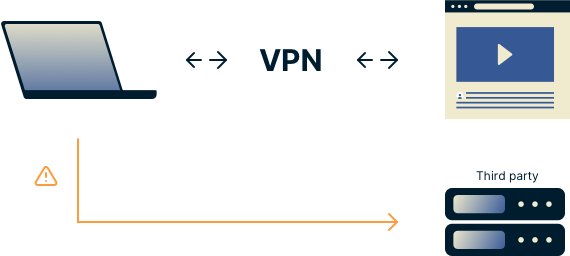
A WebRTC or DNS leak, or a browser tab opened before you connected.
- Close all tabs and restart the browser with the VPN connected.
- Run the DNS leak and WebRTC leak tests.
- Use the provider's app rather than a manual VPN setup or custom DNS server.
Apps outside the browser still use your real location
You are using a browser extension only, or split tunnelling sends that app outside the VPN.
- Install and connect the full VPN app instead of the extension.
- Open the app's split tunnelling settings and remove the app from the bypass list.
A map or weather app shows where you really are
The app uses GPS, Wi-Fi or cell tower location, which a VPN cannot change.
- Open Settings > Privacy & security > Location in Windows to see which apps use device location.
- Turn off location access for an app if you do not want it to see your position.
Troubleshooting common VPN location issues
The VPN will not connect to the location you picked
Proton names three usual causes: the server is down for maintenance, your device clock does not match the server's certificate, or your network restricts VPNs.
- Pick a different server or city in the same country.
- Set your device's date and time to update automatically.
- Try another network, such as mobile data, to rule out a network block.
The internet is slow after changing location
Distant and busy servers add delay, and a VPN cannot exceed your own connection speed.
- Connect to a server closer to you.
- Choose a server with a lower load if the app shows load figures.
- Use the app's automatic location, such as Smart Location or Fastest Location.
Netflix says you seem to be using a VPN or proxy
Netflix detects the VPN and may show only titles it licenses worldwide; live events and ad-supported plans are not supported over a VPN.
- Turn off the VPN to see the titles available in your region.
- If the message appears with no VPN running, check the router for a VPN or proxy, reset your network settings, and contact your internet provider.
The country you want is missing from the list
The provider has no server there, or your plan does not include it.
- Search the app's location list for the country name.
- Check the provider's server page for that country.
- Upgrade from a free plan, which offers fewer locations.
Your location goes back after you disconnect
Disconnecting removes the VPN server's IP address, so websites see your real one again.
- Turn on your VPN app's auto-connect option if it has one, so it reconnects on untrusted networks.
- Turn on the kill switch so traffic stops if the VPN drops.
Frequently asked questions about using a VPN to change location
Does a VPN change location on all apps and websites?
A full VPN app changes the IP-based location for every app and website on the device. A browser extension only changes it for that browser. Apps that use GPS, Wi-Fi or cell towers, such as maps, still see your real position.
Why is my location still showing my real country after connecting to a VPN?
The site is using a signal other than your IP address, such as browser location permission, a Google account address, a location cookie, or a DNS or WebRTC leak. Block location access for the site, clear its cookies, and run leak tests.
Which VPN is best for changing your location to another country?
The best choice is a provider with servers in the exact country you need. Proton VPN lists 149 countries, ExpressVPN 113, Surfshark 100 and Mullvad 50 on their own server pages. Check the live list for your country before you pay.
Will using a VPN slow my connection?
A VPN can add delay, especially through a distant or busy server, and it cannot make your connection faster than your internet plan. Connect to a nearby server or one with a lower load for the best speed.
Can a VPN change my GPS location?
No. A VPN only changes your IP address. GPS, nearby Wi-Fi networks, cell towers and Bluetooth still report where your device really is, so apps with location permission see your true position.
Can I change my location with a free VPN?
Yes, with limits. Proton VPN Free connects you to a server automatically and offers a Change server button that picks a random server from a fixed list of countries. Choosing a specific country needs a paid plan.
Can I choose a specific city, not just a country?
Yes, where the provider has servers in several cities. Proton VPN paid plans let you expand a country and pick a city or a single server, and Mullvad lists its servers by city.
Does a VPN change what Netflix shows?
Netflix says a VPN can make your device look like it is somewhere else, and it may then show only titles it licenses worldwide. Netflix does not support VPNs for live events or on ad-supported plans.
How do I go back to my real location?
Turn the VPN off. Your device then uses your normal IP address again, and IP checker pages show your real country. In ExpressVPN the status changes to Not Protected.