To uninstall Norton on Windows 11, open Settings > Apps > Installed apps, select the three dots next to Norton 360, choose Uninstall, and restart the PC when the removal finishes.
This guide covers the Settings, Control Panel and Norton 360 Remover routes, the separate Norton apps and browser extensions, leftover cleanup, Microsoft Defender, and how to stop the subscription from renewing.
Uninstall Norton from the Windows 11 Start menu
The Start menu is the shortest route because it skips Settings entirely. Microsoft lists it as the first way to remove an app in Windows.
- Close the Norton window if it is open.
- Select Start > All apps and scroll to the Norton entry, such as Norton 360.
- Right-click the entry (or press and hold it) and select Uninstall.
- Select Yes if User Account Control asks for permission.
- In the Norton window, click Yes to confirm, then click Next.
- When the uninstall finishes, close all programs and restart the computer.
If the Norton entry has no Uninstall option, or the removal stops with an error, use Method 1 or Method 2 below.
Before you uninstall Norton
Removing the app is only one part of leaving Norton. Settle these points first, because some of them cannot be undone later.
| Check | What to know |
|---|---|
| Subscription | Uninstalling does not cancel the subscription or stop automatic renewal. That is a separate step in your Norton account. |
| Another antivirus | Microsoft Defender Antivirus turns on automatically when no other security product is installed, so Windows 11 is not left unprotected. |
| Norton Password Manager | The vault is managed from the Norton Password Manager browser extension. Deleting the vault is a separate action that permanently erases its data. |
| Norton Cloud Backup | Norton warns that Cloud Backup data can become unretrievable once the contract ends, and deleted backup sets are gone for good. Copy anything you need first. |
| Norton Private Browser | Its uninstaller deletes bookmarks, passwords and history by default unless you clear the Also delete your browsing data box. |
| Norton Family | Removing it needs the parent email address and password. |
| Administrator account | Each uninstaller asks for User Account Control approval and a restart. |
Norton Remove and Reinstall tool vs Windows uninstall
| Your situation | Use this | Why |
|---|---|---|
| Norton works normally and you want it gone | Method 1: Settings | Microsoft's standard route, no download needed |
| Norton is missing from Settings or the uninstall button fails | Method 2: Control Panel | Norton's own steps use Programs and Features (appwiz.cpl) |
| The standard uninstall shows errors or leaves Norton running | Method 3: Norton 360 Remover tool, Remove option | Norton recommends it when the standard uninstall fails |
| Norton is broken but you want to keep using it | Norton 360 Remover tool, Reinstall option | Removes the current copy and installs the latest version |
| The Remover tool itself returns errors | Remover tool, Reboot option | Restarts in Safe mode and runs the removal there |
Method 1: Uninstall Norton from Windows 11 Settings
Settings lists every desktop program, including each Norton product as a separate entry. The same Installed apps page is where you uninstall other apps on Windows 11.
- Right-click the Start button and select Installed apps, or open Start > Settings > Apps > Installed apps.
- Type Norton in the search box at the top of the list.
- Click the ⋮ (three dots) button next to Norton 360 and select Uninstall.
- Select Uninstall again to confirm, then Yes at the User Account Control prompt.
- In the Norton window, click Yes, then click Next.
- Close all programs and restart the PC when the removal completes.
The app name in the list matches your plan, so it can read Norton AntiVirus Plus or Norton 360 Deluxe instead of Norton 360.
Method 2: Uninstall Norton using Control Panel
Norton's own support article uses Programs and Features, which still exists in Windows 11. Microsoft points to it for apps that Settings cannot remove.
- Press Windows + R to open the Run dialog box.
- Type
appwiz.cpland press Enter. - In the list of installed programs, click Norton 360, then click Remove or Uninstall.
- Click Yes to confirm.
- Click Next.
- When the uninstall finishes, exit all programs and restart the computer.
You can also reach the same list by typing Control Panel in taskbar search and selecting Programs > Programs and Features.
Method 3: Use Norton's official Remove and Reinstall tool
Norton now calls this utility the Norton 360 Remover tool, though several support articles still use the older Remove and Reinstall name. It removes the Norton device security app and can install a fresh copy afterwards.
Download the Norton 360 Remover tool only from support.norton.com. If Norton Family is installed, uninstall it first, or the tool stops with an error.
- Open Norton's Download and run the Norton 360 Remover tool for Windows article and select the download link.
- Save the file to the desktop, then press Ctrl + J to open the browser's Downloads window.
- Double-click the Norton_360_remover file and approve the User Account Control prompt.
- Click Remove to uninstall without reinstalling, or Reinstall to get a clean copy.
- Click Uninstall to confirm.
- When the removal finishes, click Restart Now.
- If you chose Reinstall, click Install Norton 360 after the restart and then Sign in to activate the subscription.
The tool does not remove Norton Private Browser, so uninstall that separately as shown in the next section.
Remove other Norton apps from Windows 11
Norton installs several products as separate programs. Removing Norton 360 leaves these behind, so search Installed apps for Norton again after the restart.
| Norton app | How to remove it | Watch for |
|---|---|---|
| Norton Private Browser | In appwiz.cpl, select it, click Remove or Uninstall, then Uninstall in its window |
Also delete your browsing data is ticked by default; clear it to keep bookmarks and passwords |
| Norton VPN (standalone) | In appwiz.cpl, select Norton VPN and click Uninstall/Change |
Follow the on-screen prompts, then restart |
| Norton Utilities Ultimate | In appwiz.cpl, select it, click Remove or Uninstall, then Uninstall twice |
Tick Delete all backups and log files only if you will not reinstall it |
| Norton Family | In appwiz.cpl, select it, click Uninstall or Remove, then enter the parent email and password |
Remove it before running the Norton 360 Remover tool |
Remove Norton browser extensions
Norton browser extensions, such as Norton Safe Web, Norton Password Manager and Norton Safe Search Plus, are not part of the Windows app. Norton says they are removed from each browser's extension manager.
| Browser | Steps to remove a Norton extension |
|---|---|
| Microsoft Edge | Right-click the extension icon next to the address bar and select Remove from Microsoft Edge > Remove. Or select Extensions, then More actions next to the extension, and choose Remove from Microsoft Edge > Remove. |
| Google Chrome | Select More > Extensions > Manage extensions, click Remove on the Norton extension, then Remove again to confirm. You can also right-click its toolbar icon and choose Remove from Chrome. |
| Mozilla Firefox | Open the add-ons manager from the Firefox menu and remove each Norton entry. |
Removing the Norton Password Manager extension and deleting its vault are separate actions. Delete the vault only when you are sure you will not need those passwords again.
Check that Microsoft Defender turned back on
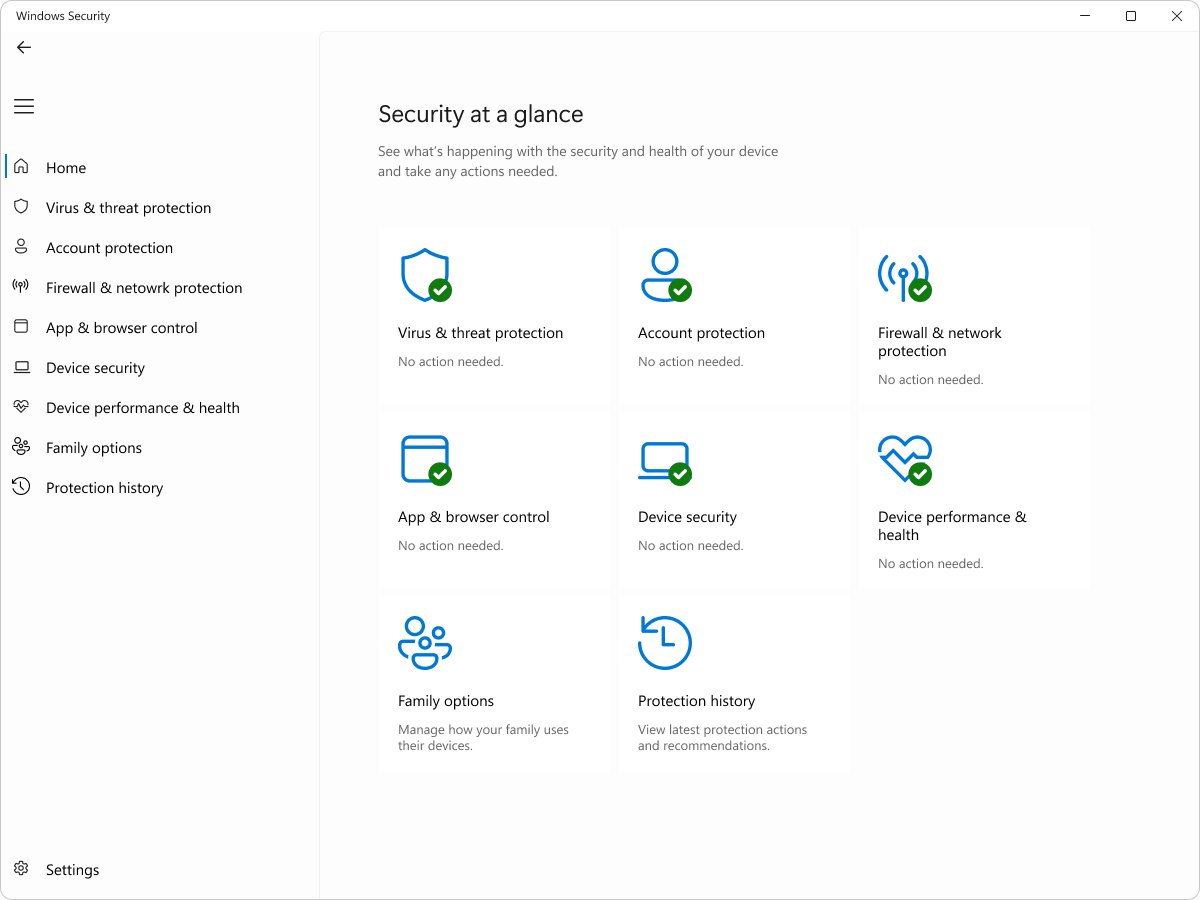
Microsoft states that Microsoft Defender Antivirus turns on automatically when no other security product is installed. Check it after the restart rather than assuming it did.
Once real-time protection shows On, run a Microsoft Defender full scan to check the PC with its new antivirus.
- Select Start, type Windows Security, and open the app.
- Select Virus & threat protection.
- Under Virus & threat protection settings, select Manage settings.
- Confirm that Real-time protection is set to On.
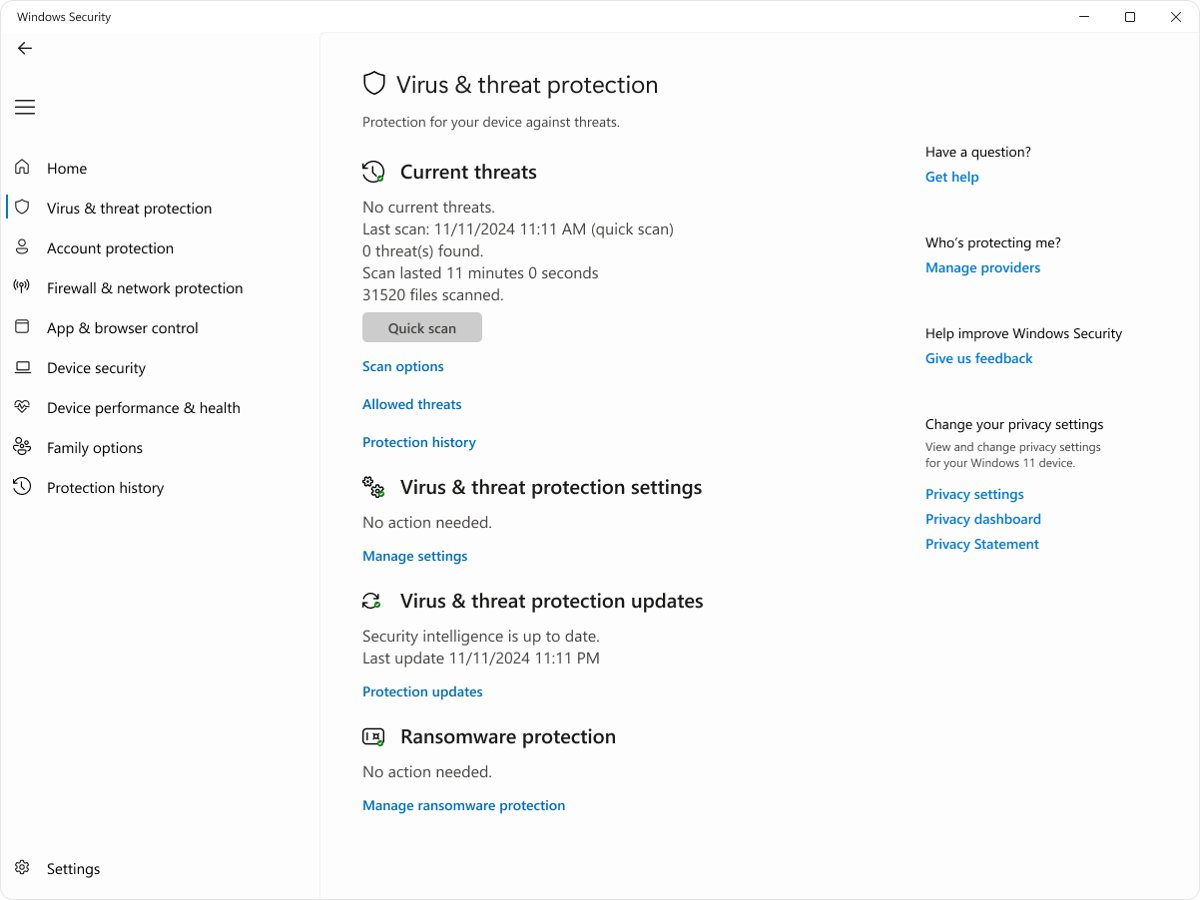
Make sure Microsoft Defender turns back on
If Windows Security still shows Defender off, turn it on by hand. Microsoft lets you enable it manually when no other security product is installed and working.
- Restart the PC once more so Windows rechecks which antivirus is installed.
- Open Windows Security > Virus & threat protection.
- Under Virus & threat protection settings, select Manage settings.
- Set Real-time protection to On.
- Turn on Cloud-delivered protection and Automatic sample submission, which Microsoft recommends for full protection.
- Under Virus & threat protection updates, select Check for updates to pull the latest security intelligence.
If the page still names Norton, part of it is still installed. Run the Norton 360 Remover tool with the Remove option.
Check Microsoft Defender status with Get-MpComputerStatus
PowerShell gives a precise answer when the Windows Security page is unclear. Run it in a normal PowerShell window.
Get-MpComputerStatusReports the state of Microsoft Defender Antivirus. Look at three lines: AMRunningMode, AntivirusEnabled and RealTimeProtectionEnabled.
You should see: AMRunningMode reads Normal, and AntivirusEnabled and RealTimeProtectionEnabled both read True.
Optional: Create a restore point before deep cleanup
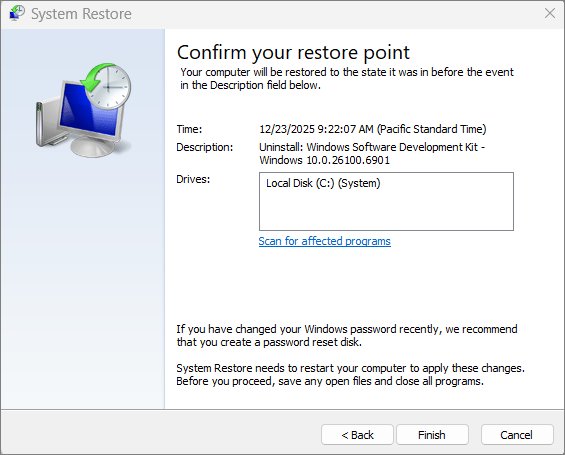
Manual cleanup of folders and network adapters goes further than the uninstaller. A restore point lets you roll back with System Restore if something Windows needs goes with it.
Microsoft notes that System Protection is not on by default, so the first step turns it on if needed.
- Select Start, type Create a restore point, and open the result.
- If protection shows Off for the system drive, select Configure…, choose Turn on system protection, and select Apply.
- On the System Protection tab, select Create….
- Type a description such as After Norton removal and select Create.
- To roll back later, press Windows + R, type
rstrui.exe, select Next, pick the restore point and select Finish.
Delete leftover Norton folders only after uninstalling
Deleting Norton folders while the app is still installed leaves a half-removed program behind. Finish the uninstall and restart first, then clear what is left.
| Situation | What to do |
|---|---|
| Norton still appears in Installed apps | Do not delete folders. Uninstall it with Method 1, 2 or 3 first. |
| You uninstalled but have not restarted | Restart first. Some files stay locked until the reboot. |
| A Norton folder refuses to delete or says access is denied | A Norton component is still running. Run the Norton 360 Remover tool instead of forcing it. |
| Norton is gone from Installed apps and the PC has restarted | Empty Norton folders are safe to delete. |
| You plan to reinstall Norton Utilities Ultimate later | Keep its backups and log files. |
Clean up leftover Norton files and folders
Check the standard Windows program and app data locations after the final restart. Delete only folders that carry the Norton name, and leave everything else alone.
- Open File Explorer and go to
C:\Program Files, thenC:\Program Files (x86). - Delete any folder with Norton in its name, and approve the administrator prompt.
- Type
C:\ProgramDatain the File Explorer address bar and press Enter; this folder is hidden by default. - Delete any remaining Norton folder there.
- Press Windows + R, type
%LocalAppData%, press Enter, and remove any Norton folder. - Repeat with
%AppData%, then empty the Recycle Bin.
Skip registry edits. If Norton traces remain after this cleanup, the Norton 360 Remover tool is the supported way to clear them.
Remove Norton startup entries and services
After the restart, Windows should list no Norton startup apps or services. Anything still listed means part of Norton survived the uninstall.
- Open Start > Settings > Apps > Startup and look for a Norton entry.
- Set any Norton toggle to Off.
- Right-click Start, select Task Manager, and open the Startup apps tab.
- Select any remaining Norton entry and click Disable.
- Select Start, type Services, and open the Services app.
- Sort by Name and look for services that start with Norton.
- If a Norton service is still listed, run the Norton 360 Remover tool with the Remove option rather than deleting the service by hand.
Remove Norton VPN network components
Norton VPN is a separate program with its own uninstaller. If that removal did not finish, check Windows for a leftover VPN entry or network adapter.
- Uninstall Norton VPN from
appwiz.cplif it is still listed, then restart. - Open Settings > Network & internet > VPN and check that no Norton connection remains.
- Select Search, type Device Manager, and open it.
- Expand Network adapters and look for an adapter with Norton or VPN in its name.
- Right-click it, select Uninstall device, tick Attempt to remove the driver for this device, and click Uninstall.
- Restart the PC.
- If the connection still misbehaves, open Settings > Network & internet > Advanced network settings > Network reset and select Reset now > Yes.
Network reset removes and reinstalls every network adapter, so other VPN clients or Hyper-V virtual switches need setting up again afterwards.
What to do if Norton will not uninstall
"An error has occurred" when uninstalling Norton
A Norton component is locked or partly damaged.
- Restart the computer and try the uninstall again.
- If the error returns, run the Norton 360 Remover tool and choose Remove.
- Click Uninstall, then Restart Now when it finishes.
"We were unable to uninstall Norton Family" in the Remover tool
Norton Family is installed and blocks the Remover tool.
- Press Windows + R, type
appwiz.cpl, and press Enter. - Select Norton Family and click Uninstall or Remove.
- Enter the parent email address and password, click OK, then Next.
- Restart the PC and run the Norton 360 Remover tool again.
The Norton 360 Remover tool shows errors
Norton processes running in normal Windows prevent a clean removal.
- Open the Remover tool and click Reboot to restart in Safe mode.
- Run the tool again in Safe mode and choose Remove or Reinstall.
- Restart normally when it finishes.
Norton is not listed in Settings Installed apps
Microsoft notes that some apps cannot be uninstalled from Settings and must be removed in Control Panel.
- Type Control Panel in taskbar search and open it.
- Select Programs > Programs and Features.
- Right-click the Norton entry and select Uninstall or Uninstall/Change.
- If no Norton entry exists anywhere, run the Norton 360 Remover tool.
Uninstall stalls or fails while other apps are open
Norton asks for its window to be closed, and Microsoft's repair steps start with a restart.
- Close Norton and every other open program.
- Select Start > Power > Restart.
- Run the uninstall again before opening anything else.
Cancel Norton auto-renewal if you're done with Norton
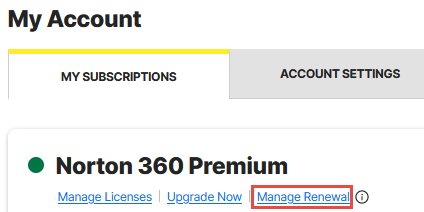
Norton subscriptions renew automatically, and removing the app does not change that. Turn off renewal before the next charge date; Norton says the change can take up to 24 hours to show.
- Sign in to your Norton account at my.norton.com.
- On the My Account page, select the My Subscriptions tab.
- Find the subscription and click Cancel Subscription Renewal or Manage Renewal.
- Next to Plan Renewal, click Unsubscribe.
- Select a reason and click Next.
- Click No thanks, cancel my subscription, then Next, and wait for the confirmation message.
Bought Norton through the Microsoft Store, Apple App Store or Google Play? Cancel it in that store. A plan billed by your internet provider or phone carrier is cancelled through that company.
Coverage continues until the end of the term you already paid for, then stops without another charge.
How to confirm Norton is completely removed
Run through these checks after the final restart. Each one should come up empty.
- Open Settings > Apps > Installed apps and search Norton: no entries should appear, apart from any Norton app you chose to keep.
- Open Windows Security > Virus & threat protection and confirm Microsoft Defender Antivirus is active with real-time protection on.
- Check Settings > Apps > Startup for any Norton entry.
- Open each browser's extensions page and confirm no Norton extension is left.
- Look in
C:\Program FilesandC:\ProgramDatafor a Norton folder. - In your Norton account, go to My Subscriptions > Manage Devices, click the bin icon next to this PC, and click Remove to free the licence.
Removing the device from the Norton account only deactivates the licence. It never uninstalls anything, so do it after the PC is clean.
Should you use a third-party uninstaller?
No. Use the Windows uninstaller first and Norton's own Norton 360 Remover tool if that fails. Norton built the Remover tool for its own app, recommends it whenever the standard uninstall fails, and adds a Safe mode pass for stubborn installs. Microsoft's advice for blocked removals is a restart, a repair and the Settings uninstall, so a generic uninstaller or registry cleaner adds risk without adding a step either vendor needs.
Common questions about uninstalling Norton on Windows 11
Does uninstalling Norton cancel my subscription?
No. Norton states that uninstalling the app does not cancel the subscription or stop automatic renewal. Sign in to your Norton account, open My Subscriptions, and turn off renewal there, or cancel through the app store or partner that bills you.
Is Microsoft Defender enough after removing Norton?
Microsoft says its built-in security software protects against malware, spyware and adware, and that no other real-time antivirus is needed. Defender turns on automatically when Norton is gone; keep real-time protection on and let Windows Update deliver its definitions.
Why can't I uninstall Norton from Windows 11?
A locked or damaged Norton component usually blocks the standard uninstall. Restart and try again from Programs and Features. If it still fails, run the Norton 360 Remover tool, and use its Reboot option to run the removal in Safe mode.
What does the Norton Remove and Reinstall tool do?
It is Norton's free cleanup utility, now named the Norton 360 Remover tool. Its Remove option uninstalls the Norton device security app, and Reinstall removes it and installs the latest version. It does not remove Norton Private Browser.
Do I need to restart after uninstalling Norton?
Yes. Norton's steps end with exiting all programs and restarting the computer, and the Remover tool asks you to click Restart Now. The restart releases locked files and lets Microsoft Defender take over as the active antivirus.
Will uninstalling Norton delete my saved passwords?
Uninstalling Norton 360 does not delete the Norton Password Manager vault; Norton lists vault deletion as a separate, optional step. Norton Private Browser is different: its uninstaller deletes saved passwords and bookmarks unless you clear Also delete your browsing data.
Does removing a device from my Norton account uninstall Norton?
No. Norton says removing a device from the account only deactivates the services on it and does not uninstall the application. Uninstall Norton on the PC itself, then remove the device to free the licence for another computer.
How do I uninstall Norton on Windows 10?
The Control Panel route is identical: press Windows + R, run appwiz.cpl, select the Norton product and click Uninstall. In Settings, Windows 10 calls the page Apps and Features instead of Installed apps. The Norton 360 Remover tool works on both versions.
Can I reinstall Norton after uninstalling it?
Yes. Sign in to your Norton account, download the installer for your subscription and run it. The Remover tool's Reinstall option does both steps in one pass and prompts you to install Norton 360 after the restart.