To recover an app that disappeared from your iPhone Home Screen, swipe left past your last Home Screen page to open App Library, find the app, then touch and hold it and drag it back onto a Home Screen page.
If it is not in App Library, it is on a hidden page, in the Hidden folder, offloaded or deleted, and each case has its own fix below, including apps lost after a reset.
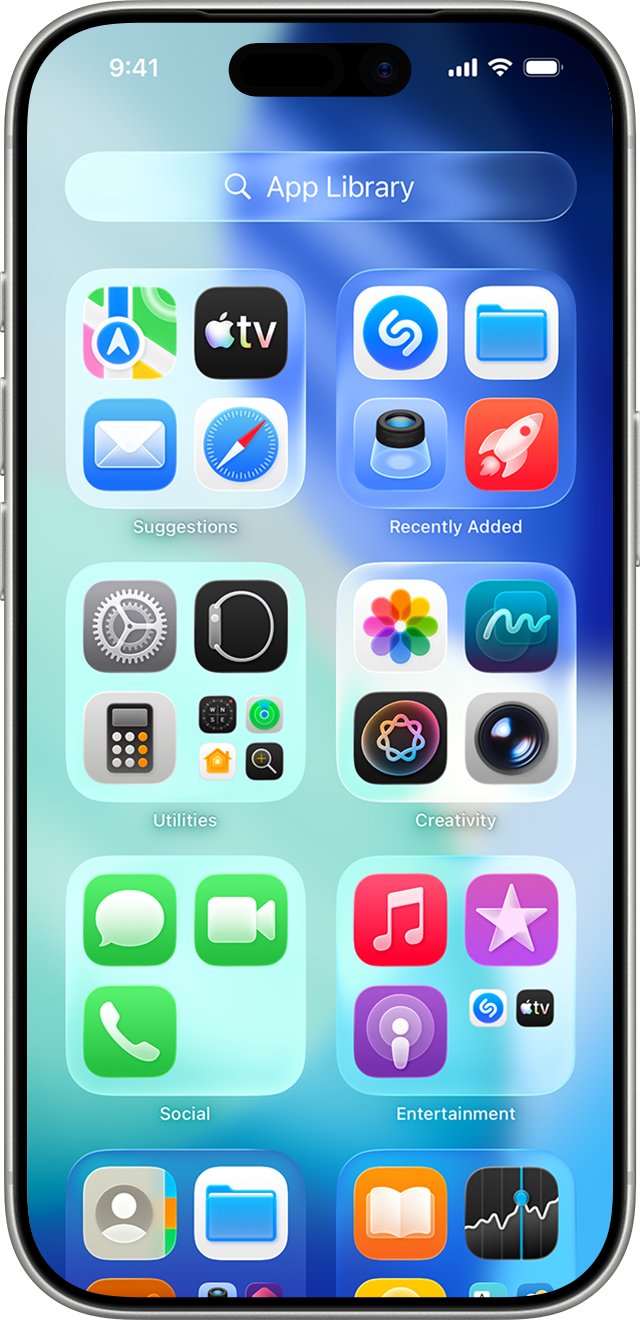
How to find apps that disappeared from iPhone Home Screen
Removing an app from the Home Screen is not the same as deleting the app from your iPhone. iPhone moves it to App Library, where it keeps working, so this is the first place to look.
- Go to the Home Screen and swipe left past all your Home Screen pages until App Library opens.
- Tap the search field at the top and type the app's name, or scroll the alphabetical list.
- Touch and hold the app's icon in the results.
- Keep holding until the icons jiggle and the app moves to the Home Screen.
- Drag the app to the page and spot you want, then lift your finger.
- Tap Done in the top corner.
If the search finds nothing, the app is hidden or no longer installed. Work through the sections below in order.
Why apps disappear from iPhone Home Screen
An app vanishes from the Home Screen for one of a handful of reasons. Match what you see to a row, then use that fix.
| What happened | What you see | Where the app is | Fix |
|---|---|---|---|
| Removed from Home Screen | Icon gone, app still opens from search | App Library | Drag it back from App Library |
| Home Screen page hidden | A whole page of apps is gone at once | Hidden page and App Library | Turn the page back on with Edit Pages |
| App hidden (iOS 18 or later) | Not on the Home Screen, not in App Library, not in search | Hidden folder at the bottom of App Library | Unlock the Hidden folder and unhide it |
| Offloaded to save storage | Icon still there with a cloud symbol | Home Screen, app data kept | Tap the icon to reinstall it |
| Deleted | Not found anywhere on the iPhone | App Store purchase list | Redownload it from Your Apps |
| Blocked with Screen Time | Icon dimmed on the Home Screen | Still installed | Unblock it in Apps & Websites |
| New apps set to App Library Only | New downloads never reach the Home Screen | App Library | Choose Add to Home Screen in Settings |
Search for a missing app on iPhone
Search finds apps on hidden pages and in App Library, so it settles quickly whether the app is still installed.
- Swipe down from the middle of the Home Screen, or tap the Search field at the bottom of the Home Screen on iOS 16 and later.
- Type the app's name. Results update as you type.
- If the app's icon appears, tap it to open the app.
- If no icon appears, check the Hidden folder or download the app again from the App Store.
Unhide a hidden Home Screen page on iPhone
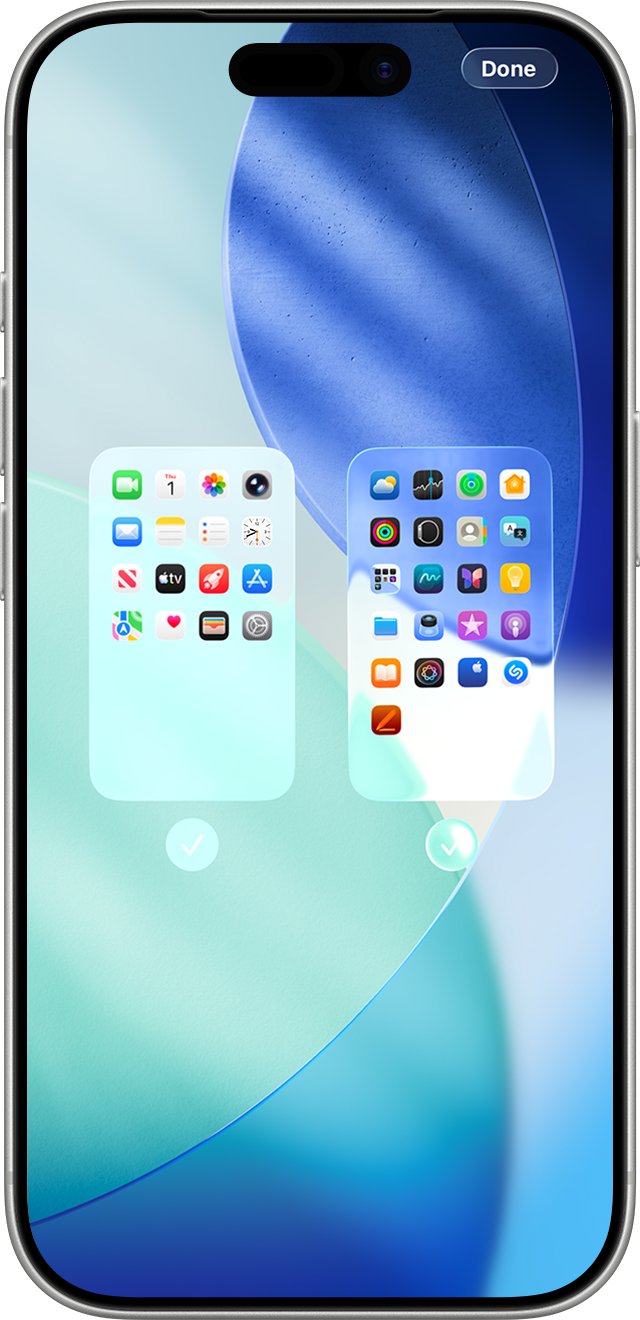
When several apps vanish together, a hidden page is the usual cause. Hiding a page keeps every app on it, and those apps still show in App Library.
- Touch and hold an empty area of the Home Screen until the icons jiggle.
- Tap Edit, then tap Edit Pages. You can also tap the dots near the bottom of the screen.
- Look at the page thumbnails. Hidden pages have an empty circle below them.
- Tap each unchecked circle to add a checkmark and show that page again.
- Tap Done.
While pages are hidden, new apps you download may land in App Library instead of on the Home Screen.
How to recover apps hidden in the iPhone Hidden folder
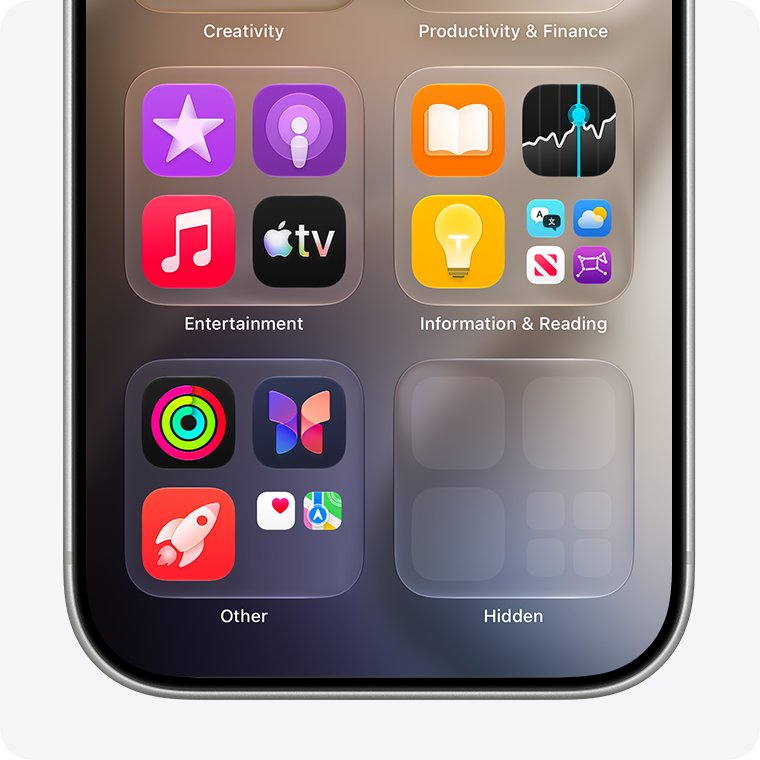
From iOS 18, an app can be hidden completely. A hidden app is missing from the Home Screen, from the main App Library list and from search, which is why it looks deleted. You can find hidden apps on iPhone in two places, and the Hidden folder is the quickest.
- Swipe left past all your Home Screen pages to App Library.
- Scroll to the bottom and tap the Hidden folder.
- Unlock it with Face ID, Touch ID or your passcode.
- Touch and hold the app's icon, then tap Don't Require Face ID (or the Touch ID or passcode equivalent).
- Find the app in App Library again and drag it to the Home Screen.
To see every hidden app in one list, open Settings, tap Apps, then tap Hidden Apps and authenticate.
How to recover deleted apps on iPhone
A deleted app has to be downloaded again. You can reinstall any app you previously downloaded from the App Store, as long as it is still available there.
- Open the App Store app.
- Tap your picture or the account button at the top of the screen.
- Tap Apps & Purchase History, then tap Your Apps.
- If you are in a Family Sharing group, tap My Apps or choose the family member who downloaded it.
- Find the app in the list and tap the download button next to it.
- Wait for the download to finish. The app appears on the Home Screen or in App Library, depending on your download setting.
Deleting an app removes its data from the iPhone, but data the app saved to iCloud, such as photos or documents, is not deleted. Sign in to the app again after reinstalling to get it back.
How to restore offloaded apps on iPhone
When storage runs low, iPhone can remove unused apps on its own while keeping their documents and data. The icon stays on the Home Screen with a small cloud symbol.
- Find the app's icon with the cloud symbol on the Home Screen or in App Library.
- Tap the icon to reinstall the app with its data intact.
- To stop apps being offloaded automatically, open Settings and tap Apps.
- Tap App Store.
- Turn off Offload Unused Apps.
Turning the setting off means iPhone fills up faster, so check Settings > General > iPhone Storage for the apps using the most space.
How to recover lost apps after reset on iPhone
An iCloud Backup stores your App Store purchase history, not the apps themselves. After you factory reset the iPhone and restore it, iPhone downloads your apps again from the App Store, which takes time on large libraries.
- Keep the iPhone on Wi-Fi and connected to power after the restore.
- Enter your Apple Account password whenever the App Store asks for it during the restore.
- If you bought apps with more than one Apple Account, enter the password for each account when prompted.
- Open Settings, tap [your name], tap iCloud, then tap iCloud Backup.
- If you see "This iPhone is currently being restored and will automatically back up when it is done", wait for the restore to finish.
- Once it finishes, redownload any app still missing from App Store > Apps & Purchase History > Your Apps.
Apps that were refunded or removed from the App Store cannot come back this way. Some third-party apps also need you to download their data from the app provider again.
Reset iPhone Home Screen layout to restore missing apps
If the Home Screen is a mess of hidden pages and moved apps, a layout reset puts things back in order. Built-in apps return to their original positions, and apps you downloaded follow them in alphabetical order. No data or apps are deleted.
- Open Settings and tap General.
- Tap Transfer or Reset iPhone, then tap Reset.
- Tap Reset Home Screen Layout.
- Confirm the reset if iPhone asks.
- Do not tap Erase All Content and Settings, which removes all your content.
If you would rather keep your current arrangement, customize the iPhone Home Screen by hand instead and drag each app back from App Library.
Is the app deleted or still on iPhone?
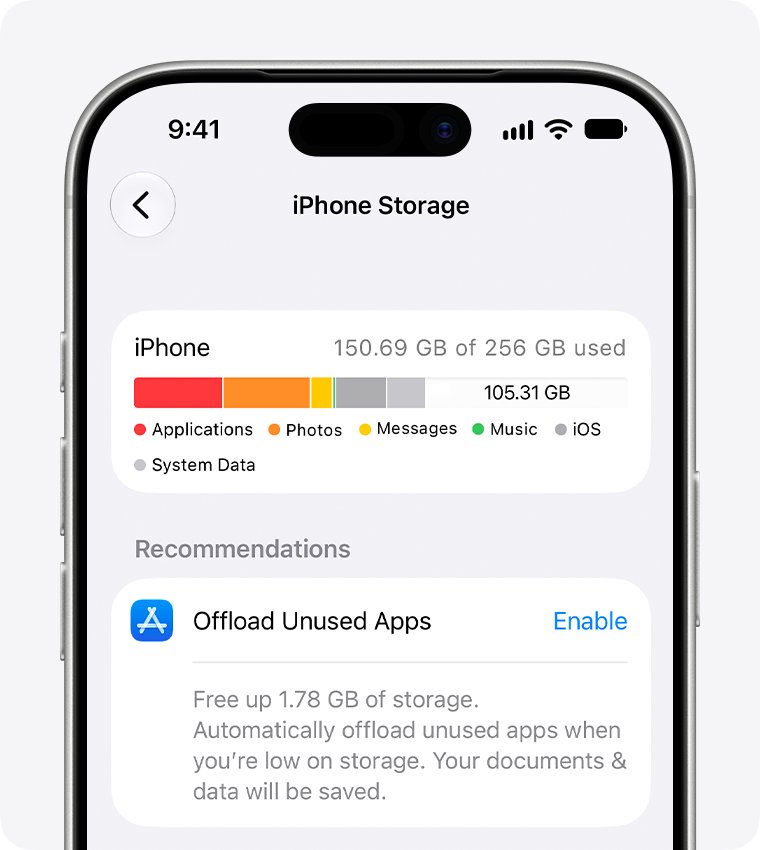
The iPhone Storage list shows every installed app, including ones hidden from view, so it answers whether you need to reinstall.
- Open Settings and tap General.
- Tap iPhone Storage and wait for the list of apps to load.
- Scroll through the list for the missing app.
- If it is listed, it is installed: look in App Library, a hidden page or the Hidden folder.
- If it is listed and you tap it, Offload App and Delete App confirm it is still on the iPhone.
- If it is not listed, it was deleted, so redownload it from the App Store.
Add new apps to iPhone Home Screen automatically
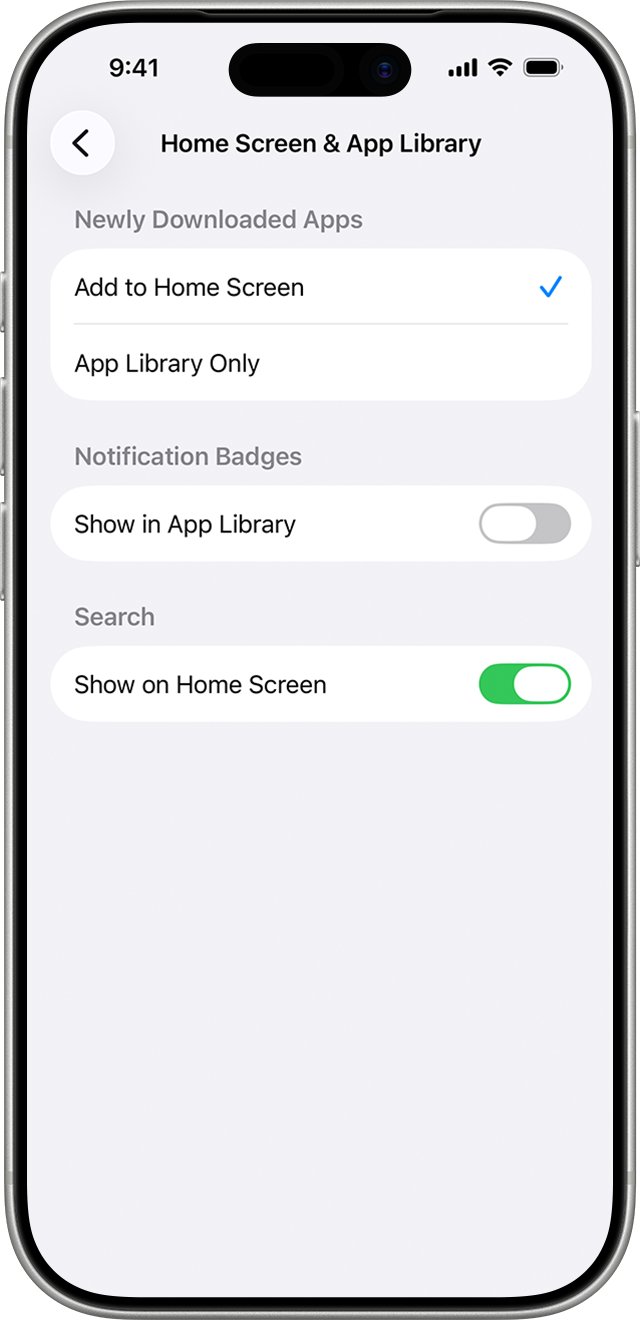
If newly downloaded apps never show up on the Home Screen, iPhone is set to put them in App Library only.
- Open Settings.
- Tap Home Screen & App Library.
- Choose Add to Home Screen.
- Turn on Show in App Library under notification badges if you also want badges on App Library icons.
My apps have disappeared from iPhone: problems and fixes
The app icon is there but greyed out
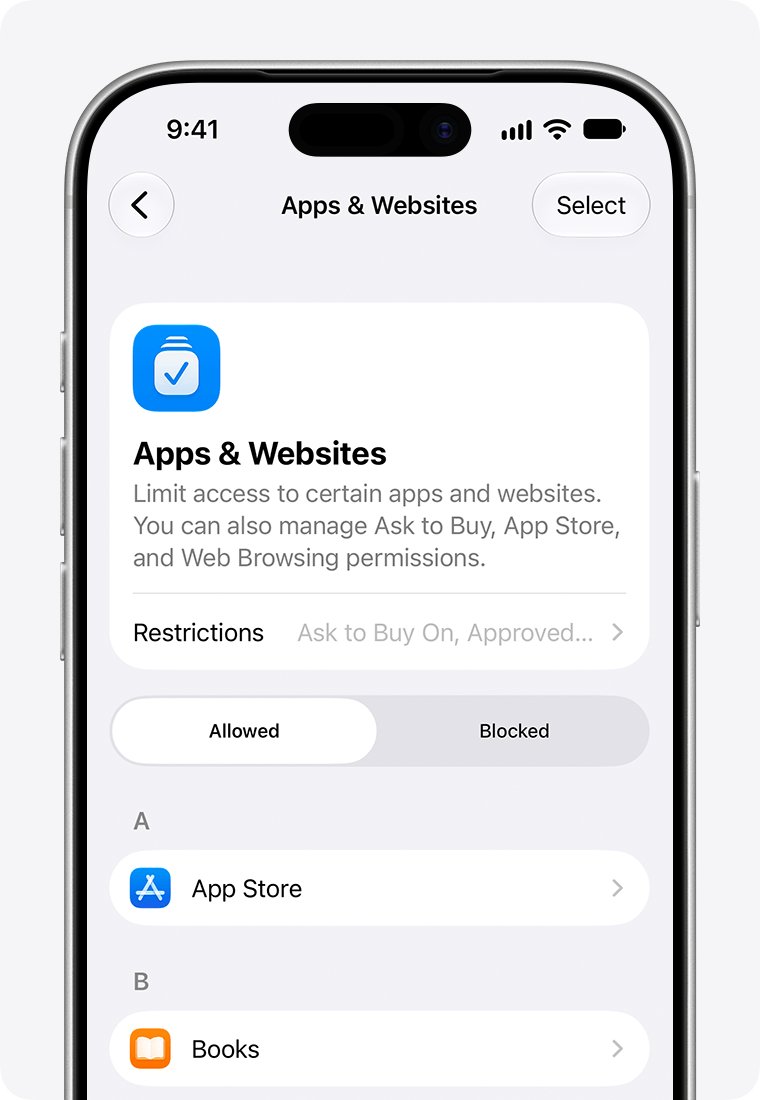
A Screen Time restriction blocked the app. Blocking dims it but does not delete it.
- On the parent's device, open Settings, tap Family, then tap the child's name.
- Tap Apps & Websites and enter the Screen Time passcode if asked.
- Select the app and unblock it.
- If the icon has a cloud symbol instead, it was offloaded: tap it to reinstall.
The app is not in Your Apps in the App Store
It was downloaded with a different Apple Account or by a family member, or it is no longer sold.
- In Your Apps, tap a family member's name to check their downloads.
- Sign in with the Apple Account used to download the app.
- Search the App Store for the app by name; if it is gone, it can no longer be redownloaded.
Search returns nothing for an app you know is installed
Hidden apps are left out of search and the main App Library list.
- Open the Hidden folder at the bottom of App Library.
- Or check Settings > Apps > Hidden Apps.
- Unhide the app, then search for it again.
Apps removed while resetting are still missing
The restore is still downloading apps, or the App Store is waiting for a password.
- Check Settings > [your name] > iCloud > iCloud Backup for the "currently being restored" message.
- Stay on Wi-Fi and power until it clears.
- Enter every Apple Account password the App Store asks for.
- Redownload what is left from Your Apps.
A built-in Apple app is missing
Many built-in Apple apps can be deleted, and some can only be removed from the Home Screen to App Library.
- Look for it in App Library first.
- If it is not there, search the App Store for the app's exact name and download it again.
- To bring every built-in app back to its original place, use Reset Home Screen Layout.
Disappeared iPhone apps FAQ
How do I recover deleted apps on iPhone?
Open the App Store, tap your picture, then Apps & Purchase History and Your Apps. Find the app and tap the download button. Any app you got from the App Store can be reinstalled while it is still available there.
How do I recover apps that were removed from the Home Screen?
Swipe left past your last Home Screen page to App Library, search for the app, then touch and hold it until it moves to the Home Screen. Removed apps stay installed and keep working from App Library.
How do I find apps that disappeared from my iPhone?
Swipe down on the Home Screen and search for the app's name. If it does not appear, check the Hidden folder at the bottom of App Library, then Settings > General > iPhone Storage to see whether it is still installed.
How do I restore missing apps after a reset?
Restore from your iCloud Backup and keep the iPhone on Wi-Fi and power. Apps download again from the App Store using your purchase history. Enter your Apple Account password when asked, then redownload anything left from Your Apps.
How do I find previously deleted apps on iPhone?
Every app you have downloaded with your Apple Account appears in the App Store under Apps & Purchase History > Your Apps. Apps not currently on the iPhone show a download button. Purchase History lists paid and free downloads by date.
Why did my apps disappear from my iPhone?
The app was most likely removed to App Library, placed on a hidden Home Screen page, hidden in the Hidden folder, offloaded to save storage or deleted. Each leaves a different trace, and the table above matches the sign to the fix.
Can I recover recently deleted apps with their data?
Data stored in iCloud comes back when you reinstall the app and sign in again. Data kept only on the iPhone is removed when the app is deleted. An offloaded app keeps its data, so tapping its cloud icon restores it intact.