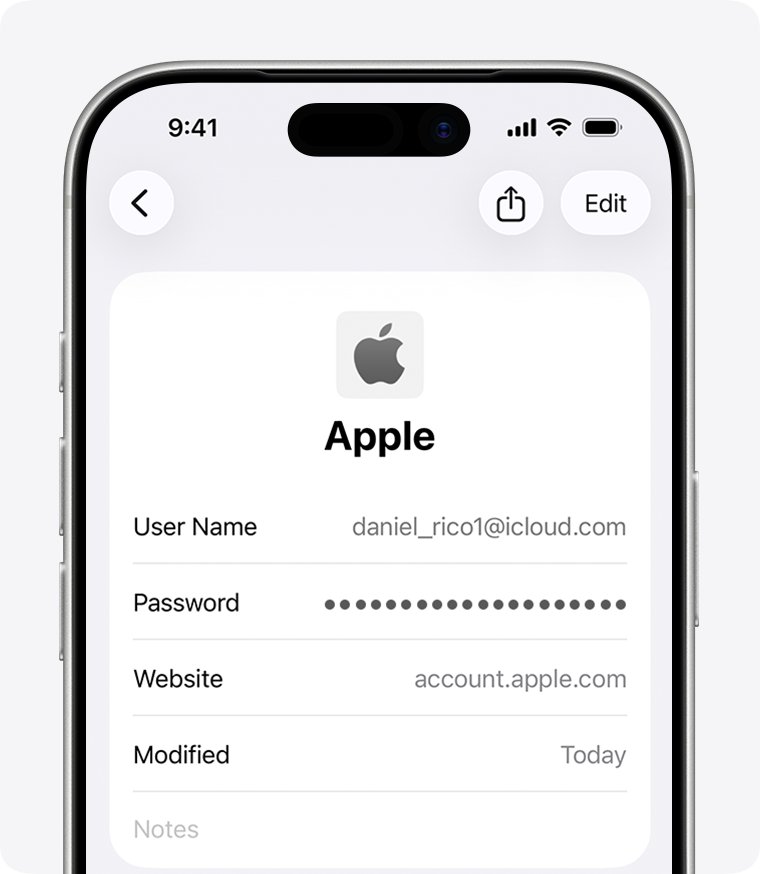
To view saved passwords on iPhone, open the Passwords app, unlock it with Face ID, Touch ID or your passcode, tap All, then tap an account and tap the Password field.
This guide covers the Passwords app in iOS 18 and later, the Settings route in iOS 17 and earlier, Siri, Wi-Fi passwords, editing and deleting, AutoFill, recovering deleted passwords and what to do when one is missing.
Use the Passwords app (iOS 18 and later)
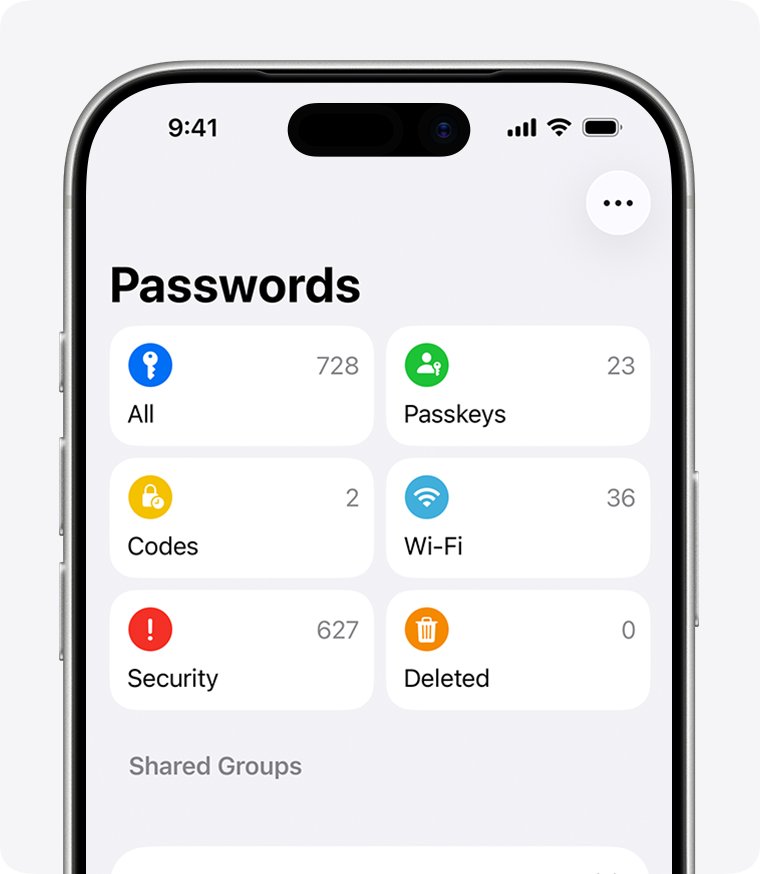
Apple moved saved passwords out of Settings and into a dedicated Passwords app starting with iOS 18. The app holds website and app passwords, passkeys, verification codes, Wi-Fi passwords and passwords shared with groups.
- Open the Passwords app on your iPhone.
- Unlock it with Face ID or Touch ID, or enter your iPhone passcode.
- Tap All to list every saved account, or type the website or app name in the search field at the bottom of the screen.
- Tap the account you want.
- Tap the Password field to reveal the password.
- Tap Copy Password if you want to paste it somewhere else.
To reorder a long list, tap All, tap the sort button, then pick how you want the accounts sorted.
iOS 17 and earlier
On iOS 17 and earlier there is no Passwords app. Saved passwords live in the Settings app under iCloud Keychain.
- Open Settings.
- Scroll down and tap Passwords.
- Use Face ID or Touch ID when prompted, or enter your passcode.
- Tap the website or app to see its user name and password.
- Tap Edit if you want to change the saved password.
If you can, update to iOS 18 or later to get the Passwords app, its search, and the Wi-Fi and Security categories.
Ask Siri
Siri opens your saved passwords without you hunting for the app. You still have to authenticate before any password is shown.
- Get Siri's attention with the side button or your Siri phrase.
- Say "Show my passwords" to open the full list.
- For one account, say something like "What is my Hulu password?" with the site or app name you need.
- Unlock with Face ID, Touch ID or your passcode when asked.
- Tap the Password field to reveal the password.
Find saved Wi-Fi passwords
In iOS 16 and later you can reveal Wi-Fi passwords after unlocking with your passcode, Face ID or Touch ID. iOS 18 and later also list every saved network in the Passwords app.
| What you want | Where to go | Steps |
|---|---|---|
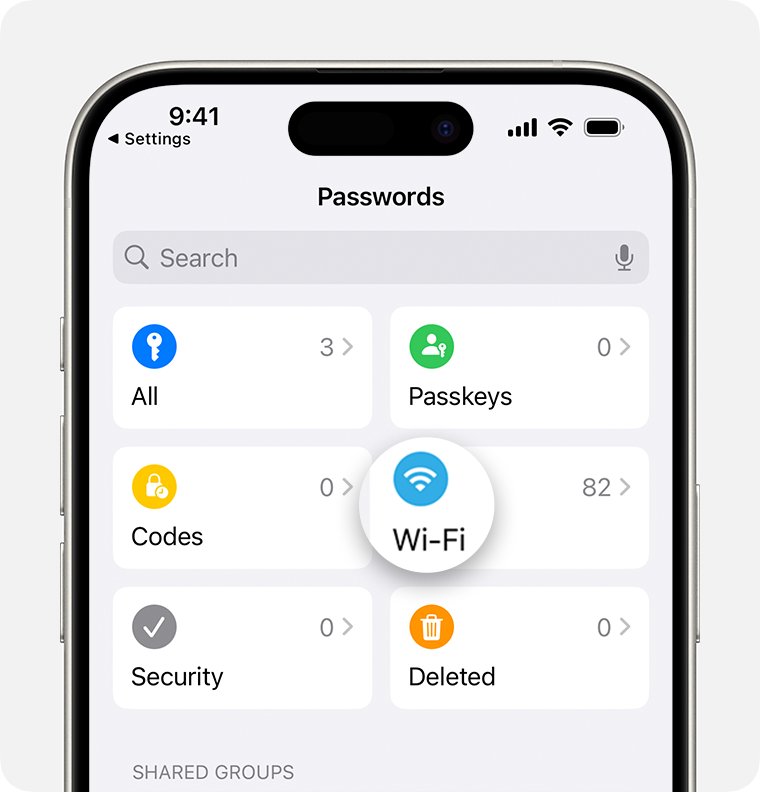
| Any saved network (iOS 18 and later) | Passwords app | Tap Wi-Fi, tap the network, tap the Password field, then Copy Password |
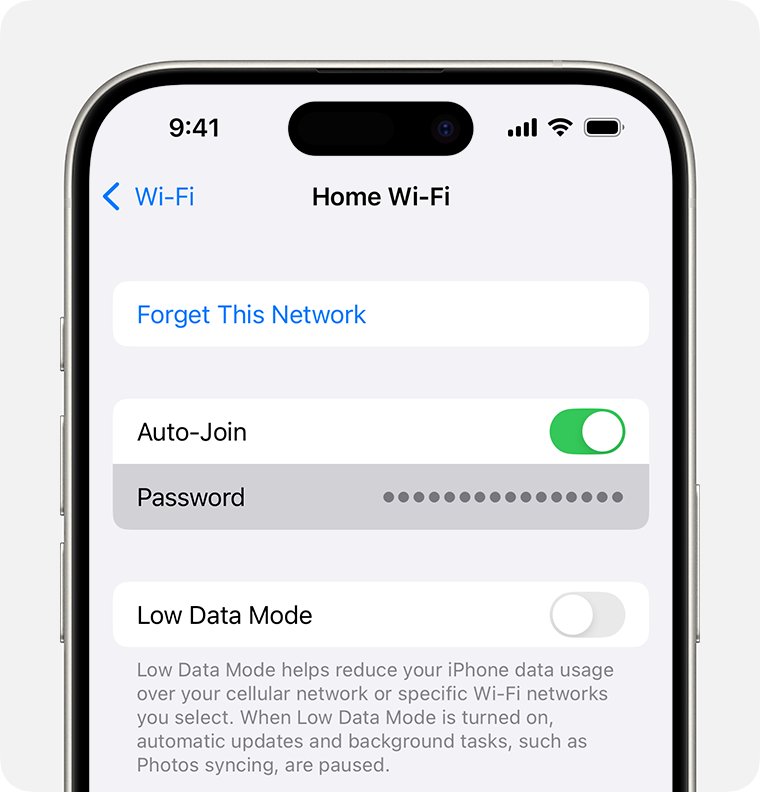
| The network you are connected to now | Settings > Wi-Fi | Tap the Info button next to the network, then tap the Password field |
| A network you joined before (iOS 16 and later) | Settings > Wi-Fi | Tap Edit in the upper-right corner, unlock, tap the Info button next to the network, then tap Password |
| Let a friend join without typing | Passwords app > Wi-Fi | Tap the network, then Show Network QR Code for them to scan |
| Share with a nearby iPhone, iPad or Mac | Your unlocked iPhone | They pick the network in Wi-Fi settings; tap Share Password when the prompt appears |
Sharing to a nearby device needs both devices within Bluetooth and Wi-Fi range, Personal Hotspot off, and each person saved in the other's contacts.
If you change your Wi-Fi password on the router, every iPhone that saved the old one needs the new password the next time it joins.
How to see iPhone passwords on a Windows PC
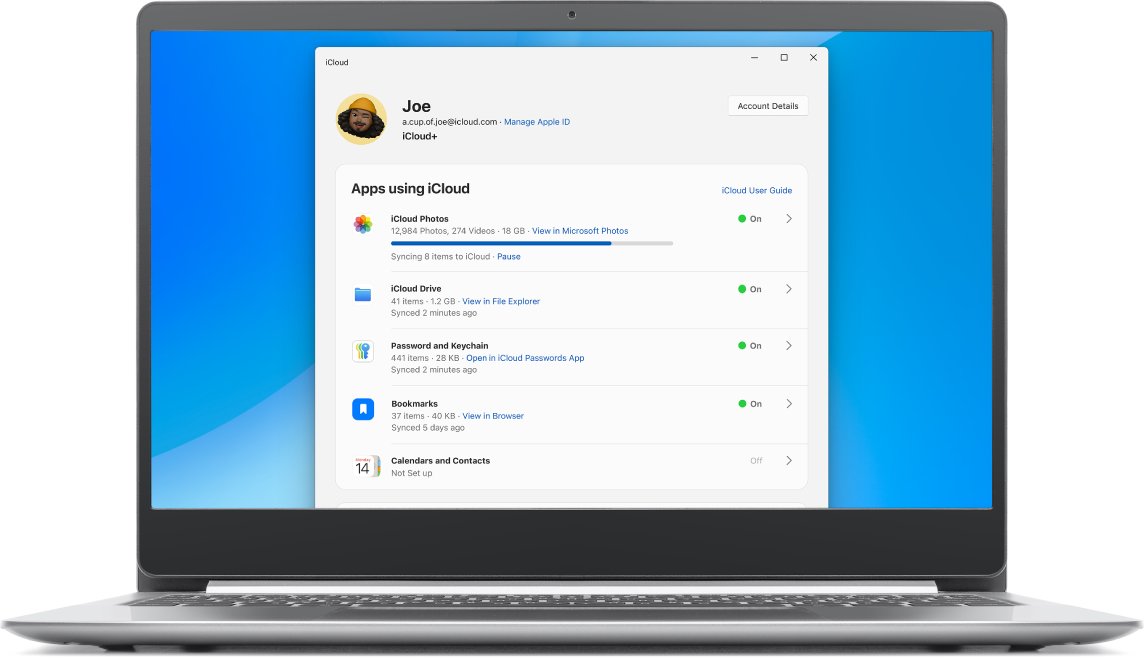
Passwords saved on your iPhone sync to a Windows computer through iCloud for Windows and the iCloud Passwords app. Your Apple Account needs two-factor authentication, and the device that receives the code needs iOS 14 or later.
- On your iPhone, make sure iCloud Keychain is on (see the missing-password section below).
- On the PC, open iCloud for Windows and sign in with the same Apple Account.
- Next to Passwords and Keychain, turn on Passwords & Keychain, or click Approve and enter the code sent to your trusted device.
- Keep the iPhone within Bluetooth range of the PC unless Advanced Data Protection for iCloud is on.
- Open the iCloud Passwords app on the PC to view and manage the passwords.
- For Chrome, Edge or Firefox, click Install Extension next to the browser name in iCloud for Windows.
Turning on the iCloud Passwords browser extension turns off that browser's built-in password saving. If you mostly want what the browser itself saved, you can find saved passwords on Windows without iCloud.
If the iCloud Passwords app on the PC asks for a PIN you no longer remember, you can reset the iCloud Passwords PIN and sign in again.
Passwords app categories on iPhone explained
The Passwords app sorts saved items into categories. You may have to tap the sidebar button to see the full list.
| Category | What it holds | Use it to |
|---|---|---|
| All | Every saved website and app account | Find, copy, edit or delete a password |
| Wi-Fi | Networks you have joined, with the current one at the top | Copy or share a Wi-Fi password |
| Security | Accounts with weak, reused or leaked passwords | Change a password iPhone has flagged |
| Deleted | Passwords removed in the last 30 days | Recover a password you deleted by mistake |
| Shared groups | Passwords and passkeys you share with family or trusted contacts | See what a group can use, or add and remove members |
Edit or delete a saved password
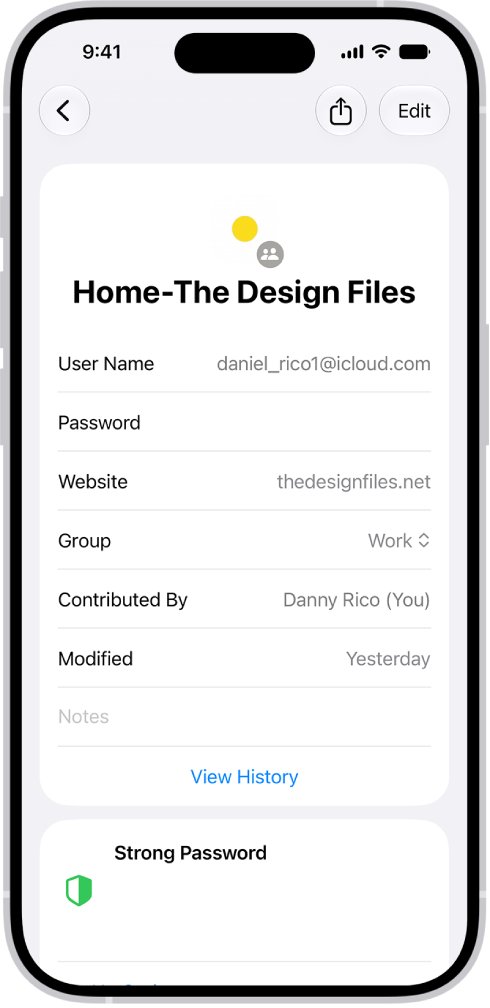
Deleting a password removes it from your iPhone and iCloud Keychain only. Your account on the website or app keeps its password.
| Task | iOS 18 and later (Passwords app) | iOS 17 and earlier (Settings > Passwords) |
|---|---|---|
| Change a password | Tap All, tap the account, tap Edit, tap Change Password, then change it on the website or in the app | Tap the account, tap Edit, then update it |
| Delete a password | Tap All, tap the account, tap Edit, tap Delete, then Delete Password | Tap the account, then tap Delete Password |
| Delete from the list | Tap All, swipe left on the account, tap Delete | Tap the account, then tap Delete Password |
| Add a note (security questions, PINs) | Tap All, tap the account, tap Edit, tap Notes, type, then confirm | Add the note when saving a new strong password |
How to recover deleted passwords on iPhone
A deleted password stays recoverable for 30 days before iPhone erases it permanently.
- Open the Passwords app.
- Tap Deleted. Tap the sidebar button first if you cannot see the categories.
- Tap the account for the deleted password.
- Tap Recover.
- If the password was shared with a group, choose Recover to Group to keep sharing it or Recover and Stop Sharing.
On iOS 17 and earlier, go to Settings > Passwords and tap Recently Deleted instead.
Turn Password AutoFill on or off
AutoFill fills saved passwords into sign-in screens. The switch sits in a different place depending on your iOS version.
| iOS version | Path | Switch |
|---|---|---|
| iOS 18 and later | Settings > General > AutoFill & Passwords | AutoFill Passwords and Passkeys |
| iOS 17 | Settings > Passwords > Password Options | AutoFill Passwords |
With AutoFill on, tap the account suggested above the keyboard on a sign-in screen. To pick a different one, tap the key button and then Other Passwords. iPhone can fill passwords from up to three password apps.
How to check for compromised passwords on iPhone
iPhone flags passwords that are easy to guess, used more than once, or found in known data leaks.
- Open the Passwords app.
- Tap Security. A message under each account explains the problem.
- Tap an account, tap the Password field, then tap Copy Password in case the site asks for the old one.
- Tap Change Password and set a new password on the website or in the app.
- To turn leak monitoring on or off, go to Settings > Apps > Passwords and switch Detect Compromised Passwords.
If a password is missing
Only some passwords appear
You are viewing a shared group or a single category instead of everything.
- In the Passwords app, tap All.
- On iOS 17 and earlier, check that the screen title reads Passwords, not a shared group name or My Passwords.
A password I deleted is gone
It moved to the Deleted list.
- In the Passwords app, tap Deleted, tap the account and tap Recover.
- On iOS 17 and earlier, go to Settings > Passwords > Recently Deleted.
Passwords saved on my Mac or iPad do not show on iPhone
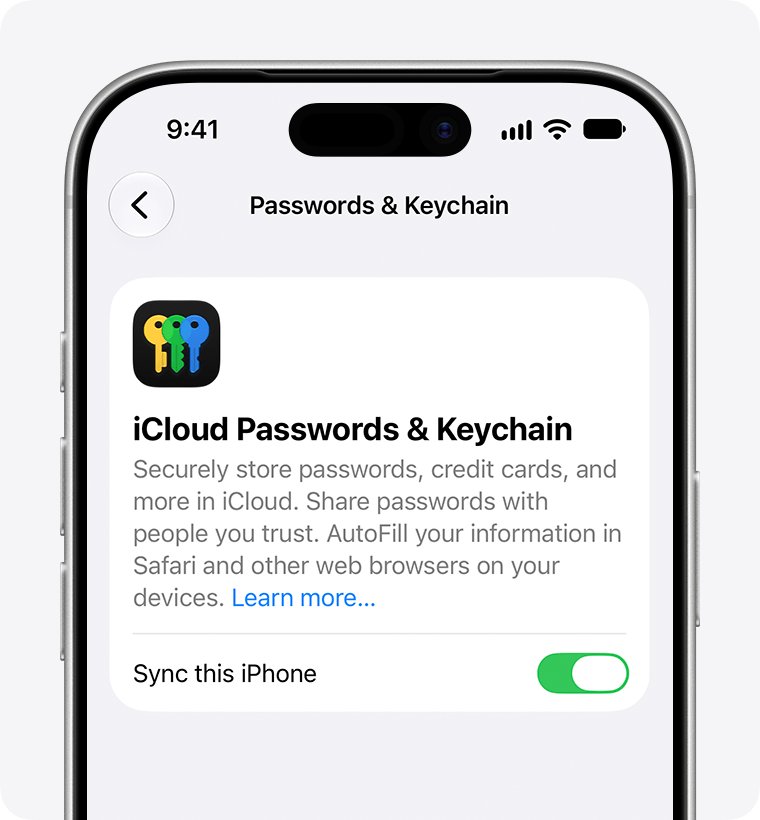
iCloud Keychain is off on one of the devices.
- Open Settings and tap your name, then iCloud.
- Tap See All next to Saved to iCloud, then tap Passwords & Keychain.
- Turn on Sync this iPhone and follow the onscreen steps.
- Approve the iPhone from another signed-in device when asked, or use your iCloud Security Code.
A password moved to a shared group is missing
Shared groups only show on devices with compatible software.
- Update the iPhone to iOS 17 or later.
- Open the Passwords app and tap the group name to check the password is still in it.
Setting up a replacement phone is easier when Keychain sync is on before you transfer iPhone to iPhone, because the passwords arrive with your Apple Account.
Saved passwords on iPhone FAQ
Can someone else see my passwords?
Not without unlocking. The Passwords app and the Settings password list both require Face ID, Touch ID or your passcode before anything appears. Anyone who knows your iPhone passcode can open them, so keep the passcode private. Members of a shared group see only the passwords you move into that group.
Can I see my iPhone passwords on a Windows PC?
Yes. Install iCloud for Windows, sign in with the same Apple Account and turn on Passwords & Keychain. If the sign-in fails because you forgot it, reset your Apple Account password first. You then manage the passwords in the iCloud Passwords app, and can fill them in Chrome, Edge or Firefox with the iCloud Passwords extension.
Are passwords saved in the iPhone safe?
Yes. iCloud Keychain protects saved passwords with 256-bit AES encryption in storage and in transit, and Apple cannot read that data. iPhone also warns you about weak, reused and leaked passwords in the Security category of the Passwords app.
Where are the Passwords app's other features?
They sit in the app's categories. Tap the sidebar button to see All, Wi-Fi, Security, Deleted and your shared groups. The AutoFill switch is not in the app; it is in Settings > General > AutoFill & Passwords.
How long do deleted passwords stay on iPhone?
Thirty days. During that time the password sits in the Deleted category of the Passwords app, or Recently Deleted on iOS 17 and earlier, and you can tap Recover to put it back. After 30 days it is permanently deleted.
Can I ask Siri for a specific password?
Yes. Say something like "What is my Hulu password?" with the name of the site or app. Siri opens that account in Passwords after you unlock with Face ID, Touch ID or your passcode. Say "Show my passwords" to open the whole list.
Can I share a saved password from iPhone?
Yes. Create a shared group in the Passwords app, add people from your contacts who use iOS 17, iPadOS 17, macOS 14 or later, then move the passwords into it. Changes to a shared password update on everyone's device.