iOS 26 has no switch that removes Liquid Glass completely, but you can turn most of it off: go to Settings > Display & Brightness > Liquid Glass and choose Tinted, or turn on Reduce Transparency in Accessibility for solid backgrounds.
This guide covers every setting that tones down Liquid Glass on iPhone, which one to pick, how to stop its motion effects, how to fix Clear Home Screen icons, and how to switch the look back.
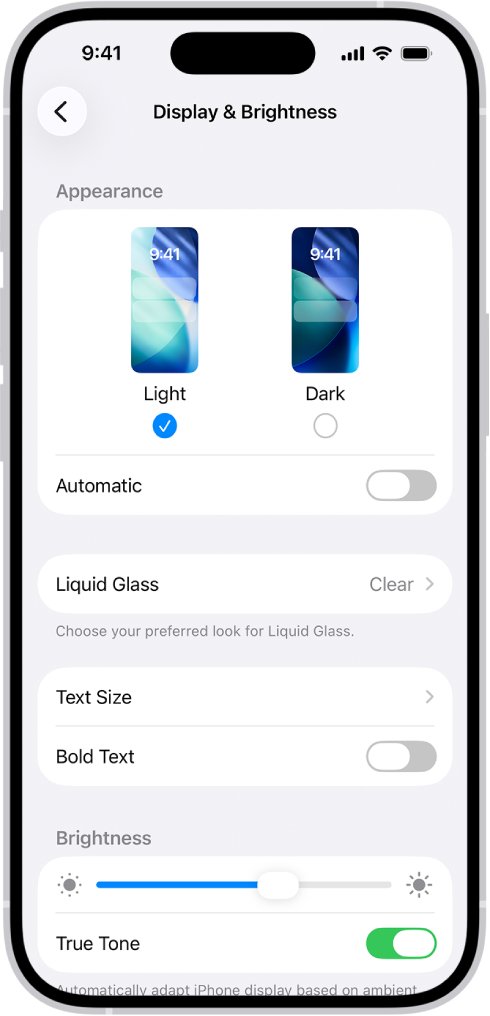
Turn off Liquid Glass transparency with Reduce Transparency
Reduce Transparency is the closest iOS 26 gets to disabling Liquid Glass. It gives transparent and blurred backgrounds a solid color.
- Open the Settings app on your iPhone.
- Tap Accessibility.
- Tap Display & Text Size.
- Turn on Reduce Transparency.
The change applies straight away to menus, the Control Center, notifications and tab bars that used see-through glass. With it on, the Liquid Glass look setting in Display & Brightness can no longer be changed until you turn it off again.
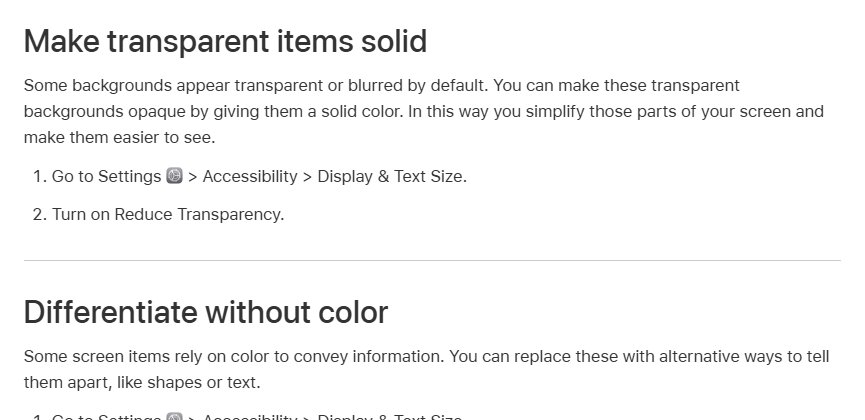
Liquid Glass Tinted vs Reduce Transparency vs Increase Contrast
| What bothers you | Setting to change | What you get |
|---|---|---|
| Glass is too see-through but you like the style | Display & Brightness > Liquid Glass > Tinted | More opacity and contrast, glass style kept |
| You want no transparency at all | Accessibility > Display & Text Size > Reduce Transparency | Solid backgrounds instead of blur |
| Text and buttons are hard to read over glass | Accessibility > Display & Text Size > Increase Contrast | Stronger color contrast between items and backgrounds |
| The wobbling and morphing animations | Accessibility > Motion > Reduce Motion | Liquid Glass morphing effects stop |
| See-through Home Screen icons | Home Screen > Edit > Customize > Default or Dark | Solid icons and widgets again |
You can combine these. For the plainest look, turn on Reduce Transparency and Reduce Motion, and set Home Screen icons to Default.
Switch Liquid Glass from Clear to Tinted in iOS 26
iOS 26 has a Liquid Glass setting with two looks. Clear is the most transparent, and Tinted adds opacity and contrast.
- Open the Settings app.
- Tap Display & Brightness.
- Tap Liquid Glass.
- Choose Tinted.
If the Liquid Glass options will not change, Reduce Transparency or Increase Contrast is on. Turn both off in Accessibility > Display & Text Size, then choose the look you want.
Turn off Liquid Glass animations with Reduce Motion
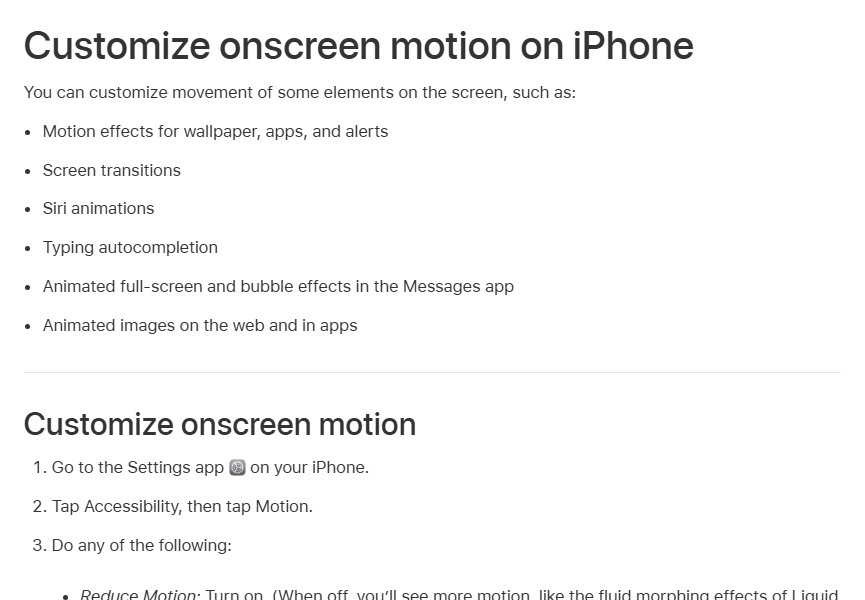
Liquid Glass also moves: buttons and menus morph and stretch as you tap them. Reduce Motion stops those fluid morphing effects, along with wallpaper and app transition motion.
- Open the Settings app.
- Tap Accessibility, then tap Motion.
- Turn on Reduce Motion.
- Optionally turn off Auto-Play Message Effects and Auto-Play Video Previews for a calmer screen.
Increase Contrast to make Liquid Glass easier to read
- Open the Settings app.
- Tap Accessibility, then tap Display & Text Size.
- Turn on Increase Contrast.
- Turn on Bold Text in Display & Brightness if labels on glass bars are still thin.
Increase Contrast also locks the Liquid Glass look setting, the same as Reduce Transparency.
Remove the Liquid Glass look from Home Screen icons
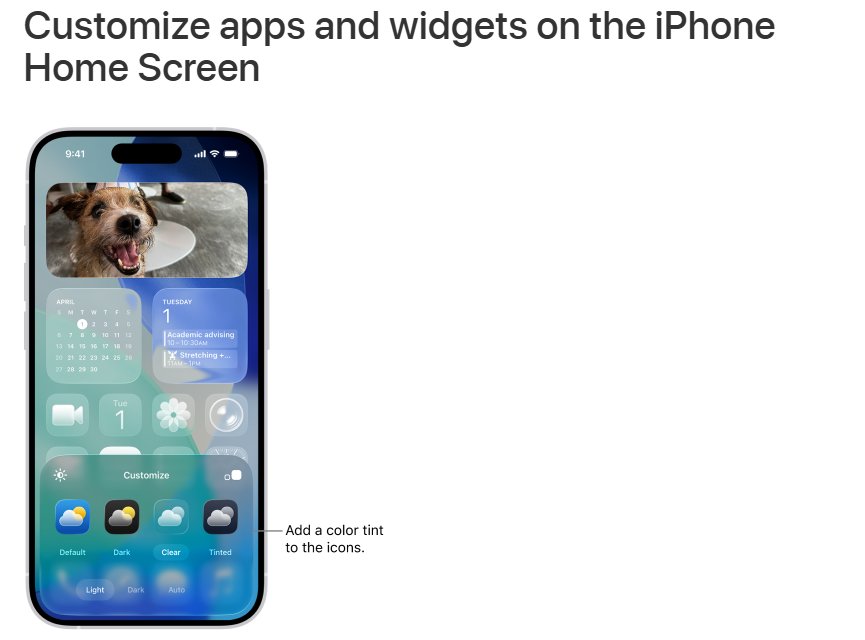
The Clear icon style makes apps and widgets translucent. Switch it back to solid icons from the Home Screen editor.
- Go to the Home Screen.
- Touch and hold the background until the icons begin to jiggle.
- Tap Edit at the top of the screen, then tap Customize.
- Tap Default for the standard colorful icons, or Dark for dark icons.
Avoid Clear in this menu if you want the least glass. Clear is the option that makes icons translucent.
Check that Liquid Glass is toned down
- Swipe down from the top-right corner to open Control Center. With Reduce Transparency on, the panel background is solid instead of blurred.
- Open Safari or Music and look at the tab bar at the bottom. Content should no longer show through it.
- Tap a button in an app. With Reduce Motion on, it should not stretch or morph.
- Go back to Settings > Display & Brightness > Liquid Glass. If the options are locked, an Accessibility setting is controlling the look.
Fix Liquid Glass settings that do not work
Can't change Clear or Tinted under Liquid Glass
Reduce Transparency or Increase Contrast is on, and Apple locks the Liquid Glass look while either is enabled.
- Open Settings > Accessibility > Display & Text Size.
- Turn off Reduce Transparency and Increase Contrast.
- Go back to Display & Brightness > Liquid Glass and choose the look.
No Liquid Glass option in Display & Brightness
The iPhone is not running an iOS release that includes the setting.
- Open Settings > General > Software Update.
- Install the latest iOS 26 update offered.
- Check Display & Brightness again after the restart.
- Use Reduce Transparency in the meantime for solid backgrounds.
Liquid Glass still looks transparent on the Home Screen
Home Screen icons and widgets use their own style, set separately from the system setting.
- Touch and hold the Home Screen background.
- Tap Edit > Customize.
- Choose Default or Dark instead of Clear.
Text over glass is hard to read in Dark Mode
Light text over a busy wallpaper loses contrast through clear glass.
- Turn on Increase Contrast in Accessibility > Display & Text Size.
- Choose a simpler wallpaper with less detail behind the Dock and widgets.
- Turn on Bold Text in Display & Brightness.
How to enable Liquid Glass again
- Open Settings > Accessibility > Display & Text Size and turn off Reduce Transparency and Increase Contrast.
- Open Settings > Accessibility > Motion and turn off Reduce Motion.
- Open Settings > Display & Brightness > Liquid Glass and choose Clear for the full transparent look.
- On the Home Screen, open Edit > Customize and tap Clear if you want translucent icons.
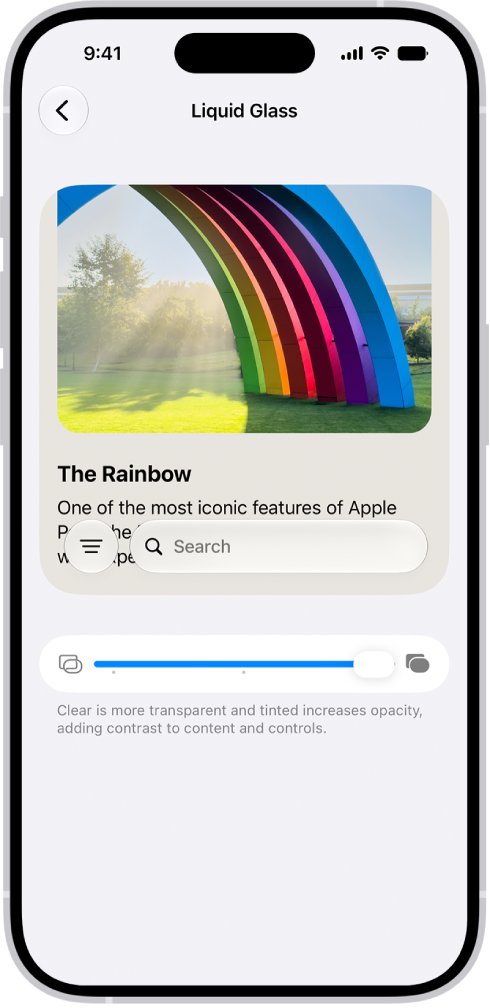
Liquid Glass slider in iOS 27
| iOS version | Liquid Glass control | Where |
|---|---|---|
| iOS 26 | Two looks: Clear or Tinted | Settings > Display & Brightness > Liquid Glass |
| iOS 27 | A slider from ultraclear to fully tinted | Settings > Display & Brightness > Liquid Glass |
| Both | Reduce Transparency, Increase Contrast, Reduce Motion | Settings > Accessibility |
If you update to iOS 27, drag the slider all the way to the tinted end for the least transparent glass. The Accessibility settings still work the same way.
Turn off Liquid Glass on iPhone FAQ
Can Liquid Glass be turned off?
Not completely. iOS 26 has no single off switch, but Reduce Transparency removes the see-through effect, Reduce Motion stops its animations, and the Tinted look adds opacity. Together they remove most of the Liquid Glass look.
How do I turn off Liquid Glass?
Open Settings > Accessibility > Display & Text Size and turn on Reduce Transparency. For a lighter change that keeps the style, open Settings > Display & Brightness > Liquid Glass and choose Tinted instead of Clear.
How do I get rid of Liquid Glass on my Home Screen?
Touch and hold the Home Screen background, tap Edit, then tap Customize and choose Default or Dark. The Clear option is what makes app icons and widgets translucent.
Can you turn off the Liquid Glass display effects?
Yes, mostly. Reduce Transparency gives glass backgrounds a solid color, and Reduce Motion in Accessibility > Motion stops the fluid morphing effects. Neither setting changes your wallpaper or apps.
How do I enable Liquid Glass again?
Turn off Reduce Transparency, Increase Contrast and Reduce Motion in Accessibility, then choose Clear in Settings > Display & Brightness > Liquid Glass. The full transparent look returns straight away.
How do I fix Liquid Glass when it is hard to read?
Choose Tinted under Display & Brightness > Liquid Glass, or turn on Increase Contrast in Accessibility > Display & Text Size. Bold Text in Display & Brightness also makes labels on glass easier to read.
How do I shut off Liquid Glass animations?
Open Settings > Accessibility > Motion and turn on Reduce Motion. Apple notes that with Reduce Motion off you see more motion, such as the fluid morphing effects of Liquid Glass, so turning it on stops them.
Why can't I change the Liquid Glass setting?
Apple locks the Liquid Glass look while Reduce Transparency or Increase Contrast is on. Turn both off in Accessibility > Display & Text Size, then choose Clear or Tinted.