To sync files between Windows PCs, sign in to the OneDrive app on each PC with the same Microsoft account, and anything saved in the OneDrive folder appears on all of them.
This guide covers first and second PC setup, Desktop and Documents backup, Files On-Demand, per-PC folder choices, sharing, recovery, Personal Vault, bandwidth limits and fixes for stuck sync.
The fastest way to sync OneDrive between two Windows PCs
Windows 11 already has OneDrive installed, so on most PCs this takes a few minutes per device.
- On the first PC, select Start, type OneDrive, and open the OneDrive app.
- Enter your Microsoft account email address and select Sign in.
- On the This is your OneDrive folder screen, select Next to keep the default location.
- On the All your files, ready and on-demand screen, select Next.
- Save or move the files you want on every PC into the OneDrive folder in File Explorer.
- Repeat steps 1 to 4 on the second PC with the same account.
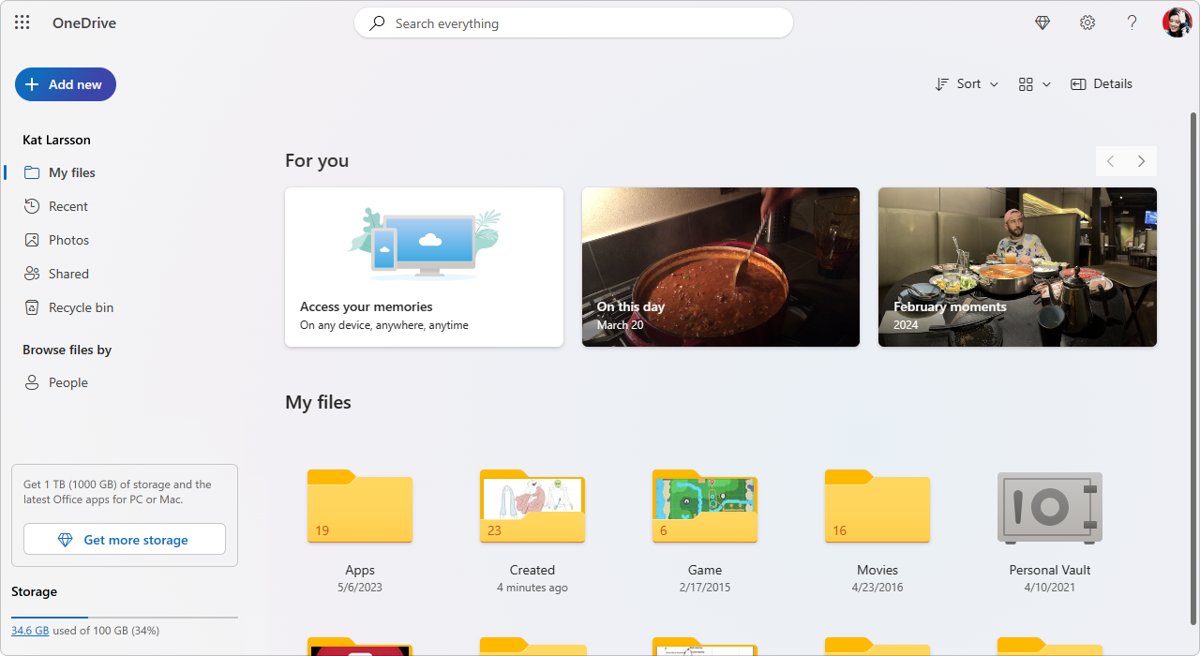
- Open File Explorer on the second PC and select OneDrive in the left pane. The files from the first PC are listed there.
Changes sync in both directions. Add, edit or delete a file in the OneDrive folder on one PC, and the same change reaches OneDrive.com and every other signed-in PC.
What OneDrive Synchronization Does
OneDrive keeps one copy of your files in the cloud and mirrors it into a OneDrive folder on each PC — useful to know before deciding whether you need OneDrive at all.
| What you do | What OneDrive does |
|---|---|
| Add, change or delete a file in the OneDrive folder | Makes the same change on OneDrive.com and on every PC signed in to that account |
| Turn on folder backup for Desktop, Documents or Pictures | Moves those folders into OneDrive so they follow you to other PCs |
| Open an online-only file | Downloads it on demand; it then works offline |
| Work offline | Keeps local edits and syncs them the next time the PC is online |
| Uncheck a folder in Choose folders on one PC | Removes it from that PC only; it stays online and on other PCs |
| Delete a file by mistake | Keeps it in the OneDrive recycle bin for 30 days on a personal account |
OneDrive sync is not a separate backup copy. Deleting a synced file on one PC deletes it everywhere, which is why the recycle bin and version history matter.
What You Need Before You Start
| Requirement | Detail |
|---|---|
| A Microsoft account or work/school account | Use the same account on every PC. OneDrive allows one personal account per PC plus several work or school accounts. |
| Enough OneDrive storage | Free accounts get 5 GB. Microsoft 365 Basic has 100 GB and Microsoft 365 Personal has 1 TB. When storage is full, new files stop syncing. |
| Supported Windows | Windows 11, or Windows 10 version 22H2. The OneDrive folder must be on an NTFS drive. |
| An internet connection | Needed for the first sync and for opening online-only files. |
| The OneDrive app | Built into Windows 11. On Windows 10, or if it was removed, follow how to download and install OneDrive for Windows 11/10. |
Set Up OneDrive on Your First Windows Device
Start on the PC that holds most of your files. It uploads first, and the other PCs download from the cloud afterwards.
- Select Start, search for OneDrive, and open the OneDrive desktop app.
- Enter your personal Microsoft account, or your work or school account, and select Sign in.
- On This is your OneDrive folder, select Next, or select Change location first to put the folder on another drive. Setup is the best time to change it.
- On All your files, ready and on-demand, read how online-only and offline files are marked, then select Next.
- Finish the remaining setup screens, then open File Explorer and select OneDrive in the navigation pane.
- Move the files you want on every device into this folder. Anything outside it does not sync unless folder backup covers it.
A OneDrive cloud icon now sits in the taskbar notification area. With more than one account, folders show as OneDrive – Personal and OneDrive – [CompanyName].
Enable Desktop, Documents, and Pictures Backup
Folder backup covers the standard Windows folders people save into by habit. Once on, those folders live in OneDrive and appear on every PC that backs them up.
- Select the OneDrive cloud icon in the notification area.
- Select the Help & Settings gear icon, then Settings.
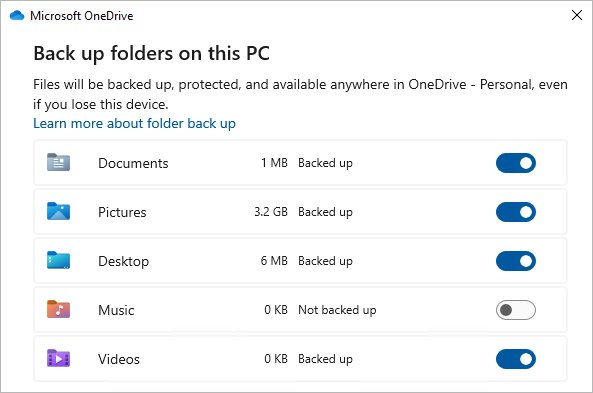
- Go to the Sync and backup tab and select Manage backup.
- Turn on each folder that says Not backed up: Desktop, Documents, Pictures, Music or Videos.
- Select Save changes and wait for the upload to finish.
Microsoft states that desktop items roam to your other PCs running OneDrive once Desktop is backed up. Be careful with desktop shortcuts: a shortcut to a program installed on one PC has nothing to open on a PC without that program.
Backup fails on files over 250 GB, paths of 260 characters or more, and names that start with a space or contain \ : / * ? < > " |.
Set Up OneDrive on Your Second Windows Device
The second PC needs the same account, not a new one. Signing in with a different Microsoft account creates a separate OneDrive that shares nothing with the first PC.
- On the second PC, select Start, search for OneDrive, and open the app.
- Sign in with the same account you used on the first PC.
- Select Next on This is your OneDrive folder and on All your files, ready and on-demand.
- Open File Explorer > OneDrive and confirm the first PC's files are listed with cloud icons.
- Open Settings > Sync and backup > Manage backup and decide whether to back up the same Windows folders here too.
- Turn on the same folders if you want one shared Desktop and Documents across both PCs, then select Save changes.
Backing up the same folders merges both PCs' Desktop and Documents into one set. Leave backup off on the second PC if its Desktop should stay separate.
Files from the first PC arrive as online-only placeholders. They download only when opened, so a large OneDrive does not fill a small laptop.
Use Files On-Demand to Save Disk Space
Files On-Demand is on by default from OneDrive build 23.066. It lists every file in File Explorer but downloads only the ones you open or pin.
- Open File Explorer and go to your OneDrive folder.
- Right-click a file or folder you need on this PC even without internet.
- Select Always keep on this device. It downloads and shows a green circle with a white check mark.
- Right-click a large file you rarely use and select Free up space. It becomes online-only and shows a blue cloud.
- To check the setting, open OneDrive Settings > Sync and backup, expand Advanced settings, and look for Files On-Demand.
In the newer settings, Free up disk space is the default and Download all files keeps everything local, which replaces the old off switch.
Free up space does not delete anything from OneDrive. Deleting an online-only file, by contrast, removes it from every device and from OneDrive.com.
Choose Which Folders Sync to Each PC
Custom sync choices are unique to each computer and each account. A work laptop can skip the photo archive that a desktop PC keeps.
- Select the OneDrive cloud icon, then Help & Settings > Settings.
- Go to the Account tab.
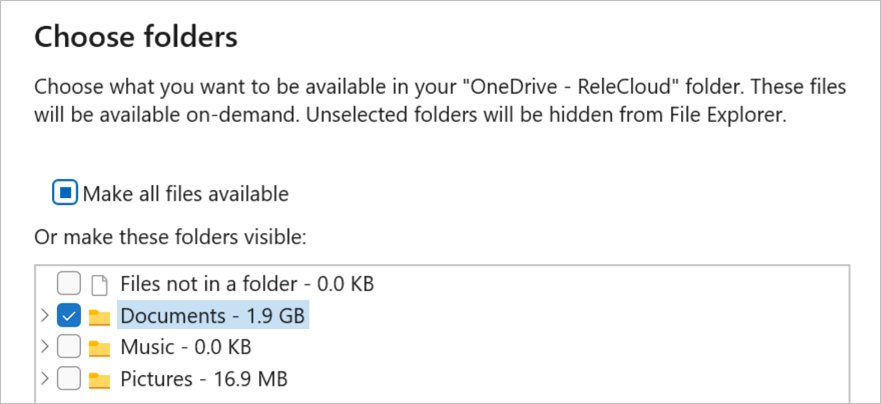
- Select Choose folders.
- In the Choose Folders dialog, uncheck the folders you do not want on this PC.
- Select OK.
Unchecked folders disappear from this PC but stay online and on other PCs. Documents, Desktop, Pictures and Personal Vault cannot be unchecked.
Share and Collaborate with Synced OneDrive Files
Any file in the synced folder can be shared straight from File Explorer. Word, Excel and PowerPoint files stored in OneDrive also get AutoSave for Microsoft 365 subscribers, so edits on one PC are saved every few seconds.
- In File Explorer, right-click the file or folder inside OneDrive.
- Select Share a OneDrive link to copy a link that allows editing by default.
- For more control, sign in at onedrive.com, select the item's circle check box, and select Share.
- Select the settings gear to pick Anyone, People with existing access or Specific people.
- Clear Allow editing, or set Set expiration date or Set password where your plan offers them.
- Select Apply, then Copy or enter addresses and select Send.
To work on an Office file across devices, open it from the OneDrive folder and check that the AutoSave switch at the top-left of the title bar is on.
Use Version History and the Recycle Bin
Sync copies mistakes as faithfully as good edits. These two tools undo them.
- To restore an earlier version, right-click the file in File Explorer's OneDrive folder and select Version history.
- Select the … next to the version you want and select Restore. It becomes the current version on every PC.
- To recover deleted files, sign in at onedrive.com and select Recycle bin in the navigation pane.
- Point to each item, select its circle check box, and select Restore.
- For files deleted from Personal Vault, select Show Personal Vault items in the recycle bin first.
Version history is kept for 30 days. Deleted items stay recoverable for 30 days on personal accounts and 93 days on work or school accounts, unless an administrator changed that.
Microsoft 365 subscribers can also restore the entire OneDrive to any point in the last 30 days.
Set Up OneDrive Personal Vault
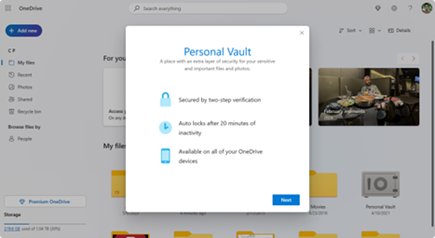
Personal Vault is a protected folder that needs a second identity check to open. It must be set up separately on each device where you use it.
- Open your OneDrive folder in File Explorer and select the Personal Vault shortcut, or select Get started if the prompt appears.
- Read the introduction and select Next or Continue.
- In Verify your identity, check your account details and select Verify.
- Choose a method such as Text or email and enter the code you receive.
- Move sensitive files into the vault. They lock automatically after a period of inactivity.
- To change the lock delay on a PC, open OneDrive Settings > Account and pick a time under Personal Vault.
Personal Vault works on Windows 11 and Windows 10 version 1903 or newer, for personal accounts only. Its files do not appear in search results.
Control Sync Performance and Network Use
Pause sync on a slow or shared connection, or cap its speed so video calls keep their bandwidth. OneDrive also pauses by itself in battery saver mode and on metered networks.
- To pause, right-click the OneDrive icon on the taskbar and choose Pause syncing.
- Pick 2 hours, 8 hours or 24 hours. Sync resumes automatically when the time ends.
- To resume early, select the paused OneDrive icon and select Resume syncing.
- To limit speed, open Settings > Sync and backup and expand Advanced settings.
- Set a fixed upload or download rate between 50 KB/s and 100,000 KB/s, or choose Adjust automatically to use only spare bandwidth.
How to Confirm OneDrive Is Syncing Correctly
- Select the OneDrive cloud icon on the first PC. The panel shows recent activity and any messages; no red or yellow badge on the icon means no errors.
- Create a small text file in the OneDrive folder on the first PC.
- Sign in at onedrive.com and confirm the file appears there.
- Open File Explorer > OneDrive on the second PC and confirm the same file is listed.
- Edit the file on the second PC, save it, and reopen it on the first PC to confirm the change came back.
- Delete the test file, then check that it lands in the OneDrive Recycle bin on the web.
Understand OneDrive File Status Icons
The icons in File Explorer and on the taskbar tell you what each file and each account is doing.
| Icon | Where | Meaning |
|---|---|---|
| Blue cloud | File Explorer | Online-only; takes no disk space and needs internet to open |
| Solid green circle with white check | File Explorer | Always keep on this device; available offline |
| Red circle with white cross | File Explorer or taskbar | A file or folder cannot sync |
| Gray cloud with a line through it | Taskbar | Not signed in, or setup is not finished |
| Cloud with a pause symbol | Taskbar | Sync is paused |
| Yellow triangle or brown exclamation mark | Taskbar | The account needs attention; select the icon to read the message |
| Red no-entry circle | Taskbar | The account is blocked |
Opening an online-only file downloads it and makes it locally available, so it opens offline until you select Free up space.
Troubleshoot Common OneDrive Sync Problems
OneDrive is not running, or the icon is gray with a line through it
The app is closed, or the account is not signed in on this PC.
- Select Start, search for OneDrive, and open the OneDrive desktop app.
- If the Set up OneDrive screen appears, enter your email address and password.
- If sign-in succeeds but OneDrive says it is not connected, test with a phone hotspot to rule out a network firewall block.
- If OneDrive reports that the device was removed, reconnect the removed device.
Files are stuck syncing or show a red cross
A file name, path length, file size, open file or full storage blocks upload.
- Select the OneDrive icon and read the error listed for the file.
- Rename files that start with a space or contain
\ : / * ? < > " |. - Shorten folder names so the full path stays under 260 characters.
- Close the file in any app that has it open, then wait for the next sync.
- Check storage: when OneDrive is full, new files will not upload or sync.
Files from one PC never appear on the other
The PCs use different accounts, the folder is unchecked, or sync is paused.
- Open Settings > Account on both PCs and compare the signed-in email addresses.
- Select Choose folders on the second PC and tick the missing folder.
- If the icon shows a pause symbol, select it and select Resume syncing.
- Confirm the files actually sit inside the OneDrive folder on the first PC, not in a local folder.
Folder backup fails with error 0x80070005
The Prohibit User from manually redirecting Profile Folders group policy is enabled.
- Check whether the files moved into identically named folders inside OneDrive.
- Move them back to their original locations.
- Ask your administrator whether the policy can be changed.
Sync still fails after the fixes above
OneDrive's local sync state is damaged.
- Press Windows key + R to open Run.
- Enter
%localappdata%\Microsoft\OneDrive\onedrive.exe /resetand select OK. - If Windows cannot find it, run
C:\Program Files\Microsoft OneDrive\onedrive.exe /reset, then theProgram Files (x86)path. - Select Start, search for OneDrive, and open it if it does not restart by itself.
- Redo your Choose folders selections after the full sync completes. No files are lost by resetting.
Best Practices for Syncing Multiple Windows Devices
| Practice | Why it matters |
|---|---|
| Use one account on every PC | A second Microsoft account is a second, empty OneDrive |
| Let the first PC finish uploading before setting up the next | The second PC then sees a complete file list |
| Keep Files On-Demand on for laptops with small drives | Only opened or pinned files use disk space |
| Pin travel files with Always keep on this device | Online-only files cannot open without internet |
| Close Office files before switching PCs, or rely on AutoSave | Open files cannot be moved and can hold up sync |
| Decide deliberately about backing up Desktop on each PC | Backed-up desktops merge, shortcuts included |
| Watch storage before it fills | A full OneDrive stops syncing new files on every PC |
Frequently Asked Questions
Should I set up OneDrive?
Set it up if you use more than one PC or want Desktop and Documents protected off the device. The free plan gives 5 GB, which suits documents but fills quickly with photos. OneDrive is optional, and Windows works without signing in to it.
How do I set up OneDrive on a new computer?
Open the OneDrive app from Start, sign in with the account your old PC used, and select Next through setup. Your files appear as online-only placeholders. Then turn on folder backup under Settings > Sync and backup > Manage backup if you want Desktop and Documents back.
Where is OneDrive setup in Windows 11?
Select Start, search for OneDrive, and open the OneDrive desktop app. If no account is signed in, the Set up OneDrive screen opens. A gray cloud icon with a line through it in the notification area also opens setup when selected.
How do I set up and use OneDrive in Windows 11?
OneDrive is preinstalled in Windows 11, so open it from Start, sign in, and accept the default folder. Save files into the OneDrive folder in File Explorer to sync them. Use Manage backup to include Desktop, Documents and Pictures automatically.
How do I set up OneDrive for work?
Sign in to the OneDrive app with your work or school account instead of a personal one. The folder appears as OneDrive – [CompanyName]. One PC can hold several work accounts alongside one personal account, added from Settings > Account > Add an account.
How do I configure OneDrive after setup?
Select the OneDrive cloud icon, then Help & Settings > Settings. The Sync and backup tab holds folder backup, Files On-Demand and bandwidth limits. The Account tab holds Choose folders, extra accounts and the Personal Vault lock time.
How do I set up OneDrive on a laptop with limited storage?
Sign in as on any PC and keep Files On-Demand on, which is the default. Use Choose folders to leave large folders off the laptop, and right-click big files and select Free up space. Pin only the files you need offline.
How do I use OneDrive effectively across several PCs?
Keep one account on every PC, save work inside the OneDrive folder, and back up the same Windows folders wherever you want a shared Desktop. Check the taskbar icon for errors, and use version history or the recycle bin to undo mistakes.


Fix ‘This device has been removed from OneDrive’ Error - Techdows
[…] Redoing the Setup and choosing the same OneDrive folder to sync files has fixed the issue for […]