To back up OneDrive, make the OneDrive app download every file to your PC with Download all files, then copy the OneDrive folder to an external drive you keep unplugged.
This guide covers that route, bulk downloads from OneDrive on the web, PC folder backup and camera backup, how to check the copy, how to restore lost files, and fixes for common backup errors.
Use the OneDrive Desktop App
OneDrive on Windows usually keeps most files online only, so the OneDrive folder on your PC is mostly placeholders. Download the real files first, or your copy will be empty shells.
- Select the OneDrive cloud icon in the notification area, then the Help & Settings icon, then Settings.
- Open the Sync and backup tab and expand Advanced settings.
- Under Files On-Demand, select Download all files and confirm. This has the same effect as marking the whole OneDrive folder Always keep on this device.
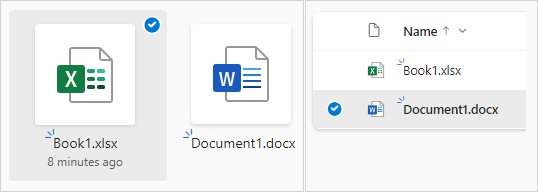
- Wait until every file and folder in File Explorer shows a solid green circle with a white check mark.
- Connect your external drive or USB stick and open it in File Explorer.
- Copy the whole OneDrive folder and paste it onto the external drive.
- Eject the drive when the copy finishes and store it away from the PC.
Files On-Demand needs Windows 10 version 1709 or later, so every current Windows 11 and Windows 10 PC has these options. If your PC lacks the disk space for everything, use the per-folder route under Save Files to a Local Storage Device.
Understanding OneDrive and Its Backup Needs
OneDrive is a sync service with some recovery tools attached, not an independent backup. A delete or overwrite on one device reaches every device and the cloud copy. If you are new to the service, what OneDrive actually does is worth reading first.
| What can go wrong | What OneDrive does about it | The limit |
|---|---|---|
| You delete a file on any device | It moves to the OneDrive Recycle bin | 30 days for personal accounts, 93 days for work or school unless an admin changed it |
| You delete an online-only file on your PC | It is deleted from OneDrive on all devices and online | It does not appear in the Windows Recycle Bin, only the OneDrive one |
| A file gets overwritten or corrupted | Version history keeps earlier versions of every file type | 30 days of version history |
| Ransomware or a mass delete hits many files | Restore your OneDrive rolls the whole account back | Microsoft 365 subscribers only, up to 30 days back |
| You empty the OneDrive Recycle bin | Nothing | Permanently deleted files can never be recovered |
| Your storage goes over quota | Files become read-only and sync stops | After six months over quota, files may be deleted and cannot be recovered |
Every one of those tools lives inside the same account. A copy on a separate drive is the only protection when the account itself is lost, locked or emptied beyond 30 days.
Methods to Backup OneDrive Data
| Your situation | Use this | Why |
|---|---|---|
| You want a full offline copy of OneDrive on an external hard drive | The OneDrive desktop app with Download all files, then copy the folder | No size or file-count cap beyond your disk space |
| You need a few folders, or you are on a Mac, Chromebook or borrowed PC | Download files manually from OneDrive on the web | Works in any browser; multiple items arrive as one .zip |
| You want to export the whole OneDrive once, and it is small | Select everything on the web and select Download | Capped at 10,000 files and 20 GB per download |
| You want copies made on a schedule without thinking about it | File History to an external drive, or a third-party backup tool | Runs automatically once set up |
| You want your PC's Desktop and Documents protected in the cloud | OneDrive PC folder backup | Protects the PC, not OneDrive itself |
| You want phone photos protected | Camera backup in the OneDrive mobile app | Uploads new photos and videos automatically |
Download Files from OneDrive Web
This is the manual route, and the only one that needs no app. Use it to back up OneDrive files to a PC or USB stick when the sync app is not installed.
- Go to onedrive.com and sign in with your Microsoft account.
- Open the folder you want to back up.
- Select the circle check box next to each file or folder, or press Ctrl + A to select everything in the view.
- Select Download in the top bar, or right-click a selected item and select Download.
- Choose Save or Save As when your browser asks, and pick a folder on your PC or external drive.
- Extract the downloaded .zip file onto the backup drive so each file can be opened directly.
Downloads of multiple items are limited to 10,000 files, 10 GB per .zip file and 20 GB overall. Split a large OneDrive into several folder-sized downloads to stay under those limits.
You cannot bulk download from the Shared view. Open shared files and save them one at a time, or ask the owner for a copy.
Save Files to a Local Storage Device
Use this when you want only some folders on an external hard drive, or your PC cannot hold all of OneDrive at once. It works folder by folder with the desktop app.
- Open File Explorer and select OneDrive in the left pane.
- Right-click the folder you want to back up and select Always keep on this device.
- Wait until the folder and its files show a solid green circle with a white check mark.
- Copy the folder and paste it onto your external drive or USB stick.
- Right-click the same folder in OneDrive and select Free up space to return it to online-only and reclaim disk space.
- Repeat for the next folder.
Do not make the external drive your live OneDrive location unless you understand the rules. Microsoft supports that only on a non-removable drive formatted NTFS that stays connected; removable USB drives are not supported. A plain copy has no such requirements.
Automating Backup with Third-Party Tools
Windows already includes a scheduled backup to an external drive: File History. It backs up your libraries, so add the OneDrive folder to a library and it gets copied every run.
- In File Explorer, right-click your OneDrive folder and select Always keep on this device, so File History copies real files rather than placeholders.
- Right-click the OneDrive folder again and select Show more options > Include in library, then pick a library such as Documents.
- Connect your external drive.
- Open Control Panel > System and Security > Save backup copies of your files with File History.
- Select Turn on. If the wrong drive is listed, select Select drive, choose your external drive, and select OK.
A third-party backup tool is the other choice, and it is the only choice on a Mac. Pick one that copies real files rather than OneDrive placeholders, keeps several dated versions, and writes to a drive or account OneDrive cannot touch. Download it only from the developer's own website.
Setting Up Folder Backup
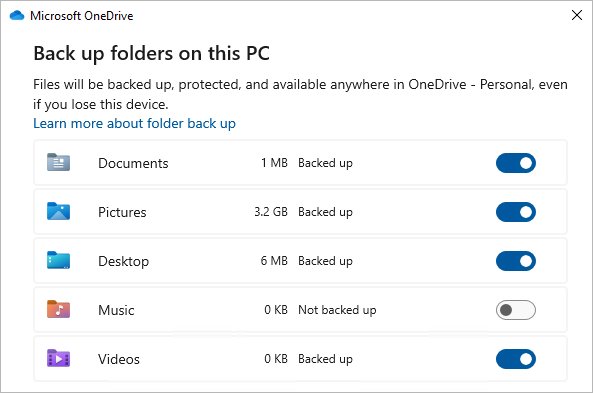
OneDrive's built-in backup feature works the other way round: it backs up your PC's Desktop, Documents, Music, Pictures and Videos folders to OneDrive. It protects a PC, not OneDrive's own contents, which is why OneDrive can appear to back up your desktop.
- Select the OneDrive cloud icon in the notification area, then the Help & Settings icon, then Settings.
- Open the Sync and backup tab.
- Select Manage backup.
- Turn on each folder marked Not backed up that you want protected.
- Select Save changes.
Windows 11 offers the same switches in the Windows Backup app under Folders, which also saves apps, settings and Wi-Fi details to a personal Microsoft account. Work or school accounts are not supported there.
Once a folder is backed up, OneDrive syncs its changes automatically. Syncing OneDrive across several PCs is a separate setup.
Enabling Camera Roll and Photos Backup
Camera backup in the OneDrive mobile app uploads new photos and videos to the Camera Roll folder. These steps are for OneDrive for Android.
- Open the OneDrive app and tap your account image at the top left.
- Tap Turn on below the text that says camera backup is off.
- Tap Confirm.
- Allow OneDrive access to your photos and videos when Android asks.
- Optional: in Settings, select Backup only when charging to save battery.
- Optional: open Settings > Camera backup > Back up device folders to add folders such as screenshots or messaging apps.
Camera backup works on one account at a time. If you use both a personal and a work account, check that the right one is selected before you turn it on. Once photos are in OneDrive, back them up to a drive the same way as any other folder.
Verify Your Backup
A backup you have not opened is a guess. Check the copy before you rely on it.
- In File Explorer, open the OneDrive folder and confirm no file still shows a blue cloud icon. A blue cloud means the file was never downloaded.
- Right-click the OneDrive folder and select Properties. Note the size and the file and folder counts.
- Right-click the copied folder on the external drive, select Properties, and compare the same numbers.
- Open several files from the external drive, including a large video and an Office document, while the PC is offline.
- Label the drive with the date of the copy.
Matching counts and files that open offline prove the copy holds real data, not placeholders.
Best Practices for Backing Up OneDrive
| Practice | What to do | Why it matters |
|---|---|---|
| Use the built-in OneDrive sync feature | Keep the desktop app signed in so every change reaches the cloud | Sync gives you the Recycle bin, version history and a second copy online |
| Regularly export and save important files | Refresh the external copy on a fixed schedule, such as monthly | The Recycle bin and version history only reach back 30 days on personal accounts |
| Consider a third-party backup tool | Use one that keeps dated versions on separate storage | Covers the gaps sync cannot, such as a lost account |
| Keep local and cloud backups in different locations | Store the external drive away from the PC and disconnected | A fire, theft or ransomware attack cannot hit both at once |
| Check and test your backups regularly | Repeat the checks in Verify Your Backup after each copy | Placeholder files look normal until you open them offline |
| Maintain version history and archiving | Keep more than one dated copy rather than overwriting the last one | An older copy survives a corruption you did not notice in time |
Troubleshooting Common Backup Issues in OneDrive
Insufficient storage space: OneDrive says it is full
Files, synced PC folders and items in the OneDrive Recycle bin all count toward your quota.
- Sign in at onedrive.com and select Manage your OneDrive storage to see what uses the space.
- Empty the OneDrive Recycle bin, because deleted files count until permanently removed.
- Delete or move large files you no longer need, or buy more storage.
- Act soon: over quota, you cannot upload or sync, and after six months files may be deleted.
Insufficient storage space: not enough room on the PC for Download all files
Download all files needs local disk space equal to your whole OneDrive.
- Leave Files On-Demand on and use Always keep on this device one folder at a time.
- Copy that folder to the external drive.
- Select Free up space on the folder before moving to the next one.
Syncing errors or OneDrive stuck on processing changes
The sync app's local state is out of step, or an open file such as an Outlook .pst keeps changing.
- Close Outlook if its .pst data file sits inside OneDrive, and consider moving the .pst out of OneDrive.
- Press Win + R, type
%localappdata%\Microsoft\OneDrive\onedrive.exe /resetand press Enter. - If OneDrive does not restart within a few minutes, open Start, type OneDrive and open the app.
- Reselect any folders you had chosen to sync, because a reset clears that choice. Resetting does not delete files.
File size or type restrictions stop some files from backing up
OneDrive rejects files over 250 GB, names with certain characters, reserved names and long paths.
- Rename files that contain
" * : < > ? / \ |or start or end with a space. - Rename files called CON, PRN, AUX, NUL, COM0 to COM9 or LPT0 to LPT9, or starting with ~$.
- Shorten deeply nested folder names so the full path stays under 260 characters for folder backup.
- Move OneNote notebooks out of a folder before backing it up; notebooks sync separately.
Sync folder settings: a folder is missing from the PC copy
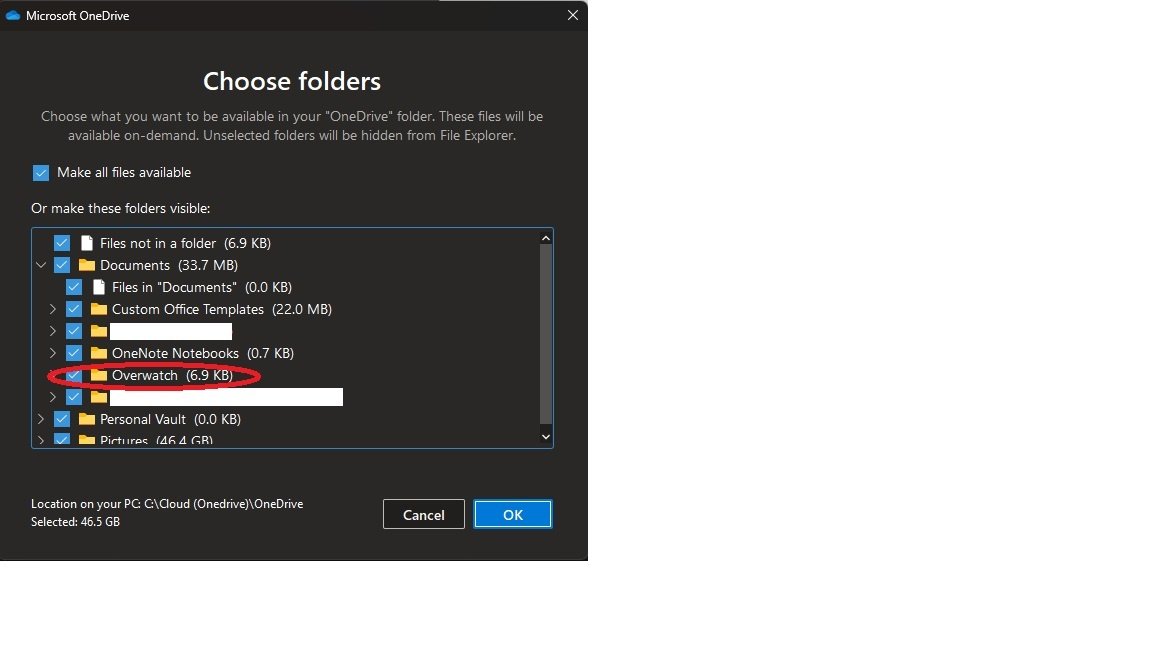
The folder is unchecked in Choose folders, so it exists only online.
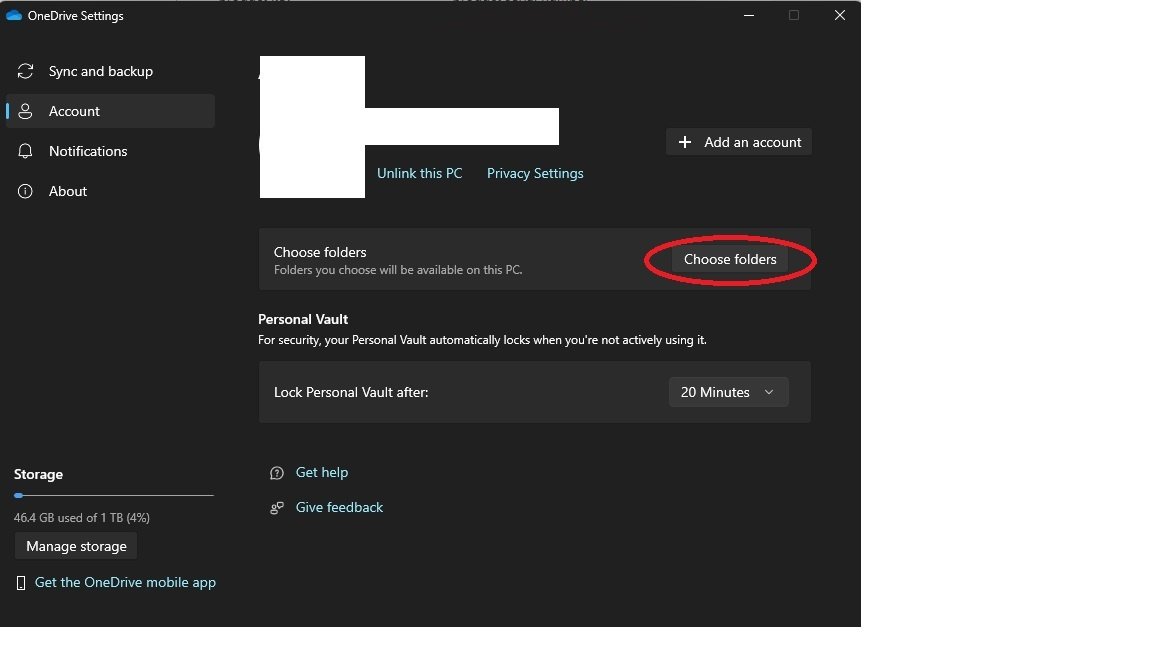
- Open OneDrive Settings and go to the Account tab.
- Select Choose folders.
- Check the missing folder and select OK.
- Wait for it to download, then copy it to your backup drive.
OneDrive will not sync to a USB stick or SD card
OneDrive's own folder needs an NTFS, non-removable drive; removable USB drives are not supported.
- Keep the OneDrive folder on the internal drive.
- Download the files there with Download all files or Always keep on this device.
- Copy the folder to the USB stick or SD card, which has no format requirement for a plain copy.
Software conflicts or permissions: shared files are missing from the backup
Files someone shared with you belong to their OneDrive, not yours.
- Open each shared file from the Shared view and save a copy, since bulk download does not work there.
- Ask the owner for a copy of anything important, because you cannot restore their deleted files.
"Some files couldn't be moved" when you stop folder backup
The folder holds online-only files that are not on the PC yet.
- Right-click the folder in File Explorer and select Always keep on this device.
- Wait for the files to download, then turn the folder off in Manage backup again.
Restoring Data from Backup
| What happened | Restore from | Time limit |
|---|---|---|
| You deleted a file or folder | OneDrive Recycle bin | 30 days personal, 93 days work or school |
| A file was overwritten or damaged | Version history | 30 days |
| Many files were deleted, encrypted or corrupted | Restore your OneDrive (Microsoft 365) | 30 days |
| A synced folder vanished from one PC only | The OneDrive desktop app: Choose folders or re-link | None while files are still online |
| The loss is older than 30 days or the account is gone | Your external drive or File History copy | As old as your oldest copy |
If a folder is missing on the PC, use the OneDrive desktop app for sync: open Settings > Account > Choose folders and check it again. The files download from the cloud.
Access the Recycle Bin
- Go to onedrive.com and sign in.
- Select Recycle bin in the navigation pane.
- Point to each item you want back and select its circle check box.
- Select Restore.
Files deleted from the cloud, including online-only files, do not appear in the Windows Recycle Bin. Items deleted from Personal Vault appear after you select Show Personal Vault items.
Restore Files from Version History
- Right-click the file in File Explorer, or on onedrive.com, and select Version history.
- Find the version you want in the list.
- Select the ellipsis (…) next to it.
- Select Restore.
The restored version becomes the current file, and the version it replaced moves into the history list, so the step can be reversed.
Restore from a Backup (External or Cloud Source)
Use Restore your OneDrive for a cloud rollback, which needs a Microsoft 365 subscription. Work or school accounts use Settings > Restore OneDrive instead of Options.
- Sign in at onedrive.com and select Settings > Options.
- Select Restore your OneDrive in the left navigation.
- Pick a date from the list, such as Yesterday, or select Custom date and time.
- Review the activity chart and feed, and with a custom date select the earliest activity to undo.
- Select Restore.
Files created after the restore point go to the OneDrive Recycle bin, and you can undo the restore by running it again. Albums are not restored.
For an external copy, drag the files from the drive back into the OneDrive folder and let them upload. For File History, right-click the folder, select Restore previous versions, pick a version and select Restore or Restore to.
Additional Tips
Keep OneDrive syncing for daily protection, and add a dated copy on an external drive at least monthly using Download all files or Always keep on this device. The Recycle bin, version history and Restore your OneDrive all live inside one account and reach back about 30 days. Only a disconnected copy survives a lost account, an emptied Recycle bin or damage you notice too late. Back up first if you plan to turn off OneDrive syncing altogether.
Frequently Asked Questions
Does OneDrive back up automatically?
OneDrive syncs automatically, which is not the same as a backup. Changes and deletions reach every device. PC folder backup and camera backup upload new files automatically once turned on, but a separate copy of OneDrive itself only exists if you make one.
Can I back up OneDrive to an external hard drive?
Yes. Download every file with Download all files in OneDrive settings, or mark folders Always keep on this device, then copy the OneDrive folder to the external hard drive. Check that no file still shows a blue cloud icon before you copy.
How do I back up OneDrive to a USB stick?
Download the files to your PC first, then copy the OneDrive folder or chosen subfolders to the USB stick. Do not try to make the USB stick your live OneDrive location, because Microsoft does not support removable USB drives for that.
How do I back up OneDrive files to my PC or local drive?
Turn on Download all files under Settings > Sync and backup > Advanced settings, or right-click a folder and select Always keep on this device. The files then stay on your PC's drive and open offline.
How do I back up all my OneDrive data at once?
On onedrive.com, select everything with Ctrl + A and select Download to get a .zip file. This works only up to 10,000 files and 20 GB, so larger accounts need the desktop app route or several folder downloads.
Why does OneDrive back up my desktop?
PC folder backup is turned on for your Desktop folder. To stop it, open OneDrive Settings > Sync and backup > Manage backup and turn off Desktop. Windows then asks whether to keep the files only in OneDrive or only on your PC.
Why can't OneDrive back up PST files?
OneDrive supports Outlook .pst files but syncs them less often to cut network traffic. While Outlook has the file open it keeps changing, so OneDrive can sit on processing changes. Microsoft suggests moving the .pst out of OneDrive and backing it up separately.
How long does OneDrive keep deleted files?
The OneDrive Recycle bin keeps deleted files for 30 days on personal accounts and 93 days on work or school accounts, unless an administrator changed that. Once a file is removed from the Recycle bin, it cannot be recovered.


Backup and Restore In Windows 11: Complete Guide To Use - Techdows
[…] Backup and Restore vs File History vs OneDrive comes down to scope: OneDrive and Windows Backup protect files and settings, File History protects file versions, and only a system image protects the whole installed system. For the cloud route, see how to back up OneDrive. […]
How to quick access OneDrive settings [beginner’s guide] - Techdows
[…] backup is only one layer of protection. If you also want a copy outside the cloud, you can back up OneDrive to another drive on a […]