OneDrive is already installed on Windows 11 and Windows 10, so open it from Start and sign in; if it is missing, download it free from Microsoft's OneDrive download page and run the installer.
This guide covers checking for the built-in app, the official download, winget, first-time setup, folder backup, updates, reinstalling, resetting and the setup errors people hit most.
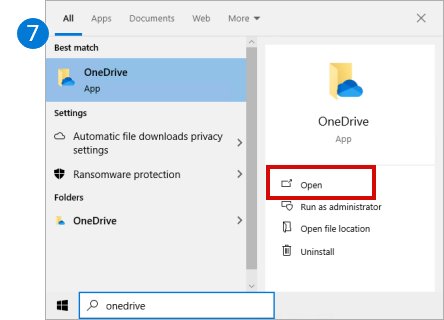
The fastest way to get OneDrive running on Windows 11 or 10
Microsoft ships the OneDrive sync app with Windows 11 and Windows 10. Most PCs only need a sign-in, not a download.
- Select Start and type OneDrive.
- Select the OneDrive desktop app in the results.
- Enter your Microsoft account, or your work or school account, and select Sign in.
- Follow the setup screens to pick a folder location and the folders to back up.
- If OneDrive does not appear in the search results, download it from microsoft.com/microsoft-365/onedrive/download and run the file you saved.
What OneDrive does on Windows 11 and Windows 10
OneDrive is Microsoft's cloud storage. The Windows app keeps a folder on your PC in sync with the files stored in your OneDrive account online.
| Feature | What it does on your PC |
|---|---|
| Sync | Changes you make in the OneDrive folder upload to the cloud, and changes made elsewhere download to this PC |
| Folder backup | Protects Desktop, Documents, Pictures, Music and Videos by moving them into OneDrive |
| Files On-Demand | Shows every file in File Explorer without storing all of them on the drive |
| Multiple accounts | One personal account plus one or more work or school accounts on the same PC |
| Free storage | A free Microsoft account includes 5 GB of cloud storage; paid Microsoft 365 plans add more |
For a fuller look at whether you need it at all, read What is Microsoft OneDrive and do I need it.
Which install route fits your PC
| Your situation | Use this | Why |
|---|---|---|
| OneDrive appears when you search Start | Open it and sign in | The sync app is already installed; downloading again changes nothing |
| OneDrive is missing after an uninstall | The official download page | Microsoft's reinstall instructions point to this installer |
| OneDrive opens but misbehaves | Reset first, reinstall second | A reset keeps the app and your files and fixes most sync faults |
| You manage PCs from the command line | winget | Installs from the Windows Package Manager without a browser |
| Several people share one PC | Per-machine install (IT admins) | OneDriveSetup.exe /allusers installs once for every user |
Before you download OneDrive
Check whether OneDrive is already there before downloading anything. The first three checks below settle it in seconds.
| Check | Where to look | What it tells you |
|---|---|---|
| Notification area | The cloud icon at the right end of the taskbar | A white or blue cloud means OneDrive is running; a gray cloud with a line means it is installed but not signed in |
| Start menu | Select Start and type OneDrive | The OneDrive app in results means it is installed |
| Apps settings | Settings > Apps > Installed apps (Windows 11) or Apps & features (Windows 10) | An entry named Microsoft OneDrive is the sync app |
| Account | Your Microsoft account email, or your work or school email | You need one of these to sign in |
| Admin approval | A work or school PC | Your organization may install or block OneDrive centrally, so ask IT first |
An entry called OneDrive by Microsoft Corporation is a separate Microsoft Store app for viewing your OneDrive. It is not the sync app, and you may have both.
System requirements for OneDrive on Windows
| Requirement | Minimum |
|---|---|
| Windows version | Windows 10 22H2 or Windows 11, 32-bit or 64-bit |
| Processor | 1.6 GHz or higher, or a Windows 10/11 ARM-based PC |
| Memory | 1 GB of RAM or more |
| Display | 1024 × 576 resolution |
| Internet | High-speed internet access recommended |
| File system | NTFS |
| Browser for OneDrive.com | The latest Microsoft Edge, Chrome, Firefox or Safari; Internet Explorer is not supported |
Microsoft ended support for Windows 10 versions earlier than 22H2 on August 15, 2026. The app may keep working on them, but compatibility is no longer guaranteed.
Download OneDrive from the official Microsoft website
Microsoft's own page is the only download you need. Third-party download portals add nothing and can bundle unwanted software.
- Open microsoft.com/microsoft-365/onedrive/download in Edge or any current browser.
- Select Download OneDrive.
- Choose Save if your browser asks, and note the folder it saves to, usually Downloads.
- Wait for the download to finish before opening the file.
The page itself states that Windows 11 already has OneDrive installed. The download matters when the app was removed or damaged. If your browser blocks or stalls the download, the checks in Fix Discord Not Downloading or Installing on Windows 11/10 apply to any installer.
Install OneDrive on Windows 11
- Select Start, type OneDrive, and open the OneDrive app if it appears. Skip to the sign-in section below.
- If it does not appear, open File Explorer and go to your Downloads folder.
- Double-click the OneDrive setup file you downloaded.
- Select Yes if User Account Control asks for permission.
- Wait for the installer to finish; OneDrive opens the Set up OneDrive screen on its own.
Install OneDrive on Windows 10
Windows 10 PCs also include the OneDrive sync app, so the steps match Windows 11 apart from where you check for it.
- Select Start, type OneDrive, and open the app if it is listed.
- If it is missing, open Settings > Apps > Apps & features and confirm no Microsoft OneDrive entry exists.
- Download the installer from Microsoft's OneDrive download page.
- Open the downloaded setup file from Downloads and select Yes at the User Account Control prompt.
- Wait for the Set up OneDrive screen, then sign in.
Your PC must run Windows 10 version 22H2 to stay within Microsoft's supported configuration.
Install OneDrive using Microsoft Store or winget
The Microsoft Store lists an app called OneDrive by Microsoft Corporation, which lets you view your OneDrive. Microsoft's reinstall instructions use the website installer for the full Microsoft OneDrive sync app, not the Store.
winget, the Windows Package Manager, can install the sync app from a terminal. Search first so you install the exact package ID rather than a guess.
winget search OneDriveLists packages matching OneDrive with their names, IDs and sources. Then run winget install --id <ID from the list> -e, where -e forces an exact ID match so winget cannot pick a similarly named package.
You should see: winget reports that the install finished, and the OneDrive app appears when you search Start.
IT admins who want one install for every user on a shared PC can run OneDriveSetup.exe /allusers. That installs OneDrive under Program Files instead of each user's %localappdata% folder and triggers a User Account Control prompt.
Sign in and set up OneDrive
- Enter your Microsoft account, or work or school email, on the Set up OneDrive screen and select Sign in.
- Enter your password when asked.
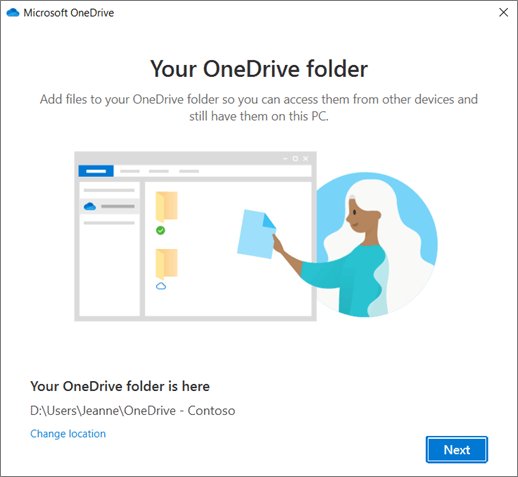
- On This is your OneDrive folder, select Next to keep the default location, or Change location to pick another folder or drive.
- Choose which folders to back up if the backup screen appears, or skip it for now.
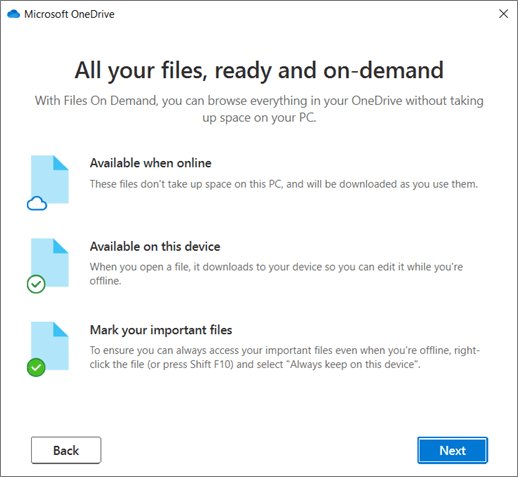
- Read the All your files, ready and on-demand screen that explains Files On-Demand, then continue.
Setup is the easiest time to change the folder location. Moving it later means unlinking and relinking the account.
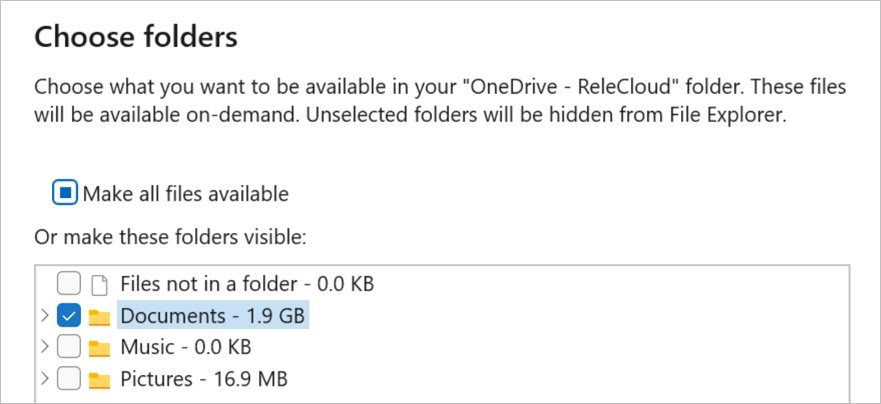
Choose which folders sync to your PC
Unchecking a folder removes it from this PC only. The folder and its files stay online at OneDrive.com.
- Select the OneDrive cloud icon in the notification area.
- Select the Help & Settings gear icon, then Settings.
- Open the Account tab and select Choose folders.
- Clear the check boxes for folders you do not want on this PC.
- Select OK.
You cannot uncheck Documents, Desktop, Pictures or your Personal Vault folder. The choice applies per PC and per account.
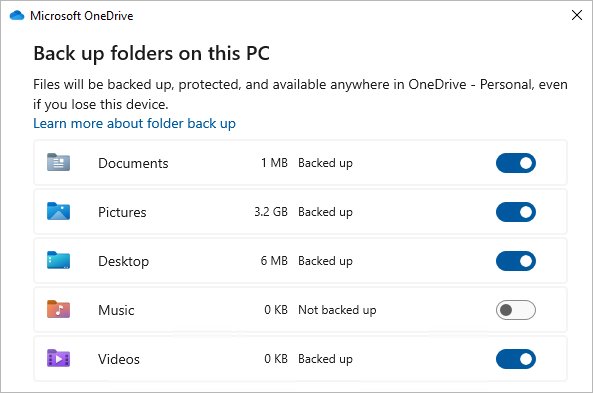
Turn on OneDrive folder backup
Folder backup moves your Desktop, Documents, Pictures, Music and Videos folders into OneDrive so they sync to every device you sign in on.
- Select the OneDrive cloud icon, then the Help & Settings gear, then Settings.
- Open the Sync and backup tab.
- Select Manage backup.
- Switch on each folder marked Not backed up.
- Select Save changes and let the first sync finish.
Backed-up folders count against your storage. Files over 250 GB, and paths longer than 260 characters, will not back up.
Use Files On-Demand to save disk space
Files On-Demand lists every OneDrive file in File Explorer but only downloads a file when you open it. Microsoft no longer lets you turn it off; instead, you control each file's state.
| Status icon in File Explorer | State | How to switch to it |
|---|---|---|
| Blue cloud | Online-only: uses no disk space and needs internet to open | Right-click the file or folder and select Free up space |
| Green check mark in a white circle | Locally available: downloaded because you opened it | Open the file once |
| White check mark in a solid green circle | Always available, even offline | Right-click and select Always keep on this device |
To pull your whole OneDrive onto the PC, right-click the OneDrive folder in File Explorer and select Always keep on this device.
Add both personal and work OneDrive accounts
- Select the OneDrive cloud icon in the notification area.
- Select the Help & Settings gear, then Settings.
- Open the Account tab and select Add an account.
- Sign in with the second account and complete the same setup screens.
OneDrive allows one personal account and several work or school accounts per PC. Each gets its own folder: OneDrive – Personal and OneDrive – [CompanyName].
Update OneDrive after installation
OneDrive updates itself. There is no update button to find and no separate download to repeat.
| What happens | Detail |
|---|---|
| Update check | Every 24 hours while OneDrive runs, and at launch if it has not checked for more than a day |
| When OneDrive is closed | A Windows scheduled task still updates the app |
| Install | Downloads in the background, installs, and restarts OneDrive without asking you to sign in again |
| Admin rights | Not needed for updates |
| Work PCs | IT can hold updates on the Deferred ring, which updates every two to three months |
A PC that never gets updates usually cannot reach Microsoft's update servers. Firewalls must allow oneclient.sfx.ms and g.live.com.
Reinstall OneDrive if it is missing or broken
Uninstalling OneDrive does not delete your files. The folder stops syncing, and everything stays available at OneDrive.com.
- Select Start, type Programs, and select Add or remove programs.
- Find Microsoft OneDrive in the list.
- Select Uninstall and confirm, entering an administrator password if asked.
- Download the Microsoft OneDrive app again from Microsoft's website.
- Open the downloaded file and sign in when prompted.
- Choose your synced folders again, because selective sync settings do not survive a reinstall.
Repeat the sign-in for any work or school account. OneDrive runs a full sync after reinstalling. To remove it for good instead, see 6 easy ways to disable or turn off OneDrive in Windows 11.
Reset OneDrive without uninstalling
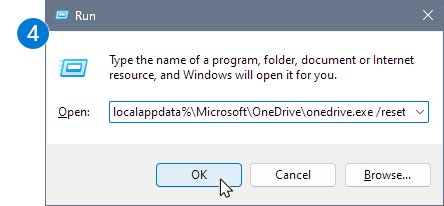
A reset disconnects every sync connection and resyncs from scratch. You do not lose files or data.
%localappdata%\Microsoft\OneDrive\onedrive.exe /resetPress Windows key + R, paste the command and select OK. If Windows says it cannot find the file, run C:\Program Files\Microsoft OneDrive\onedrive.exe /reset, then C:\Program Files (x86)\Microsoft OneDrive\onedrive.exe /reset. If none of the three works, the sync app is not installed; use the reinstall steps above.
You should see: The OneDrive cloud icon disappears and returns within a few minutes. If it does not, select Start, type OneDrive and open the app.
Choose your synced folders again after the reset for each personal and work account.
Fix common OneDrive installation problems
The installer will not run, or OneDrive says it is already installed
The sync app is built into Windows 11 and Windows 10, so a copy is often already present.
- Select Start, type OneDrive, and open the app if it appears.
- If it misbehaves, run the reset command above.
- If the reset fails, uninstall Microsoft OneDrive from Add or remove programs and install the latest version from Microsoft's download page.
You cannot sign in
A gray OneDrive icon with a line through it means no account is signed in.
- Select the gray OneDrive icon.
- Enter your email address and password on the Set up OneDrive screen.
- If you forgot the password for a personal account, use Microsoft's account sign-in helper.
- For a work or school account, reset the password or contact your IT admin.
- If sign-in works but OneDrive still will not connect, try a phone hotspot to test whether your network's firewall blocks OneDrive.
OneDrive is stuck on "Signing in" or "Loading"
The app lost its connection during sign-in and needs a restart.
- Select the OneDrive icon, select the Help & Settings gear, and select Quit OneDrive.
- Select Start, type OneDrive, and open the app again.
- If it sticks again, run the reset command above.
Sync icons are missing in File Explorer
OneDrive is not running or not signed in, so File Explorer has no status to show.
- Look for the cloud icon in the notification area; open OneDrive from Start if it is absent.
- Sign in if the icon is gray.
- Run the reset command if icons still do not appear after sync starts.
OneDrive reports invalid file names
The file name uses characters OneDrive does not accept, or the full path is too long to sync.
- Select the OneDrive icon to see the file OneDrive flags.
- Rename the file to remove the character it names.
- Shorten long folder names so the full path stays under 260 characters.
Everything downloads or saves to OneDrive
Folder backup moved Desktop, Documents and Pictures into OneDrive, so anything saved there lands in OneDrive.
- Open OneDrive Settings > Sync and backup > Manage backup.
- Switch off the folder you want kept local.
- Choose where the files should stay when OneDrive asks.
Where OneDrive files appear after installation
- Open File Explorer and look in the left pane for OneDrive – Personal, or OneDrive – [CompanyName] for a work account.
- Open it and confirm your online files are listed with cloud or check-mark status icons.
- Check the notification area for a white or blue cloud icon, which shows OneDrive is signed in.
- Select the cloud icon and confirm the panel says your files are up to date.
- Sign in at OneDrive.com and confirm a file you just added on the PC appears there.
How to pause, resume, or stop OneDrive sync
- Select the OneDrive cloud icon in the notification area.
- Select the Help & Settings gear and select Pause syncing.
- Choose 2 hours, 8 hours or 24 hours; sync resumes on its own when the time is up.
- To resume early, open the same gear menu and select Resume syncing.
- To stop OneDrive until you start it again, select Quit OneDrive from the gear menu.
- To disconnect this PC completely, open Settings > Account and select Unlink this PC.
OneDrive also pauses itself when battery saver is on or the PC uses a metered connection.
Best settings to review after installing OneDrive
| Setting | Where it lives | Review it when |
|---|---|---|
| Folder backup | Settings > Sync and backup > Manage backup | You want Desktop and Documents protected, or you do not want them in the cloud |
| Synced folders | Settings > Account > Choose folders | Your drive is small or some folders belong only online |
| Start with Windows | Settings > Sync and backup > Preferences | You want OneDrive to start, or not start, at sign-in |
| Extra accounts | Settings > Account > Add an account | You use a work or school OneDrive as well |
| Notifications | Settings > Notifications | OneDrive alerts feel too frequent |
| Disk space | Right-click a file or folder > Free up space | The drive is filling up |
Frequently asked questions
Where do I download Microsoft OneDrive?
Download OneDrive from Microsoft's official page at microsoft.com/microsoft-365/onedrive/download. On Windows 11 and Windows 10 the app is usually already installed, so search Start for OneDrive first. Avoid third-party download sites.
How do I install OneDrive on my PC?
Select Start, type OneDrive and open the app, because Windows 11 and 10 include it. If it is missing, download the installer from Microsoft, open the saved file, approve the User Account Control prompt and sign in with your Microsoft account.
Is OneDrive free to download?
Yes. The OneDrive app is free, and a free Microsoft account includes 5 GB of cloud storage. Microsoft 365 Basic adds 100 GB, and Microsoft 365 Personal and Family include 1 TB per person.
How do I download files from OneDrive?
Sign in at OneDrive.com, select the circle check box next to each file, and select Download in the top bar. Selecting several files or a folder downloads one .zip file. On a PC with OneDrive installed, open the file from the OneDrive folder in File Explorer instead.
How do I download my entire OneDrive?
On a PC, right-click the OneDrive folder in File Explorer and select Always keep on this device. On OneDrive.com, open the top folder and select Download with nothing selected. Web downloads cap at 10,000 files and 250 GB per file.
Why is everything downloading to OneDrive?
Folder backup is on. It moves Desktop, Documents and Pictures into OneDrive, so files saved there land in OneDrive. Turn it off in OneDrive Settings > Sync and backup > Manage backup by switching off the folder you want kept local.
How do I make downloads go to OneDrive?
Change your browser's download location to a folder inside your OneDrive folder. Everything saved there then syncs to the cloud. The Downloads folder is not part of OneDrive folder backup, so this is the way to sync downloads.
How do I put existing downloads into OneDrive?
Open File Explorer, select the files in Downloads, and drag them into the OneDrive folder in the left pane. OneDrive uploads them straight away. Moving rather than copying avoids keeping two copies on the drive.
Do I need administrator rights to install OneDrive?
Windows may show a User Account Control prompt during setup, and uninstalling can ask for an administrator password. Updates install without admin rights. On a work PC, your IT department may install or block OneDrive centrally.


How to Download Windows 11: A Complete Step-by-Step Installation Guide - Techdows
[…] them with OneDrive or copy them to an external […]