A RAM cache is file data that Windows keeps in spare memory so it can reopen files and apps without reading the disk again, and a restart is the simplest way to clear it.
This guide explains what the Cached figure in Task Manager means, when clearing it is worth doing, and the Microsoft tools that clear it safely on Windows 11 and Windows 10.
Clear RAM cache on Windows 11 and 10 by restarting the PC
RAM loses its contents when the power cycles, so a restart empties the file cache, the standby list and every app's working set at once.
Microsoft lists this as a basic performance step: close what you do not need, then restart.
- Save your work and close any apps and browser tabs you are not using.
- Select Start.
- Select the Power button.
- Select Restart, not Shut down.
- After you sign in, open only the apps you need, then check the Cached figure in Task Manager.
What is a RAM cache?
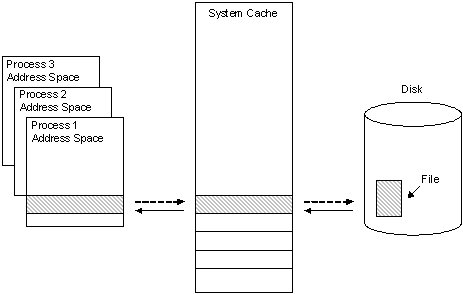
Windows caches file data that it reads from and writes to disks in an area of RAM called the system file cache. Reads come from that memory instead of the drive, which is far faster.
When the cache no longer needs a block, the page moves to the standby list. Standby pages still hold the data but count as available memory, so Windows hands them to any app that asks.
| Term | What it means on Windows | Can apps use it? |
|---|---|---|
| System file cache | File data held in RAM under the Cache Manager, which runs the whole time Windows is on | Yes, Windows trims it when apps need memory |
| Standby list | Cached pages that are not in active use but still hold valid data | Yes, it counts as available memory |
| Modified list | Pages changed in memory that still have to be written to disk | After they are written, they move to standby |
| Free and zero lists | Pages that hold no useful data | Yes, immediately |
| Cached (Task Manager) | File cache plus the modified and standby lists added together | Mostly yes; only the modified part waits for a disk write |
RAM cache vs. app cache vs. disk cache
Three different things share the word cache, and clearing one does nothing to the others.
| Cache | Where it lives | What fills it | How it is cleared |
|---|---|---|---|
| RAM cache | Physical memory | Windows, from files you open, copy or run | Restart, sign out, or RAMMap; Windows also trims it automatically |
| App cache | Files on your drive inside an app's data folder | Browsers, Microsoft Store, Teams and similar apps | The app's own clear-cache option |
| Disk cache | Memory chips on the SSD or hard drive itself | The drive's firmware | Managed by the drive; there is no user setting to empty it |
A browser cache is an app cache: you clear the Chrome cache from Chrome, and doing so frees drive space, not RAM.
How Windows uses RAM cache
Windows treats empty RAM as wasted RAM. It fills spare memory with recently used file data and gives it back the moment an app needs more.
Data written to a file also lands in the cache first. The Cache Manager writes it to disk later, a method called lazy writing.
| Stage | What Windows does | Task Manager figure it affects |
|---|---|---|
| You open a file or app | Reads the data from disk into the system file cache | Cached rises |
| You close it | Keeps the pages on the standby list in case you need them again | Cached stays high, Available stays high |
| An app asks for memory | Repurposes standby pages first, oldest and lowest priority first | Cached falls, In use rises |
| You save a file | Writes into the cache, then flushes to disk at intervals | Modified pages rise, then return to standby |
| Memory runs short | Moves rarely used modified pages to the page file | Committed approaches the commit limit |
Should you clear the RAM cache?
Usually not. A large Cached figure with plenty of Available memory means Windows is working as designed.
| What you see | Do this | Why |
|---|---|---|
| Cached is high, Available is high, PC feels fine | Leave it alone | Standby memory is already free for apps to use |
| Cached is high, PC is slow, Available is near zero | Find the app holding memory, then restart | The cache is not the cause; something is using RAM |
| Committed is close to the commit limit | Close apps or add RAM | Clearing cache does not lower committed memory |
| You are benchmarking a drive or app | Empty the standby list with RAMMap before each run | Removes cached data so every run reads from disk |
| You just closed a heavy game or editor | Do nothing | Windows reuses that memory on demand |
How to check RAM cache in Windows
Task Manager shows the cache on its Performance tab, so you can check it before and after you clear it.
- Press Ctrl + Shift + Esc to open Task Manager.
- Select More details if Task Manager opens in its small view.
- Select the Performance tab, then select Memory.
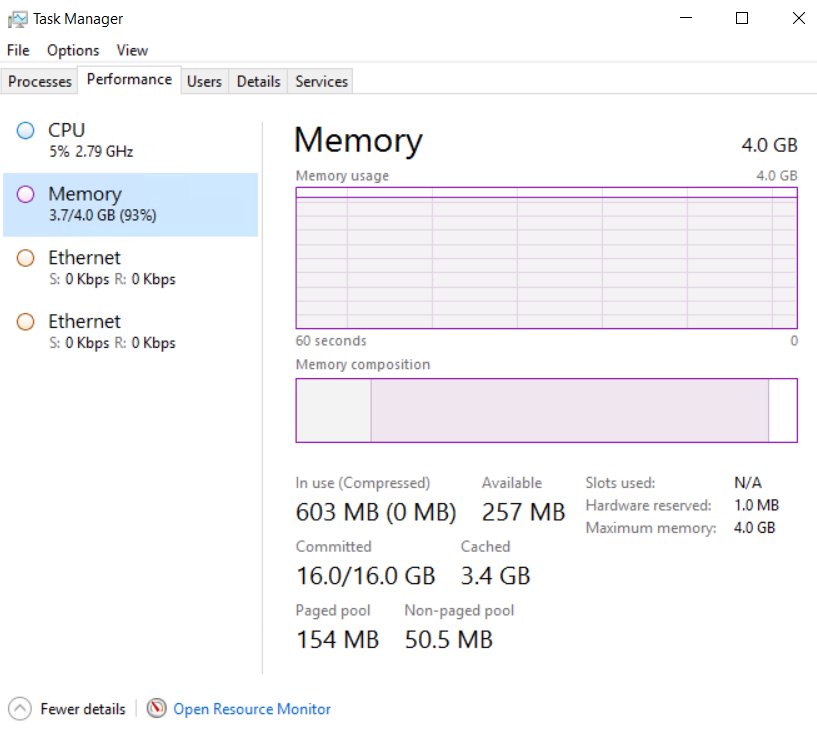
- Read Cached: file cache plus modified and standby pages.
- Read Available: free memory plus standby pages that apps can claim.
- Read Committed: memory promised to apps against the limit of RAM plus page file.
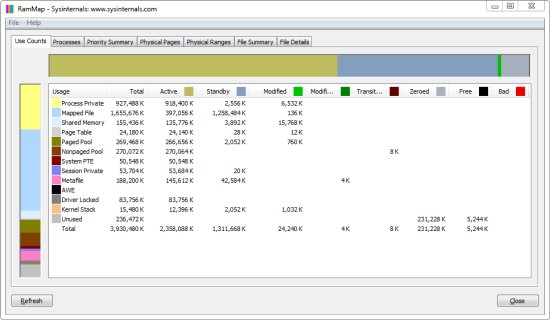
- For a per-list view, open RAMMap and check the Use Counts tab, which splits memory by type and by standby, modified and free lists.
After a restart or a RAMMap empty, Cached should drop and Free should rise. Both return to normal as you work, which is expected. You can also check how much RAM is installed on the same Memory page.
The safest ways to clear RAM cache on Windows
Every route below uses Windows itself or a Microsoft tool. None of them deletes a file.
| Method | What it clears | Best for |
|---|---|---|
| Method 1: Restart your PC | All cached memory and every app's working set | Everyday use; the simplest option |
| Method 2: Close memory-heavy apps and background processes | Memory those processes hold; Windows releases their pages | A slow PC with one obvious heavy app |
| Method 3: Use Microsoft RAMMap to empty standby memory | The standby list and other lists you pick in the Empty menu | Benchmarks and testing without a reboot |
| Method 4: Sign out and sign back in | All processes in your user session | Shared PCs, or when a restart is not convenient |
Close memory-heavy apps and background processes in Task Manager
- Press Ctrl + Shift + Esc to open Task Manager.
- Select the Processes tab.
- Select the Memory column header to sort apps by memory use.
- Save any open work in the app at the top of the list.
- Right-click the app and select End task.
- To sign out instead, select Start, select your account picture, then select Sign out.
Never end processes you do not recognise, such as System or Windows Explorer; that can freeze the desktop.
Use RAMMap to clear memory cache
RAMMap is a free Microsoft Sysinternals tool by Mark Russinovich that maps how Windows uses physical memory. It runs on Windows Vista and later and is published on Microsoft Learn and in the Microsoft Store as part of the Sysinternals Suite.
Its Empty menu removes pages from the working sets and memory lists, which is how testers get a cold cache without rebooting.
- Get RAMMap from its page on Microsoft Learn (learn.microsoft.com/sysinternals) or the Sysinternals Suite in the Microsoft Store.
- Right-click RAMMap and select Run as administrator.
- Open the Use Counts tab and note the Standby total.
- Open the Empty menu and choose the command that empties the standby list.
- Press F5 or select File > Refresh, because RAMMap does not update on its own.
- Confirm the Standby total has dropped on Use Counts.
The next file you open loads from disk instead of memory, so the first launch of each app will be slower until the cache rebuilds.
How to reduce RAM cache problems without constantly clearing it
If memory runs short every day, fix what fills it rather than emptying the cache on a schedule.
- Disable unnecessary startup apps: in Task Manager select Startup apps, right-click an app you do not need at sign-in and select Disable.
- Update Windows and device drivers: select Start > Settings > Windows Update > Check for updates, and install optional driver updates listed there.
- Check for memory leaks: sort the Processes tab by Memory and watch whether one app keeps growing over hours. Update or reinstall that app.
- Increase virtual memory if needed: keep the page file system managed, so Windows grows it when committed memory reaches 90 percent of the limit. Press Win + R and run
SystemPropertiesAdvancedto reach the performance settings that hold it. - Add more RAM if Committed regularly sits near the limit with only your normal apps open.
Mistakes to avoid when clearing RAM cache on Windows
| Do not | Why |
|---|---|
| Do not use random "RAM cleaner" apps | They force out the same standby pages Windows already reuses, so apps reload from disk and run slower. Microsoft's own RAMMap does this when you need it. |
| Do not disable SysMain just to reduce cached memory | SysMain is the Windows SuperFetch service. Standby memory is already counted as available, so switching a service off does not give apps more RAM. |
| Do not obsess over low free RAM | Low Free with high Available is normal: the difference is cache waiting to be reused. |
| Do not delete system files to clear RAM | Files in Windows folders are not the RAM cache. Deleting them can stop Windows from starting and frees no memory. |
| Do not turn off the page file | The commit limit is RAM plus page files; removing it lowers the limit and can make apps freeze or crash. |
Clearing RAM cache vs. clearing storage cache
Clearing RAM cache changes nothing on the drive. Clearing storage cache frees disk space but does not change the Cached figure.
| RAM cache | Storage cache | |
|---|---|---|
| Where it is | Physical memory | Files on the drive |
| Survives a restart | No | Yes |
| Main tool | Restart, sign out, RAMMap | Storage Sense, Temporary files, Disk Cleanup, app settings |
| What you gain | A cold cache for testing; rarely any speed | Free disk space; fixes for corrupted app caches |
| Typical reason | Benchmarking, troubleshooting | A full drive, a broken app such as Microsoft Store |
When an app misbehaves, its own cache on disk is the usual suspect. You can reset the Microsoft Store cache from the Store itself, and Storage Sense under Settings > System > Storage removes temporary files.
When clearing RAM cache actually helps
| Situation | Does clearing help? | Better fix |
|---|---|---|
| Example: benchmarking an SSD | Yes. Emptying the standby list makes every test read from the drive, not from memory. | Empty the standby list in RAMMap before each run |
| Testing app launch time | Yes, for cold-start measurements | Restart or empty the standby list between runs |
| A game stutters after hours of play | Rarely; the cache is reused on demand | Close other apps, update graphics drivers, check Committed |
| Available memory near zero | No; the cache is already gone | Find the process using memory in Task Manager |
| PC slow right after startup | No | Disable startup apps |
Quick troubleshooting checklist for high cached RAM on Windows
Why is my RAM cache so high?
Windows keeps recently used file data in spare memory on purpose.
- Open Task Manager with Ctrl + Shift + Esc and select Performance > Memory.
- Compare Cached with Available.
- If Available is also high, take no action; the cache is free memory with useful data in it.
Why does my RAM cache build up over time?
Every file you open, copy or run adds pages to the standby list until memory is full.
- Note which tasks preceded the growth, such as large file copies or games.
- Restart once and watch whether Cached climbs back with the same work.
- If it does and the PC stays responsive, the build-up is normal caching.
Half of my RAM is cached and the PC is slow
Another process is usually holding memory, or committed memory is near its limit.
- On the Processes tab, sort by Memory and close the heaviest app you do not need.
- Check Committed on the Performance tab against its limit.
- If one process keeps growing, update or reinstall it.
- Restart the PC to clear what remains.
Cached RAM stays high right after clearing it
Windows refills the cache as soon as apps read files again.
- Press F5 in RAMMap to refresh the view.
- Close apps that read files constantly, such as sync or backup tools, before you test.
- Accept a quick refill as proof that caching works.
RAM cache on Windows FAQ
What is cached RAM?
Cached RAM is memory that holds file data Windows read or wrote recently, plus standby and modified pages. Task Manager shows it as Cached. Most of it is available to apps the moment they need more memory.
Why is my RAM cache so high?
A high RAM cache means Windows has used spare memory to keep recently opened files ready. It is normal and harmless while Available memory is also high, because Windows gives cached pages to apps on demand.
Why is so much RAM cached?
Windows fills unused RAM with file data rather than leaving it empty. Copying large files, running games or editing video adds a lot to the cache, and the pages stay until another app needs the memory.
Why is half of my RAM cached?
Half of RAM showing as cached usually reflects recent heavy file activity. If the PC is responsive and Available memory is high, nothing is wrong. If it is slow, look for a process using memory in Task Manager.
Why does my RAM cache build up?
The cache grows because every file Windows reads goes onto the standby list and stays there until memory is needed. Growth over a day of use is expected, and a restart resets it to a low starting point.
Is cache a type of RAM?
The word cache covers several memories. The RAM cache is part of normal system RAM, while CPU cache is separate, faster memory built into the processor. Drives also have their own small cache chips.
Is RAM and cache the same thing?
No. RAM is the system memory that holds running apps and data. A cache is any store of recently used data kept for quick reuse; Windows keeps its file cache inside RAM, and processors have their own cache.
Why is cache faster than RAM?
CPU cache sits on the processor itself, right next to the cores, so data travels a much shorter path than it does to RAM on the motherboard. It is also far smaller, which keeps lookups quick.
Is it safe to clear the RAM cache?
Yes. Restarting, signing out or emptying the standby list with Microsoft's RAMMap deletes no files. The only cost is that apps load from disk again until Windows rebuilds the cache.
Do I need a RAM cache cleaner for Windows 11?
No. Windows 11 reuses cached memory automatically, so a third-party RAM cleaner only throws away useful data. A restart or Microsoft's RAMMap covers every legitimate reason to clear the cache.
Should you clear RAM cache on Windows? Bottom line
Leave the RAM cache alone in daily use, restart when the PC feels sluggish, and use Microsoft's RAMMap only for benchmarks or testing. Cached memory already counts as available, so clearing it rarely speeds anything up; real slowdowns come from apps holding memory or committed memory near its limit, which Task Manager shows.