Cache memory in your computer is a small amount of very fast memory built into the processor, where the CPU keeps copies of the data and instructions it is most likely to need next so it does not have to wait for RAM.
This guide explains the L1, L2 and L3 levels, how cache affects speed, how to see your own cache size in Windows and what clearing "cache" really does.
What does cache memory do?
Every time the processor needs data, it looks in its cache first. Finding it there is a hit and the work carries on at full speed; missing it means a slower trip to RAM.
Cache memory keeps the CPU supplied with data fast enough to stay busy, filling the speed gap between the processor and the much slower main memory (RAM). It sits on the processor itself, holds only a few megabytes, and is managed entirely by the CPU hardware, so you never have to install, configure or clear it.
Computer cache definition
Strictly, "cache memory" means the CPU cache: fast memory on the processor chip that stores copies of recently and frequently used data. Windows itself describes each processor cache by level, size, line size and type.
Together, registers, cache, RAM and storage make up the levels of memory in a PC, often called the memory hierarchy. Each level down holds more data but answers more slowly.
The cache does not replace system RAM. It is far smaller and far faster, and the two work as a chain: cache first, then RAM, then the SSD or hard drive.
| Memory | Where it is | Typical size | Speed | Kept after power off? |
|---|---|---|---|---|
| CPU registers | Inside each core | Bytes | Fastest | No |
| CPU cache (L1, L2, L3) | On the processor chip | Kilobytes (L1) to tens of megabytes (L3) | Much faster than RAM | No |
| RAM (main memory) | Memory modules or chips on the motherboard | Gigabytes | Slower than cache | No |
| SSD or hard drive | Storage drive | Hundreds of gigabytes to terabytes | Slowest of the four | Yes |
Cache vs RAM comes down to cost and distance. Cache is built from more expensive, faster circuits right next to the cores, so processors carry only a little of it and keep the bulk of working data in RAM.
Cache levels explained
Modern processors split their cache into levels. Each level down is larger and a little slower, and the CPU checks them in order: L1, then L2, then L3, then RAM.
The types of cache memory are usually described two ways: by level (L1, L2, L3) and by what the cache holds. An instruction cache stores program code, a data cache stores the values being worked on, and a unified cache stores both.
| Level | Size | Speed | Shared or private | What it holds |
|---|---|---|---|---|
| Level 1 cache (L1) | Smallest, tens of kilobytes per core | Fastest cache level | Private to each core | Split into a data cache and an instruction cache for what the core is working on right now |
| Level 2 cache (L2) | Larger than L1 | Slightly slower than L1 | Usually private to each core; some designs share it | A unified cache for data and instructions that did not fit in L1 but are still used often |
| Level 3 cache (L3) | Largest, often several to tens of megabytes | Slower than L2, still much faster than RAM | Often shared by several or all cores | A unified pool that cuts trips to RAM and lets cores share data |
Older PCs sometimes placed L2 cache on the motherboard, but on current processors all three levels are part of the processor chip.
That shift explains the implementation and history of CPU cache in short: cache moved from separate chips on the board onto the processor itself, where it can run at core speed. Windows still records the difference, and each cache in the firmware tables is marked as internal (on the processor) or external.
Characteristics of cache memory
These key features of cache memory are the same on every current Intel and AMD processor, whatever the exact sizes.
| Characteristic | What it means for your PC |
|---|---|
| Built into the processor | L1, L2 and L3 sit on the CPU chip, close to the cores |
| Small capacity | Kilobytes for L1 up to tens of megabytes for L3, against gigabytes of RAM |
| Very fast access | Much faster than RAM, so the cores wait less for data |
| Volatile | Its contents are lost when the PC powers off |
| Managed by hardware | The CPU decides what to keep; Windows and apps cannot clear or resize it |
| Stored in lines | Data moves in fixed blocks called cache lines, for example 64 bytes in Coreinfo's sample output |
| Fixed size | The amount is set by the processor model and cannot be upgraded |
How cache memory works: cache hit and cache miss
The working of cache memory follows the same lookup every time the CPU reads data. It relies on locality: programs tend to reuse the data they just used and to read data that sits next to it.
- A core asks for the data at a memory address.
- The core checks its L1 cache. If the data is there, that is a cache hit and the core carries on at once.
- On an L1 miss, the processor checks L2, then L3. A hit at either level is slower than L1 but still far quicker than RAM.
- If no level holds the data, that is a cache miss. The processor reads it from RAM and stores a copy in the cache.
- The copy arrives as a whole cache line, so neighbouring data comes along too and the next read is often a hit.
- When the cache is full, a replacement policy such as least recently used (LRU) picks which old line to drop.
How cache memory affects performance
Cache helps most when a program reuses the same data or works through data in order, which is why games, video editing and large spreadsheets benefit from more of it. Light tasks such as browsing or typing see a smaller difference.
| Event | What happens | Effect on speed |
|---|---|---|
| Cache hit | The data is already in L1, L2 or L3 | The core continues without waiting |
| Cache miss | The data is not in any level, so the CPU fetches it from RAM | The core stalls while it waits, which adds latency |
| Cache full (eviction) | New data pushes out older, less used data automatically | Normal behaviour; evicted data is fetched again from RAM if needed |
| Larger cache | More data stays close to the cores | Fewer misses, especially with large data sets and multitasking |
| Faster, smaller cache | Each lookup takes less time | Lower latency, which is why L1 stays small |
A full CPU cache is not a problem and never slows the PC down the way a cluttered browser cache can. The hardware replaces old lines constantly as part of normal operation.
Cache memory mapping: direct mapped vs set associative
Cache mapping, also called associativity, sets how many places in the cache a given block of memory may be stored. Windows reads the associativity of each cache from the firmware and can report it.
| Mapping type | Where a memory block can go | Trade-off |
|---|---|---|
| Direct mapped | Exactly one line in the cache | Simplest and fastest to check, but two busy addresses can keep evicting each other |
| Set associative (2-way, 4-way, 8-way, 16-way) | Any line within one small set of lines | The usual middle ground; more ways mean fewer conflicts but more lines to compare |
| Fully associative | Any line in the whole cache | Fewest conflicts, but every lookup must search all lines, so it suits only small caches |
Coreinfo shows the associativity next to each cache level when you run coreinfo -l, as covered further down.
Cache write policies: write-back vs write-through
Data writing policies decide when a change made in the cache reaches RAM. With write-through, every write goes to the cache and to memory at once, which keeps RAM current but costs more memory traffic. With write-back, the write stays in the cache, the line is marked dirty, and RAM is updated later when that line is flushed or evicted.
Write-back keeps memory traffic down, which is why processor caches commonly use it. Windows can show the write policy the firmware reports for each cache.
Get-CimInstance -ClassName Win32_CacheMemory | Select-Object Purpose, InstalledSize, Associativity, WritePolicy, LocationLists each cache the firmware reports with its size in kilobytes and coded values: Associativity 3 = direct mapped, 4 = 2-way, 5 = 4-way, 7 = 8-way, 8 = 16-way, 6 = fully associative; WritePolicy 3 = write back, 4 = write through, 5 = varies with address; Location 0 = internal, 1 = external.
You should see: One row per cache level, such as an L1, L2 and L3 entry with their sizes and codes.
These values come from the PC's SMBIOS tables, so some firmware reports Unknown (2) or Other (1). That is a reporting gap, not a fault in the processor.
Cache vs RAM vs virtual memory
Cache, main memory and virtual memory are often confused because all three hold data a program is using. They sit at different points in the chain and solve different problems.
| Cache memory | Main memory (RAM) | Virtual memory | |
|---|---|---|---|
| What it is | Fast memory on the processor chip | Memory modules or chips on the motherboard | An address scheme Windows gives each process, backed by RAM and a disk file |
| Job | Hides the delay of reading RAM | Holds the programs and data in use | Lets programs use more memory than is physically installed and keeps processes apart |
| Typical size | Kilobytes to tens of megabytes | Gigabytes | Can exceed installed RAM |
| Managed by | The CPU hardware | Windows memory manager | Windows memory manager, which moves 4 KB pages between RAM and the paging file |
| Speed | Fastest | Slower than cache | Pages on disk are far slower than RAM |
Cache vs main memory is a hardware speed trade-off, while cache vs virtual memory is not a trade-off at all: the processor translates a virtual address into a physical one, and the data at that physical address can then be cached like any other.
Where is cache memory located in the computer?
The word cache appears in several parts of a PC. Only the first row is cache memory in the hardware sense; the others borrow the name because they also keep copies of data close at hand.
These applications of cache memory differ in specialization and functionality: the same idea of keeping a nearby copy is built for one specific job, from CPU instructions to graphics data, drive reads and web pages.
| Cache | Where it is stored | Who manages it |
|---|---|---|
| CPU cache (L1, L2, L3) | On the processor chip, next to the cores | The CPU hardware |
| GPU cache | On the graphics processor; integrated graphics share resources with the CPU | The GPU hardware |
| Disk cache | A buffer on the SSD or hard drive, plus file data Windows keeps in spare RAM | The drive firmware and Windows |
| Storage acceleration cache | A fast drive that caches a slower one, such as Intel Optane memory | Vendor software and drivers |
| App and browser cache | Files on your drive, such as saved images and scripts from websites | The app or browser |
Intel Optane is one example of a storage cache, and you can enable Intel Optane memory on supported Windows 11 PCs.
How to check cache memory in Windows with PowerShell
Windows reads the processor's cache sizes from the firmware's SMBIOS tables. This read-only command shows them without installing anything.
Get-CimInstance -ClassName Win32_Processor | Select-Object Name, L2CacheSize, L3CacheSizeQueries the Win32_Processor class and lists the processor name with its L2 and L3 cache sizes in kilobytes. Divide by 1,024 to get megabytes.
You should see: One row per processor socket, such as a name followed by numbers like 12288 for L3CacheSize, which is 12 MB.
The values come from the PC's firmware, so some systems report the per-core L2 size and others the total. Compare against the vendor's specification if the number looks low.
Check L1, L2 and L3 cache with Coreinfo
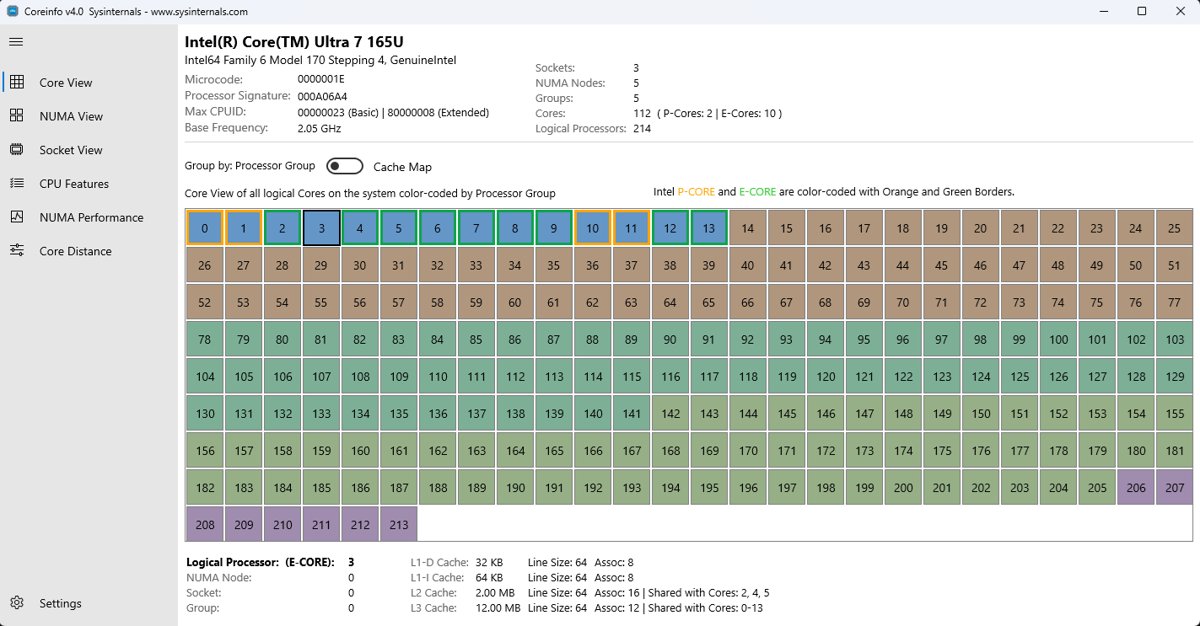
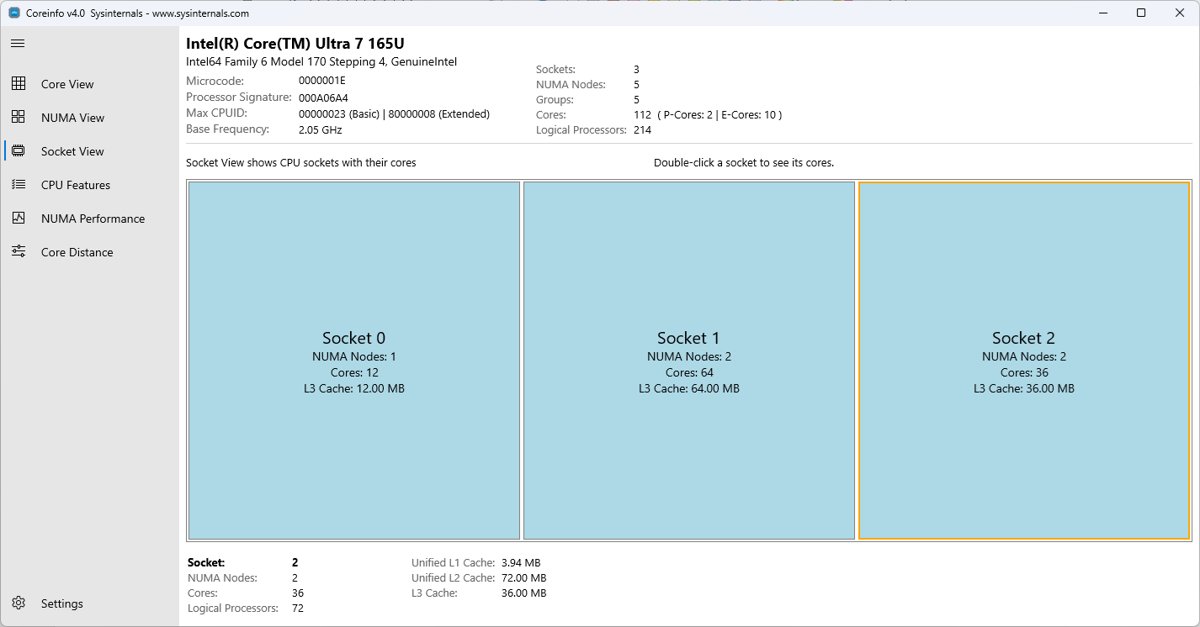
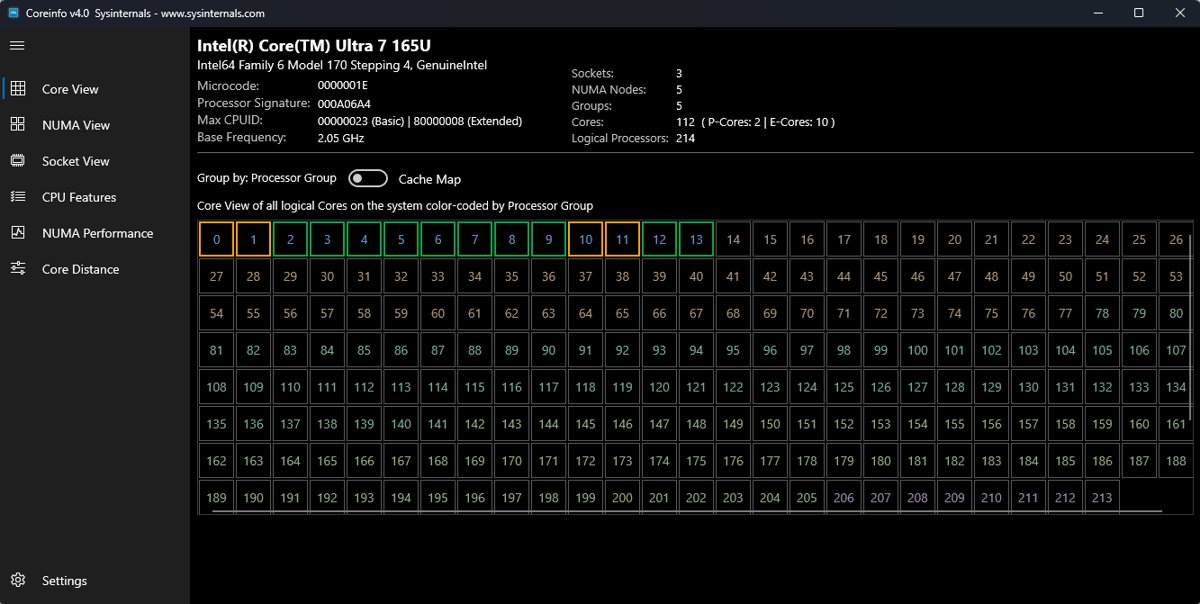
Coreinfo is a free Microsoft Sysinternals command-line tool that lists every cache level, including L1, which the PowerShell command does not show.
- Get Coreinfo from its page on Microsoft Learn (learn.microsoft.com/sysinternals) and extract it to a folder.
- Open Terminal or Command Prompt in that folder.
- Run
coreinfo -lto dump information on caches only. - Read the Logical Processor to Cache Map section: each line shows the cache type, level, size, associativity and line size.
- Look at the asterisks on the left of each line to see which logical processors share that cache.
Find your CPU cache size on the processor spec page
- Run
Get-CimInstance -ClassName Win32_Processor | Select-Object Namein PowerShell to get the exact processor model. - Open the processor maker's site, such as intel.com or amd.com.
- Search for the model name and open its specifications page.
- Read the Cache entry; Intel also puts it in the product name, for example "(12M Cache, up to 4.80 GHz)".
How to clear cache memory in Windows 11
You cannot clear the CPU cache yourself, and there is no reason to. The processor fills and replaces it on its own, and it empties completely when the PC powers off.
What people usually mean by clearing cache memory is removing one of the software caches below.
| Cache you want to clear | What to do | Worth doing? |
|---|---|---|
| CPU cache (L1, L2, L3) | Nothing; the hardware manages it | No |
| RAM file cache (Cached in Task Manager) | Restart the PC | Rarely; Windows gives the memory to apps when they need it |
| Browser cache | Clear browsing data in the browser's settings | Yes, when pages load old content or look broken |
| Temporary files | Use Storage Sense or Disk Cleanup | Yes, when the drive is short of free space |
The cached figure in Task Manager is file data in spare RAM, and clearing RAM cache on Windows rarely makes a PC faster. For websites that show stale pages, clear the cache in Google Chrome instead. Individual Windows 11 apps keep their own cached data as well, and you can clear an app's cache when one misbehaves.
How to buy with cache in mind
Cache size is fixed by the processor model. You cannot add more later without replacing the CPU, so it is worth a look when you choose a new PC or upgrade the processor.
| What you do on the PC | How much cache matters | What to compare instead or as well |
|---|---|---|
| Web, email, office documents | Little | Enough RAM and an SSD matter more |
| Gaming | Noticeable; a larger L3 can smooth frame rates in CPU-bound games | Graphics card, core count and clock speed |
| Video editing, 3D rendering, large data sets | High; big working sets miss less with more L3 | Core count, threads and RAM capacity |
| Heavy multitasking | Moderate; a larger shared L3 holds more for each app | RAM capacity |
Compare cache only between processors of the same generation and family. Bigger is not automatically faster, because a larger cache can take longer to search and different designs balance size against latency differently.
The future of cache memory follows the same pattern. Processors built for gaming and high-performance work tend to carry more L3 than everyday models, so cache size is likely to stay a spec worth checking on your next CPU.
Advantages and disadvantages of cache memory
The benefits of cache memory all come from keeping data close to the cores, and its drawbacks come from the cost of doing so.
| Advantages | Disadvantages |
|---|---|
| Much faster than RAM, so the CPU spends less time waiting | Very small compared with RAM |
| Fewer trips to RAM on repeated and nearby data | Expensive to build, which is why processors carry only a little |
| Works automatically with no setup, drivers or cleaning | Cannot be upgraded without replacing the processor |
| A shared L3 lets cores exchange data without going through RAM | A larger cache can raise power use and take longer to search |
| Helps games, editing and large data sets the most | Contents are lost at power off, and a miss still costs a full RAM access |
One of the main challenges in cache design is balancing size, speed and power, because a larger cache holds more but takes longer to search and uses more energy. Chip makers handle that optimization with the level split: a tiny, fast L1 per core, a larger L2 and a big shared L3. On a PC you already own there is nothing to optimize, since the processor manages its cache by itself.
Cache memory FAQ
What is cache memory in a computer?
Cache memory is a small block of very fast memory on the processor chip. It stores copies of data and instructions the CPU is likely to need next, so the processor can avoid waiting for slower RAM.
Why is cache memory faster than RAM?
Cache sits on the processor chip right next to the cores and uses faster, more expensive memory circuits. RAM sits farther away on the motherboard, so every request takes longer to travel and be answered.
Why is cache memory important to the CPU?
A modern CPU can process data far faster than RAM can deliver it. Cache keeps the most used data within reach, so the cores spend less time stalled on cache misses and more time doing work.
Where is cache memory located?
On current PCs, the L1, L2 and L3 caches are all part of the processor chip. L1 and usually L2 belong to each core, while L3 is a larger pool that several cores share.
How do I check cache memory on my laptop?
Run Get-CimInstance -ClassName Win32_Processor | Select-Object Name, L2CacheSize, L3CacheSize in PowerShell to see L2 and L3 sizes in kilobytes. For L1 as well, run coreinfo -l from Microsoft Sysinternals.
How do I clear cache memory in Windows 11?
The CPU cache cannot and need not be cleared; the processor manages it. To clear software caches, restart the PC for the RAM file cache, clear browsing data in your browser, and use Storage Sense or Disk Cleanup for temporary files.
Can I upgrade or add more cache memory?
No. Cache is built into the processor, so the only way to get more is to replace the CPU with a model that has a larger cache. Adding RAM does not increase cache memory.
Is cache memory the same as RAM?
No. Both lose their contents when the PC turns off, but cache is a few megabytes on the processor while RAM is gigabytes on the motherboard. The CPU checks the cache first and falls back to RAM on a miss.
What happens when the cache is full?
Nothing goes wrong. The processor evicts older, less used data to make room, and fetches it again from RAM if it is needed later. A full CPU cache is its normal working state.
Does cache memory matter for your PC?
Treat cache memory as a processor spec to compare when buying, not something to tune or clear on the PC you already own. The CPU manages its cache automatically and the size is fixed by the chip, while browser and temporary file caches are the ones that actually respond to clearing.