To clear the cache in Google Chrome on Windows 11, press Ctrl + Shift + Delete, pick a time range, tick Cached images and files and select Delete data; to refresh a single page without its cached copy, press Shift + F5 or Ctrl + Shift + R.
This guide covers the keyboard shortcut, the Settings menu, Developer Tools, clearing one site only, automatic clearing when Chrome closes, and what to try when a page still misbehaves.
Method 1: Quick cache clear using keyboard shortcut
The shortcut opens the same Delete browsing data dialog as the menu, so it is the quickest full clear on Windows 11.
- Open Chrome and press Ctrl + Shift + Delete.
- Open the Time range list and choose Last hour, or All time for a full clear.
- Tick Cached images and files.
- Clear Cookies and other site data and Browsing history if you only want the cache gone.
- Select Delete data.
Another quick route: type Delete browsing data in the address bar and select the action chip that appears under it.
Which method should you use?
| Your situation | Use this | Why |
|---|---|---|
| Chrome feels slow or many sites look broken | Ctrl + Shift + Delete, All time | Clears every cached file in one pass |
| One page shows an old version | Hard refresh with Shift + F5 | Reloads that page only and keeps your logins |
| One site keeps failing to sign in or load | Delete that site's data in Settings | Other sites keep their cookies and cache |
| You build or test websites | DevTools Disable cache or Clear browser cache | Stops caching while you test |
| You want a clean slate every session | Delete site data when all windows close | Chrome clears it automatically |
Method 2: Using Chrome settings menu
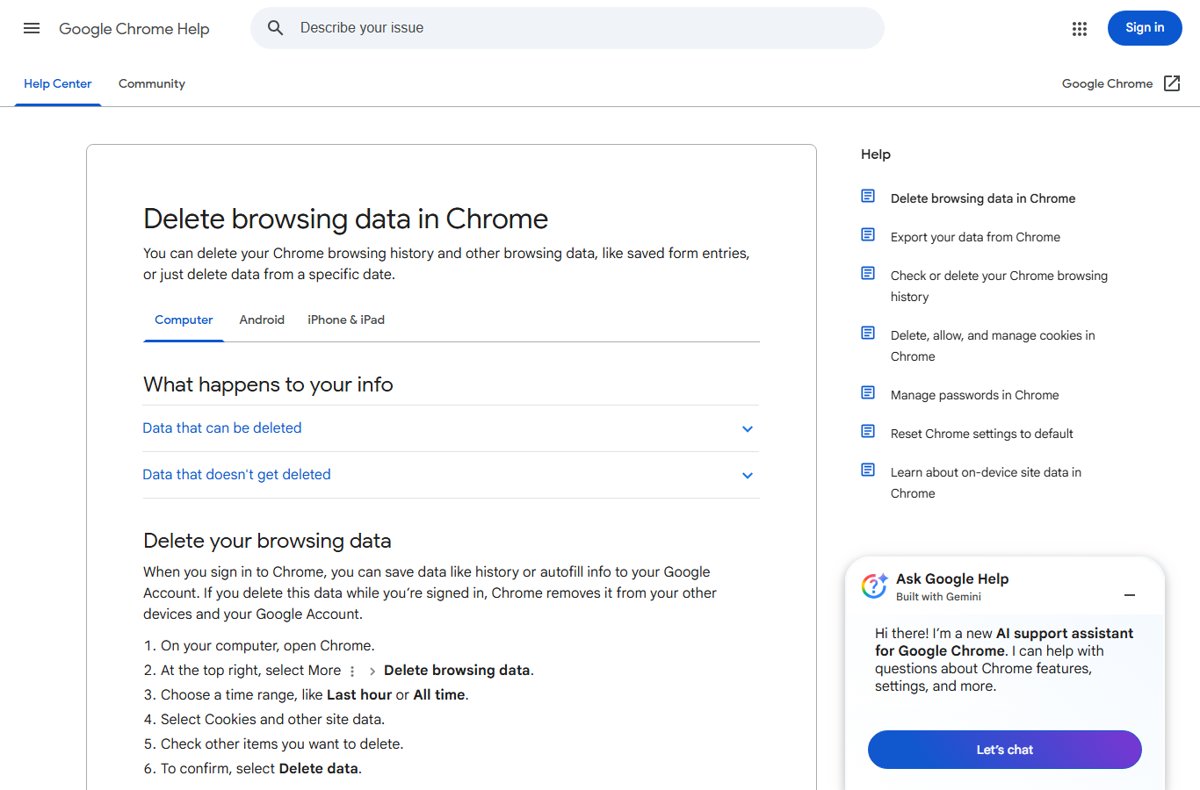
- Open Chrome on your Windows 11 PC.
- Select More (the three dots at the top right).
- Select Delete browsing data.
- Choose a time range, such as Last hour or All time.
- Tick Cached images and files, plus any other data you want removed.
- Select Delete data to confirm.
If you are signed in to Chrome with sync on, deleted data is also removed from your other devices and your Google Account.
Method 3: Developer Tools cache refresh
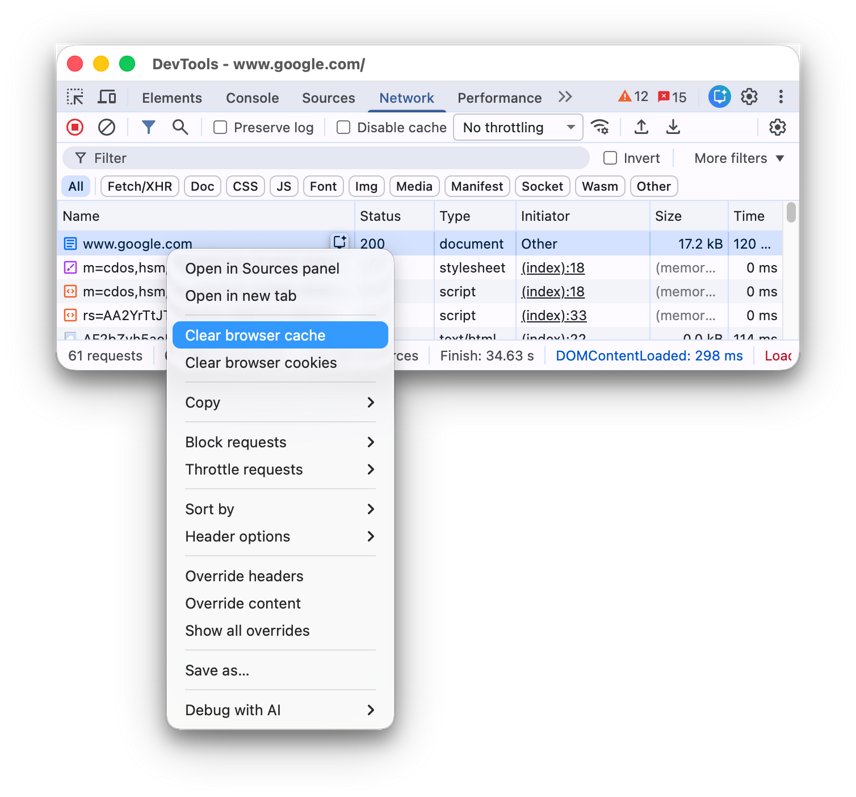
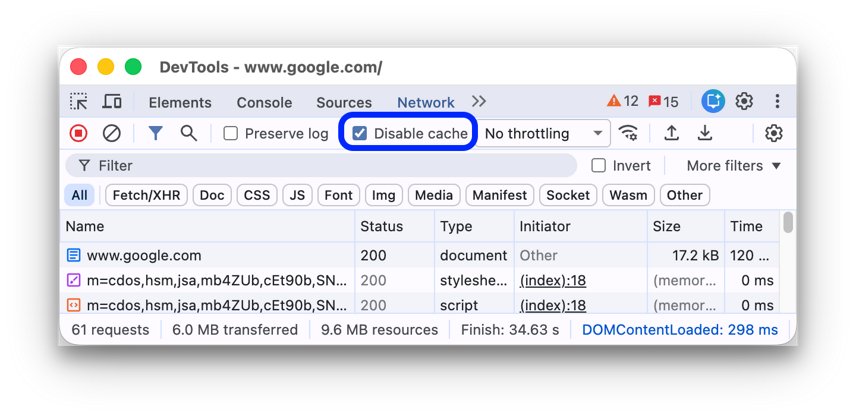
DevTools gives web developers two cache controls that the normal dialog lacks.
- Open the page and press F12 to open Developer Tools.
- Select the Network tab.
- Tick Disable cache to stop Chrome using its cache while DevTools stays open.
- Press F5 to reload the page with every file fetched fresh.
- To wipe the cache instead, right-click anywhere in the requests table and select Clear browser cache.
Disable cache only works while DevTools is open. Close DevTools and Chrome caches normally again.
Method 4: Site-specific cache clearing
Use this when one site misbehaves and you do not want to be signed out of everything else. It removes that site's cookies and stored data only.
- Select More, then Settings.
- Select Privacy and security, then Third-party cookies.
- Select See all site data and permissions.
- Search for the website's name at the top right.
- Select Delete next to the site.
- Select Delete again to confirm.
You will be signed out of that site, and any preferences it stored are reset. A hard refresh of the site afterwards also replaces its cached images and files.
Method 5: Hard refresh a webpage
A hard refresh reloads the current page and ignores the cached copy. Nothing else is deleted.
| Keys on Windows 11 | What happens |
|---|---|
| F5 or Ctrl + R | Normal reload; cached files can still be used |
| Shift + F5 | Reload ignoring cached content |
| Ctrl + Shift + R | Reload ignoring cached content |
A hard refresh touches only the open tab. Use it first when one page looks stale, because it keeps your cookies and sign-ins.
Why clear your Chrome cache?
Chrome keeps text and images from pages you visit so they load faster next time. That copy helps until a site changes and Chrome keeps serving the old file.
Understanding the cache's importance explains the trade-off: clearing it fixes stale pages, but every site loads a little slower until Chrome stores fresh copies.
| Symptom | Why the cache causes it | Fix |
|---|---|---|
| Site shows an old design or old prices | Stored files are older than the live site | Hard refresh the page |
| Page layout looks broken | Old style or script files mix with new ones | Clear cached images and files |
| Sign-in loops or errors on one site | A stale cookie or stored data for that site | Delete that site's data |
| Low disk space | Cached files build up over months | Clear cache with All time |
What cache and cookies are in Chrome
Cache stores page content. Cookies store information about your visit, such as keeping you signed in and remembering site preferences.
| Data type | What deleting it removes |
|---|---|
| Cached images and files | Text and images from pages you visited; pages load fresh next time |
| Cookies and other site data | Cookies, Web Storage, IndexedDB and similar site storage; signs you out of most sites |
| Browsing history | Visited addresses, New Tab shortcuts and address bar predictions |
| Download history | The list of downloads only; the files stay on your PC |
| Autofill form data | Saved form entries such as addresses |
| Site settings | Permissions you gave sites, such as camera or location |
| Hosted app data | Local storage of Chrome Web Store apps |
First-party cookies come from the site in the address bar. Third-party cookies come from other sites embedded in the page, such as ads.
Choosing the right time range and data types
| Goal | Time range | Tick these |
|---|---|---|
| A site broke in the last hour | Last hour | Cached images and files |
| Free space or fix many sites | All time | Cached images and files |
| Fix sign-in problems everywhere | All time | Cookies and other site data, Cached images and files |
| Remove traces of recent browsing | A recent range | Browsing history, Cookies and other site data |
| Stay signed in to sites | Any | Leave Cookies and other site data cleared |
Ticking only Cached images and files keeps you signed in, because sign-ins live in cookies, not the cache.
Advanced cache management
| Tool | Where to find it | What it does |
|---|---|---|
| Delete individual items | History page (Ctrl + H) | Removes single visited pages instead of whole categories |
| See all site data and permissions | Settings > Privacy and security > Third-party cookies | Lists every site storing data and deletes one at a time |
| Site settings for one site | Site information icon left of the address | Changes or resets that site's permissions |
| Disable cache | DevTools > Network | Turns off caching while DevTools is open |
| Clear browser cache | Right-click in the DevTools Network requests table | Empties the cache without opening the dialog |
Automated cache management
Chrome can delete the data sites save on your PC each time you close every window. This covers cookies and site storage, so you start each session signed out.
- Select More, then Settings.
- Select Privacy and security, then Site settings.
- Select Additional content settings, then On-device site data.
- Choose Delete data sites have saved to your device when you close all windows.
Avoid Don't allow sites to save data on your device. Google marks it not recommended, and many sites stop working with it.
How to check the cache really cleared
- Reload a site you visit often; images and fonts take a moment longer on the first load.
- If you cleared cookies, check that the site asks you to sign in again.
- Open See all site data and permissions and confirm the site you deleted is gone from the list.
- For a hard refresh, confirm the page now shows the change you expected.
Impact on browsing experience
| What you cleared | Right after | Later |
|---|---|---|
| Cached images and files | First visit to each site loads slower | Cache rebuilds and speed returns |
| Cookies and other site data | Signed out of most sites; site preferences reset | Sites set fresh cookies as you sign back in |
| Site settings | Sites ask again for camera, location and other permissions | Only permissions you grant again come back |
| Browsing history | Address bar stops suggesting past pages | Suggestions build up again |
Troubleshooting common issues
The page still shows the old version
Chrome reused a cached file, or the site's own server still serves the old page.
- Press Shift + F5 or Ctrl + Shift + R on the page.
- If that fails, press F12, tick Disable cache on the Network tab and reload.
- If it still looks old, the change is not live on the site yet.
Signed out of every site after clearing
Cookies and other site data was ticked, and sign-ins are stored in cookies.
- Sign in to the sites again.
- Next time, tick only Cached images and files.
- To fix one site, delete only that site's data with Method 4.
What to do if clearing cache and cookies doesn’t fix the problem
One site still fails after a full clear
A site permission or setting is blocking it rather than stored data.
- Open the site and select the site information icon left of the address.
- Select Site settings.
- Select Reset permissions if it is available.
Many sites still break or Chrome behaves oddly
A changed setting or an extension affects every page.
- Select More, then Settings.
- Select Reset settings, then Restore settings to their original defaults.
- Select Reset settings. Bookmarks and passwords are kept; extensions are turned off.
- If problems remain, test in a fresh Chrome profile to rule out profile damage.
Sites stop saving logins at all
On-device site data is set to delete on close or is blocked.
- Open Settings > Privacy and security > Site settings > Additional content settings > On-device site data.
- Choose Allow sites to save data on your device.
Best practices and recommendations
| Practice | Reason |
|---|---|
| Try a hard refresh before a full clear | It fixes one stale page without signing you out |
| Clear one site's data before clearing all cookies | Other sites stay signed in |
| Leave passwords out of routine clears | Passwords and passkeys live in Password Manager and are not removed by cookie or cache clearing |
| Sign in before deleting if you use sync | The deletion then reaches your other devices |
| Use auto-delete on shared PCs | The next user does not inherit your sign-ins |
Frequently Asked Questions
What is the shortcut to clear cache in Chrome on Windows 11?
Press Ctrl + Shift + Delete. It opens the Delete browsing data dialog, where you pick a time range, tick Cached images and files and select Delete data.
Does clearing the cache sign me out of websites?
No, clearing only Cached images and files keeps you signed in. Deleting Cookies and other site data is what signs you out, because sites store sign-ins in cookies.
Does clearing Chrome cache delete my passwords or bookmarks?
No. Saved passwords and passkeys are managed separately in Google Password Manager, and bookmarks are not one of the data types the Delete browsing data dialog removes.
What is the difference between a hard refresh and clearing the cache?
A hard refresh with Shift + F5 or Ctrl + Shift + R reloads one page and ignores its cached copy. Clearing the cache removes stored files for every site in the chosen time range.
Does clearing download history delete my downloaded files?
No. Chrome deletes only the list of files you downloaded. The files themselves stay in your Downloads folder or wherever you saved them.
Will clearing cache on my PC clear it on my phone too?
Only if you are signed in to Chrome with sync on. Then the deleted data is removed from your other devices and your Google Account as well.
Does clearing cache remove Chrome extensions?
No. Extensions and the data they store are not deleted by the Delete browsing data dialog. Remove an extension from the Extensions page if you no longer want it.
Why are sites slower right after clearing the cache?
Chrome has to download images and other content again on the first visit. Speed returns once the cache rebuilds as you browse.
Bottom line
Start with a hard refresh (Shift + F5) for one stale page, and use Ctrl + Shift + Delete with only Cached images and files ticked when many sites misbehave. That order fixes most cache problems while keeping your sign-ins; clear cookies or one site's data only when sign-in errors persist.



![How to turn on/off ad blocker in Microsoft Edge? [step-by-step]](https://techdows.com/wp-content/uploads/2026/10/How-to-turn-onoff-ad-blocker-in-Microsoft-Edge-step-by-step-1-600x338.jpg)



What is a RAM cache, and how do you clear it on Windows? - Techdows
[…] browser cache is an app cache: you clear the Chrome cache from Chrome, and doing so frees drive space, not […]