To see what computer you have on Windows, open Settings > System > About: the model name sits under the device name, with the processor and RAM listed below it.
This guide covers every built-in way to check your computer's model and specs on Windows 11, Windows 10 and Mac, plus how to read the processor, memory, graphics and storage details.
Find your computer model and specs in Settings
- Right-click Start and select Settings.
- Select System, then select About.
- Read the device name at the top; the model name appears just below it.
- Look under Device specifications for the processor, the amount of installed RAM, and whether Windows is 32-bit or 64-bit.
- Look under Windows specifications for the edition and version of Windows.
You can also open the same page directly by pressing Win + R, typing ms-settings:about and pressing Enter.
Ways to check computer specs on Windows and Mac
| What you need | Tool to open | What it shows |
|---|---|---|
| Model, CPU and RAM in seconds | Settings > System > About | Device name, model, processor, installed RAM, Windows version |
| Full hardware report | System Information (msinfo32) | Hardware, system components and software environment |
| Text report you can copy | systeminfo in Command Prompt | OS configuration, product ID, RAM, network cards |
| Exact manufacturer and model string | PowerShell Win32_ComputerSystem | Manufacturer, Model, SystemFamily, memory |
| Graphics and DirectX details | DirectX Diagnostic Tool (dxdiag) | System information and DirectX version |
| Live CPU, memory, disk and GPU use | Task Manager > Performance | Per-component graphs and details |
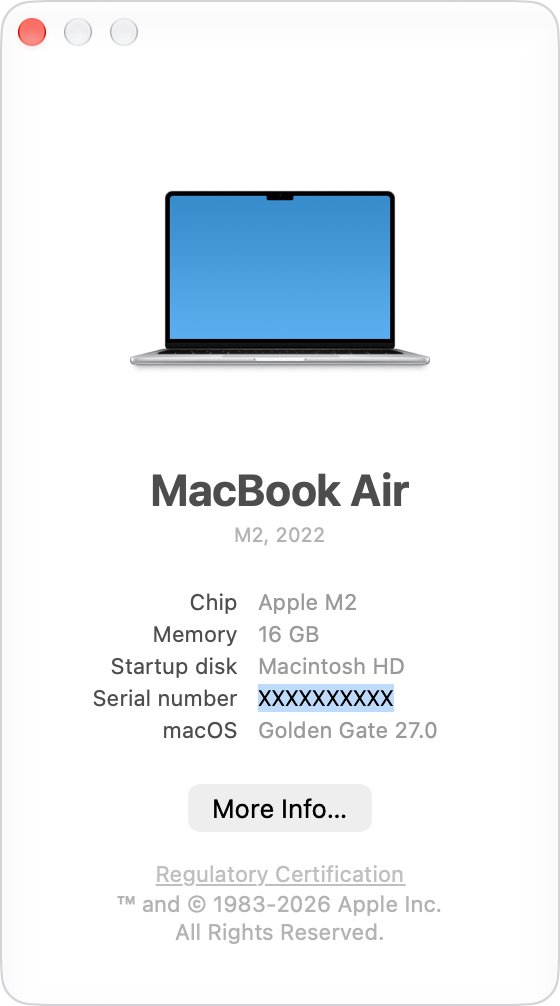
| A Mac or MacBook model | Apple menu > About This Mac | Model name and serial number |
Check specification on Windows
System Information gives the most complete view of your hardware, system components and software in one window.
- Select the search box on the taskbar and type
msinfo32. - Right-click System Information in the results and select Run as administrator.
- Read the summary page that opens for an overview of the hardware and system.
- Expand Components in the left pane for display, storage and other device details.
You can also start it from an elevated Command Prompt by typing msinfo32 and pressing Enter.
Check computer specs using Command Prompt
The systeminfo command prints operating system configuration, security information, the product ID and hardware properties such as RAM, disk space and network cards.
systeminfoRun it in Command Prompt. Add /fo list for a list layout or /fo csv for comma-separated output you can paste into a spreadsheet.
You should see: A block of name and value lines appears, covering the operating system configuration, the product ID and hardware such as RAM, disk space and network cards.
How to check my laptop model?
PowerShell reads the model straight from the firmware's SMBIOS data, which is the product name the manufacturer gave the computer.
- Right-click Start and select Terminal or Windows PowerShell.
- Type
Get-CimInstance -ClassName Win32_ComputerSystem | Select-Object Manufacturer, Model, SystemFamilyand press Enter. - Read Manufacturer for the brand and Model for the product name.
- Use SystemFamily, where the maker fills it in, for the product line.
- Type the model into the manufacturer's support site to find its full specification sheet and drivers.
If Windows will not start, check the label on the underside of the laptop or the original box for the model number.
The same model string helps when you find the motherboard model on a desktop PC.
Get details about specific PC components
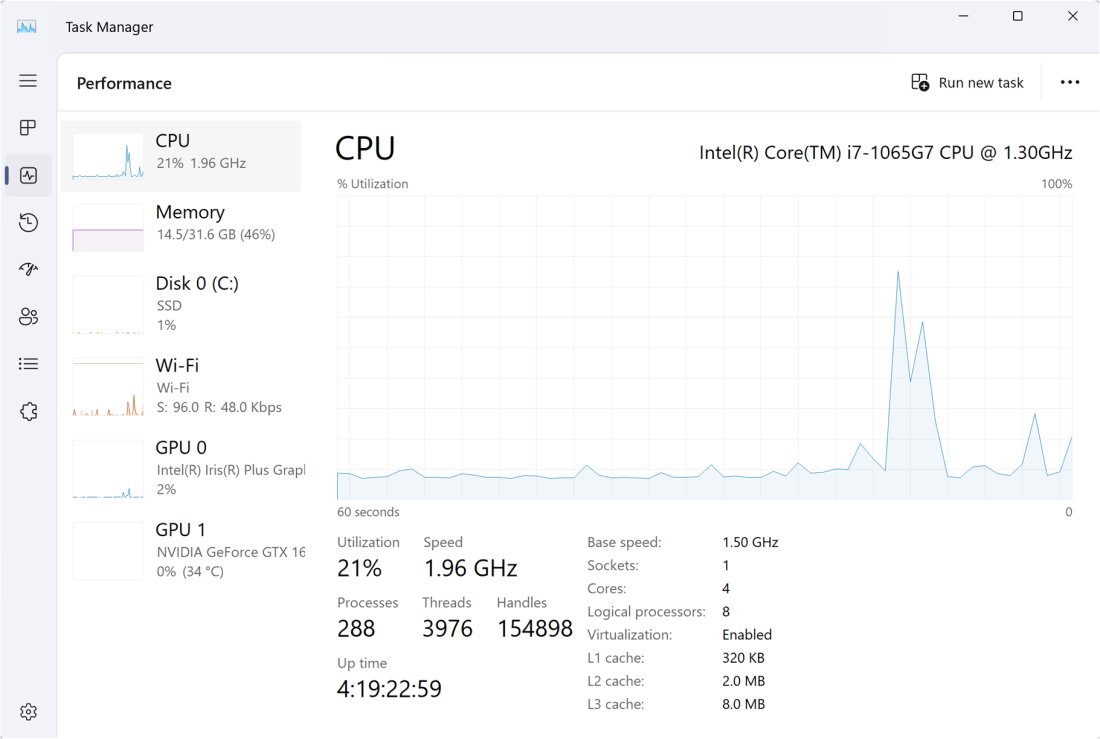
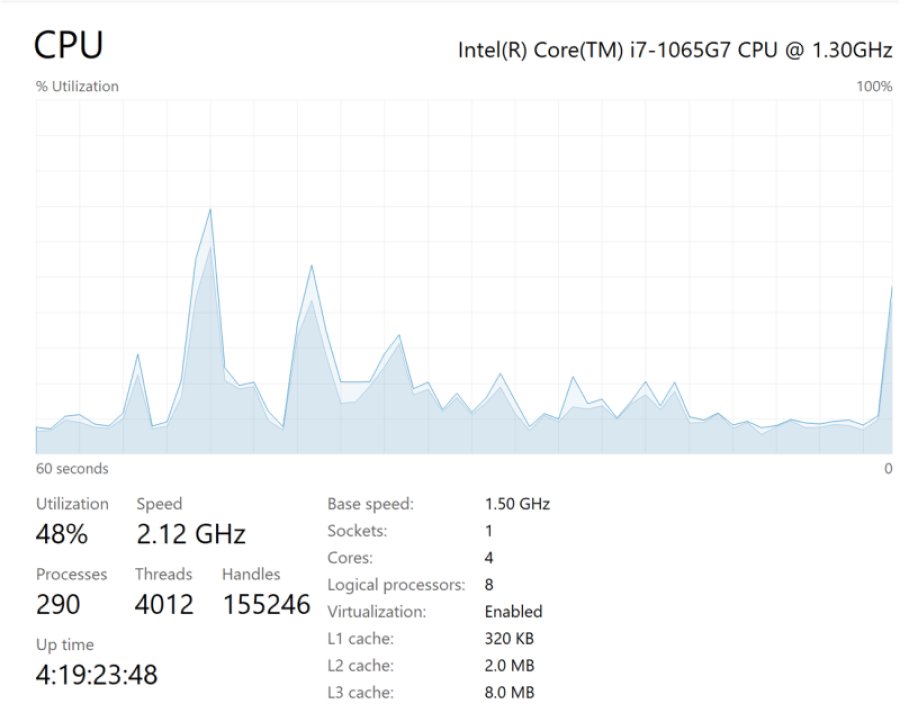
Task Manager shows live data for each major component on its Performance tab. The categories shown depend on the hardware in the PC.
| Component | Where to look | What you get |
|---|---|---|
| CPU | Task Manager > Performance > CPU | Processor name, load graph and per-core view (right-click the graph > Change graph to > Logical processors) |
| RAM | Task Manager > Performance > Memory, or Settings > System > About | Installed RAM and current use |
| GPU | Task Manager > Performance > GPU, or dxdiag | Graphics card name and usage |
| Storage | Task Manager > Performance > Disk | Each drive and its activity |
| DirectX | dxdiag > System tab | DirectX version under System Information |
Press Ctrl + Shift + Esc to open Task Manager, and select More details if it opens in the compact view.
For memory type and slots, you can check RAM on Windows 11, and for the card itself, check which GPU you have.
Check graphics and system details with DirectX Diagnostic Tool
- Select the search box on the taskbar, type
dxdiag, and select dxdiag in the results. - Select Yes if the tool asks whether to check that your drivers are digitally signed.
- Read the System tab for the computer details and the DirectX version under System Information.
- Select Save All Information to save a text report you can share with support.
Check specification on MacBook
- Select the Apple menu in the corner of the screen.
- Choose About This Mac to see the model name and serial number.
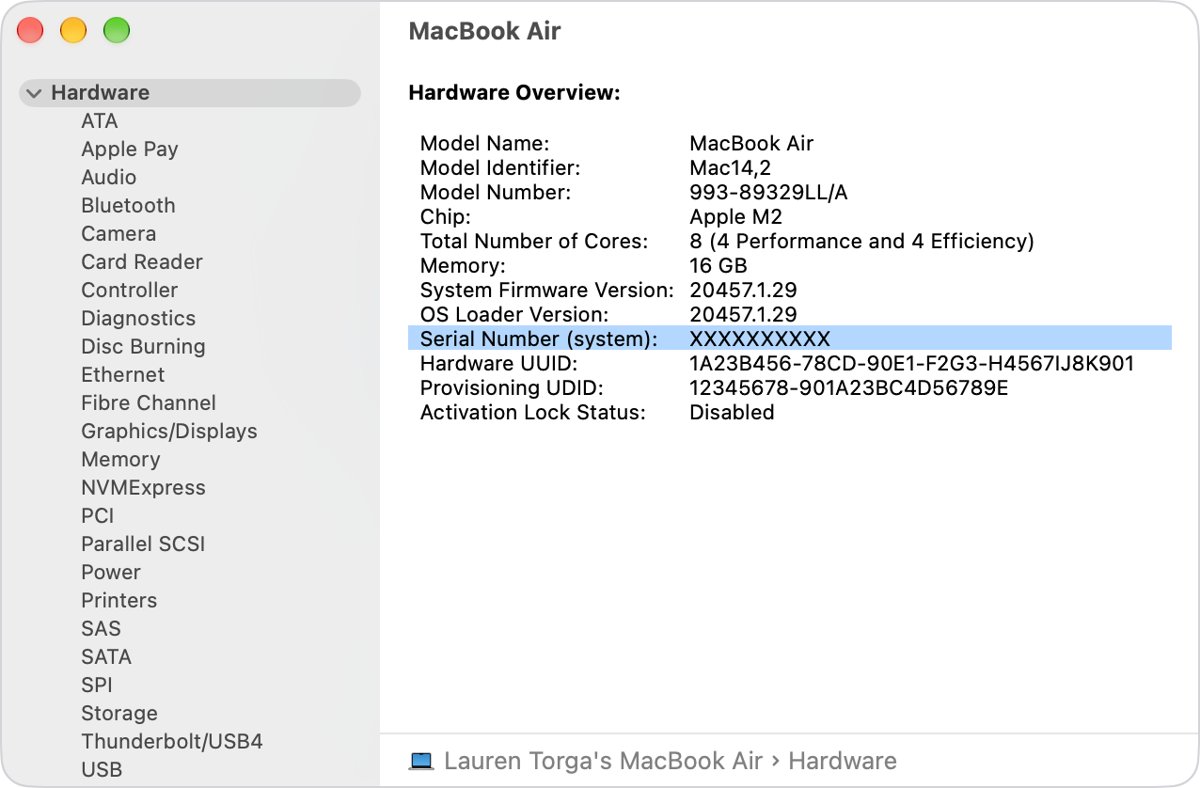
- For more detail, hold the Option key and choose Apple menu > System Information.
- Select Hardware in the sidebar to see the Serial Number, Model Identifier and Model Number.
If the Mac will not start, the serial number is printed on the underside of the Mac and on its packaging. Enter it at checkcoverage.apple.com to get the exact model name.
You can also sign in at account.apple.com, select Devices, and select the Mac.
Confirm the computer model matches the manufacturer's listing
- Copy the model name from Settings, systeminfo or About This Mac.
- Search for that exact model on the manufacturer's support website.
- Compare the processor and installed RAM on the product page with what Windows or macOS reports.
- Treat any difference in RAM or storage as an upgrade made after purchase, and trust what the computer reports.
Computer model and specs FAQ
How do I find out what computer I have?
On Windows, open Settings > System > About; the model name appears under the device name. On a Mac, select the Apple menu and choose About This Mac to see the model name and serial number.
How do I check my PC specs on Windows 11?
Open Settings > System > About and read Device specifications for the processor, installed RAM and system type. For a full hardware report, type msinfo32 in the taskbar search and open System Information.
How do I find my laptop model number?
Run Get-CimInstance -ClassName Win32_ComputerSystem in PowerShell and read the Model value, or run systeminfo in Command Prompt. The model is also printed on the label underneath most laptops.
What command shows computer specs?
The systeminfo command in Command Prompt lists operating system details, the product ID and hardware properties such as RAM, disk space and network cards. Add /fo list for an easier-to-read layout.
How do I check what graphics card I have?
Open Task Manager with Ctrl + Shift + Esc and select the GPU entry on the Performance tab. You can also run dxdiag from the taskbar search for system and DirectX details.
How do I check my Mac model?
Select the Apple menu and choose About This Mac. For the Model Identifier and Model Number, hold Option, choose Apple menu > System Information and select Hardware in the sidebar.
Is Windows on my computer 32-bit or 64-bit?
Open Settings > System > About and look under Device specifications. The entry there states whether Windows is 32-bit or 64-bit, next to the processor and installed RAM.