To update drivers on an Acer laptop, open Settings > Windows Update, select Check for updates, then install any drivers listed under Optional updates and restart.
For drivers Windows Update does not offer, download them from Acer's own Drivers and Manuals page for your exact model, or update a single device in Device Manager. This guide also covers graphics, Wi-Fi, Bluetooth, audio, touchpad and camera drivers, the BIOS, rollback and common failures.
Method 1: Update Acer Drivers Through Windows Update
Microsoft calls Windows Update the best way to get driver updates. It installs recommended drivers for network adapters, video cards, printers and other hardware automatically, but optional drivers wait until you pick them.
| Step | Windows 11 | Windows 10 |
|---|---|---|
| 1. Open the settings | Start > Settings > Windows Update > Advanced options | Start > Settings > Update & Security > Windows Update > Advanced options |
| 2. Allow more updates | Turn on Receive updates for other Microsoft products | Turn on Receive updates for other Microsoft products when you update Windows |
| 3. Get the recommended drivers | Go back to Windows Update and select Check for updates | Go back to Windows Update and select Check for updates |
| 4. Find optional drivers | In Advanced options, under Additional options, select Optional updates | Select View optional updates if the link appears |
| 5. Install | Tick the drivers you want and select Download and install | Tick the drivers you want and select Download and install |
| 6. Finish | Restart the laptop when installation completes | Restart the laptop when installation completes |
Do not install every optional driver just because it is listed. Pick one when it matches a device that has a problem, such as missing sound or a flickering screen. If the laptop works normally, the recommended drivers Windows already installed are enough.
Which Acer driver update method should you use?
Every route below installs a driver for the same hardware. They differ in how much they choose for you and how targeted they are.
| Your situation | Use this | Why |
|---|---|---|
| The laptop works and you want routine updates | Windows Update (Method 1) | Microsoft's recommended route; recommended drivers install on their own |
| You need a driver Windows Update does not offer | Acer's Drivers and Manuals page (Method 2) | Lists drivers built for your exact Acer model |
| Your laptop shipped with an Acer utility app | Acer Care Center, AcerSense, PredatorSense or NitroSense (Method 3) | Acer's own app for that model line, where one is installed |
| One device misbehaves | Device Manager (Method 4) | Targets a single device and can roll back or reinstall it |
| Games stutter or the screen runs at a low resolution | Graphics driver route (Method 5) | Intel, NVIDIA and AMD each publish their own tools |
| No internet after a driver change | Download on another PC, copy by USB (Method 6) | Microsoft's fix when the network adapter itself fails |
| A new driver broke something | Roll Back Driver or System Restore | Returns to the version that worked |
Before You Start: Know Which Acer Laptop You Have
Acer drivers are built per model, and an Aspire 3 driver will not suit a Nitro 5. Find the exact model name first, and create a restore point so any bad driver can be undone.
- Right-click Start, choose Settings, select System and then About.
- Write down the model name at the top of the page, and the Windows edition and version under Windows specifications.
- To read the serial number and current BIOS version, search for PowerShell in the Start menu, open it, and run
Get-CimInstance -ClassName Win32_BIOS | Select-Object SerialNumber, SMBIOSBIOSVersion. - Select Start, type Create a restore point, and open it from the results.
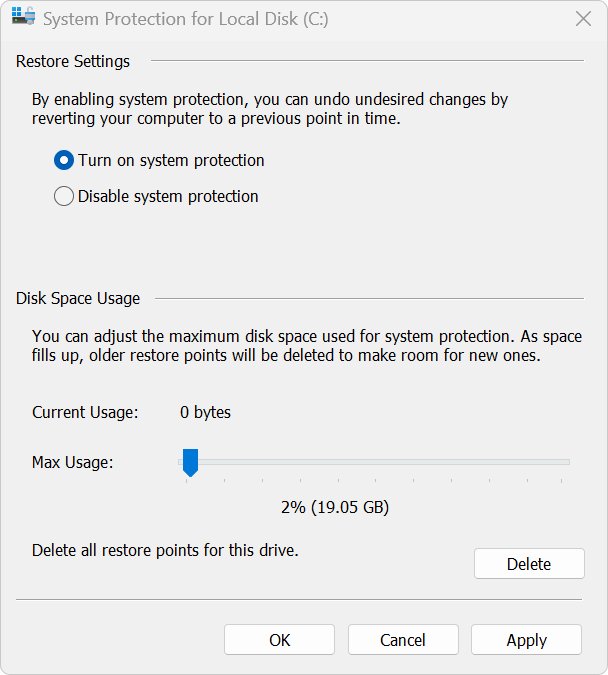
- On the System Protection tab, if protection is off for the system drive, select Configure…, choose Turn on system protection, and select Apply.
- Select Create…, type a description such as "Before driver update", and select Create.
Keep the laptop plugged into its charger while drivers install, and sign in with an administrator account; Microsoft says rolling back a driver needs administrator permissions.
Method 2: Download Drivers from Acer’s Official Support Site
Microsoft's advice is to get drivers from the PC manufacturer's support website and avoid downloading them from any other site. For an Acer laptop, that is Acer's Drivers and Manuals page.
- Open Acer's Drivers and Manuals page in your browser.
- Identify your laptop using the model name or serial number from the previous section.
- Confirm the product shown matches the model name in Settings > System > About.
- Check that the drivers listed are for your version of Windows 11 or Windows 10.
- Download only the drivers for the devices you need to update, such as audio, Wi-Fi or chipset.
- Run the downloaded installer and follow Acer's on-screen instructions.
- Restart the laptop when the installer finishes or asks you to.
If a download is a folder of driver files rather than an installer, install it through Device Manager with Browse my computer for drivers (Method 4). Windows installs it only if it is newer than the driver already in place.
Method 3: Use Acer Care Center, AcerSense, PredatorSense, or NitroSense
Acer names its utility apps by model line, and the app is only useful if your laptop already has it. Search the Start menu for each name; if one opens, follow the labels on your own screen rather than a fixed path.
| What you find | What to do | Why |
|---|---|---|
| Acer Care Center, AcerSense, PredatorSense or NitroSense appears when you search the Start menu | Open it and use its update or support option, if it has one, then restart when it finishes | The app is Acer's own software for your model |
| None of these apps is installed | Use Windows Update (Method 1) and Acer's Drivers and Manuals page (Method 2) | Both cover the same Acer drivers without the app |
| The app reports an error or finds nothing | Download the driver manually from Acer's Drivers and Manuals page | The support page is the full list for your model |
| A website or third-party tool offers to update all your drivers | Close it without installing anything | Microsoft advises getting drivers only from the manufacturer's official site |
Acer's apps are optional. Every driver they install is also available through Windows Update or Acer's support page, so a missing app is never a blocker.
Method 4: Update Drivers Using Device Manager
Device Manager is the right tool when one device misbehaves and the rest of the laptop is fine. It can search for a driver itself or install one you already downloaded from Acer.
- Right-click the Start button and select Device Manager.
- Select the arrow next to the device's category to expand it.
- Right-click the device and select Update driver.
- Select Search automatically for drivers to let Windows look for one.
- To use an Acer driver you downloaded instead, select Browse my computer for drivers, then Browse…, pick the folder, select OK and then Next.
- Select Close when Windows finishes, and restart if asked.
If Windows says the best driver is already installed, that only covers what Windows has. Microsoft notes that manufacturers often offer newer versions on their own websites, so check Acer's page before giving up.
Method 5: Update Graphics Drivers on an Acer Laptop
Open Device Manager and expand Display adapters to see which graphics hardware your Acer has. If two adapters are listed, update each one from its own maker's row below.
| Listed under Display adapters | Where to update | Notes |
|---|---|---|
| Intel graphics | Acer's Drivers and Manuals page, or Intel Driver & Support Assistant | Intel's own guide says to install the latest driver from your computer manufacturer or from Intel's Download Center |
| NVIDIA GeForce | The NVIDIA app, or NVIDIA's driver search at nvidia.com/drivers | The manual search includes notebook GPUs; pick your exact series and Windows version |
| AMD Radeon | Acer's Drivers and Manuals page, or AMD's driver download page on amd.com | Match the exact GPU name shown in Device Manager |
| Microsoft Basic Display Adapter | Windows Update first, then the graphics maker's or Acer's site | This generic driver means the real graphics driver is missing |
Microsoft says a proper graphics driver brings faster performance, smoother video, higher resolutions and better battery life than the basic adapter. After a graphics update, check whether your games also need a DirectX update.
Method 6: Update Wi-Fi and Bluetooth Drivers
The wireless adapter appears under Network adapters in Device Manager, and the Bluetooth adapter under Bluetooth. A failed Wi-Fi driver update can leave the laptop offline, so save a backup driver first.
- Download the Wi-Fi driver for your model from Acer's Drivers and Manuals page and keep the file.
- If the laptop has no internet, download that driver on a different PC and copy it to a USB flash drive.
- Open Device Manager and expand Network adapters or Bluetooth.
- Right-click the adapter and select Update driver, then Search automatically for drivers.
- If that does not help, right-click the adapter, select Uninstall device, and restart the laptop.
- Let Windows reinstall the adapter automatically after the restart.
- If Windows does not reinstall it, install the backup driver you saved in step 1 or 2.
Method 7: Update Audio, Touchpad, Camera, and Fingerprint Drivers
These devices update the same way: Windows Update first, then Device Manager, then Acer's page for your model. What changes is where each one sits in Device Manager.
| Device | Device Manager category | Extra check |
|---|---|---|
| Audio | Sound, video and game controllers | Restart after the update; Microsoft lists no sound, crackling and microphone problems as driver symptoms |
| Touchpad | Human Interface Devices or Mice and other pointing devices | Reinstalling the touchpad makes Windows download the latest driver from Windows Update |
| Camera | Cameras, Imaging devices or Sound, video and game controllers | Also confirm Camera access is on in Settings > Privacy & security > Camera (Windows 11) or Privacy > Camera (Windows 10) |
| Fingerprint reader | Find it by name in Device Manager | Get the driver from Windows Update or Acer's Drivers and Manuals page for your model |
For each device, right-click it, select Update driver and then Search automatically for drivers. If the device still fails, download its driver from Acer's page and install it.
How to Update the BIOS on an Acer Laptop
A BIOS update is firmware, not a Windows driver, and it comes from Acer's Drivers and Manuals page for your exact model. Update it only when Acer's release notes fix a problem you have.
- Read your current BIOS version from the
SMBIOSBIOSVersionvalue in the PowerShell command from the first section. - Open Acer's Drivers and Manuals page for your model and find the BIOS entry.
- Compare Acer's latest BIOS version with yours; stop here if they match.
- Read the instructions Acer publishes with the BIOS file before running anything.
- Connect the charger, close all apps, and save your work.
- Run the BIOS update exactly as Acer's instructions describe and let the laptop restart on its own.
- Run the PowerShell command again and confirm the new version appears.
Never install a BIOS file meant for a different model, even a similar one. The same rule applies on other brands; see how the process works in the guide to keeping Dell drivers updated.
How to check your Acer drivers updated
- Open Device Manager and confirm no device shows a warning icon.
- Right-click an updated device, select Properties, and open the Driver tab to see its driver details.
- Compare that driver version with the one on Acer's Drivers and Manuals page.
- Expand Display adapters and confirm your graphics hardware is named, not Microsoft Basic Display Adapter.
- Open Windows Update > Advanced options > Optional updates and confirm the driver you installed is no longer listed.
- Test the device itself: play a sound, connect to Wi-Fi, pair a Bluetooth device, or open the Camera app.
How to Roll Back a Driver If Something Goes Wrong
Roll back when a device worked before an update and fails after it. You need administrator permissions, and the option only works if an earlier driver is stored.
- Right-click Start and select Device Manager.
- Expand the category and right-click the device, then select Properties.
- Select the Driver tab and then Roll Back Driver.
- Choose a reason when Windows asks, then select Yes.
- Restart the laptop if prompted.
- If several drivers changed at once, press Windows + R, type
rstrui.exe, press Enter, select Next, pick the restore point you created, then select Next and Finish.
If Roll Back Driver is unavailable, no earlier version is stored. Uninstall the device instead, restart, and install the version you want from Acer's page.
Troubleshooting Common Acer Driver Update Problems
Windows says the best driver is already installed
Windows only compares against the drivers it has; manufacturers often publish newer ones on their own sites.
- Open Acer's Drivers and Manuals page for your model.
- Compare the listed version with the one on the device's Driver tab.
- If Acer's is newer, download and install it, then restart.
The display shows Microsoft Basic Display Adapter or a low resolution
The real graphics driver is missing, so Windows uses its generic fallback.
- Select Check for updates in Windows Update and install any display driver offered.
- If none appears, download the graphics driver from Acer's page or the graphics maker's site.
- Restart and confirm the graphics hardware is named under Display adapters.
No internet after a Wi-Fi driver update
The new network adapter driver does not work with your adapter.
- Roll back the driver from the adapter's Driver tab in Device Manager.
- If that is unavailable, select Uninstall device under Network adapters and restart so Windows reinstalls it.
- If it is still offline, download the Wi-Fi driver on another PC, copy it by USB flash drive, and install it.
A device stopped working after a driver update
The new driver does not suit your hardware or Windows version.
- Roll back the driver from the Driver tab.
- If rollback is unavailable, right-click the device, select Uninstall device, confirm with Uninstall, and restart.
- Install the driver version you want from Acer's Drivers and Manuals page.
The driver you need is not on Acer's page
Acer may not publish that driver for your Windows version on your model.
- Check Optional updates in Windows Update.
- Use Update driver > Search automatically for drivers in Device Manager.
- For graphics hardware, check Intel, NVIDIA or AMD's own driver pages.
- If none of these work, contact Acer support for the latest compatible driver.
Best Practices for Updating Acer Laptop Drivers
| Practice | Why it matters |
|---|---|
| Download drivers only from Acer, Microsoft, or the chip maker | Microsoft advises against drivers from any site other than the manufacturer's official one |
| Skip third-party driver updater tools | They install drivers you did not choose, and Windows Update and Acer already cover your hardware |
| Create a restore point first | System Restore can undo several driver changes at once |
| Update one device at a time | When something breaks, you know which driver caused it |
| Install optional drivers only to fix a real problem | Windows leaves optional drivers for you to choose; a working laptop does not need them |
| Restart after each install | Microsoft's driver steps end with a restart before the change is complete |
| Leave the BIOS alone unless Acer's notes fix your problem | A BIOS update carries more risk than a driver update |
Frequently Asked Questions
How do I update drivers on my Acer laptop?
Open Settings > Windows Update, select Check for updates, and install any drivers under Optional updates. For drivers Windows Update does not offer, download them from Acer's Drivers and Manuals page for your exact model, or use Update driver in Device Manager.
Does Acer have a driver update tool?
Acer's utility apps include Acer Care Center, AcerSense, PredatorSense and NitroSense, depending on the model line. If none is installed on your laptop, use Windows Update and Acer's Drivers and Manuals page instead; no third-party updater is needed.
How do I update drivers on an Acer Nitro 5?
Use the same steps as any Acer laptop: Windows Update first, then Acer's Drivers and Manuals page for your Nitro 5 model. For an NVIDIA GeForce graphics card, the NVIDIA app or NVIDIA's driver search also provides notebook drivers.
How do I update drivers on an Acer Aspire 3?
Check Windows Update, including Optional updates, then open Acer's Drivers and Manuals page and identify your Aspire 3 by its model name or serial number. Download only the drivers you need, run each installer, and restart the laptop.
Can Acer drivers update automatically?
Yes. Windows Update installs recommended drivers automatically on Windows 11 and Windows 10. Optional drivers are never installed automatically; you pick them under Optional updates and select Download and install.
Can I update Acer drivers online?
Yes. Windows Update downloads drivers over the internet, and Acer's Drivers and Manuals page lists downloads for your model. If the laptop has no internet because of a network driver, download the driver on another PC and copy it by USB flash drive.
Where do I find my Acer laptop's model and serial number?
The model name is on the Settings > System > About page. For the serial number and BIOS version, run Get-CimInstance -ClassName Win32_BIOS | Select-Object SerialNumber, SMBIOSBIOSVersion in PowerShell.
Should I install every optional driver in Windows Update?
No. Install an optional driver when it matches a device that has a problem. If your Acer laptop works normally, the recommended drivers Windows Update already installed are enough.
How do I undo an Acer driver update?
Open Device Manager, right-click the device, select Properties, open the Driver tab and select Roll Back Driver, then Yes. If the option is unavailable, uninstall the device, restart, and install the version you want from Acer's page.



Fingerprint Driver For Windows 11 - Techdows
[…] driver jobs follow the same route. Updating drivers on an Acer laptop uses the same Device Manager and vendor-site […]
How to Update Graphics Driver on Windows 11/10 [2026 Guide] - Techdows
[…] For brand-specific routes, see [How to Keep Your Dell Drivers Updated on Windows 11/10 [2026]](https://techdows.com/how-to-keep-your-dell-drivers-updated-on-windows-1110-2026.html) and How to Update Drivers on Acer Laptop (Step-By-Step Guide). […]