Download NVIDIA Control Panel free from its Microsoft Store listing, published by NVIDIA Corp., after an NVIDIA DCH graphics driver is installed on your Windows 10 or Windows 11 PC.
This guide covers the Store download, getting the right driver from nvidia.com, the newer NVIDIA app, how to open and reinstall Control Panel, and fixes for common download errors.
The fastest way to download NVIDIA Control Panel
The Microsoft Store is the best way, and for DCH drivers the only official source. The Store listing requires an NVIDIA DCH display driver, Windows 10 version 14393.0 or higher, and a 64-bit (x64) PC.
- Open the NVIDIA Control Panel page on the Microsoft Store in your browser.
- Select the button to get the app, and allow the browser to open the Microsoft Store app.
- Confirm the publisher shows NVIDIA Corp.
- Select Get or Install in Microsoft Store and wait for the download to finish.
- Select Open, or search for
NVIDIA Control Panelfrom Start.
You can also open Microsoft Store from Start and search for NVIDIA Control Panel directly. The download is about 5.9 MB.
Which download route fits your PC
NVIDIA Control Panel is a companion app, not a driver. What you install depends on the driver already on your PC.
| Your situation | Do this | Why |
|---|---|---|
| NVIDIA graphics with a DCH driver, Control Panel missing | Install it from the Microsoft Store | DCH drivers ship their settings app through the Store |
| No NVIDIA driver, or the Store says the app won't work | Install the latest DCH driver from nvidia.com, then use the Store | The Store app requires an NVIDIA DCH display driver |
| You want driver updates and game settings in one place | Install the NVIDIA app from nvidia.com | It updates drivers and now includes many Control Panel settings |
| Microsoft Store is blocked or unavailable | Use the NVIDIA app for display and 3D settings | No official standalone Control Panel installer is listed on nvidia.com |
| New laptop or prebuilt PC | Check Start first | PC makers can preinstall hardware support apps such as Control Panel |
| AMD or Intel graphics only | Do not install it | Control Panel only works with NVIDIA GPUs and drivers |
Before you download: check that your PC has NVIDIA graphics
Right-click Start, select Device Manager, and expand Display adapters. An entry that starts with NVIDIA means you have NVIDIA graphics. Many laptops list an Intel or AMD adapter as well, which is normal.
| Requirement | Why it matters | Where to check |
|---|---|---|
| An NVIDIA GPU | Control Panel has nothing to manage without one | Device Manager > Display adapters |
| An NVIDIA DCH display driver | The Microsoft Store listing requires it | Reinstall the DCH driver from nvidia.com if unsure |
| Windows 10 version 14393.0 or higher, or Windows 11 | Minimum OS on the Store listing | Settings > System > About |
| 64-bit (x64) Windows on a desktop or laptop | The Store app is x64 and Windows Desktop only | Settings > System > About |
| Microsoft Store access and a pending restart done | The Store blocks installs until a required reboot finishes | Restart the PC, then open Microsoft Store |
Install the latest NVIDIA driver from nvidia.com first
If Control Panel is missing because the driver is missing or broken, fix the driver first. The NVIDIA driver download page has a manual search with a DCH or Standard driver type and a Game Ready or Studio branch.
- Note your GPU model from Device Manager > Display adapters.
- Open the NVIDIA driver download page.
- In the manual driver search, choose the product category, product series and product that match your GPU. Laptop GPUs are listed as (Notebook) series.
- Choose your operating system and language.
- Pick DCH as the driver type where the form offers it, and choose Game Ready for games or Studio for creative apps.
- Select Find Drivers, then download the newest driver listed.
- Run the installer, follow the prompts, and restart your PC when asked.
- Open Start and search for
NVIDIA Control Panel. If it is not there, install it from the Microsoft Store.
The NVIDIA graphics driver itself downloads from a separate NVIDIA driver downloads for Windows 11 and Windows 10 page.
Use the NVIDIA app instead of GeForce Experience to update drivers
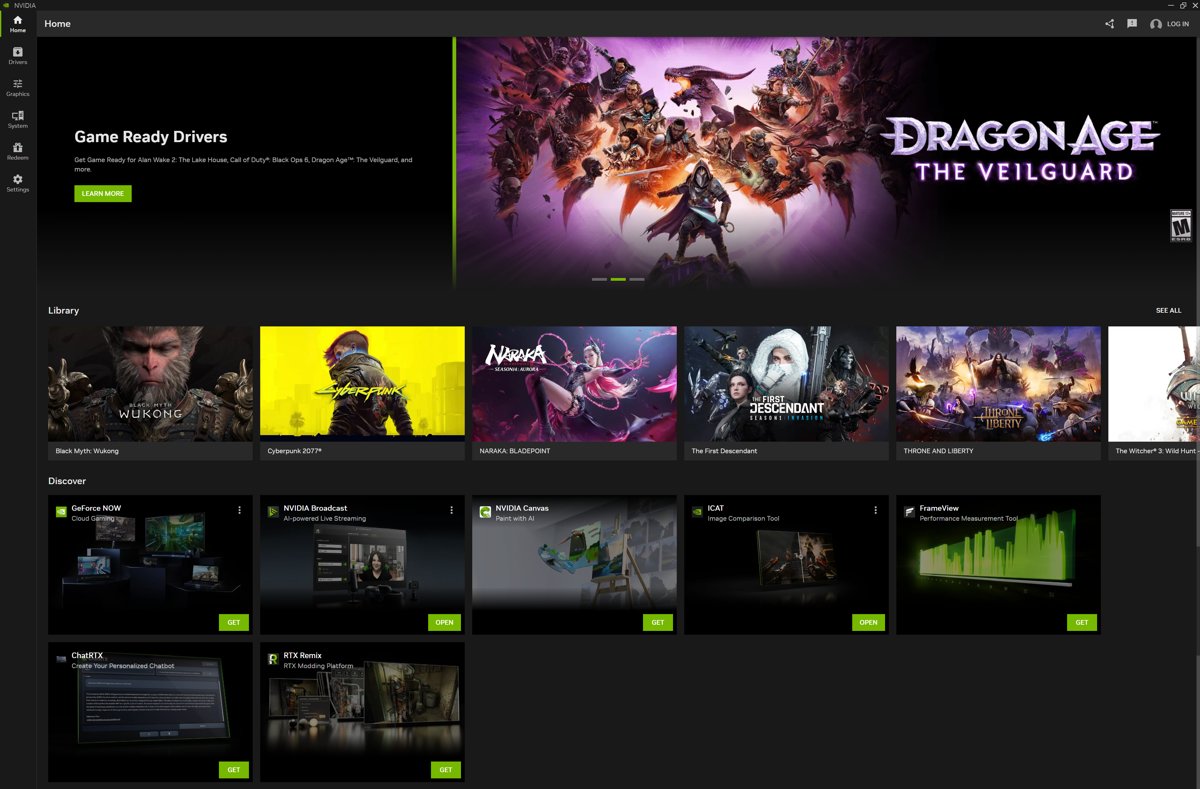
The NVIDIA app is the essential companion app NVIDIA now points GeForce owners to. It incorporates the top features of GeForce Experience and brings NVIDIA Control Panel settings into one app. Signing in is optional.
The app needs Windows 10 or Windows 11, GeForce driver 551.52 or later, 2 GB of RAM and 600 MB of disk space. Check the supported GPU list on the NVIDIA app system requirements page.
- Open the NVIDIA app page on nvidia.com and download the app.
- Run the installer and follow the prompts.
- Open the NVIDIA app and go to the Drivers tab.
- Use the dropdown to choose Game Ready or Studio drivers.
- Select Download next to the newest driver, and let it install.
- Restart your PC if the installer asks.
The Drivers tab can also roll back to a driver previously installed through the NVIDIA app.
How to get NVIDIA settings without Microsoft Store
There is no separate Control Panel installer on nvidia.com: the driver page offers drivers, and the NVIDIA app page offers the app. For DCH drivers, Microsoft's DCH rules require the settings app to be distributed through the Store. If the Store is not an option, the NVIDIA app now covers most day-to-day settings.
| Setting you need | Where it is in the NVIDIA app | Notes |
|---|---|---|
| Resolution, rotation, connector type | System > Displays | Lists displays connected to the NVIDIA GPU |
| G-SYNC | System > Displays | Enable G-SYNC for a supported display |
| Custom resolution | System > Displays > Display Properties | Added in NVIDIA app 11.0.7 |
| Surround multi-monitor setup | NVIDIA app 11.0.5 and later | Covers multi-monitor gaming and productivity setups |
| 3D settings such as anisotropic filtering, antialiasing and background max frame rate | Graphics tab | Driver settings apply globally or per game; added in NVIDIA app 11.0.5 |
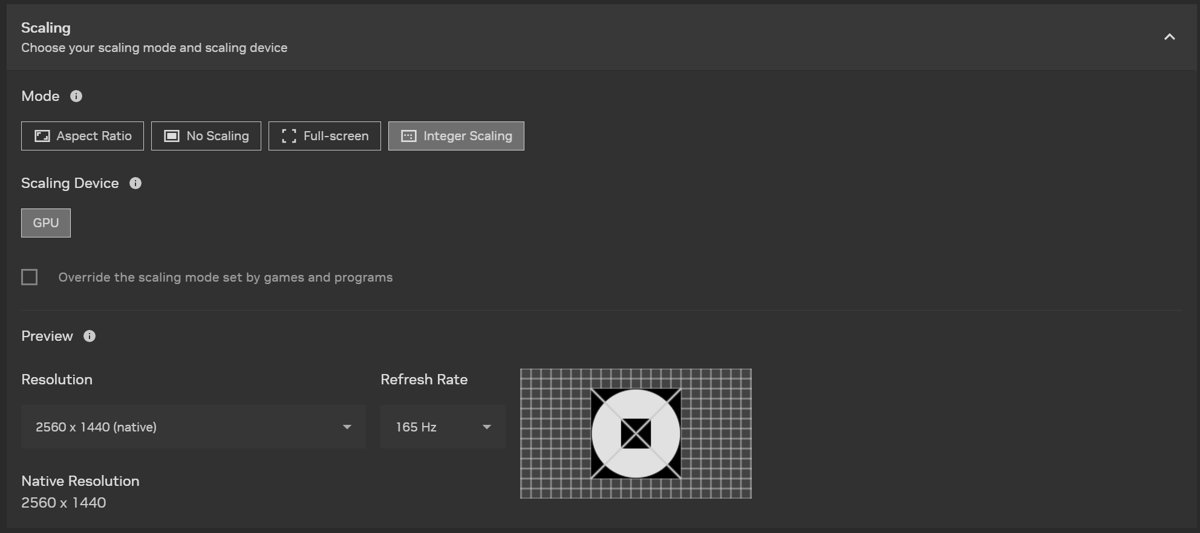
| Display scaling and display color | NVIDIA app, March 2025 update and later | Brought over from Control Panel in March 2025 |
| CUDA System Fallback policy | NVIDIA app 11.0.9 and later | Migrated from Control Panel |
How to open NVIDIA Control Panel and check it installed
- Select Start, type
NVIDIA Control Panel, and select it in the results. - Or right-click an empty area of the desktop and select NVIDIA Control Panel.
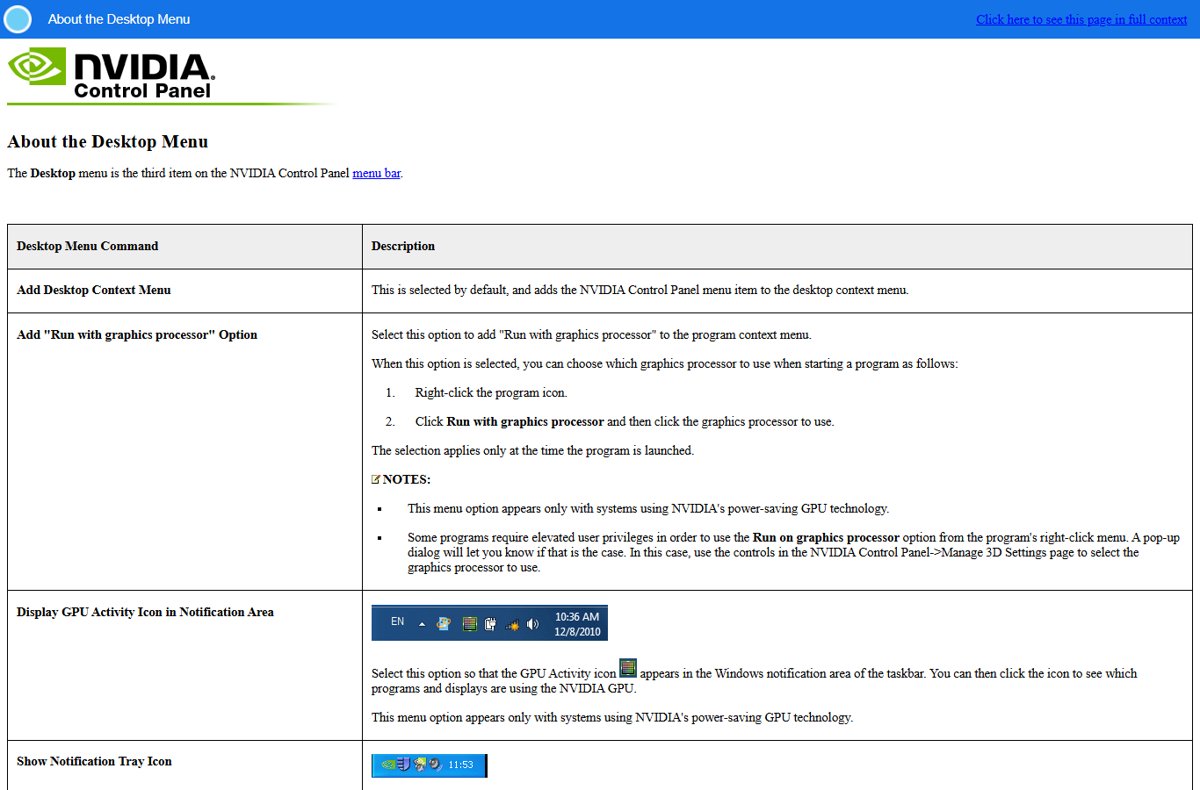
- Or select the NVIDIA icon in the taskbar notification area, if Show Notification Tray Icon is turned on in Control Panel's Desktop menu.
- In Control Panel, select System Information at the bottom-left corner.
- Confirm your NVIDIA GPU and driver version appear in the window.
- To confirm the Store copy, go to Settings > Apps > Installed apps and find NVIDIA Control Panel in the list.
What NVIDIA Control Panel does, and DCH vs Standard drivers explained
NVIDIA describes Control Panel as display management, application and gaming-specific features for NVIDIA graphics. Understanding the driver type explains why it comes from the Store: DCH stands for Declarative, Componentized, Hardware Support App, and Microsoft requires a DCH driver's settings app to ship through Microsoft Store.
| Item | What it is | Where Control Panel comes from |
|---|---|---|
| NVIDIA Control Panel | Display, 3D and program settings: resolution, refresh rate, G-SYNC, Manage 3D settings, preferred graphics processor | Microsoft Store (DCH), or preinstalled by the PC maker |
| DCH driver | A componentized driver package; its user interface ships as a separate Hardware Support App | Microsoft Store only |
| Standard driver | The other driver type offered in NVIDIA's manual driver search | Not the Store app, which requires a DCH driver |
| NVIDIA app | Driver updates, optimal game settings, recording, display and 3D settings | Separate download from nvidia.com |
| GeForce Experience | The older companion app whose top features the NVIDIA app incorporates | Replaced by the NVIDIA app for driver updates |

First settings to check after installing NVIDIA Control Panel
- Under Display, select Change resolution, pick your monitor, and set the highest value in the Refresh rate list.
- If your monitor supports G-SYNC, open Display > Set up G-SYNC and turn it on.
- Open 3D Settings > Manage 3D settings and review the Global Settings tab.
- On a laptop, set Preferred graphics processor to High-performance NVIDIA processor for games, or pick a program on the Program Settings tab.
- Restart any program that is already running so the new graphics processor choice takes effect.
- Open the Desktop menu and make sure Add Desktop Context Menu is ticked.
How to reinstall NVIDIA Control Panel
Reinstalling replaces a damaged copy of the Store app without touching the driver. Try Repair first on Windows 11: Settings > Apps > Installed apps, select More next to NVIDIA Control Panel, then Advanced options > Repair.
- Select Start > Settings > Apps > Installed apps (Apps > Apps & features on Windows 10).
- Find NVIDIA Control Panel, select More, then Uninstall.
- Restart your PC.
- Open Microsoft Store and select Library (See more > My Library on Windows 10).
- Find NVIDIA Control Panel and select Install.
- If it is not in your library, install it again from the Store listing.
Fix common NVIDIA Control Panel download errors and missing options
NVIDIA Control Panel is missing from the right-click menu
The desktop context menu option is turned off, or the app is not installed.
- Select Start and search for
NVIDIA Control Panel. - If it opens, select the Desktop menu at the top of the window.
- Select Add Desktop Context Menu so it is ticked.
- Right-click the desktop again to check.
- If Start search finds nothing, install the app from the Microsoft Store.
NVIDIA Control Panel is missing entirely
The DCH driver installed without its Store app, or the driver itself is missing.
- Restart your PC and search Start again.
- Open Device Manager > Display adapters and confirm an NVIDIA entry is listed.
- Install NVIDIA Control Panel from the Microsoft Store listing.
- If the NVIDIA GPU is missing or shows a problem, install the latest DCH driver from nvidia.com and restart.
- Go to Settings > Windows Update and select Check for updates.
"NVIDIA Display settings are not available"
Windows is not using a display attached to the NVIDIA GPU, so Control Panel has no NVIDIA display to manage.
- On a desktop PC, plug the monitor cable into a port on the NVIDIA graphics card, not the motherboard.
- Restart and open NVIDIA Control Panel again.
- Check Device Manager > Display adapters to confirm the NVIDIA GPU is working.
- Reinstall the latest DCH driver from nvidia.com if the GPU shows an error.
- On a laptop, see the next fix: the built-in screen is often driven by integrated graphics.
Laptop-specific: display options are missing from Control Panel
On standard Optimus laptops the integrated graphics always drive the built-in display, while the NVIDIA GPU renders games and passes frames through.
- Use 3D Settings > Manage 3D settings to send games to the NVIDIA GPU with Preferred graphics processor.
- Change the built-in screen's resolution in Windows display settings instead.
- Connect an external monitor to a port wired to the NVIDIA GPU to manage it from the Display pages.
- Turn on Display GPU Activity Icon in Notification Area from the Desktop menu to see which displays the NVIDIA GPU drives.
- On Advanced Optimus laptops, the NVIDIA GPU can drive the display directly; check your laptop maker's documentation.
Why won't NVIDIA Control Panel download or install from the Store
No DCH driver is installed, Windows needs a restart or update, or the Store cache is stuck.
- Install the latest NVIDIA DCH driver from nvidia.com, restart, and try the Store again.
- Select Start > Settings > Windows Update > Check for updates and install any updates.
- In Microsoft Store, select Library > Get updates.
- Press Windows + R, type
wsreset.exe, and select OK. The Store relaunches after about 10 seconds. - Search for
NVIDIA Control Panelin the Store and select Install. - On Windows 10, run Settings > Update & Security > Troubleshoot > Windows Store apps > Run the troubleshooter.
The Store app installs but crashes or will not open
The app files or settings are damaged.
- Go to Settings > Apps > Installed apps and select More next to NVIDIA Control Panel.
- Select Advanced options, then Repair.
- If it still fails, select Reset on the same page.
- If Reset does not help, reinstall the app with the steps above.
Frequently asked questions
How do you download NVIDIA Control Panel?
Install it from the NVIDIA Control Panel listing on the Microsoft Store, published by NVIDIA Corp. Your PC needs an NVIDIA GPU with a DCH driver installed. After the download, open it from Start or by right-clicking the desktop.
How do you download NVIDIA Control Panel on Windows 11 and Windows 10?
The steps are the same on both. Open Microsoft Store, search for NVIDIA Control Panel, and select Get or Install. The Store listing supports Windows 10 version 14393.0 or higher and Windows 11 on 64-bit PCs.
Where can you download NVIDIA Control Panel?
The official source is the Microsoft Store at apps.microsoft.com. NVIDIA's own site, nvidia.com, offers the graphics driver and the NVIDIA app rather than a separate Control Panel installer. Avoid third-party download sites offering Control Panel installers.
Why can't you download NVIDIA Control Panel?
The Store app requires an NVIDIA DCH display driver, so it fails on PCs without one or without an NVIDIA GPU. Install the latest DCH driver from nvidia.com, restart, update Windows, and reset the Store with wsreset.exe.
Why won't NVIDIA Control Panel download from the Microsoft Store?
A pending restart, outdated Windows, or a stuck Store cache usually blocks the download. Restart, run Windows Update, select Library > Get updates in the Store, then run wsreset.exe and try the install again.
Can you download NVIDIA Control Panel without the Store?
Not for DCH drivers. Microsoft requires a DCH driver's settings app to be distributed through Microsoft Store. The NVIDIA app from nvidia.com is the official alternative and now includes display, G-SYNC, custom resolution and 3D settings.
What does NVIDIA Control Panel do?
NVIDIA Control Panel manages display and graphics settings for NVIDIA GPUs. It sets resolution and refresh rate, turns on G-SYNC, adjusts 3D settings globally or per program, and picks the graphics processor a program uses on laptops.
Is NVIDIA Control Panel free?
Yes. NVIDIA Control Panel is a free download from the Microsoft Store, published by NVIDIA Corp. The NVIDIA app and NVIDIA graphics drivers on nvidia.com are free too. Any site charging for Control Panel is not official.
Can you download NVIDIA Control Panel for a laptop?
Yes, if the laptop has an NVIDIA GPU with a DCH driver. Laptop makers can also preinstall it. On standard Optimus laptops the built-in screen runs on integrated graphics, so some display options stay unavailable.





How to turn on vsync Windows 11 - Techdows
[…] settings and switch V-Sync (sometimes labelled Vertical Sync) to On, or force it for every game in NVIDIA Control Panel > Manage 3D settings > Vertical sync > […]
Sync or not to sync: the ultimate guide to VSync in Nvidia - Techdows
[…] applies it to every Direct3D and OpenGL game at once. If the Control Panel is missing from your PC, get NVIDIA Control Panel from the Microsoft Store […]
How to open intel graphics control panel Windows 11 - Techdows
[…] that also carry an NVIDIA GPU have a second panel for that chip: download NVIDIA Control Panel to manage […]