Shut down the Surface, hold the volume-up button, press and release the power button, and keep holding volume-up until the UEFI screen appears.
This guide covers that button method, the Windows Settings route, Surface Pro 3 and earlier, what each UEFI page does, boot order, Secure Boot, and the fixes when the screen will not open.
How to get into BIOS on a Microsoft Surface?
Surface devices call their BIOS UEFI, and this button method needs no sign-in or working Windows. Microsoft lists it for Surface Pro 4 and later, Surface Pro X, Surface Laptop, Surface Laptop Go, Surface Laptop Studio, Surface Studio, Surface Go and Surface Book.
- Shut down your Surface and wait about 10 seconds to make sure it is off.
- Press and hold the volume-up button.
- While holding it, press and release the power button.
- Keep holding volume-up when the Microsoft or Surface logo appears.
- Release volume-up when the UEFI screen appears.
Other brands use different keys, so these steps apply only to Surface devices.
Surface BIOS button vs Windows Advanced startup
| Your situation | Use this | Why |
|---|---|---|
| Surface is off, or Windows will not load | Volume-up and power | Works without signing in to Windows |
| Windows is running and you are signed in | Settings > System > Recovery > Advanced startup | No button timing to get right |
| The volume-up button is broken | Settings > System > Recovery > Advanced startup | Uses no hardware buttons |
| You only want to start from a USB drive once | Volume-down and power | Skips UEFI and changes no settings |
| You own a Surface Pro 3 or older | Volume-up and power, released at the logo | These models use an older firmware menu |
How to open Surface UEFI from Windows Settings
This route restarts into the same UEFI screen from inside Windows. Windows 10 reaches the same restart from Settings > Update & security > Recovery.
- Select Start > Settings > System > Recovery.
- Next to Advanced startup, select Restart Now.
- Under Choose an option, select Troubleshoot.
- Select Advanced Options > UEFI Firmware Settings.
- Select Restart and wait for the UEFI screen.
How to find your Surface model
The model decides which UEFI pages you see and whether you need the older Surface Pro 3 steps. Commercial models also add Devices and Management pages.
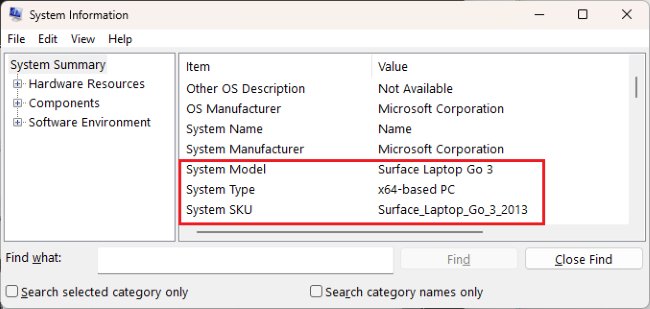
- Select Start, type system, and open System Information.
- Read the System Model value in the right-hand pane.
- Read the System SKU value if two models share a name.
- Open the Surface app and expand Device information if you prefer that route.
How to get into BIOS on Surface Pro 3 and earlier
Surface Pro (1st Gen), Surface Pro 2, Surface Pro 3 and Surface 3 use an older firmware menu. The one difference at startup is when you let go of the button.
- Shut down your Surface.
- Press and hold the volume-up button, then press and release the power button.
- Release volume-up when the Surface logo appears.
- Wait a few seconds for the menu to appear.
The menu differs by model. Surface Pro 3 has Configure Alternate System Boot Order, Advanced Device Security and Administrator Password, while Surface Pro and Surface Pro 2 offer TPM and Secure Boot Control settings.
Surface UEFI settings menu explained
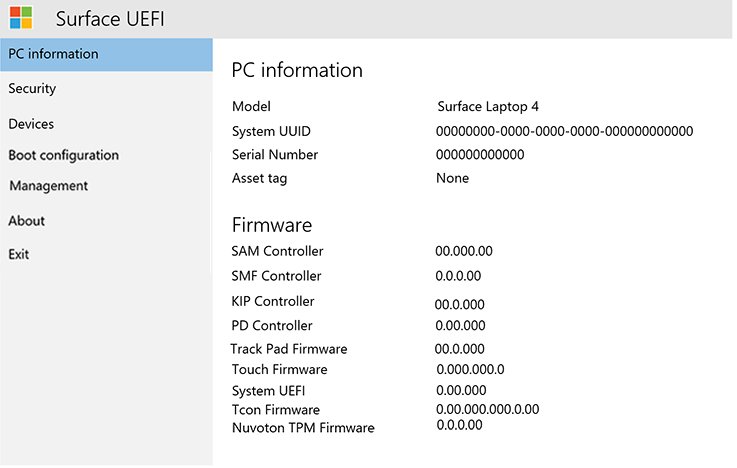
Your Surface shows these pages on the left of the UEFI screen. Exact options depend on the model and on whether it was built for home or commercial use.
| UEFI page | What it does | Who sees it |
|---|---|---|
| PC information | Shows the model, UUID, serial number, asset tag and firmware versions | All |
| Security | Sets the UEFI password and changes the Secure Boot configuration | All |
| Boot configuration | Changes the boot order and turns boot devices on or off | All; may be locked on enterprise devices |
| Date and time | Lets you enter a new date and time by hand | Depends on model |
| About | Shows regulatory information | Depends on model |
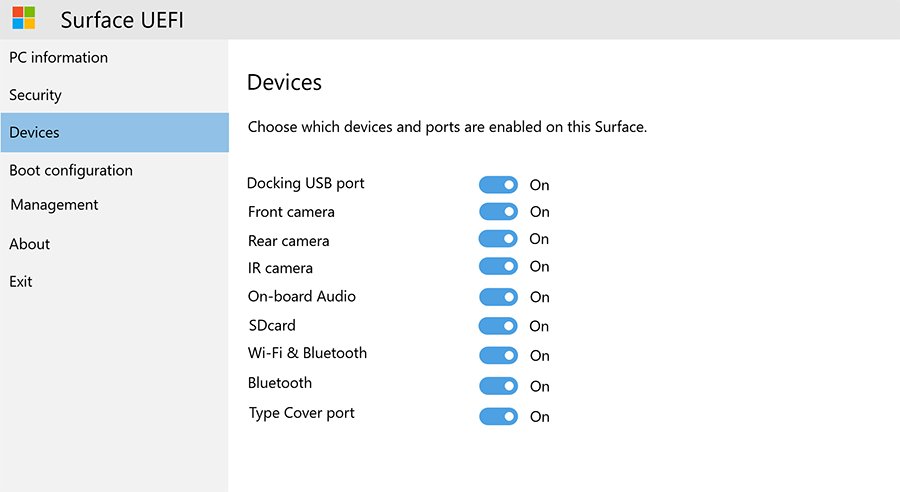
| Devices | Turns components such as cameras, audio, Wi-Fi and Bluetooth on or off | Commercial models |
| Management | Controls Zero-Touch UEFI Management through Microsoft Intune | Commercial models |
| Exit | Saves changes and restarts | All |
How to change boot order on a Surface
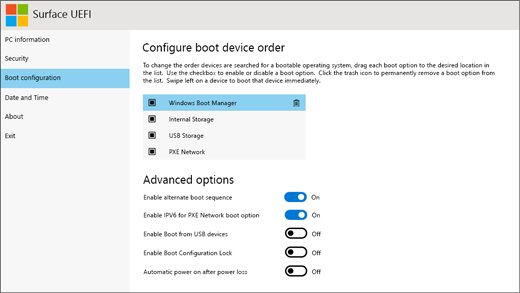
Use this when a Surface should start from USB Storage or another device every time. By default, Windows Boot Manager, Internal Storage, USB Storage and PXE Network are all selected.
- Open UEFI and select Boot configuration.
- Drag USB Storage, or another device, to the top of the list.
- Set Enable Alternate Boot Sequence to On, because the new order has no effect without it.
- Select Exit, then Restart Now.
To start from one device once, swipe left on its entry instead of dragging it. Surface Pro 3 uses Configure Alternate System Boot Order, then Exit Setup and Yes.
How to boot Surface from USB with the volume-down button
Microsoft lists this for all models, and it starts from USB without opening UEFI. From inside Windows you can also boot from a USB drive through Advanced startup.
- Shut down the Surface and insert the bootable USB drive.
- Disconnect other USB devices, because the Surface may try to boot from them.
- Press and hold volume-down, then press and release power.
- Keep holding volume-down until spinning dots appear below the logo.
- Follow the on-screen prompts from the USB drive.
How to turn on Secure Boot on a Surface
Secure Boot is designed to stop malicious software from loading at startup. A red bar with an unlocked lock icon at the top of the startup screen means it is off.
- Open UEFI and select Security.
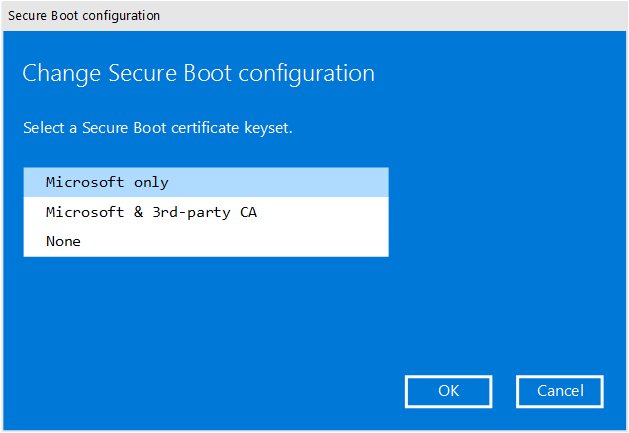
- Under Secure Boot, select Change Configuration.
- Select a Secure Boot certificate keyset, for example Microsoft only.
- Select Exit > Restart now to save the change and restart.
How to check Surface firmware version in UEFI
The PC information page shows that you reached the right screen and gives the details support staff ask for.
- Open UEFI and select PC information.
- Read the Model, System UUID and Serial number values.
- Read the firmware version for System UEFI and the other listed components.
- Select Exit > Restart Now to go back to Windows.
How to exit Surface UEFI and save changes
Changes apply when you leave through the Exit page. Older models use different labels, including a way to leave without saving.
- Select Exit on the left of the UEFI screen.
- Select Restart Now to save your changes and restart.
- Wait for the Surface to load Windows.
On Surface Pro 3 and earlier, select Exit Setup, then Yes. To leave those models without saving, press Esc on a Surface Typing Cover and select Yes, or press the power button if no Cover is attached.
Is it safe to change BIOS settings on a Surface?
Looking at the pages is safe, but Microsoft says most people have no need to change UEFI settings. Changes put the security and functionality of the Surface at risk, so check this table first.
| Change | What can happen |
|---|---|
| Setting a UEFI password | You cannot reset it yourself, and Microsoft cannot retrieve it |
| Changing the boot manager, TPM or PXE boot | Windows can start in BitLocker recovery, so find your BitLocker recovery key first |
| Turning Secure Boot off | Startup loses its protection against unauthorized boot code, and a red bar appears |
| Removing Windows Boot Manager from the list | Restart the Surface, and it reinstalls itself automatically; enterprise users contact IT |
| Turning off a component on Devices | That camera, port or radio stops working until you turn it back on |
Surface won't open BIOS or UEFI
Surface boots into Windows instead of BIOS
The Surface was not fully off, or volume-up was released before the UEFI screen appeared.
- Shut down from Windows and wait about 10 seconds.
- Hold volume-up before you press power.
- Keep holding through the logo until the UEFI screen appears.
- Use the Windows Settings route if the button timing keeps failing.
UEFI Firmware Settings is missing from Advanced Options
Advanced Options can leave this entry out, and the button route does not depend on it. On other PCs, you can restore missing UEFI Firmware Settings separately.
- Shut down the Surface and wait about 10 seconds.
- Open UEFI with volume-up and power instead.
Surface asks for the system password
A UEFI password is set, usually by an IT department or a previous owner.
- Ask the IT department or previous owner for the password.
- Open Get Help or a Microsoft service request if nobody has it, because Microsoft cannot retrieve it.
Surface shows a red bar and an unlocked lock icon
Secure Boot is turned off.
- Shut down and open UEFI with volume-up and power.
- Select Security, then Change Configuration under Secure Boot.
- Select a keyset such as Microsoft only, then Exit > Restart now.
Surface does not recognize the USB drive
A UEFI boot setting or the drive's format is stopping it. The drive should be FAT32 and at least 16 GB.
- Open UEFI and confirm Enable Boot from USB devices is On, under Advanced options.
- Confirm Enable alternate boot sequence is On if you set a boot order.
- Try a different USB drive.
Surface shows Couldn't find a bootable operating system
The Surface opened UEFI because it did not find a valid boot device.
- Select OK if a dialog appears, then select Boot configuration.
- Confirm Windows Boot Manager, Internal Storage, USB Storage and PXE Network are selected.
- Hold power for about 20 seconds until the Surface restarts and the logo appears.
- Use a USB recovery drive if it returns to this screen: hold volume-down, press and release power, and let go at the logo.

Microsoft Surface BIOS FAQs
Is BIOS the same as UEFI on Microsoft Surface?
Not technically. Surface devices use UEFI firmware built by Microsoft, and people still call that screen the BIOS. The two are different firmware types, but this is the screen you want.
What button opens the BIOS on a Surface?
The volume-up button opens it. With the Surface shut down, hold volume-up, press and release power, and keep holding volume-up until the UEFI screen appears. On Surface Pro 3 and earlier, let go when the logo appears.
Why does my Surface boot into Windows instead of BIOS?
Your Surface was probably not fully off, or volume-up was released too early. Shut down, wait about 10 seconds, hold volume-up before you press power, and keep holding it through the logo until the UEFI screen appears.
Can I access BIOS without the Volume Up button?
Yes, as long as Windows starts. Go to Settings > System > Recovery, select Restart Now next to Advanced startup, then choose Troubleshoot > Advanced Options > UEFI Firmware Settings and Restart. Microsoft documents no other button combination for opening this screen.
Is it safe to change BIOS settings?
It is safe to open and read the screen, but Microsoft advises most people to keep the default settings. Changes can affect security and functionality, and some can start BitLocker recovery, so change a setting only when you have a specific reason.
Will entering BIOS erase my files?
No. Opening the UEFI screen only shows settings, and restarting from it returns you to Windows. Microsoft also says booting from USB does not reset the Surface. Keep your BitLocker recovery key handy before you change security or boot settings.
Can I reset BIOS settings on a Surface?
Microsoft documents no one-click reset for Surface UEFI settings. Change each setting back by hand instead, such as selecting all four boot devices under Boot configuration. A forgotten UEFI password cannot be reset by you or retrieved by Microsoft.
Can I change Surface UEFI settings from inside Windows?
No. Microsoft says the settings can be adjusted only during system startup. Windows can only restart the Surface into the UEFI screen through Advanced startup, and any changes happen on that screen before Windows loads again.
What does volume-down and power do on a Surface?
It starts the Surface from a bootable USB drive instead of opening UEFI. Hold volume-down, press and release power, and keep holding volume-down until spinning dots appear below the logo. It does not refresh or reset the Surface.
Does Surface Go have a BIOS?
Yes. Microsoft lists every Surface Go model with the same volume-up and power steps. Microsoft documentation notes that the original Surface Go uses a third-party UEFI, so its pages can differ from other Surface models.