Add or remove emergency contacts on iPhone in the Health app: tap your picture, tap Medical ID, tap Edit, then add a contact under Emergency Contacts or delete one.
This guide covers adding and removing contacts, the Emergency SOS settings shortcut, how first responders reach your contacts from the Lock Screen, and fixes when something does not show.
The fastest way to add or remove an emergency contact
Emergency contacts are part of your Medical ID, so they are managed in the Health app rather than in the Contacts app.
- Open the Health app and tap your profile picture in the upper corner.
- Tap Medical ID, then tap Edit (or Get Started if you have never set one up).
- To add someone, tap the plus button next to Add Emergency Contact, pick the contact, then choose their relationship.
- To remove someone, tap the delete button next to their name, then tap Delete.
- Tap Done to save.
Why Add Emergency Contacts?
An emergency contact is more than a name on a card. Your iPhone acts on the list automatically when you use Emergency SOS.
| What happens | When | Who sees it |
|---|---|---|
| Your contacts get a text message saying you called emergency services | After an Emergency SOS call ends, unless you cancel it | Every person on your emergency contact list |
| Your current location is sent, with updates when it changes | For a period of time after you enter SOS mode, if location is available | Your emergency contacts |
| Your Medical ID, including contacts, shows on the Lock Screen | When Show When Locked is on | Anyone holding your phone, such as a first responder, without your passcode |
| Your Medical ID is shared with emergency services | During an emergency call or text, when Emergency Call sharing is on (U.S. and Canada only) | The emergency dispatcher |
How to Add Emergency Contacts on iPhone
Save the person in the Contacts app first, because the picker in Medical ID chooses from your existing contacts.
- Open the Health app and tap the Summary tab.
- Tap your profile picture in the upper corner.
- Under your profile picture, tap Medical ID.
- Tap Edit next to Emergency Contacts. On a first setup, tap Get Started and fill in your details.
- Tap the plus button next to Add Emergency Contact.
- Tap the contact you want, then add their relationship to you.
- Repeat the last two steps for each additional person.
- Tap Done.
Shortcut: touch and hold the Health icon on the Home Screen and choose Medical ID to jump straight to the page.
Add emergency contacts from Emergency SOS settings
The Settings app has a link that opens the same Medical ID editor. Use it if you are already adjusting the SOS button behaviour.
- Open Settings and tap Emergency SOS.
- Tap Set Up Emergency Contacts (or Edit Emergency Contacts if you already have some) to open Health.
- Add or remove contacts in the Medical ID editor that opens.
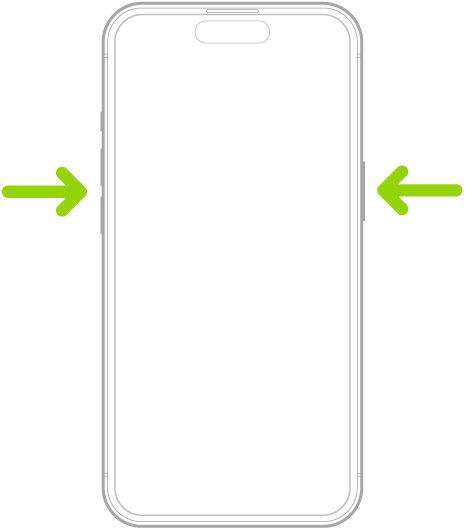
- Tap Done, then return to Emergency SOS and confirm Call with Hold and Release or Call with 5 Presses is set the way you want.
How to Remove Emergency Contacts from iPhone
Removing someone from your emergency list does not delete them from Contacts. It only stops SOS alerts to them and removes them from your Medical ID.
- Open the Health app and tap the Summary tab.
- Tap your profile picture, then tap Medical ID.
- Tap Edit next to Emergency Contacts.
- Tap the delete button next to the contact you want to remove.
- Tap Delete to confirm.
- Tap Done.
To change or edit who is listed, remove the old contact and add the new one in the same edit session, then tap Done once.
How to Access Emergency Contacts in an Emergency
Your contacts only help a stranger or first responder if your Medical ID is allowed on the Lock Screen. Turn that on first, then use the second set of steps on any locked iPhone.
- On your iPhone, open Health, tap your picture, then tap Medical ID.
- Tap Edit, scroll to the bottom and turn on Show When Locked.
- Turn on Emergency Call (shown as Share During Emergency Call on some versions) so dispatchers receive your Medical ID in the U.S. and Canada.
- Tap Done.
- On a locked iPhone, swipe up or press the Home button, depending on the model, to reach the passcode screen.
- Tap Emergency, then tap Medical ID to see the owner's emergency contacts.
How to check your emergency contacts are set up
- Lock your iPhone, then wake it and go to the passcode screen.
- Tap Emergency, then Medical ID.
- Confirm each person appears under Emergency Contacts with the right relationship.
- Confirm anyone you removed is gone from the list.
- Tap Done or go back, and unlock the phone as normal.
Do not test by placing an SOS call. If an emergency call starts by mistake, stay on the line and tell the responder you do not need help.
Important Considerations
| Consideration | What to know | What to do |
|---|---|---|
| Privacy | With Show When Locked on, anyone holding your phone can read your Medical ID and contact list without the passcode. | Include only details you are comfortable showing to a first responder. |
| Medical history and preferences | Medical ID also holds medications, allergies and conditions, not just contacts. | Tap Edit or Add next to each field and fill in what matters in an emergency. |
| Location sharing | After an SOS call, your contacts receive your location and updates when it changes, if location is available. | In Settings > Privacy & Security > Location Services > System Services, keep Emergency Calls & SOS on. |
| Regular updates | The list does not update itself if someone changes number or relationship. | Review Medical ID after a move, a new partner or a changed phone number. |
| Compatibility and region | Automatic Medical ID sharing on emergency calls works in the U.S. and Canada only; alerts to contacts need cellular service. | Keep the list current anyway, because Lock Screen access works everywhere. |
Fix emergency contacts that do not show or do not get alerts
There is no emergency contact option in the Contacts app
Emergency contacts belong to Medical ID in the Health app, not to individual contact cards.
- Open the Health app, not Contacts.
- Tap your profile picture, then tap Medical ID.
- Tap Edit and use Add Emergency Contact.
Emergency contacts do not appear on the Lock Screen
Show When Locked is off, so Medical ID is hidden until the phone is unlocked.
- Open Health, tap your picture, then tap Medical ID.
- Tap Edit and scroll to the bottom.
- Turn on Show When Locked, then tap Done.
- Check again from the passcode screen with Emergency > Medical ID.
Emergency contacts did not get a text after an SOS call
The alert was cancelled after the call, or no cellular service was available to send it.
- Open Health > Medical ID and confirm the contacts are still listed.
- After a future SOS call, do not cancel the prompt that alerts your emergency contacts.
- Check that Emergency Calls & SOS is on in Settings > Privacy & Security > Location Services > System Services so your location is included.
Frequently Asked Questions
How do I remove an emergency contact on iPhone?
Open the Health app, tap your profile picture, tap Medical ID, then tap Edit next to Emergency Contacts. Tap the delete button beside the person, tap Delete, then tap Done. The person stays in your Contacts app.
How do I change or edit emergency contacts on iPhone?
Go to Health, tap your picture, then Medical ID, and tap Edit. Delete the contact you no longer want, tap the plus button next to Add Emergency Contact to add the new one, pick their relationship, and tap Done.
How do I put emergency contacts on iPhone for the first time?
Open Health, tap your profile picture, then Medical ID, and tap Get Started. Fill in your details, tap Add Emergency Contact under Emergency Contacts, pick a person and their relationship, then tap Done.
How do I list or get my emergency contacts on iPhone?
Open Health, tap your profile picture and tap Medical ID; the list appears under Emergency Contacts. From the Home Screen, touch and hold the Health icon and choose Medical ID. On a locked phone, tap Emergency, then Medical ID.
Can I add multiple emergency contacts?
Yes. In Medical ID edit mode, tap the plus button next to Add Emergency Contact once for each person. Every person on the list receives the text message and location updates after an Emergency SOS call ends.
Are emergency contacts notified in an emergency?
Yes. After an Emergency SOS call ends, your iPhone texts your emergency contacts unless you cancel it. The alert needs cellular service, and it does not go out when you simply unlock or view your Medical ID.
Can my emergency contacts see my location?
Only after an Emergency SOS call. Your iPhone sends your current location if available, and for a period after you enter SOS mode your contacts receive updates when your location changes. They cannot track you at other times through this feature.
What information can I include in my Medical ID besides emergency contacts?
Medical ID can hold medications, allergies, medical conditions and other details first responders need. Open Health, tap your picture, tap Medical ID, then tap Edit or Add next to each field to fill it in.
How do I add an emergency contact on Android?
Android phones use Google's Personal Safety app, also called the Safety app, to store emergency info and emergency contacts. Some of its features need Android 12 or later, and the steps differ from the iPhone Health app.
How do I access emergency contacts on a locked iPhone?
Swipe up or press the Home button to reach the passcode screen, tap Emergency, then tap Medical ID. This works only if the owner turned on Show When Locked in their Medical ID settings.