Run Microsoft's PC Health Check app on Windows 10 and select Check now to see whether your PC can run Windows 11.
Windows Update in Settings gives a second answer, and this guide also covers the full requirement list, supported processors, the built-in checks for each requirement, and what to do when a PC fails.
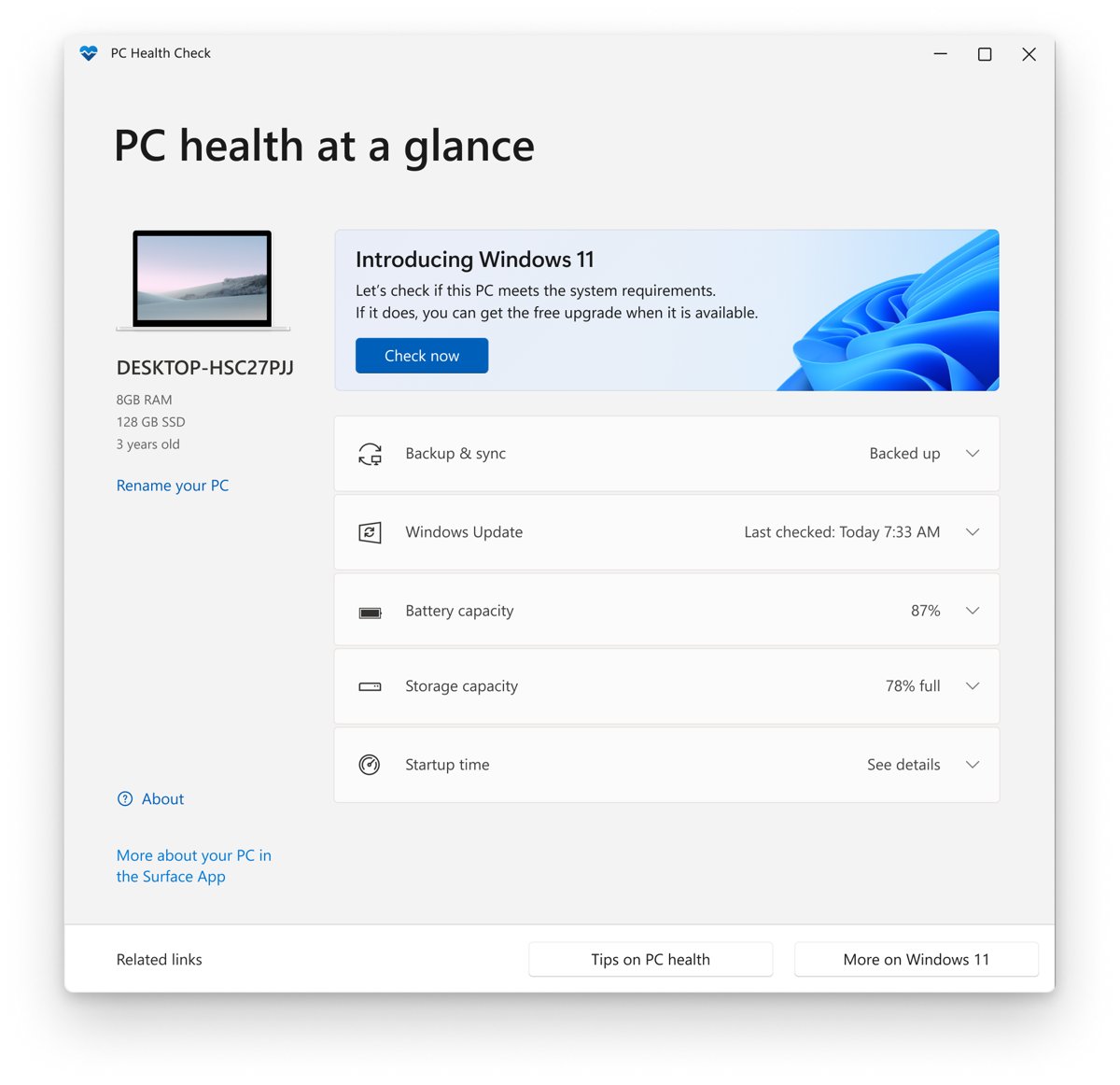
Check PC compatibility to run Windows 11 using PC Health Check
Microsoft built this app for Windows 10 Home, Pro, and Pro for Workstations. On Enterprise and Education editions, your IT administrator decides when a PC is eligible.
- Select the search box on the taskbar and type PC Health Check.
- Select PC Health Check in the results.
- If the app is not installed, go to aka.ms/GetPCHealthCheckApp and follow the prompts.
- Select Check now.
- Read the result, which explains why the PC is or is not eligible and what you can do next.
PC Health Check does not test the graphics card or display, so check those two yourself. You can download PC Health Check again at any time, because the app stays useful for its storage and startup reports.
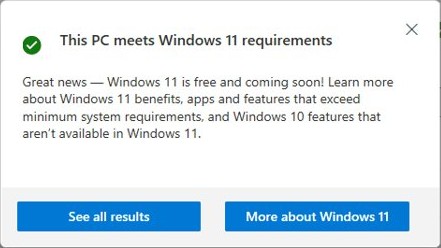
Check PC compatibility to run Windows 11 using Settings
Windows Update also assesses eligibility on Windows 10, and it needs no extra app. The Windows Update page confirms when a device is eligible.
- Select Start > Settings > Update & Security > Windows Update.
- Select Check for updates.
- Read the Windows 11 message on the page, if one appears.
- To jump straight to this page, press Win + R, type
ms-settings:windowsupdate, and press Enter.
Supported hardware does not guarantee an immediate offer. Microsoft rolls the upgrade out over time, based on hardware eligibility, reliability data, and device age.
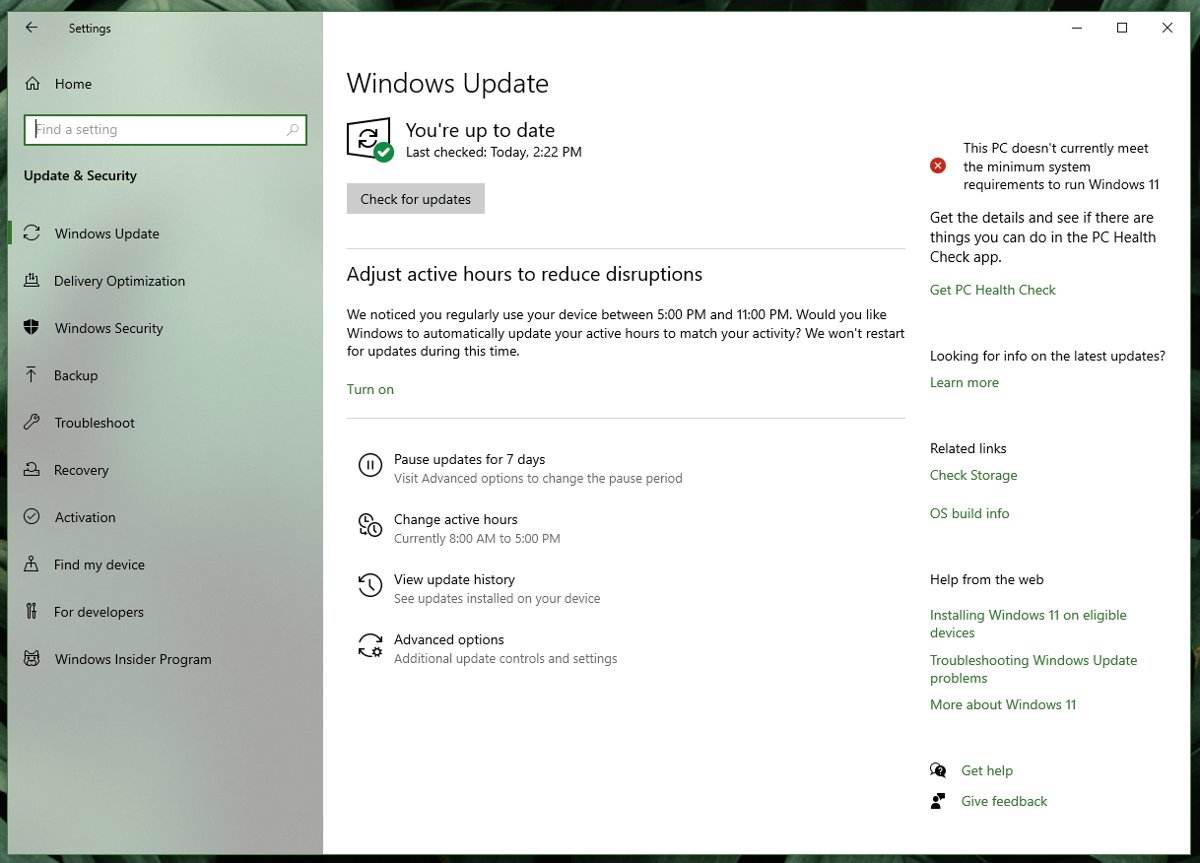
Check PC compatibility to run Windows 11 using WhyNotWin11
WhyNotWin11 is a third-party app, not a Microsoft tool. Microsoft's support pages name PC Health Check and Windows Update for this job, so treat a WhyNotWin11 result as a second opinion and never as the final answer.
If you try it, get it from the developer's own project page and not from a download portal. For a requirement-by-requirement answer with nothing to install, use the built-in checks in the section below.
| Tool | Made by | What the result means |
|---|---|---|
| PC Health Check | Microsoft | Microsoft's own eligibility test against the minimum requirements |
| Windows Update in Settings | Microsoft | Shows eligibility and when the upgrade is ready to install |
| WhyNotWin11 | Third-party developer | An unofficial second opinion, which does not change what Windows Update offers |
Windows 11 system requirements
A PC must meet every line below to install or upgrade, and the Windows 11 26H2 requirements add version-specific notes.
| Requirement | Minimum |
|---|---|
| Processor | 1 GHz or faster with 2 or more cores, on a supported 64-bit processor or system on a chip |
| RAM | 4 GB |
| Storage | 64 GB or larger storage device, and more over time for updates and features |
| System firmware | UEFI, Secure Boot capable |
| TPM | Trusted Platform Module version 2.0 |
| Graphics card | DirectX 12 or later with a WDDM 2.0 driver |
| Display | 720p or higher, larger than 9 inches diagonally, 8 bits per color channel |
| Internet and account | Windows 11 Home and Pro for personal use need internet access and a Microsoft account during first setup |
| Windows 10 version | Version 2004 or later, with the September 14, 2021 security update or later, to upgrade directly |
Supported processors and devices
Clock speed and core count alone do not decide this, because the processor must also be on Microsoft's approved list. Find your model under Settings > System > About, then look it up below.
| Maker | Examples on Microsoft's list | Full list |
|---|---|---|
| Intel | Core i3, i5, i7, and i9 from the 8th generation through the 14th generation, Core Series 1, and Core X-series 7000X, 9000X, and 10000X | Windows 11 supported Intel processors |
| AMD | Ryzen models such as the Ryzen 5 2600, Ryzen 7 5800X, and Ryzen 9 7950X, plus Ryzen Z1 and Threadripper PRO 3000WX and 5000WX | Windows 11 supported AMD processors |
| Qualcomm | Snapdragon 7c, 8c, and 8cx models, plus Microsoft SQ1, SQ2, and SQ3 | Windows 11 supported Qualcomm processors |
Microsoft treats later processors that meet the same principles as supported, even before they appear on a list. It does not publish a list of supported PCs, so ask your PC manufacturer to confirm a specific model, or use PC Health Check on that PC.
How to check if your PC is compatible with Windows 11
These built-in tools check each requirement by hand. They are useful when PC Health Check fails on one line and you want to see the exact value.
| Requirement | Where to check | What passes |
|---|---|---|
| Processor model and 64-bit | Settings > System > About, under Device specifications | A processor on Microsoft's list, running 64-bit Windows |
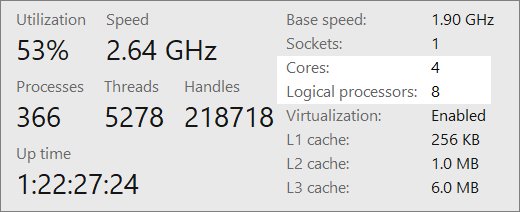
| Core count | Ctrl + Shift + Esc, then Performance > CPU, next to Cores: | 2 or more |
| RAM | Settings > System > About, under Device specifications | 4 GB or more |
| Storage | PC Health Check, under Storage | A 64 GB or larger drive with enough free space |
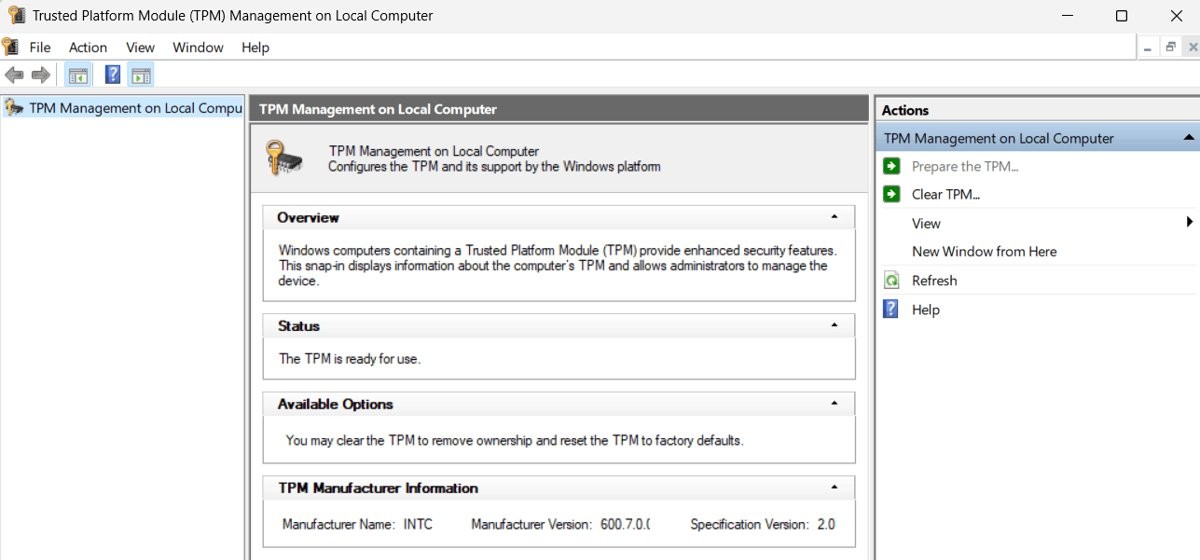
| TPM | Press Win + R, type tpm.msc, and select OK |
Specification Version shows 2.0 |
| UEFI and Secure Boot | Run Confirm-SecureBootUEFI in PowerShell as administrator |
The command returns True, or False if Secure Boot is supported but turned off |
| Graphics | Search for dxdiag, open it, and read the System tab | DirectX 12 or later |
| Display | Your monitor or laptop specifications | 720p or higher and larger than 9 inches |
Compatibility is not the same as good health. To test for failing hardware before an upgrade, run system diagnostics or check the full health of your PC.
How to check TPM 2.0 for Windows 11
A failed TPM line does not always mean the hardware is missing. Microsoft says the Compatible TPM cannot be found message can mean the TPM is only disabled.
- Press Win + R, type
tpm.msc, and select OK. - Read the Specification Version under TPM Manufacturer Information. It should be 2.0.
- If you see Compatible TPM cannot be found, enable the TPM using the next section.
- Or open Settings > Update & Security > Windows Security > Device Security and select Security processor details.
- No Security processor section on that page means the TPM may be disabled.
How to enable TPM 2.0 for Windows 11 in UEFI
Change only the TPM option in firmware, and check your PC maker's support site if you are unsure which setting it is.
- Go to Settings > Update & Security > Recovery and select Restart now.
- Select Troubleshoot > Advanced options > UEFI Firmware Settings, then select Restart.
- Look for the TPM option in a submenu named Advanced, Security, or Trusted Computing.
- Enable the option, which may be named Security Device, Security Device Support, TPM State, AMD fTPM switch, AMD PSP fTPM, Intel PTT, or Intel Platform Trust Technology.
- Save your changes, restart, and run PC Health Check again.
How to check Secure Boot for Windows 11
Windows 11 needs firmware that is Secure Boot capable. This PowerShell command gives a direct answer, and it must run in an administrator window.
Confirm-SecureBootUEFIFalse means the PC supports Secure Boot but has it turned off. Cmdlet not supported on this platform means a BIOS (non-UEFI) PC or one without Secure Boot support. Access was denied means PowerShell is not running as administrator.
You should see: True, which means Secure Boot is supported and enabled.
If the answer is False, you can enable Secure Boot in firmware. Microsoft warns that wrong firmware changes can stop a PC from starting, so change only what your PC maker's instructions describe.
What to do if your device is not compatible
Match the failed line to a row. Several failures are settings and not hardware limits, so check these before you replace anything.
| What failed | Do this | Why |
|---|---|---|
| TPM not found | Enable the TPM in UEFI, then test again | The module may only be disabled |
| Secure Boot off | Enable Secure Boot in UEFI, using your PC maker's instructions | False from the command above means the firmware supports Secure Boot, which is what Windows 11 requires |
| PC boots in legacy BIOS mode | Look at Microsoft's MBR2GPT tool, and back up first | Microsoft says you may be able to switch firmware modes with it after Windows is installed |
| Windows 10 version too old | Update to a supported Windows 10 version first | A direct upgrade needs version 2004 or later |
| S mode on Pro, Education, or Enterprise | Switch out of S mode first | S mode is supported only on Windows 11 Home, and you cannot switch back |
| Too little RAM or storage | Add memory or free up or replace the drive if your PC allows it, then test again | Make hardware changes before you upgrade |
| Processor not supported | Stay on Windows 10 with Consumer Extended Security Updates, or buy a new PC | Consumer ESU runs until October 12, 2027 |
Windows 10 reached end of support on October 14, 2025. Microsoft also runs trade-in and recycling programs for PCs that cannot make the move.
Windows 11 compatibility check problems
Check still fails after changing hardware or firmware settings
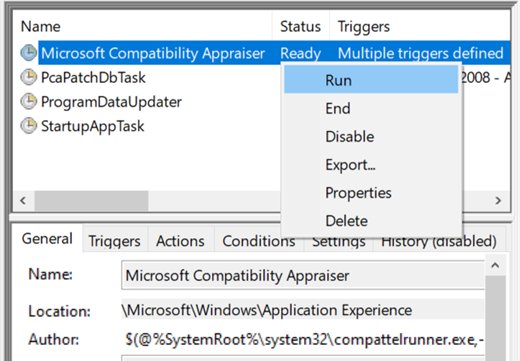
Windows Update can take up to 24 hours to refresh eligibility information.
- Run PC Health Check and select Check now again.
- Search for Command Prompt and select Run as administrator.
- Run
schtasks.exe /Run /TN "\Microsoft\Windows\Application Experience\Microsoft Compatibility Appraiser". - Wait a few minutes, then open Windows Update in Settings and select Check for updates.
PC meets the requirements but gets no Windows 11 offer
Microsoft rolls out upgrades over time, and a known issue can delay a device with a compatibility safeguard hold.
- Keep Windows 10 updated in Windows Update.
- Select Check for updates again later.
- Run PC Health Check again and read the result.
PC Health Check is not installed on Windows 10
Microsoft delivered the app through Windows Update for some Windows 10 versions, so not every PC has it.
- Go to aka.ms/GetPCHealthCheckApp and follow the prompts.
- Open the app from the taskbar search and select Check now.
PC Health Check is not on a Windows 11 PC
Microsoft does not install this update on Windows 11 devices, and its eligibility check is for PCs on Windows 10.
- Look for a desktop watermark or a Settings notification that system requirements are not met, which Microsoft shows on unsupported hardware.
- Use the built-in checks in the table above if you want to see each requirement.
Work or school PC cannot use these checks
PC Health Check and the Windows Update assessment are for PCs that no IT administrator manages.
- Ask your IT administrator whether the PC is eligible and when it will be upgraded.
Can you install Windows 11 on an unsupported PC?
Do not install Windows 11 on a PC that fails the check. Microsoft says such a device may malfunction, will not get Microsoft support, and is not guaranteed updates, including security updates. The installer also warns that resulting damage is not covered by the manufacturer warranty, and the desktop shows a watermark.
If you have already done it, Microsoft recommends going back to Windows 10. Open Settings > System > Recovery and select Go back, which is available for only 10 days after the upgrade.
Windows 11 compatibility check FAQ
Is the Windows 11 upgrade free?
Yes. Microsoft says upgrades from Windows 10 to Windows 11 are free on devices that meet the minimum system requirements. The download is large, though, so your internet provider may charge fees if you use a metered connection.
Does PC Health Check test everything Windows 11 needs?
No. Microsoft says the app does not check the graphics card or the display. Check DirectX with dxdiag and read your monitor specifications, because Windows 11 needs DirectX 12 or later and a display of 720p or higher, larger than 9 inches.
Can you check Windows 11 compatibility without installing anything?
Yes. Open Settings > Update & Security > Windows Update and select Check for updates, which assesses eligibility on Windows 10. You can also check each requirement by hand with Settings, Task Manager, tpm.msc, dxdiag, and the Confirm-SecureBootUEFI command.
Can you run Windows 11 without TPM 2.0?
TPM 2.0 is a minimum requirement for installing or upgrading to Windows 11, so a PC without it does not qualify. Check tpm.msc first, because a PC may have a TPM that is only turned off in firmware settings, and Microsoft documents how to enable it.
Can you upgrade your processor core count or speed for Windows 11?
No. Microsoft says clock speed and core count are fixed by the processor's design and cannot be upgraded. The only route is a different processor on the approved list, where your PC allows one, or a new Windows 11 PC.
How long does Windows take to notice a hardware change?
Windows Update can take up to 24 hours to refresh eligibility information. PC Health Check gives a quick result in the meantime, and running the Microsoft Compatibility Appraiser task from an administrator Command Prompt refreshes the information manually.
What happens if your PC cannot run Windows 11?
Your PC keeps working on Windows 10, but free security updates ended on October 14, 2025. Microsoft offers Consumer Extended Security Updates until October 12, 2027, and also points to buying a new PC, trade-in, or recycling.