To fix an iPhone 17 Pro cellular connection issue, turn Airplane Mode on for 15 seconds, restart the phone, install any carrier settings update, and confirm your eSIM or SIM line is turned on.
This guide covers the full fix order, what SOS on iPhone, No Service and Searching mean, cellular data settings, Reset Network Settings, and when the problem belongs to your carrier or to Apple.
Fix iPhone 17 Pro not connecting to cellular
Work through these in order and check the status bar after each one. Most phones reconnect before the last step.
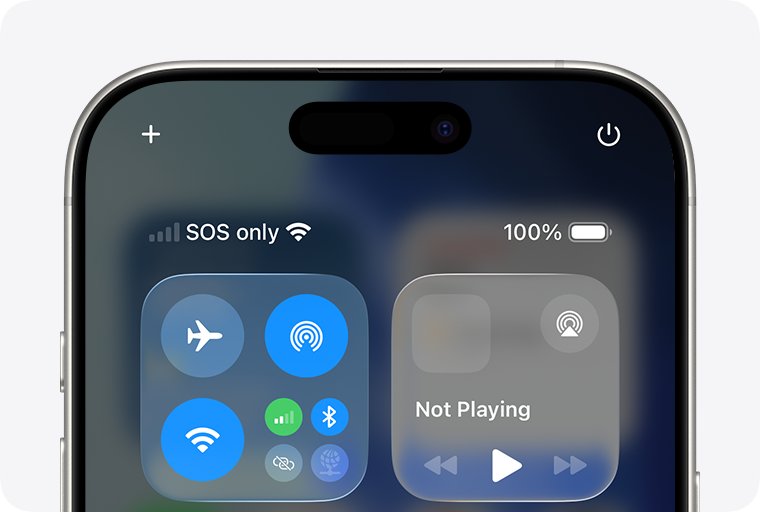
- Open Settings, turn on Airplane Mode for at least 15 seconds, then turn it off.
- Restart your iPhone 17 Pro.
- Connect to Wi-Fi, open Settings > General > About, and tap the option to update carrier settings if one appears.
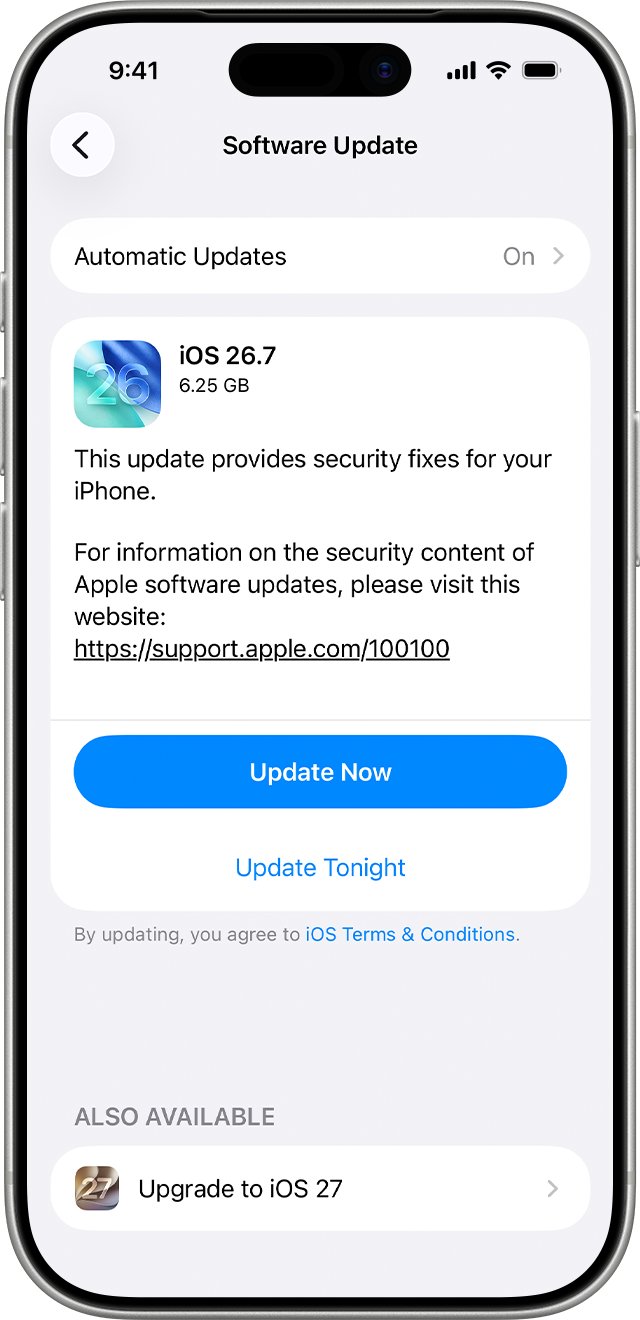
- Open Settings > General > Software Update and install any iOS update listed.
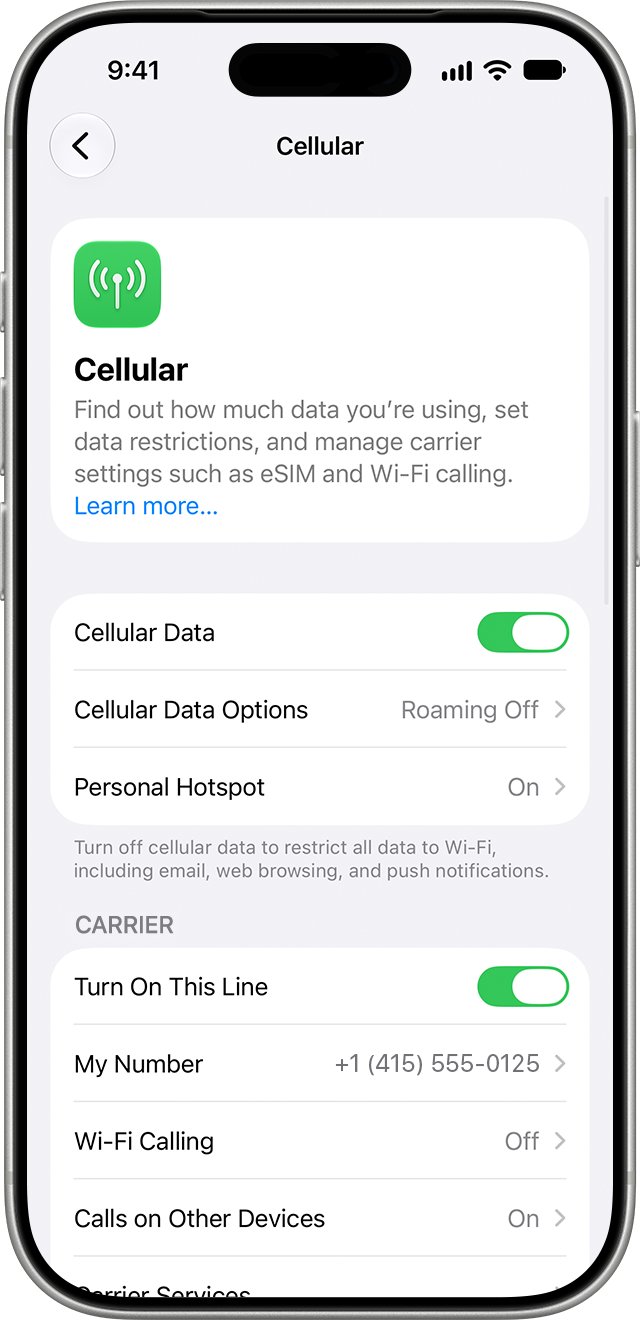
- Open Settings > Cellular, tap your line, and tap Turn On This Line if it is off.
- If you are abroad, open Settings > Cellular > Cellular Data Options and turn on Data Roaming.
- If nothing has worked, go to Settings > General > Transfer or Reset iPhone > Reset > Reset Network Settings.
If the phone still shows No Service, call your carrier before anything else. Only the carrier can see whether your account, line and eSIM are active.
What SOS, no service and searching mean on iPhone 17 Pro
| Status bar shows | What it means | Start with |
|---|---|---|
| SOS or SOS only | Not connected to your carrier, but emergency calls can go through other carriers (US, Canada, Australia) | Airplane Mode toggle, then your carrier |
| No Service | Not connected to any cellular network | Check the line is on, update carrier settings, call the carrier |
| Searching | The phone is looking for a network and has not joined one | Move to a better coverage area, toggle Airplane Mode |
| Bars and 5G or LTE, but no internet | Voice service works, cellular data does not | Cellular Data switch, Cellular Data Options, VPN apps |
| An alert next to No Service | The phone has a specific SIM, eSIM or device message | Follow the alert, then contact the carrier |
Check the eSIM or SIM line on iPhone 17 Pro
A line that is switched off, missing, or moved from another phone gives No Service even with full coverage.
- Open the Settings app and tap Cellular.
- Tap the cellular line you want to check.
- If the line is off, tap Turn On This Line, then check the status bar.
- If no line is listed, contact your carrier to set up an eSIM.
- If you use a physical SIM card, remove it and put it back in.
- If the SIM card is damaged, does not fit the tray, or came from another device, ask your carrier for a new one.
With Dual SIM, check both lines and make sure the one you expect to use for calls and data is turned on.
Update carrier settings on iPhone 17 Pro
- Connect the iPhone to a working Wi-Fi network.
- Open the Settings app and tap General.
- Tap About.
- If an update is available, tap the option to update your carrier settings.
- To see the current carrier settings version, look next to Carrier under eSIM on the same screen.
- If you moved to a new carrier or inserted a new SIM, install the new carrier's settings the same way.
Turn on cellular data and LTE on iPhone 17 Pro
- Open Settings and tap Cellular.
- Turn on Cellular Data. On Dual SIM, tap Cellular Data and pick the line that should carry data.
- Tap Cellular Data Options, then Enable LTE, and choose Voice & Data if your carrier offers it.
- Scroll down the Cellular screen and make sure the apps you test are switched on; an app that is off uses only Wi-Fi.
- Check that no VPN, firewall or content-blocker app is running, and turn off any you did not set up on purpose.
Turning off Cellular Data stops apps from reaching the internet over cellular, but voice calls still work. That is why calls can connect while apps say you are offline.
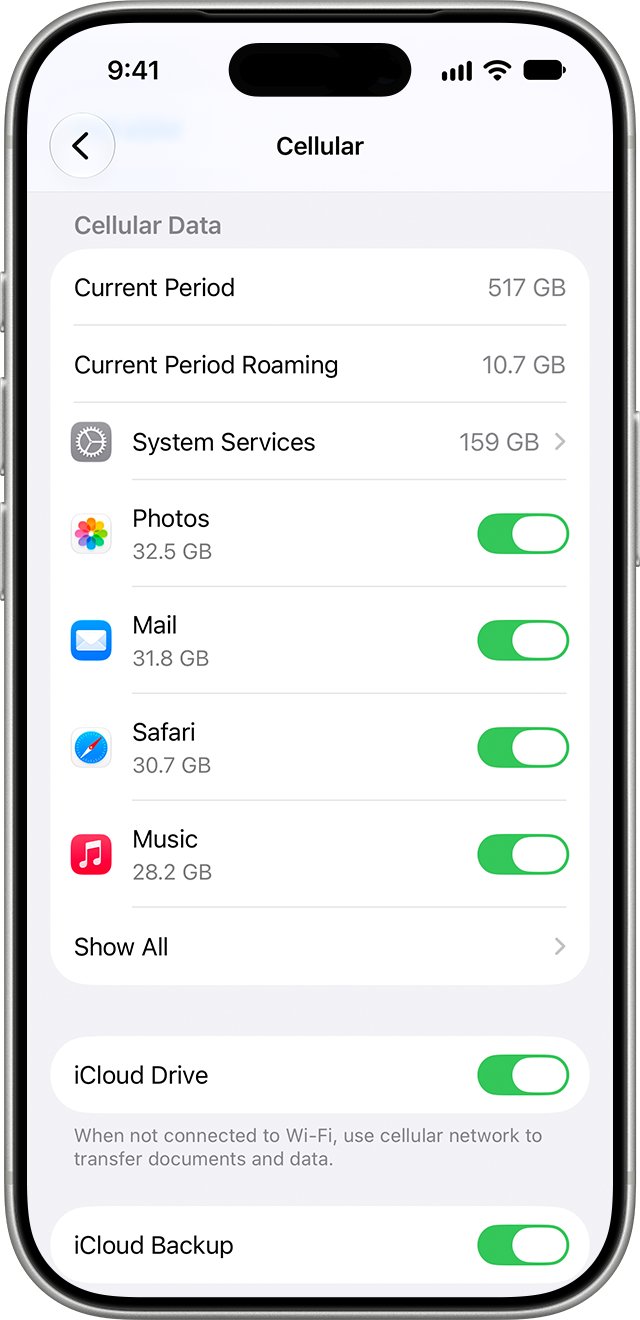
Turn on data roaming on iPhone 17 Pro when traveling
- Open the Settings app and tap Cellular.
- With a single SIM or eSIM, turn on Cellular Data, then tap Cellular Data Options.
- With Dual SIM or Dual eSIM, turn on Cellular Data, tap the number you want to change, then tap Cellular Data Options.
- Turn on Data Roaming.
- Confirm with your carrier that your plan covers data in that country.
Some countries require IMEI registration for an iPhone bought abroad. Ask your carrier if that applies where you are.
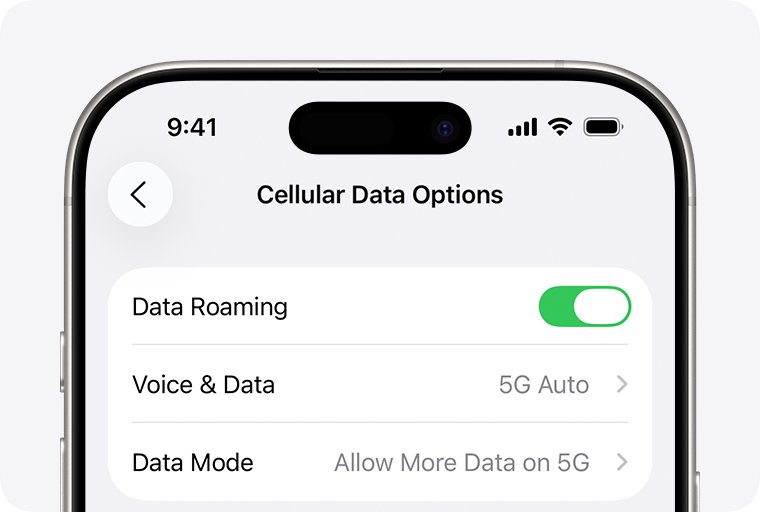
Reset network settings on iPhone 17 Pro
Use this after the earlier fixes, like a soft reset of the iPhone. It clears saved Wi-Fi networks and passwords, cellular settings, and VPN and APN settings, but not photos, apps or messages.
- Open Settings and tap General.
- Tap Transfer or Reset iPhone.
- Tap Reset.
- Tap Reset Network Settings and enter your passcode if asked.
- Wait for the iPhone to restart, then rejoin your Wi-Fi network.
- Turn Cellular Data back on if it is off and check the status bar.
Test iPhone 17 Pro cellular signal and data after the fix
- Look at the status bar: signal bars with 5G or LTE replace SOS, No Service or Searching.
- Turn off Wi-Fi and load a website in Safari over cellular.
- Make a short call to confirm voice service.
- Open Settings > Cellular and confirm the current-period usage figure rises after browsing.
- On iOS 18 or later, run the diagnostics in the latest Apple Support app if the signal still drops.
iPhone 17 Pro cellular issues that remain after these steps
iPhone 17 Pro shows No Service in an area with coverage
The carrier account, line or device status is blocking service.
- Ask your carrier to confirm the account is active and in good standing.
- Ask whether there is an outage in your area.
- Ask them to check the phone is not blocked or barred and has the right data plan.
Cellular signal works but iPhone 17 Pro is not connecting to the internet
Cellular Data is off, the app is blocked, or a VPN or filter app is in the way.
- Turn on Cellular Data in Settings > Cellular.
- Turn on the app's switch lower on the same screen.
- Turn off or delete VPN, firewall and content-blocker apps, then restart.
- Run Reset Network Settings if data still fails.
iPhone 17 Pro Max cellular not working after switching carriers
The new carrier's settings or eSIM have not been installed.
- Install the carrier settings update from Settings > General > About on Wi-Fi.
- Contact the new carrier to finish eSIM setup if no line appears under Cellular.
Cellular signal issues continue after a full reset
A hardware fault is possible once the carrier confirms the account and network are fine.
- Get written or verbal confirmation from your carrier that the account and network have no issue.
- Contact Apple Support to arrange service.
iPhone 17 Pro cellular connection FAQ
Why is my iPhone 17 Pro not connecting to cellular?
Usually the line is off, the carrier settings are out of date, the account has a problem, or you are outside coverage. Toggle Airplane Mode, restart, update carrier settings, check the line under Settings > Cellular, then call your carrier.
What does SOS mean on iPhone 17 Pro?
SOS means the phone is not connected to your own carrier but can still place emergency calls through other carriers' networks. Apple offers this in the United States, Canada and Australia. Toggle Airplane Mode and restart to reconnect.
Does Reset Network Settings delete data on iPhone 17 Pro?
No. It removes only network settings: saved Wi-Fi networks and passwords, cellular settings, and VPN and APN settings. Photos, apps and messages stay on the phone, but you need to rejoin Wi-Fi afterward.
How do I update carrier settings on iPhone 17 Pro?
Connect to Wi-Fi, open Settings > General > About, and wait a few seconds. If an update is available, an option to update your carrier settings appears. Tap it to install.
Why does iPhone 17 Pro have signal but no cellular data?
Voice service and cellular data are controlled separately. Check that Cellular Data is on, the app's cellular switch is on, Data Roaming is on when abroad, and no VPN or filter app is blocking traffic.
Can iPhone 17 Pro cellular issues be a hardware problem?
Yes, but rule out software and the carrier first. If your carrier confirms there is no issue with your account or network after you update and reset, Apple says the phone may need service.
How do I fix iPhone 17 Pro Max cellular not working abroad?
Open Settings > Cellular > Cellular Data Options and turn on Data Roaming. Confirm your plan includes data in that country, and ask the carrier whether local rules require IMEI registration for a phone bought elsewhere.
Phone or carrier: who fixes an iPhone 17 Pro cellular connection issue?
Run the phone-side fixes first: Airplane Mode, restart, carrier settings, the line switch and Reset Network Settings. If No Service remains, your carrier is the next call, then Apple. Most cellular drops clear with a reconnect or settings update, but account, eSIM and network faults are visible only to the carrier, and Apple service is the step after the carrier clears the account.