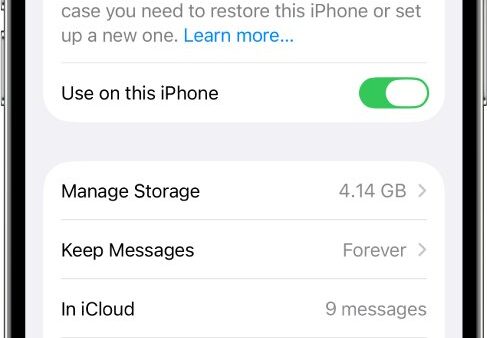
To transfer pictures from a desktop to an iPhone, connect the iPhone with a USB cable, select it in the Apple Devices app on Windows or in the Finder on a Mac, turn on photo syncing for a folder or album, and click Apply.
This guide covers cable syncing on Windows and Mac, wireless routes through iCloud Photos, iCloud.com and AirDrop, how to move photos the other way, and what to do when synced pictures do not show up.
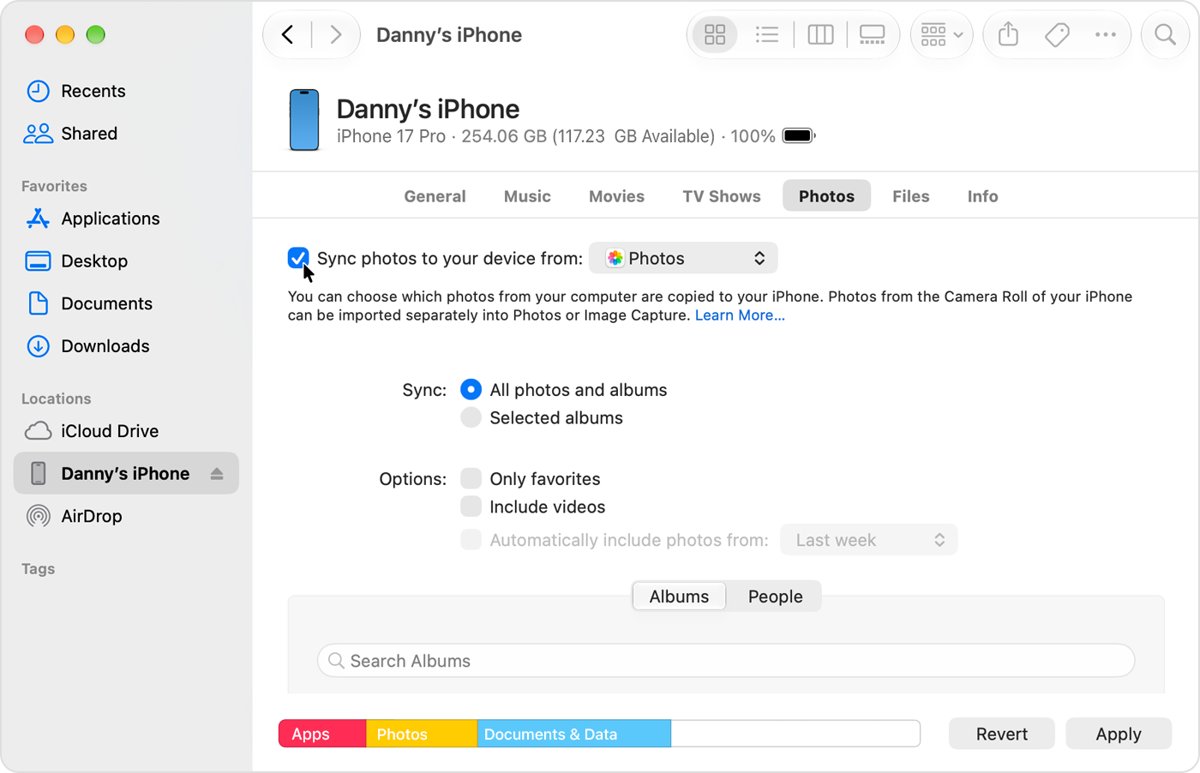
Transfer pictures from a Windows desktop to iPhone with Apple Devices
The Apple Devices app from the Microsoft Store syncs a photos library or any folder you choose. Synced pictures appear in the Photos app on the iPhone.
- Put the pictures you want on the iPhone in one folder, using subfolders to group them if you like.
- Connect the iPhone to the PC with a USB or USB-C cable, unlock it and tap Trust if asked.
- Open the Apple Devices app and select the iPhone in the sidebar.
- Select Photos in the sidebar.
- Select the Sync Photos to your device from checkbox and choose your folder from the pop-up menu.
- Choose All folders or Selected folders, and select Include videos if needed.
- Select Apply, wait for the sync to finish, then select the Eject button before unplugging.
If no syncing options appear under Photos, iCloud Photos is turned on for the iPhone. Turn it off in the iPhone's Photos settings or use the iCloud method instead.
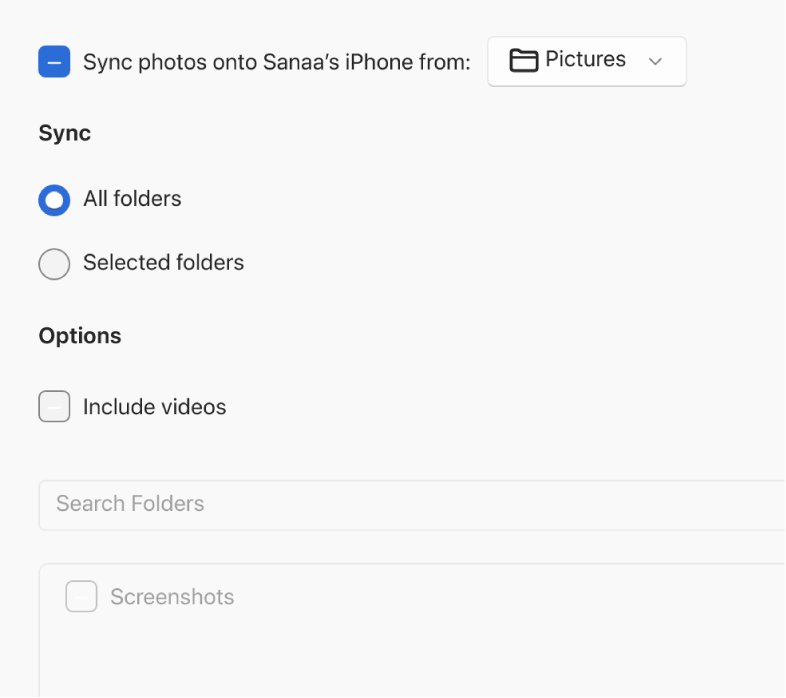
Best way to transfer desktop pictures to iPhone
| Your setup | Best method | What to know |
|---|---|---|
| Windows PC, a folder of pictures, iCloud Photos off | Apple Devices app sync | Works over USB or Wi-Fi; synced albums are replaced on each sync |
| Older Windows PC with iTunes | iTunes photo sync | Same idea as Apple Devices; uses the Photos pane in iTunes |
| Mac, iCloud Photos off | Finder sync | Syncs from the Photos app or a folder |
| Mac, a few pictures | AirDrop | Wireless, within 30 feet; best for a small selection |
| Any computer, iCloud Photos on | iCloud for Windows, Photos on Mac, or icloud.com/photos | Pictures upload to iCloud and appear on the iPhone; uses iCloud storage |
Cable syncing and iCloud Photos do not mix. When iCloud Photos is on, the iPhone keeps its library in step with iCloud, and the sync options in Apple Devices, iTunes and Finder disappear.
Sync pictures from a Mac desktop to iPhone with Finder
- Open a Finder window and connect the iPhone to the Mac with a USB cable.
- Unlock the iPhone and select it in the Finder sidebar, trusting the device if prompted.
- Click the Photos tab below the iPhone's information.
- Select the checkbox next to Sync photos to your device from, then choose Photos or a folder on your Mac.
- Choose all photos and albums or only selected albums, and decide whether to include favorites only and videos.
- Click Apply in the lower-right corner, and click Sync if syncing does not start.
Finder syncs only from the System Photo Library. Live Photos synced back from a computer lose their effect, so use iCloud Photos if that matters.
Transfer desktop pictures to iPhone with iCloud Photos on Windows
iCloud for Windows adds an iCloud Photos folder to File Explorer. Anything you drop into it uploads to iCloud and appears on every device with iCloud Photos turned on.
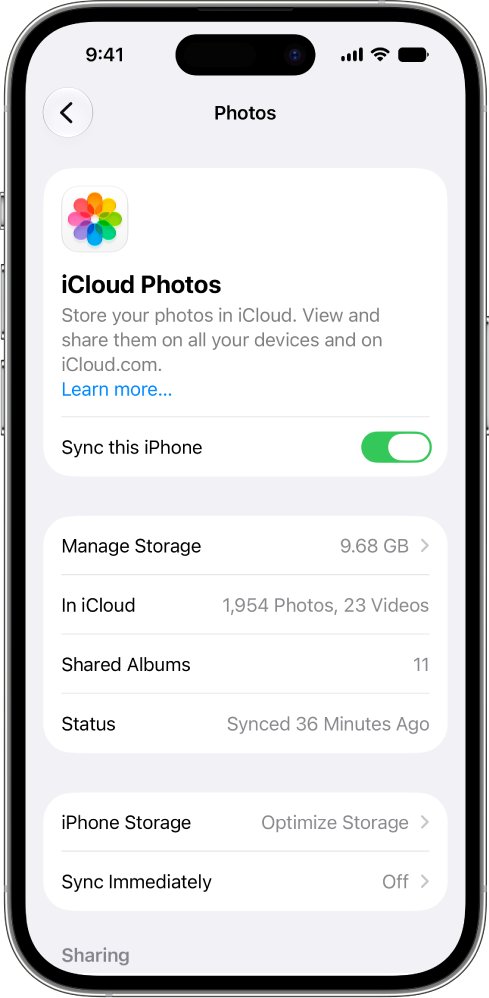
- On the iPhone, go to Settings > your name > iCloud > Photos and turn on Sync this iPhone.
- Install iCloud for Windows on the PC and sign in with the same Apple Account.
- In iCloud for Windows, click the button to the right of iCloud Photos, turn on iCloud Photos and click Done.
- Open File Explorer and select iCloud Photos in the Navigation pane, or open Pictures and double-click iCloud Photos.
- Drag the pictures into iCloud Photos, or right-click a picture, choose Share and select iCloud Photos.
- Open the Photos app on the iPhone and tap Library to find the uploads.
Photos stored in iCloud count against your iCloud storage. Check you have space before uploading a large collection.
Upload pictures to iPhone from icloud.com/photos
The iCloud website works from any desktop browser, with no software to install. It needs iCloud Photos turned on for the iPhone.
- Go to icloud.com/photos and sign in to your Apple Account.
- Select Library in the sidebar, or open an album.
- Select the upload button.
- Choose the pictures on your computer and click Upload.
- Open the Photos app on the iPhone and check Library once the upload finishes.
AirDrop pictures from Mac to iPhone
- Turn on Wi-Fi and Bluetooth on both devices and keep them within 30 feet (10 meters).
- On the Mac, turn on AirDrop from Control Center in the menu bar.
- Open a Finder window and click AirDrop in the sidebar.
- Drag the pictures onto the iPhone shown in the window.
- Tap Accept on the iPhone, unless both devices use the same Apple Account, which accepts automatically.
- Open the Photos app on the iPhone to see the pictures.
AirDrop suits a handful of files. For a whole album or folder, use Finder sync or iCloud Photos.
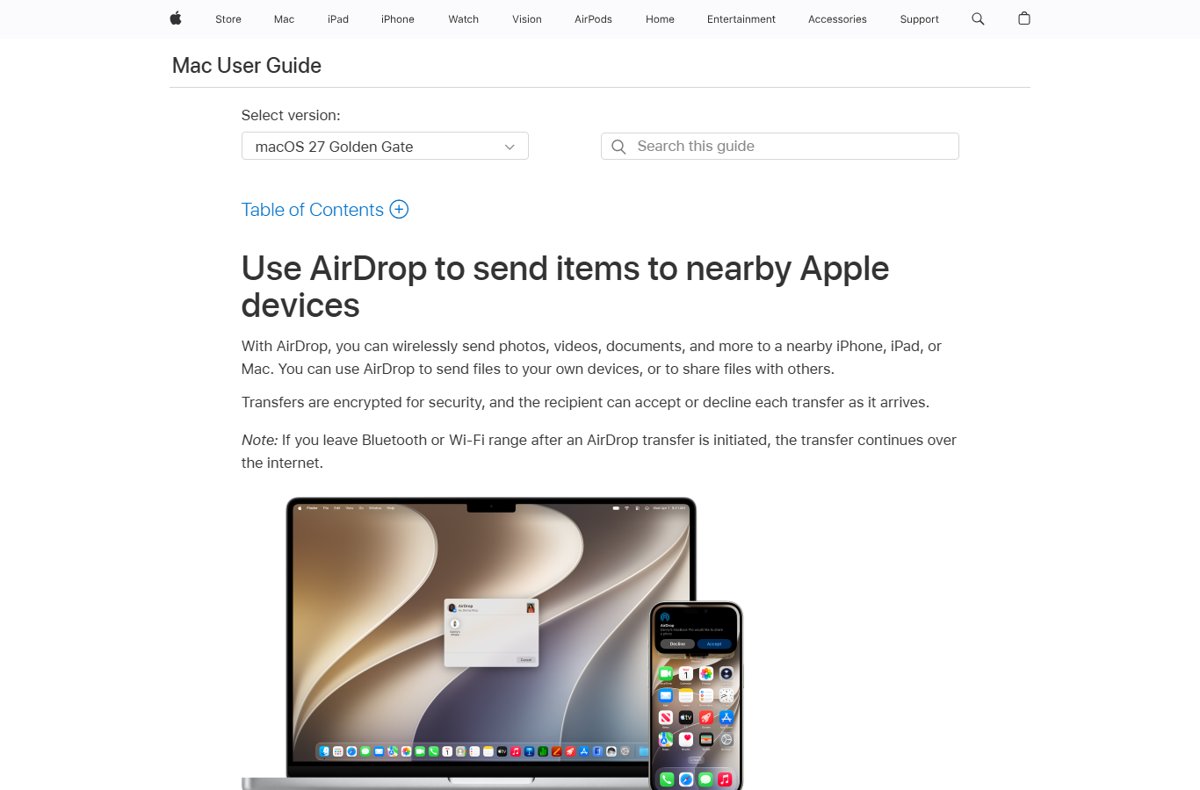
Sync pictures to iPhone with iTunes on Windows
- Connect the iPhone to the PC with a USB cable.
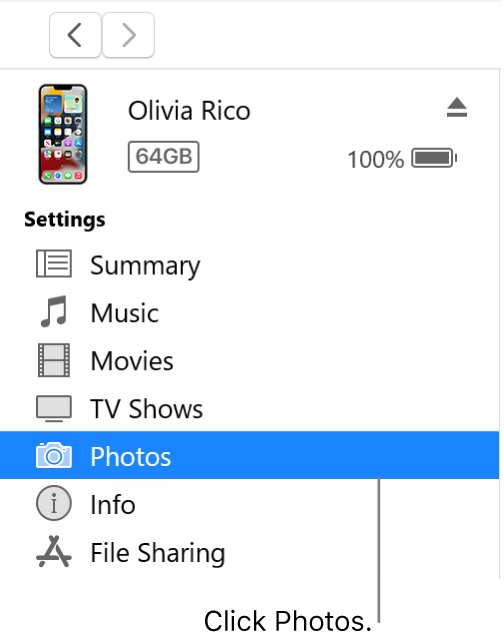
- Open iTunes and click the Device button near the top left.
- Click Photos.
- Select Sync Photos and choose an album or folder from the pop-up menu.
- Choose all folders or albums, or only selected ones.
- Click Apply, then click the eject button before disconnecting.
If Sync Photos is missing, iCloud Photos is already handling your pictures. The first sync can take a while; later syncs are faster.
How to transfer iPhone photos to a desktop PC or Mac
Moving pictures the other way uses import, not sync. Imported photos stay on the computer even if you delete them from the iPhone.
- On a PC, install the Apple Devices app from the Microsoft Store; on a Mac, open the Photos app.
- Connect the iPhone with a USB cable and unlock it.
- Tap Trust or Allow on the iPhone if asked.
- On a Mac, choose an album next to Album, select the pictures, and click Import Selected or Import All New Items.
- On a PC, import the pictures with the Microsoft Photos app.
- Wait for the import to finish before disconnecting.
With iCloud Photos turned on, download the full-resolution originals to the iPhone before importing to a PC. For better Windows compatibility, set Settings > Camera > Formats to Most Compatible so new photos save as JPEG.

Check the desktop pictures arrived on your iPhone
- Open the Photos app on the iPhone.
- For a cable sync, look under Albums for the synced folder or album names.
- For iCloud uploads, tap Library and scroll to the newest items.
- For iCloud sync status, tap Collections, then your profile in the top-right corner and read the status under your name.
- Open a picture full screen to confirm it is not a blank or low-quality placeholder.
Can't transfer pictures between desktop and iPhone: fixes
No Sync Photos option in Apple Devices, iTunes or Finder
iCloud Photos is turned on for the iPhone.
- Use iCloud for Windows, the Photos app on Mac or icloud.com/photos instead.
- Or, on the iPhone, go to Settings > your name > iCloud > Photos and turn off Sync this iPhone to use cable syncing.
iPhone does not appear in Apple Devices or Finder
The phone is locked, not trusted, or the app is out of date.
- Unlock the iPhone and tap Trust when asked.
- Try a different USB cable or port.
- Update the Apple Devices app on Windows or macOS on the Mac.
- Restart the computer and the iPhone, then reconnect.
Can't transfer pictures from iPhone to PC
Originals are stored in iCloud, or the HEIF format does not open on the PC.
- Download the full-resolution originals to the iPhone before importing.
- Set Settings > Camera > Formats to Most Compatible for future photos.
- Reconnect, unlock the iPhone and import again with the Microsoft Photos app.
Synced pictures disappeared from the iPhone
Each sync makes the iPhone match the computer, so deleted or deselected folders are removed.
- Put the pictures back in the synced folder on the computer.
- Reselect the folder or album in the Photos sync settings.
- Click Apply to sync again.
Pictures added from the computer don't upload to iCloud Photos
iCloud Photos does not upload items that were synced to the iPhone from a computer.
- Upload the originals from the computer through iCloud for Windows, the Photos app on Mac or icloud.com/photos.
- Turn off cable photo syncing once iCloud Photos holds your pictures.
Desktop to iPhone picture transfer FAQ
How do I transfer pictures from my desktop to my iPhone?
Connect the iPhone by USB, select it in the Apple Devices app on Windows or the Finder on Mac, open Photos, turn on Sync Photos for a folder or album, and click Apply. The pictures appear in the iPhone's Photos app.
Can I transfer pictures from a PC to iPhone without iTunes?
Yes. Use the Apple Devices app on Windows, or upload the pictures to iCloud Photos with iCloud for Windows or icloud.com/photos. With iCloud Photos on, they appear on the iPhone automatically.
Can I transfer pictures to iPhone wirelessly?
Yes. Use iCloud Photos from a PC or Mac, AirDrop from a Mac, or Apple Devices syncing over Wi-Fi once you set it up. AirDrop works best for a small number of pictures.
How do I transfer iPhone pictures to my desktop?
On a Mac, connect the iPhone and use Import in the Photos app. On a PC, install Apple Devices, connect and trust the iPhone, then import with the Microsoft Photos app, or turn on iCloud Photos in iCloud for Windows.
How do I transfer iPhone photos to a desktop PC?
Connect the iPhone with a USB cable, unlock it and tap Trust, then import the pictures in the Microsoft Photos app. Install the Apple Devices app first so Windows recognizes the iPhone.
Why can't I transfer pictures from my iPhone to my PC?
The iPhone may be locked or untrusted, or its originals may be stored only in iCloud. Unlock it, tap Trust, download the originals to the iPhone, and set the camera format to Most Compatible for JPEG files.
Where do synced desktop pictures go on iPhone?
Synced pictures appear in the Photos app on the iPhone, grouped as albums named after the synced folders or albums on the computer. iCloud uploads appear in Library.
How do I remove synced pictures from my iPhone?
Remove them from the computer side. Deselect the album or folder in the computer's Photos sync settings and sync again, and the iPhone removes them while the computer keeps its copies.
Which desktop to iPhone transfer method to choose
Use iCloud Photos if you already pay for iCloud storage, because uploads from any computer land on the iPhone automatically; otherwise sync a folder over USB with the Apple Devices app on Windows or the Finder on Mac, and use AirDrop for a few pictures from a Mac. iCloud Photos keeps one library across devices and blocks cable syncing, while cable syncing is free but replaces the synced albums each time you sync.