To subtract dates in Excel, type the later date in one cell, the earlier date in another, and enter a formula such as =B2-A2 to get the number of days between them.
This guide covers days, weeks, months, years, age, today's date, workdays and hours, plus the formulas that add or subtract time from a date and the fixes for #VALUE! and ##### results.
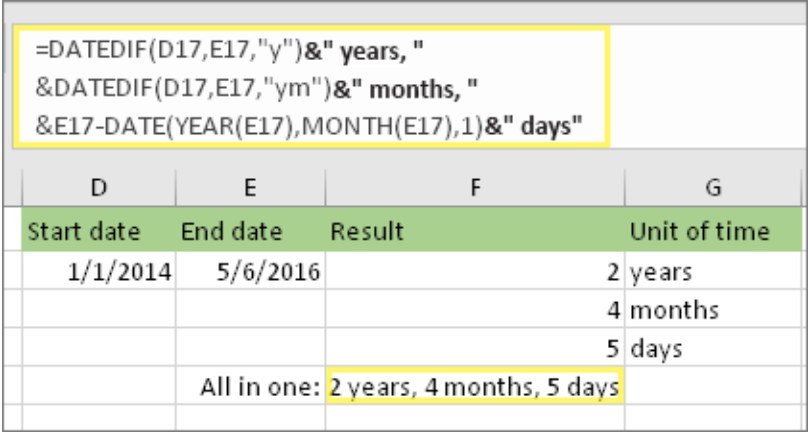
Step by step tutorial: How to subtract dates in Excel
Excel stores every date as a serial number, so subtracting one date from another returns the count of days between them. January 1, 1900 is serial number 1 in the default date system.
- Type the start date in cell A2, for example
3/1/2026. - Type the end date in cell B2, for example
3/31/2026. - Click cell C2 and type
=B2-A2. - Press Enter. Excel shows
30, the number of days between the two dates. - If the result looks like a date instead of a number, select C2, press Ctrl + 1, choose Number or General under Category, and select OK.
- Drag the fill handle at the corner of C2 down to repeat the formula for more rows.
Put the later date first in the formula. Subtracting a later date from an earlier one gives a negative number, which shows as ##### when the cell is formatted as a date.
Excel function to subtract dates
Plain subtraction answers most questions, but months, years and workdays need a function. Match the result you want to a row and copy the formula.
| Result you want | Formula (start in A2, end in B2) | Why this one |
|---|---|---|
| Days between two dates | =B2-A2 or =DAYS(B2,A2) |
Dates are serial numbers, so subtraction is exact |
| Weeks between two dates | =(B2-A2)/7 |
Divides the day count by 7 |
| Complete months | =DATEDIF(A2,B2,"m") |
Counts full months only |
| Complete years or age | =DATEDIF(A2,B2,"y") |
Counts full years only |
| Fraction of a year | =YEARFRAC(A2,B2,1) |
Returns a decimal such as 0.58 |
| Days from a date to today | =TODAY()-A2 |
Updates every time the workbook recalculates |
| Workdays, no weekends | =NETWORKDAYS(A2,B2) |
Skips Saturdays, Sundays and listed holidays |
| Hours between date-times | =(B2-A2)*24 |
One day equals 24 hours |
| A date minus some days | =A2-15 |
Returns the earlier date |
| A date minus some months | =EDATE(A2,-3) |
Handles different month lengths |
Add or subtract days to date with a formula
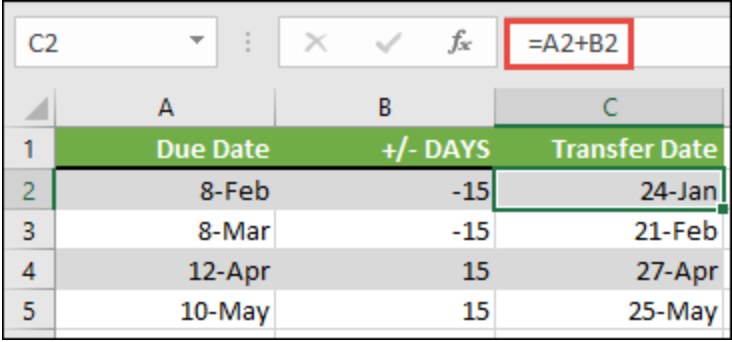
Subtracting a number from a date moves it back by that many days. Adding a negative number does the same, which helps when one column holds both positive and negative offsets.
- Enter your dates in column A, starting at A2.
- Enter the number of days to move each date in column B. Use a negative number, such as
-15, to go back in time. - Click cell C2 and type
=A2+B2. - Press Enter, then drag the fill handle down to copy the formula.
- To subtract a fixed number instead, type
=A2-15in C2 and press Enter.
If the result shows a five-digit number such as 43504, the cell is formatted as General. Press Ctrl + 1, select Date under Category, pick a format and select OK.
Add or subtract days to date without a formula
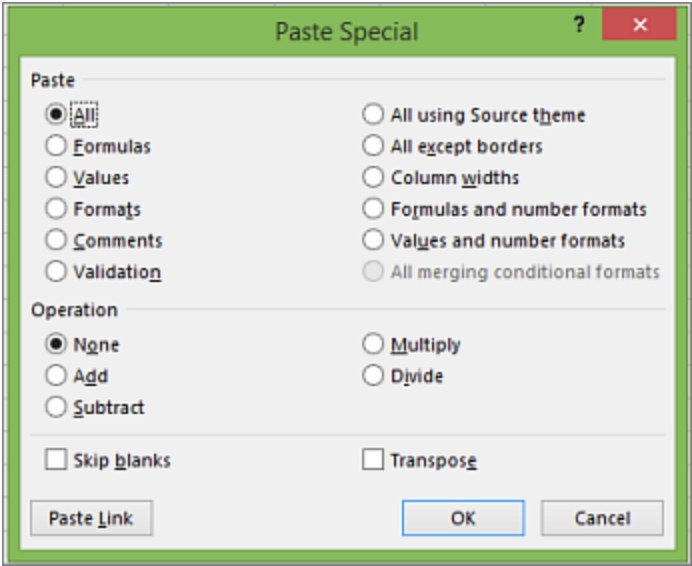
Paste Special can subtract a number from a whole block of dates in place. The original dates are overwritten, so work on a copy if you need the old values.
- Type the number of days to subtract, for example
7, in an empty cell. - Select that cell and press Ctrl + C.
- Select the cells that hold the dates you want to change.
- Press Ctrl + Alt + V to open the Paste Special box.
- Under Paste, select Values so the date formatting stays in place.
- Under Operation, select Subtract, then select OK.
- Delete the helper cell that holds the number.
Select Add under Operation instead to move the dates forward.
Add or subtract weeks to date in Microsoft Excel
A week is seven days, so multiply the week count by 7 before you subtract it. The same idea works in reverse to count the weeks between two dates.
- Put the starting date in A2 and the number of weeks in B2.
- Click C2 and type
=A2-B2*7to go back that many weeks, or=A2+B2*7to go forward. - Press Enter. The result is the date the same weekday, that many weeks earlier or later.
- To count the weeks between a start date in A2 and an end date in B2, type
=(B2-A2)/7in another cell. - Press Ctrl + 1, choose Number, set Decimal places to
2and select OK so the partial week shows.
For whole weeks only, wrap the formula in INT: =INT((B2-A2)/7).
Add or subtract months to date in Microsoft Excel
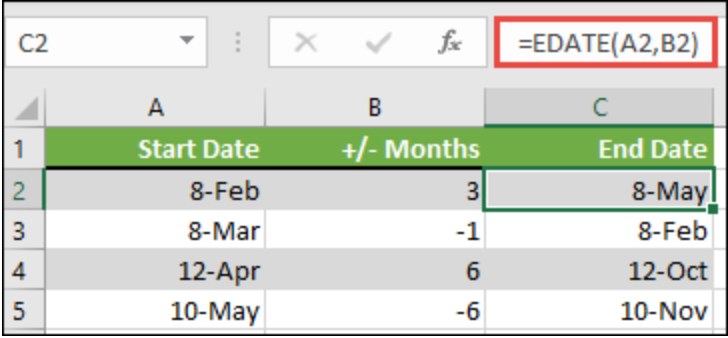
Subtracting 30 days is not the same as subtracting a month, because months differ in length. EDATE moves a date by whole calendar months and takes a negative number to go back.
- Enter the starting dates in column A.
- Enter the number of months in column B, with a minus sign to subtract, such as
-5. - Click C2 and type
=EDATE(A2,B2). - Press Enter, then copy the formula down.
- If Excel shows a serial number, press Ctrl + 1, select Date and select OK.
Microsoft's own example: =EDATE("9/15/19",-5) returns 4/15/19.
Add or subtract years to date in Microsoft Excel
The DATE function rebuilds a date from a year, month and day. Change only the year part to move a date by whole years.
- Put the starting date in A2 and the number of years in B2.
- Click C2 and type
=DATE(YEAR(A2)-B2,MONTH(A2),DAY(A2))to subtract the years. - Press Enter. A date of 2/8/2019 minus 3 years returns 2/8/2016.
- To add years instead, change the minus sign to a plus:
=DATE(YEAR(A2)+B2,MONTH(A2),DAY(A2)).
YEAR pulls the year out of A2, the subtraction changes it, and MONTH and DAY pass the original month and day back to DATE.
Add or subtract a combination of years, months, weeks, and days to date in Microsoft Excel
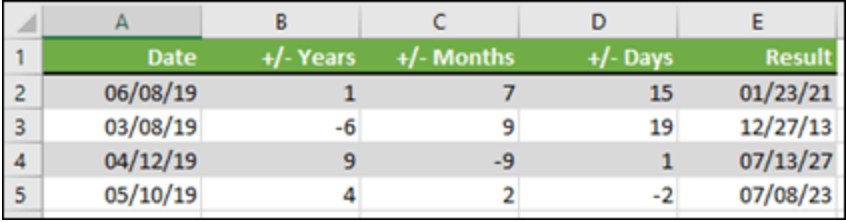
One DATE formula can shift the year, month and day parts at once. Excel rolls any overflow forward, so 6 + 7 months becomes January of the next year.
- Put the starting date in A2.
- Enter the years in B2, months in C2, weeks in D2 and days in E2. Use negative numbers to subtract.
- Click F2 and type
=DATE(YEAR(A2)+B2,MONTH(A2)+C2,DAY(A2)+D2*7+E2). - Press Enter. A start of 6/8/2019 with 1 year, 7 months and 15 days returns 1/23/2021.
- Leave a cell at
0for any unit you do not need.
How to subtract dates in Excel to get months and years
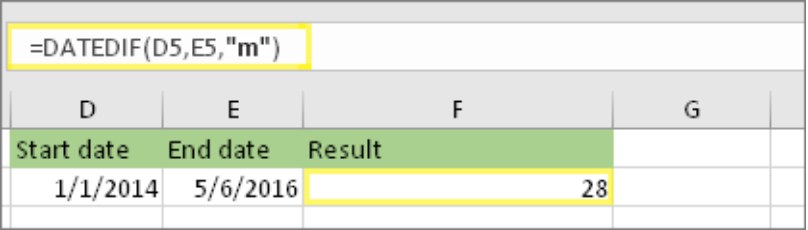
DATEDIF counts complete months or years between two dates. Microsoft keeps it to support older Lotus 1-2-3 workbooks and warns that some of its units can return wrong results.
- Put the start date in A2 and the end date in B2.
- For complete months, type
=DATEDIF(A2,B2,"m")in C2 and press Enter. - For complete years, type
=DATEDIF(A2,B2,"y")in D2 and press Enter. - For months left over after the last full year, type
=DATEDIF(A2,B2,"ym"). - For a decimal number of years, such as 0.58, type
=YEARFRAC(A2,B2,1)instead.
The start date must come first in DATEDIF. If it is later than the end date, the formula returns #NUM!.
How to subtract dates in Excel to get age
Age is the number of complete years between a birth date and today. Add the months and days parts when you need a result such as 34 years, 2 months, 9 days.
- Type the birth date in A2.
- In B2, type
=DATEDIF(A2,TODAY(),"y")and press Enter to get the age in years. - In C2, type
=DATEDIF(A2,TODAY(),"ym")to get the months past the last birthday. - In D2, type
=TODAY()-EDATE(A2,DATEDIF(A2,TODAY(),"m"))to get the days past the last full month. - To show it all in one cell, type
=B2&" years, "&C2&" months, "&D2&" days".
Avoid the DATEDIF "md" unit for the days part. Microsoft says it can return a negative number, a zero or an inaccurate result.
How to subtract dates in Excel from today
TODAY returns the current date from your computer's clock, so the result changes each day you open the workbook. Use it for countdowns, overdue days and time since an event.
- Type the past date in A2.
- Click B2 and type
=TODAY()-A2to get the days that have passed. - For a future date, type
=A2-TODAY()to get the days remaining. - Press Enter. If the result shows as a date, press Ctrl + 1 and choose General.
- If the number does not change the next day, select File > Options > Formulas and set Calculation options to Automatic.
Subtract dates in Excel to get business days
NETWORKDAYS counts whole working days between two dates and skips Saturdays and Sundays. It can also skip a list of holidays you type into the sheet.
- Put the start date in A2 and the end date in A3.
- List each holiday in its own cell, for example A4 to A6.
- Click an empty cell and type
=NETWORKDAYS(A2,A3,A4:A6). - Press Enter. Microsoft's sample of 10/1/2012 to 3/1/2013 with three holidays returns 107.
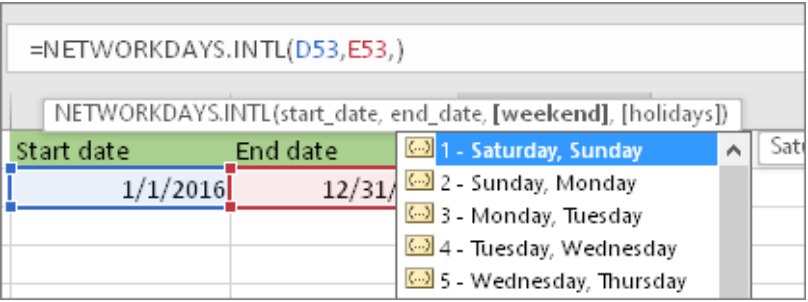
- If your weekend is not Saturday and Sunday, use
=NETWORKDAYS.INTL(A2,A3,2,A4:A6), where2sets Sunday and Monday as the weekend.
Subtracting dates and times in Excel to get hours and minutes
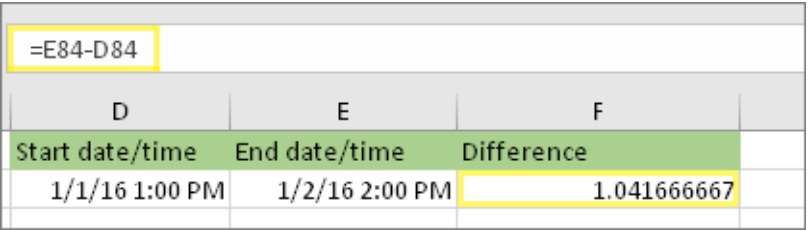
When each cell holds a date and a time, subtraction returns days with a decimal part. Multiply it, or apply a time format, to read the gap in hours or minutes.
- Type a full start date and time in A2, such as
6/9/2026 10:35 AM, with a space before AM or PM. - Type the end date and time in B2.
- Type
=B2-A2in C2 and press Enter. - Press Ctrl + 1, select Custom, type
[h]:mmin the Type box and select OK to show total hours and minutes. - For total hours as a number, use
=(B2-A2)*24. For whole hours only, use=INT((B2-A2)*24). - For total minutes, use
=(B2-A2)*1440. For seconds, use=(B2-A2)*86400.
The square brackets in [h]:mm let the hour count pass 24. The plain h:mm format resets to zero after each full day.
Subtract dates on different sheets in Excel
A formula can reference a date on another worksheet by putting the sheet name and an exclamation point before the cell address.
- Click the cell where the result should appear.
- Type
=to start the formula. - Select the tab of the sheet that holds the end date, then click the end date cell.
- Type
-, select the tab of the sheet with the start date, and click that cell. - Press Enter. The formula reads like
=Sheet2!B2-Sheet1!A2. - If a sheet name contains spaces or other non-letter characters, wrap it in single quotes, such as
='Q1 Dates'!B2-Sheet1!A2.
Tips: Subtracting dates in Excel
| Tip | Why it matters |
|---|---|
| Enter dates in a format Excel recognizes, such as 3/1/2026 | Text that only looks like a date returns #VALUE! in a formula |
| Format the result cell as Number or General | Otherwise Excel may show the day count as a date like 1/30/1900 |
| Put the later date first in plain subtraction | A negative result formatted as a date shows ##### |
| Put the earlier date first in DATEDIF | A start date after the end date returns #NUM! |
| Use EDATE for months, not 30 days | Months have 28 to 31 days |
Use [h]:mm for gaps longer than a day |
The plain h:mm format wraps at 24 hours |
| Build dates with DATE(year,month,day) inside formulas | Microsoft notes that text dates can cause errors in functions such as NETWORKDAYS |
| Use absolute references such as $A$1 for one fixed date | The reference stays put when you fill the formula down |
Once the date formulas are in place, you can lock the formula cells so nobody overwrites them by accident.
How to tell if Excel recognizes a cell as a date
Most subtraction errors come from dates stored as text. A real date is a number underneath, so it behaves like one.
- Look at the alignment. With default formatting, real dates sit on the right of the cell and text dates sit on the left.
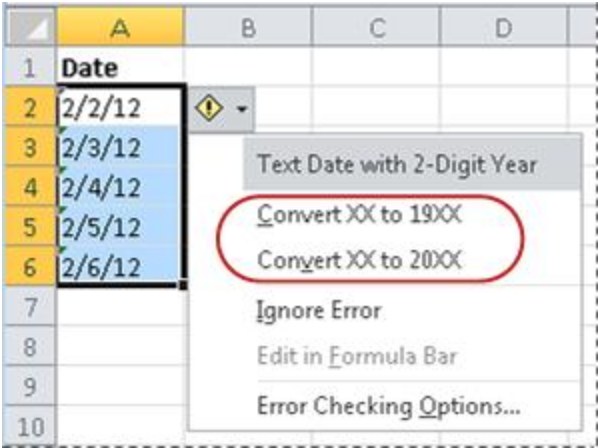
- Look for a small green triangle in the top-left corner of the cell. With error checking on, it can mark a text date that has a two-digit year.
- Select the cell, press Ctrl + 1 and choose General. A real date turns into a serial number such as 46082, while text stays the same.
- Press Ctrl + Z to put the date format back after the test.
Why can't I subtract dates in Excel
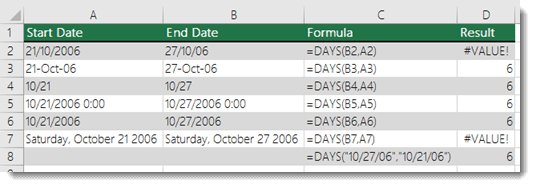
The formula returns #VALUE!
One of the dates is stored as text, or it uses a day/month order that does not match your Windows regional settings.
- Click an empty cell formatted as General and type
=DATEVALUE(A2), where A2 holds the text date. - Press Enter to get the serial number, then copy it down for the other text dates.
- Copy the results, select the original text dates, press Ctrl + Alt + V, choose Values and select OK.
- Press Ctrl + 1, select Date and pick a format.
- If dates such as 13/04/2026 still fail, check that your Windows regional date format matches the order used in the sheet.
The cell shows #####
The result is a negative date, or the column is too narrow.
- Drag the right edge of the column header to widen the column.
- If it still shows #####, swap the order of the dates so the later date comes first.
- Or press Ctrl + 1 and change the cell to Number so a negative day count can display.
The result shows a date like 1/30/1900 instead of a number
Excel copied the date format from the source cells into the result cell.
- Select the result cell.
- Press Ctrl + 1 and choose Number or General under Category.
- Select OK. The cell now shows the day count.
DATEDIF returns #NUM!
The start date is later than the end date.
- Swap the first two arguments so the earlier date comes first.
- Or wrap both in MIN and MAX:
=DATEDIF(MIN(A2,B2),MAX(A2,B2),"d").
The day count is off by a fraction or shows decimals
One or both cells hold a time as well as a date.
- Use
=INT(B2)-INT(A2)to compare the dates only and drop the time part. - Keep the decimal if you want the exact gap, and multiply it by 24 to read it in hours.
Subtracting dates in Excel FAQ
Can I subtract dates in Excel?
Yes. Excel stores dates as serial numbers, so a formula such as =B2-A2 returns the number of days between the two dates. Format the result cell as Number or General if it shows a date instead of a count.
What is the formula to subtract dates in Excel?
The basic formula is =end_date-start_date, for example =B2-A2. The DAYS function does the same job as =DAYS(B2,A2). For months or years, use =DATEDIF(A2,B2,"m") or =DATEDIF(A2,B2,"y").
How do I subtract dates in Excel to get days?
Type the later date in one cell and the earlier date in another, then enter =B2-A2. The result is the number of days. If it appears as a date, press Ctrl + 1 and change the format to General.
How do I subtract dates in Excel to get weeks?
Divide the day count by 7 with =(B2-A2)/7, then format the cell as Number with two decimal places. Use =INT((B2-A2)/7) if you only want complete weeks.
How do I subtract dates in Excel to find months?
Use =DATEDIF(A2,B2,"m"), with the earlier date first. It returns the number of complete months. Use the "ym" unit instead to get only the months left over after the last full year.
How do I subtract dates in Excel to get hours?
Subtract the two date-time cells and multiply by 24: =(B2-A2)*24. To show hours and minutes instead, use =B2-A2 and apply the custom format [h]:mm from the Format Cells box.
How do I subtract dates in Excel to get minutes?
Multiply the difference by 1,440, the number of minutes in a day: =(B2-A2)*1440. Format the result as Number so it does not display as a time.
Can I subtract times in Excel?
Yes. Subtract the start time from the end time with =B2-A2, then format the result with h:mm, or [h]:mm if the gap can pass 24 hours. Type each time with a space before AM or PM.
Can I calculate business days instead of calendar days?
Yes. =NETWORKDAYS(A2,B2) counts working days and skips Saturdays and Sundays. Add a holiday range as a third argument, such as =NETWORKDAYS(A2,B2,D2:D10), to skip holidays too.
Why is Excel showing a strange number when I subtract dates?
A five-digit number such as 46082 is a date serial number, which means the cell is formatted as General. A date like 1/30/1900 means the day count is formatted as a date. Change the format in Ctrl + 1.
If you are starting from scratch, open a new Excel workbook and type the sample dates from the first section to practise each formula.